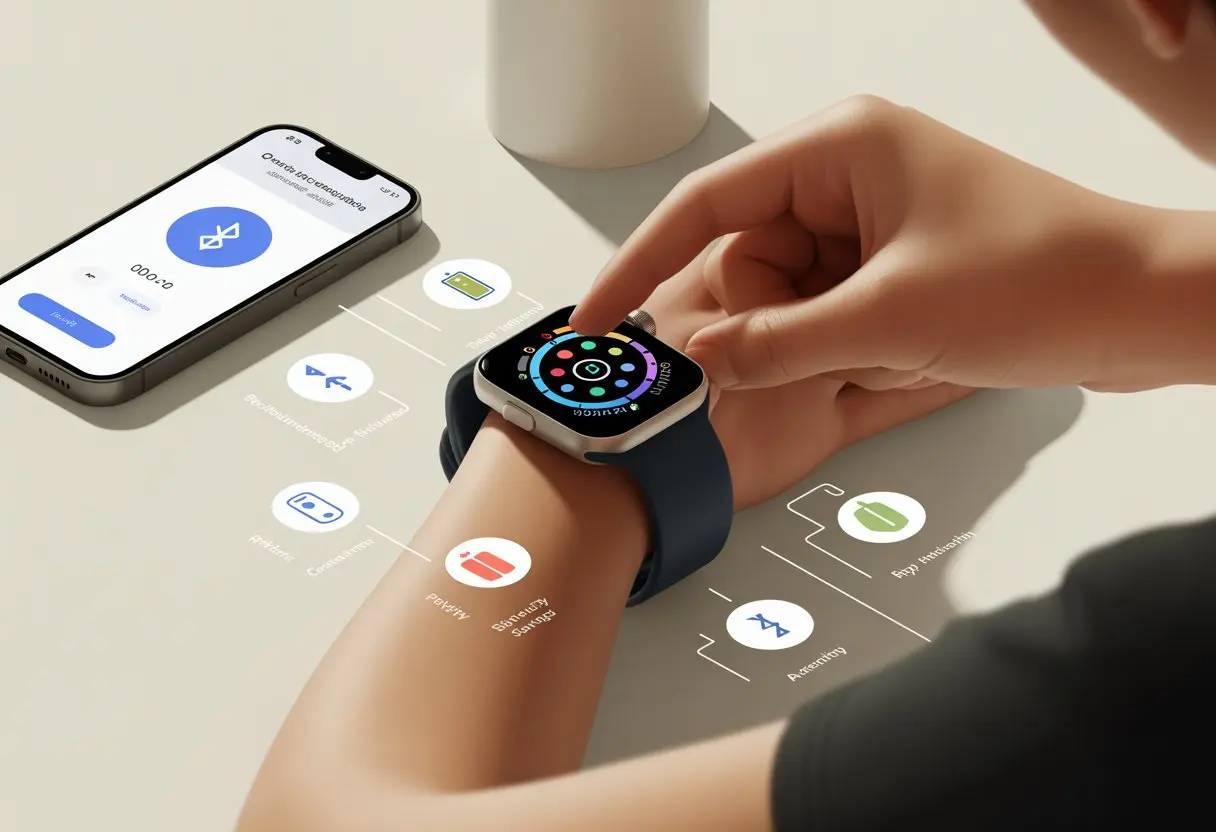
We’ve all been there—staring at a shiny new smartwatch, full of hope and promise, but not quite sure which button to push without accidentally calling Aunt Linda.
Setting up a new smartwatch isn’t as scary as it looks. Let’s go through the steps together so we’re tracking steps, not just spinning in circles searching for the power button.
No matter if we use Android, Samsung, or Apple, most smartwatches start the same way. We turn on the watch, download the right app, and follow the on-screen directions.
If things get wild, there’s usually a handy official guide just a click away.
Let’s untangle the mystery together, so our watches can do amazing things—like remind us to stand up, not just when the pizza arrives.
Choosing the Right Smartwatch
Smartwatches aren’t all the same.
Picking one can feel a bit like trying to choose the best doughnut at a bakery—they all look good, but which one’s actually right for us?
The right choice depends on brand perks and which features we can’t live without.
Comparing Popular Smartwatch Brands
Let’s start with the big names.
If we have an iPhone and want everything to work together smoothly, the Apple Watch almost feels like a loyal sidekick (and it comes with heart-rate monitoring, which is pretty cool).
Samsung’s Galaxy Watch is a strong pick for Android users who like a round face and customizable widgets.
Fitbit shines at health tracking and battery life, so it’s a favorite for those of us who care more about steps than texting from our wrists.
Fitbit is also lightweight—and honestly, some of us don’t want our wrists to feel like ankle weights.
Here’s a quick table to help us compare:
Brand
Works Best With
Best For
Battery Life
Style Options
Apple Watch
iPhone
iOS integration
1-2 days
Many bands
Galaxy Watch
Android
Customization
2-3 days
Classic/Modern
Fitbit
iOS & Android
Fitness tracking
5-7 days
Slim & Sporty
No brand nails everything, but if we focus on what matters—compatibility, battery, or fitness style—it helps narrow things down.
Before we get distracted by a flashy display, we should ask what features matter most: notifications, heart-rate info, or maybe just step counts for bragging rights at the office.
Compatibility with our smartphone is huge. An Apple Watch just won’t play nice with Android, and some features depend on which phone we use.
Battery life is another big deal.
Some smartwatches need charging almost every night (looking at you, Apple Watch), while others, like most Fitbits, keep going all week.
Let’s not forget comfort.
If we want sleep tracking, nobody wants to wake up with a square print on their forehead.
Adjustable bands, display brightness, and waterproof ratings also matter—especially if we have a messy kitchen or live where it rains a lot.
We should check which fitness features we need.
Some models focus on advanced activity tracking, built-in GPS, and even ECG readings.
Others keep things simple and cost less—great for those of us who just want to count steps, not train for a marathon.
If charging is slower than our Monday coffee break, we try a different cable and maybe mutter a little. It’s tradition.
Turning On for the First Time
Once our watch is charged up and ready to face the world, here’s the big moment: pressing the power button.
We look for the smallest, usually round button on the side.
A long press (about 3 seconds) should wake it up.
If it’s stubborn, we try again, maybe with a little more determination.
Some watches display a logo or animation as they boot up.
Others jump right to language selection.
We follow the guided prompts on the bright, tiny screen—it’s a bit like setting up a phone, just… smaller.
Here’s a quick checklist:
Choose language
Accept terms
Set region or time zone
Pair with our phone (optional—many watches ask to pair right away)
We might need to download a companion app next, but for now, our smartwatch is on, awake, and maybe already judging us for how few steps we’ve taken today.
If things don’t go as planned, holding the power button for a restart usually works wonders.
If not, the manual’s “troubleshooting” section is waiting—ideally with snacks nearby.
Pairing Your Smartwatch with Your Smartphone
Pairing a smartwatch with a phone is honestly easier than remembering your childhood email password.
Usually, we press and hold a side button, or swipe until “Pair” or “Connect” shows up.
The display might show a code or a spinning circle.
Don’t worry, this isn’t the Matrix.
We open Bluetooth settings on our phone and make sure Bluetooth is on.
We look for our watch in the device list.
The name might say “Apple Watch,” “Galaxy Watch,” “Fitbit,” or “Smart EGG 3000”—they get creative.
When our device pops up, we tap it.
Sometimes, we have to enter or match a code on both the watch and the phone.
This step keeps random neighbors from hijacking our notifications.
Once the devices bond, we usually get a quick vibration or a friendly pop-up.
For extra details, Android users can check out this guide to connecting a watch with their phone at Wear OS pairing steps.
If all else fails, we ask, “Is it plugged in?” and try turning both devices off and on again.
It’s basically tech law.
Using the Watch App
After connecting via Bluetooth, it’s time for the grand “install the app” moment.
Most smartwatches need a special app to work with our phone.
Apple Watch wants the Apple Watch app.
Galaxy Watch needs the Galaxy Wearable app.
Fitbit insists on the Fitbit app, and won’t let us forget it.
Once installed, we open the app and follow the prompts—usually, it’s as easy as “Add new device.”
The app may ask for permissions, including things like “Let us send you notifications.”
We hit yes, or our watch will be one silent and lonely rectangle.
Every app has its quirks, but they all want us to log in, pair, and sometimes set a password.
If we’re struggling to connect, the iTouch Wearables setup steps show the order: open the app first, then pair.
Connecting updates our watch, lets us change settings, and might even unlock helpful features—like finding our phone when it’s inevitably under the couch.
Configuring System Settings
Our smartwatches look tiny, but setting them up can feel like wrangling a mini robot on our wrists.
From letting the watch help with permissions, to deciding which app buzzes us awake, we need a plan.
Granting Necessary Permissions
First things first, our watch wants us to say yes… a lot.
We’ll see requests for access to contacts, calls, messages, location, and fitness tracking.
Approving the right requests unlocks features like hands-free texting or heart rate reminders.
But giving permission to everything is like letting your goldfish drive the car—probably not wise.
To avoid chaos, we check the list of requested permissions, usually under Settings > Permissions.
Here’s a cheat sheet for common ones:
Permission
What It Does
Contacts
Lets us see who’s calling or texting
Location
Needed for GPS and maps
Calendar
Syncs our reminders and events
Health & Fitness
Tracks steps, workouts, and sleep
We should only approve what we actually use.
Accidentally say yes to microphone access, and our watch will hear everything—maybe even our latest guilty-pleasure playlist.
Customizing Notifications
Let’s be honest—watches are supposed to make life easier, but if every app starts buzzing, we might just chuck ours across the room. Customizing notifications is how we keep our sanity.
We open the smartwatch app on our phone—maybe it’s the Galaxy Wearable app or the Wear OS app. There’s usually a Notification section hiding in there.
We go through and toggle off what we don’t need. Do we really want weather updates every five minutes? Doubt it. Group chats? Only if we’re gluttons for punishment.
Here’s what we do:
Go to Settings > Notifications.
Pick which apps can send alerts.
Choose vibration types or sounds.
Let’s keep it simple—calls, texts, and calendar alerts are usually enough. Our wrists will thank us.
Syncing with Health and Fitness Apps
To actually get the most out of our smartwatch, we should connect it to our favorite health and fitness apps. That way, we can track steps, see our heart rate spike during workouts, and maybe even brag a little with those graphs.
Setting Up Heart Rate Monitoring
Let’s start with heart rate—the number that jumps every time we run for the bus or see a cute dog in sunglasses. Most smartwatches have a sensor on the back for this.
We need to make sure heart rate tracking is actually on in the settings. Look for options like Continuous Heart Rate or All-Day Tracking and flip the switch. On a Fitbit, the app shows us our heart data in a tidy chart. With Apple Watch or Garmin, we check Apple Health or Garmin Connect for our stats.
To get good readings, we wear the watch snug but not too tight. If it’s sliding around, we’ll get weird results. And really, nobody needs surprises during a workout.
Connecting to Fitness Platforms
Now for the big sync. We connect our watch to fitness platforms so our data just shows up everywhere we want.
On iPhone, the Apple Health app organizes everything. We go to Settings, find Health, and turn on sharing with our watch. The data flows in—like magic, honestly. Apple has tips on managing Health data if we get stuck.
On Android, Google Fit is our main hub. We open Google Fit and turn on Health Connect syncing. Fitbit users sync by opening the Fitbit app and following the steps. Garmin folks use Garmin Connect for the same thing.
To keep stuff updated, we turn on Bluetooth, enable location services, and make sure background app refresh isn’t turned off. Sometimes, just opening the app kicks off a sync—no wizardry, just a tap or two. If syncing breaks, these fixes usually help.
Once it’s set, syncing happens in the background. We look organized without really trying.
Personalizing Your Smartwatch
After setup, it’s time to make this thing feel like it’s really ours. The way we customize it actually changes how helpful and fun it is.
Choosing Watch Faces
Picking a watch face is almost like picking an outfit—except we can swap it out in seconds, no laundry needed. Most smartwatches let us choose from tons of digital, analog, or animated faces.
Some faces show extra info—steps, battery, weather—so we don’t have to dig through menus. On a lot of watches, a long press on the home screen lets us swap or edit faces. If we’re feeling bold, some models let us download custom faces or even design our own. Fonts and colors? Go wild.
Once we pick one, we can tweak colors, styles, and widgets to fit our mood. Bored? A few taps and it’s all new again. Need help? This quick video walks through changing your smartwatch dial.
Adjusting App Layout
Now that our watch looks cool, let’s make it work smarter. Rearranging the app layout helps us find what we want fast—nobody likes fumbling through menus just to set a timer.
Most smartwatches let us drag and drop apps on the watch or in the phone app. That way, our favorite stuff—messages, alarms, maybe a sneaky game—ends up front and center.
We can assign shortcuts to buttons or set up quick-access tiles. One tap, and we’re checking the weather, starting a workout, or… accidentally setting a 3 a.m. alarm. If you use Wear OS, these tips help you streamline everything.
When we make things easy to find, we save time and maybe look a little less lost when someone asks the time.
Enabling Advanced Features
We’ve got the smartwatch on our wrist, but now it’s time for upgrades. Let’s use the features that make us feel like secret agents.
Setting Up Garmin Pay or Other Wallets
Let’s ditch the wallet. Setting up Garmin Pay (or another wallet feature) means we can buy snacks with a flick of the wrist.
First, we grab the Garmin Connect app on our phone. Open it, tap our device, and find “Garmin Pay.” We set a pin (please, not “1234”).
Then, we add a compatible bank card. Once the card’s approved, our watch is ready to pay. At checkout, hold down the action button, tap “Garmin Pay,” enter the pin, and put the watch near the reader. Done.
If our friends stare, well, we earned it. Not on Garmin? The steps are similar—open the app, find the wallet, add a card, and follow the setup.
Activating Voice Assistants
Time to go full sci-fi and talk to our watch. Most smartwatches work with voice assistants like Google Assistant or Alexa. Setting it up is almost as easy as asking, “Hey, what’s the weather?”
We go to the smartwatch’s settings or companion app and find the voice assistant section. Tap to link our assistant, sign in if it asks, and grant microphone and notification access. Just hit “Allow”—our secrets are safe.
Now we can ask the watch to send texts, set timers, check the weather, or answer random trivia. It’s hands-free and honestly, it makes boring tasks feel cooler.
Troubleshooting Common Setup Issues
Setting up a new smartwatch sounds simple, but sometimes it goes sideways. Here’s what to do when our smartwatch just won’t cooperate.
Resolving Connection Problems
Sometimes, the watch acts like it’s giving us the silent treatment. Most connection issues happen because the watch and phone aren’t syncing up right.
First, we check Bluetooth on both devices. If Bluetooth is off, the smartwatch is just a fancy bracelet.
We keep the devices within 30 feet. If they’re too far apart, pairing fails. Restarting both devices can snap them out of it.
If that doesn’t work, we remove the watch from the phone’s Bluetooth list and start the setup again. Keeping gadgets close makes pairing easier, and this troubleshooting guide has a few more ideas.
We should also check for software updates. Sometimes, the latest app or watch software fixes everything. Closing other Bluetooth apps can help too—they sometimes hog the signal and ruin the fun.
Resetting Your Smartwatch
If we’ve tried everything and our watch still refuses to connect, maybe it’s time for a fresh start—yep, a reset. Honestly, it’s not as scary as it sounds.
Most smartwatches hide the reset option in the settings menu. Look for something like Reset, Factory Reset, or another official-sounding name.
When we reset, we’ll erase all personal data and send the watch back to its original state, like it just came out of the box. Before hitting that reset button, let’s back up anything important—no one wants to lose their stuff.
Once we reset, pairing should get a lot easier. Just go through the setup steps again, and hopefully, the smartwatch will cooperate this time. If you want more details, check out T-Mobile’s smartwatch support page.
Hi, my name is Garrett Jones, and I am a tech enthusiast. I enjoy researching the new tech that has been released, and have a vast knowledge of the best tech to purchase.
From a young age, I have always had a big interest in technology, and this blog is an extension of that interest. Through this blog, I hope to provide others with all of the information they need regarding tech options to consider, and things such as compatibility. Some of the different items I will be discussing include headphones, smartwatches, and how to fix common issues.