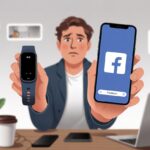
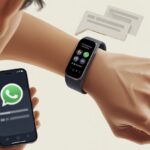
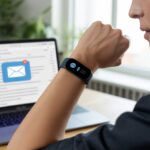
Ever stare at your wrist, waiting for a text to pop up, only to get nothing? Yeah, same here. We end up poking at our fitness tracker like it’s hiding secrets from us.
Usually, our fitness tracker stays quiet for some small reason—like syncing hiccups, Bluetooth acting up, or notifications accidentally switched off.
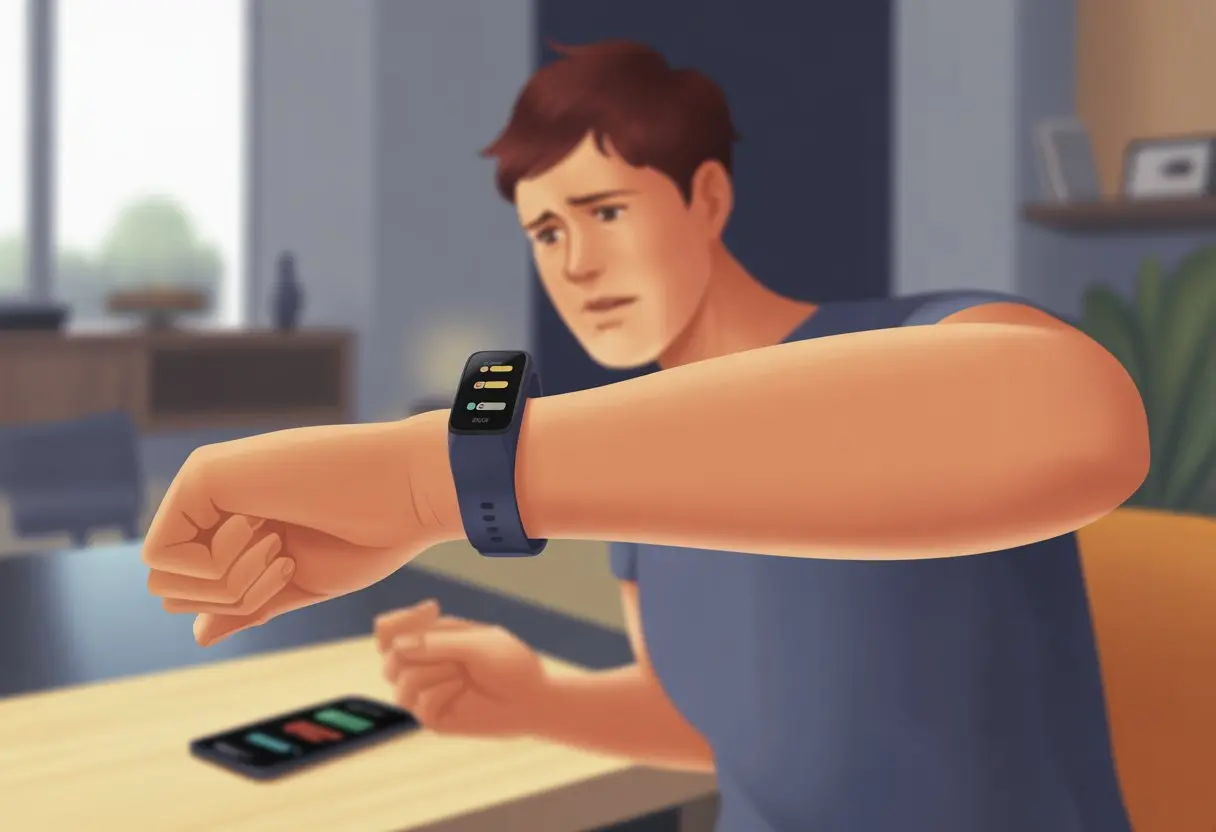
It honestly feels like our high-tech wrist pal just decided to ignore us. Sometimes, it’s a missed update, or our phone hides texts when we’re working out or have certain modes on.
Other times, something’s blocking notifications on our phone or tracker, and it just needs a quick once-over.
Let’s be real—we count on these notifications to stay in the loop, even mid-burpee. Figuring out why they suddenly stop means we can fix it fast and get back to pretending we’re working out (or, you know, actually working out).
Understanding How Fitness Trackers Handle Text Messages
We expect our wrists to keep us connected almost as much as our phones do. Sometimes, though, those tiny screens get weirdly picky about which notifications they’ll show.
How Notifications Work on Wearable Devices
Fitness trackers act like little bouncers for your notifications. They filter what comes from your phone—like new text messages, app alerts, and calls.
First, your phone gets a message or alert. Then, it tries to send it to your tracker if the connection is good.
If your phone’s in “Do Not Disturb” or “Focus Mode,” or Bluetooth is off, the tracker just shrugs and ignores the alert.
Things that block texts from showing up:
- Bluetooth connection issues
- Tracker’s “sleep” or “quiet hours” switched on
- Phone using battery saver or notification restrictions
If any of these settings are on, your tracker will just stay quiet. If you want more details, check out how notifications work on Fitbit devices.
Supported Message Types and Apps
Not every notification gets through. Fitness trackers usually support SMS texts, calls, calendar alerts, and sometimes apps like WhatsApp or Facebook Messenger.
But don’t get too excited—coverage depends on the model and the app’s settings.
Some trackers won’t show images or group messages, just the basic text. Others might ignore certain app notifications unless they’re on an internal VIP list.
Here’s a quick table:
| Notification Type | Most Trackers Support | Sometimes Missed |
|---|---|---|
| SMS Texts | ✔️ | |
| App (WhatsApp, etc) | ✔️ | Sometimes |
| MMS or group texts | ✔️ |
And of course, sometimes you have to enable notifications for each app in the tracker’s companion app—or nothing shows up.
Differences Between Brands and Models
Every brand and model has its own quirks—some are way more friendly to your text messages.
Apple Watches usually play nice with iPhones, while Fitbit devices can get stubborn if apps, Bluetooth, or permissions aren’t lined up. Samsung and Garmin do their own thing, too.
You might notice high-end models give you better message previews and support more notification types. Cheaper or fitness-only trackers sometimes just show part of a text, or tell you to “view on phone,” which is honestly kind of a tease.
Some brands let you reply from the wrist, others just scroll through what you missed in silence. Features, support, and compatibility can totally change with each model—even within the same brand.
So before you buy or try to fix things, it’s worth checking what your specific tracker actually supports.
Common Reasons Your Fitness Tracker Isn’t Showing Text Messages
Fitness trackers are supposed to keep us updated, but sometimes the notifications just disappear—kind of like our motivation on Mondays.
Before we start blaming the universe, it helps to know why text messages vanish.
Notification Permissions Gone Rogue
Permissions can sneak off without warning. Both your phone and fitness tracker need to “allow” notifications, or you’ll get nothing.
Phones have notification settings, and sometimes an update or a new app flips things around. When focus modes, do not disturb, or quiet hours are on, your tracker just doesn’t get anything.
It’s like your texts are falling into a black hole—who knows where they go?
It’s worth checking your notification settings to make sure texts are allowed. Look for hidden toggles in your tracker’s app, too.
If you’ve got a Fitbit, make sure notification permissions are turned on for both your phone and the Fitbit app. Fitbit’s guide on getting notifications on your Fitbit device is helpful if you want more info.
Bluetooth Blues: Connection Issues
Bluetooth is awesome—until it decides not to be. If your phone and tracker aren’t connected, you’ll get zero text messages.
Check if Bluetooth is on and your tracker’s still paired to your phone. Sometimes, just toggling Bluetooth off and on fixes it.
Other times, you have to reboot the device. It’s not dramatic, it’s just Bluetooth being Bluetooth.
If you leave your phone in one room and wander off with your tracker, the connection can break. Keep devices close together, especially when setting up notifications.
For some real-world stories, check out this Reddit discussion about Android Wear notification issues.
App Settings You Might’ve Forgotten About
Your fitness tracker app can be as moody as you before coffee. Bugs, app updates, or accidental changes can mess with notifications.
Sometimes, the app just needs a restart or an update. We’ve all force-closed apps, but you also need to make sure the app stays running in the background.
Some phones like to “save battery” by quietly closing your tracker app, which means no text messages get through.
Check for updates in the app store, log out and back in, and maybe even reinstall the app if nothing else works. The Fitbit forums suggest updating, restarting, and checking notification settings in the Fitbit app.
Fixing text notifications can be as tricky as finding matching socks—possible, but weirdly complicated.
Privacy Settings That Could Be Blocking Your Messages
Sometimes our fitness tracker acts like a secret agent, determined to keep our texts hidden—even from us.
Let’s see how privacy settings and app restrictions might send those notifications into witness protection.
Device-Level Privacy Guards
Our devices love to keep things private—sometimes too private. If notifications go missing, the culprit might be buried in your phone’s settings.
For example, iPhones and Androids let you decide which apps can show messages on the lock screen. If you don’t give permission, your tracker won’t see anything.
On most phones, Settings > Notifications is where you pick who gets to bug you.
Focus modes, Do Not Disturb, and app permissions can also get in the way. If any are on, notifications might be silenced or hidden until you unlock your phone or finish your yoga pose.
Garmin recommends checking these privacy settings if alerts aren’t working (see their notification troubleshooting guide).
Don’t forget Bluetooth privacy. If your tracker isn’t securely paired, it might refuse to share messages just to play it safe.
Quick tips:
- Enable notifications for your messaging apps.
- Check Focus/Do Not Disturb settings.
- Confirm Bluetooth permissions.
Messaging App Restrictions
Sometimes the messaging app itself hides notifications. If you’ve disabled alerts inside the app, your tracker has nothing to show.
In the Messages app or any third-party texting app, check notification settings. Some apps let you block previews, certain contacts, or only let VIPs through.
If you’re missing messages, maybe only your mom is allowed to reach you.
Phones have different ways to manage this. On iPhone, go to Settings > Notifications > Messages to turn on banners, sounds, and previews.
On Android, it’s usually Apps & notifications > Messages > App notifications where you can flip everything back on.
A popular Fitbit help thread points out that missing a toggle here can block texts from your tracker.
So before blaming your tracker for ghosting you, double-check those app settings. Make sure no digital gatekeepers are in the way.
Software and System Glitches
Fitness trackers sometimes skip messages, and honestly, the real problem might be a glitch inside—system or app bugs can leave us in the dark until we sort them out.
Outdated Firmware: When ‘Later’ Means ‘Never’
We’ve all hit “remind me later” on those firmware update pop-ups. Honestly, though, this can mess things up.
Outdated firmware can break how notifications sync between your phone and tracker. Sometimes, a bug fix comes out, but if you wait too long, your tracker just keeps missing texts.
Missed call alerts or disappearing messages often get fixed just by updating.
Checklist for firmware fixes:
- Check for firmware updates (don’t hit “later” this time)
- Restart the tracker after updating
- Look up your device’s settings for software version info
A quick update can make a big difference. We may not get flying cars, but at least our texts might finally show up on time.
Temporary Bugs and App Meltdowns
Even when we keep our firmware up to date, weird bugs still pop up—like uninvited guests who finish off the last of our snacks. Sometimes, apps freeze or Bluetooth drops out of nowhere, and suddenly, our notifications just vanish.
Restarting both the phone and tracker usually helps. Notification apps sometimes crash quietly in the background.
If we’re only getting one message out of ten, it’s smart to check the app’s notification settings. Bluetooth likes to act up too, so toggling it off and on can sometimes work wonders.
If nothing else works, uninstalling and reinstalling the tracker’s app can snap things back into shape and bring our text alerts out of hiding. It’s basic, but honestly, it fixes more than you’d think—we just have to remember to sign back in afterward! For more help, check out these tips on watch notification problems and smartwatch syncing issues.
Unusual Suspects: Less Common Problems
Every so often, fitness trackers throw curveballs and the usual tricks don’t cut it. We have to dig into those sneaky settings that love to mess with notifications and keep texts from showing up.
Battery Saver: More Like Notification Hater
Battery saver mode feels helpful until it quietly puts our notifications on a strict diet. When it kicks in, it often stops the tracker from checking in with the phone.
That means our texts and alerts might show up late, or not at all. Is saving a few hours of battery really worth missing important messages?
We should peek at our tracker and phone settings to see if battery saver’s calling the shots. Turning it off, even just for a bit, can revive our text pop-ups.
Some devices hide extra options, so it pays to hunt for sneaky “optimize battery” menus. If we spot any “sleep” or “app optimization” features in our phone’s settings, those deserve a look too. They can hog notification privileges like a jealous sibling.
Do Not Disturb: The Ninja of Missed Messages
Do Not Disturb mode is the silent ninja that blocks notifications without warning. When it’s on, our tracker and phone team up to keep out texts, alerts, alarms, and pretty much everything else.
It’s easy to forget we turned it on, especially since devices love to schedule it for bedtime or meetings. Suddenly, our phone and tracker go silent.
To catch this sneaky setting, look for a little moon icon or something odd in the status bar. If it’s active, our texts are probably disappearing into the void.
Turning off Do Not Disturb can be as quick as tapping the icon or using the quick settings. Some smartwatches have their own Do Not Disturb settings, so it’s worth double-checking both gadgets. Let’s not miss those urgent messages—or emojis—anymore!
Getting Messages Back: Solutions and Best Practices
When our fitness tracker stops showing notifications, it’s usually because of a handful of common issues. We can focus on settings, give everything a reboot, and tighten up our syncing habits to bring those texts back.
Reviewing Notification Settings for the Win
First things first, let’s dive into those notification settings like we’re defusing a bomb—except the stakes are just missed group chats. We need to make sure our tracker’s set up to actually show phone notifications.
Sometimes, flipping a single toggle does the trick.
Settings checklist:
- Bluetooth: Check that it’s on and connected.
- App notifications: Make sure the fitness app can show texts.
- Do Not Disturb or Focus: Turn these off on both the tracker and phone, or things will stay quiet.
- Unread texts: Some trackers only show notifications for new, unread messages.
If our tracker still isn’t showing new texts, we’ll need to try something else. Most of the time, fixing notification settings solves it.
Rebooting Everything (Even Your Patience)
Now comes the classic move: turn things off, then back on again. It’s old school, but it works more often than not.
Let’s restart our phone and fitness tracker—sometimes they just need a fresh start.
Steps for a crisp reboot:
- Restart tracker: Use the manufacturer’s instructions (usually holding a button or two).
- Restart phone: Hit that power button.
- Force quit the fitness app: Open the app switcher and swipe it away.
- Log out and back in: Sometimes, it’s the nudge our data needs.
If we’re still stuck, let’s take a breath. For those truly stubborn days, we might need to re-pair the tracker, like this Apple community tip suggests.
Syncing Like It’s Your Superpower
Alright, let’s talk syncing—because honestly, if our tracker could talk, it’d probably beg for it. These little devices act a lot like moody cats: ignore them for a while, and suddenly, no notifications or messages. No warning, just silence.
So, how do we keep those notifications coming?
- Pop open the tracker’s app and tap the sync button. Don’t overthink it.
- Keep the tracker right next to your phone. Bluetooth isn’t exactly known for its long-distance relationships.
- If something still feels off, go ahead and update the app. Sometimes that’s all it takes.
- When syncing refuses to cooperate, flip Bluetooth off and back on. Weirdly, that trick works more often than I’d like to admit.
Honestly, syncing fixes things faster than almost anything else. If nothing helps, you might have to uninstall and reinstall the app. And if you’re feeling brave, a factory reset could bring those notifications back to life.

From a young age, I have always had a big interest in technology, and this blog is an extension of that interest. Through this blog, I hope to provide others with all of the information they need regarding tech options to consider, and things such as compatibility. Some of the different items I will be discussing include headphones, smartwatches, and how to fix common issues.
- How to Improve WHOOP Recovery Scores Without Giving Up Pizza or Netflix - April 7, 2026
- Why is my fitness tracker not unlocking my computer? Tech tantrums and wearable woes explained - April 7, 2026
- Best Fitness Trackers for Stress Relief: Because Your Anxiety Deserves a Step Counter Too - April 6, 2026
Related Posts: