Let’s be real—most of us dream of superhero moments, but our balance sometimes has other plans. Thankfully, our fitness trackers are there for us (and, okay, sometimes for our wrists). With a fitness tracker, we can get fast alerts and even notify emergency contacts if we take a surprise tumble. Now, we can trip over the dog’s squeaky toy and feel a little less ridiculous about it.
Honestly, setting up fall detection isn’t much harder than programming the TV remote—and definitely less rage-inducing. Most fitness watches use sensors to catch sudden movements or sharp impacts, and when something wild enough happens, they leap into action.
With just a few settings, we’re ready for whatever gravity has planned. If we’re tired of hearing “be careful” from everyone, maybe it’s time to let tech do some of the worrying.
Let’s get our fall-detecting sidekick up and running—no cape needed.
Understanding How Fitness Trackers Detect Falls
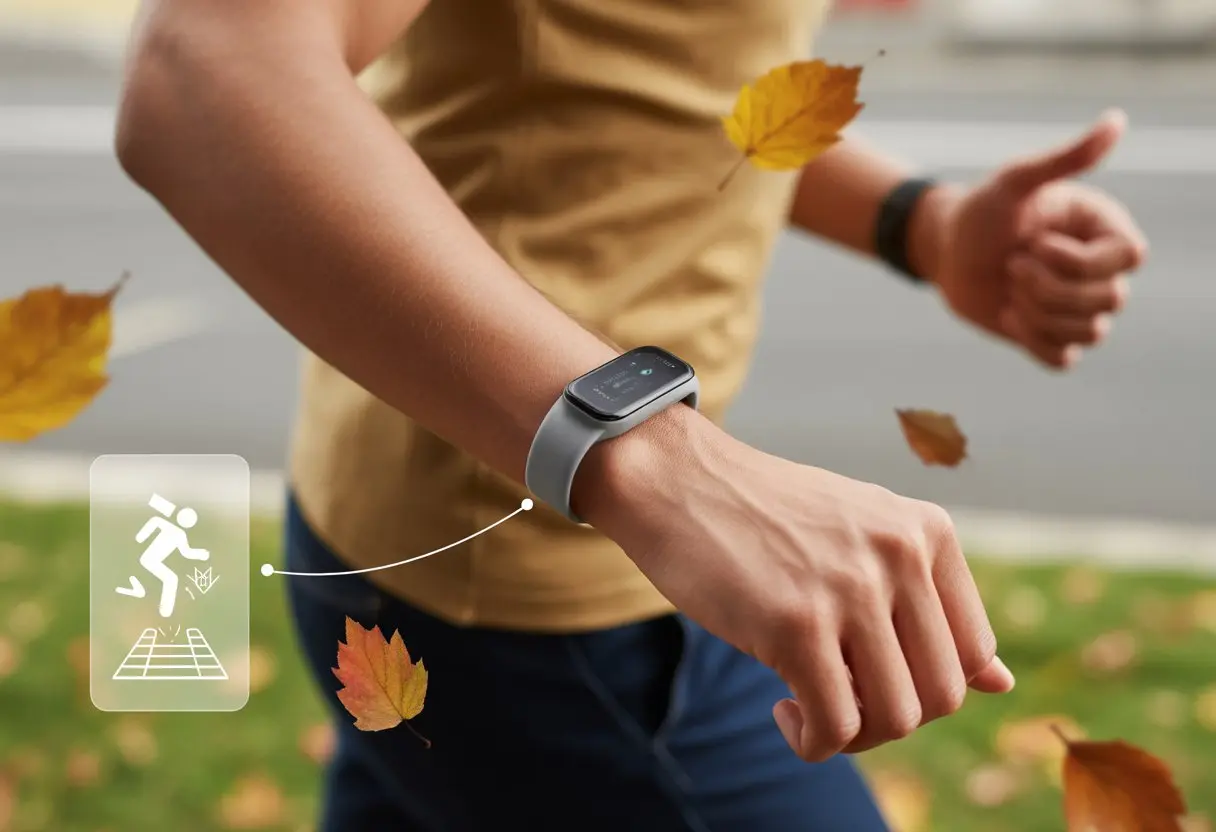
When we put on a fitness tracker, we usually focus on step counts or runs—not on it saving our butts when we wipe out. But these days, trackers moonlight as mini superheroes, using smart tech to spot hard falls and even call for help if we can’t.
How Fall Detection Technology Works
Fall detection isn’t magic, but sometimes it feels that way. When we take a spill, our movement pattern goes haywire. Fitness trackers use clever algorithms to watch for sudden changes in speed and direction—classic fall signs.
If these changes hit a certain “uh-oh” level, the tracker gets suspicious and flips on fall detection. Some watches vibrate and flash an alert, checking if we’re okay before contacting anyone.
It’s not just one sensor doing all the work—these gadgets usually pack a team. The main player is the accelerometer, but gyroscopes often help out. If the tracker has GPS or a barometer, that’s even better for accuracy.
Here’s a quick look:
Sensor Type
What It Detects
Why It Matters
Accelerometer
Movement, acceleration
Spots sudden shifts
Gyroscope
Orientation, rotation
Tells falls from normal moves
Barometer
Altitude changes
Helps catch falls down stairs
GPS
Location
Lets others know where we are
Most devices use at least two of these sensors. The more, the better—safer too, when gravity acts up.
Role of Accelerometers and GPS
Accelerometers act like tiny digital detectives on our wrist. They watch speed and direction all day.
If we trip, the accelerometer catches a spike in acceleration and a quick stop—that’s what a fall looks like to the device. GPS doesn’t react as quickly, but it helps pinpoint where we are if something happens.
If we fall while jogging or hiking, GPS records the location and can send it to our emergency contacts. Sometimes, it even helps emergency services find us, especially if we’re off the usual path.
Together, these sensors form our personal safety squad—one tracking what happened, the other finding us if we need help.
Setting Up Fall Detection on Your Fitness Tracker
Setting up fall detection on our fitness trackers gives everyone a little more peace of mind—especially if we’re the clumsy type. We’ll need to flip a few settings, add emergency contacts, and connect our favorite health or emergency apps.
Nothing ruins a workout like falling and not being able to call for help!
Activating Fall Detection Features
First, we need to find the fall detection feature on our tracker. If we have an Apple Watch, open Settings, tap SOS, then look for Fall Detection and switch it on.
Want it working all the time? Pick “Always On,” unless we only want it during workouts (maybe our floors are only slippery on Tuesdays?). More info is in the Apple Watch official guide.
On other trackers like Fitbit or Samsung, we might need their app and a firmware update, so keep Bluetooth on. Some watches only offer fall detection for users over 18. If we don’t see the option, check if our model supports it.
Configuring Emergency Contacts
Now, let’s pick who gets our SOS text if we take a spill. Whether we use Apple Watch, Fitbit, or Garmin, there’s usually a spot in the app or device to add emergency contacts.
On Apple Watch, we fill this out in our Medical ID in the Health app. It’s smart to pick at least one responsible adult (sorry Aunt Linda, pranksters need not apply).
When fall detection triggers, the device tries to call or text our chosen contacts or emergency services. Sometimes it sends an automated text with our location—pretty handy, and way less awkward than explaining to Mom why we’re calling from the pavement…again.
Linking with Health and Emergency Apps
The last step is connecting our tracker to helpful apps. For Apple Watch, we use the Health app to store our age and medical info (don’t fudge the numbers—it actually matters).
Some watches link straight to emergency services or send info to local responders. If we’re using Garmin Connect or another brand’s platform, setup usually lives under “Safety” or “Emergency Assistance.”
We need to enable location sharing, since hiding our whereabouts defeats the purpose. Connect to any extra emergency apps our region supports, so the device can actually call for help, not just freak out quietly.
Testing and Calibrating Your Device
Before we trust our smartwatches with our clumsy moments, it’s smart to make sure they actually work. We need a careful test run and maybe some fine-tuning to avoid false alarms (nobody wants the fire department showing up because we dropped a sock).
Performing a Safe Test Run
Let’s not actually fall on purpose—gravity’s not our friend. Most trackers pick up falls with motion sensors, so we can simulate a fall with controlled moves.
Here’s a simple way:
Sit on a soft surface, like a bed.
Swing an arm with the device as if we tripped, then drop gently onto the bed.
Wait for the watch to buzz or ask if we’re okay.
If the device stays quiet, maybe it wants more drama. But seriously, don’t risk injury. If our tracker is on a belt or wrist, keep it snug so the tech works better.
Some devices like the Apple Watch or Samsung smartwatches have their own fall detection apps—check their settings for special test options.
Adjusting Sensitivity for Accurate Detection
Some of us fall softly, others go full slapstick. Luckily, many devices let us tweak sensitivity.
Here’s how:
Open device settings and look for fall detection or motion sensitivity.
Some call it “Hard fall detection” or just “Sensitivity”—poke around.
If it’s too sensitive, a couch flop might trigger it. Not sensitive enough, and it snoozes through a real fall.
We want that sweet spot, where our tracker knows the difference between a real spill and our questionable dance moves. If we get lost, there’s usually a guide online or a tutorial in the app.
Once we’ve dialed it in, we can strut (or stumble) with confidence, knowing our tech sidekick is on duty.
Using Fall Detection in Outdoor Activities
When we use fitness trackers for fall detection outside, safety gets a high-tech upgrade. It matters to know how the device works in the wild and what extra steps we need to stay safe.
Staying Safe During Outdoor Adventures
Let’s be honest—nobody goes hiking or jogging hoping to test how hard they can hit the ground. But, accidents happen.
A fitness tracker with fall detection means a slip isn’t the end of the world, or the adventure. Before heading out, double-check that our tracker is set up, emergency contacts are entered, and features like hard fall detection are on.
Some devices, like the Apple Watch or certain Samsung models, let us choose when to enable detection—always or just during workouts.
If we’re planning to stumble over bumpy trails, make sure the device is fully charged. Even the fanciest gadget can’t help if it’s dead.
Wear it snug, too, so it doesn’t mistake waving at squirrels for a fall.
Importance of GPS and Network Coverage
We all want our adventures tracked, especially when things go sideways. Fitness trackers use GPS to give contacts or services our location—but only if it’s on and working.
Network coverage is the real unsung hero. A fall alert only helps if the device can actually connect. If we’re out where the signal’s weak, our tracker might not call emergency services, as with some Garmin devices, which notify contacts but not 911.
Before heading out, check a coverage map if possible, and use trackers that send alerts without a phone if we can. If all else fails, yelling for help still works—it’s just not as cool.
How Your Fitness Tracker Sends Alerts During a Fall
When one of us takes a spill, our fitness tracker jumps into action—like a tiny superhero on our wrist. It can send text messages to emergency contacts and share our GPS location, so help can find us even if we’re stuck somewhere awkward.
Role of Automated Text Messages
When our fitness tracker decides we’ve hit the ground faster than physics should allow, it usually jumps into action by sending an automated text message.
The tracker reaches out to the folks we’ve picked as emergency contacts—hopefully people who actually answer texts and don’t freak out over every little mishap.
These messages let them know a fall happened and we might need help.
Some fitness trackers, like the Apple Watch, give us a moment to cancel the alert if we’re just napping on the floor. If we don’t respond, the message goes out after a minute or two.
Usually, our phone needs a working data plan or Wi-Fi for these alerts to go through.
If things seem serious, some trackers even try to call our contacts or emergency services. Using our iPhone or Android, the device keeps dialing for help, because it’s nothing if not persistent.
Sharing GPS Location with Emergency Services
Most modern fitness trackers love to flex their GPS location skills during a crisis. When a fall alert gets sent, these devices can share our location with emergency contacts or even straight to emergency services.
That makes it way easier for rescuers to find us, even if our usual directions are just, “I’m by the big tree.”
The tracker grabs our coordinates using the phone’s GPS or its own built-in chip. We have to keep location services on, and sometimes share access with the fitness app.
If we’ve connected the watch with emergency services, like on an iPhone, responders can see exactly where our less-than-graceful moment happened. Help might show up before the neighbors even notice us in our pajamas.
Text messages after a fall can include a map link, so everyone knows where to find us. Just hope our contacts can handle both the pings and our questionable taste in emergency nicknames.
Comparing Fall Detection Features Across Top Brands
Fall detection isn’t just about saving us from embarrassment. Smartwatches from Apple, Fitbit, Garmin, and Samsung all try to keep us upright—and come to the rescue when we’re not.
Apple Watch Fall Detection
Let’s be real: the Apple Watch fall detection feature gets more buzz than a blockbuster movie. Series 7 and newer models keep an eye on our every stumble.
When the watch senses a hard fall, it taps our wrist, blasts an alarm that’s honestly louder than we’d like, and asks if we’re okay.
We can respond, or just ignore it, but if we’re too dazed (or lost in thought), the watch calls our emergency contact after about a minute.
Fall detection works during regular use, and it turns on automatically if our age in the Health app says we’re over 55. If we’re younger, we can turn it on ourselves.
Fitbit tries to join the safety game but honestly shows up a bit late. Right now, popular Fitbit models like the Sense and Versa don’t have automatic fall detection like Apple does.
Instead, Fitbit offers Emergency SOS and location sharing through their app on certain devices, which can help if we’re in trouble—but we have to take action ourselves.
We’re the ones who hit the button if we take a spill, which isn’t great if we’re seeing cartoon birds circling our heads.
The best fall detection tech just isn’t there yet on Fitbit, so we either wait or add a medical alert device if this is a must-have.
Garmin and Samsung Smartwatches
Garmin and Samsung want to keep us in one piece too, but they go about it their own way. Garmin’s “Incident Detection” uses motion and GPS data to guess if we’ve fallen—usually while we’re jogging, biking, or pretending to jog for the neighbors.
The Garmin Connect app then sends our location and a distress message to our emergency contacts—if we remembered to set it up.
Samsung watches, like the Galaxy Watch series, have fall detection that works a lot like Apple’s. When the watch senses a hard fall, it gives us a chance to respond or it reaches out to our emergency contacts through text.
Fun fact: Samsung’s sensitivity can be adjusted for different activities, so it won’t alert everyone just because we tripped over the dog.
Both Garmin and Samsung make a solid effort, but in most tests, Apple Watch usually wins for accuracy and smoothness.
Troubleshooting and Getting Expert Help
Even the best fitness trackers can throw a fit sometimes. Let’s look at some go-to solutions and what to do when our troubleshooting skills just aren’t enough.
Common Issues and Quick Fixes
Sometimes, our tracker thinks we’re taking a dramatic fall when we’re just bouncing on the couch. Or worse, it misses a real tumble.
False alarms and missed detections happen more often than we’d like.
Let’s keep things simple:
Software Updates: Make sure our device and app are up to date. A fresh update can fix a lot.
Bluetooth Pairing: If the tracker won’t sync, try un-pairing and then re-pairing with our phone. Sometimes just forgetting and re-adding the device works.
Motion Settings: Double-check fall detection settings in the safety or SOS menu. Each brand hides it somewhere different, so poke around.
Battery Charge: If the battery’s low, plug it in. Fall detection can’t work if the tracker is half asleep.
Physical Obstructions: Wearing the tracker too loose or upside down? Not a great look. Make sure it’s snug on the wrist.
If things still aren’t right, don’t smash it—yet.
When to Contact Tech Support or Verified Experts
When our tracker acts more stubborn than a cat at bath time, it’s probably time to call in the pros.
We can reach tech support through online chat, phone, or email—whatever feels least annoying.
If it’s an emergency question or our device flat-out refuses to cooperate, verified experts can help. Services like JustAnswer connect us with tech specialists who know their stuff and have actually been vetted—so it’s not just some random guy in his basement.
Sometimes, sending photos or videos helps explain what’s wrong. Don’t be shy. Tech support doesn’t care about our selfie skills.
If the tracker’s under warranty, let the experts handle it. The less time we spend fiddling, the more time we can spend not falling.
Beyond Fall Detection: Other Safety and Health Features
Let’s be honest, if our tracker only spotted falls, it’d just be a clumsy alarm. Luckily, these little gadgets do a lot more.
From counting our (sometimes unimpressive) steps to tracking the temperature of our “climate zone,” these things have turned into mini health assistants.
Activity Tracking and Health Monitoring
Fitness trackers are the overachievers of the gadget world. They bug us to stand up every hour, but some also keep tabs on heart rate, sleep, and even oxygen levels.
Most sync with our favorite health app, where we can admire colorful graphs that make us look like athletes—even if we’re just scrolling.
Features like step counting, calorie tracking, and exercise logs help us set goals (and sometimes break them by accident).
Some devices also watch for heart irregularities and send alerts if our pulse gets weird. Sleep analysis is another perk, letting us know if we need fewer late-night snacks and more pillow time.
With reminders to move, trackers politely nudge us to get up and do a lap around the living room. So, our wrist becomes a mix of coach, cheerleader, and sometimes a slightly rude gym teacher.
The Role of Temperature Sensors
Temperature sensors—yeah, those tiny gadgets tucked into our smartwatches—don’t get much credit. They quietly track your skin or the air around you, and some even keep tabs on changes as days go by.
But why should we care? If your temperature jumps out of nowhere, maybe you’re coming down with something, pushing yourself too hard, or, honestly, just clutching your coffee a bit too long. Some health apps actually use this info to highlight patterns in your sleep or daily habits. That data might nudge you to check in with your doctor or, at the very least, grab another glass of water.
Now, when you start sweating on a crowded bus, you’ve got the numbers to back up your complaints. More importantly, spotting shifts in your usual temperature lets you keep an eye on your health, catch fevers early, and learn how your body handles everyday stuff.
Hi, my name is Garrett Jones, and I am a tech enthusiast. I enjoy researching the new tech that has been released, and have a vast knowledge of the best tech to purchase.
From a young age, I have always had a big interest in technology, and this blog is an extension of that interest. Through this blog, I hope to provide others with all of the information they need regarding tech options to consider, and things such as compatibility. Some of the different items I will be discussing include headphones, smartwatches, and how to fix common issues.