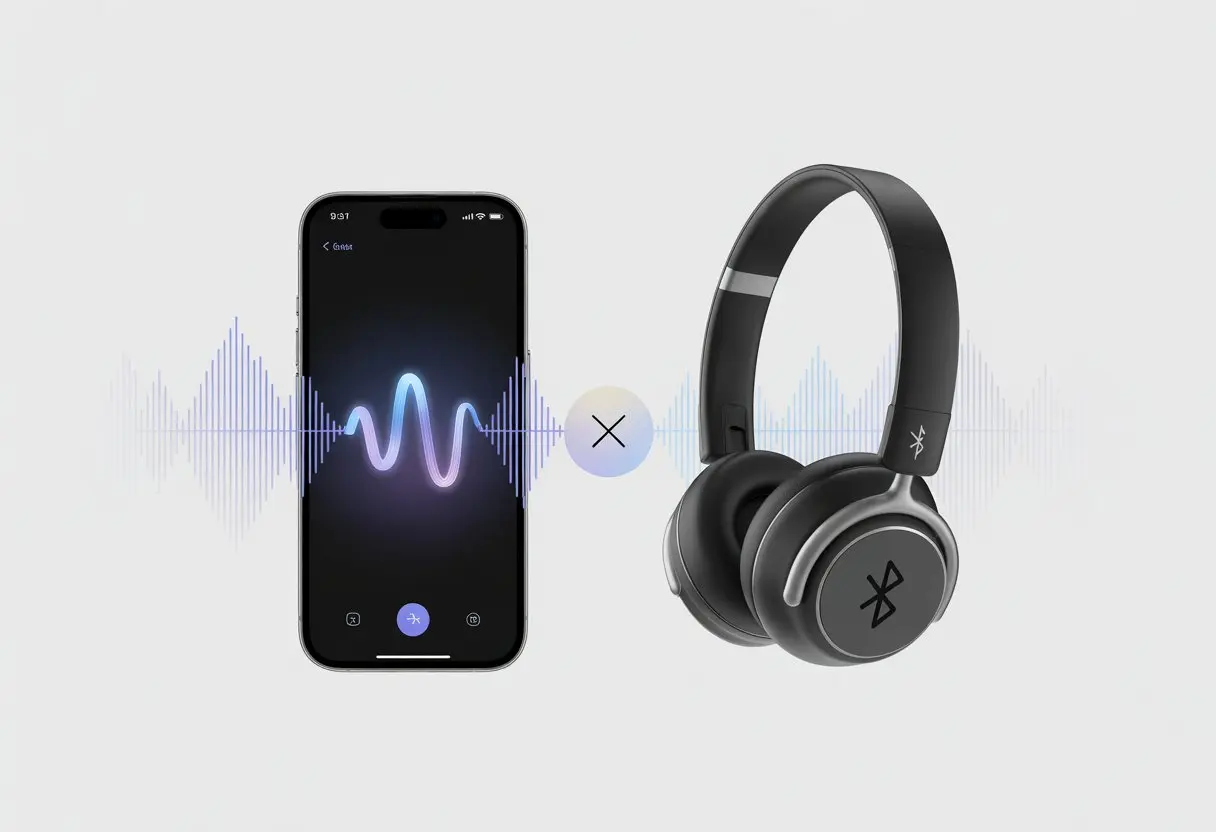
Ever tried saying “Hey Siri” with your Bluetooth headphones on, only to get nothing but silence? Most Bluetooth headphones just don’t support hands-free Siri, or maybe our phones aren’t set up for it. Honestly, it feels like Siri’s giving us the cold shoulder, but it’s just a tech thing.
It’s easy to assume any pair with a mic should work. But really, compatibility depends on the headphone’s design and how Bluetooth connects everything.
Some brands let us tap a button to trigger Siri, while others just leave us awkwardly repeating “Hey Siri,” hoping for a miracle. For the curious, Apple has more info about this quirk and which headphones actually work in their Bluetooth headset details.
Getting ignored by headphones stings a little, right? But once we figure out why Bluetooth sometimes blocks us, it feels a bit less personal—and maybe we even feel a little smarter.
How Bluetooth Headphones Interact With Siri
Bluetooth headphones use certain features and standards to talk with Siri. Some headsets work smoothly, while others leave us yelling “Hey Siri!” at a plastic earbud.
Bluetooth Communication Protocols
Not all Bluetooth is created equal, let’s be honest. Our headphones need the right communication protocols to talk to our devices.
The big one here is called HFP (Hands-Free Profile). HFP lets the headset connect with our phone’s voice services, which is crucial for using Siri.
If our Bluetooth headphones only use A2DP (that’s mainly for streaming music), they probably won’t send voice commands at all. So, we can jam out to music, but Siri won’t hear us.
Sometimes, cheaper headsets skip HFP support to cut costs. When in doubt, check the manual or look for “HFP” or “voice assistant support” in the specs.
Otherwise, we might end up with headphones that think “Siri” is just someone down the street.
Voice Assistant Support Features
Even if the protocol is right, our headphones still need a way to trigger Siri. Some headsets have a special button—maybe labeled “Voice” or “Assistant”—that lets us call up Siri with a tap or long press.
This feature is a lifesaver if you love talking to your gadgets more than people. Sadly, not every Bluetooth headset includes this.
If you’ve pressed every button with no luck, it’s probably missing a dedicated control. Apple and Beats models usually support Siri seamlessly.
Other brands might need extra setup or just don’t support Siri at all. For more details, check out Apple’s support community.
Role of the Headphone Microphone
No microphone, no Siri. That’s just how it goes. The headphone’s microphone lets our voice reach the iPhone or iPad.
A bad or missing mic means Siri just sits there, waiting for a command that never comes.
Wireless headphones should have a built-in mic for calls and voice commands. Quality matters, too.
A poor mic might make us sound like a robot in a washing machine, and Siri might misunderstand or ignore us. If you suspect your mic isn’t working, check if it’s enabled or supported.
Table:
Feature
Required for Siri?
Microphone
Yes
HFP Protocol
Yes
Special Siri Button
Helpful
When we want to chat with Siri, we need the right mix of Bluetooth protocols, features, and a working microphone. If any of these fall short, it’s like whispering secrets to our shoes.
Common Reasons Siri Isn’t Supported
We’ve all had that moment—asking Siri for help, only to get silence through our Bluetooth headphones. It feels like we’re talking to ourselves.
Several things can keep our headphones from teaming up with Siri, and the details matter more than we realize.
Lack of Hardware Compatibility
Some Bluetooth headphones just weren’t built for Siri. They need a special chip or feature to speak Apple’s language.
Older models, especially those made before voice assistants got popular, might not include this. Even if our headphones play music perfectly, they might skip out on supporting voice assistant triggers.
Brands sometimes say “voice assistant support,” but only newer electronics usually offer it. If our headphones lack this, Siri won’t respond, no matter how nicely we ask.
If you want to double-check if your headphones have what it takes, review the manual or check for official Apple compatibility listings. Saves you from another one-sided conversation.
Software Limitations
Sometimes, it’s not the hardware—it’s the software. Not all Bluetooth devices talk perfectly with our phones or Apple’s system.
This can cause glitchy connections or stop Siri from listening at all. Firmware—the software inside our headphones—can be outdated, making Siri act like we don’t exist.
Regular updates (if they’re available) can fix bugs or add features. Our phones need updates, too.
An older iOS version might not play nicely with newer Bluetooth profiles. Watch out for phone settings, too.
If Bluetooth permissions or Siri’s settings are off, we might end up shouting at our headphones for nothing. Sometimes, a simple restart or checking our settings gets things working again.
Microphone Not Detected
If Siri can’t hear us, maybe our Bluetooth device’s microphone is hiding, muted, or just broken. Voice assistant features need a microphone that works with the phone, not just with calls or voice memos.
Headphones come with different microphone types. Some support only calls, while others let us shout “Hey Siri” across a room.
If the phone can’t detect the mic (or it’s set to use the built-in phone mic), Siri stays silent. Bluetooth connections can be finicky.
A bad connection can mess up the link between the mic and our phone. Unpairing and pairing again might help.
But if the electronics or the mic are faulty, it might be time for a new pair. The Apple discussion on Siri not working with Bluetooth can help us troubleshoot.
Deactivated Siri Functionality
Even with great headphones and microphones, sometimes Siri is just turned off—by us or by accident. If Siri isn’t enabled in iPhone settings, it ignores all requests.
Check this: Go to Settings > Siri & Search on your device. Make sure all “Listen for ‘Hey Siri’” and “Press Side Button for Siri” toggles are on.
If even one is off, our Bluetooth dreams go up in digital smoke. Restrictions can sneak in, too.
Parental controls or business policies might turn off Siri. Sometimes, we forget to reconnect Siri after an update, so a quick trip to settings is smart.
Troubleshooting Your Bluetooth Headphones for Siri
We all want our tech to work together like best friends at a sleepover. But sometimes, our Bluetooth headphones and Siri act more like awkward acquaintances.
To help everyone get along, we need to check a few things: make sure we’re properly connected, see if the headphone microphone is ready to chime in, and verify that Siri is actually turned on.
Checking Bluetooth Connection
Let’s start simple: are our headphones actually connected? Open the Bluetooth menu on our iPhone.
If our headphones don’t show up, maybe they’re off or paired to someone else’s phone. If you see “Not Connected,” turn Bluetooth off and back on.
Sometimes, technology just needs a nap. Re-pairing helps, too: tap “Forget This Device,” then reconnect.
If we’re not hearing anything, double-check volume settings and make sure the output device is set right.
Sometimes Siri is talking, but through the iPhone speaker instead. Apple has a guide to Bluetooth issues on iPhones if things get really stubborn.
Ensuring Microphone Access
Even if we hear everything fine, Siri needs to hear us, too. Our headphones might have their own mic that Siri tries to use (sometimes with questionable results).
Make sure the headphones’ mic is selected in our device’s audio settings. Here’s a quick test: try making a phone call with the headphones.
If the other person can’t hear us, our headphone mic isn’t working, and Siri can’t listen either. Check for any mute switches or buttons on the headphones.
If voice commands still flop, unplug and reconnect the headphones, or restart the phone. If nothing works, try a wired headset to see if it’s just Bluetooth being difficult.
If wired works, at least we know where to point the finger.
Activating Siri in Settings
Maybe it’s not the headphones—it’s us. Let’s make sure Siri is enabled.
On our iPhone, go to Settings > Siri & Search. Look for “Listen for ‘Hey Siri’” and “Press Side Button for Siri.”
Flip those switches on if they’re off. We should also check the language and voice feedback settings, just in case Siri is feeling shy or doesn’t get our accent.
If we’re using hands-free “Hey Siri,” it might require us to train Siri with our voice—don’t skip that part, even if it feels weird talking to your phone alone.
If things still don’t work, toggling Siri off and on has actually fixed it for a lot of people on the Apple community. Sometimes, even Siri needs a little break.
Product-Specific Bluetooth Headphone Issues
Not all Bluetooth headphones treat Siri the same, which means sometimes we’re just talking to ourselves. Depending on the brand and what devices we connect to, voice assistant features like Siri might work perfectly—or not at all.
Brand Differences: Bose, Apple, and Others
Let’s be real: not every headphone brand is as obsessed with Siri as some of us are. Apple’s AirPods and Beats headphones usually play nice with Siri. We can long-press, double-tap, or just say “Hey Siri”—she’s there, ready to take orders.
But what about Bose? Some of us crave that crisp audio (and maybe those giant cases). Bose wireless headphones and earbuds usually support calling features, but they don’t always let us use Siri right away. Sometimes there’s a button that tries to call our last contact or activates some voice dial function, but Siri just ignores us. If you’ve run into this, it’s not just you—Bose admits that some models have compatibility issues with Siri.
Cheaper brands? They often don’t bother with anything beyond play and pause. Apparently, they think all we want is music, not a personal AI assistant.
Device Pairing with Computers and Soundbars
Things get interesting when we try pairing Bluetooth headphones with computers, soundbars, or those fancy home theater systems. Most computers don’t support Siri—unless we’re running macOS and using Apple headphones. Even then, we sometimes have to dig through settings, update things, and maybe cross our fingers.
With soundbars and home cinema setups, if our Bluetooth headphones connect at all, they just treat them like regular speakers. They don’t send the microphone back to the device, so Siri can’t hear us at all.
When tech lets us down, it honestly feels like a prank. Sometimes a quick reboot or re-pairing helps, but some combos just won’t work with Siri, no matter how nicely we ask. If you want to try anyway, Apple’s got some Bluetooth pairing tips that might help.
Optimizing Your Setup for Siri Voice Assistant
If we want Siri to work with our Bluetooth headphones, we need to check a few settings and know which buttons to press. A couple of tweaks can make a big difference, so let’s try to keep it simple.
Operating Instructions for Headphones
First, let’s check if our headphones even work with Siri. Most newer headphones can handle basic voice assistant stuff, but older or off-brand models might struggle. The manual or the manufacturer’s site usually has the details.
What usually matters:
To talk to Siri, most headphones use a long press on the main or multifunction button. (Sometimes it’s the play/pause button—go figure.)
Make sure the headphones are charged; low battery causes weird problems.
Bluetooth connection has to be steady. If it drops every time we walk away, Siri won’t hear us.
Not all headphones let us just say “Hey Siri” and have her show up. Some need us to press buttons, and sometimes it’s hit-or-miss. If we’re using Apple’s own or officially Siri-compatible headphones, we can:
Check that “Hey Siri” is on under Settings > Siri & Search on our iPhone or iPad.
Turn on “Allow Siri When Locked” so we don’t need to unlock the phone every time.
If Hey Siri doesn’t work, try restarting the phone, toggling Siri off and back on, and giving it another shot. It’s not glamorous, but it usually works. Community forums have more troubleshooting ideas if you’re still stuck.
If we’re using third-party earphones, getting Siri might mean some creative button pressing—or it just might not work at all. Siri keeps us humble.
Accessories and Support for Bluetooth Headphones
Bluetooth headphones come with more than just sound. From tiny ear tips that disappear to support plans we forget about, these little things can make or break our Siri experience.
Earbud Accessories Impact
Ever tried jamming the wrong ear tip in? Accessories matter. Earbud tips, wings, and covers help with fit, but the wrong ones can block the microphones. That makes it harder for Siri to hear us.
A missing or busted ear tip lets in more noise, so Siri gets confused. We end up yelling commands, and strangers start giving us weird looks. Aftermarket options like memory foam tips or secure-fit wings can really help. They keep things comfy and help Siri’s “ears” (well, microphones) catch our voice better.
Lose your charging case? Good luck asking Siri to find it—she’s not quite that magical. Keeping accessories tidy and clean isn’t just for neat freaks; it keeps our headphones working as Siri’s messenger.
Product Support and Warranty Information
We all want our Bluetooth headphones to last forever, or at least until something cooler comes out. When things go wrong, warranty info and product support are lifesavers.
Most major brands give at least a one-year warranty. If our headphones won’t talk to Siri no matter what, reaching out to product support can help us figure out if it’s hardware or just us being human. Support reps usually have us restart, reset, or update firmware. Sometimes, if we’re lucky and still under warranty, they’ll just swap them out.
The fine print is worth reading—some warranties only cover certain parts or need us to register right away. Still, asking never hurts, especially if all we want is to tell Siri to play our favorite song without yelling at stubborn earbuds. Apple and others have support articles that walk us through the basics, so at least we’re not alone in the confusion.
Alternative Solutions for Siri Access
When our Bluetooth headphones ignore Siri, it honestly feels like she’s ghosting us. But we can still get her attention using our iPhone or with a few clever workarounds.
Using Siri Directly on iPhone
Sometimes, the fastest fix is to just use Siri on the iPhone itself. If our headphones won’t summon her, we can press and hold the Home or Side button and just talk.
For those of us who like hands-free, there’s some good news. If our iPhone supports hands-free activation, we can still say, “Hey Siri,” even if our Bluetooth gadget is being difficult. Just make sure Siri is turned on in Settings, and don’t be afraid to speak up (maybe not loud enough to wake the neighbors, though).
If Siri still isn’t listening, try a quick restart or toggling Siri off and on in settings. Some users say this brings Siri back to life, especially if Bluetooth has been acting up according to these tips.
Email and App Integration Workarounds
If you wanted to use Siri with Bluetooth to fire off a quick email or open an app, there are still some clever tricks out there. Plenty of email apps now toss in their own voice controls or at least some handy shortcuts.
You can just dictate right into the Mail app or Gmail app using the iPhone’s speech-to-text. Honestly, that covers most situations.
For sending messages or juggling tasks, some apps come with built-in Siri Shortcuts. You can set up your own custom shortcuts in the iPhone’s Shortcuts app, then trigger them by speaking straight to your phone.
Sure, it’s not truly hands-free with Bluetooth, but if you squint a bit and use your imagination, your phone feels like a pretty obedient assistant again.
Third-party app integrations are worth a shot too. A few newer email or productivity apps let you connect with Siri, even if your headphones just aren’t playing nice.
So you can still send that email, set a reminder, or launch Spotify—without feeling like you’ve time-traveled back to the days of pen and paper.
Hi, my name is Garrett Jones, and I am a tech enthusiast. I enjoy researching the new tech that has been released, and have a vast knowledge of the best tech to purchase.
From a young age, I have always had a big interest in technology, and this blog is an extension of that interest. Through this blog, I hope to provide others with all of the information they need regarding tech options to consider, and things such as compatibility. Some of the different items I will be discussing include headphones, smartwatches, and how to fix common issues.