We’ve all been there—ready to jump into a game, only to find our Bluetooth headphones acting like the PlayStation is speaking an alien language.
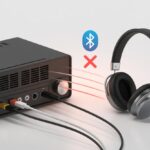
We poke at pairing, flip through settings, maybe even beg the headphones for mercy, but nothing happens. Most Bluetooth headphones just won’t connect to PlayStation because the console doesn’t support standard Bluetooth audio devices.

Sony can be a little stubborn about which headphones we use. Sure, they have reasons—audio quality, lag, the usual tech stuff—but it still leaves us grumbling at the TV.
If you’re tired of headphone drama, let’s dig into what’s actually happening and see if there’s a way around these roadblocks.
Stick around if you’re done politely asking your PlayStation to cooperate and want your headphones to finally just work.
Understanding Bluetooth Limitations on PlayStation
Trying to connect Bluetooth headphones to a PlayStation isn’t as easy as plugging in a toaster.
There’s a lot going on—compatibility issues, special audio needs, and a mess of protocols and quirks under the surface.
Why PlayStation Doesn’t Support Standard Bluetooth Connections
Honestly, if PlayStation let every Bluetooth gadget in, our living rooms might sound like a haunted echo chamber. Sony didn’t make things tricky just for the fun of it.
Standard Bluetooth audio can’t handle the low latency or stable connection gaming needs. Most Bluetooth headphones use A2DP, which works great for music but not for games that need split-second audio.
If our game audio lags, we might miss dodging that fireball—or lose the whole match. PlayStations block most standard Bluetooth audio devices for this reason.
We see that “Bluetooth audio devices are not supported” message and, well, there goes our plan. For more on this, check A2DP and PS4 Bluetooth issues.
How Bluetooth Protocols Differ From PlayStation Requirements
Bluetooth comes in all sorts of flavors and protocols, kind of like a box of mystery chocolates. PlayStation consoles use a custom wireless audio connection built for multiple channels, clear sound, and super low latency.
Regular Bluetooth, especially A2DP, can’t keep up. PlayStation headsets use Sony’s special standard, which is pretty different from what most Bluetooth headphones offer.
We might assume “Bluetooth is Bluetooth,” but the details matter. It’s like trying to fit a square peg in a round hole—our headphones just don’t fit the PlayStation’s handshake.
Only certain certified headsets work easily. If your headset isn’t on Sony’s list, you’ll probably need an audio dongle or just stick with a wire. See how PlayStation wireless headsets use different connections.
Common Reasons Bluetooth Headphones Fail to Connect
When Bluetooth headphones refuse to connect to PlayStation, it’s usually not because they’re being difficult on purpose.
There are some pretty specific reasons why PS4 and PS5 act like they’ve never seen a pair of wireless headphones.
Unsupported Bluetooth Profiles
We all want our gadgets to play nice, but PlayStation is picky about its Bluetooth friends. PS4 and PS5 don’t support every Bluetooth profile.
Most regular Bluetooth headphones use A2DP (Advanced Audio Distribution Profile), which PlayStation mostly ignores. It’s like showing up to a party with the wrong snacks—no one’s happy.
PlayStation only supports Bluetooth headphones made for its consoles or those with a special USB dongle. If we try to connect standard headphones, we usually get a “not supported” message or just silence.
Sony does this on purpose to avoid audio lag and to nudge us toward their certified gear. For lag-free audio, it’s often best to use headsets with the official PlayStation badge or at least ones with their own wireless adapters.
For more, check out this post about Bluetooth headphones on PS4.
Interference and Pairing Conflicts
Let’s call it “Bluetooth drama.” Our homes are full of wireless signals—Wi-Fi, Bluetooth speakers, even that smart fridge that’s always beeping.
All those signals can make PlayStation’s Bluetooth connection freak out. Wireless interference makes it tough to keep things stable.
Pairing conflicts add to the chaos. If our headphones are already paired with our phone or tablet, PlayStation doesn’t get a chance.
To avoid this, try:
- Turning off nearby Bluetooth devices.
- Moving other wireless gadgets out of the area.
- Resetting or forgetting old pairings before connecting.
A bit of tidying up can help prevent Bluetooth mix-ups.
Pass Key and PIN Issues
Sometimes PlayStation throws in a bonus challenge: the infamous pass key or PIN. Normally, Bluetooth devices introduce themselves with a four-digit code.
PlayStation doesn’t always make this process clear—or even possible. Older headphones or some quirky models might demand a pass key, but the PlayStation won’t show us where to enter it, or just won’t accept the code.
If this happens, try:
- Checking the headphone manual for the default PIN.
- Rebooting everything and giving it another shot.
- Switching to a certified PlayStation headset if nothing works.
Nothing says “modern tech” like guessing passwords for devices that are supposed to make life easier. For step-by-step help, check out this Bluetooth pairing with PS4 guide.
The Role of USB Dongles and Adapters
When Bluetooth headphones just won’t work with PlayStation, it’s usually because there’s no USB dongle or adapter in the mix.
These little gadgets do a big job—they let our headset talk to the PlayStation wirelessly.
Using Official and Third-Party USB Dongles
Sony doesn’t make this simple. PlayStation supports a handful of headsets over Bluetooth, and most Bluetooth headphones just won’t connect directly.
That’s where a USB dongle comes in, acting like a translator at a party where no one understands each other. Official Sony adapters are made for PlayStation, often bundled with PlayStation headsets.
They usually offer the best compatibility and fewer headaches. If you’re feeling thrifty (or just budget-conscious), third-party USB dongles exist too.
Some plug into the PlayStation’s USB port and claim to connect with most Bluetooth headsets.
Here’s a table for comparison, because why not:
| Dongle Type | Supported Headsets | Ease of Use |
|---|---|---|
| Official | Certified PlayStation brands | Plug-and-play |
| Third-Party | Various Bluetooth models | May need setup |
Always check if a dongle mentions PlayStation support—some USB adapters just won’t work right.
Save yourself the headache.
Setting Up Your Headphones With a USB Dongle
No need to overthink it. To connect Bluetooth headphones to PlayStation with a dongle, just plug the dongle into a USB port on the console.
If it feels loose, push it in with some confidence (seriously—PlayStation Support says so).
Next, put your headphones in pairing mode. The dongle should flash or show some kind of light—if not, double-check compatibility.
Once paired, go into settings and select the dongle as your audio output device.
If things still don’t work, try removing other wireless devices from the area. Too many signals can clog up Bluetooth.
And if the headset keeps acting up, just turn everything off and back on again—the universal IT fix. It works more often than we like to admit.
PlayStation Model Differences: PS5, PS4, and Beyond
Ever wonder why your shiny Bluetooth headphones won’t play nice with your PlayStation? You’re definitely not the only one.
Different PlayStation models handle Bluetooth in their own, sometimes baffling, ways.
Bluetooth Capabilities of PS5
The PlayStation 5 is a beast for gaming, but not so much for Bluetooth audio. Sony made the bold choice to block most third-party Bluetooth audio devices.
Our PS5 does accept Bluetooth, but mainly for controllers, not headphones. Why? Sony says it’s to avoid lag and interference.
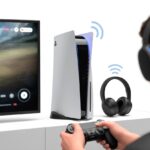
If you try to connect regular Bluetooth headphones, PS5 usually just says no. Only PlayStation’s own branded wireless headsets or devices using a special USB dongle get the green light.
Using third-party adapters might work, but it’s basically a coin toss—try it if you’re feeling lucky.
For more on these restrictions, check out troubleshooting tips for PlayStation wireless headsets.
Bluetooth Connection on Older PlayStation Models
Let’s rewind to the PS4 and earlier. PS4 gave us hope by letting us use Bluetooth headsets—but only certain ones.
Most of the time, PS4 politely tells us, “This device is not supported,” right after we get our hopes up.
Sony started limiting Bluetooth audio support with the PS4. They wanted to keep controller connections stable and reduce delay, but it means we have to use wired headsets or special dongles.
Even older models, like the PS3, had better Bluetooth support, but only a few headsets actually worked. It’s always a trade-off—more freedom, more chaos.
For more on why it’s still confusing, check out this user discussion about Bluetooth limitations on PlayStation consoles.
Pairing Popular Wireless Headphones and AirPods
We’ve all tried connecting our fancy wireless headphones or AirPods to a PlayStation, thinking it’d be as easy as pairing to a phone.
Turns out, it’s not that simple. The reasons for connection issues can get confusing, but knowing a few tricks can help us finally listen wirelessly while gaming.
Challenges with AirPods and PlayStation
Let’s be honest—AirPods and PlayStation just don’t get along. You’d think plugging them in would work, but nope, the PS4 and PS5 have other ideas. PlayStation uses its own Bluetooth profiles for audio, while AirPods stick to the standard ones you’ll find on phones and laptops.
When we try to pair AirPods directly, PlayStation throws up a “Bluetooth audio devices are not supported” message. It stings almost as much as losing a save file. Unless Sony changes its approach, we’re out of luck connecting AirPods straight out of the box.
Don’t panic, though. We do have some workarounds. If we grab a compatible Bluetooth USB adapter, we can connect AirPods or just about any wireless headphones. Suddenly, the PlayStation starts listening to us. Another option is using PlayStation Remote Play on a different device, then hooking up our AirPods there—here’s how.
Steps to Pair Different Headset Brands
Pairing wireless headphones with the PlayStation isn’t impossible. The steps just depend on the brand.
Sony’s own wireless headsets usually pair without a fuss. Plug in the included USB dongle, and you’re good to go.
For other big names like SteelSeries, Turtle Beach, or HyperX, you’ll probably get a USB receiver too. Just pop it into the console and let PlayStation sort things out.
If we’re using a standard Bluetooth headset with no dongle, things get dicey. The PS4 and PS5 don’t natively support these. In that case, a Bluetooth transmitter that plugs into the controller or USB port is the way to go.
Here’s a quick checklist:
- Sony/Official Headsets: Plug and play with the USB dongle.
- Third-Party Wireless Headsets: Use their USB receiver.
- Bluetooth-only Headphones (like AirPods): Needs an external USB/Bluetooth adapter or the Remote Play trick.
We might not be able to pair every wireless headset directly. Still, the right adapter usually gets things working—and keeps our ears happy.
Solving Audio Output and Microphone Issues
Trying to get Bluetooth headphones to work with PlayStation can feel more challenging than a boss fight on hard mode. We have to wrestle with settings, and sometimes the microphone just won’t cooperate.
Selecting the Correct Audio Output Settings
First, let’s make sure our audio output isn’t plotting against us. If we plug in a headset (usually with a 3.5mm jack), we should head to Settings > Devices > Audio Devices on the PS4.
Set both “Input Device” and “Output Device” to the headset name. Sometimes, PlayStation tries to send sound to the TV or somewhere equally useless, so we have to be clear.
Bluetooth makes things trickier. The PS4 doesn’t get along with most Bluetooth headphones and loves to hand us that “Bluetooth audio devices are not supported” message. We can try pairing through Settings > Devices > Bluetooth Devices, but it usually only works for officially licensed gear.
If that fails, an audio cable with a built-in mic is often the easiest fix. For more ideas, there’s a solid guide on connecting Bluetooth headphones to PS4.
Troubleshooting Microphone Problems
Let’s talk microphones—because nothing’s worse than teammates missing our brilliant callouts. If the mic isn’t working, we should double-check the mute switch. It’s obvious, but we all forget sometimes.
Next, make sure the “Input Device” points to our headset mic, not the PlayStation Camera or, even worse, nothing at all.
We can try a quick microphone test under “Audio Devices” by turning on “Adjust Microphone Level.” If the bar doesn’t move, something’s up.
Swapping cables or ports might help. Sometimes, running another app—like a voice recorder in the background—can magically nudge the mic into action. Some folks have even fixed things by recording audio while joining a PS party, as in this Reddit tip on PS app audio.
Our microphone and headset might need a little encouragement, but these tricks can save us from silent defeat.
Alternative Solutions to Enjoy Wireless Audio on PlayStation
If wireless headphones won’t connect to PlayStation, it’s annoying, but we still have solid options. A few workarounds or the right gear can get us back to gaming with good sound.
Using Wired Connections for Wireless Headphones
If our favorite wireless headphones feel left out by PlayStation, we can show them some love with a cable. Most wireless headphones come with a 3.5mm audio cable—just plug it right into the PlayStation controller.
No, it’s not “true wireless,” but the sound is the same and we can stop worrying about battery life.
This trick skips all the Bluetooth drama. No pairing, no “unsupported devices” errors, and no hunting for tiny USB dongles. Microphone support usually works too, if our headphones have a built-in mic.
If we crave real wireless freedom, we can try a Bluetooth transmitter made for game consoles. These plug into the PlayStation’s audio port or USB and send sound to our Bluetooth headphones, sneaking around Sony’s restrictions like a ninja in socks.
Just make sure to get one that supports both audio and microphones if we want to chat in-game.
Exploring Compatible Wireless Headsets
PlayStation doesn’t reject every wireless headset—some actually get a warm welcome. Sony’s official wireless headsets, like the Pulse series, come with a USB dongle that “speaks PlayStation.”
A lot of third-party headsets for PS4 and PS5 use the same trick.
When you’re shopping, check the box or listing for “Compatible with PlayStation.” Headsets that rely on a dongle instead of Bluetooth HID usually work just fine.
Just plug the USB adapter into your console, walk through the quick setup, and you’re set for lag-free, hassle-free sound.
If you ever run into connection issues or annoying static, the PlayStation support site offers some helpful community advice.
So even if your favorite Bluetooth earbuds feel left out, plenty of wireless headsets still work great with your console—no hacks, no headaches.

From a young age, I have always had a big interest in technology, and this blog is an extension of that interest. Through this blog, I hope to provide others with all of the information they need regarding tech options to consider, and things such as compatibility. Some of the different items I will be discussing include headphones, smartwatches, and how to fix common issues.
- Best Smartwatches For LG Phones | LGV40, Stylo 6, 68X, G8S Thin Q, Wing 5G - October 22, 2026
- Best Aviation Headset To Buy For Student Pilots? (7 Top Picks By Budget) - October 21, 2026
- The Best Rugged And Waterproof Smartwatches - October 21, 2026
Related Posts: