We’ve all been there—waiting on that important call, only to check our fitness tracker and see, well, nothing. Not a single missed call notification, just a blank screen and maybe our own desperate reflection staring back.
Our fitness trackers might miss missed calls because of Bluetooth connection hiccups, notification settings, or the way we pair the device with our phones. Turns out, it’s not just us—it happens to a lot of people.
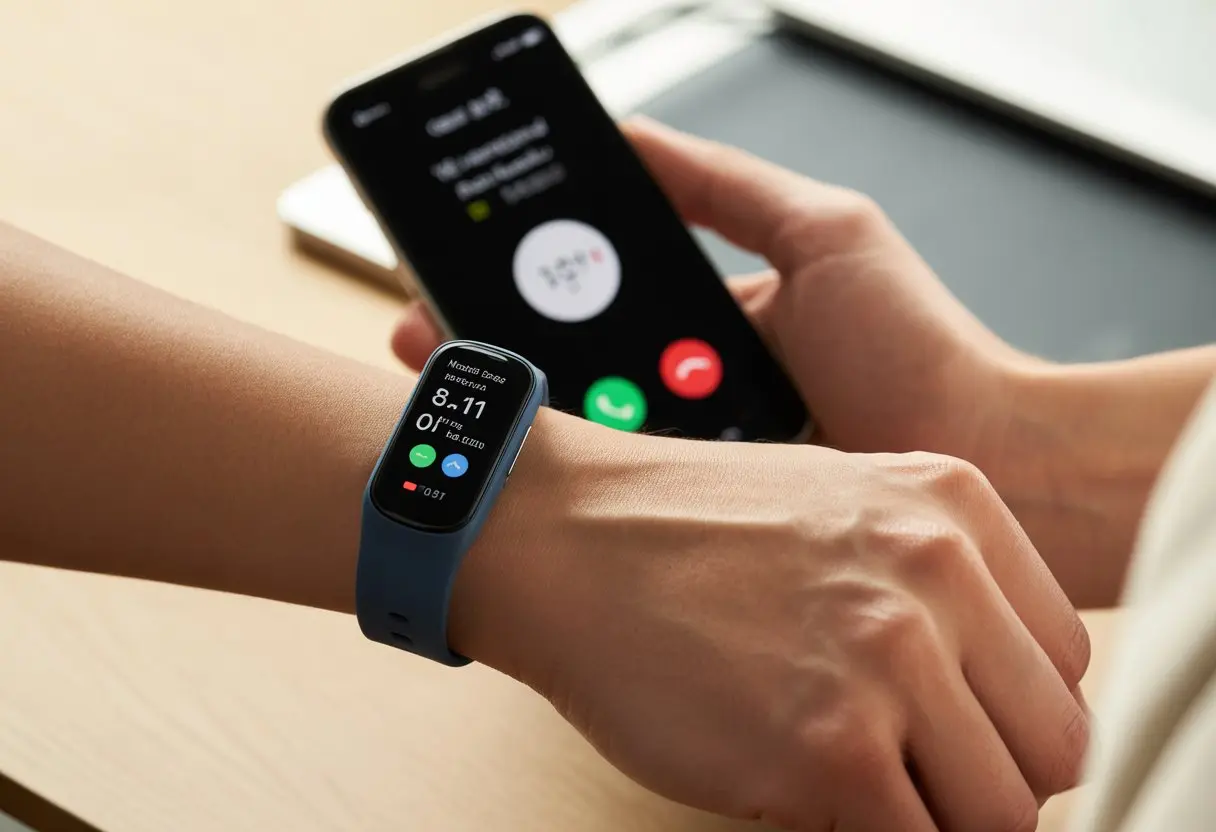
Honestly, we bought these gadgets to make life easier—not to become amateur detectives every time Aunt Linda tries to call. But before we toss our tracker out the window or curse the universe, maybe it helps to actually know what’s going wrong with all those invisible missed calls.
If you’re as tired as I am of figuring out why your wrist ignores your phone, stick around. Let’s roll up our sleeves and see what’s going on with these vanishing notifications—with a few laughs along the way.
Understanding Missed Call Notifications on Fitness Trackers
It’s tempting to think our fitness trackers work like tiny personal assistants, handling every alert perfectly. But sometimes, when we miss a call, our trusty wrist gadgets just don’t show it.
Let’s break down why our wearables might leave us hanging.
How Fitness Trackers Handle Notifications
Fitness trackers are supposed to keep us updated with real-time alerts. If our phone buzzes, our wrist should too.
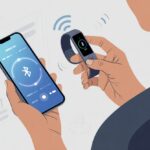
This all relies on Bluetooth, which lets the tracker act as a mini display for our phone’s notifications. Here’s the thing: our trackers only get notifications if our phone sends them.
If Do Not Disturb or Focus modes are on, our fitness tracker might stay silent. Some devices let us choose which apps can notify us, so setting up notifications matters.
And if Bluetooth disconnects, our tracker goes quiet until it reconnects. Sometimes, we just forget to charge it. Yeah, we’ve all done that.
Key Functions of Notifications
Trackers handle all kinds of notifications:
- Incoming phone calls
- Text messages
- App alerts (like calendar reminders)
- Missed calls
The main point? We don’t want to miss anything important, even if our phone’s buried in a bag or lost in the couch. But not all notifications work the same way.
Some trackers only show call alerts while the phone rings and don’t show missed calls at all. With all the changes in consumer electronics, sometimes the tracker software just isn’t built for every kind of alert.
Difference Between Phone Calls and Missed Calls
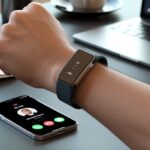
A phone call alert pops up while the phone rings. Our wrist vibrates, and we feel like secret agents.
But if we don’t answer, the alert disappears. That’s where a “missed call” notification—if it works—should show up.
Some trackers only alert us live while the call comes in, not after. Others need our phone to send a missed call notification, which doesn’t always happen if there are connection issues or notification settings are off.
It’s like a relay race—sometimes someone drops the baton. Our fitness tracker isn’t ignoring us on purpose; it just doesn’t always get the signal to shout, “Hey, you missed a call!”
Common Reasons Fitness Trackers Don’t Show Missed Calls
We want to know when someone tries to reach us—even if it’s just another spam call. If our fitness tracker keeps us in the dark, usually something’s up with Bluetooth, pairing, or device settings.
Bluetooth Connection Issues
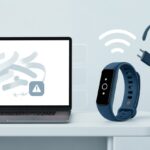
Bluetooth can be moody. It works one minute, then suddenly refuses to connect.
Most trackers need to be within about 30 feet of our phone for notifications to work. If we wander into another room, close a door, or toss our phone under a pile of laundry, our tracker might just stop caring.
Thick walls or interference from other devices can mess things up too. To keep alerts flowing, we need to check if Bluetooth is on for both devices, keep them close, and maybe restart the connection if it’s been quiet for too long.
For more on notification range, check out how Fitbit handles Bluetooth notifications.
PAIRING Problems Between Devices
Pairing a tracker with our phone should be easy, but sometimes the devices just won’t “swipe right.” If the initial pairing didn’t go smoothly, or if one device forgot the other, missed calls won’t show.
Maybe we connected the tracker to a new phone but didn’t unpair it from the old one. Sometimes, we just need to remove the device in the Bluetooth menu and pair it again.
Here’s a quick checklist:
- Are both devices paired and recognized by each other?
- Is the tracker paired to only one phone at a time?
- Have we restarted both devices lately?
When in doubt, delete and re-pair. It’s like giving our devices a little pep talk.
Device Settings Misconfigurations
Settings can trip us up. All the right buttons might look enabled, but one wrong toggle and our tracker ignores calls like a butt-dial.
If Do Not Disturb is on, or the fitness tracker app doesn’t have notification permission, missed calls won’t show. Maybe the tracker itself has notification settings turned off.
Notifications might work for texts but not for calls, depending on setup. Double-check that permissions are enabled, background activity is allowed, and power-saving features aren’t blocking notifications.
Problems can even pop up because of certain phone updates, as seen with some tracker and phone combos.
When every setting is in order, our tracker can finally do its job—reminding us we missed a call, even if it’s just Mom checking in.
Notification Settings and Permissions
A fitness tracker that can’t tell us about missed calls is, honestly, kind of pointless. The most common reason our tracker stays quiet? Notifications aren’t set up right, or a setting is blocking them.
Granting App Notifications Access
First, our phone has to let the fitness tracker app see our notifications. On Android, we go to Settings > Apps & notifications > Special app access > Notification access.
We need to check that our tracker’s app, like Mi Fit, Fitbit, or Runmefit, gets a green light here. On iOS, it’s Settings > Notifications > [App Name]. Make sure Allow Notifications is on.
If it’s off, it’s like locking the front door and expecting notifications to sneak in through a window—they won’t get through. Sometimes, power-saving features mess things up too.
If notifications don’t work, double-check that our tracker’s app can run in the background. There’s a bit more about that in this Reddit thread about Mi Band notifications.
Configuring Notification Settings on Android and iOS
Once the app has access, we need to check which notifications are actually turned on. On Android, we go to Settings > Apps & notifications > [App Name] > Notifications and toggle on Call and Missed Call notifications.
On iOS, it’s Settings > Notifications > [App Name]. Toggling all alert styles (Lock Screen, Notification Center, Banners) can help too.
Sometimes, the settings hide deeper inside the fitness app itself. The Runmefit app, for example, asks us to turn on notification switches in the app as shown in this article.
If all the switches are off, our missed calls are probably off on vacation somewhere—definitely not on our wrist.
Checking Do Not Disturb and Sleep Modes
If everything else looks good, maybe Do Not Disturb (DND) or Sleep Mode is blocking our notifications. DND on both Android and iOS keeps calls and alerts silent unless we set exceptions.
On Android, look for the moon or bell icon in the status bar. Swipe down and turn off DND if it’s on.
For iOS, open the Control Center and check that Focus or Sleep isn’t activated. Some trackers have their own DND modes too, sometimes buried in device settings or companion apps.
When active, these modes block notifications as well as if we’d left our phone in the fridge—our tracker won’t wake up for anything unless we change the settings.
Smartwatch Features That Affect Missed Call Alerts
Sometimes, our missed call alerts go missing for reasons that have nothing to do with our hearing. How we set up our smartwatch—and whether it’s charged—can make a big difference in whether we ever see missed calls.
Watch Face Limitations
Let’s talk about watch faces. Not all faces are equal—some look cool but don’t show missed call notifications well, or at all.
If we pick a face with wild graphics or tiny dials, alerts can blend right in and disappear. When customizing our watch, we should make sure the face actually supports notifications.
Many third-party or animated faces skip call alerts altogether. Sticking to the standard or recommended faces is usually safer if we want to avoid surprises.
Some watch faces only show icons, not words. We might see a tiny symbol and have no idea what it means. If that’s confusing, a simpler face with bold alerts can save us from guessing every time our wrist buzzes.
Battery and Syncing Challenges
If the battery on our smartwatch is dead, it’s basically a fancy wrist weight. When power runs low, the watch might skip notifications to stretch out the last bit of juice—or just power off and leave us in the dark. So, we should keep the battery above 20% if we don’t want to miss calls and wonder who tried to reach us.
Even with a full battery, syncing can still trip us up. If our watch and phone aren’t actually communicating—thanks, Bluetooth gremlins—missed call alerts might never show up on our wrist.
Let’s make sure Bluetooth is on and our watch is paired properly with our phone.
When we reboot the watch or restart the phone, syncing sometimes resets itself. If alerts still don’t show, updating the device software can work wonders.
Samsung has some helpful tips on adjusting notification settings for their devices, which you can check out at Samsung’s support page.
Operating System and App Compatibility
Honestly, figuring out why our fitness trackers ignore missed calls can depend a lot on which brand we use and whether our apps are up to date. Sometimes the culprit is just a tiny toggle or an outdated app hiding in plain sight.
Differences Between Android and iOS
Android and iOS both handle notifications, but they don’t always play by the same rules. Android gives apps more ways to control notifications, while iOS keeps things locked down for privacy.
Sometimes our tracker gets ignored because notification permissions are off, or notification previews are set to “nope.” On iOS, if we forget to allow notifications for our fitness app or skip setting the alert style to banners or alerts, notifications can disappear faster than our motivation on a rainy morning.
Android can be sneaky too. Some phone brands add their own battery-saving tricks that quietly kill notifications in the background. If our fitness app gets “optimized” for battery, it might never wake up for missed call alerts.
And then there’s Do Not Disturb—one accidental tap and poof, silence.
Special Cases: Android Go Edition
Android Go Edition is the lightweight cousin of regular Android, made for phones with less memory. Sometimes this means features are missing or just work differently.
Fitness tracker apps might not offer all the notification bells and whistles on Android Go. We might notice missed call alerts get cut short or don’t show up at all.
Background processes are limited on Android Go, so apps can silently quit after running a while. If missed call alerts matter to us, we should double-check if the watch’s app and notifications are fully supported on Android Go Edition devices.
Keeping Apps Updated via App Store
Updating isn’t just for show—it actually keeps things running. Android users need to check the Google Play Store, and iOS folks should visit the App Store to keep fitness tracker apps current.
Old app versions can have bugs or lose compatibility with the latest Android or iOS updates. If the app falls behind, new phone features (like privacy controls or notification tweaks) might break missed call alerts.
To avoid this, let’s check for updates at least once a month—maybe whenever we remember. Updated apps usually include bug fixes for issues like missed call notifications, as support pages like Garmin Device Not Receiving Smart Notifications From Phone say.
Advanced Troubleshooting Steps for Notification Problems
Sometimes, fitness trackers just refuse to listen. If the usual fixes don’t work, it’s time to dig in and get hands-on with app settings, Bluetooth, or even the dreaded factory reset.
Resetting Notification Permissions
Let’s start with the basics. Phones or apps can get strict with permissions and leave trackers out in the cold.
We open our phone’s Settings, find our fitness app (like Garmin Connect) under Apps, and check Permissions. Look for anything about calls, contacts, and notifications.
If something’s off, flip the switch. After that, restart the phone just in case.
Some phones need us to toggle the “Allow Notifications” setting off and on for certain apps. We want to see a bold “Allowed” on everything notification-related.
For more details, check out this video guide for missed call notifications on Android.
Unpairing and Re-Pairing Devices
If permissions look good but nothing’s working, maybe it’s time for a clean slate. We’ll go to Bluetooth settings and unpair the tracker.
Let’s forget the device on both the phone and tracker, then restart both. Harsh, but sometimes it’s what’s needed.
Pair them up again like it’s day one—open the tracker app, search for devices, and follow the pairing steps. This can fix those weird Bluetooth hiccups that block notifications.
If call notifications still don’t show, check app permissions and connection status, just like in this Reddit thread about Garmin notifications.
Factory Reset: Last Resort
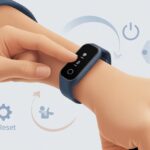
If nothing else works, we’ve reached the nuclear option: a factory reset. This wipes every setting, bug, and bit of clutter from months of sweaty workouts.
Before starting, we back up our health data—nobody wants to lose proof of that one epic run. Then, we follow the tracker’s instructions for a factory reset (usually under Settings > System > Reset).
After it’s done, we set everything up again and hope for the best. This step gives us the best shot at fixing stubborn notifications, as folks at Android Central have suggested.
Just remember, factory resets are a last resort—don’t go there unless you have to.
Beyond Calls: Additional Fitness Tracker Notification Functions
Fitness trackers do more than nag us about steps. They’re a lifeline for digital updates, messages, and, let’s be honest, pizza deals.
Text Messages and Gmail Alerts
The real point of a smart band? Sneaking a peek at texts and emails without looking rude at dinner. Most trackers let us get text message notifications, so that “Where are you???” from Mom will buzz our wrist instead of going unseen.
We can also get Gmail notifications—because who doesn’t love even more email? As long as notifications are on and permissions granted, new emails light up our wrist.
This helps us quickly spot important stuff or just more newsletters trying to sell us socks.
Here’s what we usually need to check:
| Notification Type | Usual Method of Activation | Quick Troubleshoot |
|---|---|---|
| Text Messages | Bluetooth permissions, app | Reboot tracker/phone |
| Gmail | Gmail app sync + permissions | Confirm alert settings |
App Notifications Galore
Why stop at calls and messages? We can set our trackers to send notifications from pretty much any app we want.
Calendar reminders, weather warnings, “It’s time to drink water!” nudges—they’re all fair game.
Customizing which apps can buzz our wrist usually happens in the tracker’s companion app. We get to pick which apps can break through and which ones stay quiet.
Don’t want game apps spamming us at 2 AM? Just turn them off and enjoy the peace.
It’s easy to filter out the noise and only let through what matters. For more on tracker app notifications, check out watches like the Parsonver Smart Watch, which handles Bluetooth calls and a whole buffet of app notifications.
General Setup Tips for Phone Notifications
Getting all these notifications on our wrist takes a bit of setup—no magic button, sadly. First, both our phone and tracker need Bluetooth on and paired.
Next, we have to grant notification access permissions in both the phone and tracker settings. Usually, we go into the companion app (like Fitbit or Wear OS) and toggle on the alerts we want.
That’s also where we pick which apps can bug us and which should stay silent.
If something stops working, the classic “turn it off and on again” (rebooting both devices) still works wonders. Sometimes, we need to double-check for specific app notification settings—like enabling missed call alerts—inside the app, as mentioned in Wear OS support forums.
Spend a few minutes on setup so we don’t miss anything—except maybe that 6 a.m. alarm, because who really needs that?
Other Quirks and Fixes: Keeping Your Tracker on Track
Fitness trackers seem simple, but they have their quirks. Features we love sometimes clash with things we need, or random bugs just show up.
When Heart Rate Monitoring Steals the Show
Our trackers can get a little obsessed with our pulse. Some devices focus so much on heart rate that they forget about missed call alerts.
If the heart rate sensor works overtime, it drains the battery and slows down other notifications. In high monitoring mode, notifications may come late or not at all, especially if the tracker is older or the software’s feeling moody.
Quick Fixes:
- Turn off continuous heart rate tracking if you don’t need it all day.
- Try switching to manual mode and see if notifications show up again.
- Restart both the fitness tracker and phone—sometimes tech just needs a break.
Google Features That Could Interfere
Google loves packing features into our phones, but sometimes they mess with our trackers. Google Assistant, battery optimization, or syncing settings can interfere with alerts.
If notification access is off or battery saver is on, some messages—including missed calls—might never reach our wrist.
Usual Suspects:
- Google Assistant Do Not Disturb
- Battery optimization for the fitness app
- Data syncing settings
- Permissions for notifications
To fix this, make sure the app can run in the background and has permission to show notifications. For more tips, check out steps to fix fitness tracking issues.
Dashes, Bugs, and Oddities
Dashes or strange characters on our tracker screen can signal bugs, failed connections, or just a tracker having a rough day.
Glitches might show as a line (—) instead of a number or notification. Sometimes this means the device missed data or can’t reach our phone.
Other times, the bug’s in the app, often after an update.
What to Do:
- Restart the tracker and phone
- Re-pair the tracker with the phone
- Update the tracker firmware
- If a dash keeps showing instead of alerts, a reset usually does the trick
When in doubt, check online forums for others seeing weird bugs or missing data.
Last Laugh: When All Else Fails
Sometimes, nothing adds up and your tracker just goes off the rails. You’ve tried rebooting, re-pairing, updating, maybe even pleaded with your wrist—still, no missed call alert.
At this point, you might as well try a factory reset or, if you’re feeling brave, reach out to customer support. Some days, they actually have a solution. Other days? Maybe your tracker’s just looking for a fresh start.
Either way, it helps to laugh about it. Batteries quit, settings shift, and honestly, missed calls sometimes just stay that way.

From a young age, I have always had a big interest in technology, and this blog is an extension of that interest. Through this blog, I hope to provide others with all of the information they need regarding tech options to consider, and things such as compatibility. Some of the different items I will be discussing include headphones, smartwatches, and how to fix common issues.
- Best Smartwatches for Elderly Care: Keep Grandma on Time and Grandpa Out of Trouble - September 7, 2026
- Why is my fitness tracker not showing incoming calls? Maybe It’s on a Silent Fitness Retreat! - September 7, 2026
- How to Use Bluetooth Headphones with Zoom Without Accidentally Broadcasting Your Playlist - September 6, 2026
Related Posts: