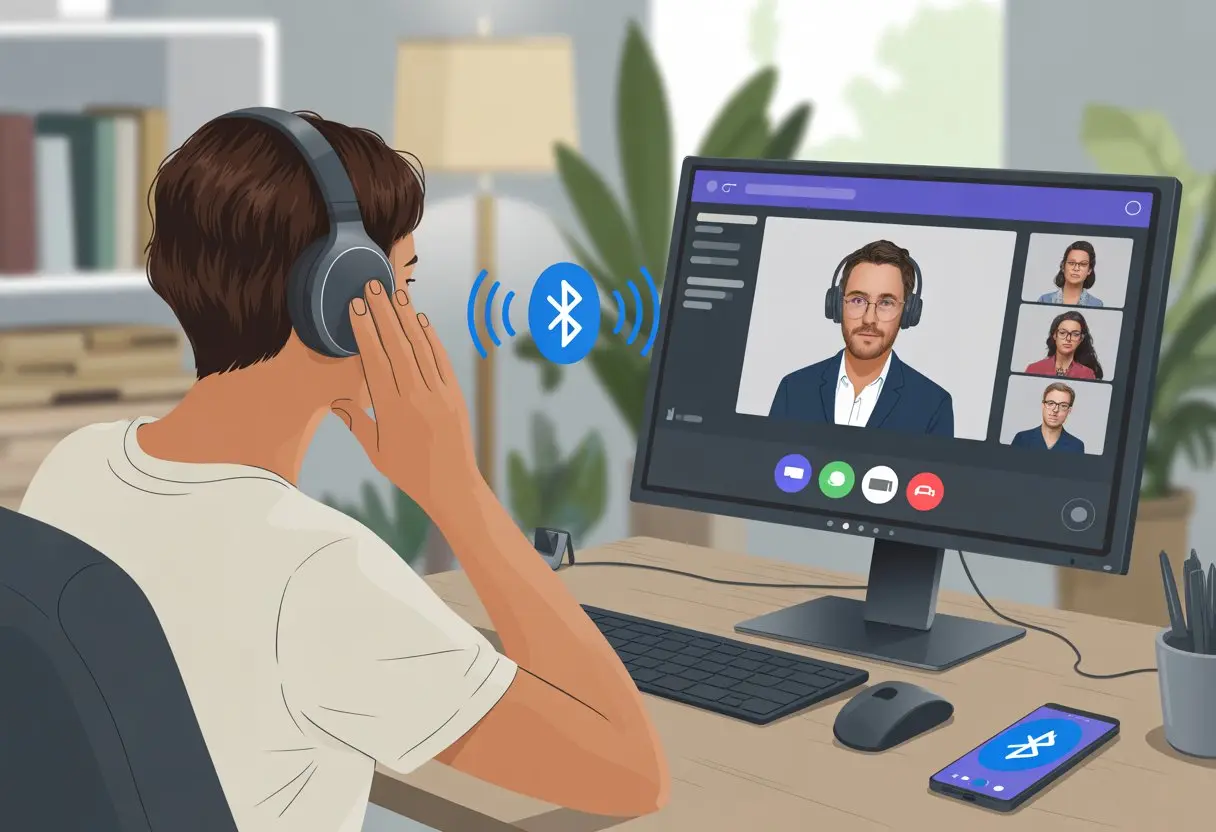
Let’s be honest—few things kill the vibe of a Teams meeting faster than tangled cords or your audio dropping out right as you’re about to say something smart. Thankfully, we don’t have to deal with those wires anymore. We can connect our Bluetooth headphones to Teams in just a few steps and sidestep those tech headaches once and for all.
With the right setup, chatting on Teams with Bluetooth headphones feels as easy as singing in the shower. No more awkward “Can you hear me now?” situations—just smooth meetings and, if we’re lucky, maybe a sneaky snack or two in between.
If your Bluetooth headphones aren’t behaving with Teams, don’t panic. Usually, a quick check in Teams’ device settings or making sure Bluetooth is actually on solves the issue. Tech folks over at the Microsoft Community have some solid tips too.
So, grab your favorite headphones and get ready to make your next Teams call a wire-free, frustration-free experience. Bluetooth really does make meetings easier—and let’s be real, it looks cooler too.
Bluetooth Headphones Compatibility With Teams
Nobody wants their big meeting to fall apart because their Bluetooth headset decided to go on strike. Picking the right device, and sometimes even one with the right badge, keeps our Microsoft Teams calls running smoothly.
Recognizing Supported Bluetooth Devices
Not every Bluetooth device gets along with Teams. Some headsets work great, others sort of muddle through, and a few just sit there making us question our tech choices.
For the best shot at success, check if your headphones support the Hands-Free Profile (HFP) or Advanced Audio Distribution Profile (A2DP). Look for these in the specs before you buy.
It’s a relief when your Bluetooth device pairs with your computer and Teams just recognizes it without any drama. On Windows, open Teams settings, click your profile picture, and head to Devices. Make sure your Bluetooth headset shows up for both speaker and microphone.
If it doesn’t, you might want to try another Bluetooth headset instead of yelling at your laptop out of frustration.
Most new Bluetooth devices play nice, but if yours is ancient, expect a few hiccups. Incompatibility can mean bad call quality, dropped audio, or echoes—none of which anyone wants during a meeting.
Microsoft Teams Certified Devices
The gold standard? A Microsoft Teams Certified Bluetooth headset. These have been tested specifically for Teams and usually come with a Teams button built in.
You’ll get better call controls, easier call handling, and more reliable audio. Teams recognizes these headsets quickly and switches audio controls without making you hunt through menus. It’s like giving Teams a secret handshake—less fiddling, more talking.
Some even have LED indicators for call status, so people know when you’re mid-rant and shouldn’t be disturbed.
If you spend your days in Teams, it’s worth getting an MS Teams certified Bluetooth headset. Sure, they cost more, but the boost in performance and compatibility is worth it. You’ll have fewer “Can you hear me now?” moments and more peace of mind.
How To Connect Bluetooth Headphones To Microsoft Teams
Let’s be real—pairing Bluetooth headphones with Microsoft Teams sometimes feels like more work than finding your meeting link. But with a few steps, you can join calls without the usual Bluetooth circus.
Pairing Bluetooth Headphones With Your Computer
Start by making sure your Bluetooth headphones are actually paired to your computer. On Windows, click the Bluetooth icon in the taskbar (it’s that pointy B), then select “Add a Bluetooth Device.”
Put your headphones in pairing mode—usually by holding the power button until a light blinks. Once your computer finds them, click to connect.
If things go sideways, the classic “turn it off and on again” trick often works. Sometimes, you’ll need to remove the headphones and pair them again—headphones can be moody.
Once you’ve connected, it’s time to wrangle Teams.
Connecting Bluetooth Headphones On iPhone
On iPhone, things are a bit smoother. Open the Settings app, tap “Bluetooth,” and flip the switch to green.
Your headphones should show up if they’re in pairing mode and not chatting with another device. Tap their name, wait for the checkmark, and you’re good.
If nothing shows up, check if your headphones are still paired with something else—Bluetooth can be a bit clingy.
Now, when you open Teams on your iPhone, calls and notifications should come through your headphones. You can pretend to pay attention in meetings while making a sandwich. For more info, check out this Teams and Bluetooth on iPhone guide.
Selecting Bluetooth Headphones In Teams
Even after you’ve paired your Bluetooth headphones, Teams sometimes acts clueless. You’ll need to tell Teams which device to use.
Click your profile picture in Teams (top-right corner). Go to Settings > Devices.
Select your Bluetooth headphones for both speaker and microphone. Double-check both—unless you enjoy playing “where did my audio go?” during meetings.
Try a test call using Teams’ test button. Make sure your voice comes through clearly.
If Teams still ignores your headphones, check your Windows audio settings or try these Bluetooth headset Teams fixes.
Optimizing Audio Quality In Teams Calls
We’ve all joined a Teams call only to wonder if we sound like a robot stuck in a tin can. To make sure our audio actually sounds human, let’s look at the most important tips for using Bluetooth with Teams.
Ensuring Strong Bluetooth Connections
Keep your Bluetooth connection solid. If not, your audio might cut out like you’re calling from deep space.
Try sitting close to your computer or phone. Walls, microwaves (yes, really), and even your neighbor’s Wi-Fi can mess with your connection.
A headset certified for Microsoft Teams can save you from endless troubleshooting and bad microphone quality. Some headsets just handle calls better and keep the connection steady.
Don’t use your Bluetooth device on low battery—those warning beeps mean business, not a dance party.
Also, avoid pairing too many gadgets at once. Bluetooth can get confused if you try to connect headphones, speakers, keyboards, and who-knows-what else all at once. Less is definitely more.
Adjusting Teams Audio Settings
Now, let’s open Microsoft Teams and tweak the audio settings (without breaking anything). In Teams, open Settings, click Devices, and pick your headset under Audio Devices. Just pick your Bluetooth headphones—don’t overthink it.
There’s a Manage devices option. Use it to switch audio inputs or disconnect devices without making your whole team wait.
If your mic still sounds weird, check that Teams isn’t using your laptop’s built-in mic instead.
Sometimes, switching off noise suppression in Teams actually helps. If nothing fixes the problem, restart Teams or your computer. It’s basic, but it works.
Want more details? Microsoft has a settings guide if you really want to dig in.
Enabling And Using Call Controls With Bluetooth Headsets
Getting your Bluetooth headset’s call controls to work with Teams can feel harder than finding a time when everyone’s free. We all want easy button presses for muting, volume, and hanging up—without digging through menus.
Using Built-In Headset Controls
Most Bluetooth headsets come with buttons made for multitasking. You should be able to answer calls, mute yourself, or crank up the volume without leaving your chair.
The magic happens when your headset is Microsoft Teams certified—Teams should respond to every button press the way you expect.
Keep these steps in mind:
Connect the headset by Bluetooth and make sure it’s set as the audio device in Teams.
Use the physical buttons:
Answer/Hang Up: Tap the call button
Mute/Unmute: Use the mute button or flip-up mic (depends on the headset)
Volume: Adjust with the volume controls
If the buttons don’t work, try unplugging, replugging, or reconnecting Bluetooth. Sometimes, devices just need a little break.
And no, talking to the headset won’t help—but muttering under your breath might.
Troubleshooting Call Control Issues
If your call controls quit working, don’t assume it’s a conspiracy. Here’s what you can try:
Check Teams settings by clicking your profile picture, then Settings > Devices. Make sure the headset is selected for both speaker and microphone.
Test your call controls again.
On Windows, open the Sound Control Panel and set the headset as the default device. If you see “Hands-Free” or “Stereo,” pick “Hands-Free” for call controls.
If those buttons still ignore you, check that media permissions are on in Teams. Find this under Permissions (more tips here). Some headsets just don’t cooperate—non-certified devices might ghost your button presses, kind of like a coworker at 4 p.m. on a Friday.
Advanced Setup: USB-A And Multi-Device Use
If you want your Teams sessions to sound less like you’re calling from a tuna can and more like you’re in a studio, it’s time to get a bit fancy. USB-A adapters and managing multiple Bluetooth gadgets can make your calls smoother—and your workday a little less wild.
Using USB-A Adapters With Bluetooth Headphones
Everyone’s seen those little USB-A Bluetooth adapters poking out of laptops like a tiny antenna. They’re a total lifesaver when built-in Bluetooth just refuses to work. Just plug one into a USB-A port, and suddenly your old laptop can talk to your favorite wireless headset.
Here’s a quick step-by-step guide for using a USB-A adapter:
Plug the Bluetooth adapter into a USB-A port on your computer.
Put your Bluetooth headphones in pairing mode. Usually, you hold a button until a little light blinks like mad.
On your computer, open Bluetooth settings and pick your headset from the list.
Test the setup—maybe with a quick Teams call, roping in a friend who owes you one.
Not every Bluetooth headset gets along with every adapter, though. If things go sideways, try updating your headset’s firmware or using the adapter that came in the box. Sometimes, you’ll need to poke around in Teams’ device settings to pick the right mic and speaker for clear audio. For a more detailed walkthrough, check out this Bluetooth headset to Teams guide.
Switching Between Multiple Bluetooth Devices
Some of us have a phone, a laptop, maybe even a work tablet—living on the edge with more than one Bluetooth device. Headsets with multi-device pairing let you bounce between them without losing your mind.
Once it connects, repeat for the second device (sometimes there’s a secret button combo—check the manual).
Many Bluetooth headsets have multi-point support so you can connect to two devices at once. You could be jamming to music on your phone, and when a Teams call rings on your laptop, the headset politely pauses your song.
Sounds easy, right? But sometimes the connection jumps to the wrong device, or Teams grabs the mic when you least expect it. Keeping track of which device your headset’s talking to can feel like herding invisible cats. For more help on multi-device chaos with Teams, check out this guide to using Bluetooth headphones on multiple devices.
Managing Unified Communications With Bluetooth Devices
Let’s be real—nothing ruins a workday like a headset that refuses to cooperate with our unified communications (UC) platform. The right setup can save your sanity, especially when you’re using Bluetooth headphones with Microsoft Teams.
Bluetooth Headphones For UC Platforms
Bluetooth headphones have given us a bit of freedom during work. Now we can wander around the kitchen on a Teams call and not worry about dragging the laptop off the table. But not every Bluetooth device is ready to be a UC superstar.
Good UC headphones are built for software like Teams, Zoom, and Slack. If you grab a headset stamped with “UC Certified,” you avoid weird echoes and “Can you hear me now?” moments. These headsets connect easily, let you mute and unmute with a button, and usually work right out of the box.
For Teams, you’ll go to settings, click “Add Bluetooth device,” and follow a few prompts. If your call quality is, well, “potato radio,” you might need a Teams-certified device. Some generic Bluetooth headphones cause low audio or microphone issues, so a little research now saves a lot of face later.
Cross-Platform Considerations
We’d love to use one headset for every app, but not all Bluetooth headphones play nice everywhere. Some are built for Teams but act up with other tools, while others work everywhere but don’t have handy features like auto-mute or in-line controls.
Here’s a quick checklist:
Device Compatibility: Does your headset work with more than just Teams?
Audio Switching: Can you swap between PC and phone without hassle?
Controls: Do mute, volume, and call buttons work in every app?
Power Productivity Bonus: Using Zoomin Software And Support
We all want our Bluetooth headphones to just work, especially when juggling meetings. Getting Zoomin Software set up right can make a difference, and Zoomin Support is there if things start sounding like a robot under water.
Zoomin Software Tips For Bluetooth Integration
First, double-check that Bluetooth is switched on for both your device and headphones. If your headphones are connected but you’re still hearing audio from the computer speakers, Zoomin might need a gentle nudge.
Inside Zoomin’s audio settings, pick your Bluetooth headset for both “speaker” and “microphone.” It’s like giving Zoomin a polite reminder—“Hey, use the headphones!” Sometimes, you’ll need to restart Zoomin for the change to stick.
Here’s a tip: If you notice audio lag or delay, try disconnecting and reconnecting your headphones before the next meeting. This resets the connection and often clears up weird echoes or dropouts.
If nothing works, check the compatibility list on Zoomin’s website. A few older Bluetooth models love to play hide-and-seek with Zoomin. Keeping your software and drivers updated helps avoid last-minute drama.
Accessing Zoomin Support For Audio Help
When you can’t hear or speak, reaching out to Zoomin Support can save your day. Their knowledge base has step-by-step guides for common Bluetooth issues.
If you still need help, live chat and forums with real people are available. No need to yell at your screen—support can walk you through settings or updates in real time.
You’ll speed things up if you have your device model, Zoomin version, and headphone brand ready. That way, support won’t have to play 20 questions before getting to the fix.
For the tech-savvy, Zoomin’s site has troubleshooting tables, like this:
Problem
Quick Fix
Audio not switching
Re-select Bluetooth in settings
Headset not detected
Restart Zoomin & headphones
Random disconnects
Update device drivers
A calm approach (and maybe a second cup of coffee) makes the whole process a little less painful.
Channeling Your Inner Tech Guru: How To Create A CRG
Let’s be honest, sometimes setting up Teams feels like solving a Rubik’s Cube blindfolded. Creating a CRG might sound mysterious, but it’s actually a practical way to make your tech life less stressful, especially when you’re wrangling Bluetooth headphones and Teams.
Step-By-Step Guide: Create A CRG
If you want to impress your coworkers and cut down on tech headaches, here’s how to set up a CRG—Custom Resource Group (CRG). Don’t worry, it’s not rocket science:
Open Teams Settings: Click your profile picture in Teams and pick “Settings.”
Go to Devices: Under the Devices tab, you’ll see all the audio options.
Add Your Device: When you connect your Bluetooth headphones, Teams usually spots them. If not, hit “Manage devices” and add them manually.
Create the CRG: Sometimes, organizations use CRGs to organize devices or permissions. You might need IT’s blessing, or you can create a new device group under Devices if you’re feeling bold.
Test the Setup: Always run a test call to make sure your music—or your awkward silences—come through loud and clear.
No, there’s no trophy for making a CRG, but hey, you might get a slow clap at the next meeting.
Why You Might Need To Create A CRG
Let’s be honest—tech setups get messy fast. When you create a CRG, you’re just grouping devices or permissions so Teams won’t mix up your Bluetooth headphones with, I don’t know, your cat’s automatic feeder.
If you use Teams on different gadgets or share equipment, a CRG saves you from redoing settings all the time. You can just tell Teams which device group to use.
Say your team has special access needs. Maybe your headset connects to both your laptop and your phone at once. A CRG lets you control those connections, so you don’t accidentally join a call from your fridge.
If you’re the one handling tech support, CRGs can make your life easier. You’ll spend less time untangling problems, and maybe you’ll even keep your hair.
Hi, my name is Garrett Jones, and I am a tech enthusiast. I enjoy researching the new tech that has been released, and have a vast knowledge of the best tech to purchase.
From a young age, I have always had a big interest in technology, and this blog is an extension of that interest. Through this blog, I hope to provide others with all of the information they need regarding tech options to consider, and things such as compatibility. Some of the different items I will be discussing include headphones, smartwatches, and how to fix common issues.