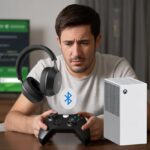
Let’s be honest—most of us have stared at our Bluetooth headphones and our Xbox, wishing they’d just work together already. Unfortunately, the Xbox doesn’t exactly love Bluetooth like our phones do. We can’t just pair any headphones and dive in. To use Bluetooth headphones with Xbox, we need a special wireless headset made for Xbox or a Bluetooth adapter to bridge the gap.
But don’t freak out—there’s hope! There are a few creative ways to get around this, so we can still enjoy our game audio (and late-night snacking) without waking up the house.
Whether we use an adapter, the Xbox app on our phone, or splurge on a headset made for Xbox, we’ve got some options.
Let’s check out the different methods, a few quick tricks, and some common pitfalls. Maybe we’ll save ourselves from yelling at our gadgets—or each other. Grab your headphones—game night’s about to get a lot quieter, and honestly, probably more fun.
Understanding Bluetooth Compatibility With Xbox Consoles
We all want to slap on our Bluetooth headphones, lean back, and jump into a game on Xbox without a single wire in sight. But Xbox consoles don’t make it so easy.
The way Xbox handles wireless audio is different from most other devices.
Why Xbox Consoles Don’t Have Native Bluetooth Support
Let’s just say it: Xbox One and Xbox Series X don’t support regular Bluetooth headphones. We wish it was as easy as clicking “Pair” like on our phones, but Xbox decided to do its own thing.
Xbox uses a special wireless protocol called Xbox Wireless. This makes connections faster and less laggy, which is great for gaming. But it also means our favorite Bluetooth earbuds get left behind.
Why did Microsoft do this? Bluetooth can lag a little, and that’s not ideal when we’re dodging danger or chatting with teammates. By using their own wireless system, Microsoft keeps audio quality and timing sharp—even if it means we can’t just use any Bluetooth headset.
Supported Devices and Connection Standards
So, what headsets can we actually use? Only ones that work with Xbox Wireless. The Xbox Wireless Headset, for example, connects directly—no extra gadgets.
If we want to use regular Bluetooth headphones, we’ll need a workaround. Some folks connect their headphones to the TV, others use the Xbox app on their phones. It’s not the most elegant fix, but it works. For the smoothest experience, though, Xbox Wireless headsets are the way to go.
How to Use Bluetooth Headphones With an Xbox One
Let’s be real, using Bluetooth headphones with the Xbox One isn’t as simple as pairing your favorite speaker to your phone. Still, we’ve got a few ways to make it work, whether you’re plugging in an adapter or trying something third-party.
Connecting Using the Xbox Wireless Adapter
If our Bluetooth headphones support Xbox Wireless, we’re in luck. The Xbox Wireless Adapter plugs into a USB port on the console. We put our headphones in pairing mode and hit the sync button on the adapter. The lights flash until the devices connect.
Here’s a quick step-by-step:
Plug the Xbox Wireless Adapter into the console.
Turn on the headphones and set them to pairing mode.
Press the pair button on the adapter until it blinks.
Wait for both devices to stop flashing.
Enjoy clear, wire-free game sound.
If our headphones don’t support Xbox Wireless, that adapter won’t help. The Xbox One doesn’t have Bluetooth built in, so regular Bluetooth headphones can’t connect directly. For those, let’s look at another option.
Using Third-Party Bluetooth Transmitters
For standard Bluetooth headphones, we use a third-party Bluetooth transmitter. No need to be a tech wizard—just plug the transmitter into the Xbox One controller or the TV’s output. The transmitter lets us pair Bluetooth headphones like we would on a phone.
Pick a transmitter that fits your headset (USB, 3.5mm, or optical). Here’s what we do:
Plug the transmitter into the controller’s 3.5mm jack or the TV.
Set the transmitter to pairing mode.
Put the headphones in pairing mode too.
Wait for the devices to connect.
We might notice a little audio delay, especially with cheaper transmitters. But hey, at least we can game without waking up everyone else. For more tips, check out this guide on connecting Bluetooth headphones to Xbox One.
Making Bluetooth Headphones Work With an Xbox Controller
Plugging Bluetooth headphones into an Xbox controller is rarely as easy as we want. But with a little creativity (and maybe a cable or two), we can get pretty close.
Let’s break it down and see what actually works—and what just makes us want to toss the controller.
Leveraging the 3.5mm Audio Jack
Most Xbox controllers, including the newer Xbox One models, have a 3.5mm audio jack at the bottom. If our Bluetooth headphones have a detachable cable, we can just plug them in. No settings, no pairing headaches.
Some Bluetooth headphones include a built-in mic on the cable. If not, we might only get game audio and not chat. Really tiny headphone cables might need a TRRS adapter for both audio and chat. Pro tip: keep an adapter around so we don’t end up talking to ourselves mid-match.
Not every Bluetooth headphone likes being forced into “wired” mode. Some sound quieter when plugged into the controller, and fancy features like noise-canceling might stop working.
We might also hear a drop in sound quality compared to using Bluetooth on a phone or PC, since the Xbox controller uses standard analog output.
If our controller is an older Xbox One model without a 3.5mm jack, we’ll need a stereo headset adapter for the expansion port. That adds a little cost—and another thing to lose.
As long as our Bluetooth headphones can work as wired headphones with a 3.5mm jack, we’re good. Just don’t expect miracles—functional sound and maybe a little cable mess is about it. For more details, the official Xbox site has a handy guide for connecting compatible headsets.
How to Connect Bluetooth Headphones With Xbox Series X
Let’s be real, the Xbox Series X still refuses to join the Bluetooth headphone party. But we can still sneak our headphones in—either with cables or a few clever workarounds.
Using Wired Solutions With Xbox Series X
One option is going old-school. The Xbox Series X doesn’t allow standard Bluetooth audio, but it supports wired headsets through the controller’s 3.5mm jack.
If our Bluetooth headphones include an AUX cable, we just plug them into the controller’s port. Suddenly, we’re wired legends, dodging all the Bluetooth drama.
For best results, we should make sure the headphones are in wired mode; some models need charging or a quick switch. Audio controls, like volume and mic, usually work in the controller settings menu.
This trick won’t give us total freedom, but it’s easy and just works for most compatible headsets.
Alternative Connection Methods
If we can’t stand wires, we’ve still got a few tricks. One is using a Bluetooth adapter that plugs into the Xbox controller. Brands like Skull & Co make gadgets that fit the headphone jack and connect to most Bluetooth headphones.
The connection usually works for audio, but don’t expect smooth party chat or mic support—it’s mostly just for listening. Trash talk might need another device.
Another way is using the Xbox app on our phone or tablet. We connect our Bluetooth headphones to the mobile device, launch the app, and join a chat party. This isn’t true game audio, but it lets us chat wire-free with friends.
For full wireless support, Xbox also makes the Xbox Wireless Headset, which uses its own signal—not standard Bluetooth. Only certain headsets support this, so regular Bluetooth headphones will need to stick with the workarounds above.
Audio Quality and Latency Issues
Bluetooth headphones on Xbox can be a bit unpredictable. Sometimes the sound is perfect. Other times, it feels like we’re underwater—or in a slapstick comedy with delayed punchlines.
Potential Lag and Workarounds
Let’s talk lag. Bluetooth wasn’t really built for intense gaming. We’ve all tried to pull off a perfect headshot, only for the sound to show up after we’re already out. This delay, called latency, is pretty normal when using Bluetooth headphones with Xbox.
Some games are more forgiving, but timing-focused games really test our patience. Lag usually happens because Bluetooth compresses and sends audio wirelessly, and Xbox consoles don’t support regular Bluetooth audio.
To cut down on lag, we can try dedicated Xbox wireless headsets instead of regular Bluetooth ones. These use Xbox’s own wireless tech and have less delay.
Some gamers use Bluetooth transmitters plugged into the controller’s headphone jack, but results vary—sometimes it’s magic, sometimes it’s just wishful thinking. Don’t say we didn’t warn you.
Optimizing Your Sound Experience
We all want those explosions and footsteps to really pop, right? To keep things sharp, it’s best to use headsets built for Xbox—they use special connections that give you better sound and less hassle. Standard Bluetooth headphones? They usually bring lower audio quality and, bonus, extra static or glitches.
If you’re set on using Bluetooth headphones, tweaking your device settings might help a little. For instance, switching the audio profile (like toggling between “SBC” and “SBC-XQ” if your device allows) can sometimes change latency and quality. Turning off other nearby Bluetooth gadgets can cut down on interference. If things get really weird, try rebooting both the Xbox and your headphones—hey, sometimes you just have to hope for the best.
Here’s a quick sanity check:
Option
Pros
Cons
Xbox Wireless Headset
Low latency, best sound
Higher price, specific to Xbox
Bluetooth Headphones (with adapter)
Flexible, affordable
High lag, unstable connection
Wired Headphones
Zero lag, easy setup
Less convenient, cable gets in way
When in doubt, keep your sense of humor—and maybe stash a wired backup somewhere.
Troubleshooting Common Bluetooth Headphone Problems on Xbox
Sometimes Bluetooth headphones just don’t want to play nice with the Xbox. Whether it’s a connection that refuses to stick or some mysterious glitch, a few tricks can help you get your audio back.
Handling Hardware Issues
Let’s be honest, sometimes our gear just acts up. If your Bluetooth headphones won’t work at all, check if they actually support connecting to the Xbox. Most wireless headphones don’t use standard Bluetooth for Xbox consoles—they need a special wireless protocol. Check the box or manual for “Xbox Wireless” support, or you might be out of luck.
Before you start blaming ghosts or gremlins, try these steps:
Restart everything: Headphones, Xbox, and maybe your patience
Check batteries: Dead batteries mean no sound
Update firmware: Both the headset and Xbox might need updates
If your headset uses a dongle, make sure it’s plugged in fully. Still nothing? Try the headset with another device and see if the issue follows.
Alright, so maybe your headphones connect—but the connection drops faster than your patience. Let’s see what helps.
Interference is a big culprit here. Microwaves, cordless phones, even other wireless controllers can mess with your signal. Try moving other devices away, or at least make some space for your Xbox and headset to “talk” in peace.
If the sound only cuts in and out sometimes, you might have a range problem. Bluetooth and Xbox Wireless both get cranky if there’s a wall or too much distance between devices. Keep your headset close to the console.
Sometimes, re-pairing your headset can help. Forget the device on your Xbox, then pair it again following the instructions. If you’re using Bluetooth headphones without native support, you’ll need a third-party adapter since Xbox consoles don’t support direct Bluetooth connections.
And if you’re stuck, don’t be shy—turn everything off and on again. It worked in the ‘90s, and it still works now.
Top Tips for Seamless Gaming Audio
Let’s stop yelling at the TV because our headphones won’t connect. With a few tips, you can skip the headache and get back to missing all your shots in peace.
Choosing the Right Headphones
Wouldn’t it be nice if one pair of headphones worked with everything? Xbox makes us work a bit harder. The Series X and S don’t allow normal Bluetooth pairing like your phone does. That means those fancy true wireless earbuds won’t connect without extra help.
To dodge audio heartbreak, look for headphones made for Xbox or ones that use a wireless dongle compatible with the console. Wired headsets with a 3.5mm jack plug right into your controller, giving you an easy, reliable option.
Here’s a quick table:
Headphone Type
Works Directly with Xbox?
Typical Bluetooth
❌
Xbox Wireless
✅
Wired (3.5mm jack)
✅
With USB dongle
Some models
Don’t overlook comfort and battery life. Running out of juice during a boss fight is the worst.
Maximizing Compatibility
Since Xbox is picky about Bluetooth, you’ll need some extra gear. Bluetooth headphones only work if you use a Bluetooth transmitter that plugs into the controller’s headphone jack.
Usually, you pair the transmitter to your headphones, then plug the transmitter into the Xbox controller. Not all transmitters are equal, though. Look for low-latency transmitters to avoid annoying voice delays. Make sure your headphones can pair easily with whatever dongle or transmitter you pick. If you want step-by-step help, check out this YouTube walkthrough for adding Bluetooth headsets to Xbox.
Xbox doesn’t support most USB Bluetooth adapters or regular Bluetooth audio out of the box, as Xbox Support confirms. The right accessories can save you a lot of frustration.
Future Developments and Alternatives for Xbox Audio
Xbox consoles and Bluetooth audio aren’t exactly best friends (yet). Still, gaming sound tech keeps moving forward. We can hope for future breakthroughs, but for now, we’ve got to work with what’s out there to make those explosions and footsteps sound just right.
Upcoming Xbox Features and Audio Innovations
Rumors keep swirling that Xbox might finally add direct Bluetooth support. Right now, the consoles don’t let you pair most Bluetooth headphones at all—it honestly feels a bit prehistoric. Maybe a future update will bring this long-requested feature.
Microsoft has focused on their own wireless tech, like Xbox Wireless, which gives us low-latency sound and easy pairing—for headsets built for Xbox, anyway. If you want that same treatment for Bluetooth, you’ll just have to keep your fingers crossed every time a new update drops. Some chatter online hints at audio updates in the works, but nothing official yet. For now, we just keep waiting with our Bluetooth headsets, gathering dust.
Exploring Non-Bluetooth Solutions
Bluetooth still refuses to join the Xbox party, so we’ve had to get creative with our sound setups.
The most reliable option? Grab an Xbox-compatible wireless headset that uses the official wireless protocol. These headsets pair right to the console—no adapters, and you don’t have to sacrifice precious controller ports.
If your headphones only speak Bluetooth, you’re stuck using third-party Bluetooth transmitters. Just plug one into the controller’s audio jack, and suddenly your Bluetooth headphones work. There’s usually a bit of sound lag, and the setup can feel clunky, but hey, it’s better than nothing.
Wired headphones are always a solid backup. Plug and play, even if the cord feels like something out of 2002.
Hi, my name is Garrett Jones, and I am a tech enthusiast. I enjoy researching the new tech that has been released, and have a vast knowledge of the best tech to purchase.
From a young age, I have always had a big interest in technology, and this blog is an extension of that interest. Through this blog, I hope to provide others with all of the information they need regarding tech options to consider, and things such as compatibility. Some of the different items I will be discussing include headphones, smartwatches, and how to fix common issues.