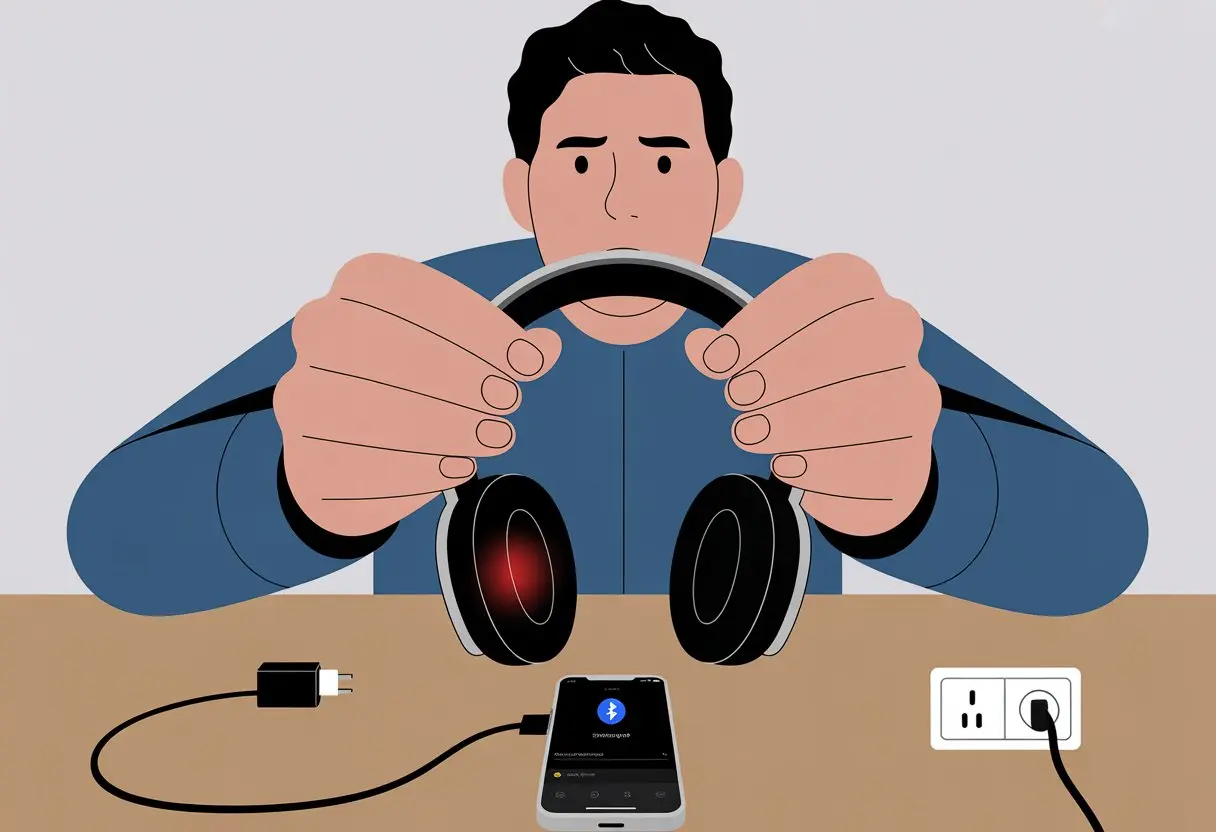
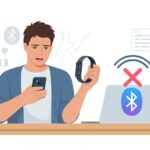
We’ve all been there—ready to listen to our favorite songs or jump on a call, but our Bluetooth headphones just sit there, totally unresponsive. Sometimes it feels like they know we need them and pick that exact moment to take a nap.
Most of the time, Bluetooth headphones won’t turn on because the battery’s dead, the power button’s acting up, or there’s some annoying charging issue.
Before we start blaming the universe, let’s remember these problems happen to almost everyone. Maybe we forgot to charge them, or the charging cable decided to quit.
Sometimes, a simple reset works wonders. Someone on Reddit fixed their headphones by holding down both volume buttons—who knew?
Let’s figure out what’s going on and see if we can bring these stubborn headphones back to life. There’s still hope!
Common Reasons Bluetooth Headphones Won’t Turn On
Sometimes Bluetooth headphones act like a cat that refuses to move. Powering them on should be easy, but a few classic troublemakers always seem to get in the way.
Here’s what usually messes with us when we just want to listen to our favorite tunes.
Dead Battery Drama
Let’s be real—we’ve all pressed the power button and gotten nothing. Most of the time, it’s just a dead battery pretending to be fine.
Even if the battery was at 50% last time, it can drop faster than you’d think. Some headphones need a decent charge to wake up, so if the battery’s low, they just won’t cooperate.
Leaving them unused or skipping a charge overnight almost guarantees this problem. Sometimes, the charging cable or port is the real culprit, so swap them out and see if anything changes.
For certain brands, if the battery’s too low, you won’t get a single light or beep. In those cases, plug them in for at least 30 minutes and cross your fingers. More on this battery headache at this Quora thread.
Power Switch Predicaments
Next up: the mysterious power switch. You’d think pressing a button would be simple, but some headphones make it a weird ritual.
Some need you to hold the button for a few seconds, others want a quick tap, or even a double-click. If you’re not sure, check the manual or just search online—it’s faster than guessing.
Switches wear out or get stuck after a while. Dirt, dust, or even crumbs from last night’s snack can sneak in and mess things up.
Try wiggling the switch or gently cleaning around it with a toothpick or compressed air. If they still won’t turn on, the issue might be deeper.
Stuck in Sleep Mode
Some Bluetooth headphones love their naps. Instead of fully turning off, they go into sleep mode to save battery, which can make them look totally dead.
To wake them up, you might need to hold the power button longer than usual, or press a combo of buttons. Some brands have a master reset—like holding down both volume buttons for five seconds. (Thanks, Reddit.)
If nothing works, try plugging them in to charge. Sometimes, a little juice snaps them out of sleep mode. Don’t be afraid to mash some buttons—just don’t break anything.
Checking the Charging Process
Before we curse our headphones for being lazy, let’s make sure they’re actually getting power. Sometimes the real problem is the charger, the cable, or even pocket lint hiding in the port.
Charger and Cable Controversies
Let’s be honest—finding a working USB cable feels like playing the lottery. Not all chargers and cables work the same.
If your headphones aren’t charging, try these:
Switch Chargers: Plug them into a different charger or USB port. Even computers can fake charging sometimes.
Try Another Cable: Some cables only do data, not power. If your cable’s just for show, it’s not helping.
Inspect for Damage: Cables and chargers bend and fray all the time. A busted cable could be the whole problem.
Chargers and cables can be sneaky, as seen in these common charging problems. The right combo can mean the difference between music and silence.
Port Problems
Now, about that charging port—dust, lint, and crumbs love to hide in there. If something’s stuck, power won’t flow and your headphones just sit there.
Clean the Port: Use a soft, dry cloth or a cotton swab with a bit of alcohol to clean the port. Please, don’t use a fork.
Check for Damage: Ports can get loose or corroded over time. If you see damage, stop poking and take it to a repair shop.
Test with Other Devices: If the port’s the problem, you’ll probably notice other devices charging badly too.
For cleaning tips and port fixes, check out this charging port cleaning guide. Sometimes, just removing debris is all it takes—almost as refreshing as finding your headphones after losing them for a week.
Troubleshooting the Bluetooth Menu
When headphones and devices refuse to connect, the problem usually hides somewhere in the Bluetooth menu. Let’s walk through the steps for tackling pairing problems and how to reset things if it all goes sideways.
Grab your device, open Bluetooth settings, and let’s try to wrangle this tech.
Pairing Panic
We’ve all done the Bluetooth dance—turning things off and on, hoping they’ll notice each other. If your headphones aren’t showing up, first check if Bluetooth is actually on (don’t laugh, it happens).
If they still won’t connect, try forgetting them from the Bluetooth list and pairing again:
Go to Bluetooth settings
Find your headphones
Tap “Forget” or “Remove”
Turn headphones off and back on
Pair again like they’re brand new
Sometimes, even if it says “connected,” the audio might not go to your headphones. Double-check the audio output in your sound settings.
If you’ve paired with too many devices, things can get messy. Clear out old pairings for a fresh start. No shame in cleaning up that Bluetooth menu!
Resetting Routines
When pairing just won’t work, it’s time for a Bluetooth reset. Every brand hides the reset combo somewhere—usually a weird mix of holding power and volume buttons.
Most headphones reset by holding two buttons (like power + volume up) for 5-10 seconds. If you’re not sure, check the manual or ask support.
Resetting wipes the Bluetooth memory, so your headphones can start fresh. For really stubborn cases, remove the headphones from your Bluetooth list and reset both the headphones and your device.
After a reset, pairing should feel like a new beginning—maybe a little awkward, but promising. If nothing works, a wired connection might save the day. For more details, check out Fix Bluetooth problems in Windows or Google Help guides.
Investigating Firmware and Product Updates
Sometimes headphones won’t turn on because their firmware is more outdated than a flip phone. Product updates can also show up and turn everything upside down.
Outdated Firmware Fiascos
We’ve all hit the power button and gotten nothing. Before you reach for the duct tape, remember that outdated or corrupted firmware can cause all sorts of weirdness.
Brands release updates to fix bugs, and skipping them is just asking for trouble. If your headphones act like stubborn toddlers, firmware could be the reason.
Some users have complained about their headphones not turning on, stuttering, or ignoring buttons after updates. For example, a recent Turtle Beach firmware update caused issues with volume control.
Check the manufacturer’s site or their device app for updates. Plug in your headphones during updates, or you might brick them. Updates are annoying, but skipping them can be worse.
App Assistance
A lot of newer headphones rely on an app for updates and settings. Yup, your headphones want to be friends with your phone.
These apps update firmware and help with troubleshooting. Don’t be afraid to poke around in the official app—sometimes a few taps bring your headphones back to life.
If things still won’t turn on after an update, try closing the app, recharging both devices, and giving it another shot. Sony’s support team recommends these steps.
If nothing works, try the classic “turn it off and on again” trick on both devices. Some apps will even tell you if your headphones are refusing updates or need a reset. Just follow the directions (yes, actually read them), and you might avoid another tech-induced meltdown.
Environmental and Physical Interference
Sometimes, no matter how much we charge our Bluetooth headphones, the environment just won’t cooperate. Signals get blocked, and dust and dirt sneak in to cause extra trouble.
Signal Sabotage
We’ve all felt the sting of our music cutting out right when we’re getting into it. Signal interference loves to ruin the moment. Our gadgets—phones, routers, microwaves—battle for the same radio waves as our Bluetooth headphones.
Here’s what tends to mess with the signal:
Wi-Fi routers and other Bluetooth devices: Everything wants a spot on the 2.4 GHz playground.
Microwaves: Not just for leftovers—they’re notorious for wrecking signals.
Crowded places: Airports and offices turn into frequency battlegrounds. Our headphones struggle to dodge all the chaos, which leads to disconnects or static-filled audio. There’s more about Bluetooth interference if you’re curious.
To dodge interference, we can:
Move away from big electronics
Turn off extra Bluetooth devices
Try switching to a quieter room
If your headphones still won’t turn on, maybe all those competing signals are to blame.
Dust and Debris Drama
Headphones look cool, but they pick up dust like champs. Tiny particles sneak into buttons, jacks, and charging ports, causing all sorts of headaches.
Common dust-driven problems:
The power button sticks or won’t work
Charging port won’t connect right
Audio randomly cuts in and out
Here’s how we can help:
Wipe headphones with a soft, dry cloth
Use a toothpick or compressed air to clear ports (gently, please)
Store them in a clean case or pouch
Letting dust and grime pile up can keep headphones from turning on, no matter how much we beg. A little maintenance goes a long way against the dirt brigade!
Assessing Site Traffic for Support
Before we spend hours poking at our headphones, it’s usually smarter to look for help online. Sometimes, the answer’s out there—maybe buried under a mountain of web pages, but still.
Visiting Vendor Support Pages
Let’s check our headphone brand’s official support page. You know, the one with helpful guides, troubleshooting steps, and maybe a dash of regret. These pages usually have FAQs, user manuals, and videos.
But heads up: during high site traffic, pages can crawl. We can try search bars for faster answers, or poke around for permission settings, battery checks, and reset steps. Some sites even have forums where we can vent with fellow headphone sufferers.
Vendor sites often highlight known connection issues, software updates, and warranty info. So, let’s see what the crowd’s already discovered (and maybe ranted about).
Contacting Customer Service
If clicking around like caffeine-fueled detectives doesn’t help, we’ll probably need to reach out to customer service. Most sites tuck a “Contact Us” page at the bottom, behind a maze of links and chatbots.
Let’s check for live chat or email options and keep our product model, serial number, and purchase info handy. Site traffic can slow responses during busy hours—it’s like rush hour, but with more hold music.
Some vendors offer callback services or ticket systems so we can track our request. Persistence helps. Even if it takes a few tries, we’ll probably get some useful advice—or at least an apology and a shiny new troubleshooting checklist.
Exploring Cookies and Privacy Policies
When we’re trying to figure out why our Bluetooth headphones won’t turn on, we always seem to end up with pop-ups about cookies and privacy. Before we know it, we’re clicking “Accept All” and hoping we didn’t just trade our headphones for a cookie recipe.
Cookie Confusion
Cookies aren’t the reason our headphones won’t power up, but they sure pop up when we’re searching for help. When we visit tech support sites or manuals, cookies jump onto our devices like party crashers.
Some cookies help sites remember what we clicked or what language we picked, so we don’t have to repeat ourselves. Others keep an eye on our browsing habits, following us around like nosy neighbors.
There are “essential” cookies that keep sites working, and “advertising” ones that fill our feeds with headphone ads for weeks. Here’s a quick rundown:
Session cookies: vanish when we close the browser.
Persistent cookies: stick around to remember settings.
Tracking cookies: follow us and report back to advertisers.
Understanding Cookie Policy
Every tech site has its own cookie policy, usually hidden at the bottom in tiny print. A cookie policy explains what cookies they use, what data they collect, and what they do with it.
These policies usually explain why the site uses cookies, like remembering our support requests or helping us log in faster. We also find out if the site shares data with others, and sometimes we get to pick which cookies we allow—though let’s be honest, most of us just click “accept” to get to the fix.
Reading these policies can feel like decoding ancient scrolls, but they do lay out our options and rights. Some sites give us toggles to turn off extra cookies so we can try to protect our privacy, even if our headphones still won’t cooperate.
When All Else Fails: Replacement and Warranty Options
Sometimes, headphones just quit on us. When nothing else works, we need to look at what options we actually have.
Warranty Woes
So, our trusty headphones still won’t turn on. Before we toss them in the sock drawer, let’s dig up that warranty card (you know, the one we swore we’d never need). Most brands offer at least a one-year warranty, sometimes longer if they’re feeling generous.
If we registered our headphones or kept the receipt, now’s the time to use it. We should check the brand’s website or brochure for warranty steps. Usually, we’ll need to contact customer service with the purchase date, issue, and maybe a dramatic retelling of the time they survived laundry day.
Don’t forget the fine print! Water damage, drops, or sitting on them while reaching for snacks might not be covered. Sometimes, we’ll get a replacement, but other times, we might have to settle for a repair—and a stretch of awkward silence while we wait.
Shopping for New Headphones
So, if your warranty’s long gone or you’ve treated your headphones like a set of maracas, you’re probably due for a new pair. The market’s packed with choices, and honestly, picking the right ones can feel like a headache.
Think about what bugged you with your last set. Did the battery quit after ten minutes? Was the Bluetooth so old it might as well have been dial-up? Maybe the ear cups started flaking, leaving you with that charming “headphone dandruff” look.
Let’s jot down what actually matters this time—battery life, sound quality, comfort, or maybe waterproofing. Especially if you’re the type who gets caught in surprise rainstorms.
Here’s a quick checklist for buying new headphones:
Feature
Why It Matters
Battery Life
No more charging every hour
Bluetooth Range
Fewer connection dropouts
Comfort
For long playlists and calls
Durability
Survives more than just the gym bag
It helps to read a few honest reviews and check return policies. That way, you might dodge another round of headphone heartbreak.
With a bit of luck, your next pair will actually stick around longer than your last burst of motivation to exercise.
Hi, my name is Garrett Jones, and I am a tech enthusiast. I enjoy researching the new tech that has been released, and have a vast knowledge of the best tech to purchase.
From a young age, I have always had a big interest in technology, and this blog is an extension of that interest. Through this blog, I hope to provide others with all of the information they need regarding tech options to consider, and things such as compatibility. Some of the different items I will be discussing include headphones, smartwatches, and how to fix common issues.