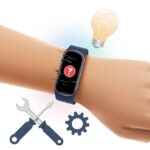
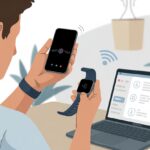
We’ve all had that moment—one second we’re counting laps like we’re at the Olympics, and the next our fitness tracker just zones out and refuses to wake up. Usually, a fitness tracker stops responding after a swim because water sneaks into places it really shouldn’t, or the device isn’t as waterproof as we’d like to believe.
Sometimes, it just needs to dry out for a bit. Salt or chlorine can also mess things up if we forget to rinse it off after our pool adventure.
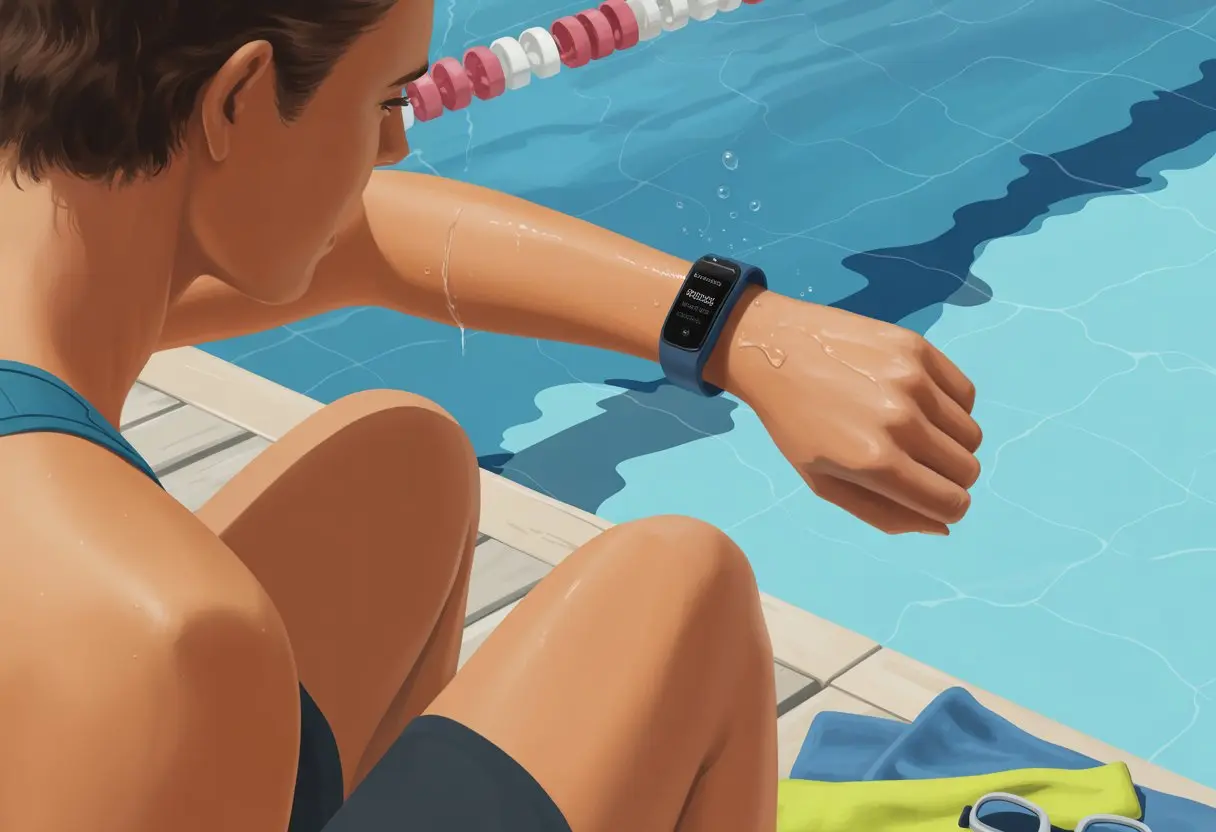
Let’s be real, it’s easy to trust our gadgets a bit too much when we see “water resistant” stamped on the box. But even if we try to do everything right, tech isn’t always ready for our Michael Phelps moments—especially if we skip things like enabling water lock or rinsing after a salty swim.
If you’re sitting there wondering what just happened, stick around. We’re about to dive into some simple fixes (and maybe some not-so-great news) for our swim-proof dreams.
Common Causes Your Fitness Tracker Is Not Responding After Swimming
After a swim, some fitness trackers just decide to check out for a while. Why do these gadgets ghost us at the worst possible time—like right after a great workout?
Water Damage and Moisture Ingress
Let’s be honest, “swimproof” doesn’t mean “invincible.” Even water-resistant trackers can get water damage after a solid soak.
Tiny bits of moisture sneak in through cracks, buttons, or charging ports. If the tracker isn’t sealed tight or the gasket’s worn out, it can fry the insides faster than you finish a lap.
Moisture inside messes up the display, drains the battery, or makes buttons act up. Sometimes, letting it dry out does the trick. Other times, all we get is a blank screen and a sigh.
Charger Connection Issues
After a swim, we’re usually eager to recharge—maybe to save those lap stats or just to prove we exercised. But sometimes, plugging it in does nothing.
Water can linger in the charging port or around the pins, making it impossible for the charger to connect. Corrosion can build up too, turning our trusty charger into a useless tangle.
Check for water droplets and gently wipe the port and cable. If that doesn’t work, try unplugging and plugging it back in—with a bit more towel action, of course.
Frozen or Unresponsive Display
Sometimes, trackers just freeze up. After a swim, the display might lock, refuse to respond, or just sit there, blank and stubborn.
Moisture or sudden temperature changes can confuse the software. Restarting the tracker or doing a forced reset sometimes wakes it up. Make sure the screen is clean and dry—water can fool even the smartest touchscreens.
Some common display problems:
- Screen won’t turn on
- Touch doesn’t respond
- Random flickers or flashes
Physical Button Malfunctions
We expect our buttons to pop up when we press them, but after a swim, things get a bit sticky. Water sneaks into the button gaps, and sometimes we get a squishy click—or nothing at all.
Salt, chlorine, or even tap water can leave residue, making buttons jam or skip. Mashing the button harder rarely helps (trust us on this). Dry it out, and try a gentle cleaning, but don’t use anything sharp—no matter how tempting.
If nothing works, sometimes buttons come back to life after a good dry-out. Until then, missing fitness alerts is just “technical difficulties,” right?
Model-Specific Quirks: When the Problem Is Personal
Not every fitness tracker handles swim time the same way. Settings, hardware, and random waterproofing quirks can leave us frustrated—or just plain confused—on pool day.
Fitbit Flex After Swim Troubles
Plenty of us have taken our Fitbit Flex for a dip, only to watch it stare back at us like a soggy potato. Sometimes it won’t recognize swimming, or it just freezes up.
Main problems include:
- Touch sensors stop working after chlorinated water
- Swim detection fails if settings aren’t updated
- Lights or vibration features act weird
Before panicking, check that you’ve set the pool length in the app and enabled swim in exercise goals. Rinse and dry it gently. If it still acts possessed, maybe support needs to step in (and take the plunge for us).
Garmin Epix Reboot Rituals
Garmin Epix has its own way of handling water drama. We finish our swim, glance down, and the screen is frozen or data’s missing.
What usually helps:
- Doing a soft reset (hold the power button until it restarts)
- Letting it dry while powered off
- Checking for firmware updates
Sometimes the Epix just needs to gather itself after a swim. Patience is key—plus a little button mashing for good measure. If things still don’t work, the Garmin forums or tech support might save the day.
Misfit Shine’s Aquatic Adventures
The Misfit Shine always promises style, but water can bring out its stubborn side. It might stop syncing, or the activity ring refuses to fill.
What trips us up most:
- Magnets inside can be sensitive to water, even if the shell looks sealed
- Touch recognition gets spotty when wet
- Syncing issues pop up as soon as we dry off
Cleaning the sensor area, double-checking battery placement, and retrying the sync usually gets things moving. If not, removing and reinserting the battery is our go-to “fix.” Or maybe we just hope next time goes better.
Troubleshooting Steps to Revive Your Swimming Buddy
So, our fitness tracker decided to take a nap after a swim. Before we get dramatic, let’s try a few things. Drying, resetting, charger swaps, and update checks might just bring it back.
Drying and Cleaning Methods
Water is a sneaky villain. If our tracker stopped working after a swim, patience and a towel are our first tools.
Take the tracker off and pat it dry with a soft, lint-free cloth. Don’t use heat—hairdryers and ovens turn tech into toast, not miracles.
If we braved saltwater or a chlorinated pool, rinse the device with clean, fresh water. Salt and pool chemicals are not our watch’s friends.
After cleaning, leave it somewhere cool and dry with good airflow for at least 24-48 hours. A bowl of uncooked rice or silica gel packets can help pull out extra moisture—let’s be honest, we all have one or the other lying around.
Most important: don’t press any buttons or try to turn it on while it’s still wet inside. Let’s not make things worse by being impatient.
Soft and Hard Resets
When we’re sure the tracker is dry, it’s time for some tech CPR. Try a soft reset by holding down the main button (or two, if it’s a fancier model) for about 10 seconds.
For Apple Watch, hold both the Digital Crown and side button together until the logo pops up. If nothing happens, we might need a hard reset. That usually means holding buttons longer or following a specific sequence.
Check official guides or support forums for steps—they’re honestly more helpful than random advice from a cousin.
If the screen stays blank or just acts like it’s on a beach vacation, it’s time to dig deeper. Patience and persistence usually pay off. Maybe grab a snack while we wait.
Testing with Alternate Chargers
Chargers are like socks—they disappear, tangle, and sometimes just stop working. If our tracker is still unresponsive after drying and resetting, try a different charging cable and wall adapter.
Test charging on another plug or a friend’s charger (if they’ve got the same brand). Check the tracker’s contacts for dirt, grime, or mysterious pocket lint. Gently clean with a dry toothbrush or cotton swab.
Make sure the charger is actually getting power—nobody likes charging from a dead USB port. If we’re lucky, our tracker just needed a new charge or a better connection.
Firmware Update Checks
If the tracker finally boots up, don’t celebrate just yet. Sometimes, a software bug causes issues after water exposure.
Open the tracker’s app and check for firmware updates. Device makers sometimes release updates to fix swimming glitches or improve waterproofing.
Connect the tracker to the app and follow the update instructions. Don’t interrupt, even if it feels slow—progress bars aren’t meant to be watched, but here we are.
When it’s done, test swim tracking and other features to make sure everything works. Staying updated means less troubleshooting and more time bragging about those lap counts.
For more advice and real-world fixes, user forums like Fitbit Community are gold mines for info (and a bit of sympathy).
Understanding Water Resistance Ratings: Are You Actually Waterproof?
Before we cannonball into the deep end, let’s clear up a big myth: just because our tracker has a fancy rating doesn’t mean it’s ready to snorkel with dolphins.
There are levels, limits, and sneaky details we all need to know if we want to keep our trackers alive and ticking.
Interpreting IP and ATM Ratings
Most fitness trackers show off an IP or ATM rating. But honestly, do we really know what those mean, or are we just nodding along, hoping we’re safe?
An IP rating (like IP68) tells us how much dust and water a gadget can handle. For example, IP68 means the tracker survived a lab test where it hung out underwater for a set time and depth. That doesn’t mean it’s cool with chlorine or saltwater—just that it handled some very specific, not-so-real-world scenarios.
IP67 and IP68 sound impressive, but they’re not meant for cannonballs or long swims. You can dig into the details about IP68 for smartwatches at Runmefit.
ATM ratings take a different approach. 3 ATM handles splashes or rain, but don’t take it swimming. 5 ATM usually means you can swim at the surface, but don’t try any deep-sea missions. The higher the ATM, the deeper you can go before your watch starts to freak out. Still, “waterproof” here just means “water resistant”—let’s be real, only a plastic duck is truly waterproof.
Here’s a quick table:
| Rating | What it Really Means |
|---|---|
| IP67 | Splash, brief dunking—don’t use for swimming |
| IP68 | Okay for quick submersion, not pool workouts |
| 3 ATM | Handles rain/splashes, no swimming |
| 5 ATM | Surface swimming, no diving |
Proper Usage During Swimming
Our trackers might survive a shower, but swimming brings a whole new challenge. Water pressure, temperature, and chemicals in the pool can mess with the seals that protect the electronics.
We should actually read the manufacturer’s instructions—even if they’re boring. If the manual says only swim at the surface, stick to that. Only push buttons underwater if it’s clearly allowed.
Wearing a tracker in the hot tub? That’s a bad idea, unless you’re curious how quickly it’ll die.
Even if a device is rated for water, age and accidents can wear down the seals. Last year’s “water resistant” gadget could be this year’s soggy mess. Someone on Reddit learned the hard way that hot water and impacts can kill waterproofing.
Here’s a quick checklist for safer swimming:
- Always rinse with fresh water after a swim
- Skip the hot tub or sauna
- Don’t press buttons underwater unless the manual says it’s okay
- If it starts buzzing weirdly, dry it out and cross your fingers
Consequences of Exceeding Water Limits
If you ignore your tracker’s water rating, you’re asking for trouble.
When you push past those limits, tiny gaskets and seals can give up. Water sneaks in, and that’s pretty much game over for electronics. Screens go blank, sensors stop working, and suddenly you’ve got nothing but a fancy bracelet.
A higher WR rating just means it can handle more pressure before failing—not that it’s invincible. Every swim in tough conditions or extreme heat (yep, those poolside summers) wears out the best-rated device eventually. Water resistance isn’t a magic shield—it’s more like a warning to know when to towel off. For more on this, there’s a solid breakdown of watch ratings.
So unless your tracker brags about being built for underwater marathons, maybe leave synchronized swimming to the pros with real waterproof gear.
How Swimming Impacts Tracker Features
When we grab our goggles and hit the pool, our fitness trackers face some real challenges. Tracking heart rate, steps, and notifications underwater isn’t as simple as it looks from the lounge chair.
Heart Rate Data Accuracy in Water
Let’s talk about those flashing heart rate sensors. In water, they can mess up worse than we do on our first lap.
Water gets between the sensor and our skin, messing up the light signals. Sweat is one thing, but chlorine? That’s a whole new headache. These sensors use light to “read” blood flow, and water just gets in the way.
If your skin gets wrinkly from a long swim, the readings can get even less reliable. Most trackers just aren’t built to track heart rate accurately underwater. Even the best ones can drop out, lag, or think you’ve suddenly got an octopus-sized heart.
So after a swim, don’t be shocked if your heart rate data looks wild or suspiciously calm.
Notifications Underwater
Wouldn’t it be great if your wrist buzzed with a pizza delivery alert mid-lap? Sadly, most trackers can’t pull that off underwater.
Water blocks or messes with Bluetooth signals, so your tracker might not get messages while you’re swimming. Screens often stay dark, and even if they light up, touchscreens usually don’t work right when wet. Water and touch tech just don’t mix.
Some wearables have “water lock” modes to stop accidental touches, but that also means you can’t swipe away notifications until you’re dry. If you’re waiting for an urgent text, you’ll need to towel off first.
Step and Distance Measurement Issues
Fitness trackers are obsessed with steps, but swimming doesn’t really involve any. Arm movements, kicks, and strokes can confuse the sensors.
Most trackers use accelerometers (basically “wiggle detectors”) to count steps and distance. In the pool, those wiggles look weird, and sometimes you end up logging a marathon from a few laps. Some trackers have special swim modes, but if you forget to turn them on, your device might think you’ve walked 10,000 steps—or none at all.
Nobody wants to explain why their tracker says they did a marathon in the pool. If you want to see what happens when trackers go haywire after a swim, check out this story about a non-responsive Fitbit Charge 6 after swimming.
When to Seek Repair or Replacement
Sometimes, water wins and your tracker just gives up. If rebooting, charging, and drying don’t work, it might be time for a backup plan or a new device.
Don’t waste hours poking random buttons and hoping for a miracle.
Warranty and Support Options
Check your warranty first—it’s your best shot at a fix. Most fitness trackers, like Fitbit and Apple Watch, come with a limited warranty (usually a year). If your tracker died while still under warranty, reach out to the manufacturer. And don’t claim you used it for deep-sea diving unless it’s built for that—honesty helps keep your warranty safe.
Look for free support like chat, email, or phone help. Some brands might swap your tracker instead of repairing it. If you bought an extended warranty or have insurance, now’s the time to use it.
Gather your receipt, serial number, and maybe a good story about drying it in a bowl of rice before you call for help.
DIY Repairs vs. Professional Help
We’ve all considered cracking open a tracker with a butter knife, but let’s be real: DIY repairs almost never work out. Opening a sealed device usually makes things worse and voids the warranty fast. Professional repair shops have the right tools and know-how to handle water damage without turning your tracker into a paperweight.
If your tracker won’t respond after swimming, check the manufacturer’s website for repair centers or approved service providers. Avoid random third-party fixes unless your warranty’s already gone. You can try basic stuff like cleaning charging ports or rebooting, but leave anything called “disassembly” to the pros.
Sometimes, you just have to let experts handle the mess from your over-enthusiastic laps.
Long-Term Care Tips for Waterproof Fitness Trackers
Keeping your tracker alive after a swim takes more than luck. A few good habits can help you avoid dead screens, endless reboots, and weird error beeps. Leaving it in a puddle overnight? That’s not one of them.
Regular Maintenance After Swimming
When you hop out of the pool, your tracker deserves a little spa time too. Rinse it with clean, fresh water—especially if you’ve been in a chlorine-filled pool or the ocean. This helps wash away chemicals or salt that could mess with sensors or cause corrosion.
Next, dry it carefully. Don’t blast it with a hairdryer (seriously, don’t). Towel-dry the device, then let it air dry somewhere cool. Try not to poke at buttons or the screen while it dries. If your tracker has a water lock mode or feature, turn it off after swimming.
A quick after-swim checklist:
- Rinse with fresh water
- Pat dry with a towel
- Let it air dry
- Turn off water lock (if you used it)
It might sound like a lot, but it’s easier than explaining to tech support why your tracker smells like a swimming pool.
Best Practices for Charging and Storage
Once your device feels dry, you might want to toss it on the charger right away. But honestly, waiting a bit is smarter. Charging a damp tracker? That’s just asking for trouble.
Water hanging out in the charging port can spark short circuits. Nobody wants fireworks from a tiny gadget like this.
Make sure everything—especially the charging contacts—feels bone dry before you plug in any cables. Grab a soft, lint-free cloth and give the charging port a gentle wipe. That’s a solid way to keep debris or moisture out.
When you’re not using the tracker, stash it somewhere cool and dry. Skip the direct sunlight and definitely don’t toss it in a sweaty gym bag. High heat or humidity? Those can mess up the waterproof seals and drain your battery life faster than you’d expect.
Here’s a quick cheat sheet:
| Do | Don’t |
|---|---|
| Dry well | Charge wet |
| Store cool | Leave in sunlight |
| Check seals | Ignore dampness |
Honestly, treat your fitness tracker like a pet fish—it needs care, a little attention, and absolutely no electrical shocks.

From a young age, I have always had a big interest in technology, and this blog is an extension of that interest. Through this blog, I hope to provide others with all of the information they need regarding tech options to consider, and things such as compatibility. Some of the different items I will be discussing include headphones, smartwatches, and how to fix common issues.
Related Posts: