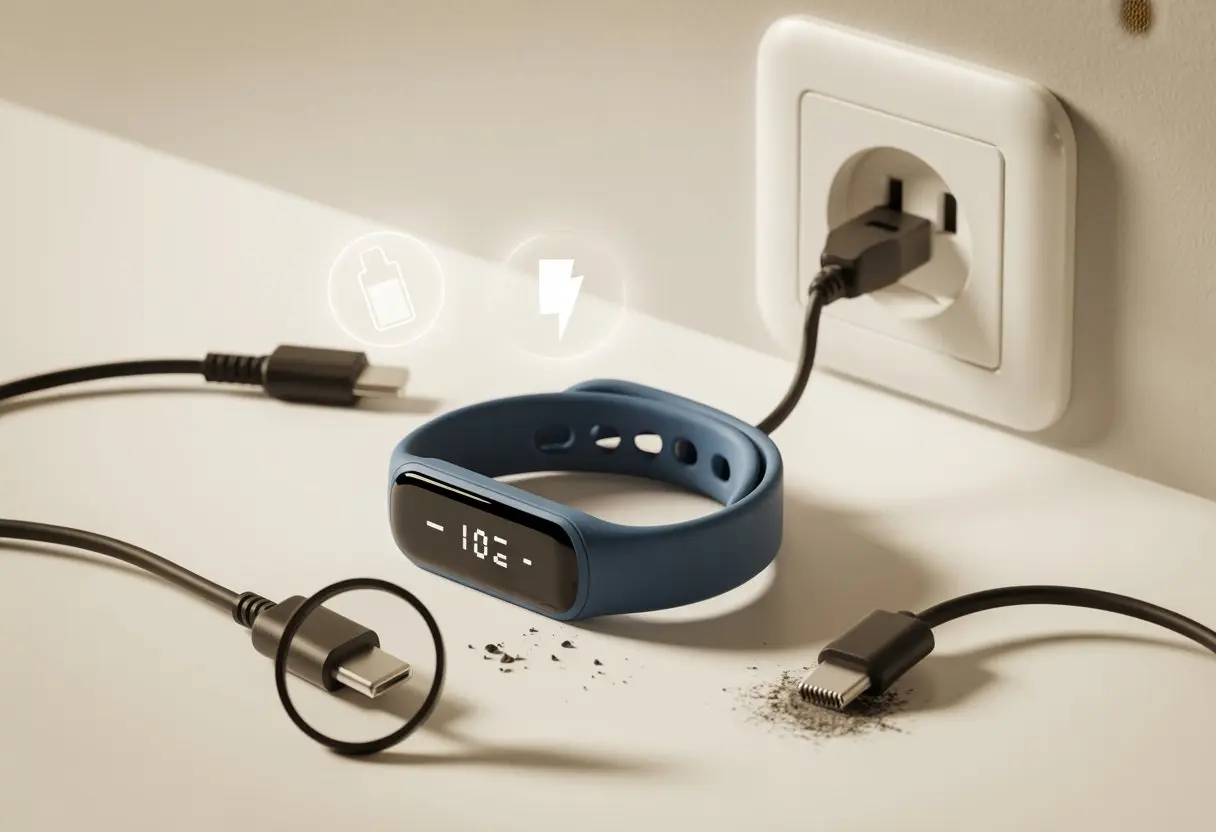
We’ve all been there: you’re psyched to hit your step goal or show off your sleep stats, and suddenly—your fitness tracker just won’t charge. You stare at it. You wiggle the charger. Maybe you curse a little. Most fitness trackers refuse to charge because of issues with the charging cable, dirty port contacts, or a weak magnet that can’t keep the charger in place. Sometimes, a little dirt or plugging the USB cable in the wrong way can ruin your plans for a power walk or a solid sleep log.
Honestly, we rely on these little wrist gadgets like they’re our personal trainers and therapists combined. When they stop working, our motivation can disappear fast.
Don’t panic or threaten to swap your tracker for a sundial just yet. Let’s walk through some troubleshooting steps—maybe with a laugh or two—that could bring your tracker back to life.
So, before blaming your lack of steps on a dying battery, let’s dig into the most common charging problems, easy fixes, and a few weird reasons your trusty tracker sometimes acts like it needs a nap more than you do.
Common Reasons Your Fitness Tracker Is Not Charging
Let’s be real: your fitness tracker is only as good as its battery. When it won’t charge, you’re just wearing a powerless plastic bracelet. Usually, you can blame blocked contacts, a frazzled charging cable, or a USB port that’s just not in the mood.
Dirty or Obstructed Charging Port
If your charging port could talk, it’d probably complain about how neglected it feels. Dust, lint, and leftover workout grime love to collect on the charging contacts, getting between your charger and a happy, juiced-up tracker.
You can usually fix this with a soft, dry cloth or a little brush—an old toothbrush works, just not the one you use. Skip the liquids; fitness trackers don’t want a bath. Gently clear away any gunk, and your tracker should recognize the charger again. Loads of users say this is the #1 fix for charging problems with trackers.
Faulty Charging Cable
Charging cables have one job, but sometimes they still blow it. The tiny wires inside can fray, snap, or just give up after too many twists or dramatic nightstand tosses.
Check your cable for visible damage—cuts, frays, or bent ends are all red flags. Try swapping in another compatible cable to see if your old one’s the problem. Cables cost way less than a new tracker, so it’s worth having a backup. Manufacturers usually tell you to test different cables and ports before sending your tracker off.
Broken USB Port
Don’t forget about the innocent-looking USB port. It’s easy to blame your tracker or cable, but sometimes the real troublemaker is the port on your computer, wall adapter, or power bank.
Try your cable and tracker on a different USB port or a new power source. We’ve all had a port that looks fine but secretly refuses to work, especially after years of plugging things in upside down. If none of your ports cooperate, try a wall charger or another device. Sometimes, you just need a better outlet!
Quick Troubleshooting Steps
Before you assume your fitness tracker’s retired for good, let’s check a few basics. The usual suspects are the charging cable, USB port, or maybe your own questionable plugging skills.
Inspect the Charging Cable and USB Cable
Let’s be honest—charging cables get tossed around more than a toddler’s favorite toy. Look for obvious damage like bent connectors, frayed ends, or, well, mysterious stickiness.
If the cable looks okay, disconnect it from both your tracker and the USB port. Sometimes lint or crumbs sneak into the charger. Use a dry, soft brush or a toothpick (not the minty kind) to gently clean the charging points and port.
After cleaning, reconnect the cable with a firm but gentle touch. If your tracker still won’t power up, try a different charging cable. This can save you from blaming your USB port when the real problem is an old cable. Plenty of folks mention this in discussions about charging cable and port problems.
Try a Different USB Port
Sometimes your go-to USB port just gives up, like you before your morning coffee. If your tracker still refuses to charge, try a different USB port or plug into a UL-certified wall charger.
Skip the ports on keyboards, monitors, or dusty corners behind the TV. You’ll get the best results from ports directly on your computer or a solid wall adapter.
If your tracker starts charging in the new port, you’ve found the problem. If nothing happens, at least you know your USB port isn’t secretly broken. Using a working port or charger gets you back to counting steps—even if they’re mostly to the fridge.
Battery Life and Power Issues
Fitness trackers might be tiny, but the drama when they don’t charge feels huge. Sometimes the battery quits, sometimes it’s just lazy. There are ways to revive dead batteries and stretch battery life.
Dealing With a Dead Battery
If your tracker won’t charge, start with the basics. Is it plugged in? (Don’t feel bad, we all miss that sometimes.) Next, check the cable and charger. Swapping in another cable or charger can save you a headache.
If it’s still dead, dirty charging contacts might be the culprit. Give them a gentle wipe with a dry cloth. Sometimes, just restarting the tracker works—hold the button, wait for a smiley face, quietly celebrate, and try charging again.
Here’s a quick checklist:
- Check cable and charging port
- Clean metal charging contacts
- Try a different USB port or adapter
- Restart the tracker
- Try not to panic
If nothing works, your battery might be toast and you’ll need a replacement. Trackers have a lifespan, just like everything else.
Battery Life Expectations
Even the best trackers need a break—sometimes sooner than we’d like. Most fitness tracker batteries last 5-7 days. If you’re getting a lot less, check your settings.
Features like always-on display, GPS, or constant heart rate monitoring can drain the battery faster than you’d expect.
Here’s a quick look at how features affect battery life:
| Feature | Impact on Battery |
|---|---|
| Notifications On | Moderate |
| GPS Active | High |
| Heart Rate Always On | High |
| Sleep Tracking | Low to Moderate |
Tweak these settings if you want your charge to last longer. Batteries do get weaker as they age, and that’s just how it goes. At least they don’t ask for a retirement cake.
Addressing Syncing and Notification Problems
Sometimes your fitness tracker acts up, dropping notifications or refusing to sync just when you need it most. Let’s tackle these annoyances with some steps that actually work for most of us.
Syncing Troubles With the Fitbit App
When your Fitbit stops syncing, it can feel like it’s ignoring you on purpose. Usually, it’s just one of these things:
- Bluetooth is Off or Laggy: Make sure Bluetooth is on. Sometimes toggling it off and back on wakes things up.
- App Is Frozen: The Fitbit app can get stuck. Force-close it from your phone’s app switcher and reopen it.
- Device Needs a Restart: Restarting the Fitbit can clear up hidden glitches. This actually works a lot.
- Outdated App or Firmware: If you’re running old versions, syncing can break. Update the app and firmware—it’s not just for fun, it actually helps.
If nothing works, uninstall and reinstall the Fitbit app. Lots of people say this fixes syncing headaches, as seen in Fitbit syncing problems. You can also unpair and repair the tracker from your phone if it’s being especially stubborn. Don’t worry—your step counts will survive!
Missed Notifications Headaches
It’s pretty annoying to realize you’ve missed texts, calls, and—worst of all—pizza coupons. If your Fitbit skips notifications, check these usual suspects:
- Notification Permissions: Make sure the Fitbit app has permission to send notifications on your phone. If not, nothing gets through.
- Do Not Disturb: If either your phone or Fitbit has “Do Not Disturb” on, you’ll miss alerts.
- Bluetooth Issues: If syncing isn’t working, notifications won’t either. Fixing one often fixes the other.
- Fitbit App Settings: Double-check which notifications are toggled on in the Fitbit app—sometimes calls, texts, or alerts are off by accident.
For step-by-step help, users often suggest a restart of the tracker and the app. If that fails, reinstalling the app usually does the trick. And if all else fails, maybe it’s time for a snack break—for you, not the Fitbit.
Privacy Concerns During Charging
You’d think charging a fitness tracker would be a private thing—just you, your device, and the wall socket. But honestly, it doesn’t always play out that way.
There are a few quirky privacy risks that pop up, even when your tracker’s just sitting there, low on battery and waiting for a boost.
When you plug in your tracker, it might quietly sync data with the cloud or an app. That means your step counts, sleep patterns, or even your embarrassing jogging playlist could end up somewhere you didn’t expect.
Chargers can nudge devices to connect to Wi-Fi or Bluetooth, which might open the door to unwanted data transfers.
Here’s a quick list to keep in mind:
- Device Connections: Some trackers hook up to other devices automatically.
- App Updates: Charging often triggers updates, and sometimes those send data in the background.
- Physical Security: Leaving your tracker out in public while it charges? Someone might try to mess with it.
| Privacy Do’s | Privacy Don’ts |
|---|---|
| Use your own USB adapter | Leave your device unattended |
| Charge from secure outlets | Use public charging stations |
| Check app permissions often | Ignore software update warnings |
If privacy keeps you up at night, you can always turn off syncing or power down the tracker while it charges.
For the ultra-cautious, there are more tips floating around in fitness tracker privacy communities.
Let’s be real—nobody wants their treadmill fails or 2AM step counts drifting through cyberspace. Managing your gadget’s privacy feels almost as important as keeping it charged.
When to Contact Customer Support
Sometimes, no matter how much cleaning or charging you do, the tracker just refuses to wake up.
That’s when it’s time to stop blaming the charging cable and call in the experts.
When to Contact Fitbit Support
If your Fitbit still acts like it’s in a deep sleep—even after thirty minutes on the charger and a few different outlets—it might just be auditioning for a drama award.
Try this checklist before you reach out to Fitbit Support:
- Battery still dead: You’ve got a working charger and clean contacts, but nothing happens.
- No response: The display stays black, and there’s no buzz, light, or any sign of life.
- Visible damage: Broken pins, cracked screens, or wires that look a little desperate.
- You tried everything: Restarting, cleaning, swapping cables and outlets, maybe even a little wishful thinking.
If nothing works, reaching out to Fitbit isn’t giving up. Sometimes you just need backup when you know you deserve working steps.
Reaching Out to rea for Help
If you’ve got a tracker from rea and it just won’t charge, there’s no need to yell at it or send angry emails.
You should probably contact rea’s customer support if:
- The charger’s attached correctly but nothing happens.
- Cleaning the charging pins didn’t fix anything.
- You tried a new cable and a different outlet and still got nowhere.
rea’s team can walk you through warranty options, replacement parts, or how to fix it yourself. Honestly, it’s totally fine to ask for help—there are only so many outlets you can try before you run out of patience.
If you want tips on cleaning or making sure the charger’s on right, rea has a pretty handy guide online. Sometimes it feels like a losing battle, but hey, at least you’re not alone.

From a young age, I have always had a big interest in technology, and this blog is an extension of that interest. Through this blog, I hope to provide others with all of the information they need regarding tech options to consider, and things such as compatibility. Some of the different items I will be discussing include headphones, smartwatches, and how to fix common issues.
Related Posts: