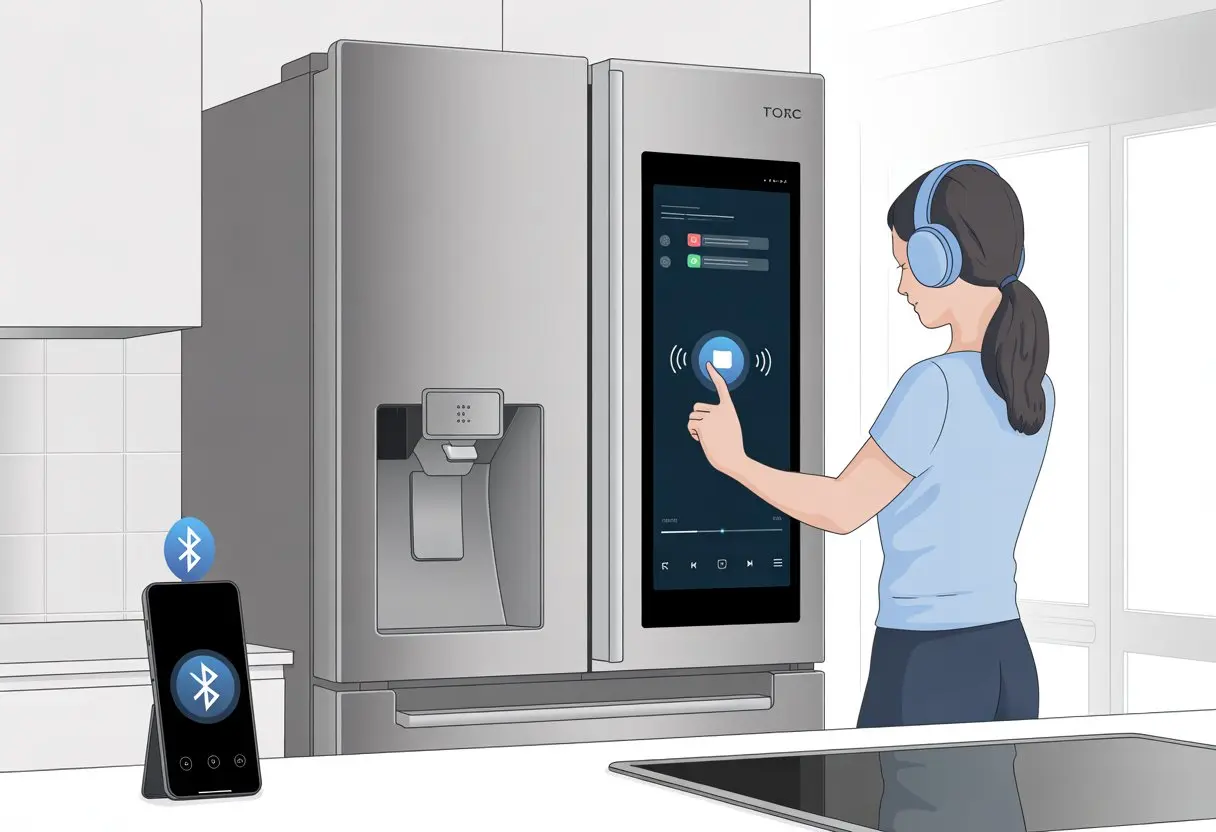
Ever wonder why our smart fridge can recommend recipes, play music, and keep our milk cold, but we still have to listen to our favorite songs out loud for everyone to hear? Turns out, Bluetooth headphones can pair with some smart fridges, so we can jam out while grabbing a midnight snack—and keep those embarrassing playlists to ourselves.
If you’ve ever yanked open the fridge and wished you could tune out the chaos in the next room, you’re definitely not alone.
Here’s the catch: not every fridge supports Bluetooth audio. Some, like certain Samsung models, let you pair headphones or speakers. You can check out how some fridges let you play audio by connecting to Bluetooth headphones directly.
No more fighting over which podcast rules the kitchen.
Let’s see what it takes to bring a little peace—or maybe a private dance party—into our kitchen routine. Using Bluetooth headphones with our smart fridge might just make late-night snacking a whole lot more fun.
Understanding Bluetooth Headphone Compatibility
Using Bluetooth headphones with our smart fridge sounds fun, futuristic, and maybe even a little weird. But before we start jamming next to the produce drawer, we need to see what our fridge can actually do.
Let’s make sure our tech is up to date and double-check if our devices can even talk to each other.
Supported Smart Fridge Models
Not every refrigerator is smart enough for Bluetooth headphones. Some newer models—especially the ones with giant screens and touch controls—let us pair wireless headphones for audio or kitchen alerts.
For example, some LG InstaView fridges can play music, but many only support certain Bluetooth profiles. If our fridge manual mentions “External Audio Output” or “Bluetooth Audio Streaming,” we’re probably in luck.
But if it only lists Bluetooth for diagnostics or app control, our headphones might get left out.
Let’s check our fridge’s product page or the manufacturer’s website for details. Browsing support articles or forums can help too—other users with the same fridge might have already figured this out.
Bluetooth Technology Requirements
To avoid tech headaches, our fridge’s Bluetooth version needs to work with our headphones. Most fridges that support audio streaming have at least Bluetooth 4.0, but some older or basic models might only use Bluetooth for data, not sound.
Our headphones should support A2DP (Advanced Audio Distribution Profile), which most modern headphones do. If either device is missing this, pairing for music just isn’t going to happen.
Some fridges only let us pair with one Bluetooth device at a time. If our fridge is already connected to our phone, it might ignore the headphones until we disconnect the phone.
Time to play matchmaker, right?
Checking Fridge and Headphone Pairing Abilities
Before we spend hours pressing random buttons, let’s look for a Bluetooth menu or pairing mode on our fridge. Most smart fridges with this feature put a Bluetooth setting in the main menu or in their app for adding new devices.
For headphones, pairing usually means holding down the power button until a blinking light shows up. But fridges can be picky—sometimes they only show up under certain menus, or only pair if they aren’t already linked to something else.
FAQ pages like this Samsung guide offer step-by-step instructions for TVs, and honestly, it’s often pretty similar for fridges.
If our fridge doesn’t show the headphones in its list, it probably doesn’t have the right audio output baked in. But hey, at least the lettuce won’t judge us if we talk to ourselves while trying!
Preparing Your Smart Fridge for Bluetooth
Let’s make sure our fridge is ready to get smarter. Before our headphones and snacks become best friends, we need to prep the fridge with a few quick steps.
Enabling Bluetooth Settings
First, let’s head to the fridge control panel. Most smart fridges have a settings or connections menu—time to hunt down the Bluetooth option.
Sometimes it hides under “Wireless Connections” or “Device Pairing.” If we still have the manual, now’s the moment to dust it off.
Tap to enable Bluetooth. If nothing happens, try restarting the fridge’s display panel. Some fridges want us to put them in pairing mode. Look for a message like “Ready to Pair” or a blinking Bluetooth symbol.
Make sure our headphones are also in pairing mode, or we might end up connecting to the neighbor’s fridge by accident.
Here’s a quick checklist:
Find Bluetooth in settings
Toggle it ON
Watch for a pairing message or indicator light
Get our headphones into pairing mode
Modern fridges barely sip power when Bluetooth is on, so don’t sweat the electricity bill.
Ensuring Wi-Fi Connectivity
Even though we’re talking Bluetooth, our fridge still needs Wi-Fi to unlock all its features. Most smart fridges need Wi-Fi for firmware updates and app connections.
If we skip this, half the “smart” in our fridge might disappear (along with our leftovers).
Let’s connect the fridge to our home Wi-Fi from the control panel. Enter the Wi-Fi password—typos happen to the best of us.
After connecting, check for firmware updates. These can improve Bluetooth performance and squash random bugs, kind of like coffee for a tired brain.
If our fridge uses SmartThings, a solid Wi-Fi connection is a must. Plus, remote management and energy-saving tips become available, which is always nice when things go sideways.
Pairing Bluetooth Headphones with a Smart Fridge
Connecting Bluetooth headphones to a smart fridge might sound wild, but it’s actually pretty easy. We just have to poke through a few menus and resist blasting music every time we sneak a snack.
Step-by-Step Pairing Instructions
Let’s make sure our Bluetooth headphones are charged. Nothing worse than your playlist dying halfway through dinner prep.
Most smart fridges, like the Samsung Family Hub, let us pair directly with Bluetooth audio devices. Here’s how it usually goes:
Put headphones in pairing mode. (Hold that button like your fridge depends on it.)
Open the fridge’s menu and go to “Settings,” then find “Connections” or “Bluetooth.” On Samsung fridges, it’s pretty straightforward.
Start searching for devices. The fridge should display a list of nearby Bluetooth gadgets—sometimes even the neighbor’s headphones show up.
Select our headphones and tap “Connect.”
Grab a snack, because why not.
If our fridge uses something like LG’s ThinQ app, we might need to add the fridge as a device in the app first, then follow prompts to connect Bluetooth headphones. The on-screen instructions do most of the work.
Troubleshooting Connection Issues
Sometimes, even the fanciest fridges get stubborn. If Bluetooth won’t cooperate, don’t panic—no one’s buying a new fridge just yet.
First, make sure the fridge’s Bluetooth is on. It sounds obvious, but updates or power outages can switch it off.
Check that we’re not trying to connect our headphones to the fridge and TV at the same time. Devices get confused faster than a squirrel in a bird feeder—it really happens.
If pairing still fails, reboot both the headphones and the fridge. Sometimes they just need a little reset (or maybe a pep talk).
If the issue sticks around, unpair or forget the headphones from any device list and try again.
Keep in mind, not all fridges support direct Bluetooth audio connections. If nothing works, check the manual, browse forums, or reach out to the manufacturer’s support page. At least the ice maker still does its job, right?
Enhancing Kitchen Life with Bluetooth Headphones
Cooking can feel like a chore, but Bluetooth headphones and a smart fridge make things way more convenient. We keep our hands free, stay entertained, and can take important calls without hunting for our phone with sticky fingers.
Listening to Music and Podcasts While Cooking
When we’re chopping onions or flipping pancakes, good music turns us into kitchen dance stars. Bluetooth headphones let us stream playlists, podcasts, or audiobooks straight from the fridge.
It’s like a private DJ in our ears.
No more dragging speakers across the counter or worrying about spaghetti sauce splatters. We get clear sound, and cords don’t end up in the soup.
With smart fridges that have built-in voice assistants, we just ask for our favorite tunes. If the fridge refuses to play our guilty pleasure playlist, maybe it’s just saving us from embarrassment.
Listening through headphones means our family doesn’t have to share our odd love of ‘90s boy bands or true crime podcasts while waiting for dinner.
Hands-Free Calls from Your Fridge
Someone always calls when our hands are greasy or we’re elbow-deep in dough. With Bluetooth headphones, we can answer calls without fumbling for the phone or wiping flour on our pants.
Paired with the fridge’s connectivity, calls routed straight to our ears are a game-changer. We can share a secret cookie recipe with Grandma or ask about missing ingredients without stopping what we’re doing.
Family members in other rooms don’t have to hear us yelling over running water. This hands-free setup means we keep cooking, stay connected, and avoid dropping the phone in the soup pot.
That’s kitchen convenience worth bragging about.
Using the ThinQ App and Smartphone Features
We can make our smart fridges feel even smarter with the ThinQ app on our phones. Whether we’re team Android or iPhone, the ThinQ app gives us tons of control and new ways to manage notifications and settings—without running to the kitchen every five minutes.
Connecting with Android and iOS Devices
First up, we need the ThinQ app on our phone. On Android, just grab LG ThinQ from the Play Store.
After installing, connecting is kind of like making a new friend: open the app, tap “Add Device,” and pick our fridge from the list.
Follow the on-screen steps. During setup, the app might nudge us to turn on Bluetooth and Wi-Fi.
Once everything’s paired up, we can control fridge features right from the sofa. On Android or iOS, most steps and features are basically the same.
If we ever want to remove or reconnect the fridge, it just takes a few taps.
Managing Smart Fridge Notifications
Managing fridge notifications sometimes feels like throwing a party and only letting in the friends we actually want around. The ThinQ app lets us pick the alerts we care about, from door-left-open warnings to filter replacement reminders.
We just tap our fridge in the ThinQ app and head over to settings. Here, we can flip specific alerts on or off.
No more buzzing every time someone sneaks a midnight snack. That alone makes life a little quieter.
If we hate missing out, enabling push notifications keeps our phones—Android or iOS—up to speed, even if we’re out grabbing groceries. Now, if only the app could warn us before the milk turns sour! LG’s ThinQ guide has extra tips if we want to dig deeper.
Smart Fridge Audio Features and Functionality
These days, smart fridges don’t just chill our groceries—they talk, play music, and sometimes feel like part of the kitchen crew. They help us remember the milk and turn mornings into something a little less silent.
Audio Alerts for Grocery Management
It’s way too easy to forget the eggs or lose track of a cucumber until it’s unrecognizable. Smart fridges now give us audio alerts to help us manage our shopping list and groceries.
They might beep or chime when we open the door if something’s about to expire, like that yogurt hiding behind leftovers. Some fridges ping our phones through their apps, so we get reminders wherever we are.
We can even link these reminders to our smartphone calendars, making it harder to forget what’s in the fridge. Syncing with apps like SmartThings, we track items, set expiration dates, and avoid building a “forgotten vegetable museum.”
Audio features cut through kitchen noise, giving us timely updates when we need them.
Voice Assistants and Other Perks
Our smart fridges come loaded with voice assistants that wait for us to talk. We can say, “Add milk to the shopping list,” or just ask the fridge to read out our list while we’re elbows-deep in dough.
Some models have Bixby built in, or even work with Alexa and Google Assistant. We control the fridge and other smart home devices without leaving our snack zone.
We can ask for recipes, check the weather, or play music right through the fridge’s speakers. Streaming from Spotify or Pandora makes kitchen chores less dull.
Touchscreens and voice control make food management and entertainment in the kitchen way more fun.
Beyond Music: Practical Uses in Food Management
Bluetooth headphones aren’t just for jamming out while we chop onions. They actually help us with real kitchen tasks—especially when we’re trying to stay organized and waste less food.
Reducing Food Waste with Audio Reminders
Most of us have forgotten veggies in the crisper or leftovers hiding in the back. Our smart fridge now sends reminders through Bluetooth headphones, so we actually hear, “Don’t forget the broccoli!” while dancing around the kitchen.
Setting food expiration alarms or daily checklists helps us avoid letting things go bad. We might get a ping when milk’s about to expire or when the freezer is overflowing with forgotten food.
With connected headphones, we don’t have to keep checking screens. Real-time reminders mean more food gets eaten and less turns into science experiments.
A smart fridge remembers what’s inside way better than we ever could. Pairing Bluetooth headphones, we can ask the fridge what veggies we have without cracking the door and losing all that cold air.
No more standing there, fridge wide open, mumbling “What did we buy last week?” We keep freezer lists too—no more finding a burrito from last spring and wondering if it’s still edible.
Some fridges read shopping lists or inventory updates out loud, so we don’t forget to buy more carrots or freeze leftovers. This keeps our food game strong and our minds free for more important stuff—like remembering the words to ‘90s songs.
With these tools, keeping food organized and reducing waste feels effortless—and hands-free.
Sustainability and Energy Considerations
Let’s be real—nobody wants warm milk because our headphones and fridge are sucking up too much power. Staying energy-efficient matters for the planet, but it also keeps our gadgets running and our electric bill under control.
Impact of Wireless Connections on Energy-Efficiency
Connecting Bluetooth headphones to the fridge adds another layer of energy use. Bluetooth draws a small amount of power, but it’s still always on when connected.
Modern fridges now come packed with network features, which makes things easier for us but can nudge up energy use. The good news? Smart fridges keep getting better at staying energy-efficient, even with Wi-Fi and Bluetooth built in.
If we go wild and leave every wireless feature on, the power does add up. Every connected gadget—no matter how “green”—has some carbon footprint.
For anyone watching the environment or their wallet, it’s smart to look for energy-efficient models. Using features in moderation helps keep things eco-friendly too.
Optimizing Settings for Longer Battery Life
Getting the most out of Bluetooth headphones means playing with the settings a bit. Nobody wants their battery to die halfway through a late-night snack run.
Turning the volume down a notch or two can stretch battery life without ruining the sound. Disabling extras like active noise cancellation when we aren’t using them also helps.
Pairing headphones with the fridge only when needed—rather than leaving them always connected—saves juice. While we’re at it, we should check if the fridge has energy-saving modes.
Many smart fridges now reduce power consumption when screens or speakers aren’t being used. A little attention to settings means more listening time, less charging, and a happier wallet.
Tips for an Optimal Bluetooth Fridge Experience
Using Bluetooth headphones with a smart fridge makes daily routines more convenient—and honestly, a bit more fun. To get the most out of it, we need to keep devices secure and take advantage of the fridge’s bonus features, like air care.
Maintaining Secure Connections
Let’s be honest—nobody wants their neighbor pairing headphones to our fridge and blasting polka while we’re trying to cook. Keeping connections secure is key.
We should always change the default Bluetooth passcode, if the fridge lets us. Never leave Bluetooth in “discoverable” mode when we’re not using it.
It helps to check which devices are connected. Most smart fridges have a menu or app showing paired devices, and we can boot any freeloaders.
If the fridge tries to connect to something weird, like the TV, we should reset the Bluetooth settings and reconnect only our own devices. Keeping our phone or tablet apps updated is also smart, since they control fridge functions and get regular security updates.
Hi, my name is Garrett Jones, and I am a tech enthusiast. I enjoy researching the new tech that has been released, and have a vast knowledge of the best tech to purchase.
From a young age, I have always had a big interest in technology, and this blog is an extension of that interest. Through this blog, I hope to provide others with all of the information they need regarding tech options to consider, and things such as compatibility. Some of the different items I will be discussing include headphones, smartwatches, and how to fix common issues.