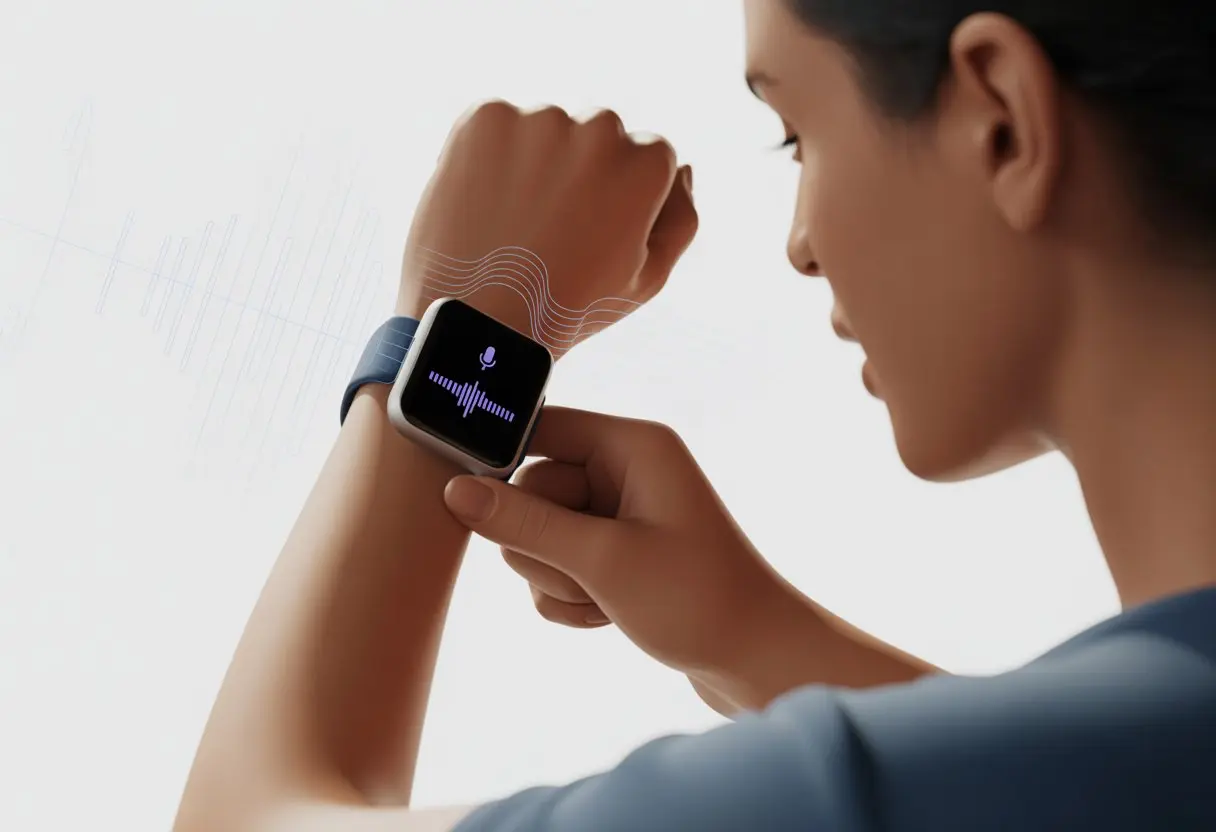
Let’s be real—most of us want our smartwatch to do more than nag us to stand up or count steps. With Google Assistant on your wrist, you can control smart home stuff, set reminders, check the weather, and even ask for weird trivia—all without pulling out your phone. It’s almost futuristic, isn’t it? Although, we’re still waiting for those flying cars.
If you’re done fumbling for your phone when your hands are full, or you just like talking to your gadgets, Google Assistant on your smartwatch is a total game changer.
You can just say “Hey Google” or hit a button to ask questions, send a quick text, or get directions right on your wrist. Curious which watches work? Check out these supported devices.
Let’s get into the steps so you can start feeling like a Google Assistant pro. Honestly, it’s easier (and way more fun) than teaching your dog to fetch the remote.
Getting Started with Google Assistant on Your Smartwatch
Before you start asking your watch to tell jokes or turn on the lights, you need to check if your smartwatch actually plays nice with Google Assistant.
There are a few steps, and honestly, some watches are pickier than others. Let’s break it down so you don’t end up frustrated.
Checking Compatibility
Not every smartwatch comes ready for Google Assistant. Start by checking if your watch runs Wear OS by Google—think Pixel Watch, TicWatch, or Tag Heuer Connected.
If your menu looks like a 90s calculator instead of Android, it might be time for an upgrade. Apple Watches, for example, just won’t run Google Assistant, no matter how much you beg.
Here’s a quick checklist to save you some time:
Wear OS version: Needs to be Wear OS 2.0 or newer.
Smartphone requirements: Your phone should run Android 8.0 or higher.
Internet connection: Both devices need to be online, unless you like yelling at your watch for no reason.
Brand support: Brands like Samsung Galaxy Watch have joined in, but Fitbit still doesn’t support it.
If your watch misses one of these, well, it’s smart—but not quite smart enough for Google Assistant.
Pairing with a Google Account
Now comes the fun part—connecting your digital life. To get Google Assistant up and running, you need to pair your smartwatch with a Google Account.
There’s really no skipping this step.
Here’s how you do it:
Open Settings on your smartwatch.
Scroll to ‘Google’ or ‘Assistant.’
On Samsung’s Wear OS watches, you’ll find Assistant in Settings. If not, check your apps.
Follow the prompts to add your Google Account.
Usually, your phone does the heavy lifting here. Time to remember that password (again).
Enable ‘Hey Google’ voice match if you want hands-free help.
Optional: Adjust privacy settings so the Assistant only listens when you speak, not when your dog barks at the mailman.
Some watches like the Pixel Watch or Tag Heuer Connected walk you through this setup when you first power up.
Otherwise, just launch the Assistant app and follow the steps.
As long as your Google Account is ready and your watch is up-to-date, connecting the two shouldn’t be a hassle. Well, as far as tech stuff goes.
Setting Up Google Assistant
Getting Google Assistant running on your smartwatch means diving into settings, pressing a few buttons, and hoping you don’t accidentally set it to Klingon. You’ll need to tweak a couple things so the voice assistant actually listens and doesn’t just ignore you.
Google Assistant Settings for Smartwatches
First, open up your smartwatch—sometimes trickier than opening a fresh bag of chips. Head to Settings.
Tap on Google, then Assistant. If you see a switch for “Hey Google,” turn it on—unless you enjoy shouting into the void.
Here’s a quick checklist:
Open Settings on the watch
Tap Google
Select Assistant
Turn on Hey Google
Follow any other prompts
If your watch doesn’t show these options, some models want you to press and hold the middle button instead. It’s kind of like a secret handshake. For a step-by-step walkthrough, check out these instructions for Google Pixel Watch.
Granting Permissions and Access
Now it’s time for the trust fall: permissions. If you want Google Assistant to actually help out, you’ll need to give it access to your mic, contacts, and a few apps.
Approve these when prompted, or the Assistant might just ignore half your requests. If you skip something, go back into Settings > Apps > Assistant and check permissions manually.
Now your smartwatch should actually listen—maybe even better than your teenager.
Using Google Assistant on Your Smartwatch
https://www.youtube.com/watch?v=JMOWhbW-McA
Let’s see what it’s like to actually use Google Assistant on your wrist. We’ll go over how to activate it, use voice commands for navigation, and peek at notifications or launch apps without needing to tap a bunch of tiny icons.
How to Activate Google Assistant
Activating Google Assistant is usually as easy as saying, “Hey Google.” Sometimes, you’ll need to hold down the side button next to the crown—if your watch has one.
Some devices want a press and hold to pop up your AI helper.
If you haven’t set up Google Assistant yet, grab your paired phone and open the Assistant app. On your watch, swipe to the app menu, tap Google Assistant, and follow the prompts to connect and enable the mic.
On models like the Pixel Watch, just saying “Hey Google” works—once you’ve set everything up.
If nothing’s happening, check your permissions or update the app.
Here’s a fast checklist:
Wake up the screen.
Press/hold the assigned button or say the hotword.
Follow any instructions you see.
Different watches have their quirks, so don’t be afraid to poke around the menus. Need more info? Here’s a guide for Wear OS devices.
Navigation Tutorial for Voice Commands
With Google Assistant, you can use your voice instead of your thumbs. No more endless swiping—just say what you want.
Try things like, “Set a timer for five minutes.” Your watch jumps into action, no tiny buttons needed.
Some handy commands:
“Show me my calendar.”
“Navigate to the nearest coffee shop.”
“Send a text to Mom.”
“Remind me to water the plants.”
“What’s the weather like today?”
It’s not just about saving time. Honestly, it feels pretty cool—talking to your wrist is peak secret agent energy. If the Assistant doesn’t catch what you say, it’ll ask you to repeat.
If you’d rather not talk, swipe left to the Assistant screen and tap the mic icon. Easy.
Accessing Notifications and Applications
Google Assistant makes checking notifications and launching apps way faster. Just ask!
Say, “Show my notifications,” and your latest alerts pop up, so you don’t miss Aunt Patty’s cat meme or that meeting reminder you’d rather forget.
To open apps, try, “Open Spotify,” or, “Open Maps.” The Assistant can handle most installed apps, so you can jump between things without a bunch of swiping.
If your hands are full, you don’t have to stop what you’re doing. For more notification tips, check out the Samsung Galaxy Watch support page.
Let’s keep those wrists working smarter, not harder.
Customizing Your Google Assistant Experience
Now that Google Assistant actually works, let’s make your smartwatch feel more like your own and less like the default out-of-the-box version.
A bit of customization goes a long way, especially if you want fast access to your favorite things or just want the interface to look better.
Changing the Watch Face and Tiles
Your watch face isn’t just for checking the time—it’s your homepage. You can pick from tons of different watch faces.
Some show the weather, others focus on steps, battery, or calendar events. The best part? Most watches let you download new styles if the default ones are boring.
Swapping faces is usually as easy as long-pressing the main screen and swiping until you find one that fits your mood. If you’re always scrolling for the Google Assistant shortcut, add a tile for it right on the main screen.
Tiles are like mini widgets for quick access to Assistant, your schedule, or your step count (for bragging or, you know, motivation). Customizing these tiles makes it way faster to use Google Assistant on your smartwatch with just a tap or swipe.
Quick Settings Menu Customization
The quick settings menu really comes in handy when we don’t feel like spending five minutes digging through endless options just to silence our watch or fire up Google Assistant.
To get started, swipe down from the top of the screen.
You’ll spot icons for things like airplane mode, brightness, and—if you’re lucky—a shortcut to Google Assistant.
Most smartwatches let us rearrange which buttons show up here.
Drag Google Assistant’s shortcut to the top if you want it front and center.
Need Do Not Disturb as your number one? Just press, hold, and move it where you want.
This menu should work for us, not against us.
It’s our personal toolbox, after all.
Fine-tuning quick settings means less fiddling and more actually getting things done.
Direct access here saves precious seconds (and patience) every day.
Who knew life could be this easy with just a couple of smart shortcuts?
Integrating Google Assistant with Fitness Features
Pairing Google Assistant with our smartwatch gives us more than just quick replies.
We unlock some genuinely helpful tools for keeping an eye on our health and fitness goals—no more endless menu diving or swiping like we’re trying to win a contest.
Tracking Workouts and Wellness Data
Starting workouts is as simple as using a voice command.
Just say, “Hey Google, start a run,” and the supported app—like Tag Heuer Sports or Fitbit—jumps into action.
We get to focus on moving, not hunting through menus.
Ask, “How many steps have I taken today?” or “How long was my active time?” and Google Assistant gives us instant answers.
It almost feels like we’re secret agents talking into our wrists.
Apps like Tag Heuer Wellness and Fitbit link directly with Google Assistant.
We don’t even need to look at the screen; just ask for a summary of our day and get all the numbers right away.
No more scrolling past dog photos just to check if we beat yesterday’s step count.
Here’s a handy list of things we can check with Google Assistant:
Say, “How many calories did I burn today?” or “Show me my recent calorie count,” and get a quick answer—no more pretending we didn’t eat that extra donut.
Many smartwatches track resting heart rate, peak rates, and estimated calorie burn.
Google Assistant pulls up this info without us touching a button.
Using apps like Tag Heuer Wellness adds extra data, like trends and averages.
For a quick comparison, here’s what we can check with voice commands:
Command
Data Shown
“What’s my heart rate?”
Current heart rate
“Calories burned today”
Daily calorie count
“Fitness stats”
Activity summary
It’s honestly never been easier to track our progress.
And hey, at least our smartwatch listens when we talk about running—even if nobody else does.
Managing Power and Battery Settings with Google Assistant
We rely on our smartwatches all day, but nothing ruins the mood faster than a surprise low battery warning.
Using Google Assistant and a few smart settings, we keep our watch running (and avoid turning it into a shiny wrist mirror).
Activating Battery Saver and Low Power Mode
No one likes scrambling for a charger.
On most smartwatches, we have two main defenses: Battery Saver and Low Power Mode.
When battery drops, we wake our watch and say, “Hey Google, turn on battery saver.”
That’s it—the setting cuts background activity, dims the screen, and basically tells our smartwatch to chill out.
For extra battery life, head to Settings > Battery or ask Google Assistant to toggle low power mode (if our watch supports it).
Here’s a quick comparison:
Feature
Battery Saver
Low Power Mode
Background limits
Yes
Yes
Screen brightness
Reduced
Reduced
Notifications
Limited
Limited
Google Assistant use
Sometimes disabled
Sometimes disabled
If things get dicey, a quick “Hey Google, open battery settings” helps us manage power before it’s too late.
Let’s get Google Assistant working for us and let our smartwatch help us stay on top of busy schedules.
No more scrambling for our phone—our wrist can handle essentials with a quick voice command.
Tasks like scheduling events and dealing with endless notifications just got easier.
Scheduling and Calendar Integration
Managing calendars feels almost too easy now.
Raise your wrist and say, “Hey Google, add a meeting with Bob at 10 AM tomorrow.”
Google Assistant adds it to our synced calendar—no more double-bookings because of scattered reminders.
We can also ask about our day or week.
“Hey Google, what’s on my calendar for Friday?” gives us a quick overview.
If plans change, “Reschedule my lunch with Jane to 2 PM” does the trick.
It’s like having a tiny, polite, and surprisingly organized assistant on call.
Google Assistant connects with popular calendar apps, so appointments and reminders show up across our devices.
Using our watch saves us time we’d otherwise spend searching for invites, all while making us look a little futuristic.
Managing Notifications with Voice
Notifications pile up fast, especially when cat videos and work emails compete for attention.
Luckily, we can control what pops up on our smartwatch—hands-free.
Say, “Hey Google, show my latest notifications” for a quick rundown.
If it’s not important, dismiss notifications with a simple command.
No more endless swiping like we’re in a thumb wrestling match.
Reply to texts, snooze reminders, and even mute annoying apps during meetings—all with your voice.
This keeps our hands free for coffee, high-fives, or whatever else we need.
For extra efficiency, set up rules for notification filtering.
That way, we only get the stuff that actually matters.
Google Assistant helps us stay focused without digging through our pockets every five minutes.
Learn more about getting the most out of voice controls with Google Assistant on smartwatches at Wear OS by Google.
Compatibility and Alternative Voice Assistants
Not every smartwatch plays nice with every voice assistant.
Some watches work better with Google Assistant, while others lean toward Alexa.
Let’s not assume they all get along.
Using Alexa and Other Assistants
Google Assistant is the go-to for most Wear OS smartwatches, but Alexa makes appearances—especially on Samsung and Fossil models.
We can add Alexa to plenty of modern smartwatches, which is great if we use Amazon services a lot.
Setup usually means downloading the Alexa app on our watch and linking it to our Amazon account.
Some watches, like the Galaxy Watch, let us switch between Google Assistant and Alexa right in their settings.
It’s a neat trick if we’re indecisive or want to show off at parties.
Other options like Bixby (thanks, Samsung) exist, but honestly, they don’t match Google Assistant or Alexa.
Sorry, Bixby.
Bottom line: we should always check our device’s specs before counting on any voice assistant magic.
Supported Smartwatches and Limitations
Most recent Wear OS watches—like the Pixel Watch, the latest Fossil Gen 6, and Tag Heuer’s Connected Watch—play pretty nicely with Google Assistant.
But let’s be honest, not every smartwatch gets the same perks. If you grab a non-Wear OS device, maybe an older Samsung running Tizen or some random off-brand watch, you probably won’t see Google Assistant show up.
Even if your watch is supported, you might notice stuff like voice wakeup (“Hey Google”) or language options just aren’t quite as good as what you’d get on your phone.
Android fans definitely have broader support here. That said, iPhone users aren’t totally left out—though, yeah, a few features might be missing.
Hi, my name is Garrett Jones, and I am a tech enthusiast. I enjoy researching the new tech that has been released, and have a vast knowledge of the best tech to purchase.
From a young age, I have always had a big interest in technology, and this blog is an extension of that interest. Through this blog, I hope to provide others with all of the information they need regarding tech options to consider, and things such as compatibility. Some of the different items I will be discussing include headphones, smartwatches, and how to fix common issues.