Let’s be honest—typing passwords is nobody’s idea of fun, especially when all you want is to check your email or watch another cat video. But what if you could skip all that hassle and unlock your computer with just a tap on your wrist?
Using a smartwatch to unlock your computer isn’t just possible; it actually makes logging in faster and a whole lot less annoying.
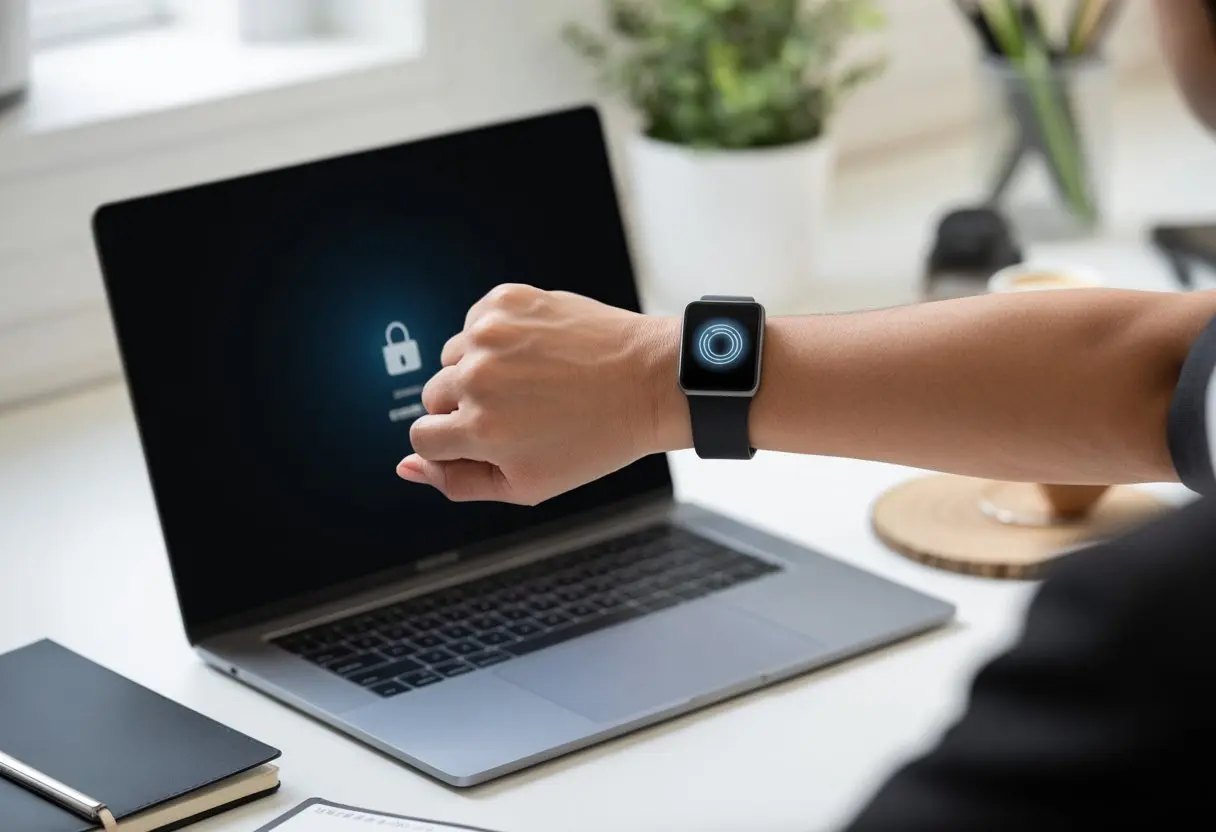
Pairing your smartwatch with your computer lets you unlock it with a touch, a swipe, or sometimes just by walking up to it. Some devices, like Samsung models, already have features built in for this trick.
Samsung Flow, for example, connects your watch and PC or tablet so you can avoid yet another forgotten password moment. If you want to get fancy, there are plenty of ways to set up auto locking and unlocking with different smartwatches and computers, no matter how tech-savvy you are.
Security stays tight, but you get that secret agent vibe every time you sit down at your computer. If you already have a smartwatch, why not let it do more? Your wrist deserves better than just counting steps.
Understanding Smartwatch-Based Computer Unlocking
It’s easy to forget passwords and fumble with PINs, but our smartwatches just sit there, kind of wishing they could do more. Now they can—by unlocking your computer with a flick of the wrist and a little Bluetooth magic.
Plus, using wearables means fewer sticky notes with passwords stuck to your monitor.
What Is Smartwatch Authentication?
Smartwatch authentication sounds fancy, but it just means your watch proves it’s really you. Instead of typing a complicated password, your computer checks if your smartwatch is close by and unlocked.
Most systems use Bluetooth to sense your watch. Walk away from your computer and it can lock itself.
When you come back, the watch’s presence helps unlock your device. It’s like a digital handshake between your computer and your wrist.
Some smartwatches, like the Apple Watch, let Mac users auto-unlock their computers with no extra steps. Android users can set this up with apps or settings, even on PCs.
How It Differs From Passwords And PINs
Typing a password is the classic way, but passwords get weak, forgotten, or shared (honestly, who hasn’t used “password123” at some point?). PINs are quicker, but not much better—especially when you forget which numbers you used.
With a smartwatch, you don’t have to type anything. Your wearable acts as the key.
If your watch isn’t nearby, your computer stays locked. You can skip the sticky notes and those “forgot password” emails.
This method uses something you already wear. As long as your smartwatch is on your wrist, unlocking is quick and easy, and you get to feel like a secret agent.
Benefits Of Wearables For Authentication
Faster access: No more typing passwords or remembering tricky PINs.
More secure: Your smartwatch stays with you, so random people can’t just hop onto your computer.
Automatic locking: The computer locks itself when you walk away, as seen with Windows PCs and smartwatches.
Convenience: Your hands have enough to do—let your watch handle the login for a change.
Honestly, it’s just more fun to use your wearable for something cooler than step counting and nagging you to stand up. Unlocking your computer with a smartwatch feels like a tiny superpower.
Prerequisites To Unlocking Your Computer With A Smartwatch
Before you can unlock your computer with a smartwatch, you’ve got to make sure all your gear plays nicely together. The right combo makes the difference between a smooth setup and a headache.
Compatibility: Computer, Smartwatch, And Operating System
First, you can’t unlock a Windows laptop with a random toaster (sadly). Your computer and smartwatch need to be compatible.
For Mac users, pairing an Apple Watch with a Mac is pretty much the gold standard—both need to use the same iCloud account and have up-to-date software.
Windows fans may need a compatible fitness band or smartwatch that supports unlocking with companion devices.
Let’s check a few things:
- Computer operating system: Your OS matters a lot. MacOS and Windows have different needs.
- Smartwatch brand: Not every smartwatch works with every computer. An Apple Watch won’t unlock a Windows PC, and that old tracker from 2014 probably won’t work anywhere.
- Third-party apps: Sometimes you’ll need extra software, especially if you’re not using Apple gear.
So, double-check your computer, smartwatch, and OS before you dive in.
Hardware Requirements: Bluetooth, Accelerometer, Gyroscope
Now, let’s talk hardware. The magic behind unlocking your computer with a smartwatch is Bluetooth. Both your computer and smartwatch need to have it—and not the ancient kind that drops out if you sneeze.
Most solutions also rely on the accelerometer and gyroscope in your smartwatch. These sensors make sure the watch is really on your wrist (sorry, taping it to the dog’s paw won’t work).
Quick checklist:
- Bluetooth 4.0 or higher: Needed for a fast and secure connection.
- Accelerometer/Gyroscope: Used for authentication and wrist detection.
- Proximity ranges: The devices should be within a few feet of each other. Unlocking from across town? Not happening.
Better hardware means a smoother experience.
Battery Life Considerations
Let’s be real—unlocking your computer with a smartwatch is cool until one of them dies halfway through the day. Both your computer and smartwatch need enough battery to keep Bluetooth and sensors running.
Nothing ruins the magic faster than a dead battery.
When picking out your devices, battery life matters. Good smartwatches can last a couple days with moderate use, but constant Bluetooth can drain them faster.
Laptops or desktops also need to support Bluetooth on battery.
Keep chargers handy and, if you can, pick devices known for strong battery life. Unlocking is fun, but only if your gadgets stay alive long enough to show off.
Setting Up Smartwatch-To-Computer Unlock
Getting your smartwatch to unlock your computer feels like magic, but it’s really just making tech work for you. You’ll need Bluetooth to link your devices, the right tools or built-in features for authentication, and then—don’t skip this—you’ve got to test everything.
No one wants to get locked out in their pajamas.
Enabling Bluetooth Pairing
First step: If Bluetooth isn’t on, nothing’s going to work. Make sure Bluetooth is enabled on both your computer and your smartwatch.
On most computers, you’ll find a Bluetooth icon near the clock (usually hiding, because why not).
Open the Bluetooth settings on both devices. Set your smartwatch to “pairing mode.” This usually means digging through menus on a screen smaller than a postage stamp.
Your computer should show available devices, including your watch (hopefully), and let you click “Pair.”
If a pairing code pops up, don’t freak out. Just type or approve the same code on both devices.
This keeps you from accidentally pairing with your neighbor’s watch. If you get stuck, dig into your computer’s Bluetooth settings—sometimes help is hidden under “advanced” menus.
Configuring Authentication Apps Or Features
Pairing is only half the battle. You also need authentication.
Some computers have built-in features like Dynamic Lock on Windows or Auto Unlock on Mac (especially with Apple Watches). These options link your smartwatch directly with your login.
To set up Dynamic Lock, follow the steps in your computer’s sign-in settings and make sure your watch is recognized by Bluetooth.
If you’re not in the Apple or Windows club, third-party apps let you connect different smartwatches to your computer. For example, Samsung smartwatches use Samsung Flow to unlock PCs or tablets.
Each app or system will ask for permissions—so watch for pop-ups asking for approval. Usually, there’s a checkbox for “always allow,” because nobody wants extra clicks.
Testing The Connection
Now for the big moment—time to test your setup!
Lock your computer (logging off or using the lock shortcut will do). Walk away with your smartwatch to make sure the Bluetooth connection drops.
Some setups lock your computer automatically when your watch goes out of range. Pretty slick, right?
Try unlocking by bringing your smartwatch back within range or using its unlock button or a tap (depends on your system). Your computer should spring to life, no password needed.
If things don’t work, double-check Bluetooth, confirm permissions, and maybe restart both devices. Sometimes even tech needs a nap.
Need more help? Online guides can walk you through, like this Reddit thread about Android Wear and PC locking.
Unlocking Windows PCs With A Smartwatch
Unlocking your Windows PC with a smartwatch might sound a bit sci-fi, but it actually makes logging in smoother—and let’s be honest, it feels a little cool. You can use built-in Windows features or go for third-party apps depending on your setup and, well, your patience.
Using Windows Hello And Wearables
Windows Hello is Microsoft’s way of helping you sign in. Normally, it uses PINs, face recognition, or fingerprints, but it can work with other devices too.
To unlock your Windows PC with a smartwatch, you’ll usually need to turn on Dynamic Lock. This feature uses Bluetooth to check if your smartwatch—or phone—is nearby.
Here’s the catch: Windows Hello doesn’t directly let you unlock with only a smartwatch. Instead, your Bluetooth-enabled wearable pairs with your PC as a companion device.
When you walk away with your smartwatch, Dynamic Lock can lock your computer automatically. If you’re hoping for that magical wrist-twist and instant unlock, you might end up a bit disappointed.
Still, it’s a step closer to living out your secret agent dreams. Find more info on Dynamic Lock and wearables.
Third-Party Unlock Apps For Windows 10
If Windows Hello just isn’t doing the trick, it might be time to call for backup—third-party apps. There are quite a few apps out there that claim to unlock your Windows 10 PC with a smartwatch, especially if you’ve got an Android Wear gadget or an Apple Watch.
Most of these apps connect your smartwatch and Windows PC using Bluetooth. Some want you to tap the watch, others just unlock when you’re close enough.
Setup usually means installing the app on both your watch and desktop, then pairing them up. For example, Umwelt promises to unlock your PC as quickly as a secret handshake—assuming the computer isn’t asleep, anyway.
Here’s a quick comparison of the main options:
| App Name | Wearable Support | How It Unlocks |
|---|---|---|
| Umwelt | Android Wear | Tap watch |
| Windows Hello | Varies | Proximity (Dynamic Lock) |
| Other 3rd Party Apps | Varies | Proximity or tap |
It’s smart to check reviews and privacy policies before trusting new software with your computer. After all, we want convenience, not chaos!
Unlocking A Mac Or Laptop Using Apple Watch
Apple actually lets you unlock your Mac just by flicking your wrist. No more typing in long passwords or smudging the fingerprint reader after a snack.
You’ll save time and, honestly, look a bit like a tech wizard.
Auto Unlock Feature On macOS
With Auto Unlock, your Apple Watch lets you skip the password when waking your Mac. Here’s how to set it up without losing your mind:
- Make sure your Mac and Apple Watch both use the same Apple ID with two-factor authentication.
- Turn on Bluetooth and Wi-Fi for both devices. Don’t try to sneak by in airplane mode.
- On your Mac, go to System Settings (or System Preferences if it’s older).
- Find Touch ID & Password (or Security & Privacy) and check “Use Apple Watch to unlock apps and your Mac.”
Once you’ve got it set up, just wake your Mac or press a key. If you’re wearing your unlocked Apple Watch, your Mac should unlock. You can even skip passwords for some admin tasks.
For more help, check Apple’s official guide.
Troubleshooting Apple Watch Unlock Issues
If your Mac refuses to unlock, don’t panic. Most problems have quick fixes.
- Apple Watch not detected? Make sure it’s on your wrist, unlocked, and close to the Mac (within about 3 meters).
- Still not working? Double-check that your Apple ID matches on both devices and that two-factor authentication is on.
- Bluetooth and Wi-Fi both need to be on. Seriously, don’t skip this.
Try restarting both devices if things still aren’t working. If that fails, uncheck and re-check the Auto Unlock option in your Mac’s settings.
For more tips, check out this troubleshooting advice.
Android Devices And Smartwatch Unlock Options
Unlocking your computer without touching the keyboard feels a little like living in a spy movie. With the right setup, you can do it using your Android devices.
You’ll need your smartphone, a fitness band, or a smartwatch, plus the right software.
Pairing With Android Phones Or Fitness Bands
First, get your Android phone or fitness band talking to your computer. Both devices need Bluetooth turned on.
On Windows, you can use Dynamic Lock by pairing your Android phone via Bluetooth. Dynamic Lock will lock your PC when your phone goes out of range, which feels like magic (when it works).
Some apps use your phone or band’s presence to keep the computer unlocked while you’re nearby and lock it when you leave. Others let you use your smartwatch’s fingerprint sensor or gestures for extra security.
Here’s what you need to do:
- Turn on Bluetooth on both devices.
- Make sure both can find each other.
- Pair them through the Bluetooth menu.
Supported Apps For Android Authentication
Several clever apps make unlocking computers with Android devices and smartwatches possible. Samsung Flow is a favorite for unlocking a PC or tablet with your Samsung smartwatch and phone. Just tap and—boom—your computer listens to you for once.
You’ll need to install apps on both the computer and the Android device, then follow the instructions to link everything. For other phones, PC Bio Unlock uses your Android fingerprint scanner to unlock Windows or Linux PCs.
Some apps can also lock or unlock your computer based on when your device connects or disconnects from Bluetooth. There’s more discussion in this XDA thread.
Here’s a quick list of handy apps:
| App Name | Main Feature |
|---|---|
| Samsung Flow | Smartphone/watch unlock for PC/tablet |
| PC Bio Unlock | Biometric unlock for PC |
| Dynamic Lock | Auto lock via Bluetooth range |
With the right app and a little patience, you’ll get smooth, hands-free computer unlocking—no smoke bombs needed.
Advanced Security And Two-Step Authentication
Let’s be real—our computers have everything from embarrassing selfies to important work files. Making sure your smartwatch is a secure unlock tool is more important than ever.
Strong security isn’t just about looking cool; it’s about keeping digital troublemakers out.
Setting Up Two-Step Verification
If you only use your smartwatch to unlock your computer, hackers might have an easy time. Turn on two-step authentication instead.
When you want in, your computer asks for two things—something you have (your smartwatch) and something you know (like a PIN or password). It’s basically a secret handshake with less sweat.
Many smartwatches support apps like SAASPASS, which let you use the watch for logins and strong authentication. When setting this up, link your smartwatch to your computer with a secure app, and make sure the connection is encrypted.
Total Defense says enabling two-factor authentication adds an extra layer, even if the watch leaves your wrist. If your smartwatch tries to run off on its own, the computer should stay locked.
Using Gestures And Environmental Triggers
Now, let’s have a little fun with gestures. Most of us secretly wish we could unlock things with a magic wave—turns out, smartwatches can get us pretty close.
Set up custom gestures, like a wrist twist or double tap, to unlock your computer. Imagine dismissing hackers with a flick of your wrist. Feels good, right?
Your devices can also use environmental triggers, or umwelt, to decide when to unlock. For example, the computer might only unlock if both your smartwatch and phone are nearby, or if you’re at home or the office.
This helps if you forget your watch at the gym or that expensive coffee shop. Combining gestures and smart use of your umwelt keeps access personal, not just for anyone who finds your lost watch.
Troubleshooting And Maintaining Secure Unlocks
Sometimes our smartwatches make us feel like secret agents, but the magic doesn’t always work. You can fix most issues and keep your secrets safe by focusing on the basics.
Common Issues And Solutions
It’s all fun and games until your computer ignores your wrist. Here are common hiccups and easy fixes:
-
Bluetooth Is MIA
Is your computer playing hide and seek? Check that Bluetooth is on and both devices are awake. -
Wrist Detection Problems
Your watch needs to be on your wrist and unlocked. If not, the unlock party is over. -
Wi-Fi Drama
Random Wi-Fi drops can break the handshake between devices. Try scanning for a better network. -
Outdated Software
When your gadgets are stuck with old software, things break. Update your watch and computer regularly.
Restarting both devices every so often can also help. Sometimes, tech just needs a fresh start.
Managing Passwords And Email Recovery
Smartwatches can unlock stuff, but let’s be real—they’re not magic wands. We still need strong passwords, especially for our email accounts. Those usually turn into our knight in shining armor when it comes to recovery options.
-
Password Routine
We should update passwords every so often. Try mixing in letters, numbers, and maybe toss in a symbol if you’re feeling bold. -
Email Is Our Lifeline
Forget your password? Yeah, it happens. Most unlock and recovery features just shoot a reset link right to your email. So keeping that email secure—and actually up-to-date—matters a lot. -
Password Managers
Honestly, who can remember every password? A password manager keeps things organized and encrypted, so you’ve got them handy when you need them.
If nothing else works, go ahead and reset your password. And don’t forget to check your spam folder—because, of course, password reset emails love to hide there.

From a young age, I have always had a big interest in technology, and this blog is an extension of that interest. Through this blog, I hope to provide others with all of the information they need regarding tech options to consider, and things such as compatibility. Some of the different items I will be discussing include headphones, smartwatches, and how to fix common issues.
Related Posts: