We’ve all been there—huffing and puffing on a jog when our least favorite song comes on, and our phone is awkwardly strapped to our arm like some strange piece of tech armor.
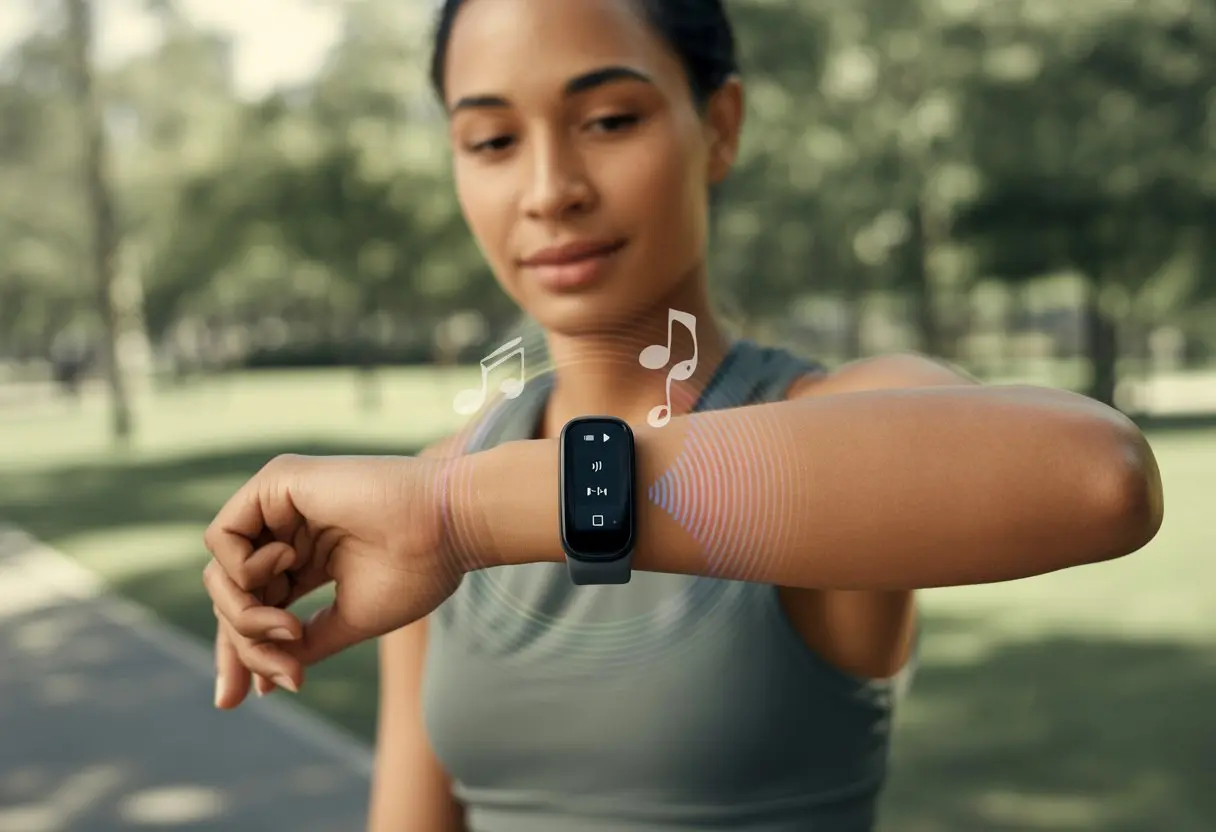
Luckily, things are different now. We can use our fitness trackers to control our music without fumbling for our phones or pausing those questionable dance moves.
With just a tap, a swipe, or a quick gesture, we can play, pause, skip tracks, or change the volume right from our wrists.
It doesn’t matter if we’re running, lifting, or walking a dog who refuses to keep the pace.
If you’re tired of wrestling with your phone mid-workout, you’ll love how fitness trackers make music control so much easier.
Ready to level up your workouts? Grab your fitness tracker—because today, our gym playlist is finally under our thumbs, not stuck behind a phone’s lock screen.
Getting Started With Music Control On Fitness Trackers
Before we’re all jamming out to playlists from our wrists like tech-savvy DJs, let’s make sure we know which devices work, how to set them up, and how to connect our favorite Bluetooth headphones.
Skipping these steps might leave us dancing to the beat of silence.
Understanding Device Compatibility
Not every fitness tracker or smartwatch can control music.
Some, like the Apple Watch and Galaxy Watch, have full music apps and direct playback.
Others, like certain Fitbit or Garmin models, only offer basic controls to skip or pause tracks.
We should check our tracker’s specs for “music control” or “music storage.”
Models with Wear OS or Android Wear usually have more advanced options with music apps like Spotify or YouTube Music.
Fitbit and Garmin offer music features, but it really depends on the model.
For example, Garmin lets us set up hotkeys for quick access, and Fitbit’s music control can vary if you’re pairing with iOS.
If you’re not sure, check the user manual or the manufacturer’s website—it saves a lot of hassle. Searching online for “music control compatibility” can help too.
Setting Up Your Fitness Tracker For Music
Once we know our tracker can handle music, setting it up is usually a breeze.
First, update your device with the latest firmware.
Battery life matters, so give it a good charge before you start dancing around the living room.
Most devices need to sync with a phone.
Apple Watch pairs through the Watch app.
Android Wear or Wear OS connects via the Wear OS app.
Once paired, we might need to enable permissions for music control.
Some trackers let us add a music widget, data screen, or shortcut button for quick access.
Fitbit users may need to open music on the phone first, then pull up controls on the tracker.
Heads up: Not all apps work the same way.
Spotify and Apple Music usually offer the smoothest integration.
Connecting Bluetooth Headphones
Music control isn’t much fun without wireless headphones.
Most smartwatches—like Apple Watch and Galaxy Watch—let us pair Bluetooth headphones right to the watch.
Fitbit and Garmin watches with music storage can do this too.
Let’s make sure Bluetooth is on in the tracker settings.
Put your headphones in pairing mode (usually holding the power button), then pick them from the device list on your tracker.
If you see a prompt, confirm the pairing.
Some trackers, especially those that only control music on a phone (like some Fitbits), won’t send music through the tracker itself—the sound still comes from the phone.
In that case, connect Bluetooth headphones to the phone, not the tracker.
Look for a headphones or music note icon—if it’s there, you’re good to go.
If not, double-check your settings and try again.
Tech can be finicky, but getting the music going is always worth it.
Essential Music Controls On Your Fitness Tracker
Who would’ve thought our wrists would end up controlling not just steps, but our whole music experience?
With music controls on our fitness trackers, we can blast our favorite tunes, skip the annoying ones, and manage playlists while pretending to love those workouts.
How To Play, Pause, And Skip Tracks
Let’s be honest—sometimes we’re just one track away from finishing a run, or accidentally stuck on a song that reminds us of our ex.
Most fitness trackers let us play, pause, and skip tracks with simple taps or button presses.
These controls usually show up as clear icons: play, pause, forward, and back.
On some devices, we double-press a button or swipe to bring up music controls, which is pretty handy when our hands are sweaty.
Fitbit lets us double-press the side button or tap an icon to jump right into music mode—no need to pull out our phone for every skip or pause (Fitbit music controls).
We can even blame our playlist for bad song choices, all from the comfort of our wrists.
These controls sync with popular music apps like Spotify, so our playlists and favorite audio are always close by.
Now we’ve got a solid excuse to ignore calls mid-run: “Sorry, I was busy picking out my music on my watch!”
Adjusting Volume Directly From Your Wrist
Changing the volume on your tracker is a game-changer, especially when your favorite song hits during a packed gym session or an outdoor run surrounded by wildlife who, let’s be real, don’t care about your taste.
Most fitness trackers have plus (+) and minus (-) buttons or slider bars for quick volume changes.
Bluetooth headphones respond instantly to wrist commands, so you won’t have to fumble with tiny earbud buttons or pull out a sweaty phone mid-jog.
Some watches, like certain Coros models, even have dedicated volume screens and easy-access sound options while running (Coros watch music control).
Whether you’re blasting your workout playlist or turning it down for a cool-down, volume controls are right at your fingertips.
It almost feels like your wrist is the DJ—just less dramatic.
Managing Playlists And Songs
Sometimes we’re in the mood for rock, other times for a motivational podcast—no judgment.
Fitness trackers make it easy to switch playlists or browse songs saved on our phones.
Many devices let us scroll through playlists, tap on a new album, or search by artist, all from the tracker’s touchscreen or side buttons.
Apps like Spotify often support these advanced controls, letting us dig into our audio content or shuffle “Workout Jams” without ever grabbing our phone.
Some trackers even show album art, which is a nice touch when we’re stuck in cardio mode.
For extra convenience, we can organize favorite playlists ahead of time, so a few swipes match our mood to the moment.
And if things get really wild, maybe we’ll discover new songs while racing ourselves on the treadmill—move over, pro DJs.
Using Third-Party Music Apps And Providers
We love a great workout playlist almost as much as we hate running out of battery mid-run.
Fitness trackers do more than count steps now—they help us bring our favorite songs, podcasts, and audiobooks along for the ride with just a few taps.
Integrating Spotify And Other Music Services
Nothing’s worse than fumbling with your phone just to skip an annoying song.
On many fitness trackers, we can link accounts from big names like Spotify or Deezer right to the device.
This lets us control music straight from our wrist, keeping the workout groove going and distractions down.
Here’s a simple approach:
Open the music or Connect IQ app menu on your tracker.
Not all of us want to rely on Wi-Fi or data while running through the woods, pretending to be in an action movie.
Some trackers let us store music or audio files right on the device.
We can transfer songs from our computer or sync specific playlists using a USB cable or Bluetooth.
The menus are usually pretty straightforward:
Plug your tracker into the computer.
Use the manufacturer’s software to drag and drop music.
Wait for the files to transfer—maybe do a few squats while you wait.
Play music directly from your tracker—no phone needed.
This feature basically turns your wrist into a personal jukebox, minus the quarters.
It’s perfect if your favorite tracks aren’t on streaming apps.
Listening To Podcasts And Audiobooks
Sometimes we need more than a driving beat—we want a suspenseful thriller or the latest comedy episode.
Many fitness trackers let us play podcasts and audiobooks, either through built-in apps or by syncing content from third-party providers.
With services like Spotify and Audible, we can:
Download episodes or audiobooks for offline listening.
Use the tracker to pause, skip, or rewind chapters while we power-walk in the park.
Switch between playlists and podcasts depending on our mood.
Now we can catch up on true crime, learn a new language, and jam out—all on the same run.
That’s not just multitasking; that’s evolution.
Music Control During Exercise Sessions
Nothing ruins an epic treadmill sprint like fumbling for your phone to skip a song.
Most fitness trackers let us handle music right from the wrist, no phone acrobatics required.
We can boost our workouts and enjoy fresher playlists with just a few taps.
Controlling Music While Running Or Exercising
When we’re racking up calories burned or chasing active zone minutes, having quick music control makes a world of difference.
Most trackers, like Garmin or Fitbit, toss in music widgets or shortcuts for fast access. Usually, we just hold a button or swipe to a widget, and boom—play, pause, or skip without missing a beat.
Fitbit keeps it simple too. Just hold the left button and the music menu pops up, even when we’re dripping in sweat.
Quick steps to control music on most trackers:
Wake up your device.
Use shortcut buttons or a widget for music.
Control volume, skip, or pause as needed.
Some trackers sync with apps like Strava or GPS-based activities, so we can swap tracks without losing our precious data (or snack points—hey, priorities).
Using Music To Improve Workout Motivation
Honestly, running without music? That’s just cruel. The right playlist lifts our spirits, keeps us moving, and distracts us from the “why am I doing this” thoughts.
Music helps us squeeze out that extra rep when our muscles start whining.
Trackers let us swap songs to fit our mood or pace. Need to sprint? Crank up the tempo. Cooling down? Something mellow does the trick.
This way, every part of the workout feels personal—from hill sprints to stretching on the mat.
As we fiddle with music, trackers show off stats like GPS routes, calories, and how long we stayed in the zone. All of this happens with a few taps—no more digging out our phone from a sweaty pocket.
Music Playback And Smartwatch Features
Smartwatches have turned us into our own DJs, right from our wrists. Apple Watch and Galaxy Watch let us play, pause, and skip songs with just a tap or swipe.
No more fumbling with clunky buttons or untangling headphone wires.
Notifications And Music Control Integration
Getting notifications and managing music at the same time? Honestly, it feels like a superpower.
Our smartwatches buzz with instant alerts—texts, calls, social media—so we can leave our phones tucked away.
Here’s the cool bit: Watches like the Galaxy Watch let us manage music without unlocking our phones.
We can skip embarrassing ballads, turn down the volume, or just pause everything while messages roll in. Samsung smartwatches even let us stream Spotify right from our wrist.
So, when someone sends a meme or our boss emails us at the worst time, we’re still in control.
Features include:
Play/pause/skip songs
Adjust volume
Sync with phone music apps
Manage music and notifications together
We get to look busy, sound cool, and keep up with everything—all thanks to a tiny gadget on our wrist.
Using Voice Assistants For Music
Ever wanted to feel like a secret agent? Using a voice assistant on a smartwatch gets us pretty close.
Apple Watch brings us Siri, Galaxy Watch has Bixby, and some watches even pack in Amazon Alexa.
Instead of poking at tiny screens, we just say, “Alexa, play my workout playlist,” or “Siri, skip this song.” It’s quick, hands-free, and honestly, kind of fun.
This is a lifesaver when our hands are full—whether it’s groceries, dumbbells, or just a bag of chips.
Voice commands we love:
“Play [artist or playlist name]”
“Pause music”
“Next song”
“Turn up the volume”
Jogging, cleaning, or just lounging? Voice assistants keep the music going—no dance moves required.
Optimizing Performance And Battery Life For Music Control
If we want our fitness tracker to handle music and last all day, we’ve got to treat battery life and Bluetooth performance like gold.
No one wants music cutting out because the battery died or the connection vanished.
Maximizing Battery Usage With Music Playback
Music is great for the soul, but it drains the battery fast. Lowering the screen brightness helps, or just let auto-brightness do its thing.
A dimmer screen might not look flashy, but it keeps the tracker alive longer.
Turning off extras like wrist-based heart rate tracking saves juice too. We don’t need our heart rate checked every five seconds while jamming to throwbacks.
If our tracker has a battery saver mode, it’s worth using during marathon listening sessions.
Downloaded playlists beat streaming for battery life. Streaming just works the battery harder.
Bluetooth can be a little fickle. Distance is the enemy here.
Keep your fitness tracker and headphones close—ideally on the same side of your body. Stashing the watch under a sleeve or behind a water bottle? That’s just asking for bad karaoke moments.
Walls, metal, and other electronics mess with the signal. We want a clear path between tracker and headphones, so the music doesn’t stutter.
If you notice skips or disconnections, try unpairing and pairing again. In a crowded gym full of wireless gadgets, moving to a quieter spot can help keep the music flowing.
And, please, don’t wander too far from your device—unless you want your playlist to play hide-and-seek.
Advanced Tips For Fitness Tracker Music Enthusiasts
We all love music during workouts, but our trackers can do more than just pause a song.
Let’s dig into a few tricks for getting the most out of our wearable DJs.
Waterproof Music Control Tricks
Ever stood in the shower or pool, wishing you could skip that one annoying song? Good news—many fitness trackers are waterproof and let us control music, even when we’re soaked.
Check if your device has at least a 5 ATM water resistance rating. That lets us swim laps or jog in the rain, skipping tracks or adjusting the volume as we go.
Some trackers use physical buttons or bigger touch areas for music control, which is a lifesaver with wet fingers.
Here’s a quick checklist:
Waterproof rating: At least 5 ATM for swimmers.
Physical buttons: Handy with wet or slippery hands.
Bluetooth range: Keep your phone or speaker close.
After playing aquatic DJ, remember to dry off both the tracker and yourself. Nothing kills the vibe like a foggy screen.
Tracking Workout Statistics While Listening
Multitasking feels tricky sometimes, doesn’t it? Still, our trackers make it pretty easy to watch workout stats without ever pausing our music.
Most devices let us swipe or tap to see heart rate, steps, or calories burned while we’re jamming out.
For those of us who love stats, here’s what we can keep tabs on while the playlist keeps rolling:
Statistic
Why It Matters
Heart rate
Tracks workout intensity
Steps
Keeps us moving
Calories burned
Motivates us to finish
Sleep score
Shows recovery progress
Fitbit and Garmin, for example, show real-time heart rate zones and even sleep stage data. That helps us figure out when to push harder or take it easy.
Ever wondered if that “air guitar solo” really counts for anything? Turns out, we can actually check how many steps it adds to our total.
So, go ahead—cue up the next track and keep moving! If you want more details on music and workout features, check out this guide to Fitbit music controls.
Hi, my name is Garrett Jones, and I am a tech enthusiast. I enjoy researching the new tech that has been released, and have a vast knowledge of the best tech to purchase.
From a young age, I have always had a big interest in technology, and this blog is an extension of that interest. Through this blog, I hope to provide others with all of the information they need regarding tech options to consider, and things such as compatibility. Some of the different items I will be discussing include headphones, smartwatches, and how to fix common issues.