Let’s be real—sometimes our smartwatches get a little too clever for their own good. Maybe it’s glitching, slowing down, or just refusing to sync. At some point, we all wish for a big red reset button. Resetting a smartwatch to factory settings wipes out all our data and basically gives us a blank slate, like sending our stubborn gadget off for a spa day.
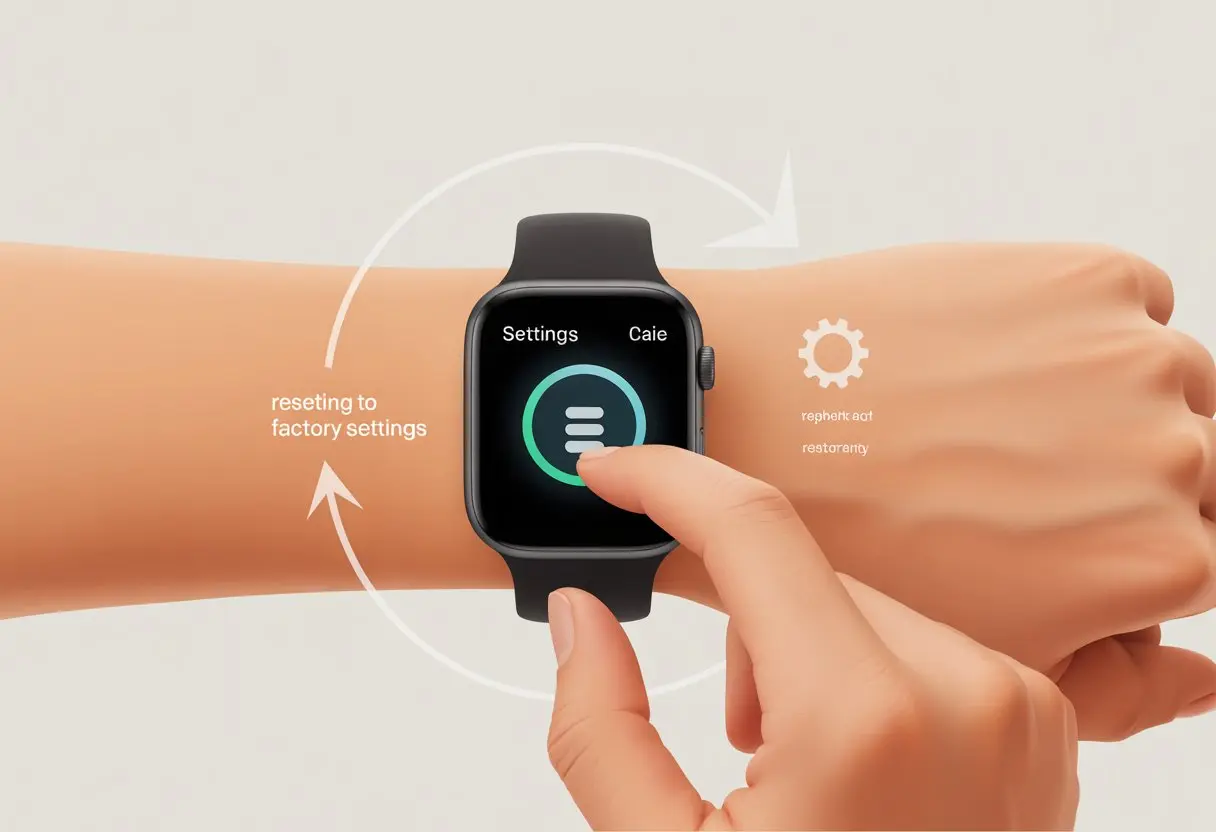
The good news? Usually, we just need a few taps in the settings menu or a quick combo of button presses. If we get stuck or can’t remember how, we can always check online guides, like the step-by-step help for Wear OS watches on the Google support page.
So, if we’re passing our watch to someone else, fixing tech issues, or just starting over, knowing how to reset a smartwatch can really save us some headaches.
Let’s get into it and make our wrist tech behave again—no tech degree needed.
Understanding Factory Reset on Smartwatches
When our smartwatch starts acting weird or feeling sluggish, it’s tempting to mash every button and just hope for the best. Instead, let’s figure out what a factory reset actually does, when it makes sense, and how it’s different from a simple restart.
What Is a Factory Reset?
A factory reset is the ultimate “do-over” for our smartwatch. When we pick reset to factory settings, our device erases all the data, apps, and custom settings we added.
It returns the watch to the state it was in when we first opened the box—also called factory default values.
This process wipes everything except the original software. So, if our watch had pictures of our cat or step records from two years ago, those will vanish. The watch forgets our Wi-Fi passwords, alarms, and even our overly-ambitious daily goals.
It’s basically tech amnesia, but intentional. Most devices let us do this from the settings menu or system settings. For step-by-step help, sites like Google’s Wear OS help page give clear guidance on the factory reset process.
Why and When Should You Reset Your Smartwatch?
There are a few good reasons to hit the reset button—sometimes, literally. If our smartwatch is freezing, apps keep crashing, or it just won’t connect to our phone, a reset can fix those headaches.
We should also do a factory reset before gifting, selling, or recycling our watch. Nobody wants to see our old texts or failed fitness goals. It’s also handy if we want to clear out clutter and start fresh, especially after a major software update goes sideways.
If we’ve tried everything else—rebooting, uninstalling apps, or even muttering at the watch—resetting to factory default values is usually the last resort. Most guides, like Citizen’s support site, remind us to back up anything important first. We’ll definitely thank ourselves later.
Reset vs. Restart: Not the Same Thing
Let’s clear this up. A restart (or reboot) just means turning our smartwatch off and back on. It helps with small hiccups, but doesn’t erase apps, settings, or reminders. It’s more like a power nap than a total reset.
A factory reset, though, is a full wipe. All our personal info, apps, and tweaks get erased. If our watch has been acting haunted, a restart might help. If it’s been possessed for weeks, we need a reset.
Here’s a quick table to keep it straight:
| Action | What Happens | When to Use |
|---|---|---|
| Restart | Turns off & on, keeps all data | Small glitches or slowdowns |
| Factory Reset | Erases all data, returns to default | Major issues or changing owners |
If we’re not sure, try a restart first. We can always go for a factory reset if things get really bad.
Preparing to Reset Your Smartwatch
Nobody wants to hit reset and then realize all their favorite watch faces, stats, and reminders are just… gone. Before we erase everything, let’s make sure we’ve handled our most important info and settings.
Back Up User-Entered Information
First, let’s think about what we saved on our watch by hand. That could be notes, calendar events, alarms, step goals, contacts, or maybe that one grocery list we kept for weeks.
Many smartwatches sync with our phones, but not all do this for every kind of data. If our watch doesn’t back up automatically, we should check for options in the companion app or the watch’s settings. Some smartwatches let us export data, while others push us to use a cloud service. It’s worth stashing our info somewhere safe.
Quick checklist:
- Notes (typed or voice)
- Alarms
- Personal contacts
- Reminders
- Custom watch faces
Backing up just these basics can make the reset way less painful.
Check Compatibility With Factory Reset
Resetting sounds simple, but not every smartwatch reacts the same way when we go nuclear. Some wipe everything, while others keep a few things tucked away, kind of like a secret snack stash.
We should check our manual or search online for our model, because some watches need extra steps or have quirks. Android Wear and Wear OS watches usually reset from system settings, but it doesn’t hurt to check the Google Wear OS support page if we’re not sure.
Firmware versions can matter too. If our watch is running really old software, the reset process might be different. If we see “This cannot be undone,” let’s double-check what’s about to disappear.
Handle Activity History Before Reset
Most of us don’t want to lose our hard-earned step counts or workout history. Activity history includes steps, workout routes, calories, and sleep data.
Fitness fans should make sure their tracking app (like Google Fit, Samsung Health, or Apple Health) is syncing with the smartwatch. Sometimes we have to force a sync or upload the latest stats before resetting.
If our activity data is only on the watch, a reset will wipe it for good. It’s smart to open the fitness app on our phone and check if everything’s up to date. Samsung users might want to check these instructions too.
When in doubt, sync it out—we worked for those steps, so let’s not let them vanish!
How to Reset a Smartwatch to Factory Settings
Giving our smartwatch a fresh start wipes out everything—apps, settings, alarms, and even that embarrassing step goal we set and never hit. Here’s how to actually reset the watch, what the main options mean, and why clicking the wrong thing isn’t as scary as it sounds.
Step-by-Step Method for Most Devices
Most smartwatches hide the reset button deep in the settings, like it’s buried treasure. First, swipe down from the top of the screen to open Quick Settings. (If you swipe sideways, honestly, nothing magical happens except maybe confusion.)
Tap Settings, then look for the System menu.
Find and select Disconnect & Reset or Factory Reset. That’s the golden ticket. You’ll probably need to confirm, just so your watch knows you’re serious about this breakup. For Wear OS watches, these steps are almost always the same, but if we get lost, we can check the official Wear OS instructions.
Tip: Charge your watch first. A half-reset device is just disappointing, like socks with holes.
Reset All Default Settings Explained
Choosing reset all default settings doesn’t delete everything. It just puts most of the device’s settings—like Wi-Fi, ringtones, and screen timeout—back to how they were out of the box.
Apps, data, and accounts usually stick around. This is a good option if we want to fix weird glitches or set things up as if it were new, but we’re not ready to say goodbye to our apps or stats. It won’t mess with our saved steps or health data unless the reset is really extreme.
Not every watch calls this option the same thing. Some say, “Reset Settings,” while others sound more mysterious. Whatever it’s called, we can always change it back later if we don’t like the results.
Choosing ‘Erase All Content and Settings’
Selecting Erase All Content and Settings is the point of no return. This option wipes everything—music, texts, accounts, photos, and every poorly named timer we made to remind ourselves to drink water.
If we’re selling, giving away, or recycling our smartwatch, this is the move. It wipes all data and personal info, so nobody finds out how many times we snoozed our alarms. Be sure before tapping this! Most watches ask us to confirm, just to make sure we didn’t accidentally reset everything.
This is more thorough than just resetting settings. Some devices use different names, like Wipe Data or just Factory Reset, but it always means a total wipe.
Deleting Data and Resetting Settings
When we’re ready to delete data and reset settings, the watch is about to forget it ever belonged to us. This action removes user accounts, downloaded apps, music, and every tweak we made since day one.
Here’s a quick table to sum it up:
| Action | What It Deletes | When To Use It |
|---|---|---|
| Reset All Default Settings | Settings only (Wi-Fi, sound) | Fix issues, minor refresh |
| Erase All Content and Settings | Everything—apps, data, accounts | Selling or gifting the device |
After the reset, we’ll need to set it up from scratch—choose language, connect Wi-Fi, and maybe admit we do need another reminder to stand up every hour. If we’re sure about saying goodbye, take a deep breath, hit erase, and let the watch do its thing.
Resetting Different Brands of Smartwatches
Resetting a smartwatch isn’t rocket science, but every brand seems to hide the reset option in its own special way. Whether you’re an Apple devotee, a Samsung loyalist, or just someone fumbling through, following the right steps can save a lot of headache and random button-pressing.
apple watch: How to Factory Reset
Honestly, sometimes the Apple Watch just acts up and begs for a fresh start. To reset it, make sure it’s charged (seriously, don’t skip this step) and take it off your wrist so you don’t accidentally send a weird emoji to your boss.
Here’s what you do:
- Press the crown to open the Home Screen.
- Tap Settings (the little gear icon).
- Tap General.
- Scroll down to Reset.
- Choose Erase All Content and Settings.
The watch will double-check if you’re sure. If you are, tap Erase All to confirm. Now the watch will wipe everything and act brand new, ready for whatever you throw at it next.
Using the apple watch app for Reset
If your Apple Watch is being stubborn and you’d rather use your iPhone (because you actually remember that password), the Apple Watch app has you covered.
Just do the following:
- Open the Apple Watch app on your iPhone.
- Tap My Watch, then General.
- Scroll down and tap Reset.
- Hit Erase Apple Watch Content and Settings.
- Tap again to confirm—Apple loves making sure you’re really, really sure.
The app will back up your watch first, so you won’t lose anything unless you want to. This trick is handy if you forgot your watch passcode or it’s just ignoring you.
Other Popular Smartwatch Brands
Don’t worry, non-Apple folks, you’re not left out. Most Android or Wear OS smartwatches reset like this:
- Swipe down from the top and tap Settings.
- Tap System (because “Reset” would be too easy to find).
- Pick Reset or Reset default settings.
On some models, holding the power button can start a hard reset if nothing else works. For Samsung smartwatches, press and hold the Home and Back buttons together until you see “Rebooting” like this.
Once you get through these steps, your device will be back to its original state—ready to track steps, sleep, and whatever else you’re into.
After Reset: What to Expect and Next Steps
Resetting your smartwatch feels a bit like hitting the big red reset button on life. Okay, maybe not that dramatic, but it does wipe things clean. Once it’s done, you’re left with a blank slate and a couple things to set up before you’re back in business.
Restoring Factory Default Values
After the reset, your smartwatch returns to its factory settings. Everything looks just like it did the first time you turned it on.
All your apps, custom watch faces, and paired devices vanish. You’ll see the default wallpapers, ringtones, and system preferences. If you had software updates before, you might need to check for those again.
If you’re curious about what gets wiped, sometimes the manufacturer lists the details under reset options. Google’s Wear OS Help page has more info if you want to dig deeper.
What Happens to Your Data?
Here’s the deal: a factory reset deletes anything stored directly on your watch. Call logs, texts, photos, health stats, alarms, and any music or files disappear. All gone, just like that missing sock.
Some smartwatches back up certain settings or data to the cloud if you’ve allowed it. But if you didn’t sync or upload your stuff, it’s not coming back. If you forgot to sync your fitness stats, you’ll have to let them go.
It’s always a good idea to run a backup before you start the reset. For extra peace of mind, check if your cloud account or app can restore settings or downloads later.
Reconfiguring Your Smartwatch
Once you turn the watch back on, it’s setup time all over again. You’ll need to pair the watch with your phone, pick your language, and log into your accounts.
You’ll also have to re-download any apps that got wiped. Next up: set your notification preferences, ringtones, and alarms—basically all those little things that make the watch yours.
Here’s a quick checklist:
- Pair with your phone
- Connect to Wi-Fi or Bluetooth
- Log into accounts
- Download your favorite apps
- Set up notifications, alarms, and preferences
Most models make this pretty quick, but it’s not instant. If you need specific help, Samsung’s smart watch reset page can walk you through it. Once you’re set, your smartwatch is ready for action—minus your cat wallpapers, sorry.
Common Issues and Troubleshooting
Sometimes, resetting a smartwatch just doesn’t go as planned. Some watches refuse to reset, while others act weird afterward. We’ve all been there, and honestly, it can be a pain.
Smartwatch Won’t Reset: Now What?
You press all the buttons, maybe even try some wishful thinking, but your smartwatch just sits there. Usually, the culprit is a stuck process, low battery, or just plain stubbornness.
First, check the battery—some watches won’t reset if they’re low on power. Plug it in and try again. If it’s still stubborn, try a force restart. For most models, hold down both the power and back buttons for a few seconds (see Samsung’s steps for details).
If your screen freezes on an error, put it on the charger and restart it again. Still stuck? You might need to reach out to the manufacturer—or ask for help on justanswer, since someone there has probably seen it all.
Unexpected Results After Reset
You go through the hassle of resetting, and suddenly the watch thinks it’s 1998. Or, for some reason, the language just switched to Klingon. Weird, right? But honestly, odd behavior like this pops up more often than you’d expect.
First, double-check if you followed the right steps. On most watches, you just pick “Erase All Content and Settings” in Settings, like shown for Apple Watch.
If your settings or apps won’t sync back, try reconnecting your phone. Also, make sure everything’s up to date.
Sometimes, resets wipe out data you forgot to back up—yeah, that stings. If things still seem off after a second reset, maybe reach out to support or just do the classic: turn it off and on again.
And hey, don’t forget that communities on justanswer or official forums can help you out with the really weird errors. Sometimes, other folks have already solved exactly what you’re dealing with.

From a young age, I have always had a big interest in technology, and this blog is an extension of that interest. Through this blog, I hope to provide others with all of the information they need regarding tech options to consider, and things such as compatibility. Some of the different items I will be discussing include headphones, smartwatches, and how to fix common issues.
- How to Improve WHOOP Recovery Scores Without Giving Up Pizza or Netflix - April 7, 2026
- Why is my fitness tracker not unlocking my computer? Tech tantrums and wearable woes explained - April 7, 2026
- Best Fitness Trackers for Stress Relief: Because Your Anxiety Deserves a Step Counter Too - April 6, 2026
Related Posts: