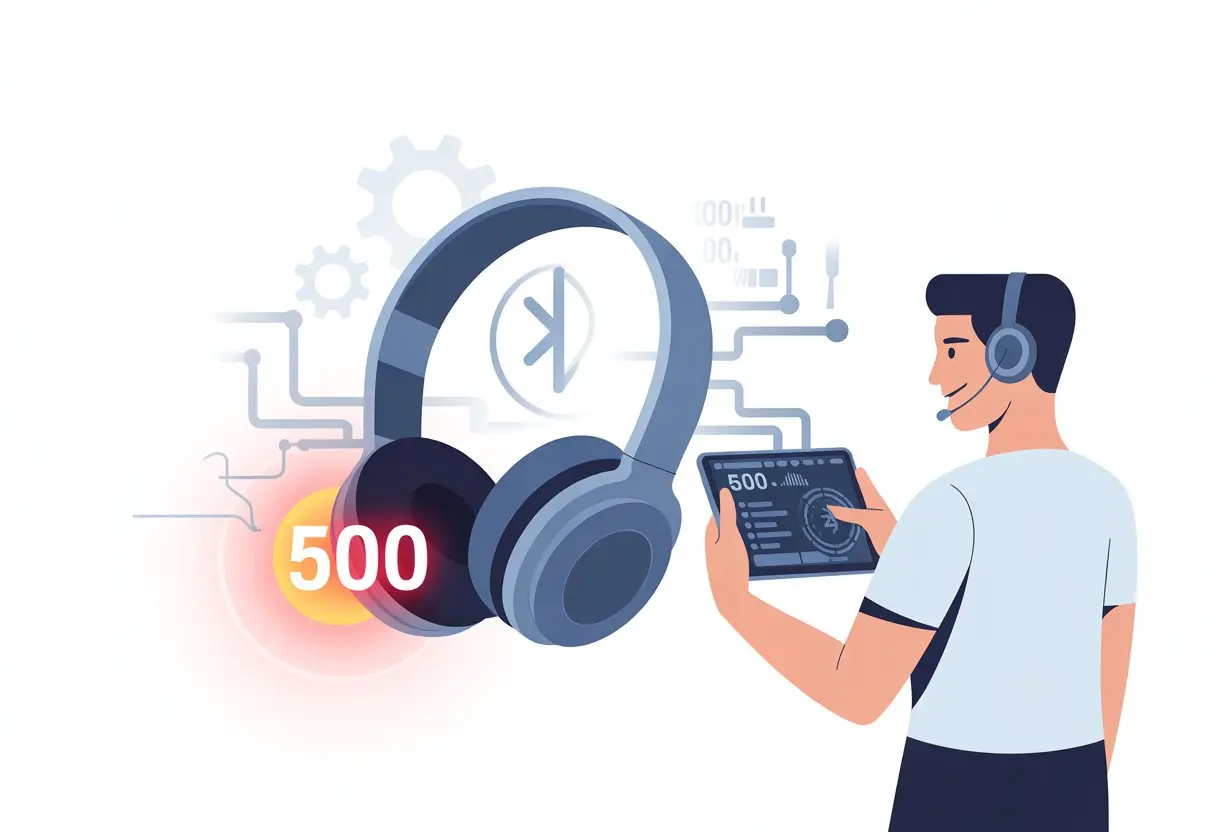
Nothing kills the mood faster than gearing up for a jam session and seeing your Bluetooth headphones toss out that dreaded error code 500. Ever wonder if your headphones are just begging for a day off, or if they’re melting down over Monday like the rest of us? Here’s the deal: error code 500 means your Bluetooth connection or driver has a problem, but you can fix it with a few straightforward steps.
Before you ditch your wireless headphones and dig up those old tangled wired ones, let’s figure this out together. With some quick tricks—like restarting Bluetooth, running the Windows Bluetooth troubleshooter, or reinstalling the adapter driver—you’ll probably get your headphones working again soon.
Don’t let a stubborn error code ruin your favorite playlists or podcasts. Stick with us and we’ll get your Bluetooth headphones and your computer to play nice—no drama.
Understanding Bluetooth Headphones Error Code 500
When Bluetooth headphones hit you with error code 500, it honestly feels like tech is pulling a prank. It always pops up at the worst time—right when you want to listen to music or hop on a call.
What Is Error Code 500 on Bluetooth Headphones
Error code 500 is really just your headphones’ way of saying, “Nope, I’m not connecting right now.” It shows up when your headphones refuse to pair or connect with a device, kind of like a stubborn pet that just won’t move.
Some brands give you more info, but most of the time, you get a sad error code or a bunch of beeps. Usually, error code 500 points to a problem with the headphone hardware, the drivers, or your Bluetooth settings—not exactly Sherlock-level mystery, but still enough to make you groan.
This error can stop your music, calls, or even voice assistants. It doesn’t mean your headphones are toast, but it does mean something’s not talking to something else.
Here’s a quick table:
Symptom
What It Means
Error Code 500
Connection problem
Won’t pair/connect
Device driver issue, settings issue
Why Error Code 500 Happens
Error code 500 usually pops up when your headphones and your device can’t agree on how to connect. Maybe your drivers are snoozing, or the settings got scrambled.
Sometimes, your phone or computer’s Bluetooth drivers act up—like trying to start a car with a dead battery. Other times, the headphones cling to an old device and ignore your new one. Interference from other Bluetooth gadgets can also mess things up.
A bad update, low battery, or too many saved connections can trigger the error. Even a hardware hiccup in the headphones can make this code appear, blocking your music.
Before you start yelling at your computer or threatening your headphones, let’s run through some basic—yet important—steps. These quick checks often save you from hours of pointless troubleshooting, awkward calls to tech support, or blaming the family dog for “stealing the signal.”
Verify Bluetooth Headphones Are Powered On
Don’t underestimate the power button. One tap might be all that stands between you and your music. Those little LEDs on your headphones aren’t just for show—they actually tell you what’s going on.
If you don’t see a light, hear a sound, or get any beeps, your headphones might just be sleeping. Always double-check the battery level.
Some models blink red, play a sad tune, or just go dark when the battery’s low. A glance at the user manual helps you decode the lights and beeps. If the power button does nothing, you might need to charge the headphones or, if luck isn’t on your side, look for a hardware issue.
Ensure Bluetooth Connection Is Enabled
Now, take a look at your device—it’s just as likely to mess up as your headphones. On Windows, the Bluetooth toggle hides in Settings under “Devices.” On phones, it’s under “Connections” or “Bluetooth.”
If the Bluetooth icon is grayed out or missing, the connection is off. You can turn Bluetooth on with a tap, but sometimes it needs a little more help.
Try rebooting your device or toggling Bluetooth off and on again. Keep your devices close to each other—walls, microwaves, and even your own body can mess with the signal. If you need more help, Microsoft’s Bluetooth troubleshooting steps are pretty handy.
Switch to Pairing Mode the Right Way
This is where the user manual comes in—if you haven’t already lost it. Getting Bluetooth headphones into pairing mode usually means holding down the power button for a few extra seconds.
You want to see flashing lights, usually blue or red, but check the manual to know for sure.
Every brand seems to have its own weird way to enter pairing mode. Some want the volume up button, others the power button, and a few ask for both at once.
If you’re lucky, you’ll get a “Ready to Pair” message. If not, follow the steps in the manual or on the manufacturer’s site to make sure your headphones are actually discoverable. This helps your device find them so you can get back to your music.
Essential Fixes for Error Code 500
https://www.youtube.com/watch?v=b81pZZXBNGc
When your Bluetooth headphones start flashing Error Code 500, it’s usually a sign something glitched—a connection gone rogue or an adapter on strike. Take a breath. These steps give you a good shot at fixing things without losing your mind.
Restart Your Bluetooth Headphones and Device
Honestly, sometimes your gadgets just need a break. If Error Code 500 ruins your music, the first thing to try is turning off both the Bluetooth headphones and the device you paired them with.
Hold the power button on the headphones until they shut down. Restart your phone or computer the usual way.
Wait at least 10 seconds before turning everything back on—pretend they need a quick nap, too. This isn’t just wishful thinking; restarting often clears out random Bluetooth bugs by dumping confused temporary data.
If the error disappears after restarting, you’re good to go. If not, let’s move on.
Forget and Re-Pair the Bluetooth Device
Sometimes your Bluetooth headset and device need to “forget” each other and start fresh, like two people after an awkward moment. Go to the Bluetooth settings on your device and remove the headphones from the saved devices list.
Here’s the quick version:
Open Bluetooth settings.
Tap your headphones’ name.
Choose “Forget” or “Remove.”
Now, turn Bluetooth back on and put your headphones in pairing mode again. Follow the pairing steps.
This resets the connection and often clears away Error Code 500. It’s a fast way to fix pairing issues or messed-up settings.
Check Bluetooth Adapter Functionality
Error 500 isn’t always your headphones’ fault—sometimes your device’s Bluetooth adapter is the real troublemaker. If you’re on a computer, try disabling and re-enabling the Bluetooth adapter.
Check Device Manager (on Windows) or Bluetooth preferences (on Mac). Look for warning symbols, update the driver, or toggle the adapter off and on.
For USB dongles, unplug and plug them back in—it’s basically the Bluetooth version of “wake up!” A bad adapter can cause connection drops, so if your headphones work fine elsewhere, the adapter might be the issue.
Updating it can save you a lot of frustration next time you want to listen in peace. If you want more in-depth troubleshooting, there are solid guides about fixing 500 errors.
Updating or Reinstalling Bluetooth Drivers
Bluetooth error code 500 is basically a party crasher for your wireless headphones. Good news: a quick update or a clean reinstall of the Bluetooth drivers usually sends it packing.
Here’s how you can take charge and get your music back.
How to Update Bluetooth Drivers in Windows 11
Let’s keep it simple. Press Windows Key + X and pick Device Manager from the menu. Look for Bluetooth in the list—click the arrow to open it up.
Right-click your Bluetooth device and hit Update driver. Choose Search automatically for drivers.
Windows will look for updates. If it finds something, let it install and restart your machine. If not, no worries—you tried.
Keeping your drivers fresh keeps Bluetooth from acting like it’s stuck in the past. If you want the latest version, you can visit your computer brand’s site and download drivers straight from there. This refresh almost always helps with those annoying Bluetooth driver errors.
Fixing Incompatible Driver Issues
Sometimes, Windows updates bring more chaos than help—suddenly, your drivers don’t want to play nice. When that happens, your headphones throw up code 500 before you know it.
To avoid this, make sure you’re using the right driver for your hardware. Go to Device Manager, right-click the Bluetooth driver, and select Properties.
Flip to the Driver tab. If you see a Roll Back Driver button, click it—this takes things back to a more stable version.
Still stuck? The manufacturer might have a better driver than Windows does. Download the official driver from their site and install it manually.
If your Bluetooth device still refuses to cooperate, it’s time for the classic “turn it off and turn it back on”—software edition.
Open Device Manager again. Right-click your Bluetooth adapter, then pick Uninstall device.
Windows might ask you to confirm—just hit OK.
Next step? Restart your PC. As your system wakes up, Windows usually tries to reinstall the missing Bluetooth driver by itself.
Sometimes, you just have to wait a bit.
If Windows doesn’t automatically install it, you can grab the driver from the manufacturer’s website and run the setup yourself.
That helps your PC recognize the Bluetooth hardware properly and might finally silence the drama of an unhappy Bluetooth connection.
Using Built-in Troubleshooters and System Settings
When your Bluetooth headphones start throwing error code 500, it’s time to roll up your sleeves and let Windows’ built-in tools do some of the heavy lifting.
You can rely on troubleshooting tools, experiment with airplane mode, and poke around your Bluetooth settings to squash most common issues.
Running the Bluetooth Troubleshooter
If you’re confused or just plain irritated with a Bluetooth problem, the Bluetooth troubleshooter is your best friend.
To launch it, type “troubleshoot” in the Windows Start menu and pick Troubleshoot settings from the results.
Scroll to Other troubleshooters, click on the Bluetooth option, and let it run.
This tool checks for misbehaving drivers, connection issues, or confused settings.
If you’re lucky, it’ll fix the issue before you even have time to sigh in frustration.
If not, at least you’ll know whether Windows sees any problem in the first place.
Sometimes, even if things improve, it doesn’t hurt to reboot.
Your patience—and your Bluetooth headphones—might thank you.
Lost the user manual? Yeah, same here—mine’s probably propping up a wobbly desk leg right now.
Still, those manuals sometimes hide surprisingly useful advice about error code 500, like reset instructions or weird button combos no one would ever think of.
Most headphone brands stash digital copies online. If you search by model number, you might stumble onto some unexpected solutions.
If you’re still stuck, maybe it’s just time to ask for help.
Manufacturer support teams deal with Bluetooth issues all the time, so you’re not alone.
Their websites usually have live chat or an email form—sometimes both.
Hi, my name is Garrett Jones, and I am a tech enthusiast. I enjoy researching the new tech that has been released, and have a vast knowledge of the best tech to purchase.
From a young age, I have always had a big interest in technology, and this blog is an extension of that interest. Through this blog, I hope to provide others with all of the information they need regarding tech options to consider, and things such as compatibility. Some of the different items I will be discussing include headphones, smartwatches, and how to fix common issues.