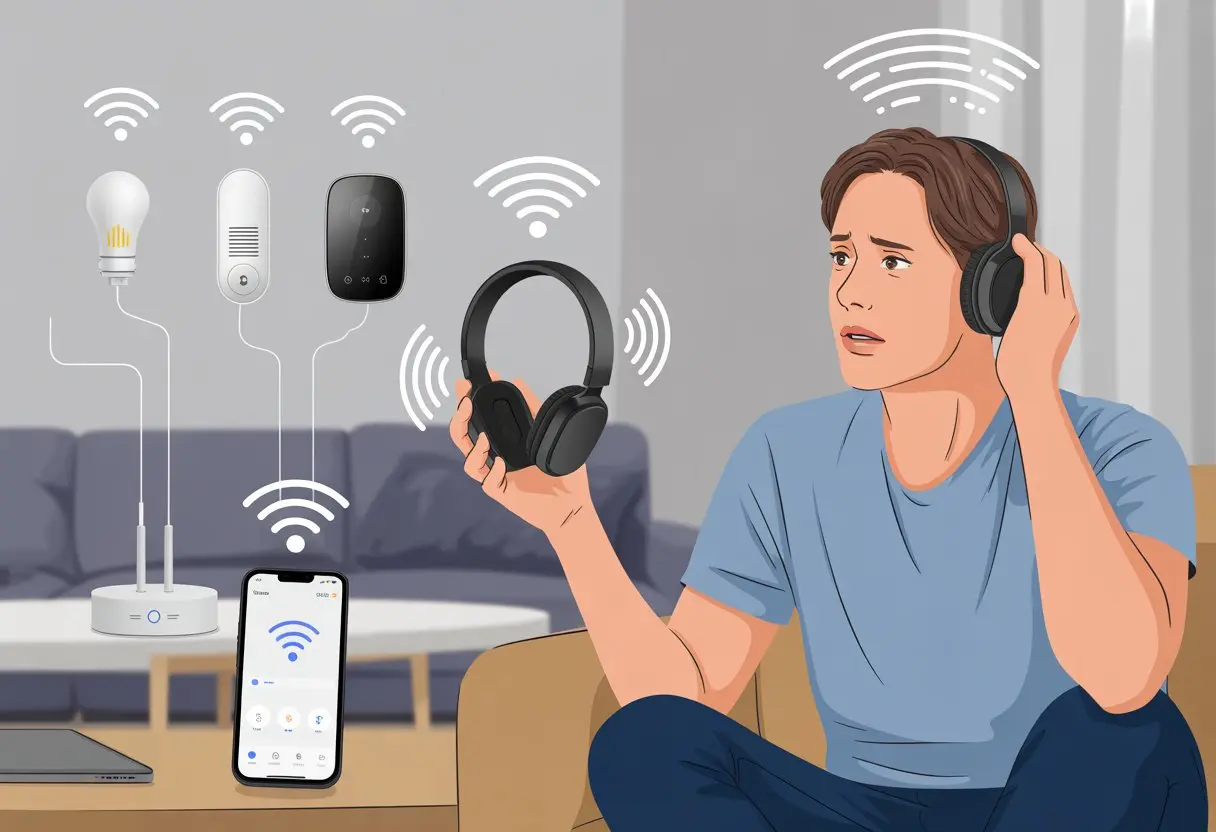
Let’s be honest—Bluetooth headphones are supposed to make life easier, not push us to the brink when they refuse to connect with our smart home stuff. I’ve lost count of the times I’ve wanted to just chill with some music or a podcast, but my devices just weren’t in the mood to cooperate.
Usually, Bluetooth headphones and smart home devices don’t get along because of compatibility snags, connection limits, or signal interference.
Our headphones and gadgets probably aren’t actually plotting against us (I hope not). Sometimes they just use different “languages,” or they get tripped up by all the other tech trying to connect on the same 2.4 GHz band.
If you want to stop playing the endless Bluetooth matching game, it helps to know what’s getting in the way—and maybe how to fix it. For anyone who’s spent way too long staring at blinking blue lights, let’s try to untangle this wireless mess.
Understanding Bluetooth Connections
Bluetooth can feel like magic—until it suddenly decides to act like a stubborn ghost. If you want your headphones and smart home devices to finally get along, you’ll need to know a little about how Bluetooth works, which versions you’re dealing with, and why pairing can sometimes feel like trying to get into a secret club.
How Bluetooth Technology Works
Bluetooth is a wireless tech that lets our gadgets talk using radio waves. These waves aren’t just floating around for fun; they’re how our headphones, phones, and smart home devices swap info.
But here’s the thing: Bluetooth only works well over short distances—30 feet or so. So don’t expect your headphones to connect from the other side of the house.
If you cram too many devices into one room, the signals start stepping on each other, like trying to talk at a concert. Walls and big objects make things worse.
Most Bluetooth headphones only connect to one device at a time unless you shelled out for some really fancy ones. If you try to connect both your phone and a smart home speaker, the headphones might just pick whichever one they like best.
More on that, and why your neighbor’s speaker keeps showing up, in this guide.
Bluetooth Versions and Compatibility
Bluetooth has churned through more versions than I can keep track of. Bluetooth 5 and 5.0 are newer, faster, and let you connect more than one thing, but plenty of gear is still stuck on older versions.
If your headphones are using, say, Bluetooth 4.0, but your smart device is on 5.0, you might get connection fails or missing features. Some devices offer backward compatibility, but not everything works as expected.
Here’s a quick table for reference:
Bluetooth Version
Max Range
Max Speed
Multi-Device?
4.0
~30 feet
1 Mbps
No
5.0
~100 feet
2 Mbps
Sometimes, yes
So before blaming the dog for chewing your headphones, check your device versions. Compatibility is a sneaky culprit when Bluetooth acts up.
What Is Pairing Mode?
Pairing mode is basically Bluetooth’s way of saying, “Hey, I’m open to new connections!” To get your headphones noticed by your smart home hub, you usually need to put them into pairing mode.
Most headphones enter pairing mode if you hold the power button for a few seconds until a light blinks. Other devices have their own quirks for starting pairing, and skipping this step is like waving at someone with your eyes closed.
If you skip pairing mode, your device probably won’t show up, and you’ll be left wondering if technology just hates you. Once you set everything up right, your devices can “pair,” and only then will you get a connection.
Tables, blinking lights, and a pinch of patience—that’s what it takes to master Bluetooth pairing.
Common Reasons Bluetooth Headphones Don’t Play Nice
Bluetooth headphones and smart home devices usually have trouble getting along for reasons that aren’t exactly rocket science—just irritating. Let’s look at why your dream of seamless music and smart tech sometimes turns into awkward silence or that classic “Can you hear me now?” routine.
Device Compatibility and Limitations
Not all Bluetooth headphones are equally friendly with every smart home gadget. Many headphones just can’t pair with more than one thing, so your plans for connecting to both your phone and your speaker might get dashed.
Some smart home devices are picky about which Bluetooth profiles they support. So even if both things claim to have Bluetooth, they may as well be speaking different languages.
Older Bluetooth versions act like stubborn relatives: everything has to be their way. High-end headphones might support multiple connections, but most regular ones stick to one device at a time.
If your headphones keep disappearing, it’s probably a compatibility thing. Save yourself some time and check the specs or look up common Bluetooth connection problems before you reboot everything in your house.
Outdated Firmware and Software
When did you last update your headphones or smart home gear? If you’re scratching your head, that might be the problem. Both headphones and smart devices need firmware and software updates to work together.
Outdated firmware can cause bugs, failed connections, or features that just don’t work. Manufacturers often push out quiet updates to fix these things, but our gadgets love to act up until we finally hit “Update Now.”
Here’s how you can check for updates:
Gear
What To Do
Headphones
Use the app, check for firmware updates
Smart devices
Go into device settings or companion app, look for system updates
Doing this could save you from calling tech support at 2 a.m.
Low Battery and Power Issues
We’ve all had headphones die at the worst possible time. Low battery doesn’t just mean silence—it can cause stuttering audio, random disconnects, or flat-out refusal to pair.
Sometimes headphones look “on” but barely have enough juice to function. That leads to weird glitches that make you question your sanity.
Smart home devices can be just as needy. If your smart speaker or hub has a weak battery or a bad power connection, Bluetooth support drops fast.
Charge everything fully before you start your Bluetooth session. Old or damaged batteries are sneaky troublemakers.
Faulty Headphones or Smart Home Devices
Sometimes, your gear is just busted. Dropping headphones, spilling coffee, or just being rough can break things inside.
Problems might show up as crackly audio, random disconnects, or buttons that don’t respond.
Smart home devices can flake out too. If one device suddenly stops working with multiple headphones, it’s probably the real problem.
Try resetting, re-pairing, or even a factory reset. But sometimes you’ve got to admit defeat and call support. No shame in letting your gadgets take a trip to the repair shop.
Before you freak out and chuck your gadgets across the room, let’s try a few steps to get your Bluetooth headphones and smart home devices talking again. Maybe then you can finally tell Alexa what’s on your grocery list—without yelling.
Checking Bluetooth Settings
Start by opening the Bluetooth settings on your phone, laptop, or PC. Sometimes the Bluetooth toggle is off, and you wouldn’t even know it.
Once you see the blue icon, look at the list of connected devices. If your headphones aren’t there, they’re probably hiding in the pairing menu.
If they’re connected but you still get silence, double-check that they’re set as the audio output in your device’s sound settings.
Some smart home systems, especially voice assistants, can be extra picky—they might need to be the default sound device. Watch out for typos like “Bluetoth” or “Blutooth” in menus, too. If you spot those, it’s probably time for an update.
Restarting and Re-pairing Devices
If your headphones and smart home device still won’t cooperate, try the classic fix: turn them off and on again.
Power both devices down, count to ten, then turn them back on. This can clear up weird Bluetooth gremlins.
Next, try re-pairing. Open the Bluetooth menu, tap your headphones, and hit “Forget” or “Unpair.”
Put your headphones back in pairing mode—usually by holding the power or pairing button until you hear a beep or see a blinking light. Then reconnect from your smart device’s Bluetooth list.
This step fixes a surprising number of pairing issues, even when it feels pointless.
Unpairing Stubborn Devices
Some devices just cling to old connections. If your headphones act like they’re still paired with another phone or laptop, you’ll need to unpair them everywhere else.
Go into every device’s Bluetooth menu and hit “Forget” or “Remove” for your headphones. This clears up confusion and stops your headphones from trying to juggle connections.
If things are extra stubborn, some headphones have a hard reset—like pressing both volume buttons at once for several seconds.
Once you clear out the old connections, your headphones can finally move on and (hopefully) connect to your smart home device.
Checking for Interference
Bluetooth signals can be finicky and don’t like crowded spaces. Stuff like microwaves, Wi-Fi routers, and even cordless phones can mess with Bluetooth.
If your headphones drop or refuse to connect, interference might be the culprit. Try moving closer to the smart home device or away from big electronics.
Switching off other Bluetooth gadgets for a bit can also help. If you can, put your smart device in a central spot so there’s a clear path between it and your headphones.
If you want to know more about how modern electronics mess with Bluetooth, check out this guide on interference.
You might not get to microwave popcorn and blast music at the same time, but at least you’ll know why.
Audio Problems: When Silence Isn’t Golden
Bluetooth headphones sometimes pair up with our smart devices, but all we get is the sound of crickets. There are plenty of reasons why the audio just vanishes or sounds off, and honestly—it’s rarely the peaceful silence we’re after.
Dealing With Audio Dropouts
We’ve all been there. The headphones connect, and for a second, everything sounds great.
Then, the music sputters like an old car with a cough.
Try keeping your devices closer together. Bluetooth isn’t exactly a superhero, so walls and closed doors will stop it cold.
Resetting both the headphones and the smart device can work wonders—almost like giving both a quick “wake up!” If that doesn’t help, changing the audio codec settings sometimes does the trick.
Resolving Audio Quality Problems
It’s rough when you expect rich, vibrant sound and instead get muddled audio that’s all bass and no sparkle.
First things first, check if the volume is muted or just too low. You’d be surprised how often we all miss that sneaky mute icon.
If the volume’s good, take a look at your sound balance or equalizer settings. Some smart home devices hide those options in hearing enhancement menus or accessibility features.
Switching to a different Bluetooth audio codec can make a noticeable difference. And if nothing else works, disconnect and pair the headphones again—good old “turn it off and on.” Troubleshooting isn’t glamorous, but it sure beats suffering through static-heavy versions of your favorite songs.
App-Specific Glitches
Sometimes, everything works—except for that one stubborn app acting like it’s cursed.
Not every app plays nicely with Bluetooth audio. You might need to check the app’s own audio preferences or permissions.
Some apps don’t route sound through headphones by default, so poke around in the app settings for audio options. If music apps work but smart assistant responses or video calls don’t, try closing and reopening the problem app.
Updating the app or your device’s software helps keep bugs away. And don’t forget to check if “media audio” is enabled for your headphones in the Bluetooth settings. Sometimes, that’s all it takes for tunes to start flowing again.
Tips for a Successful Bluetooth Relationship
Let’s try to boost our Bluetooth game together. If we focus on firmware, factory resets, and maybe even the mysteries of radio waves, we’ll get fewer dropped connections—and maybe fewer tantrums, too.
Keeping Firmware Up to Date
Imagine if our headphones could talk during a firmware update. “Just let me nap for five minutes, please!”
Updates might feel annoying, but skipping them leaves our headphones stuck in the past.
Check for updates in the headphone app or on the manufacturer’s website. Some headphones even send notifications when an update’s ready.
Updating firmware fixes bugs, solves connection problems, and keeps things working smoothly with smart home devices.
A quick checklist:
Plug in your headphones (nobody wants a dead battery mid-update)
Connect to Wi-Fi for faster downloads
Follow each update step—don’t just wing it, or the headphones might rebel
Stay updated, and you’ll rarely have to troubleshoot compatibility issues.
Resetting to Factory Settings
The dreaded reset. It’s like telling your headphones, “Forget everything you know about us.”
If your headphones just refuse to connect—or get confused by too many devices—a fresh start can help.
Most headphones reset by holding a button (usually “power” or “pair”) for 10 to 15 seconds.
Here’s how to reset:
Check the user manual or manufacturer’s website for the right button combo
Hold the buttons until lights flash or you hear a sound
Re-pair with your devices, starting with the most important one
Resetting wipes the slate clean and helps avoid weird pairing glitches. It’s worth a shot if firmware updates didn’t help.
Improving Bluetooth Signal Range
Bluetooth signals can be finicky. If you wander too far, or run into a wall of microwaves, the connection suffers.
Keep your headphones and devices in the same room for best results. Thick walls, metal shelves, or even fish tanks can mess with the signal.
A few ways to boost the range:
Move closer to your device (Bluetooth won’t work from the neighbor’s porch)
Avoid using Bluetooth near Wi-Fi routers, microwaves, or other electronics
If your headphones support it, use Bluetooth 5.0 or newer for a longer, more stable connection
If nothing works, you might need to rearrange the room—or just sit closer to your smart home gadgets. For more ideas, check out these Bluetooth troubleshooting tips.
Smart Home Devices and Platform Quirks
Bluetooth headphones and smart home devices can make life easier—when they cooperate. Our experiences can really vary depending on whether we’re using Android, iOS, or a computer. Let’s poke at why things sometimes get weird.
Bluetooth Connectivity on Android vs iOS
Using Bluetooth headphones with Android gives us more settings and ways to tweak things than iOS does. Android lets us dive into extra menus, advanced audio settings, and sometimes even mess with connection protocols.
More options, though, means more ways to mess things up. If we miss a setting or accidentally turn something off, our headphones might refuse to connect or sound like we’re underwater.
iOS keeps things simple, but that’s not always a win. If there’s a Bluetooth problem, Apple won’t give us many details—just a spinning wheel and the usual advice to restart the device.
iPhones connect well with other Apple gadgets, but sometimes struggle with third-party smart home devices or headphones.
Bluetooth signals can be fussy. Walls, microwaves, and other smart home devices can interfere, causing bad sound or dropouts.
Both platforms suggest we keep devices close, remove barriers, and avoid running the smart toaster at the same time. For more fixes, check out this guide on Bluetooth connection problems.
Special Considerations for PCs and Laptops
Not every computer plays nice with Bluetooth headphones, and sometimes it feels personal. If you’re on a PC or laptop, both the Bluetooth chip and the operating system matter.
Older machines can’t handle newer Bluetooth headphones at all. Even on new laptops, you might need to update your Bluetooth drivers just to get a connection.
PCs sometimes split sound output in weird ways. You might connect headphones, but the sound still blasts from the speakers.
Digging into audio settings usually fixes this, but it can be a pain. And if you want to use your headphones’ microphone, things get even trickier. Many PCs and laptops don’t switch audio input automatically.
You end up shouting at your smart home device and wondering why it won’t listen. Some smart home devices only want to connect to smartphones, not computers, and ignore anything with a keyboard.
Sometimes, the best move is to unplug, re-pair, and practice your best sigh of frustration.
Paired Device Limits
Bluetooth headphones can only remember so many devices. Once they hit that ceiling, they start bumping old connections off the list.
Let’s say we’ve paired our headphones with a phone, a tablet, a laptop, and—why not—a smart fridge. That’s probably pushing the limit already.
Try to add something new? Well, something’s gotta give.
Here’s a classic example:
Device Type
Paired Device Slot Used
Still Works?
Smartphone (Android)
✔
Yes
Work Laptop
✔
Yes
Tablet
✔
Yes
Smart Speaker
✖
No*
(*If the slots are full, our smart speaker might just get left out in the cold.)
Most brands set this limit somewhere between 3 and 8 devices. If we want to connect a new one, we’ll have to “forget” an old pairing.
You can do that by resetting the headphones or digging into the Bluetooth menu on your phone or computer. It’s kind of like musical chairs, but with less dancing and more sighing.
Hi, my name is Garrett Jones, and I am a tech enthusiast. I enjoy researching the new tech that has been released, and have a vast knowledge of the best tech to purchase.
From a young age, I have always had a big interest in technology, and this blog is an extension of that interest. Through this blog, I hope to provide others with all of the information they need regarding tech options to consider, and things such as compatibility. Some of the different items I will be discussing include headphones, smartwatches, and how to fix common issues.