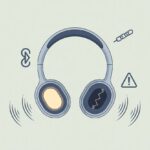
We’ve all had that moment—Bluetooth headphones suddenly decide to play music in just one ear, like they’re auditioning for a solo act. It’s frustrating and weird, and podcasts start sounding like half the hosts wandered off somewhere.
Usually, only one side of Bluetooth headphones works because of connection hiccups, odd audio balance settings, or sometimes a glitch in the headphones themselves.
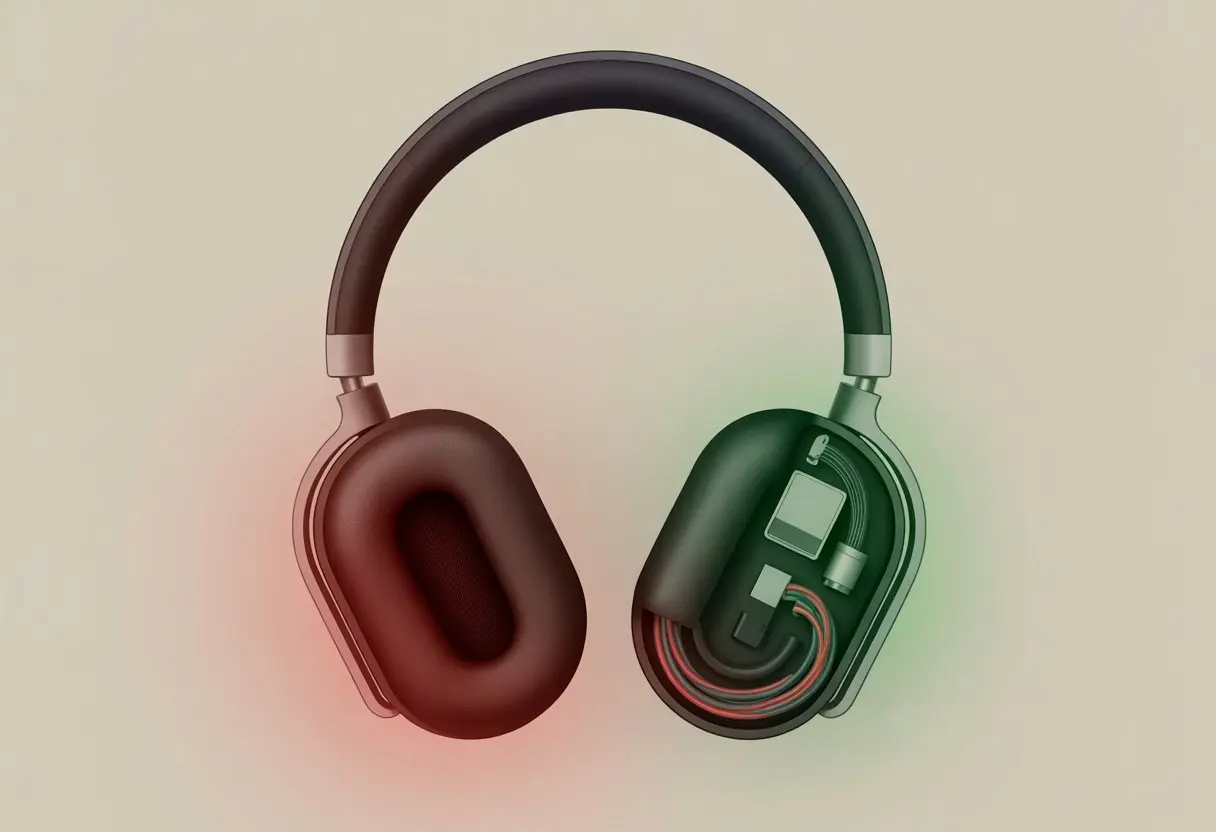
What’s the deal? Maybe it’s a loose connection, maybe one side’s battery is totally drained, or maybe our device’s settings are acting up. The reasons are usually simple, but they can be sneaky.
If you’re annoyed (and who wouldn’t be?), you’re not the only one. Bluetooth gear can be moody.
We paid for both sides, right? Let’s dig into what causes this lopsided problem and share some quick fixes to get both sides working again—no more silent treatment.
Common Causes of Bluetooth Headphones Only Working on One Side
Sometimes, we just want to listen to music, but our Bluetooth headphones play favorites and work on only one side. This leaves us bobbing our heads to half a beat, feeling a bit silly.
Let’s check out what’s usually behind this one-eared dilemma.
No Audio in One Ear
If you can’t hear anything from one side, dirt, dust, or earwax might be blocking the speaker mesh. Earbuds get gross fast—nobody tells you that when you buy them.
Try cleaning the ear tips and mesh gently with a soft cloth or a brush. Sometimes that’s all it takes.
A loose internal connection is another classic culprit. If you’ve dropped your headphones or jammed them into a bag, a wire might have come loose.
Suddenly, one side goes quiet. It’s not exactly the new haircut you wanted.
Audio settings on your phone or computer can also mess things up. If the audio balance sneaks off to one side, you’ll only hear half the sound.
Check your settings and make sure the balance is centered. People on tech support forums have plenty of advice if you want more tips.
Mono Versus Stereo Modes
Mono and stereo sound—sounds fancy, but it’s just one ear versus both. If your headphones or device switched to mono mode, all the sound piles into one speaker.
It’s like karaoke night, but only one person gets the mic.
Sometimes, accessibility settings flip on by accident and shove everything into mono. On Android or iOS, head into accessibility or audio settings and make sure stereo is on.
Music is way more fun when both ears get in on the action.
Certain apps and Bluetooth devices have their own sound settings too. Double-check both your device and app settings so you don’t end up stuck in a one-sided world.
If you need help, user advice can walk you through setting the audio balance.
Bluetooth Connection Hiccups
Bluetooth is great—until it isn’t. Sometimes it gets confused and only one earbud connects.
Interference from other devices, thick walls, or just standing too far from your phone can mess things up.
Bluetooth pairing quirks can also cause issues. If only one earbud paired, the audio goes there and nowhere else.
Try unpairing and reconnecting your headphones. That fixes things more often than you’d think.
Outdated firmware can also cause weird connection problems. If your headphones have an app, check for updates.
For a longer troubleshooting list, Headphonesty has a solid guide.
Physical and Hardware Issues
When one side of your Bluetooth headphones goes silent, the problem might be hiding in plain sight. Damage to earbuds, charging case issues, or a failed speaker can leave you listening to just half your playlist.
Damaged Earbuds or Wires
Honestly, most of us treat headphones like they’re indestructible. But bending, sitting on them, or yanking them out by the cable can mess things up.
With wired headphones, a pinched or broken wire is usually the main suspect. Even wireless earbuds aren’t safe—tiny connectors or solder points can break too.
If only one earbud works, gently wiggle the wire (if it has one) or try another device. Maybe you’re a troubleshooting genius, or maybe it’s time for new headphones.
Cable problems or internal breakages are pretty common. If you’re feeling adventurous, open up the earbud with a tiny screwdriver—but no shame in skipping DIY surgery.
Problems with the Charging Case
Bluetooth earbuds look harmless in their case, but sometimes the case is the troublemaker. If your case isn’t charging both earbuds, one might be dead while the other’s ready to party.
Check the metal charging contacts inside the case and on the earbuds. Dirt, lint, or even a crumb can block the connection.
Clean them with a dry cotton swab. If one earbud always charges less, maybe the case itself is the problem.
Try resetting the case and earbuds together. If you’ve still got the manual, now’s the time to actually read it.
Speaker and Driver Malfunction
The tiny speakers (drivers) inside each earbud do a lot of work. If one blows out or gets blocked, that earbud becomes a pricey earplug.
Moisture—like sweat, rain, or the washing machine—can zap the driver.
Play music at different volumes to check. If you hear crackling, muffled sound, or nothing at all, the driver might be dead.
Replacement drivers exist, but let’s be real—most people just buy new earbuds.
If your headphones have parts that come off, try swapping them to see if the problem moves. If not, maybe it’s time for an upgrade.
Software and Settings Snafus
When only one earphone is playing and the other’s on strike, it’s time to poke around in your digital settings. Sometimes it’s just a weird app or a sneaky slider messing things up.
Source Device Audio Settings
Let’s be honest—sometimes our phones or computers are the problem. Deep in the audio settings, the left and right channel balance can shift.
On Windows, you can adjust the audio balance for your Bluetooth headphones. Just go into sound settings, click your device, and make sure both left and right sliders are equal.
If the balance is off, you’ll miss out on half your music. Macs and other devices hide balance settings too, so poke around.
If you fix the balance, the sound should come back. For more info, check this Microsoft support page.
If the audio output is set to mono by mistake, both headphones could play the same thing—or just one side might work. Check accessibility settings for any weird toggles before blaming your headphones.
Smartphone App Mishaps
Apps can be sneaky. Some music or podcast apps have their own settings that mess with audio.
If you use a music player, look for an equalizer or audio balance tool inside the app. Dragging the balance all the way to one side (it happens!) will leave one ear out.
Streaming apps sometimes have “exclusive mode” or Bluetooth settings that get weird after an update.
Try closing and restarting the app. If that doesn’t help, uninstall and reinstall or reset app preferences.
Check app permissions for Bluetooth or audio output too. And honestly, turning it off and on again fixes more than we’d like to admit.
Troubleshooting Steps for Lopsided Audio
Bluetooth headphones sometimes pick a favorite side, and we end up feeling left out. If one side is quiet or silent, it’s probably a connection issue, a software glitch, or a settings problem.
Restarting Your Devices
Before panicking, do the classic move: turn everything off and on again. Unpair the headphones, close your music app, and restart both your phone and headphones.
Give it a second, then reconnect. Play some music or a video.
This simple step often fixes the problem. Honestly, sometimes our gadgets just need a quick nap.
Resetting to Factory Settings
If restarting didn’t work and your headphones are still ignoring one side, it might be time to reset them to factory settings.
Most headphones have a secret combo—usually holding down both volume buttons, the power button, or a reset button for about ten seconds.
This wipes out bugs, bad connections, or balance problems. Check the manual or the brand’s website for the exact reset steps.
A factory reset forces the headphones to forget old connections, which can solve weird audio issues. Resetting also helps if you’ve messed up the balance or an update went wrong.
For more in-depth steps, check out this guide on resetting wireless headphones.
Testing with Other Devices
Sometimes, the headphone drama isn’t even their fault. Our phone or laptop could be the real troublemaker.
To test this, try pairing your headphones with a different device—maybe your friend’s phone, your tablet, or your laptop.
If both sides suddenly work, congrats, your headphones are innocent. But if the problem sticks, well, your headphones are guilty as charged.
This quick test helps you figure out where the issue lives, and you don’t need a tech degree for it.
Using another device also checks if the problem comes from a specific app, audio source, or Bluetooth version.
If only one side works no matter what, it’s probably time to dig into hardware, wires, or cables, like in this article on fixing one-sided headphones.
Product-Specific Solutions
Some headphones are, let’s say, special snowflakes and need unique fixes.
Others just make us hunt down the right support page before we lose our minds (and maybe some hair).
Bose QuietComfort® Earbuds Quirks
We all love those times when we settle in, put on our Bose QuietComfort® Earbuds, and realize music is only coming out of one side.
Sometimes, it’s a Bluetooth connection issue. Other times, the earbuds just want attention.
Let’s try the basics:
- Fully charge both earbuds, because sometimes one just feels left out.
- Reset the earbuds by placing them in the case, closing it, and waiting 30 seconds. That’s longer than most of us have patience for, but it’s worth it!
- Clean the charging contacts on the earbuds and in the case with a clean, dry cloth.
- Open the Bose Music app and check if both earbuds show up.
Don’t forget, audio balance on your phone can also trick you. Make sure it’s centered, or both sides might not play together.
And when nothing else works, update your firmware. Sometimes, our earbuds just lag behind on tech trends.
Product Support Resources
If you don’t want to spend hours troubleshooting, product support is a lifesaver.
Many brands offer step-by-step help for “one side not working” issues, often with videos or live chat.
On Microsoft’s support page, you’ll find advice to re-pair your headphones if one side refuses to cooperate.
Some manufacturers have product-specific guides showing you how to reset, clean, or reconnect your earbuds.
If you’re still stuck, most brands let you reach out for warranty help or replacement info.
Finding the right help quickly keeps you from flipping your headphones out the window and gets you back to your tunes.
What to Do When All Else Fails
When only one side of your Bluetooth headphones works, and none of the regular tricks help, it’s time to get creative.
Roll up your sleeves, check your coverage, and maybe consider saying goodbye to your old headphones (with respect, of course).
Service Your Product Like a Pro
First, channel your inner gadget surgeon.
If you’re brave enough, open up the headphones and check for loose wires, dust, or broken bits.
Make sure the battery and drivers are still where they should be, and keep a tiny screwdriver and a steady hand nearby.
Sometimes, cleaning the charging contacts or resetting the headphones can work wonders.
Most Bluetooth models have a small reset button—push it with a paperclip and see if both sides spring back to life.
If you’re not comfortable poking around inside expensive gear, check a local repair shop.
Some technicians have the skills (and the patience) to fix wiring or other small problems for less than the cost of a new pair.
Choosing the DIY route can feel satisfying, but professional service may save you some stress and fewer leftover screws.
Getting Your Warranty Information
Before dropping cash on repairs, grab your product box—or at least try to remember where you tossed it.
Many headphones come with a manufacturer’s warranty, covering defects and malfunctions for about one year (sometimes longer).
Find your receipt or proof of purchase, then check the brand’s website for warranty policies.
Quite often, filling out an online form is all it takes to start a warranty claim.
Don’t forget to include model and serial numbers.
Even if you think your warranty expired, ask the company for a little mercy.
Some brands offer surprise extensions or goodwill repairs, especially if you haven’t dunked the headphones in soup.
If you’re lucky, a free replacement or repair could be on the way.
Tips for Upgrading or Replacing Headphones
Sometimes, headphones just can’t be saved. When that happens, it’s time to hunt for a solid replacement.
I always check for features like better battery life, a stronger Bluetooth connection, and audio balance controls. No one wants to deal with one-sided sound again, right?
Here’s a quick checklist when you’re picking out new headphones:
- Fit and Comfort: Over-ear or in-ear? Honestly, you should try them on before buying.
- Warranty Length: Longer warranties mean less stress down the road.
- Water and Sweat Resistance: Perfect for gym folks or, let’s be real, anyone who snacks near their gear.
- Multipoint Connectivity: Makes switching between devices so much easier.
If you want more upgrade ideas or troubleshooting help, Headphonesty covers the latest models and what actually matters.
After you get your new headphones, don’t lose the warranty card this time. Maybe snap a photo of it—your future self will thank you.

From a young age, I have always had a big interest in technology, and this blog is an extension of that interest. Through this blog, I hope to provide others with all of the information they need regarding tech options to consider, and things such as compatibility. Some of the different items I will be discussing include headphones, smartwatches, and how to fix common issues.
- The Best Rugged And Waterproof Smartwatches - October 21, 2026
- 10 Best Military Smartwatch – Find The Best Tactical Military Watches in 2023 - October 20, 2026
- Are Wired Headphones Safer Than Bluetooth? A Friendly Guide - October 20, 2026
Related Posts: