Let’s be real—we bought these fitness trackers to count steps, not to become best friends with our charging cables. Yet here we are, plugging in again. If you’re scratching your head over why your trusty band keeps dying before the day’s over, you’re definitely not the only one.
The most common reasons a fitness tracker won’t hold a charge include an aging battery, buggy software, high power settings, or even just some grime on the charging contacts.
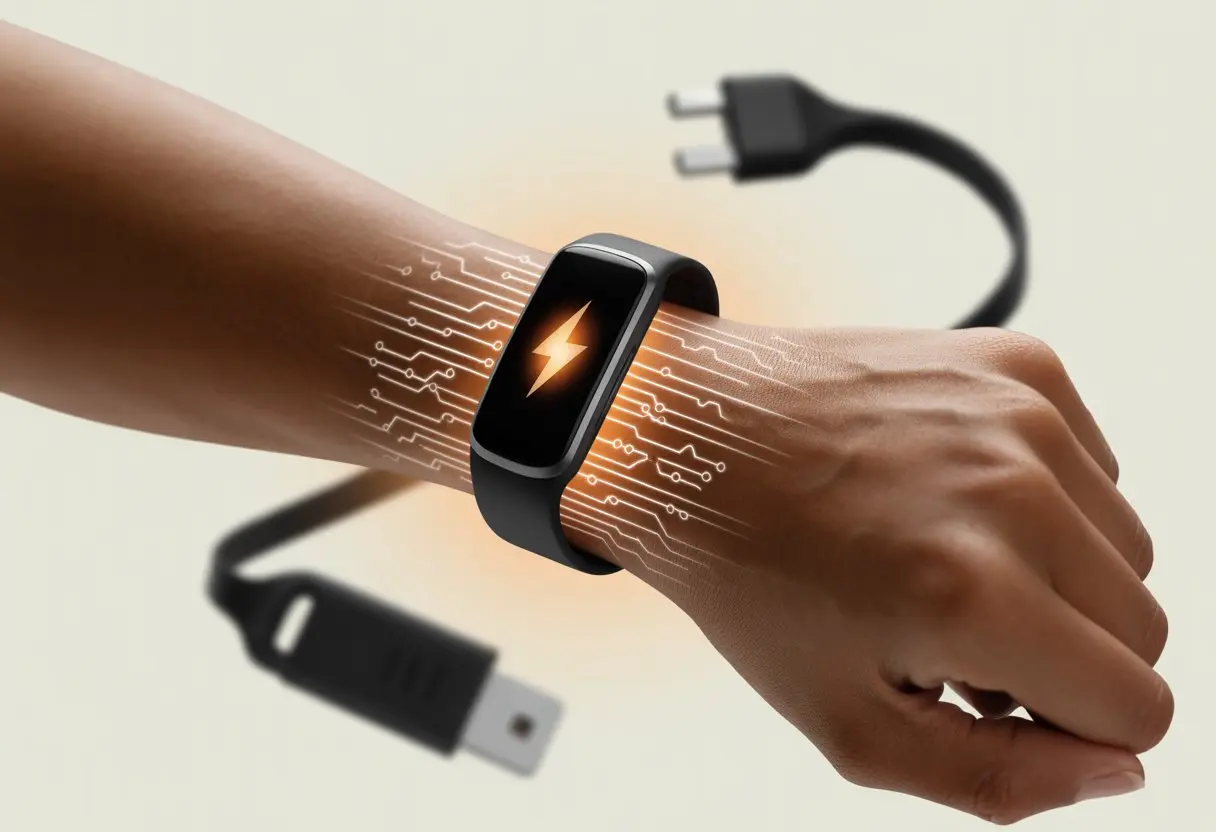
We all want our trackers to give us a little cheer for those 10,000 steps—not for plugging them in yet again. From constant buzzes to sneaky background features, there are more battery drains than unread notifications on our phones.
Let’s poke around and figure out what’s zapping our battery life, so we can spend more time moving and less time searching for a charger.
Understanding Fitness Tracker Battery Life
Most of us just want our fitness tracker to last through a gym session—and maybe toss in a gentle reminder about missing our step goal. Battery life problems can sneak up fast.
How we use our trackers, normal wear, or even just bad luck can tank the battery.
What Impacts Battery Drain
Battery drain doesn’t happen by magic, though sometimes it really feels that way. Features like GPS, heart rate sensors, and extra-bright displays gobble up battery.
Notifications can be handy, but all that buzzing drains the battery even faster than a tough workout. Temperature actually matters too. Extreme heat or cold will slow down your tracker and make it struggle to keep a charge.
Let’s not ignore software updates and old firmware. Running on outdated software is like asking your tracker to run a marathon with one shoe—just not happening. Here’s a handy list of battery hogs:
- Always-on displays
- Frequent syncing
- GPS tracking
- Continuous heart rate monitoring
- Lots of app notifications
Average Battery Lifespan
When we buy a new tracker, the box might brag about days of battery life. In reality, most last about 5-7 days per charge at first.
Over time, that drops. After a year or two, you might notice the battery just doesn’t last as long.
Lithium-ion batteries get tired, just like we do after one flight of stairs. Age, repeated charging, and heavy use all wear them down. Dropping from five days to two days per charge after a couple years is pretty normal, especially if you use a lot of features.
Many folks report their battery performance starts to dip after the two-year mark.
It helps to be realistic and give your tracker a break sometimes. But in the end, every battery will give up eventually.
Recognizing Normal vs. Problematic Battery Performance
Some battery drop-off is totally normal. If your tracker goes from a week to five days per charge, it probably just needs a little extra care.
But if it can’t even make it to lunch, that’s a bigger problem. Signs of trouble include the device shutting down even when it claims to have charge left, not powering on, or only working when plugged in.
If you’ve updated the software, lowered the brightness, turned off extra notifications, and still get terrible battery life, something’s up. Batteries shouldn’t go from marathoners to couch potatoes overnight.
If they do, troubleshooting might be in order, and sometimes, replacement is the only way out.
Common Charging Issues and How to Outsmart Them
That feeling when your tracker has the battery life of a potato? Yeah, we know it. Before you panic, let’s break down why your tracker’s charge might be vanishing faster than your motivation on a rainy Monday.
Fixing these issues usually starts by checking just a few key things.
Charging Cable Mayhem
Charging cables go through a lot—tossed in drawers, bent, twisted, and sometimes chewed by pets. It’s easy to forget how much the cable matters.
If you spot bent pins, frayed ends, or sticky stuff, take a minute to check and clean the cable. Use a soft cloth or dry toothbrush to wipe away dirt or dust from the cable’s metal bits.
If the problem sticks around, try another charger that fits your model. Some cables just give up, so swapping can help.
Quick Tips:
- Check for cable damage
- Clean contacts before charging
- Try a different (compatible) charger if you’re unsure
Is Your USB Port Just Pretending?
USB ports can be sneaky. Sometimes you plug in, see a flash, but nothing really happens—it’s like the port’s faking it.
Dust in the port or a loose connection can cause this. Try plugging into a different port, maybe on the other side of your laptop or a whole new device.
If a port feels wobbly or doesn’t click, just avoid it next time. Some wall adapters or power strips are forgetful, so stick with a stable, powered port.
The Computer Conspiracy
Charging from a computer can be its own headache. Some computers put USB ports to sleep or don’t give enough juice, especially on battery power.
It might look like you’re charging, but your tracker isn’t getting what it needs. If you want reliable charging, use the computer while it’s plugged in, not on battery.
Double-check your computer’s settings to make sure USB power isn’t limited. Plug straight into the computer, not through a USB hub—some hubs just pretend to work and actually don’t provide enough charge.
If all else fails, a wall adapter might just do the trick.
Step-by-Step Troubleshooting for Battery Woes
When your fitness tracker loses battery fast, it’s honestly more annoying than a workout with no playlist. You’ll want to check the charging gear, clean the contacts, or maybe just give your device a quick restart.
Try a Different Charging Cable
Let’s be honest: sometimes the cable we grab is just as tired as we are. Charging cables can break down, fray, or just stop working for no good reason.
Before you panic, try using another compatible USB cable and a different power adapter. If you can, test your tracker with a cable that works on another device, or use your cable with a friend’s tracker.
If your tracker starts charging with the new cable, you’ve found the culprit. Plugging into a different USB port or wall charger can also make a surprising difference—some outlets just give up, like us on leg day.
Buying a new cable isn’t fun, but it’s usually worth it. If your tracker still won’t charge, keep going.
Clean Those Charging Contacts
Sweat, dust, and lotion love to hide on those tiny metal charging contacts. Dirty contacts can block electricity and make it seem like your battery’s toast.
Grab a soft, dry cloth or a cotton swab and gently wipe the charging contacts on both the tracker and the cable. If there’s stubborn gunk, dampen the swab with a little rubbing alcohol—just don’t soak it.
Let everything dry before plugging it back in. Even a bit of dirt can mess things up.
If cleaning helps, you’ve probably solved it. Want more tips? Here’s a detailed cleaning guide.
Reboot, Because It Always Works (Right?)
The classic fix: reboot. Fitness trackers, like most gadgets (and people), sometimes just need a quick nap to get back on track.
Restarting can clear glitches or weird bugs that drain the battery. Most trackers have a simple restart—usually holding down a button or tapping a menu.
Check the manual or the brand’s website for the exact steps. This won’t erase your data, just gives the tracker a little reset.
After restarting, plug the tracker in again and cross your fingers. If it works, maybe your tracker just needed a breather. For more details, check these troubleshooting steps.
Settings That Secretly Drain Your Fitness Tracker
Some little settings can quietly eat up your tracker’s battery. Features that seem helpful sometimes burn through power way faster than you’d think.
Notifications Gone Wild
Let’s be real—getting a buzz every time someone posts a cat meme is exhausting for both you and your battery. When you sync all your apps and allow every single notification, your tracker ends up working overtime.
Each message, like, or email means the tracker lights up, vibrates, and wakes up the screen. That adds up fast. If you’re in group chats or have notifications for every app, your watch might feel more like a hotline.
Here’s a quick checklist to help calm the chaos:
- Limit notifications to the important stuff
- Turn off alerts for social media unless you really need them
- Use silent or summary modes instead of vibrate
A lot of users notice their battery lasts way longer after cutting down on the digital noise. Seriously, complaints about battery draining in just a few hours pop up all the time when notifications run wild, especially on Fitbit Charge 5.
Overachieving Heart Rate Monitoring
Continuous heart rate tracking sounds helpful… until your tracker tries so hard to monitor every heartbeat that it’s dead by lunchtime.
When set to monitor 24/7, the sensor never rests, and that drains energy quickly. Most of us don’t need heart rate readings every second, especially while binging shows.
Most trackers let you set how often it checks—maybe just during workouts or every few minutes instead of constantly. Tweak the heart rate setting to “automatic” or “only during activity” and you’ll probably save hours of battery.
If your tracker’s tired, maybe it just needs a break from being a heart-rate helicopter parent.
The Perils of Step Count, Alarms, And GPS
Trackers promise to help us get healthier and more organized, but sometimes it feels like they’re just finding new ways to drain their own batteries. It’s almost like they’re working against us, isn’t it?
Step Count: Counting More Than Steps
Most of us assume our tracker just counts steps, but it’s actually working behind the scenes. Each time we wave an arm or tap the screen, it’s grabbing more data.
It’s not just tracking movement—it’s also recording sleep, heart rate, and sometimes notifications. Most fitness trackers go way beyond steps.
Some even log tiny wrist movements as steps. So, yeah, brushing our teeth might sneakily boost the count.
That constant checking eats up battery, especially if we’ve set it to track everything at high frequency. When that happens, the charge drops even faster.
A loose or super-tight strap can mess things up, too. If the tracker can’t “feel” us right, it works harder and drains power, while possibly missing steps anyway.
If you want to know more about how straps mess with step counts, check out this article on why Fitbits are not tracking steps.
Alarms—An Unexpected Energy Hog
Alarms seem harmless, right? But every gentle buzz in the morning chips away at our battery.
The tracker checks the time, wakes up its sensors, and spins up a tiny vibration motor. Setting a bunch of alarms basically turns it into a caffeinated drill sergeant.
Turning on “smart wake” features? That can make things worse. Some devices analyze our sleep cycles and buzz at the “perfect” time, which means they’re working in the background all night.
Here’s a quick table:
| Number of Alarms | Battery Impact |
|---|---|
| 0-1 | Low |
| 2-3 | Medium |
| 4+ | High |
The more alarms we set, the quicker our battery waves the white flag.
GPS: The Battery Black Hole
Step counting drains the battery a bit, but GPS? That’s a whole other beast.
Every time we start a run or bike ride with GPS on, the device hustles to stay connected to satellites. GPS needs a lot of juice because it reaches out to satellites floating way above us.
The longer it takes to lock onto a signal, the more battery it eats. Some trackers keep trying for up to 10 minutes, then just give up until we try again (yep, Fitbit Charge 4 user manual says so).
If we’re tracking every stroll to the fridge with GPS, maybe it’s time to rethink—or just accept more trips to the charger.
Device-Specific Quirks: The Fitbit Flex Chronicles
Honestly, if our Fitbit Flex could talk, it would probably yell, “Charge me, human!” every time we push it past lunchtime.
These trusty trackers keep us moving, but sometimes they make us charge them more than we’d like.
We’ve run into a few quirks with the Fitbit Flex. Sometimes grime collects on the charging contacts, and a quick wipe with a soft cloth or cotton swab sorts it out.
Charging ports can be finicky, too. If our tracker won’t charge, switching USB ports or even outlets can sometimes nudge it back to life.
You can find more USB troubleshooting tips at Fitbit’s support page.
The Flex also likes a fresh start now and then. A quick reset—with a paperclip and steady hands—usually does the trick.
It’s like rebooting your Wi-Fi router after a rough day. Here’s how:
- Plug the tracker into the charger
- Find the tiny pinhole
- Press and hold with a paperclip
Sometimes, only a battery swap will revive it. That means popping the tracker out of its wristband and swapping in a new battery, just to keep those step streaks alive.
If you need more details, check this guide.
Common Fitbit Flex Quirks Table
| Issue | Quick Fix |
|---|---|
| Dirty charging contacts | Clean with soft cloth |
| Faulty charging port | Try a different USB outlet |
| Not responding | Reset with a paperclip |
| Old battery | Replace the battery |
When All Else Fails: Getting Help Before You Lose Your Mind
Sometimes, no amount of tinkering or begging will bring our fitness tracker back to life. At that point, it helps to reach out to actual humans instead of glaring at a blinking screen.
How to Contact Customer Support Without Weeping
Customer support can feel like a maze designed by someone who hates you. The best move is to start at their official website and look for the “Contact Us” or “Help” sections.
We should have our device model, serial number, and purchase details handy, so we’re not stuck saying, “It’s the small black one, with a screen…you know, a fitness tracker!” Live chat usually gets a faster response, but if we want to hear a real voice confirm our charger isn’t cursed, phone support is the way to go.
Some companies even help through social media, which sounds weird but sometimes works. If our tracker refuses to hold a charge for more than a day, community forums can show if others are in the same boat.
Occasionally, companies offer special replacements or discounts when things go really sideways, as some users have reported.
Prepare An Email That Gets Results
A standout email actually gets noticed in that endless stream of lost device complaints. Let’s keep it simple, friendly, and packed with facts—think of it as a sandwich: facts first, a dash of kindness, then what you’re hoping for.
List your device’s model, the problem (“Battery dies after two hours. Yes, I charged it. Multiple times.”), and what you’ve already tried (“Turned off features, reset, stared at it sternly.”).
Don’t forget your contact info. Toss in a photo or a quick video so the support team can see what’s happening—makes their job easier, honestly.
Here’s a quick template:
| Section | Example |
|---|---|
| Greeting | Hello, |
| Problem | My tracker won’t hold a charge longer than 2 hours. |
| Tried | I’ve reset, turned off extras, cleaned the charger. |
| Request | What can you do to help me fix or replace it? |
| Thanks | Thanks for your time! |
Honestly, patience, a bit of humor, and maybe a sprinkle of hope can work wonders.

From a young age, I have always had a big interest in technology, and this blog is an extension of that interest. Through this blog, I hope to provide others with all of the information they need regarding tech options to consider, and things such as compatibility. Some of the different items I will be discussing include headphones, smartwatches, and how to fix common issues.
- How to Get Text Messages on Fitbit Versa 2 Android: Simple Guide for Users - October 13, 2026
- Why Doesn’t My Fitbit Record My Sleep? Quick Troubleshooting Guide - October 13, 2026
- How to Change Face on Fitbit Versa 2: Quick and Easy Guide - October 12, 2026
Related Posts: