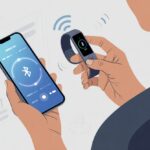
Ever feel like your fitness tracker is counting steps, but you have no clue where those steps actually go? Yeah, same here. That’s where Garmin Connect steps in and helps us turn our random fitness numbers into something we can actually understand.
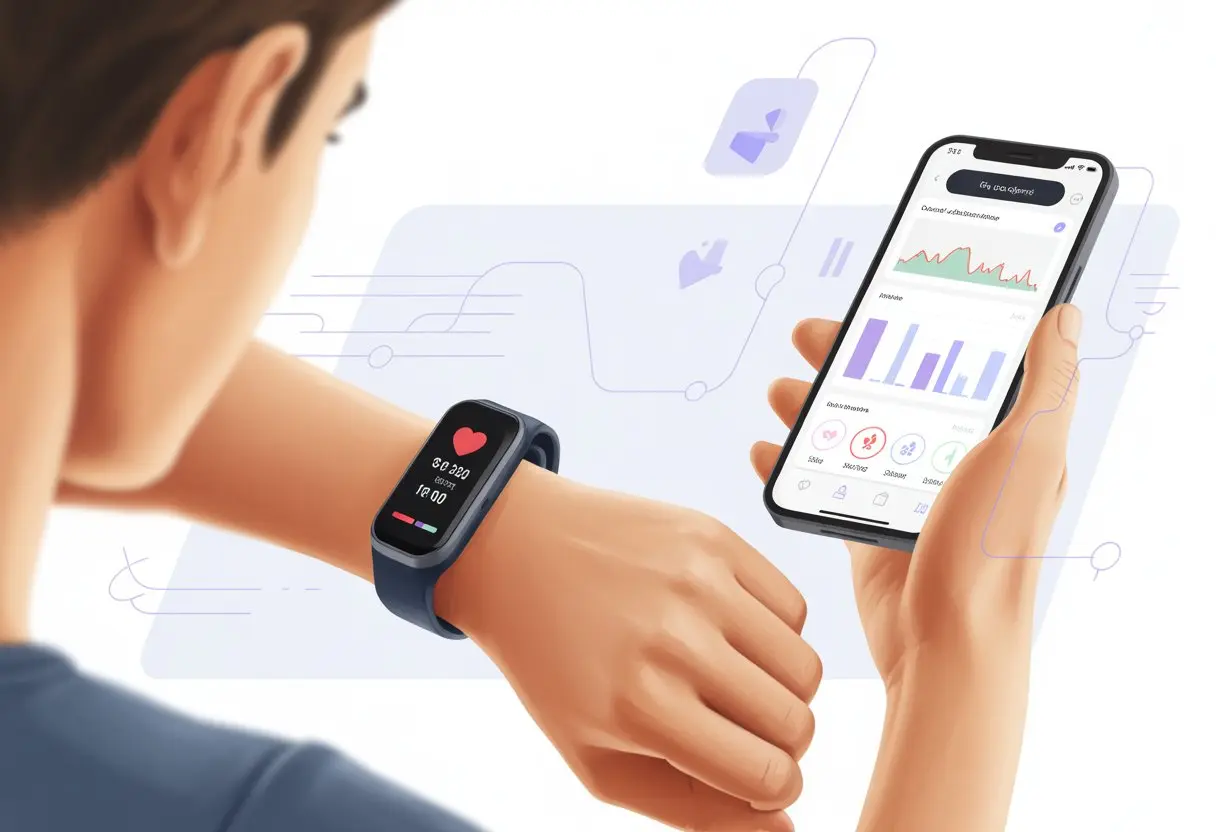
Syncing our fitness tracker with Garmin Connect lets us track, analyze, and manage all our health and activity data in one spot.
Once our tracker connects to Garmin Connect, things just get easier. We get to peek at our workout history, check out our sleep trends, and share our wins with friends—no decoder ring required.
Whether we geek out over data or just want to beat last week’s step count, Garmin Connect gives us the tools to stay on track and maybe even get a little competitive.
Our gym routines and daily strolls actually start to make sense, and honestly, who doesn’t love seeing progress on a colorful chart? If we want to see our growth (and maybe brag a bit), pairing a fitness tracker with Garmin Connect is the way to go.
No more guessing—just real, easy-to-read health info.
Setting Up Your Fitness Tracker With Garmin Connect
Getting started with Garmin Connect isn’t rocket science, but there are a few steps. We’ll need the app, an account, and a little patience while the gadgets do their handshake.
Downloading the Garmin Connect App
First things first—let’s grab the Garmin Connect app before we get distracted by snacks. We’ll find it in the App Store on iPhones or the Google Play Store for Android.
Search “Garmin Connect.” The app icon is a blue circle, so double-check before downloading a knockoff (been there, done that). Download and install the app like our future fitness depends on it—because, well, it kind of does.
If we’re more into big screens, Garmin Connect works online too, or we can set things up on a computer using Garmin Express. Still, most of us just grab our phones since it’s the simplest way.
Creating and Logging Into Your Garmin Connect Account
After the app installs, it’s time for a bit of digital paperwork. Open Garmin Connect and sign in with an existing account or create a new one if we’re new to this.
Making an account is pretty easy. We need an email, a password, and a little honesty about our birthday (sorry, 01/01/1901 probably won’t fly). We’ll agree to some terms, which hopefully don’t include mocking our step count.
Once the account is ready, log in. If the password slips our mind, there’s a reset option. Maybe skip “123456” as the new password, tempting as it is.
Pairing Your Fitness Tracker to Garmin Connect
Now for the fun part—getting our fitness tracker to join the party. Open Garmin Connect and tap “Add Device.” Make sure the tracker is charged, turned on, and not paired to anything else (trackers can be a little jealous).
The app scans for nearby Garmin devices. When ours pops up, tap it and follow the prompts. Sometimes we’ll need to enter a code from the tracker screen.
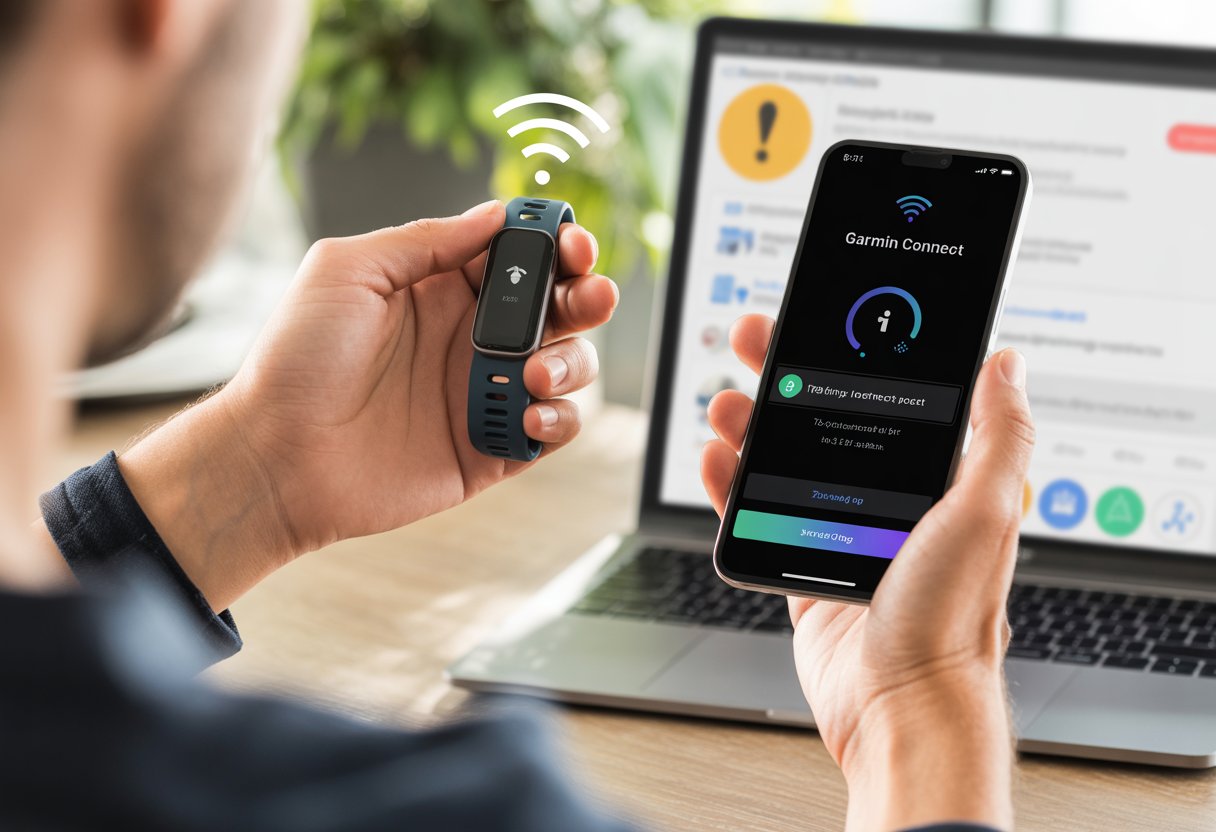
If pairing doesn’t work right away, don’t panic—Bluetooth can be moody. Try restarting both the phone and tracker.
Once they’re paired, the tracker starts sending over workouts, steps, and sleep data. We can check it out and maybe even brag a little. For more details, Garmin has a guide on syncing data from a fitness device.
After this, our fitness tracker is ready to call us out on our daily stats and push us to earn those badges.
Syncing Your Fitness Tracker and Garmin Connect™
Let’s be real: if we can’t see our stats somewhere, what’s the point? Syncing keeps all our steps, heart rates, and heroic calories up to date—whether we use our phone, Wi-Fi, or that random cable we always lose.
Syncing Via Bluetooth and Wi-Fi
We all love easy stuff, and syncing over Bluetooth or Wi-Fi is about as easy as it gets. Open the Garmin Connect™ mobile app with the tracker nearby (don’t leave it behind).
Bluetooth lets our data fly straight to the phone. Usually, the app syncs things for us, but if we’re impatient, we can force a sync. On most trackers, hold the right button until we spot the sync symbol.
Data moves fast—steps, sleep, even those snack runs. If our tracker has Wi-Fi, it can sync directly to Garmin Connect™ too, which is even quicker.
If syncing acts up, double-check Bluetooth or hop onto a solid Wi-Fi network. Usually, that does the trick. For more help, Garmin has a syncing guide.
Using Garmin Express for Syncing
Sometimes, our tracker just wants to go old-school and use a cable. That’s where Garmin Express saves the day. Grab the USB cable and plug the tracker into the computer (yep, same one for charging).
Fire up Garmin Express. It scans our device and flashes a big “Sync” button we can’t miss.
Click it, and our data uploads to Garmin Connect™. This works great if our internet is spotty or Bluetooth just isn’t cooperating.
Garmin Express also backs up our data and updates device software without us hunting for instructions. Here’s more on syncing with a USB cable and Garmin Express. For those who like things classic, it keeps our fitness life tidy.
Tracking Your Activity Data Like a Pro
Let’s try to make sense of all these numbers our watches throw at us. We’ll check out how to read step counts, calories burned, and what our heart is up to all day.
With a few taps, we can see if our afternoon stroll counts as “exercise” or if it’s just another trip to the fridge.
Step Count and Calories Burned
Counting steps might sound basic, but Garmin Connect makes it surprisingly fun. After syncing, open the app and tap the menu to see our daily step count.
The app shows us graphs, so we can brag about hitting 10,000 steps or laugh about our lazy Sunday.
Garmin Connect also crunches numbers for calories burned, using our age, height, weight, and activity level to estimate more than just walking. We get to spot which days we crushed it and which days dessert won.
For stat lovers, the app gives weekly totals and averages to track progress. Some devices even count floors climbed, so if stairs are your thing, this is your time to shine. Check out more about steps and calories on Garmin Connect.
Monitoring Your Heart Rate
Our Garmin devices keep an eye on our heart all day. The heart rate monitor tracks BPM, showing minimums, maximums, and even weird spikes when we’re supposed to be chilling.
When we want to see heart rate trends, the app gives us colorful charts—sometimes they make us look super healthy, sometimes not so much. Garmin Connect can also alert us if our BPM gets too high or too low for our settings.
This helps us spot stress, tiredness, or those random bursts of energy. The heart rate data links to our activities, so we can see how a tough workout bumps up our BPM or just confirm we finally took a real rest day.
The more we use these features, the better we get at understanding what helps—or messes with—our hearts. For more on using the heart rate monitor, check Garmin’s support page.
Using GPS and Workout Features
We all want our workouts to count, whether we’re jogging outside or sweating at the gym. Knowing how to use GPS and track workout data helps us see progress and keeps us motivated—even if it’s just for bragging rights.
Enabling GPS for Outdoor Activities
If we’re heading outside, let’s put that GPS to work. Our tracker’s GPS maps where we go, how far we travel, and how fast we move.
Before starting, make sure GPS is turned on. Usually, we pick an outdoor activity like running or biking, and let the device connect to satellites.
It might take a minute for the tracker to find a signal—perfect time for a quick stretch (or awkward jumping jacks). Once GPS locks in, hit start and head out.
The device records our route, pace, distance, and time. Afterward, Garmin Connect maps everything out, so we can finally prove we actually ran that extra lap.
Recording Workout Data
Not all of us love running outside, and that’s totally fine—workout tracking indoors matters too. For gym sessions, our tracker logs strength training, cardio, and even those questionable yoga poses.
Just pick the workout type on the device. The tracker takes care of the rest—heart rate, calories, reps, and sets.
Some models even auto-detect exercises, making us look smarter than we are. After finishing, sync the data to Garmin Connect, where every sweaty detail gets saved.
We can check stats, see graphs, and compare with past workouts on Garmin Connect.
Having workout data ready means we can spot improvements, set new goals, and maybe figure out why Mondays always feel so rough.
Personalizing Your Garmin Connect Experience
Let’s be honest—everyone’s idea of “fit” looks a little different. With Garmin Connect, we get to tweak how our device cheers us on or nags us, whichever actually helps us up our wellness game.
Setting Up Training Plans
It’s honestly way too easy to keep winging our workouts, but following a real plan just feels better. Garmin Connect lets us pick from expert-made training plans—maybe running a 5K, a 10K, or even a full marathon if we’re feeling ambitious.
We just head to the Training section, tap on Training Plans, and choose one that matches our personal goals—or, let’s be real, our current mood.
We can preview the whole plan and check out the workout details, rest days, and those reminders that feel more like a gentle nudge than a drill sergeant shout.
Every plan actually adapts as we go, updating if we get tired or, you know, distracted by pizza night.
We don’t even have to keep track of our workouts. The plan syncs right to our device, so we can just follow along and pretend we’re Olympic athletes undercover.
Customizing Activity Tracking
Let’s be honest—sometimes we walk 10,000 steps, and sometimes we just shuffle to the fridge. With Garmin Connect’s activity tracking, we decide exactly which stats we care about and see them in a snap: steps, heart rate, calories burned, sleep, and more.
We can rearrange the dashboard to show our favorite data first. Maybe it’s sleep tracking (because naps totally count) or those intense workout minutes.
The activity tracking feature lets us set goals, track our progress, and even celebrate tiny wins—because why not?
If we want to get specific, we can log water intake, weight, or even yoga sessions. It’s fitness on our terms, with just enough encouragement to chase that next achievement (or at least not skip leg day).
Staying Updated and Troubleshooting
Let’s face it, things don’t always go smoothly with our fitness trackers. Sometimes we have to wrestle with software updates or deal with stubborn pairing problems before we can count those beautiful steps.
Installing Software Updates
Updating is important—nobody wants their tracker acting like it’s stuck in 2015. We keep things running by checking for software updates for both our Garmin device and the Garmin Connect app.
For the device, we connect it to the app and let it check for updates. Occasionally, we’ve got to plug our watch into a computer using Garmin Express for firmware that refuses to download over Bluetooth.
We also update the Garmin Connect app on our phone. We just swing by the App Store (for iPhones) or Google Play (for Androids) every now and then.
Updates often fix syncing issues and sometimes even add new features that make us feel like we scored a new watch.
Pro tip: If we turn on automatic updates, our devices get smarter while we sleep or scroll endlessly.
Solving Common Pairing and Sync Issues
Pairing our watch with Garmin Connect should be easy, but sometimes tech just wants to mess with us. If syncing fails, here’s our go-to plan:
Enable Bluetooth on our phone. If it’s off, our watch just sits there, lonely and confused.
Restart both devices. The classic “turn it off and on again” works more often than we care to admit.
Check power or airplane mode. Low power settings or airplane mode can block Bluetooth and make syncing impossible.
Remove and re-add the device in Garmin Connect. Basically, we unfriend and re-friend our watch—sometimes that’s all it needs.
Need more help? Garmin’s got more detailed troubleshooting for devices not syncing with Garmin Connect. Sometimes it’s just the little things—like forgetting to tap “Connect” or mistyping a PIN—that trip us up.
Using Garmin Connect on Your Phone for Ultimate Convenience
Let’s be real—nobody wants to haul out a laptop during a jog just to check their step count. Luckily, we can do almost everything from our phones now, thanks to the Garmin Connect mobile app.
Accessing Features Through Garmin Connect Mobile App
With the Garmin Connect app, it feels like we’re carrying a personal coach in our pockets, minus the yelling. We check real-time stats, review health data, and set targets for steps or sleep—all with just a few taps.
Honestly, seeing our progress charts spike on a random Wednesday afternoon is weirdly satisfying.
The app’s dashboard shows everything that matters: heart rate, floors climbed, calories burned, and upcoming workouts.
Planning a new workout? We just tap, swipe, and send it straight to our device.
If we want to dive into our running splits or figure out why we slept like a rock last night, it’s all right there.
If we’re feeling social—or just want bragging rights—we can share activities with friends or join groups to compete. Friendly competition and virtual high-fives? Yes, please.
Syncing While Running on Your Phone
Syncing our fitness tracker while running with the Garmin Connect app means our stats stay up-to-date, even if we’re mid-sprint or debating a donut detour. The syncing process is quick and runs in the background, so we never lose a record of our sweaty achievements.
We just enable Bluetooth on our phones and follow Garmin’s steps to pair the tracker. Once paired, syncing happens automatically—our latest steps, heart rate, and calories burned land in the app after every activity.
No cables, no “Wait, did I forget to upload my run?” panic.
If we ever wonder how our pace looks while still moving, the app updates almost instantly. Plus, thanks to notifications and reminders, we won’t miss a beat—or that water break we promised ourselves.
Sometimes, our Garmin Connect app just leaves us baffled. When frantic screen swiping and button-mashing don’t work, it’s time to call in the experts—or at least pretend we are one.
Finding Official Support
Garmin has official help for almost every issue we can imagine. We should start at the Garmin website or open the Garmin Connect app’s help section.
They’ve got FAQs, step-by-step guides, and setup videos.
If our patience is wearing thin, we can always reach out to Garmin’s customer service. Their support crew handles questions about syncing devices, setting up features, or figuring out why our tracker says our steps are “average.”
We shouldn’t forget about the Garmin forums, either. Tons of friendly (and sometimes hilariously passionate) users hang out there answering questions and sharing hacks.
It’s honestly comforting to know we’re not the only ones confused about “set up assistance using the Garmin Connect app” on our Garmin fitness device.
Connecting with JustAnswer and Verified Experts
When official support feels like shouting into the void, why not try something else? JustAnswer connects you with real, verified experts who can answer your specific Garmin Connect questions.
You just describe your problem—maybe something like, “Why does my fitness tracker think I’m sleepwalking during meetings?”—and a pro jumps in to help out. It’s honestly a relief for those weird or complicated issues that manuals and FAQs just don’t cover.
With JustAnswer, you get an actual conversation and usually some practical, step-by-step help tailored to your situation. Users talk about how to sync with Garmin Connect or set up new gadgets, and it sounds like the advice is pretty direct.
Honestly, sometimes it just feels better knowing there’s a verified expert on the other end, instead of your cousin who last used a pager.
Hi, my name is Garrett Jones, and I am a tech enthusiast. I enjoy researching the new tech that has been released, and have a vast knowledge of the best tech to purchase.
From a young age, I have always had a big interest in technology, and this blog is an extension of that interest. Through this blog, I hope to provide others with all of the information they need regarding tech options to consider, and things such as compatibility. Some of the different items I will be discussing include headphones, smartwatches, and how to fix common issues.