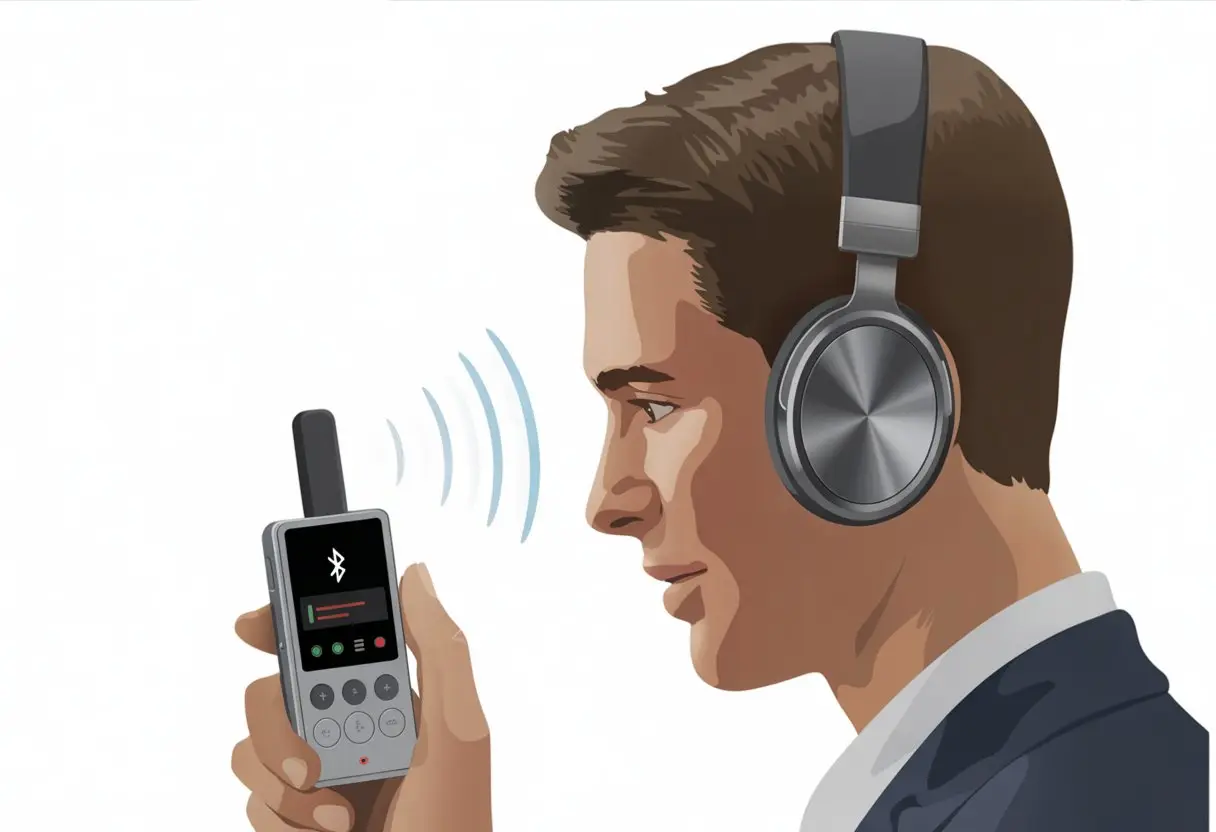
Let’s be honest, we all want to look cool strutting around with our Bluetooth headphones, pretending we’re on some high-stakes call—when really, we’re just trying not to trip over a mess of wires. Wouldn’t it be nice if we could use those same headphones to record our voice on the fly and finally say goodbye to tangled cables? You actually can use Bluetooth headphones with a voice recorder, but you’ll need the right app or setting to make it happen.
Most of us have hit record and talked into our headphones, only to discover the sound’s coming from the phone’s mic. It’s like shouting at a brick wall and expecting it to take notes. That’s frustrating, right? But don’t stress—we’ll walk you through this wireless jungle and make sure your next voice memo doesn’t sound like you’re whispering from a closet.
If you’re after some real-world tips, easy steps, and maybe a bit of tech wizardry, hang around—your headphone game’s about to level up.
Understanding Bluetooth Headphones and Voice Recorders
When we try recording our voices with gadgets, things can get a little sci-fi. Bluetooth headphones try to communicate with voice recorders, but sometimes they just don’t get each other—like us yelling our coffee order at a drive-thru with the windows up.
They’ve got tiny microphones built in, so we can chat on calls or boss our phones around. Batteries power them, and there are usually buttons for pausing music, changing the volume, or picking up calls.
Some pricier models even block out that neighbor’s dog or the hum of your fridge.
Bluetooth headphones come in all shapes and sizes. Some are big, cushy over-ear types for music lovers, while others are little earbuds that vanish into couch cushions.
The main thing is, we get to enjoy sound without tripping over cords.
How Voice Recorders Work
Voice recorders capture sound—mostly voices—so we can replay that hilarious conversation or relive a boring meeting. Traditional voice recorders use built-in microphones and save recordings as files we can play back, email, or maybe regret later.
These days, our phones and computers have apps that do the same thing. But not all recorders want to listen to Bluetooth headphones. Some only use their own mics, while others can connect to Bluetooth mics or headsets if we’re lucky.
If our recorder accepts a Bluetooth headphone’s mic, we can record wirelessly, wander around the room, and maybe feel like a secret agent—or just someone who lost their phone again.
Bluetooth Headset vs Bluetooth Headphones
Bluetooth headsets and Bluetooth headphones look similar, but they’re not quite the same. A headset usually has a little mic arm sticking out, so we look like a call center pro or a pilot. It’s really meant for calls and clear speech.
Bluetooth headphones focus on music and have built-in mics for calls, but the mic isn’t always as crisp as a headset’s. If we need to record interviews or podcasts, a Bluetooth headset tends to work better for sound quality.
Here’s a quick side-by-side:
Feature
Bluetooth Headphones
Bluetooth Headset
Main Purpose
Music/audio playback
Voice communication
Microphone Location
Built in, often small
External boom, closer to mouth
Voice Quality
Good for calls, not always clear
Clear and focused
Style
Over-ear or in-ear earphones
Usually single-ear, with boom mic
Checking Compatibility
Before we start our podcast career with Bluetooth headphones, we need to make sure they’ll actually work with our voice recorder. There’s nothing worse than giving a passionate speech and realizing the mic didn’t catch a word.
Supported Audio Sources
Let’s check if our voice recorder app or device supports Bluetooth audio sources. Most recorders expect to use a built-in mic or a plug-in one, which isn’t ideal if we’re dancing around with wireless headphones.
Jump into the voice recorder’s settings and look for an option to select an audio source. Some apps and devices let us pick “Bluetooth headset” for recording. Others just ignore Bluetooth mics entirely.
Apps like Earbuds Voice Recorder say they work with Bluetooth earbuds. So, if we want to avoid yelling at our phone while wearing headphones, grab an app that supports Bluetooth audio.
On a computer, right-click the sound icon, head to sound settings, and choose our Bluetooth headset under Input. If our headphones aren’t listed under audio inputs, the device isn’t talking to them.
Built-In Microphone Limitations
Let’s talk about the built-in mic on Bluetooth headphones—it’s a marvel of miniaturization, but it’s not exactly studio quality.
When we connect headphones, most voice recorders only use whichever mic is active. If we thought the phone’s own mic would magically keep working with headphones, we’re in for a letdown.
Also, many Bluetooth headsets switch to “hands-free” mode when the mic turns on, which usually means audio quality drops to phone-call levels. If your voice sounds muffled, it’s probably the headset’s fault.
If our headphones don’t have a built-in mic, they won’t record anything. We need to check our headset’s specs—if there’s no mic, there’s nothing to record but awkward silence.
Bluetooth Version Compatibility
Let’s geek out a bit about Bluetooth versions. Not all Bluetooth is equal, and some voice recorders act pickier than a cat with new food.
Older Bluetooth versions like 2.1 or 3.0 have more connection issues and worse audio. Newer ones—Bluetooth 4.0 and up—are more stable and support better mic audio.
Not every phone or computer supports the same Bluetooth standards. Sometimes the app or device won’t work with fancy headsets because their features aren’t supported. It’s like plugging a PS5 into an old tube TV.
A quick look in Bluetooth settings will tell us the version. If weird problems keep popping up, upgrading the headset or phone might fix it faster than blaming the Wi-Fi.
Connecting Bluetooth Headphones to a Voice Recorder
Connecting Bluetooth headphones to a voice recorder isn’t rocket science, but it can be a little tricky. The key is knowing what buttons to press, how long to hold them, and what to do when things just refuse to work.
Activating Bluetooth Connect Mode
First, let’s make sure our Bluetooth headphones are ready to pair. Most pairs have a secret handshake—usually holding the power button until a blue or red light flashes. That means they’re ready to connect.
If your voice recorder has Bluetooth, awesome! There’s probably a “Bluetooth” or “Pair” button. Tap it and wait for a pairing signal to flash.
Here’s a quick checklist:
Charge both devices (dead batteries love to ruin the day).
Activate pairing on one device, then the other.
Keep headphones and recorder close together—walls and furniture love to mess with signals.
Pairing Devices Successfully
Now, let’s introduce the headphones and recorder. With both in pairing mode, they should show up in each other’s “Available Devices” list—sometimes with a name that makes you wonder if you’re connecting to the neighbor’s fridge.
Pick your Bluetooth headphones from the voice recorder’s list. If a code pops up, don’t worry. It’s usually “0000” or “1234”—the Bluetooth equivalent of “password123.” Pop in the code if needed.
Once paired, you might hear a beep or see a checkmark. Now, all audio should go from the recorder into your Bluetooth headphones. To check, play back a recording—if you hear your own voice in the headphones, you did it.
Troubleshooting Pairing Issues
Bluetooth can be stubborn sometimes. If things don’t work, try turning both devices off and back on. If that fails, forget the headphones from the recorder’s Bluetooth menu and try again.
Some voice recorders won’t support Bluetooth headphones for input or output. Before tossing your headphones across the room, check the manual or specs to see if this combo is even possible.
Update both devices to the latest firmware—old software is like socks with holes, nobody wants it but it happens. If you’re still stuck, try a voice recorder app made for Bluetooth, like Earbuds Voice Recorder. Sometimes, you just need a new approach.
Configuring Audio Settings
Getting Bluetooth headphones to work with voice recorders isn’t magic—it just takes a bit of setup. Choose the right audio source and double-check your microphone input, or you’ll end up talking to yourself while your phone records nothing but silence.
Selecting the Correct Audio Source
Let’s kick things off by making sure our voice recorder app uses the audio source we actually want. Most phones and recorders stubbornly default to the built-in mic, but we’re here to nudge them in the right direction.
We’ll need to poke around in the app’s settings—look for options like input source or microphone. Sometimes it feels like a treasure hunt, honestly.
Some recording apps, like “Bluetooth Ear” for Android, let us pick our Bluetooth headphones as the audio source right away. Others? They make us jump into our device’s settings and switch the microphone manually.
If you’re feeling adventurous, try apps like Earbuds Voice Recorder, which work specifically with Bluetooth headsets.
If we don’t choose the right source, we’re just recording the sound of our own disappointment. Most recorders show which mic is active, so a quick test recording can save us a lot of hassle.
Adjusting Microphone Input
Once we’ve got the right audio source, it’s time to check volume levels. Nobody wants to sound like they’re whispering from the next room—or shouting through a megaphone.
In the app’s settings, look for microphone input or gain and give that a try.
Let’s talk about balance for a second. If our Bluetooth headset has its own volume or sensitivity controls, tweak those along with the app settings.
Say something silly like “testing, testing, one, two, three!” and play it back. If you sound clear, great. If not, fiddle with the settings until you do.
Bluetooth sometimes introduces annoying lag or delays. If you notice that, try a few adjustments. We want to avoid accidentally recording the world’s quietest podcast.
Using Bluetooth Headphones for Recording
Recording audio with Bluetooth headphones isn’t always as simple as popping them in and hitting “record.” The built-in microphone, compatibility, and audio quality all matter.
Our setup can make or break the experience, and sometimes we have to get a bit creative.
Recording with Built-In Microphone
Most Bluetooth headphones include a built-in mic, so we don’t have to awkwardly hold our phones up to our mouths. Just connect via Bluetooth, open your favorite recorder app, and cross your fingers.
Sometimes the default recording app ignores the Bluetooth mic and sticks with the phone’s mic. That’s why it helps to use a recorder app that lets us pick the Bluetooth mic, like Bluetooth Ear or Earbuds Voice Recorder on Android.
Some apps make this easy, while others seem to want us to work for it.
Before we start recording anything important, we should check our device settings. Dive into audio input or Bluetooth options if needed.
A quick test: tap your headphone mic while recording. If you hear the tap, you’re using the right mic. If not, time to dig deeper—or frantically Google for help.
Testing Audio Quality
Bluetooth microphones really vary. Some sound surprisingly good, while others make us sound like we’re underwater. That’s why a quick audio test is essential.
Record a short message and listen back. Pay attention to background noise, buzzing, or muffled sound.
If things sound off, try moving closer to your phone or switching rooms to reduce echo.
Here’s a quick checklist:
Record a short sample with the headphone mic.
Play it back and listen for clarity.
If you have a wired mic, compare the two.
Try different apps—some handle Bluetooth audio better. Bluetooth Ear is a solid choice, as folks mention on Reddit.
Still not happy? Sometimes a firmware update or a new pair of headphones fixes things. Or maybe you just learn to love your new robot voice.
Tips for Optimal Performance
Using Bluetooth headphones with a voice recorder brings its own set of little headaches. Static, weak battery life, and random Bluetooth hang-ups can turn a good day sour.
Reducing Bluetooth Interference
Nobody enjoys pops, clicks, or dropouts in their recordings. The main culprits? Too many Bluetooth devices nearby or our headphones wandering too far from the phone.
Keep your Bluetooth headphones close to your device—think “right next to you,” not “across the room.” Wi-Fi routers, microwaves, and other wireless stuff can mess with your signal.
Turn off other Bluetooth and Wi-Fi gadgets while recording. If interference gets really bad, try recording in a different room or move away from thick walls.
Pair only one set of Bluetooth headphones and close background apps for a cleaner signal. If your headphones offer channel or frequency options, give those a try.
Sometimes, just restarting both devices works wonders.
Maintaining Battery Life
Few things kill the mood faster than headphones dying mid-recording. To avoid the dreaded “low battery” beep, charge your Bluetooth headphones ahead of time.
It sounds obvious, but it’s easy to forget.
Turn off features you don’t need—like noise cancellation or flashing lights. Lowering the volume helps stretch your battery a bit further.
Some headphones show battery life in an app or on your phone, so keep an eye on that.
If you’re planning a long session, charge during breaks or keep a spare set handy. Charging overnight is a good habit if you use your headphones daily.
Common Mistakes and Goofs
It’s surprisingly easy to mess up when using Bluetooth headphones and a voice recorder. We’ve all been tripped up by dead batteries or apps that just refuse to cooperate.
Forgetting to Charge Devices
Nothing derails a recording session faster than dead Bluetooth headphones. We always think the battery will last “just this once,” and then—silence.
A dead battery stops the recording and can mess up the pairing. Sometimes our phones even lose their minds if the connection drops mid-recording.
Make charging part of your prep routine. A quick battery check before you start can save you a lot of frustration.
Don’t forget about the voice recorder app or your phone itself. If either one is low on battery, you might lose your audio before you even get started.
A little planning keeps everything running when you need it most.
Ignoring Compatibility Warnings
We all love to hit “OK” without reading, don’t we? Still, some warnings actually deserve a quick glance.
Not every phone or recording app gets along with Bluetooth headphones as a mic. Some apps stubbornly stick to the phone’s microphone, no matter how much we yell at our headset.
A lot of us find out too late that our pricey headphones are just for listening, not for recording. Before you start blaming your hardware, pop into the app’s settings.
You might find the answer tucked away in something like “choose input device.” If your app or phone won’t let you pick the Bluetooth mic, try a different app—maybe Bluetooth Ear or Earbuds Voice Recorder could do the trick.
Honestly, testing before you record anything is a lifesaver. Just run a quick 10-second test to check where the app’s pulling audio from.
That little habit can spare you from capturing thirty minutes of your phone sitting on the table, instead of your own commentary.
Hi, my name is Garrett Jones, and I am a tech enthusiast. I enjoy researching the new tech that has been released, and have a vast knowledge of the best tech to purchase.
From a young age, I have always had a big interest in technology, and this blog is an extension of that interest. Through this blog, I hope to provide others with all of the information they need regarding tech options to consider, and things such as compatibility. Some of the different items I will be discussing include headphones, smartwatches, and how to fix common issues.