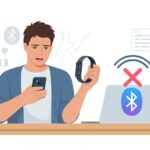
We’ve all been there—gearing up to crush the day’s steps, only for our fitness tracker to completely ignore Apple Health. Is it just being moody, or did we skip a setting somewhere? Usually, our fitness tracker refuses to pair with Apple Health because of connection hiccups, missing app permissions, or some sneaky software bug.
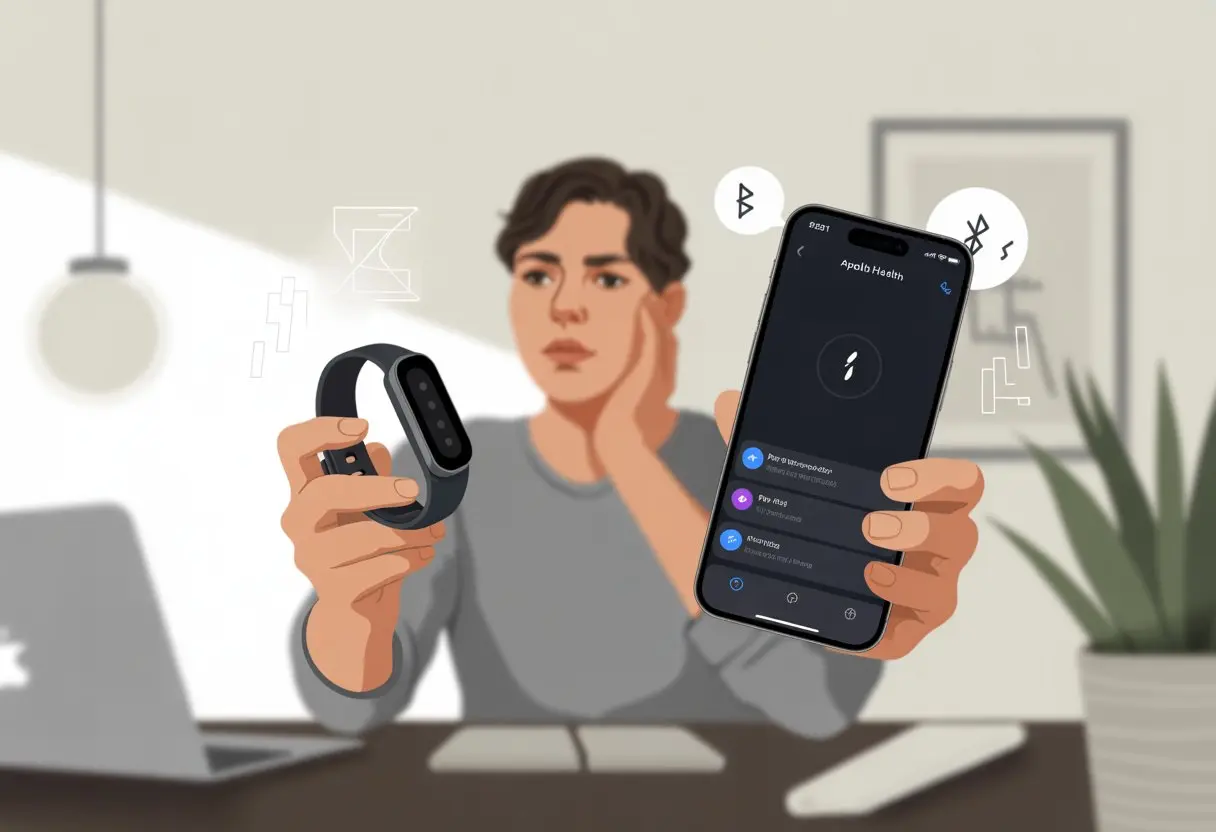
Honestly, syncing should feel as easy as promising yourself 10,000 steps and then just walking to the fridge instead. But sometimes, a missed setting or a stubborn app brings everything to a halt.
It’s frustrating when your sweat and effort vanish into the digital void because your gadgets just won’t cooperate.
But hey, we don’t have to stay in the dark. With a few checks (and maybe a little patience), we can usually reunite our stats and get those step counts back where they belong—hopefully before we lose motivation or our socks.
Understanding How Fitness Trackers Pair With Apple Health
When our fitness tracker refuses to connect with Apple Health, it reminds me of trying to plug in a USB—never works right the first time, does it? Instead, we need to actually know how Bluetooth, compatibility, and the Apple Health app all try (and sometimes fail) to work together behind the scenes.
The Role of Bluetooth And Bluetooth Settings
Bluetooth works like a secret handshake between our fitness tracker and our iPhone or iPad. If Bluetooth isn’t switched on, our devices might as well be yelling at a brick wall.
We should check that Bluetooth is on in our device settings, and keep the tracker close by and charged up.
Sometimes, the only way to make things work is by doing the classic trick: toggling Bluetooth off and on, or even restarting everything. Other electronics can mess with the signal too, so maybe don’t try pairing next to your microwave.
If our tracker doesn’t show up in the Bluetooth list, maybe it’s still paired with something else. We should disconnect it from any other device first, then try again with our iPhone or iPad.
Honestly, a bit of patience (and maybe some muttered curses) helps here.
Supported Fitness Tracker and iOS Device Compatibility
Success really depends on whether our fitness tracker can even get along with Apple Health and our iOS version. Not every tracker out there wants to play nice with Apple.
Before we waste time troubleshooting, it’s smart to check the manufacturer’s website and Apple’s support pages for compatibility.
Older or off-brand trackers sometimes don’t support the latest iOS. If we’re still rocking an ancient iPhone or picked up our tracker from a discount bin, syncing issues might just be down to incompatibility.
Updating both iOS and the tracker’s firmware is almost always necessary.
Here’s a quick checklist for compatibility:
| Compatibility Factor | What To Check |
|---|---|
| Fitness Tracker Brand | Apple Health support? |
| iPhone/iPad Model | Meets tracker requirements? |
| iOS Version | Up to date? |
| App Updates | Installed latest version? |
Key Features of the Apple Health App
Apple Health acts as the control room for all our health data. It pulls info from our fitness trackers, apps, and even the iPhone itself.
But it’s also picky about who it lets in.
When we connect a new tracker, we need to give Apple Health permission. We do this in the iPhone’s Privacy settings. If we skip this, Apple Health just ignores our steps and calories (and maybe our dreams of a six-pack).
We should check that Fitness Tracking and all necessary permissions are on, as Apple’s own troubleshooting guide shows.
It helps to see if our tracker appears as a data source in Health. If not, try reconnecting or reinstalling the tracker’s app. Sometimes, a reset or a second try gets our data flowing into Apple Health where it belongs.
Common Reasons Why Your Fitness Tracker Refuses To Pair
If our fitness tracker just won’t get along with Apple Health, it’s usually down to a handful of usual suspects. Bluetooth, outdated software, or just plain incompatible gadgets love to ruin our fitness plans.
Bluetooth Connection Issues
Picture this: our tracker and iPhone are right next to each other, but they act like total strangers.
Bluetooth needs to be on for both devices, or nothing’s going to happen. If too many gadgets are connected, our tracker might get left out.
Having a bunch of paired devices can confuse iOS faster than a cat in a cardboard box.
Toggling Bluetooth off and on fixes things more often than we’d like to admit. Restarting both devices can work wonders too.
If nothing else helps, unpairing and pairing again sometimes does the trick. You can also check out this Apple Watch pairing guide for more help.
Outdated Software And Firmware
Software updates are a pain, but skipping them makes syncing impossible. If our tracker runs ancient firmware or our iPhone’s iOS is behind, syncing with Apple Health becomes a nightmare.
We need to keep both devices updated. Apple loves fixing bugs and adding features, but only if we let it.
Fitness trackers also need updates, usually through their own app. Ignoring these updates can cause pairing problems or missing health data.
Check for updates in both the tracker’s app and the App Store. After updating, restarting both devices can help new features actually work together.
Poor Compatibility Between Devices
Some trackers just don’t want to join Apple’s party. Not every device is built to sync with Apple Health or iOS, and some brands are pickier than others.
Before buying—or raging at—a fitness tracker, check if it’s compatible with Apple Health. Some cheaper or obscure brands stick with their own apps and refuse to share with Apple.
Even popular apps like Fitbod sometimes have trouble syncing, as seen in this Reddit thread.
If we’re unsure, checking the specs or Apple Health’s supported device list can save us a lot of headaches.
Step-By-Step Troubleshooting Guide For Pairing Issues
When our fitness tracker refuses to pair with Apple Health, it sometimes feels like technology is out to get us. Usually, fixing it means checking connections, updating apps, or just giving our gadgets a little pep talk.
Checking Bluetooth Settings On iPhone And Fitness Tracker
Let’s start simple: make sure Bluetooth is on for both our iPhone and our fitness tracker. On the iPhone, swipe into Control Center and make sure the Bluetooth icon is blue.
If it’s gray, tap it.
Next, go to Settings > Bluetooth and look for our tracker in the device list. If it’s missing, maybe the tracker is feeling shy. Sometimes toggling Bluetooth or Airplane mode can wake things up.
For trackers with their own Bluetooth setting, make sure they’re set to be discoverable.
If our device shows up under “My Devices” but says “Not Connected,” tap it like you’re hitting snooze. If it connects, awesome. If not, check if other devices or apps are hogging Bluetooth.
Restarting Or Reinstalling The Fitness App
If our tracker and phone still won’t talk, maybe the fitness app is the real troublemaker. Try force closing the app and reopening it for a quick soft reset.
If that doesn’t work, uninstall and reinstall the fitness app. Just make sure important data is backed up or synced to the cloud.
Once it’s reinstalled, open the app, log in, and check if pairing works now. Some apps, like MyFitnessPal, actually suggest this when syncing breaks.
Don’t forget to check that the app has permission to read and write data in Apple Health. Adjust these in Settings > Health > Data Access & Devices.
Rebooting And Resetting Devices
If Bluetooth and the app are both behaving, but our devices still won’t sync, it’s time to reboot or reset. Turn off the iPhone by holding the power button, then turn it back on.
Restart the fitness tracker too—usually by holding a button or jumping into its settings.
If things still aren’t working, unpair the tracker from both the iPhone and the app, then set it up again from scratch. Apple even suggests unpairing and pairing again if nothing else works, like when your Apple Watch isn’t connecting.
Sometimes, a fresh start is all our gadgets need to finally get along.
Advanced Fixes If Your Fitness App Isn’t Working With Apple Health
If you’ve tried everything and your tracker and Apple Health still act like stubborn roommates, don’t give up yet. There are a few more ways to get them talking again so your steps and workouts don’t just vanish.
Unpairing And Re-Pairing Apple Watch
If syncing is still broken, it’s time for drastic action: unpair your Apple Watch. Sounds scary, but this reset often fixes weird issues Apple never mentions.
Open the Watch app on your iPhone. Tap your watch at the top, then hit Unpair Apple Watch.
Your iPhone will make a backup, so you don’t lose anything important.
After that, pair the watch again by following the prompts. Let the devices get reacquainted.
Log in to your apps again and see if your fitness data finally shows up. For more details, check the official Apple support guide if you need a refresher.
Updating And Syncing Health Data
Old software gets as cranky as we do before coffee. Let’s make sure everything’s up to date.
I always start by updating my iPhone and Apple Watch to the latest iOS and watchOS. Outdated apps often break connections, so Apple Health might just ignore new data.
Next, I dive into Settings > Privacy > Health > Fitness Tracking and check that fitness tracking is on for all my apps. If it’s off, I switch it on, then force-close and reopen both my fitness app and the Health app.
If data still refuses to sync, I try removing the fitness app from Health, then re-add it. Sometimes, just logging out and back in gives things a much-needed kick. When nothing else works, Apple’s troubleshooting tips can help me hunt down any settings I missed while, you know, scrolling TikTok.
Trying iOS System Recovery Tools
If everything still fails and my Apple Watch feels haunted, it’s time for the big guns: iOS system recovery tools. Programs like TunesKit or Tenorshare fix system glitches that block the Fitness app or Apple Health from syncing.
I download the tool on my computer, connect my iPhone, and follow the on-screen steps. Most tools offer a “Standard Mode” that tries to fix common iOS issues without wiping everything. Still, I always back up my data—just in case my phone decides to get dramatic.
These tools aren’t magic, but they do kick stubborn bugs to the curb. If my fitness app keeps acting up, maybe it’s time to start counting steps with, I don’t know, an actual step counter. For a walkthrough, check out detailed guides on fixing Fitness app issues.
Ensuring Proper Health Data And Privacy Settings
When my fitness tracker turns into a mysterious stranger instead of a helpful sidekick, I know it’s time to play detective with my health data and privacy settings.
Being mindful about which apps can access my steps, heart rate, and other activity data (and making sure I’ve agreed to share it) is half the battle.
Managing Health Data Permissions
Sometimes I forget my fitness apps actually need permission to hang out with Apple Health. It’s like inviting friends over and then locking the door.
Here’s what I do:
- I open the Apple Health app.
- Tap my profile, then go to Privacy > Apps.
- I see a list of all apps asking to read or write my health data.
If an app isn’t on this list, it’s probably not compatible or maybe just too shy to ask for permission. For apps that show up, I toggle on the types of data I want shared, like steps or activity data. More details are at Apple’s Health data support.
If things still don’t work, forcing a restart might snap my stubborn watch or tracker out of its funk.
Enabling Fitness Tracking And Motion Data
I have to make sure my phone is actually tracking fitness data. If not, Apple Health stays as empty as my promises to skip dessert.
To check:
- Go to Settings on iPhone.
- Scroll to Privacy > Motion & Fitness.
- Switch Fitness Tracking and Health to ON.
If these are off, Apple Health can’t collect movement info, and my tracker just talks to itself. For extra motivation, I double-check third-party apps have Motion & Fitness access too.
Data Management For Multiple Fitness Apps
Turns out, too many fitness apps can overwhelm my devices. Some just refuse to share their activity data with Apple Health.
To stay in charge:
- Open Health app and go to Sources.
- Review all apps with access and choose which can write or read data.
- Keeping only necessary apps connected helps cut down on confusion.
For apps like MyFitnessPal, I sometimes need to set things up in their own settings—see these steps from MyFitnessPal for help. I also watch for weird permission pop-ups when installing new apps. If I miss one, I have to dig back into settings and fix it.
Fitness Tracker Pairing On Different Devices And Apps
Connecting fitness trackers to Apple Health isn’t always smooth. Each device has its own quirks, and third-party apps like Fitbit love to keep things interesting.
Differences Between iPhone, iPad, And Apple Watch
When it comes to pairing, iPhones are definitely the teacher’s pets. Apple Health lives on the iPhone, so connections are easier.
The iPad doesn’t have the Health app at all. No Health app means no tracking, so iPads sit out this round.
If I use an Apple Watch, it syncs health and fitness data with my iPhone. Workouts recorded on the watch show up on the iPhone—unless Bluetooth gremlins strike or I forget to check settings on both devices.
If I’m juggling two Apple Watches, I have to pick one as my main workout buddy. Otherwise, my workout data plays hide and seek.
Integrating Third-Party Fitness Apps
Adding third-party fitness apps to Apple Health is like recruiting new players for my team. Some apps integrate easily, while others put up a fight.
To connect most apps, I head to the app’s settings and look for “Share with Health” or “Connect to Apple Health.” I can see compatible apps in Health under Privacy.
If my app is missing, it might not be a team player yet. After connecting, I give permission for the app to read, write, or both, to Apple Health.
If data isn’t syncing, I restart the app or my device since sometimes connections just get cranky. More tips are at Apple’s Manage Health data guide.
Using Fitbit App And Power Sync For Fitbit
Getting Fitbit data onto Apple Health is trickier than running with untied shoelaces. Fitbit refuses to connect natively, maybe just to keep things interesting.
To bridge the gap, I use an extra app like Power Sync for Fitbit.
Here’s what I do:
- Download Power Sync for Fitbit from the App Store.
- Log into my Fitbit account through Power Sync.
- Grant both read and write permission for Power Sync to access Apple Health.
Once set up, activity and workout data flow from Fitbit to Apple Health. Syncing isn’t always instant, though. Sometimes, I have to open Power Sync just to give it a nudge.
Not all Fitbit data will sync (sleep details can be especially shy). When syncing fails, I check connection permissions, update all apps, or give everything a restart. For more help, I check advice like this Apple Health FAQ and Troubleshooting page.
When To Reset Or Recalibrate Your Devices
Sometimes my fitness trackers act like they have a mind of their own. Steps stop syncing, heart rates vanish, and my activity rings make it look like I took a nap instead of a walk.
When things go wrong, I try a few fixes to get everything back in line.
How To Reset Fitness Calibration Data
If my step count looks off, I reset the calibration data. This tells my Apple Watch to forget what it learned and start fresh—like a new beginning.
To do this, I open the Watch app on my iPhone, tap “Privacy,” and choose Reset Fitness Calibration Data. This erases old movement patterns and asks my watch to measure again with a clean slate.
I usually see more accurate tracking on my next workouts. Apple recommends taking a brisk twenty-minute walk after resetting, so the watch can re-learn how I move. It’s a little awkward, but worth it. For a step-by-step, check Apple’s guide on how to calibrate your Apple Watch.
Reinstalling Apps Versus Resetting Devices
Sometimes my apps get confused too. If syncing fails, I wonder if I should delete and reinstall apps or just reset the device.
I start small: uninstall and reinstall the Health or Fitness app if that’s the only thing glitchy. This can clear stuck data or connection bugs.
If that doesn’t fix it, I restart both the tracker and iPhone. But if problems persist—like workout data not showing up, or the watch refusing to pair—a full device reset might be next. Think of it as “turning it off and on again,” but with a few extra groans.
If I’m unsure, I always back up my stuff before going for the big reset.
Using Low Power And Battery Saving Modes
I love saving battery, but low power modes sometimes disable the sensors that keep Apple Health running. When I switch to Low Power Mode—on my tracker or iPhone—heart rate sensors, GPS, or background refreshing might stop updating steps and workouts.
If my stats look weird or disappear, I check if these modes are on. Sometimes, my phone or watch sneaks into battery saving mode when I’m not paying attention.
Turning off Low Power Mode usually lets my devices get back to work, collecting every glorious step and calorie again.
Checklist:
- Check if Low Power Mode is on
- Keep battery at a comfortable level
- Charge up before a big workout
Staying powered up means better tracking—and fewer embarrassing step counts. Apple Watch also has its own power saving settings, so I might need to adjust things there as well.
If problems keep happening in these modes, it’s probably not a coincidence.
Preventing Future Pairing Problems With Software And Updates
Nothing ruins a workout like realizing my fitness data went missing. To dodge pairing headaches, I keep an eye on updates, syncing habits, and those early warning signs of system errors.
Keeping iOS And WatchOS Updated
First things first—I treat software updates like surprise parties for my devices. Whether I’m on iOS 16 or newer, skipping updates just asks for trouble.
New iOS and watchOS releases often include behind-the-scenes fixes that help Apple Health and my fitness trackers get along.
Every now and then, Apple drops new features or bug patches, but I only get them if I actually hit update now instead of remind me later… again. Trust me, it’s worth the couple of minutes, and it’s way less stressful than troubleshooting broken syncing at 6 AM.
Here’s a quick checklist:
- Check for software updates every week.
- Update both iPhone and Apple Watch together.
- Make sure my devices have enough storage, or risk the dreaded “not enough space” alert.
Best Practices For Regular Syncing
Syncing should be as routine as tying my sneakers before a run. If I forget to open my fitness tracker app or force a sync, data might just refuse to show up in Apple Health.
Some apps get picky and need a little nudge.
To keep syncing smooth, I:
- Open my fitness apps right after workouts. It helps sync new data.
- Reconnect apps with Apple Health if syncing gets weird. This comes in handy for things like reconnecting Fitbod to Apple Health.
- Restart my iPhone and Apple Watch once in a while. As silly as it sounds, it can freshen up stuck data pipelines and banish those ghost workouts.
- Log out and back in if nothing else works. Sometimes, all it takes is the classic “turn it off and on again” move.
Recognizing System Errors Early
Let’s not just sit around and wait for disaster. Ignoring system errors only puts off the problem.
Watch for warning signs—maybe Apple Health data won’t update, or the Fitness app throws a fit. Sometimes your watch and phone seem to compete at who can ignore you better.
If your workouts aren’t syncing, maybe it’s outdated software. Or maybe that odd app update is to blame. Sometimes, you accidentally change a setting late at night and forget about it.
When all else fails, try a force restart. Hold down the right buttons on your Apple Watch until you see the Apple logo, just like Apple support suggests.
If you stay alert for small hiccups, you won’t wake up to missing weeks of fitness stats. Honestly, it’s better to squash bugs early—before your step counts vanish into thin air.

From a young age, I have always had a big interest in technology, and this blog is an extension of that interest. Through this blog, I hope to provide others with all of the information they need regarding tech options to consider, and things such as compatibility. Some of the different items I will be discussing include headphones, smartwatches, and how to fix common issues.
Related Posts: