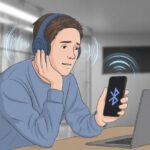
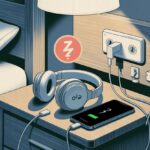
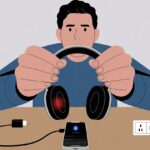
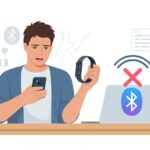
Let’s be honest—nothing kills a jam session faster than Bluetooth headphones dropping out every few minutes. One second we’re singing along, the next we’re staring at a silent screen, wondering if our headphones just gave up. Usually, Bluetooth headphones keep disconnecting because of distance, low battery, interference from other devices, or just a flaky connection.

Sometimes it feels like our headphones are playing a game with us: how far can we get from the phone before the sound vanishes?
Even thick walls or too many gadgets nearby can mess things up.
If our headphones randomly disconnect while the phone is right there, maybe the headset itself has issues, or the phone settings are off.
If we’re tired of interruptions and just want our music back, let’s dig into the reasons—and maybe laugh a bit—while we figure out what’s really happening with these glitchy gadgets.
Understanding Why Bluetooth Keeps Disconnecting
Nobody wants to listen to their favorite song or podcast and suddenly get silence.
Bluetooth likes to keep us guessing with random disconnections.
Let’s take a look at what actually causes these issues and how the magic (and mess) of Bluetooth technology works.
Common Causes of Disconnections
We’ve all yelled “Stay connected!” at our headphones, hoping it’ll help.
A few usual suspects are behind a sketchy Bluetooth connection:
- Low battery: Headphones get cranky when they’re running low on juice.
- Interference: Wi-Fi routers, microwaves, or even a neighbor’s headset can mess with our signal. All these devices crowd the same frequency, causing a Bluetooth traffic jam. If our headphones are surrounded by electronics, they might just surrender and disconnect (more on interference).
- Distance: Bluetooth doesn’t have superpowers. If we wander too far from the device, the connection drops.
- Compatibility issues: Some headphones and phones just don’t get along.
- Too many apps: Our phones try to multitask, but sometimes get overwhelmed, causing Bluetooth to lose its place in line (see more reasons).
How Bluetooth Technology Works
Bluetooth sends data over short distances using radio waves.
It’s like two people whispering secrets at a noisy party.
If someone cranks up the music (yep, microwaves), or one person walks away, it gets harder to hear.
Devices connect by “pairing.” When paired, our phone and headphones remember each other, but they need a strong connection to keep chatting.
Obstacles like walls, people, or even a thick winter coat can ruin the signal.
Bluetooth usually has a limited range, about 30 feet.
In perfect conditions, we get smooth audio.
But when interference, low battery, or too many connections show up, the signal can drop.
That’s when we get the dreaded disconnect and find ourselves in accidental silence.
Device Compatibility and Limitations
Not all Bluetooth headphones get along with every device.
Sometimes, things just get lost in translation between our headphones and our favorite gadgets, causing random disconnects and a lot of head scratching.
Compatibility with Smartphones and Laptops
Let’s be honest—our smartphones and laptops are like the cool kids everyone wants to hang out with.
But sometimes, our Bluetooth headphones just aren’t in their clique.
Different devices use different Bluetooth versions.
When versions don’t match, our headphones might disconnect more often than we lose socks in the laundry.
Laptops, especially Windows ones, love to put the Bluetooth radio to sleep to save a tiny bit of battery.
This sneaky move can make our headphones disconnect for what feels like no reason.
Disabling those settings can help keep the party going—a quick fix shared by people having the same problem on their Windows laptops.
Phones aren’t always innocent, either.
Sometimes, they get confused with contact lists or duplicate synced data, which can mess up our Bluetooth connection.
If we suspect our headphones are being overly dramatic, maybe there’s something up with contact syncing, as seen in tips from Jabra.
Quick Troubleshooting Tips
- Check Bluetooth versions before connecting
- Turn off unnecessary power-saving settings
- Sync only important contacts
Game Systems and Bluetooth Headphones
Let’s talk game systems—those mysterious entertainment boxes that help us escape reality.
Most major consoles, like the PlayStation, don’t always play nice with regular Bluetooth headphones.
It’s almost like they want us to buy their own brand just for wireless audio.
Some systems block non-certified Bluetooth headphones or make us use special adapters just to connect.
Even if we manage to pair up, we often deal with lag and sudden disconnects.
Audio may drop out right when we’re about to land that perfect headshot or hear the final boss theme.
Game systems might only support older Bluetooth profiles, which can lead to glitches or pairing fails.
Before blaming our headphones, it’s smart to check the console’s Bluetooth support—or just accept that wires might make a comeback in the living room.
Power Management Issues That Interrupt Connections
Sometimes our Bluetooth headphones act up for reasons that don’t require a science degree to figure out.
A lot of dropouts happen because our devices just don’t handle power all that smartly.
If our tunes keep cutting out, maybe it’s time to blame power management and not some wild conspiracy.
Battery Problems in Headphones
Honestly, most of us don’t remember to charge our headphones until they start beeping at us like angry robots.
Low battery levels cause Bluetooth connections to drop out of nowhere.
Headphones might try to save themselves by powering down some features or even disconnecting completely.
Headphones that look fully charged can sometimes have battery health problems.
Old batteries don’t hold a steady charge, leading to unpredictable shutdowns.
If our headphones cut out even after charging, the battery might just be ready for retirement.
Some headphones show their true feelings by blinking red lights or playing beeps.
It’s their way of saying, “Please, plug me in!”
Checking battery indicators or using apps to monitor levels can save us a lot of frustration during our favorite songs.
Energy Saving Features on Phones and Computers
Our devices think they’re being helpful by saving power, but sometimes they go way too far.
Many phones and computers have battery saver or sleep settings that cut off Bluetooth to preserve juice.
Windows, for example, can turn off the Bluetooth adapter when in low power mode.
Phones might disconnect headphones to keep the main device running longer, especially if we haven’t touched the screen in a while.
Screens going to sleep or aggressive power-saving profiles can all lead to surprise disconnections.
We can usually tweak these settings by poking around in battery or Bluetooth menus and turning off auto turn-off features.
If our Bluetooth headphones drop connection while we’re perfecting our dance moves, maybe it’s time to check those energy-saving settings and show our gadgets who’s boss.
Signal Interference and Environmental Factors
Bluetooth connections often drop because our headphones are fighting invisible enemies.
Thick walls, long distances, and our own household electronics all seem to want their share of the airwaves.
Obstacles and Range Limitations
Honestly, we all wish Bluetooth signals could leap tall buildings in a single bound.
In reality, even a brick wall can make our headphones act like they’ve hit a force field.
Most Bluetooth headphones work best within about 30 feet (10 meters) of the device.
If we wander off to the other side of the house looking for snacks, we can expect some awkward silences.
Walls, furniture, glass doors, and even the neighbor’s fish tank can weaken the signal and cause it to drop.
Materials matter, too.
Solid brick or concrete is the Bluetooth version of a boss fight.
Even with line of sight, being too far away can make the connection flicker and fade.
If we’re wondering what’s between us and our music, it’s probably just our own house getting in the way.
Sony has more advice on Bluetooth connection drops.
Interference from Other Electronics
Wi-Fi routers, microwaves, and other gadgets love to crowd our Bluetooth signals.
It’s like a party where everyone is talking at once, and our headphones just can’t hear our phone.
Bluetooth and Wi-Fi both use the 2.4 GHz band, so they sometimes step on each other’s toes.
If we’re streaming music with a laptop surrounded by wireless devices, expect the soundtrack to glitch right when things get good.
Even smart lights or baby monitors can add static to the mix.
Consumer electronics are full of signals that ignore each other’s boundaries.
When we gather all our gadgets together, it can create a Bluetooth traffic jam.
Turning off some extra devices, or moving our headphones to a quieter spot in the room, can help cut down on these electronic arguments.
Sony offers more tips in this guide to Bluetooth interference from electronics.
Troubleshooting Steps to Stop Disconnections
Let’s be real—Bluetooth headphones disconnecting is just plain annoying.
Luckily, we’ve got a few tricks to get our music playing again without all the drama.
Restart Bluetooth Devices
Let’s start with the oldest trick in the book: just turn things off and back on. This works for phones, computers, and Bluetooth headphones. Sometimes, gadgets just need a quick reset to clear up weird issues.
Turn off your Bluetooth device—like your headphones—wait a few seconds, then power it on again.
Don’t forget the other half of this duo: restart the device that’s doing the pairing, like your phone or computer. Restarting breaks any strange connections and wipes away those minor glitches.
It sounds simple, but honestly, this fixes more problems than you’d expect.
If your headphones paired with other devices before, try turning off Bluetooth on those. Headphones can get confused and try to connect to the wrong thing—almost like gadgets playing musical chairs.
Check out this Reddit discussion about Bluetooth earbuds. Always start simple: restart everything, then see if things improve.
Update Software and Firmware
Keeping devices updated is like giving them a healthy snack. When your phone, computer, or headphones run outdated software or firmware, weird disconnects can show up.
Check for system updates in your phone or computer settings, and install any updates the manufacturer offers.
Headphones might have firmware updates too, especially if you use a brand app. Running the latest version helps you dodge bugs and connection issues.
Some headphones update automatically, but others need you to open an app and tap upgrade. If you’re not sure, check the support website or manual.
Ignoring updates just invites trouble. Even if updates seem dull, they often include important Bluetooth fixes.
So, give your headphones a little attention and keep them updated—no one wants a moody gadget.
Check Device Manager on Your Computer
If your Bluetooth headphones keep disconnecting on Windows, Device Manager could be hiding the problem. Device Manager acts like the secret control room for all your hardware.
Right-click the Start button and pick “Device Manager.”
Look for your Bluetooth adapter in the list. If you see a yellow warning icon, Windows is waving a tiny caution flag.
Right-click and try “Update driver.” Sometimes, letting Windows search for the latest Bluetooth drivers is all you need.
Check the Power Management settings for your Bluetooth device too. Double-click your Bluetooth adapter, go to the Power Management tab, and uncheck “Allow the computer to turn off this device to save power.”
That way, your headphones stay connected even when your computer tries to save energy. Fixing these settings helps you avoid random disconnects, so your playlist doesn’t keep cutting out.
If you want a step-by-step walkthrough, here’s a full guide to fixing Bluetooth problems in Windows.
Bluetooth Issues on Android Devices
When Bluetooth keeps dropping, it can feel like your headphones are breaking up with you for no reason. Thankfully, Android gives us a few tricks to get things working again.
Some fixes are quicker than unplugging your router for the hundredth time.
Resetting Network Settings on Android
Sometimes Android just needs a fresh start, especially when Bluetooth gets weird. Resetting network settings can solve random disconnections.
But let’s be real—nobody remembers all their Wi-Fi passwords, so jot them down first.
To reset network settings:
- Go to Settings.
- Tap System (some phones may say General Management).
- Hit Reset or Reset options.
- Choose Reset Wi-Fi, mobile & Bluetooth.
- Confirm and let your Android take a quick breather.
This reset wipes out Wi-Fi, Bluetooth, and VPN settings, so you’ll need to reconnect to your devices like it’s the first day of school. Don’t worry—it won’t touch your photos or downloads.
Common Android Bluetooth Fixes
If hitting reset feels like overkill, try some classic tricks first. Clearing the cache for the Bluetooth app can help.
On many phones, you’ll find it hiding under Settings > Apps > Show System Apps > Bluetooth Share > Storage > Clear Cache/Data (it’s a bit of a scavenger hunt).
You can also just restart your phone—turn it off, then on again. This move has saved us more times than we care to admit.
Other quick wins:
- Make sure headphones and phone are well charged. Low battery can make them moody!
- Double-check your phone’s Bluetooth is actually on. It’s easy to miss.
- Make sure no other device is stealing the Bluetooth connection. Bluetooth isn’t exactly a multitasking pro.
For a more detailed guide, check Google’s help page on fixing Bluetooth problems on Android.
If the problems keep coming back like a bad song on repeat, you might need a soft reset or a hardware check.
Solving Bluetooth Problems on iPhone
Sometimes iPhones decide Bluetooth means “disconnect at the worst moment possible.” When that happens, it’s almost always fixable—if you can resist throwing your phone out the window.
The trick is knowing where to poke and prod, especially with those reset buttons.
Resetting Bluetooth on iPhone
First things first, patience runs thin and Bluetooth just loves to act up. Let’s try the go-to move: turning Bluetooth off and back on.
Open Settings > Bluetooth, and switch it off for about ten seconds. Wait a bit. Maybe stare at the screen or sigh dramatically. Then turn it back on. Sometimes gadgets just need a breather.
If your headphones still refuse to cooperate, it’s time for the big guns. Head to Settings > General > Transfer or Reset iPhone > Reset, then pick Reset Network Settings. Just a warning—this will wipe all your Wi-Fi passwords, so have those handy.
When disconnects keep happening, it usually helps to “forget” the Bluetooth device and pair it again. Tap the (i) next to the device’s name under Bluetooth, hit Forget This Device, and then try pairing it again. Sometimes, it really feels like our iPhone holds a grudge against our headphones.
Other devices nearby (or just too many Bluetooth gadgets in general) can cause interference. If you want more ideas, check out these troubleshooting steps for disconnects.
Honestly, if nothing seems to work—just remember, Bluetooth has way more trust issues than we do. At least we don’t disconnect from our snacks.

From a young age, I have always had a big interest in technology, and this blog is an extension of that interest. Through this blog, I hope to provide others with all of the information they need regarding tech options to consider, and things such as compatibility. Some of the different items I will be discussing include headphones, smartwatches, and how to fix common issues.