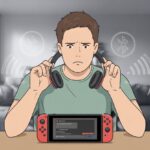
Let’s be honest—nobody wants to wrestle with headphone wires while dodging banana peels in Mario Kart. You can connect Bluetooth headphones straight to your Nintendo Switch, no adapters or weird gadgets needed. That means you can keep your gaming private and your headphone cords far from your snacks.
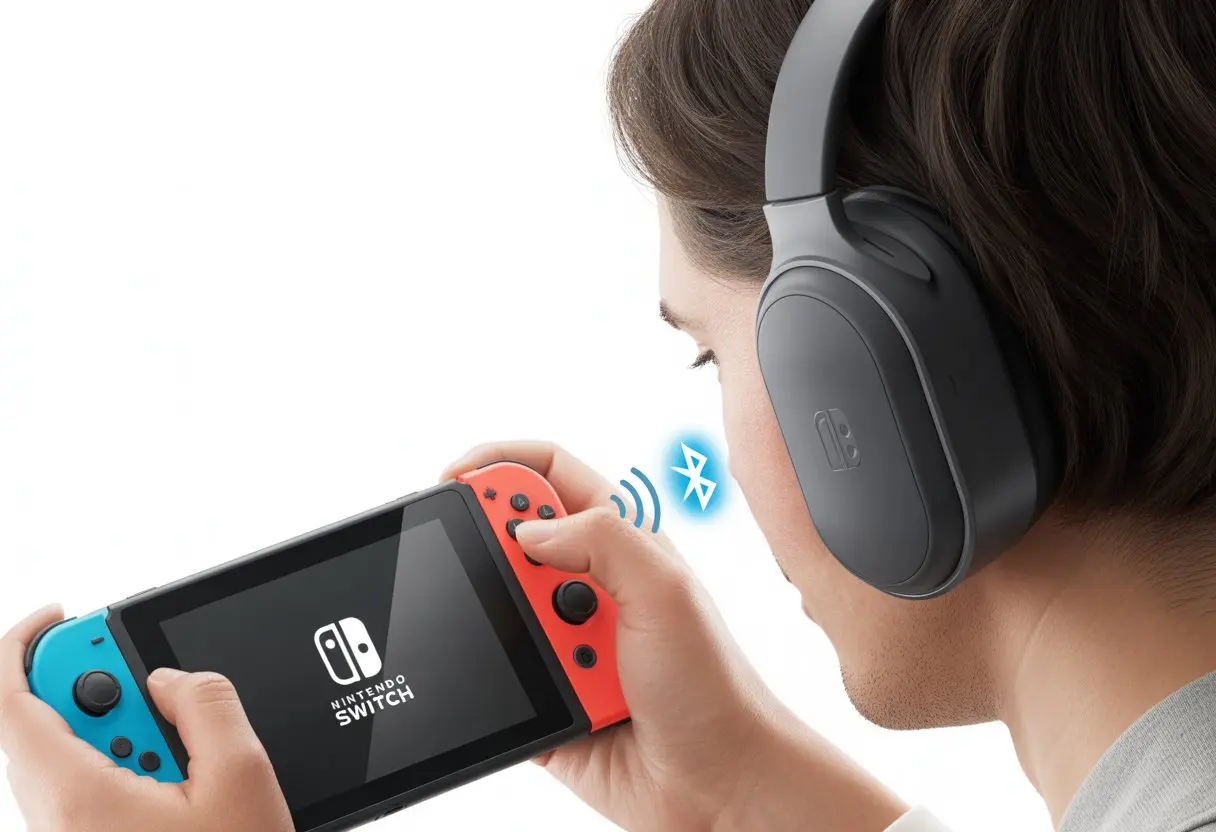
If you’ve ever fumbled with settings or wondered if your earbuds will actually work, you’re definitely not alone. It just takes a few steps, and the Switch makes the whole thing pretty painless.
Stick around and we’ll help you get crystal-clear sound—and your neighbors won’t have to listen to Mario shouting ever again.
Ready to game in peace (and maybe look cooler while doing it)? Here’s how you can get Bluetooth headphones working with your Switch and step into that almost-wireless future.
Checking Nintendo Switch Compatibility for Bluetooth Headphones
Before you get too hyped about blasting your game audio wirelessly, you need to check if your Switch can actually connect to Bluetooth headphones. It’s a bit embarrassing to get excited, only to realize your system isn’t up for it.
Supported System Versions
First up, only certain Switch system versions support Bluetooth audio. If your Switch is running anything lower than version 13.0.0, you’re out of luck, no matter how fancy your headphones are.
Nintendo added Bluetooth audio support starting with version 13.0.0, so you’ll want to check your system settings and make sure you’re up to date.
To check, go to System Settings > System > System Update. If you see 13.0.0 or higher, you’re good to go.
If not, time for an update—unless you really love living in the past.
All Switch models—the original, Lite, and OLED—can support Bluetooth audio as long as their system version is new enough.
If you’re not sure which model you have, just flip it over and take a look at the back. Sometimes, it’s a fun little guessing game.
Bluetooth Audio Device Requirements
Not every pair of Bluetooth headphones will play nice with your Nintendo Switch. Your headphones need to use standard Bluetooth audio profiles, mainly the Advanced Audio Distribution Profile (A2DP) for listening and Audio/Video Remote Control Profile (AVRCP) for basic controls.
Don’t get your hopes up for using built-in microphones—they won’t work on the Switch. If you wanted to bark orders at your squad, well, sorry.
Here’s a quick checklist:
- Put your headphones in pairing mode (yeah, that tiny manual might help).
- Keep your headphones close to the Switch for best results.
- Only one audio device can be paired at a time. No Bluetooth headphone parties here.
If your headphones need a special app or a weird proprietary connection, the Switch probably won’t connect. Nintendo’s guide covers Bluetooth audio device requirements in plain English if you want more details.
Limitations of Bluetooth Audio on Nintendo Switch
As always, there’s a catch. When you connect Bluetooth audio devices to your Switch, you’ll hit a few annoying limits.
Only two wireless controllers can be connected while Bluetooth audio is active. If you want four-player chaos, the Switch will just say no.
You’ll notice a little audio latency too. If you’re a rhythm game fanatic or super sensitive to lag, this could get on your nerves.
Microphones on Bluetooth headsets won’t work, so yelling into the void (or at your friends) is a lost cause.
Here’s a quick table for reference:
| Limitation | Details |
|---|---|
| Controllers Supported | Maximum of 2 wireless controllers with audio active |
| Audio Latency | Slight delay possible, especially in fast-paced games |
| Headset Microphone | Not supported on Bluetooth headphones |
| Devices Paired | Only one Bluetooth audio device at a time |
If you’re cool with these trade-offs, let’s move on. Otherwise, you can always return to the world of wired headphones and pretend it’s 2016.
Preparing Your Nintendo Switch for Pairing
Before you connect anything, make sure your Nintendo Switch is ready for Bluetooth. It’s better to avoid the classic “turn it off and on again” routine by setting things up right from the start.
Accessing System Settings
Let’s find the magic spot: System Settings. If you haven’t poked around lately, it’s that gray icon that looks like a sunburst or gear on the Home screen.
Click it. Just go for it—even if you don’t remember your Wi-Fi passwords.
Inside, use the joystick or touchscreen to scroll down on the left menu until you find Bluetooth Audio. You might get distracted by other settings, but try to stay focused unless you want to change your theme to Basic Black (hey, no judgment).
The Bluetooth Audio tab is where you’ll pair your headphones, but don’t click yet.
Double-check that parental controls aren’t locking you out, especially if someone else set up the console. If you keep hitting password screens, maybe thank your little sibling for keeping your digital life safe.
Updating Console Firmware
Here’s the thing: If your system version is too old, Bluetooth headphones just won’t work. Head back to System Settings, scroll to System, and look for “System Update.”
Choose System Update and let the Switch do its thing. It might take a minute, depending on your Wi-Fi and how cooperative the Switch feels today.
A strong connection helps, or you could be stuck waiting longer than you’d like.
After updating, make sure your system version is at least 13.0.0. Nintendo only brought in Bluetooth support with this update, so anything older just won’t cut it.
If you’re up-to-date, you’re ready. If not, well, patience is a virtue.
Putting Bluetooth Headphones in Pairing Mode
If you want your Bluetooth headphones to play nice with the Switch, you’ll need to make them discoverable. That way, the Switch can spot them and invite them to connect.
Making Headphones Discoverable
Bluetooth headphones don’t broadcast “Pick me!” on their own. You’ll need to press and hold a button, usually labeled “power,” “Bluetooth,” or just a little symbol that looks like a sideways bowtie.
Hold it for about 5–10 seconds. If you see a flashing LED, you’ve nailed it.
Flashing lights mean your headphones are waving at the Switch, yelling, “Over here!” Some headphones even say “pairing” or “discoverable” out loud.
If you’ve got earbuds with touch controls, you might have to tap or hold both earpieces at once. Every brand is a bit different, so check the manual—or just experiment and hope for the best.
Here’s a quick cheat sheet:
| Brand | How to Enter Pairing Mode |
|---|---|
| Sony | Hold Power/Bluetooth till light flashes |
| Bose | Slide switch to Bluetooth, hold |
| AirPods | Hold button on the back of the case |
| Beats | Hold “b” button |
No matter the brand, blinking lights are the universal sign you’re in pairing mode.
Ensuring Headphones Are Ready To Connect
Getting your headphones to show up is only half the battle. First, check that they’re not already connected to your phone, laptop, or some mystery device nearby.
We’ve all tried to pair headphones at a party, only to realize someone else is still hogging the signal.
Make sure your headphones have enough battery to finish pairing. If the low battery light is flashing, give them a quick charge.
Double-check that your headphones support regular Bluetooth audio. Some older or super-fancy models might need a special app or have limited Bluetooth support.
Right before pairing, turn off Bluetooth on nearby devices or disconnect your headphones from them. This gives your Switch a clear shot at pairing and avoids Bluetooth hide-and-seek.
If you want more info about managing Bluetooth audio devices, Nintendo’s official support guide is solid.
With your headphones blinking and ready, you’re set for smooth pairing.
Pairing Bluetooth Headphones with Your Nintendo Switch
You don’t need fancy gadgets or cables to use Bluetooth audio on your Switch. Just head to the Bluetooth settings, make a few right moves, and show your headphones who’s boss.
Wake up your Nintendo Switch and go to the Home menu. Look for System Settings—it’s the little gear icon, unless your screen is a mess of game icons.
Scroll down on the left until you see Bluetooth Audio. It’s not hidden, just hanging out with the other settings.
Remember, you can’t use more than two wireless controllers while Bluetooth audio is on. Four-player chaos will have to wait.
You’re limited to one Bluetooth audio device at a time, but at least the Switch won’t get jealous if you swap headphones.
Ready? Select Pair Device to start searching. The Switch will scan for new Bluetooth devices nearby, like a tiny detective.
If you want a step-by-step walkthrough, Nintendo’s official pairing guide is actually pretty helpful.
Selecting Your Bluetooth Audio Device
With pairing mode on, your Bluetooth headphones are ready to join the party. Make sure they’re in pairing mode—usually by holding the power or pairing button until you see a blinking light.
Every brand loves its own secret handshake, so don’t be surprised if you have to look it up.
On your Switch, you’ll see a list of available Bluetooth devices. Sometimes your headphones show up with a normal name, other times it’s something like “BT-0237,” which sounds more like a robot than headphones.
Pick the right one, and double-check you’re not accidentally pairing the neighbor’s speaker. Nobody wants surprise disco in the middle of the night.
If your headphones don’t appear, turn them off and on again, or move closer to the Switch. Nintendo suggests moving devices closer for a better connection if things get stubborn.
Completing the Connection Process
Once we’ve picked our headphones, the Switch tries to connect with them. In a few seconds, we’ll usually see a confirmation, and a little headphone icon pops up on the screen. That’s our cue—all the system sounds, game music, and those sweet victory jingles now head right to our ears.
Pairing doesn’t always work on the first try. If it fails, don’t stress—just try again. Double-check that the headphones aren’t still hooked up to another device, since they can only stick with one at a time. If the Switch refuses to connect, go ahead and forget the device, then pair it again.
When it finally works, we can control the volume straight from the Switch. The audio settings act just like with any other headphones, so we can sneak in late-night gaming without waking anyone up. The real challenge? Not singing along too loud.
Managing Audio Output and Microphone Settings
We want to actually hear our games (and, if we’re feeling bold, shout stuff like “Look out!” at friends). Audio output and mic settings on the Switch with Bluetooth headphones can be a little weird, so don’t be surprised if things aren’t exactly what we expect.
Adjusting Volume and Audio Output
Thankfully, changing the sound level on the Switch is simple. The physical volume buttons on top of the console work even with Bluetooth headphones, so we won’t accidentally blast our ears or play too quietly.
Inside the system settings, we can go to:
- System Settings
- Bluetooth Audio
Here, we’ll see options for device selection and connection details. When we connect Bluetooth headphones, audio output automatically switches from the speakers or wired headphones to our Bluetooth device. Nice and easy. But just a heads up—some things aren’t supported, like connecting more than one pair of Bluetooth headphones or using Bluetooth audio during local wireless play.
Here’s a quick rundown for volume:
- Hit the volume buttons for fast changes.
- Open settings for more device tweaks.
- Keep the Switch and headphones close if sound skips or stutters—walls and kitchen appliances love to mess with Bluetooth.
Using Microphone Input
Here’s the not-so-great part: the Switch lets us listen with Bluetooth headphones, but it doesn’t actually use the Bluetooth microphone. So, that tiny mic on our headset just sits there, doing nothing.
If we want to chat in games, we have to plug a wired headset directly into the Switch or use our phone with an app (like Nintendo’s Switch Online app). Some USB Bluetooth dongles claim to offer audio input, but as Reddit points out, the Switch blocks headset mics over Bluetooth.
So, about microphones:
- Wireless Bluetooth headphones: No Bluetooth mic support.
- Wired headset plugged in: Mic works (if the game or app supports it).
- For voice chat: Use a phone or wired headset—Bluetooth mics just aren’t invited right now.
If nobody seems to hear our genius Splatoon strategies, now we know why. For more details, check Nintendo’s official pairing guide and Bluetooth mic limitations on Reddit.
Bluetooth Headphones and Controllers: What Works, What Doesn’t
Pairing Bluetooth headphones with the Switch feels futuristic, but there are a few catches—especially with wireless controllers and wireless audio.
Wireless Controller Limitations
When we connect Bluetooth headphones, we trade some freedom for limitations: the Switch only lets us use two wireless controllers at once. So, if we’re planning a big Mario Party night, someone’s probably stuck with a wired controller or just watching with snacks.
Here’s a quick look at what’s allowed:
| Bluetooth Audio | Wireless Controllers Allowed |
|---|---|
| Not Connected | Up to 8 controllers |
| Connected | 2 controllers (or 1 pair of Joy‑Con) |
We can still host multiplayer battles, but Bluetooth audio keeps things cozy. More info is available in this controller limitations guide.
Using Joy‑Con While Connected
Let’s talk about Joy‑Con. When we slide both onto the rails, the Switch treats them as one big controller. That means we can play solo with Bluetooth headphones and enjoy our music or game sounds.
If we split the Joy‑Con for two players, that counts as two controllers. So, couch co-op with Bluetooth audio gets tricky fast. Want to add a Pro Controller? We have to pick between more controllers or wireless sound.
Honestly, keeping it simple is best: one pair of Joy‑Con, Bluetooth headphones, and maybe some popcorn. If you get stuck, Nintendo’s Bluetooth audio support page has all the details.
Troubleshooting Common Bluetooth Headphone Issues
Bluetooth headphones are awesome for gaming on the go, but sometimes they drive us nuts. We’ve all spent too long trying to get them working again. Let’s look at some practical fixes.
Connection Drops or Failed Pairing
If the Switch won’t connect to our headphones, we’ve been there. Start by making sure the headphones are in pairing mode (usually holding the power button until it blinks). If the Switch still ignores them, restart both the headphones and the Switch. That old trick often works.
Too many nearby Bluetooth devices can cause chaos. Try turning off any extra phones, tablets, or other gadgets. Still stuck? Check for system updates on the Switch—sometimes a missed update messes things up. Nintendo also has official steps for pairing problems.
Audio Lag and Quality Problems
We want game sounds to match the action, not lag behind like a bad dub. Bluetooth audio can lag, especially with big, fancy headphones that have higher latency. Try headphones made for low-latency (look for “aptX Low Latency” support).
Keeping the Switch and headphones close together or moving stuff out of the way (bye, book pile) can help. If the audio still skips or sounds off, turning off Bluetooth on other devices nearby might clear things up. Sometimes, updating the Switch helps, so check for updates now and then. And just to repeat—Bluetooth microphones aren’t supported, so don’t expect to use voice chat with these headphones.
Repair or Remove Devices
If Bluetooth devices refuse to cooperate, it’s time for a reset. Sometimes the Switch gets confused by old connections and needs a nudge. Go into the Bluetooth Audio menu. We can remove stubborn or broken devices from the list by selecting them and choosing “Remove Device.”
Once we clear things out, we can pair everything again like it’s brand new. If we use the same headphones with a bunch of gadgets, clear their list too so they don’t get mixed up. A few quick taps and we’re back in business. If nothing works, maybe it’s time to sigh and check the official troubleshooting guide.
Quick Table: Remove, Repair, or Re-Pair?
| Problem | What to Try |
|---|---|
| Old device won’t connect | Remove it, restart, and pair again |
| Device list is full | Remove unused devices from the Switch |
| Headphones paired elsewhere | Clear their list, then try again |
Alternatives to Bluetooth: Wired and USB Headphones
Sometimes Bluetooth just isn’t going to cut it for our Switch. Whether we’re rocking classic headphones or our setup is a cable jungle, we can still get great sound with wired and USB options.
Connecting Wired Headphones
Here’s the easy fix—just plug them in! The Switch has a 3.5mm headphone jack right on top. If our headphones have a normal plug, there’s no need to mess with menus or pairing. We stick the plug in, and all the game sounds, music, and boss battle yells go straight to us.
The best part? No batteries needed. Wired headphones just work, as long as we can find them under the couch. But if the Switch is docked, the headphone jack is still on the console—not the dock. So if it’s across the room and our cable is short, we might be forced to sit awkwardly close. Maybe grab an extension cord.
With wired headphones, there’s basically no sound delay. That means our timing stays sharp, and our friends can’t blame lag when we win in Smash Bros.
Using USB Headphones and Wireless Headsets
For gadget fans, USB headphones and wireless headsets are another way to get audio on the Switch. The system supports lots of USB audio devices when we plug them into the dock’s USB port. That covers USB headphones and some wireless headsets with a USB dongle. Just plug in the dongle or cable—no complicated setup.
Want to use USB headphones in handheld mode? We can use a USB-C adapter on the bottom of the Switch. But heads up! We can’t charge the console at the same time unless we have a special hub.
Most USB headsets add features like built-in microphones or volume controls. Only certain models work with the Switch, though, so check compatibility first. And don’t expect Bluetooth-only headsets to work over USB—they need a dongle.
Forgot the living room speakers? No worries. With USB or wireless headsets, we can enjoy our games and spare everyone else from our epic gaming noises.
Pro Tips for Gaming Parties and Multiplayer
Trying to get everyone set up for a gaming party with Bluetooth audio? It takes a little planning. We want good sound, smooth communication, and a way to celebrate wins without missing out.
Audio Setup for Group Gaming
When we gather for a party, sorting out who hears what can get more confusing than the last Mario Kart track. The Switch lets us connect Bluetooth headphones, but only supports one audio output at a time—no splitting the sound between headphones and TV speakers.
If we’re in a big group, we usually pick a main audio source. We can pair Bluetooth headphones for stealthy late-night play. Or, we crank up external speakers so everyone can hear the soundtrack and our dramatic shouts—nobody misses out on the action or the groans.
To avoid endless pairing and unpairing, a wired audio splitter for regular headphones might save us some trouble. If we’re feeling bold, we can hook up wireless speakers or a soundbar with the Switch and let everyone get in on the fun—assuming the neighbors don’t mind.
Here’s a quick table for setups:
| Group Size | Suggested Audio Output |
|---|---|
| Solo or Duo | Bluetooth Headphones |
| 3+ Players/Party | External Speakers/Soundbar |
| Quiet Gaming | Wired Headphone Splitter |
Sharing Audio Experience
Nothing quite says “teamwork” like shouting strategy across the room while everyone’s tucked into their own world. Unfortunately, Nintendo Switch Bluetooth audio doesn’t let us connect multiple headphones at once. So, I guess our all-headphone silent disco dreams are on hold for now.
Still, there’s hope! We can give everyone a decent audio experience. If the group’s bigger, just plug in a speaker or soundbar—then nobody misses out. Even the friend raiding the snack table will hear the chaos.
If a few of us really want headphones, we can take turns pairing them over Bluetooth. Each person gets their shot at private sound bliss. Just a heads up: only one wireless headset at a time, or things will get weird. Trust me, nobody wants to end up listening to our neighbor’s phone call instead of the game.
We might even mess with the audio output settings, though the Switch doesn’t offer much to tweak. If you want more tips or step-by-step help using Bluetooth headphones with Nintendo Switch, there are plenty of extra guides out there. No one should have to miss out on the fun, right?

From a young age, I have always had a big interest in technology, and this blog is an extension of that interest. Through this blog, I hope to provide others with all of the information they need regarding tech options to consider, and things such as compatibility. Some of the different items I will be discussing include headphones, smartwatches, and how to fix common issues.
Related Posts: