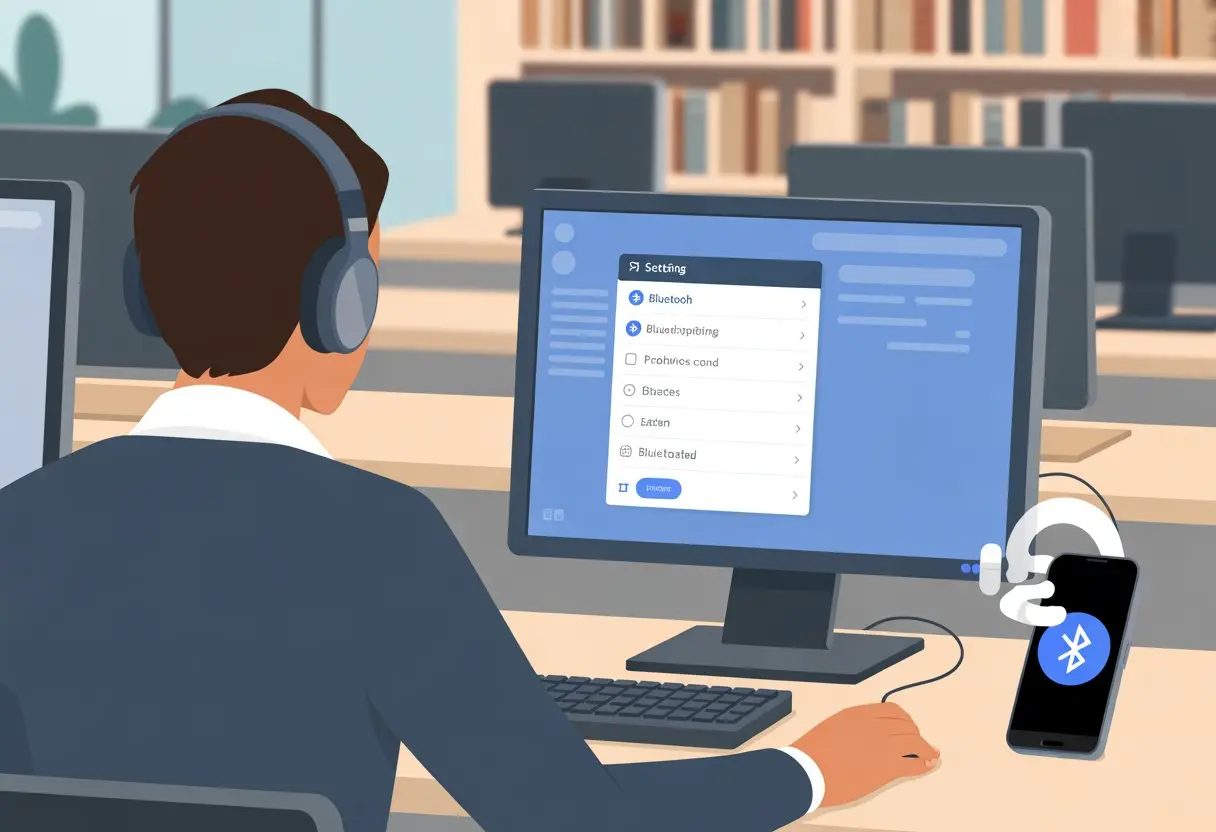
We’ve all been there—walking into a library or computer lab, Bluetooth headphones in hand, only to wonder if these public computers will play nice with our tech.
Plugging in and zoning out sounds easy, but sometimes these computers are stuck in the Stone Age and barely know what Bluetooth is.
The good news? We can often pair our Bluetooth headphones to a public computer if it has Bluetooth built in, or just use a simple USB Bluetooth dongle if it doesn’t.
Not every computer is ready for wireless action, and some setups need a little detective work to figure out how (or if) we can connect.
Before any wild headphone-pairing adventures, we should check for a Bluetooth icon on the screen or dig into the device settings for any hint of wireless life.
Let’s jump into the world of public computers, Bluetooth headphones, and whether we’ll get to enjoy a private concert or end up plugging back in with the good ol’ 3.5mm jack.
With a little patience (and maybe a deep breath), we’ll be rocking out in no time—even in total silence.
Checking Bluetooth Compatibility on Public Computers
Before we go wild with our Bluetooth headphones, let’s check if the computer is even ready for such wireless magic.
We don’t need to be tech wizards here—just a bit patient and curious.
Identifying Built-In Bluetooth Support
First things first: not every public computer rocks Bluetooth.
Some of these machines still think Windows XP is cutting edge.
Usually, we can check by looking for a tiny Bluetooth icon in the system tray—the one that looks like a pointy, futuristic “B.”
No icon? Don’t panic yet.
Here’s a quick way to confirm:
On Windows:
Right-click the Start menu and open Device Manager.
We can channel our inner tech genius and try a USB Bluetooth adapter (UBT for short).
It’s just a tiny gadget that plugs into any open USB port and brings Bluetooth to life.
Here’s how we use it:
Plug the UBT into a USB slot.
Wait for the computer to recognize it (cue the pop-up noises).
Pair our headphones as if Bluetooth was always there.
Most adapters just work, but sometimes the computer wants us to install drivers.
In public places, USB ports might be locked for reasons only IT folks understand.
We should always check local rules before plugging in our secret weapon.
With a little luck—and a touch of Bluetooth magic—we’ll be listening to music wirelessly, even on the school’s most ancient computers.
Preparing Your Bluetooth Headphones for Pairing
Before we get too excited and run around the library waving our headphones in the air, let’s make sure we’re actually ready to connect.
The process usually takes less than a minute—if we know what to look for with the buttons and lights on our Bluetooth headset.
Activating Pairing Mode
First, let’s perform the ancient ritual of holding down that mysterious power button.
Most Bluetooth devices need us to press and hold the power button for a few seconds—usually until we hear a friendly beep or a robotic voice saying “pairing.”
Sometimes, there’s a separate Bluetooth or pairing button, so it might finally be time for us to read that tiny instruction manual.
If our headphones aren’t showing up on the computer, they’re probably not in pairing mode yet.
On many headsets, the button needs to be held for around 5 seconds, but some make us go for 7 or longer.
The world record for button-holding is probably set by someone trying to pair with an old laptop.
So, watch the lights, listen for the voice prompts, and don’t be afraid to try pressing that button one more time.
Connecting Bluetooth Headphones to a Public Computer
Pairing our Bluetooth headphones to a public computer isn’t always as easy as tapping a button.
Sometimes, system quirks or sneaky hardware limitations test our patience (and optimism).
Navigating Operating System Bluetooth Settings
First, let’s dive into the maze of the operating system.
On Windows, we click the Start menu and head to Settings > Devices > Bluetooth & other devices.
With our Bluetooth headset in pairing mode—usually done by holding a button until a blinking light appears—we select “Add Bluetooth or other device” and pick Bluetooth.
Sometimes, the Bluetooth icon hides in the lower right corner, playing a game of hide and seek.
Clicking this icon can shortcut straight to settings.
If we’re on a Mac, we go to System Preferences > Bluetooth, put our Bluetooth device in pairing mode, and wait for its name to show up.
There’s a catch: many public computers don’t support Bluetooth if they’re ancient or set up for maximum security.
In those cases, a trusty wired headset might be the only option unless we’re carrying a secret USB Bluetooth dongle.
Troubleshooting Common Connection Issues
Things don’t always go smoothly.
If the Bluetooth device refuses to appear, we should first double-check if Bluetooth is even enabled on the computer.
Some library computers don’t have it turned on, or even installed, according to students’ struggles on campus like at UofT.
If the computer says “no Bluetooth found,” it might be time to move to another computer or plug in a USB dongle.
We also need to watch the number of devices paired with the computer; if there are too many, our device may get ignored.
Turning off Bluetooth on other nearby devices—like our phone—can help keep the connection from getting sidetracked.
Still no luck?
Sometimes a good old-fashioned reboot or removing and re-pairing the Bluetooth headset helps.
And if anyone nearby gives us strange looks during this process, we can just smile and nod like the tech wizards we are!
Staying Secure While Using Bluetooth in Public Places
When we use Bluetooth headphones with a public computer, security should be our top concern.
Hackers love to snoop, and public places are basically playgrounds for digital troublemakers.
Protecting Personal Data
Let’s be honest, nobody wants their playlist—or worse, their texts—leaked to strangers.
We should always double-check that the public computer is trustworthy before connecting our Bluetooth device.
Make sure the computer hasn’t been tampered with.
If in doubt, ask someone in charge—or just bail.
Turning off Bluetooth when we aren’t using it is a good habit.
Hackers can’t target a device that’s invisible.
Experts say keeping Bluetooth off when not in use cuts down our risk of being hacked.
If we need to use Bluetooth, it’s smart to pair quickly, do our thing, and disconnect as soon as we’re done—no lingering!
Never accept random pairing requests.
If we see one pop up, decline it faster than you’d run from an awkward conversation.
These requests can be tricks to steal our info.
Keeping our devices non-discoverable hides us from nosey hackers, making us a boring target for anyone looking to cause trouble.
Staying alert and acting fast helps keep our Bluetooth device and personal info safe from uninvited guests.
Making the Most of Multi-Device Connections
We’ve all been there: juggling a laptop, a phone, and maybe that old tablet still hanging on to life.
If our Bluetooth headset could talk, it would probably ask for a raise.
Luckily, with multi-point connection and smart switching tricks, we can bring a little order to our tech chaos.
Using Multi-Point Connection Features
Multi-point connection lets you hook your Bluetooth headset up to two devices at once. That means you could be jamming to music from a public computer and still get notified when your phone rings (and honestly, probably still ignore those annoying spam calls).
To use this feature, you’ll need a headset that actually supports multi-point. Sorry, if you’re still rocking headphones from 2014, they probably won’t cut it. Many newer models from brands like Sony or Jabra include this option.
Settings vary, but usually there’s a toggle in the app or something in the headset’s pairing steps. Sometimes it’s a little hidden, but it’s there.
Turning on multi-point usually goes like this:
Pair to device 1 (let’s say, the public computer).
Put the headset in pairing mode again.
Pair to device 2 (your phone, for example).
There you go—no wires, no weird switching hassle. Now, incoming calls or alerts won’t interrupt your YouTube marathon.
Picture this: you’re working on a shared computer, and a call comes in. Do you have to scramble to switch devices? Not really, if you know what you’re doing.
Most headsets switch automatically. If music’s playing on your computer and someone calls, the headset pauses your music and lets the call through.
When the call ends, your music just picks up where it left off. Some headphones let you choose which device to listen to, either with a button combo or through their mobile app.
Here’s a quick summary:
Scenario
What Happens
What You Do
Call on phone
Music pauses, call comes through
Answer right from headset
Back to music on computer
Call ends, music resumes automatically
No extra steps needed
Manual switching needed
Use app or buttons to pick device
Press or tap as directed
It might take a couple tries to get the hang of it. But once you do, switching feels pretty smooth—almost like you’ve got your own tech crew backstage.
Understanding Bluetooth Hardware and Tech Specs
If you want to use Bluetooth headphones on a public computer, you’ll need to work with whatever hardware’s inside. Not every machine can handle it, so let’s take a look under the hood (well, not literally—please don’t open up a library computer).
Processor and Chipset Requirements
Some computers are ancient, honestly. Processors like the Core i9 are pretty fancy and can do way more than just run a bunch of YouTube tabs. Newer chips—Ice Lake, or even Emerald Rapids from Intel (if you want to fact-check, intel.com has all the details)—usually have built-in Bluetooth support.
Most Bluetooth connections need both a decent processor and the right Bluetooth chipset. If the computer looks like it’s from the stone age, it might not have either one.
Public computers often skip the fancy stuff to save money. Before you pull out your headphones, make sure the built-in hardware can actually handle Bluetooth.
If it can’t, you might get lucky and find a USB slot for a quick fix with a USB Bluetooth adapter.
Where to Find Product Information
So, how do you check if that public computer is ready for your stylish headphones? Most of the time, you’ll spot product information in the operating system settings.
Look under sections like “Devices” or “Bluetooth & other devices.” On Windows, it’s honestly pretty easy: see here.
That sure beats squinting at serial numbers or trying to remember some model name that ends in a mess of letters.
Sometimes, you’ll even see a tiny Bluetooth symbol on the computer’s body—maybe next to the Wi-Fi, or on one of the keyboard keys. If you’re really curious and want all the nerdy details, you can check out official spec sheets on intel.com.
They list the computer’s full specs, including Bluetooth versions and what chipsets it supports.
If you’re still not sure, just open the device manager and look for anything mentioning Bluetooth. If it’s missing, well, maybe wireless freedom just isn’t happening on this machine right now.
Hi, my name is Garrett Jones, and I am a tech enthusiast. I enjoy researching the new tech that has been released, and have a vast knowledge of the best tech to purchase.
From a young age, I have always had a big interest in technology, and this blog is an extension of that interest. Through this blog, I hope to provide others with all of the information they need regarding tech options to consider, and things such as compatibility. Some of the different items I will be discussing include headphones, smartwatches, and how to fix common issues.