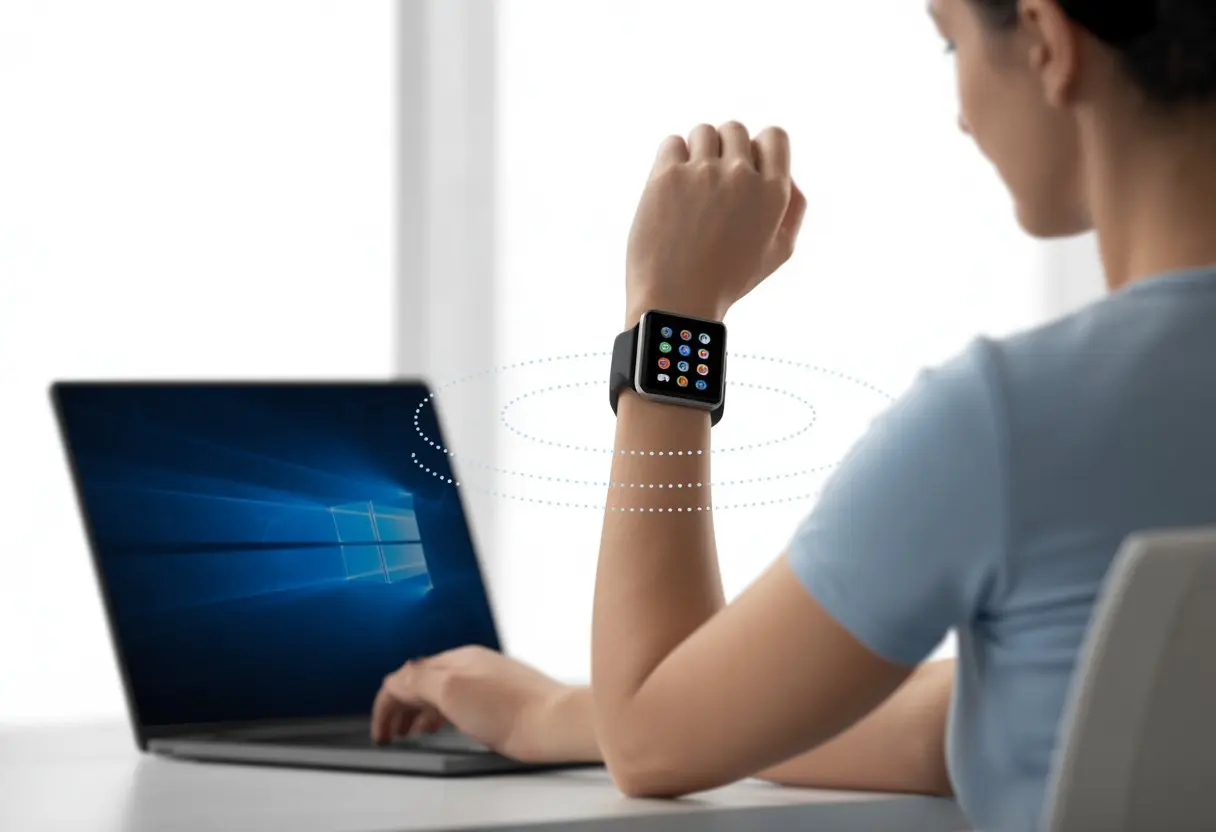
Who knew our trusty smartwatches could do more than just count steps or nag us about standing up? When we connect a smartwatch to a Windows PC, we unlock a bunch of new tricks—think easy notifications, music controls, and quick file transfers.
We can connect and sync our watches directly to our computer using apps made for devices like the Samsung Galaxy Watch, or even through Android emulators and Bluetooth, depending on what our watch supports.
Honestly, managing stuff from a bigger screen (and a real keyboard) just feels way less annoying than poking at tiny icons on a watch. We’ll show exactly how to link things up, what to expect, and maybe even some fun uses you haven’t thought of yet.
You can try Smart Watch Connect or look into clever community hacks to get creative with your setup.
Ready to make your smartwatch and PC the dream team? Let’s dive in and figure out how to get our tech working together—without wanting to throw either out the window.
System Requirements for Connecting a Smartwatch to Windows PC
To avoid any smart tech heartbreak, let’s make sure the PC is ready. We’ll check the Windows version, hardware, and extra software before our smartwatch can strut its stuff.
Supported Windows Versions
Not every version of Windows can handle this smart life. Windows 10 and 11 are where the magic usually starts. Most modern smartwatch apps work best on these, especially anything Microsoft has touched in the last few years.
Some apps even ask for Windows 10 build 17763.0 or higher just to get started.
Windows 7 fans, sorry—it’s not officially supported for most smartwatch apps. That old PC is probably best left for solitaire and ancient family photos.
Windows XP and Vista? Yeah, they’re not coming to this party. To check your operating system, type winver into the Start menu. If you see anything older than Windows 10, that’s your sign to update.
Essential Hardware Specifications
Once Windows is up to date, let’s talk hardware. You don’t need a rocket ship—just enough power to keep things smooth:
CPU: Any modern Intel or AMD processor is fine. Apple silicon or MacOS? Not gonna work here.
RAM: At least 2GB, but 4GB is way better for multitasking (and for keeping our smartwatches from mocking our ancient tech).
Storage: At least 1GB of free disk space for apps and updates.
Bluetooth: Built-in Bluetooth 4.0 or higher, or a USB Bluetooth dongle, is needed for most wireless connections.
USB ports: You’ll need a free USB port for wired connections, charging, or initial setup on some watches.
If your PC struggles to open a basic spreadsheet, it might be time for an upgrade. Your smartwatch deserves a little pep, too.
Additional Software Prerequisites
To keep our smartwatch and PC on speaking terms, we’ll need a couple of extra things:
Drivers: Make sure your PC has the latest Bluetooth and USB drivers. Without these, connecting a smartwatch can feel like teaching two moody cats to salsa.
Official Companion Apps: Most smartwatches want their own special app (think Garmin Connect or Wear OS). Download these from the manufacturer’s site or the Microsoft Store.
Internet Connection: Not strictly required, but it helps with installations, updates, and, well, showing off your new digital wrist piece.
With this setup, even the crankiest smartwatch should play nice with your (hopefully cheerful) PC.
Preparing Your Smartwatch and PC
Getting your smartwatch ready to connect with Windows isn’t rocket science, but it does take a few steps. Before you rule your digital world from your wrist, make sure everything has enough battery, the right settings, and the necessary apps.
Charge and Update Your Devices
Don’t play battery roulette—charge both the smartwatch and your PC. Nothing kills excitement like a device dying mid-update.
Next, check for new software. On the smartwatch, go to Settings and look for System Updates or Software Updates. On your PC, check for the latest Windows updates under Settings > Update & Security.
Keeping both updated helps dodge weird bugs, incompatibility, or that dreaded “please update before continuing” message. Skipping updates is like playing hide-and-seek with features—never ends well.
Enable Bluetooth and Wi-Fi
Wishes alone won’t connect your devices—you need Bluetooth. Turn it on in the smartwatch’s Settings > Bluetooth, and do the same on the PC by clicking the Bluetooth icon or going to Settings > Devices > Bluetooth & other devices.
Wi-Fi isn’t always required, but it makes installing apps and syncing info way faster. Make sure both your PC and smartwatch are connected to Wi-Fi. If the signal is weak, get closer to the router.
If pairing gets tricky, try turning Bluetooth off and on, or just restart both devices. Sometimes tech just needs a quick nap and a fresh start—kind of like us on Monday mornings.
Install Necessary Applications
To control or sync your smartwatch with Windows, you’ll usually need extra apps. Wear OS watches work best with Wear OS by Google, but others might need something different. Some smartwatches even want you to install a companion app on your smartphone first.
Many apps have Windows versions, or you can use Android emulators like Nox if they don’t. If you’re curious, here’s a guide on running Wear OS on Windows.
Follow the on-screen instructions during setup and sign in if needed. The right app makes connecting smooth and helps you get notifications, control music, or even lock your PC from your wrist.
Connecting via Bluetooth
Bluetooth lets us sync our smartwatch to our PC without any cords tripping us up. Just make sure both devices can speak the same Bluetooth language and are close enough to hear each other.
Pairing Your Devices
Turn on Bluetooth on your PC by clicking the Bluetooth symbol in the corner or searching “Bluetooth” in Windows settings. The smartwatch should have its Bluetooth on too—sometimes it’s tucked away in a “Connections” or “Settings” menu.
On the PC, hit “Add Bluetooth or other device,” and select “Bluetooth” from the list. Your watch should pop up in the list of nearby gadgets. If it doesn’t, maybe wave your hand in the air dramatically. That probably won’t help, but hey, you’ll look cool.
If you see the watch, click it. You might get a code on both devices; they need to match. Tap “Connect” on each device if needed.
If Bluetooth acts stubborn, don’t panic. Check both devices: Is Bluetooth on, or is one in airplane mode? It happens to the best of us.
Try restarting both the PC and the watch. If that doesn’t help, make sure your smartwatch is close to the PC. Walls, microwaves, and even suspicious cats can mess with the signal.
If you still can’t find the watch, open Bluetooth settings on the PC and remove any old devices you don’t use anymore. Sometimes they hog the spotlight. Also, update your drivers.
For really stubborn problems, unpair everything and start fresh. If all else fails, try connecting the smartwatch to the PC with a USB cable instead—here’s an article about using USB or Bluetooth to connect. Sometimes, old-school just works better.
Using USB Cable to Connect
Our smartwatches can do some pretty cool tricks, but sometimes the easiest way to connect to a Windows PC is a good old-fashioned USB cable. It’s handy for charging, transferring files, or just making sure our data ends up where it should.
Establishing a Wired Connection
First, let’s find that charging cable (it’s probably tangled somewhere). Plug the small end into your smartwatch and the bigger USB end into an open port on your computer.
Sometimes the watch makes a happy beep or shows a charging icon, letting you know the connection works.
If your watch asks for permission to connect or share files, say yes. On most devices, a new folder or drive pops up on your PC—your watch acts like a tiny, fancy USB thumb drive. If nothing shows up, you might need to install a driver or restart.
Not every smartwatch supports file transfer by USB. Some Android Wear devices need a special cable or just don’t have this feature. If nothing happens, don’t panic. Check your watch’s manual or look up compatibility tips on smartwatch connection guides.
Transferring Data via USB
Once you’re plugged in, you can move those precious activity data files. You’ll usually see files named things like “steps.csv” or “workouts.fit.” Open the smartwatch drive in Windows File Explorer and drag files to and from your computer, just like with any USB stick.
Some smartwatches use special folders—one for music, another for photos, maybe a spot for activity data. Double-check folder names if you’re not sure where to drop or find your files. This keeps your sweaty step stats separate from your selfie collection.
If your smartwatch uses a companion app (like Garmin), transferring files might work better through that software. Sometimes, using the app is just faster and helps avoid file errors. For a step-by-step look, here’s a Garmin device setup guide if you’re a visual learner.
Always safely eject your smartwatch before unplugging the cable. It saves you from scary file corruption warnings and keeps your data safe.
Syncing Smartwatch Data with Windows Applications
Getting smartwatch data onto a Windows PC isn’t always as obvious as checking the time, but you can do it. Let’s look at using the right apps and see how activity and workout info shows up once things are connected.
Using Official Companion Apps
If you want your smartwatch to play nice with Windows, the first step is grabbing the official companion app. Samsung Galaxy users can check out Watch Connect, which lets you sync your Galaxy smartwatch with your PC—no interpretive dance moves required.
Garmin fans, you’re not left out. Just install Garmin Express to connect your Garmin device directly to your computer. This app updates your watch and uploads all your fitness data to Garmin Connect, which you can check right from your browser or the PC app.
Both USB and Bluetooth usually work, but honestly, the trusty USB cable is less of a headache.
Not every smartwatch has a Windows-friendly app, but new options keep popping up. Always check if your smartwatch has a supported app before buying—or before you toss it out the window in frustration.
If you’re feeling adventurous (or desperate), some folks try Android emulators. That’s a wild ride, so maybe save it for a day when you’ve got patience to spare.
Accessing Activity Data and Workouts
Once you’ve synced your smartwatch with the right app, you can dig into your latest activity data, workouts, and even those questionable heart rate spikes (thanks, late-night horror movies).
With Garmin, you’ll see steps, heart rate, sleep, training plans—all sorted and easy to track, even if your memory isn’t.
Sometimes you can export the data as .csv files, which means you can make fancy tables to show off your progress—or complain about your lazy week. Samsung’s Windows options might not have all the bells and whistles of their mobile versions, but you’ll still see basics like calories burned, workouts, and activity trends.
Syncing isn’t always instant. Sometimes, restarting the app or reconnecting your watch helps, especially if it decides to play hide and seek.
Regular syncing keeps your progress updated, so even if you skip a workout, at least the guilt gets recorded.
Emulating Mobile Apps on PC
Running smartwatch mobile apps on your Windows PC feels a bit like magic—minus the top hat. You get to enjoy your favorite features, test out apps, or just poke around, all from a big screen.
Installing BlueStacks for Smartwatch Apps
Let’s talk BlueStacks. It’s a free Android emulator that lets you run Android apps—including smartwatch companion apps—on your PC. Just download BlueStacks from the official site and run the installer.
Pick where you want BlueStacks to live on your hard drive, then follow the prompts until you see that blue and white Android world on your desktop.
After setup, you’ll spot a simple interface, almost like a phone inside your computer. Don’t try to make a call, though—your PC still won’t ring. You can install smartwatch apps using the built-in app store or by loading APK files.
Most smartwatch apps work if they’re meant for phones, but if anything looks weirdly stretched—well, that’s just part of the PC experience.
If you like tinkering, BlueStacks has settings for boosting your gaming experience, like customizing controls and tweaking graphics. It’s fun when a smartwatch app suddenly throws you a minigame.
Accessing Google Play Store on PC
Ready to browse the Google Play Store on PC? BlueStacks gives you full access, so you can search for the Galaxy Wearable app, Fit, or any app made for your wrist gadget.
Logging in works just like it does on your Android phone. Use your Google account, dodge those “forgot password” headaches, and soon you’ll see a familiar Play Store layout.
Some smartwatch apps might claim they’re incompatible, but many still work for setup or syncing data—just expect a few quirks.
Pro tip: Check reviews or app descriptions before installing, since some apps act differently on PC. If something’s missing, it’s probably because the app feels a little “homesick” away from mobile.
If you’re bold, you can try alternative app stores or APK files, but be careful—no one wants malware as a smartwatch buddy.
Managing Music and Personal Content
We all want our smartwatches to do more than just buzz and nag us to get up. Managing music and audio on a smartwatch from a Windows PC isn’t hard, but you’ll need a bit of setup and patience.
Let’s make your wrist the life of the party—just not with that playlist from 2011, please.
Syncing Music to Your Smartwatch
To get your favorite tunes onto your watch, start by plugging it into your Windows PC with a USB cable. Mismatched cables are the universe’s way of testing patience, so double-check you’ve got the right one.
After connecting, use the software your watch maker suggests. Garmin owners, you’ll want Garmin Express. With it, you can organize, add, or remove songs—kind of like dragging embarrassing photos into the Recycle Bin.
Steps to sync music:
Connect your watch to your PC with a USB cable.
Open the watch’s sync software (like Garmin Express).
Pick songs or playlists from your computer library.
Hit “Add” and let them transfer.
Samsung smartwatch owners can use the Galaxy Wearable app. Adding content is just a few taps away, right from Watch settings under Add tracks.
Playing Personal Audio Content
Once your music is loaded, your smartwatch is ready to play DJ—minus the scratching. Most watches let you play audio through Bluetooth headphones, keeping your music in your ears and not blasting from your wrist for everyone to hear.
On the watch, look for the built-in Music or Audio app. There, you’ll see your added songs, press play, skip, pause, or pretend to skip when your guilty pleasure comes on.
Some watches let you organize playlists or shuffle tracks. You can control playback from both the watch and your phone (if you haven’t wandered too far away).
Keeping your content organized on your PC makes syncing new music or files much smoother. Extra tip: Name your playlists and albums something memorable, so you don’t end up jogging to holiday tunes in July.
Enhancing Functionality with Third-Party Tools
Out-of-the-box smartwatch features are pretty neat, but why let your wrist get bored? Third-party tools open up all sorts of possibilities, from turning your smartwatch into a mini sidekick for your Windows PC to syncing unique data with just a tap.
With a few clever apps and tweaks, your imagination (and battery life) are the only limits.
Exploring Connect IQ Apps
To really ramp up your smartwatch’s abilities, try Connect IQ apps. Garmin’s Connect IQ lets you download free and paid apps, custom watch faces, widgets, and even new data fields.
These little add-ons can track your coffee intake (no judgment), check the weather, or help you control your music—all with just a flick or tap.
Most Connect IQ apps focus on health and fitness, but you’ll also find tools for managing tasks or even controlling PowerPoint presentations during meetings.
The Wear OS community has built similar tools for other watches, letting you use your device as a wireless mouse or even a game controller for your PC.
You might impress coworkers or just control your computer from the couch. Most Connect IQ apps are easy to install through the Garmin Connect app, so even if you’re not a tech wizard, your wrist can still feel pretty magical.
Keeping Everything Up-to-Date
Our smartwatches love to remind us about every email, but they often forget about their own updates. Keeping your device up-to-date helps it run smoothly and helps you avoid weird bugs.
Checking for Firmware and App Updates
Firmware and app updates are basically vitamins for our gadgets. Sure, skipping them might not ruin everything, but honestly, things can get weird pretty quickly.
Most smartwatches give us a nudge when they’re ready for an update. Still, it’s smart to check the settings menu ourselves—either on the watch or in the companion app on our PC.
Some models want us to plug them in with a USB cable. Others let us connect over Bluetooth, which is pretty handy.
Once we connect, apps like Yoho Sport or Windows BLE tools usually guide us through the update. If our smartwatch decides to be difficult, these instructions break down the update process step by step.
Here’s a tip: keep the device charged while updating. No one wants a bricked watch halfway through a new feature, right?
Honestly, setting a reminder isn’t a bad idea. If our smartwatch forgets, odds are, we will too.
Hi, my name is Garrett Jones, and I am a tech enthusiast. I enjoy researching the new tech that has been released, and have a vast knowledge of the best tech to purchase.
From a young age, I have always had a big interest in technology, and this blog is an extension of that interest. Through this blog, I hope to provide others with all of the information they need regarding tech options to consider, and things such as compatibility. Some of the different items I will be discussing include headphones, smartwatches, and how to fix common issues.