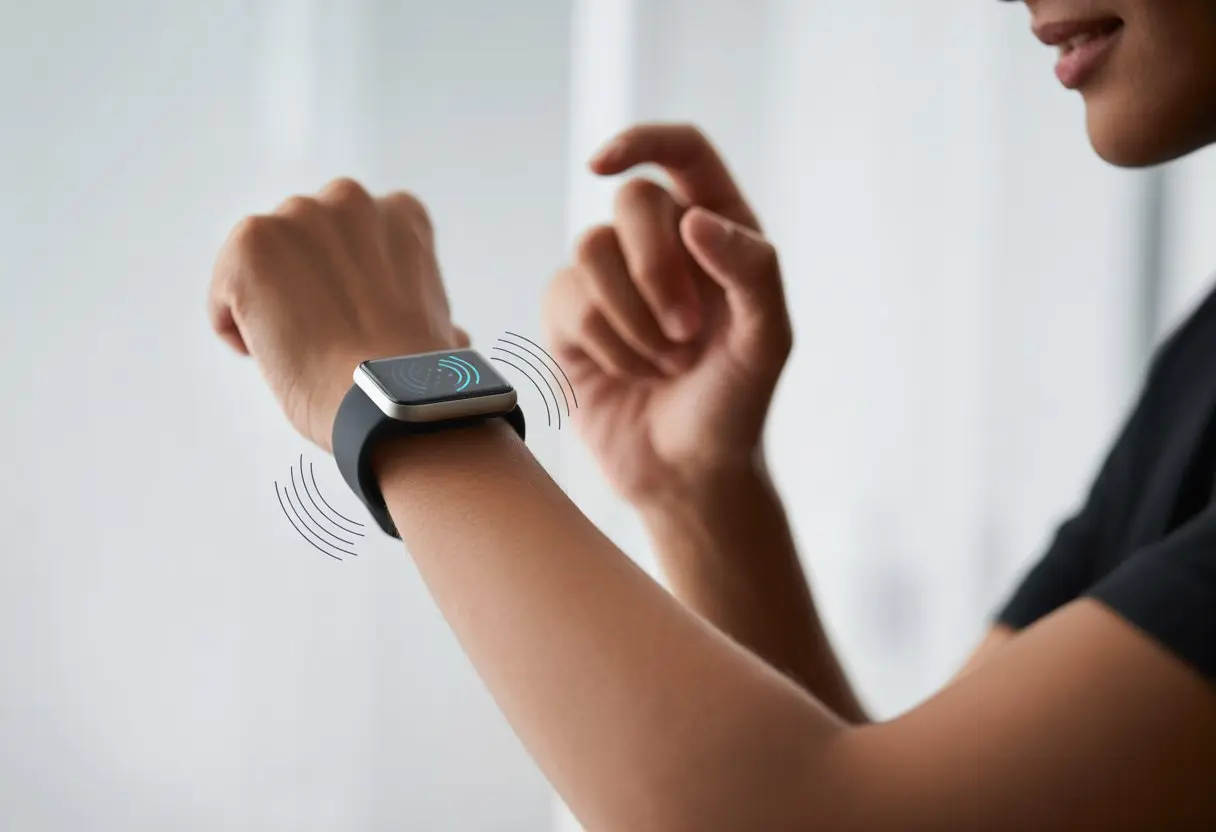
Let’s be real—most of us don’t hear our phones ring in a loud room, and checking for every buzz gets old fast. Smartwatches come to the rescue by sending those little wrist vibrations whenever something important pops up.
Using a smartwatch for vibration alerts helps us catch every important call, text, or reminder—even if our phones are buried in a bag or lost somewhere in the couch.
If we’re worried about missing something, tweaking the vibration settings on our smartwatch is honestly simpler than pretending we didn’t see that group chat. We get to decide how strong the buzz feels, when it goes off, and which apps get to poke us.
It’s like having a tiny digital butler who only taps us when it matters.
The best part? We don’t need to be tech geniuses for this.
A few taps and our wrists handle the notifications, so we can finally stop staring at our phones every five minutes.
Getting Started with Vibration Alerts
Vibration alerts keep us in the loop without annoying everyone else. It’s just a quick tap on the wrist, and honestly, setting it up takes less time than tying your shoes (well, most days).
Understanding Vibration Technology
Let’s be honest: sound can be obnoxious, and flashing lights? Not always helpful. Vibration feels a bit more polite.
When our smartwatches buzz, a tiny motor spins a little weight inside the watch. That spinning makes the watch “tap” or “buzz” against our skin.
Smartwatches call this haptic feedback. Instead of a noisy notification, we get a silent alert—a small, friendly earthquake just for us.
Most Android Wear watches, along with brands like Garmin and Guess, use this feature.
Each watch model vibrates a little differently. Some offer strong or gentle buzzes, and we can usually adjust how long or intense each vibration is.
This way, we’re not left guessing if our wrist moved or wondering if our arm’s about to take flight.
Compatible Smartwatches
Not every smartwatch handles vibration the same way. Wouldn’t it be nice if they all buzzed us awake? Some just give a light tap instead.
Here’s a quick look at how a few brands stack up:
Brand
Vibration Alerts
Custom Strength
Special Features
Android Wear
Yes
Yes
App support
Garmin
Yes
Some models
Pre-alarm vibration
Guess Connect
Yes
No
Tap glass feature
Older models
Maybe
Usually not
Limited support
Android Wear devices usually let us tweak the vibration. Garmin watches sometimes buzz before the phone’s alarm even rings (see Reddit’s guide). Guess Connect uses vibration for alerts too.
First-Time Setup Instructions
Turning on vibration alerts isn’t rocket science, but the first time can feel tricky. Let’s break it down:
Wake up the smartwatch by pressing the main button or tapping the screen.
Swipe to Settings and look for “Sound & Vibration” or just “Vibration.”
Enable Vibration Alerts—sometimes it’s called “Haptic Feedback.” Flip it on.
Some watches let us adjust intensity—weak, medium, or strong. Pick whatever feels right.
If there’s a test option, give it a try. Most watches buzz for a quick test.
If we’re using a paired app (like Android Wear or Garmin), we should check that notifications are on and “Do Not Disturb” is off.
That’s it—our wrists are ready to handle notifications. If we ever want to turn it off, just reverse the steps.
No drama, no explosions.
Customizing Vibration Notifications
Turning our smartwatch into a helpful tap-on-the-wrist assistant is all about getting the settings dialed in. We’re about to fine-tune which notifications buzz us, how they feel, and what kind of patterns we get.
Changing Vibration Settings
First things first, we jump into the vibration settings to decide if we want a gentle nudge or a full-on buzz. Most smartwatches have a “Sounds & Haptics” section in Settings with sliders or toggles for vibration strength.
If we barely notice the buzz, we can crank it up. If our pets jump every time we get a message, maybe dial it back.
Some devices let us set vibration for certain times—so we don’t get woken up at 2 a.m. unless we really want to.
With a little tweaking, only the most important alerts get through. Our wrists (and sanity) thank us.
Enabling Alerts for Calls and Messages
Let’s admit it—sometimes we miss a call or message because we don’t hear our phone. If we’re wearing a smartwatch, we want it to buzz like a friendly reminder whenever something comes in.
Vibrating Alerts for Incoming Calls
Let’s talk incoming calls. Nobody wants to miss a call from Grandma or the pizza place.
To set up call vibrations, we head into the smartwatch’s Settings. Look for Sound and Vibration (or something close, depending on the brand).
Inside, we usually find a section called Sound mode or Vibration. We just need to turn on vibration for calls.
Some watches offer a “Vibrate only” mode, which keeps things quiet but still lets us know when someone’s calling.
On Samsung watches, the Sounds and Vibration menu lets us pick different levels of vibration or mute sound entirely. If we get stuck, Samsung’s manage sound and vibration guide can help.
Message Notification Vibration
Now, let’s handle text messages. We want our wrists to buzz for messages, not just calls.
To set this up, we open Settings on the smartwatch and tap Notifications.
Look for Show notifications on watch. Make sure alerts are on—even if we’re using the phone at the same time.
Redditors share this trick to keep notifications buzzing.
Some watches let us pick which apps make our wrists vibrate. We can choose just messages, calls, or maybe those “Your pizza is on the way!” alerts.
If the watch still won’t buzz for messages, “Do Not Disturb” might be hiding somewhere in the settings.
Using Vibration Alerts for Alarms and Reminders
Let’s be honest—sometimes we need a nudge. Setting vibration alerts on our smartwatch helps us wake up less grumpy and forget fewer appointments.
Silent Alarm Setup
If we want to wake up without a blaring alarm—or avoid waking our partner, dog, or neighbor—we use our smartwatch’s vibration alarms.
On most models, we open the Alarm app and tap the “+” to add a new alarm.
Many smartwatches let us pick vibration only, sound, or both. For stealthy wakeups, we go with vibration only.
Some models let us adjust the vibration strength, so we don’t sleep through a soft buzz.
Need more custom options? Apps like Wear Notification Helper or specialty watches like WatchMinder let us schedule reminders with unique vibration patterns for different events. We’ll know if it’s time to get up or just take the pizza out.
A few quick tips for silent alarms:
Wake up gently with silent mode
Set repeat days so the alarm isn’t just a one-off
Adjust vibration strength to match our sleep habits
Our smartwatch buzzes to remind us about calendar events, so we don’t double-book our cousin’s third wedding and trivia night. Syncing the watch with Google Calendar or Outlook turns appointments into magical wrist vibrations.
When we add a new event, we can set an alert—maybe 10 minutes before that meeting with the boss (because who wants to be late for that?). The smartwatch gives a discreet vibration right on time.
Some smartwatches show a short message or the event name on the screen, so we don’t have to guess what the buzz means. If we’re forgetful, setting multiple reminders for the same event works wonders.
Vibration alerts on smartwatches feel like little nudges from a friendly health coach. They keep us moving toward fitness goals, remind us to get up, and sometimes even help us avoid snoring disasters.
Heart Rate Monitoring Alerts
Let’s be honest, most of us skip checking our heart rate unless we’re chasing a personal record or just sprinted for the bus. Thankfully, smartwatches step in—or vibrate in, if you will.
When our heart rate spikes or falls outside set limits, a quick buzz tells us. This really helps anyone with heart issues or, honestly, anyone whose heart gets dramatic after too much coffee.
We can customize these alerts to keep tabs on our heart, even if we’re not behaving. Some watches check heart rate every minute and send a discreet vibration if something’s off.
Even during meetings, our wrist quietly flags any heart rate drama, so we can react before small issues become emergencies. Want to set up these smart nudges? Here’s a guide for heart rate vibration alerts.
Activity and Workout Notifications
Sometimes, we all need a reminder to get moving. Our watches don’t nag—they just vibrate.
When it’s time to stretch, stand, drink water, or start a workout, those vibrations keep us honest. It’s like having a super positive gym buddy on our wrist, minus the sweat.
We can set reminders for walks, runs, or strength training. If we hit our daily step goal, our watch buzzes a mini celebration. No cake, but hey, it’s something.
During workouts, haptic notifications signal interval changes, pauses, or heart rate targets, so we can focus on our reps. Activity notifications also stop us from sitting like motionless potatoes.
With regular gentle vibrations, our watches make healthy living a little less forgetful—and, dare I say, a bit more fun.
Sleep Tracking Vibrations
A blaring alarm ruins good sleep. Smartwatches use gentle vibrations to wake us during light sleep, so mornings feel less like a wrestling match with our pillow.
This is perfect for partners who want to avoid waking each other—or the dog. We also get bedtime reminders and alerts for restless tossing and turning.
These small buzzes help us build better sleep habits and stop doom-scrolling all night. Some smartwatches even use vibrations for sleep breathing exercises or bedtime routines.
With vibration alerts and sleep tracking, our watch becomes a midnight ninja—quietly helping us sleep better, wake up easier, and maybe snore less.
Fine-Tuning Activity and Focus Modes
Getting our smartwatch to buzz when we want feels like a small win. By adjusting activity focus mode and activity settings, we make vibration alerts smarter and less annoying.
No more jumping at every low-priority ping. We get the alerts that matter and ignore the rest.
Custom Vibration in Activity Focus Mode
Nobody wants their wrist buzzing all day. With activity focus mode, we set up vibration alerts for what matters most.
No vibrations mid-run unless it’s actually important—like someone reminding us to pick up milk or, I don’t know, telling us we look awesome.
Many smartwatches let us go to Settings > Focus Modes > Activity and pick what triggers a buzz. For example, we can set vibrations for only incoming calls during a jog.
Some models let us separate vibrations for texts, calls, reminders, and fitness goals, so we’re never left guessing what made our arm wiggle.
Customizing these settings helps us avoid surprise jumpscares from calendar alerts while we work out. It also saves battery, which is always a win on Monday mornings. More details on focus modes and activity customization.
Adjusting Activity Settings for Vibration
Let’s add another layer: tweaking activity settings. Here, we adjust vibration strength, type, and which activities get alerts.
If we only want vibrations while walking—not during yoga (because who likes a surprise buzz in downward dog?)—we can set that up.
Most smartwatches let us open activity settings, find vibration options, and change them by activity type. We can toggle vibration on or off, set quiet hours, or pick which contacts or apps can interrupt us.
For example, we silence all but emergency alerts during a run, so we can focus on crushing a personal best.
Some watches let us pick vibration levels, so if we miss alerts, we choose a stronger buzz. Steps are usually simple, making our digital companion more polite and less likely to cause public confusion.
Smartwatches aren’t just tiny screens—they’ve got secret superpowers. With the right settings, vibration alerts help us find our way or catch app notifications, even if our phone’s buried in a backpack.
Navigation Alerts
We’ve all tried following GPS directions while walking, only to realize we look lost. Vibration alerts keep our eyes up instead of glued to the screen.
Smartwatches vibrate before a turn, so we know what’s coming without missing a beat—or a step. This is especially handy for silent navigation, when we don’t want to blurt out directions in public.
The watch gently buzzes, nudging us to turn left or right, or stop walking into a wall. Some navigation apps let us customize vibration strength or patterns, so left turns feel different than right.
This is perfect for runners, walkers, and anyone whose sense of direction is questionable. Locus Map, for example, supports silent vibration cues for navigation.
App-Specific Vibration Settings
We all have that one app that pings us nonstop—or, worse, one we never notice until hours later. Thankfully, many smartwatches let us set vibration alerts differently for each app.
We can give our favorite messaging app a strong buzz, while our step counter vibrates only gently, or not at all.
Some watches let us create custom vibration patterns, so we know if it’s a calendar reminder or a “time to stand up” nudge. Personalizing these settings helps us dodge notification fatigue and notice what’s actually important.
Nobody wants a smartwatch that dies before noon. Vibration alerts are great, but they can drain the battery faster than a marathon of notifications.
Here’s how we keep our watch buzzing without running dry.
Impact of Vibration on Power Usage
Every time our wrist buzzes, the battery feels it. Vibration uses a tiny motor inside the watch, and that little motor actually sips more power than screen notifications or sound alerts.
If we let our watch vibrate for every nudge or ping, the battery gets tired fast. Companies admit that using both sound and vibration together drains batteries even faster, so picking just one is usually best.
According to Garmin’s battery guidance, sticking to audible or vibration alerts—but not both—helps us save battery life.
If you want to see for yourself, try turning off vibration for a day and compare the battery percentage. Less buzzing, more battery—it’s as simple as that.
Balancing Notifications and Battery
Do we need a buzz every time someone likes our cat photo? Probably not. We can stretch battery life by picking which apps get to vibrate our wrist awake.
Here’s a quick checklist for balancing alerts and battery:
Turn off vibration for low-priority notifications
Limit the number of apps sending alerts
Use vibration only for important messages
Cutting down on frequent vibration alerts means less charging and more wearing, as Citizen Watch and this wearables blog suggest.
A simpler vibration menu keeps our smartwatch alive until bedtime. Our wrists—and chargers—will thank us.
Personal Touches: Watch Faces and Advanced Customization
Seriously, who wants a boring smartwatch? We can brighten up our days and never miss a thing by making vibration alerts truly our own.
From lively watch faces to tweaking how each buzz feels, there’s plenty of room for personality.
Watch Face Vibration Features
We get to pick watch faces that do more than tell time. Some faces add little features, like vibration cues for different alerts.
Swapping faces is easy. Just press and hold the screen, then flick through options like we’re swiping left on chores we don’t want to do.
If we use a watch face with vibration integration, we feel a subtle shake for incoming calls or messages. It’s a bit like being a secret agent, feeling the buzz only we know about as important notifications pop in.
It’s worth exploring to find a watch face that supports the right customizations. Some fancy designs hide options behind their good looks, so let’s tap around and see what kinds of notifications and vibrations our favorites offer. Choosing a face almost feels like online dating, doesn’t it?
Tips for Custom Vibration
Customizing how our watch vibrates really changes the whole experience. We can set strong, quick pulses for urgent notifications and gentle taps for the stuff that can wait. It’s handy—sometimes we just want to know if it’s time to sprint or just grab the recycling.
Choose vibration and try out different patterns (because why not make our wrists do a little dance?)
Samsung watches and other brands let us assign unique vibrations for different contacts and apps. We can turn on vibration for alarms and timers too, in case the usual sound won’t do the trick.
Some third-party apps let us go wild, making our own custom vibration patterns. It’s perfect if we want that “friendship bracelet” vibe, but maybe don’t overdo it—our wrists might start spelling out secret codes.
Adjusting Display and Brightness with Vibration Alerts
Let’s be honest, we’ve all blinded ourselves with our smartwatch at 6 a.m. or tried not to wake the cat. Getting display and brightness settings right makes vibration alerts way less annoying—unless we’re into surprise disco lights.
Usually, we’ll find display and brightness options under Display & Brightness or just Settings. On most watches, we can tweak the brightness level, choose auto-brightness or manual, and sometimes pick an always-on display. If our screen’s too bright, every buzz feels like a flashlight in the face.
Here’s a quick table to keep things straight:
Setting
Why It Matters
Brightness Level
Lower means less glare during a 3 a.m. buzz
Auto-Brightness
Saves battery and adapts to the room
Always-On Display
See alerts faster, but battery life takes a hit
Vibration works alongside display settings. If the screen lights up with every vibration, maybe keep it dim so nobody thinks we’re signaling UFOs.
We can usually manage these settings separately on most smartwatches. Some even let us control vibration power or patterns, so we don’t get startled by every alert. For more details, check out this guide to customizing smartwatch display and brightness.
Balancing display brightness with vibrations means we get the message without lighting up the whole room. Our eyes—and our pets—will probably appreciate it.
Creative Uses of Vibration Alerts
Vibration alerts on our smartwatches aren’t just for messages and reminders. We can use them in all sorts of clever ways to make life a bit smoother and, honestly, more fun.
Trying Out ‘Nudge Nudge’ Features
Sometimes we want to catch someone’s attention without a text or a big gesture. That’s when the ‘nudge nudge’ features really shine. Many smartwatches let us send a quick vibrating alert to a paired device or another person’s watch. It’s like a digital elbow tap, minus the awkwardness.
We can use these nudges to remind a friend it’s time to leave a party (“Let’s escape!”), or send our partner a quick “thinking of you” buzz. It’s also handy for letting teammates know it’s their turn in a game or meeting—no yelling or waving required.
When we dig into apps and settings, like on a Samsung Galaxy Watch, we can set custom patterns for different contacts or situations. That way, we know if it’s just a friend checking in or a serious “get up now” alert from our morning routine.
Sometimes, we even use these cues to dodge awkward moments, like buzzing ourselves before we ramble on too long during a chat.
With silent cues, our smartwatch turns into a secret sidekick. It’s like having a gentle tap on the shoulder, just when we need it, to help us make it through those social events.
Hi, my name is Garrett Jones, and I am a tech enthusiast. I enjoy researching the new tech that has been released, and have a vast knowledge of the best tech to purchase.
From a young age, I have always had a big interest in technology, and this blog is an extension of that interest. Through this blog, I hope to provide others with all of the information they need regarding tech options to consider, and things such as compatibility. Some of the different items I will be discussing include headphones, smartwatches, and how to fix common issues.