Let’s be real—keeping up with school notifications sometimes feels like trying to sprint in shoes that are tied together.
Between clubs, classes, and those surprise pop quizzes, our phones always seem to buzz at the worst times (group chats, I’m looking at you).
Smartwatches can actually make school life a little less chaotic by bringing important updates right to our wrists.
The best part? We don’t have to dig through our backpacks to find them.
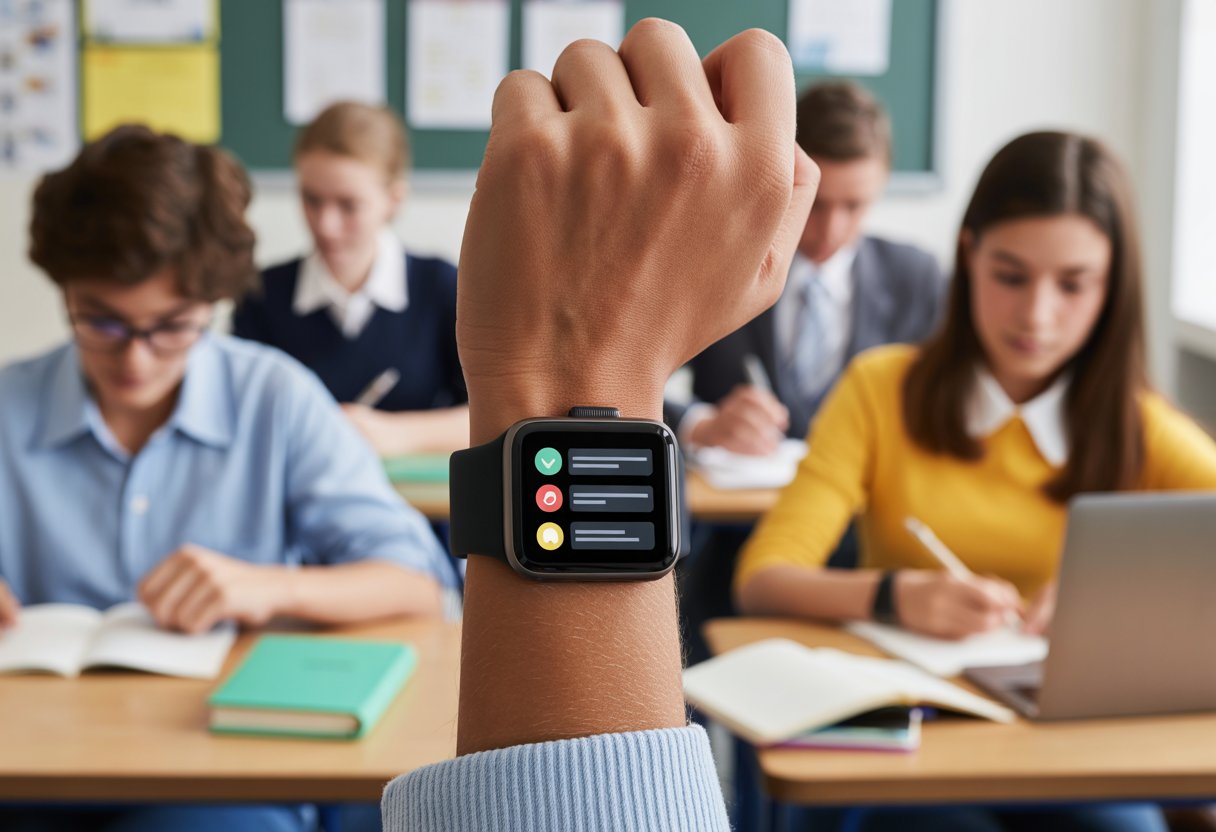
When we set up school notifications on our smartwatches, we get instant alerts for homework, schedule changes, and reminders, right when we need them.
That means we’re way less likely to miss assignments or forget what’s due.
With features like Do Not Disturb during class and custom app alerts, our smartwatches are ready to handle whatever school throws at us.
Parents can use smartwatches to help kids remember their art supplies, and students can rely on them to survive Monday mornings.
Using smartwatches helps us organize our schedules and stay focused on school, without those loud phone alarms that everyone hates.
Ready to turn your gadget into a secret homework sidekick? No tech degree required.
Getting Started With Smartwatches for School Notifications
Before our wrists start buzzing every time the school sends a memo, we need to think about a few things.
It’s not just about strapping on any wearable and hoping for the best—some planning helps, especially with smartwatches.
Choosing the Right Smartwatch
First up: not all smartwatches are created equal. Sorry, E-model from that mysterious online shop.
If we’re buying for kids, we should look for a children’s smartwatch that can handle school life.
Water resistance is a must, because, honestly, lunch can get messy.
The Apple Watch is a favorite if you want more features, like Schooltime mode, which blocks distractions during class.
Some kids’ watches keep things simple with basic notification settings, while others let us call, text, and even track steps.
If we want something budget-friendly or less likely to end up in the toilet, basic models usually skip the games and focus on alerts.
Here’s a quick features comparison:
| Feature | Apple Watch | Kids Watch (basic) | E Model |
|---|---|---|---|
| Notification Alerts | Yes | Yes | Sometimes |
| Water Resistant | Yes | Sometimes | Rarely |
| Bluetooth | Yes | Yes | Maybe |
| School Mode | Yes | Usually | ? |
Setting Up Your Device
Unboxing a smartwatch can feel like opening a puzzle box you didn’t ask for.
Don’t worry, though. Most devices use a simple setup—just charge it, turn it on, and follow the prompts.
Most children’s smartwatches walk us through picking a language and connecting by Bluetooth to our phone.
For Apple Watch users, the Watch app on our iPhone handles most of the setup.
We can set a passcode, pick notification sounds (maybe skip the airhorn), and set schedules like Schooltime blocks to pause non-essential features during class.
A strong Bluetooth connection keeps our smartwatch from missing notifications or freezing mid-update.
It’s smart to test a sample school message just to make sure everything’s working.
Syncing Notifications With Your Smartphone
If our notifications aren’t synced, we’re just wearing a regular watch—and who wants that?
Pairing the smartwatch with our phone is step one.
We should check that our wearable and phone actually play nice together (Android and Apple can be stubborn).
Once connected via Bluetooth, we need to make sure school alerts are allowed.
Go into the phone’s notification settings and pick which apps can ping the watch.
Maybe allow calendars, school email, or a school app, but block anything about high scores in Alien Hamster Run.
Some apps might ask for extra permissions the first time, so don’t ignore those pop-ups.
With proper syncing, we’re much less likely to miss an early release notification.
If family or class group messages matter, make them a priority in the alerts list too.
Configuring Notifications Specifically for School
We want our smartwatches to help us in class, not become a source of endless buzzing or meme interruptions.
Getting the right school updates—and not everything else—takes a little planning and a few taps.
Customizing Notification Preferences
Honestly, our wrists don’t need to buzz every time someone likes a photo from three years ago.
On most smartwatches, we can dive into notification settings and choose what actually pops up during the school day.
Step-by-step:
- Open the watch or phone companion app.
- Find Notifications.
- Uncheck anything nonessential (goodbye, donut reminders).
- Keep messages from teachers, calendar reminders, and class alerts ON.
This way, spam messages won’t yank us out of math class.
If our device has School Mode, it’s worth setting up—it blocks unwanted notifications during study blocks.
Brands like Xplora let us or parents create custom notification schedules right from the app.
Teachers will probably appreciate this, too.
Enabling Do Not Disturb During Class
Do Not Disturb isn’t just for naps.
It’s perfect for cutting down classroom distractions.
With DND, alerts wait quietly instead of buzzing during a quiz.
Here’s what we usually do:
- Swipe down or up (depends on your watch) to find the Do Not Disturb moon icon.
- Tap to turn it on when class starts.
- Set a schedule to auto-activate during school hours.
Some smartwatches, like the Apple Watch, offer a Schooltime feature.
It blocks most notifications and locks apps so we can check things only on breaks—no more sneaky memes in algebra.
Check out Schooltime on Apple Watch for more details.
Managing Social Media Alerts
Social media pings are probably the biggest classroom distraction, right after questionable cafeteria food.
We need a plan so apps like Snapchat, TikTok, or Discord don’t hijack our attention.
The fix? Open the smartwatch’s notification menu and toggle off every social media app before school.
Keep them muted until after the final bell.
Some devices let us silence alerts app-by-app, so group chats and comment sections can wait.
On certain watches, a parental control app can block social notifications during school time.
The memes and likes will still be there after class.
Plus, we’re less likely to have our watch “accidentally” confiscated.
Prioritizing School Updates Over Memes
If we have to get buzzed, let it be for a grade change or club meeting—not Aunt Carol’s latest Minion meme.
First, figure out which school apps are actually important: email, school LMS (like Google Classroom), or calendar invites.
To prioritize:
- Move important school apps to the top of the notification list.
- Pin or star messages from teachers.
- Disable meme-heavy group chats or newsletters during school hours.
Many smartwatches let us set up focus modes or priority lists to allow only urgent or school-related notifications through.
That way, we keep learning at the top, memes at the bottom, and our sanity somewhere in between.
Staying Connected and Safe While at School
We all want our kids to be safe, and we like staying in the loop too.
With a smartwatch, we get tools for emergencies, quick contact, and location updates that actually work.
Adding Emergency Contacts
First, let’s add emergency contacts.
It’s really about adding trusted numbers so our kids don’t end up calling the pizza place during a crisis.
We should add parents, guardians, or anyone we trust.
Many smartwatches let us do this in the settings menu, usually under “Contacts” or “Safety.”
It’s smart to double-check the numbers, so nobody’s calling Aunt Edna during math if that’s not the plan.
Some watches allow quick-access lists, so with a swipe or tap, our kids can reach us or their emergency contacts in seconds.
If you’re not sure how many contacts you can add, check the user manual—or just ask your kid.
Using Emergency SOS Features
Now, the fun part: the Emergency SOS button.
This feature lets our kids call for help with a simple press.
If they’re in trouble or feel scared, they don’t need to remember numbers—they just press the button, and a call or alert goes to us or another emergency contact.
Some smartwatches send a text or location notification automatically, so we get live info about what’s going on.
We should make sure our kids know what the SOS does (and that it’s not for skipping gym class).
Many watches let us choose who gets alerted, whether that’s family, a neighbor, or even school staff.
You can find more about how these work in guides about the critical role of smartwatches in school safety.
GPS Tracking and Real-Time Location
It’s not exactly spy-level, but most kids’ smartwatches have GPS tracking and real-time location features that help us stay connected.
With these, we can check on our kids’ locations from our phones—no more guessing if they’re still in class or already running for the bus.
Many smartwatches let us set up geofencing.
We can draw a “virtual fence” on a map and get alerts if our child leaves or enters that zone.
If they sneak out of school to chase the ice cream truck (hey, it happens), we know right away.
Some devices even allow real-time monitoring, sending us location updates every few minutes.
That gives us peace of mind and maybe lets us retire our detective gear—at least for now.
Parental Controls and Privacy Settings
When our kids start using smartwatches at school, it’s like handing them a tiny computer for their wrist.
We need the right tools to manage what they can do, keep their info safe, and make sure they’re not sneaking answers during tests.
Setting Enhanced Parental Controls
Let’s be real—handing kids tech without any parental controls feels a bit like giving them cake for breakfast and expecting them to crave spinach. Smartwatches actually give us a way to set boundaries that stick.
Take Apple Watch, for example. It comes with a tool called Schooltime. This handy feature blocks notifications and locks down distracting apps during school hours, so kids pay attention in class instead of chasing high scores. You can pick which days and times Schooltime kicks in, which means no random TikTok buzzes during math. You can check out more about Schooltime for Apple Watch here.
If you’re using other brands like Galaxy Watches, you’ll find similar options under parental controls. Most let parents:
- Choose who kids can call or text
- Block games and social apps
- Set up “school mode” hours
These controls let kids call home if they need to, but they won’t be texting about lunch trades in the middle of science class.
Enabling Privacy Features
School should be for learning, not for tracking every step or turning our kids into social media stars before lunchtime. We’ve got to use privacy settings thoughtfully to keep their info safe.
Most devices let us control what data gets collected. On Apple Watch, for instance, we can edit health info, limit location tracking, and switch off data sharing. It’s smart to password-protect cloud backups and turn off syncing for stuff like messages and photos.
Here’s what helps:
- Decide which apps get access to info
- Limit GPS use
- Check who can contact your child
Some smartwatches let us approve every new contact, so kids can’t just dial random numbers from the classroom. Aim for quiet, subtle privacy—no need to broadcast their location to everyone.
Preventing Cheating During Tests
We love clever kids, but nobody wants them using their smartwatch as a cheat sheet. Most schools ask students to turn on school mode or airplane mode during tests. This blocks messages, web access, and stops those sneaky ways kids try to get answers.
Schools often have rules about removing watches before a test. As parents, we can chat with our kids about honesty and why fair play matters more than a perfect score. If all else fails, we can remind them that back in our day, cheating meant scribbling answers on your hand—and, honestly, it never worked out well.
Managing Battery Life and Device Maintenance
Smartwatches are like our trusty sidekicks, but they need a little attention to keep up. Staying on top of battery status, squeezing out extra battery life, and making sure our gadgets don’t morph into science experiments—these things matter on those long school days.
Monitoring Battery Status
Nobody likes that sinking feeling when the battery icon turns red halfway through the day. To avoid it, just make a habit of checking the battery percentage now and then. On most watches, a quick swipe down or up shows you the charge. Some even have widgets for a fast glance.
If you tend to forget (guilty here), set a silent alarm to remind you. And please, don’t ignore those low battery notifications—they’re not just nagging, they’re trying to save you from a dead device. Apple Watch users can find a step-by-step in the battery life guide.
Extending Battery Life for Busy School Days
Watches need to last through packed days—classes, sports, maybe even a pop quiz. Low Power Mode helps a lot if your device has it. Turn off always-on display, dim the screen, and close background apps for some easy power-saving moves.
Got a bunch of notifications you don’t need? Mute or disable them at school. Fewer buzzes mean more battery for when you actually need it—like checking the lunch menu. Both Apple and Samsung recommend these tweaks so you’re not left with a dead watch before dinner. More tips? Check out this smartwatch battery guide.
Quick tips to extend battery:
- Use Low Power Mode
- Lower the display brightness
- Turn off unnecessary notifications
- Charge it fully before heading to school
Keeping Your Device Clean (and Cool)
Let’s be honest, our smartwatches can get gross pretty fast. Wipe down the screen and band every day with a soft, dry cloth to keep things clean. Sweat and grime build up and might even mess with how your watch works after a while.
On hot days, try to keep your watch out of direct sun. Overheating isn’t just annoying—it drains the battery and could damage the insides. If your watch gets wet during P.E., dry it off right away. A little regular cleaning and not letting it bake in the sun will help your device last well beyond the final bell.
Making the Most of Additional Features
Smartwatches aren’t just for buzzing when teachers send reminders or homework is due. With a few tricks, we can track steps, sharpen our brains, and maybe even make parents worry a bit less.
Using Smartwatches for Fitness at School
Who would’ve thought our wrists could motivate us to move? Most smartwatches come with step counters, heart rate monitors, and sometimes reminders to get up and stretch. Imagine sitting in math and your watch calls you out for being a “potato”—time to take a lap.
Lots of schools encourage “step challenges.” It’s fun to see if you can outrun your best friend at recess (finally, bragging rights!). Fitness data isn’t just for fun. It helps us spot patterns—like why we’re always starving after gym. Bonus: those walks to the water fountain actually start to sound appealing.
Exploring Educational Apps
Some smartwatches support more than just fitness—they’re like tiny tutors on your wrist. You can use flashcard apps for quick study breaks, timers to manage projects, and even basic language games.
It’s surprisingly helpful to get a math question on your wrist right before a quiz. Or maybe you’re brushing up on vocab while pretending to check the time. The trick is to pick apps that actually work well on a small screen—nobody wants to do algebra on a postage stamp.
Table: Popular Educational App Features
| Feature | Why We Like It |
|---|---|
| Flashcards | Quick study boost |
| Language Games | Fun & useful |
| Reminders | Deadlines remembered |
| Timer | Beat procrastination |
Leveraging Bark Watch for Better Supervision
Enter Bark Watch, the superhero cape for smartwatches! With Bark Watch, parents and teachers can keep tabs on their flock without hovering too much.
It shoots out alerts for stuff like when someone arrives at class, leaves school early, or sends out an emergency signal—like if lunch just disappears out of nowhere.
Bark Watch helps by filtering and handling school notifications. That way, we don’t get sidetracked by messages that could probably wait.
Parents seem to love it since they get updates without having to text us every ten minutes.
We get our freedom. They get a little peace of mind. Sounds like a win-win—unless Bark Watch decides to rat us out for sneaking an extra cookie at lunch.

From a young age, I have always had a big interest in technology, and this blog is an extension of that interest. Through this blog, I hope to provide others with all of the information they need regarding tech options to consider, and things such as compatibility. Some of the different items I will be discussing include headphones, smartwatches, and how to fix common issues.
- How to use a smartwatch for school notifications without looking like a secret agent - April 12, 2026
- Best Bluetooth Headphones for Rowing Machines: Sweat-Proof Tunes for Reluctant Olympians - April 11, 2026
- Smartwatch Error Code 3001 Fix: Turning Your Wrist Tech Tantrum Into a Triumph - April 11, 2026
Related Posts: