Let’s be real—most of us secretly hope our fitness trackers give us a gold star after a sweaty Peloton session. The good news? We can absolutely connect our favorite fitness trackers to Peloton and see all our hard work in one place.
If you’re glued to your Fitbit, Apple Watch, or some other heart rate monitor, Peloton makes it surprisingly simple to keep track of your achievements. No need to be a tech wizard.
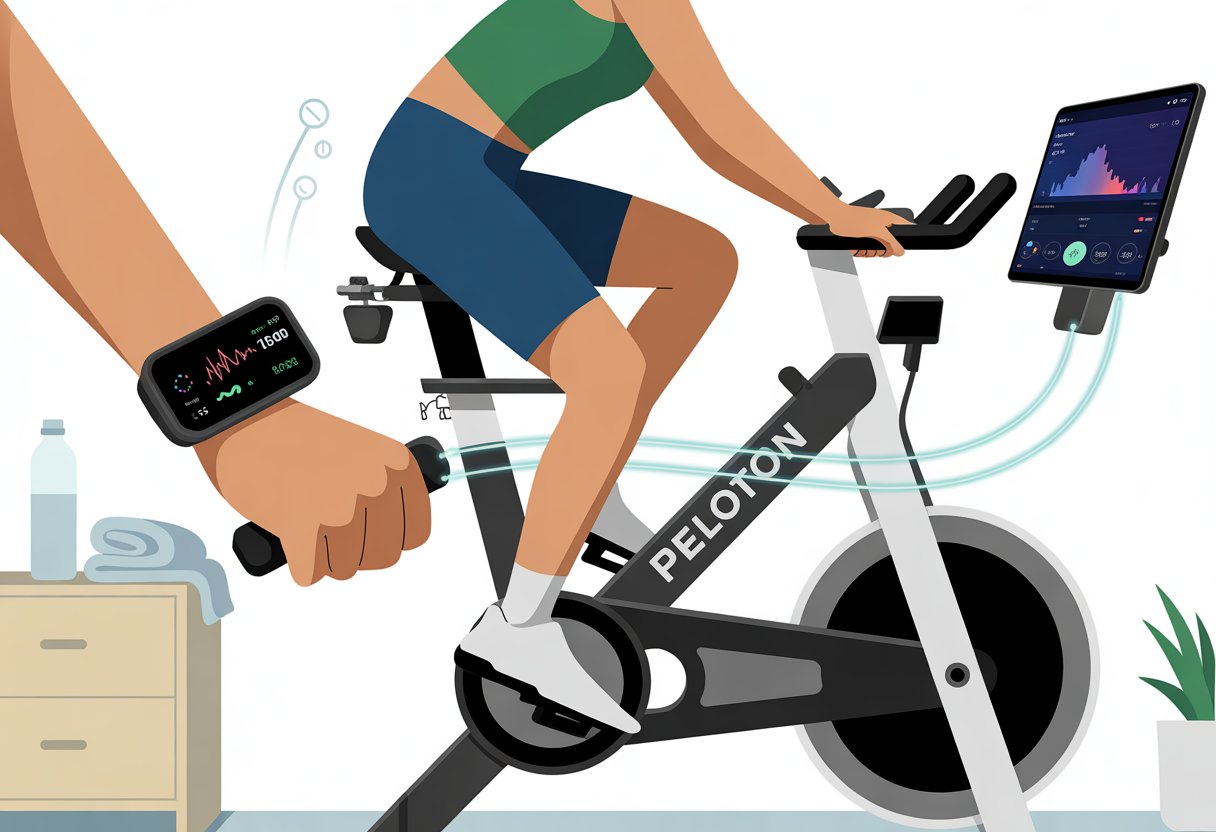
You don’t have to pick between living in the Peloton universe and getting those sweet steps and stats from your trusty fitness tracker. Your stats—heart rate, calories burned, workout summaries—can sync up, so bragging rights are always handy, whether on your phone or your wrist.
If you’re ready to step up your workout tracking game, let’s jump in and see how to get everything talking to each other.
Honestly, there’s no need to remember how hard you crushed that last mountain climb. Your devices have your back. With a few taps, you’ll see real-time stats, whether you’re on the bike, the tread, or just showing off your post-workout glow.
Choosing the Right Fitness Tracker for Peloton
If you want to get the most out of your Peloton sessions, picking a fitness tracker isn’t just about counting steps. It’s about syncing up, staying motivated, and not wasting cash.
Some trackers connect beautifully, while others might make you want to yell at your bike.
Compatibility with Peloton Bike
Not every fitness tracker gets along with the Peloton Bike. To save yourself a headache, focus on ones that work well.
Most Peloton bikes connect directly with Bluetooth or ANT+ heart rate monitors, so your tracker needs to support one of these.
Apple Watch and Garmin wearables are crowd favorites. Apple Watch users can pair via the Peloton app on the watch. Garmin users can use third-party services like SyncMyWorkouts to transfer metrics.
Peloton officially supports Fitbit, so you can automatically sync ride data to your Fitbit dashboard. The official Peloton guide shows you how to link accounts without losing your mind.
Comparing Wearables and Features
Different wearables offer different perks. Some focus on heart rate tracking, while others throw in sleep tracking, GPS, and notifications.
The main thing for Peloton fans is heart rate tracking. It helps you stay in the right zone during classes.
Apple Watch is great if you have an iPhone and want notifications mid-sweat. Garmin shines if you love detailed stats and already track outdoor runs or rides. Fitbit is easy for beginners and connects smoothly with Peloton.
Check this quick comparison:
| Tracker | Heart Rate | Sync with Peloton | Extra Perks |
|---|---|---|---|
| Apple Watch | Yes | Direct/App | Notifications |
| Garmin | Yes | 3rd Party/App | Fitness Metrics |
| Fitbit | Yes | Account Link | Basic Tracking |
Budget-Friendly Options
Not everyone wants to drop a ton of cash on a fitness tracker. Especially if your socks already have holes from too many rides.
Here’s the good news—cheaper options exist.
Basic Bluetooth or ANT+ heart rate chest straps are often much less expensive and connect just as easily to your Peloton Bike as fancy smartwatches. They deliver reliable heart rate data for a fraction of the cost.
Some budget wearables, like certain Xiaomi models or older Fitbits, track steps and calories well but might skip real-time heart rate sync. If you only care about the workout summary, this can still work.
Always double-check that the device supports Bluetooth or ANT+ before buying. Otherwise, you might end up with a useless wrist accessory.
How to Connect Your Fitness Tracker to Peloton
Getting your fitness tracker to work with Peloton might take a little patience. With the right steps, you’ll see your stats in no time.
There are a few ways to make wearables play nice with the bike or app, depending on your device.
Pairing Devices via Bluetooth Smart
Let’s start with Bluetooth Smart (aka Bluetooth Low Energy or BLE). This is the most common way to connect wearables and heart rate monitors.
Most new fitness trackers, including Peloton’s own heart rate monitor, support Bluetooth Smart.
Here’s what you do: turn on Bluetooth on both your tracker and the device running the Peloton app. Start a class, open the Bluetooth settings, and look for your tracker in the available devices.
Honestly, it’s easier than trying to untangle your headphones.
Before you start sweating, make sure your wearables are charged. If the device connects, you’re all set.
If not, try restarting both devices. Some wearables, like Apple Watch, might need you to give special permissions in the Health app for sharing heart rate data.
Using ANT+ and Other Connectivity Options
Not all trackers use Bluetooth. Some older or specialized devices use ANT+, another wireless tech for fitness sensors.
Peloton bikes include built-in ANT+ support, so your old chest strap from 2015 can still hop in. Just wear the strap, make sure it’s awake (a splash of water on the sensors helps), and Peloton should spot it once you start a workout.
Here’s a quick table for reference:
| Connectivity | Devices | Setup Needed |
|---|---|---|
| Bluetooth | New trackers | Bluetooth on, pair in app |
| ANT+ | Chest straps | Strap on, auto-detect |
Some trackers, like Garmin, need third-party services like SyncMyWorkouts to share Peloton workouts with their apps. It’s a bit of a workaround, but it gets your data where it belongs.
Troubleshooting Connectivity Issues
If things won’t connect, don’t panic—no need to throw your shoes. Usually, Bluetooth is already paired with something else, so check that no other device is hogging the connection.
If your tracker still won’t show up, try this:
- Restart both devices.
- Check the batteries—fresh is best.
- Forget and re-pair in Bluetooth settings.
- Move other wireless gadgets away—sometimes your Wi-Fi speaker is the culprit.
If ANT+ isn’t working, make sure the strap is snug and damp against your skin. Some straps just need new batteries after a bunch of workouts.
For stubborn issues, check the support pages. Peloton has solid Bluetooth connection instructions. And if all else fails, you can always pretend the stats don’t matter (but we all know they do).
Tracking Important Metrics During Peloton Workouts
When you’re sweating on your Peloton, it’s easy to forget what matters. Focusing on numbers like heart rate, cadence, resistance, and power helps you work smarter—not just harder.
Monitoring Heart Rate and Cadence
Heart rate acts like your body’s speedometer. When you wear a fitness tracker that syncs with Peloton, you’ll see live stats on the screen.
This shows if you’re cruising or sprinting, and helps you hit the right heart rate zone for your goals.
Peloton’s Strive Score measures time spent in each heart rate zone. If you want a metric that quietly judges your effort, this is it.
Your tracker keeps you honest and helps you skip the “I swear I was pedaling faster!” excuse.
Cadence is another key number. It tracks how fast you’re spinning the pedals, usually in revolutions per minute (RPM).
Most trackers and the Peloton itself show your cadence, so you can follow class cues and stay motivated. If you’re lagging, a quick glance can nudge your feet back to speed—no turbo-charged coffee needed.
Key metrics:
- Heart rate (bpm)
- Time in heart rate zones
- Cadence (RPM)
Measuring Resistance and Power
Resistance is how tough the ride feels. On Peloton bikes, you set resistance with a dial.
Resistance and cadence work together to determine your total output or power—in watts.
The power meter on the bike adds up your speed and force, so your wattage shows your real effort. Oversell your strength? The power numbers will tell the truth. Take it too easy? The numbers won’t let you hide.
Most fitness trackers don’t measure resistance directly, but Peloton’s screen shows you where to set it if you want to stick with the class. Power output is the best way to track progress—especially as you see those numbers climb over time.
Quick comparison:
| Metric | How We Track It | Why It Matters |
|---|---|---|
| Resistance | Peloton screen/dial | Controls workout difficulty |
| Power (watts) | Power meter (bike) | Shows total effort output |
Checking resistance and power means you’re not just spinning wheels—you’re actually getting stronger.
Using Fitness Trackers With Different Peloton Classes
We all want our fitness trackers to keep up—whether we’re dripping sweat on the Bike or wobbling in Tree Pose. Peloton supports a bunch of activities, but a few tracking quirks and tips can make your data look way better.
Let’s break down how to make your tracker and Peloton work together and get you the stats you actually want.
Indoor Cycling and Spinning
When we hop onto a Peloton Bike or Bike+, our fitness trackers catch us at our wildest. Many Bluetooth heart rate monitors (HRMs) pair right up with Peloton’s screen.
This puts our heart rate, calories, and effort on the big screen—perfect for bragging. Garmin, Apple Watch, and Polar HRMs usually work, but syncing them can feel like a different adventure every time.
Pairing a Garmin watch to Peloton? We do it over Bluetooth, not ANT+. If our friends think we’re tech wizards, well, we’ve just messed with these settings enough times.
Want our workouts to land automatically in app-land? Peloton lets us sync rides to some third-party platforms with tools like SyncMyWorkouts.
It’s handy if logging our sweaty victory is just as important as the workout itself.
Yoga, Strength, and On-Demand Classes
Yoga with a smartwatch sounds peaceful, but our fitness trackers don’t always agree. For non-cycling classes—like yoga, strength, or stretching—most trackers only record basic things like heart rate and active minutes.
We don’t get as many stats for these classes, but using a Bluetooth-enabled HRM or smart wearable still adds value. On the Peloton app, it’s pretty simple to pair a heart rate monitor before starting any session.
This way, we can see our heart rate live, whether we’re planking or meditating. For the record, our tracker won’t throw digital confetti if we finally nail Crow Pose.
But hey, every calorie still counts!
Tracking Metrics Across Multiple Class Types
If we juggle different class types in one day, our fitness data can look like a wild goose chase. Luckily, if we use apps like Fitbit, activities from Peloton sync over as logged exercises.
This includes class length, calories burned, and sometimes distance. Other brands, like Garmin and Apple, usually need a sync service or manual transfer to keep all our stats in one place.
Switching between cycling and floor workouts can scatter our stats across different apps, but connecting accounts helps bring everything together. Some trackers even let us tag each class type, so later, we can slice and dice our workout history like spreadsheet pros.
Happy tracking means happy sweating!
Maximizing Your Experience With the Peloton App
Our fitness trackers can do way more than just count steps. When we pair them with the Peloton app, we can sync data, unlock digital perks, and join programs that make working out a little less boring—maybe even fun.
Syncing Data to Fitness Apps
Nobody wants to type out numbers after a sweaty ride. Luckily, the Peloton app lets us sync our fitness trackers, so heart rate, calories, and workout stats show up where we want them.
If we’re using an Apple Watch, pairing is seamless—no cables, no wild button mashing, just wireless magic. For other trackers, connecting is usually pretty easy too, mostly over Bluetooth.
Here’s a pro tip: Make sure Bluetooth is on. During a class, just hit the button to connect your heart rate monitor in the Peloton app.
We’ll see our stats pop up in real time and get automatic transfers to most major fitness apps for easy tracking.
Quick Checklist:
- Confirm tracker compatibility
- Enable Bluetooth
- Open Peloton app and start class
- Pair device when prompted
- Enjoy live stats without math
Digital Subscription Benefits
If we think our fitness tracker brings us perks, wait until we check out a digital subscription. With Peloton’s digital membership, we unlock thousands of classes—live and on demand—covering cycling, running, yoga, and even that Pilates session we’ve been avoiding.
We don’t even need an actual Peloton bike to join—just the app and some willpower. Our data gets tracked, whether we’re using a treadmill, running outside, or sweating on our cousin’s stationary bike from the ’90s.
Stats from the tracker upload automatically, making it super easy to measure progress. It’s not just about numbers; every sweat session turns into a personal leaderboard.
Participating in Virtual Cycling Programs
Let’s be honest, cycling alone can get dull. Peloton’s virtual cycling programs bring group energy right into our homes—without the awkward gym small talk.
These programs offer structured routines, coach support, and a mix of challenges to keep us motivated. With a fitness tracker, we can join in on milestones, track heart rates, and compare performance with friends (or our very competitive spouses).
We see real-time results and can share them with other virtual cycling programs fans. The leaderboard updates instantly, giving us bragging rights—or nudging us to step up our next ride.
These programs use our stats to keep workouts fun and just competitive enough.
Integrating Third-Party Platforms With Peloton and Fitness Trackers
We all want our workouts in one place, but our gadgets love playing hard to get. Here’s how we can play matchmaker, helping Peloton become best friends with our favorite fitness platforms and trackers.
Getting Started With Zwift and TrainerRoad
Sometimes, we just need a change of scenery. That’s when syncing Peloton workouts with virtual cycling apps like Zwift and TrainerRoad comes in.
Peloton bikes and treads don’t connect directly with Zwift or TrainerRoad, but we can still ride together—with a bit of creativity. We can use Bluetooth sensors or power meter pedals to broadcast our stats to Zwift.
Attaching a Bluetooth cadence or speed sensor lets our avatar pedal through Watopia without leaving Peloton behind. TrainerRoad fans can set up dual recording with a compatible device (like a Garmin or Wahoo head unit) to capture both Peloton and TrainerRoad workouts at once.
This way, our data doesn’t get split apart like mismatched socks.
Tips for syncing:
- Use ANT+ USB dongles for PC connections
- Double-check your sensor batteries—dead sensors have ruined many group rides
- Try a sturdy tablet holder; nobody likes watching Zwift on a tiny screen
The Sufferfest and Garmin Integration
We love tracking every heartbeat, sweaty mile, and victory fist pump. Garmin and The Sufferfest help us do just that.
Peloton can’t talk directly to The Sufferfest, but if we bring Garmin into the mix, things get easier. We can record workouts on our Garmin watch while riding or running on Peloton.
Afterward, Garmin Connect automatically uploads our efforts to lots of other apps, making us feel like data wizards.
Post-Peloton, syncing is easy:
- Finish your workout on Peloton.
- Stop your Garmin watch and save the workout.
- Check Garmin Connect for our stats—then let those magical syncs send the activity to TrainingPeaks, Strava, or even The Sufferfest if we upload workouts manually.
Suddenly, our fitness life is organized, and our devices don’t seem quite so rebellious. For more details on syncing with Garmin, check out the Peloton and Garmin Connect guide.
Tips for Getting the Most Out of Wearable Technology
Wearable tech does more than just beep at us to move. If we connect our devices with Peloton, we can track workouts more accurately and watch the numbers that keep us coming back for more sweat.
Improving Workout Accuracy
If we’re going to wear these high-tech accessories on our wrists (or ankles—no judgment), let’s make sure they actually help us. We should start by syncing our wearables—like smartwatches—directly to Peloton’s system.
Newer Android watches running Wear OS now have their own Peloton app for real-time heart rate tracking during rides and workouts. We should wear our fitness trackers snug but not too tight, or we’ll end up tracking our complaints instead of heart rate.
Before any workout, double-check paired connections. Lost connection? No shame, it happens to the best of us.
Keeping those devices up to date is essential, too. Honestly, no one wants to burn 300 calories and only get credit for eight steps.
Our connected devices should talk to each other better than we talk to our in-laws at Thanksgiving.
Checklist for better results:
- Confirm Bluetooth is on
- Clean sensors regularly
- Update apps and firmware
- Secure fit—too loose = wild data
Staying Motivated With Fitness Metrics
Numbers can honestly be kind of dull (sorry, algebra fans), but the right fitness metrics? They actually help keep us motivated. Thanks to connected devices, we check our heart rate, calories burned, or even strain scores with just a glance.
Some trackers—like WHOOP—throw in bonus stats like recovery and HRV. That kind of data almost makes us feel like undercover agents analyzing top-secret mission files.
Watching those metrics pop up live on a Peloton screen? Way more fun than just guessing if our heart’s about to explode. We set goals for distance, time, or heart rate zones, and then, well, we end up competing with ourselves—or, let’s admit it, our workout buddies—pretty much every day.
Fun ways to stay excited:
- Compare today’s stats with last week
- Celebrate record days (we definitely deserve a trophy emoji)
- Join group challenges for some friendly competition
It’s tempting to ignore the data sometimes, but if the numbers tell us to rest, maybe it’s time to ditch the cycling shoes for fuzzy slippers—without any guilt.

From a young age, I have always had a big interest in technology, and this blog is an extension of that interest. Through this blog, I hope to provide others with all of the information they need regarding tech options to consider, and things such as compatibility. Some of the different items I will be discussing include headphones, smartwatches, and how to fix common issues.
- How to use a fitness tracker with Peloton Without Accidentally Joining the Tour de France - April 2, 2026
- Why are my Bluetooth headphones not charging? – Charging Woes and Mystery Buttons Explained - April 1, 2026
- How to use a fitness tracker with a stationary bike and Actually Impress Your Watch - April 1, 2026
Related Posts: