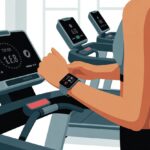
We’ve all been there—cranking up the treadmill, glancing at our fitness tracker, and wondering if our steps are actually being counted or if our tracker thinks we’re just standing still, daydreaming about pizza.
To get the most accurate results, we should let our arms swing naturally or use treadmill mode if our device has it. That way, our gadgets don’t confuse our epic workout with a stroll to the fridge.
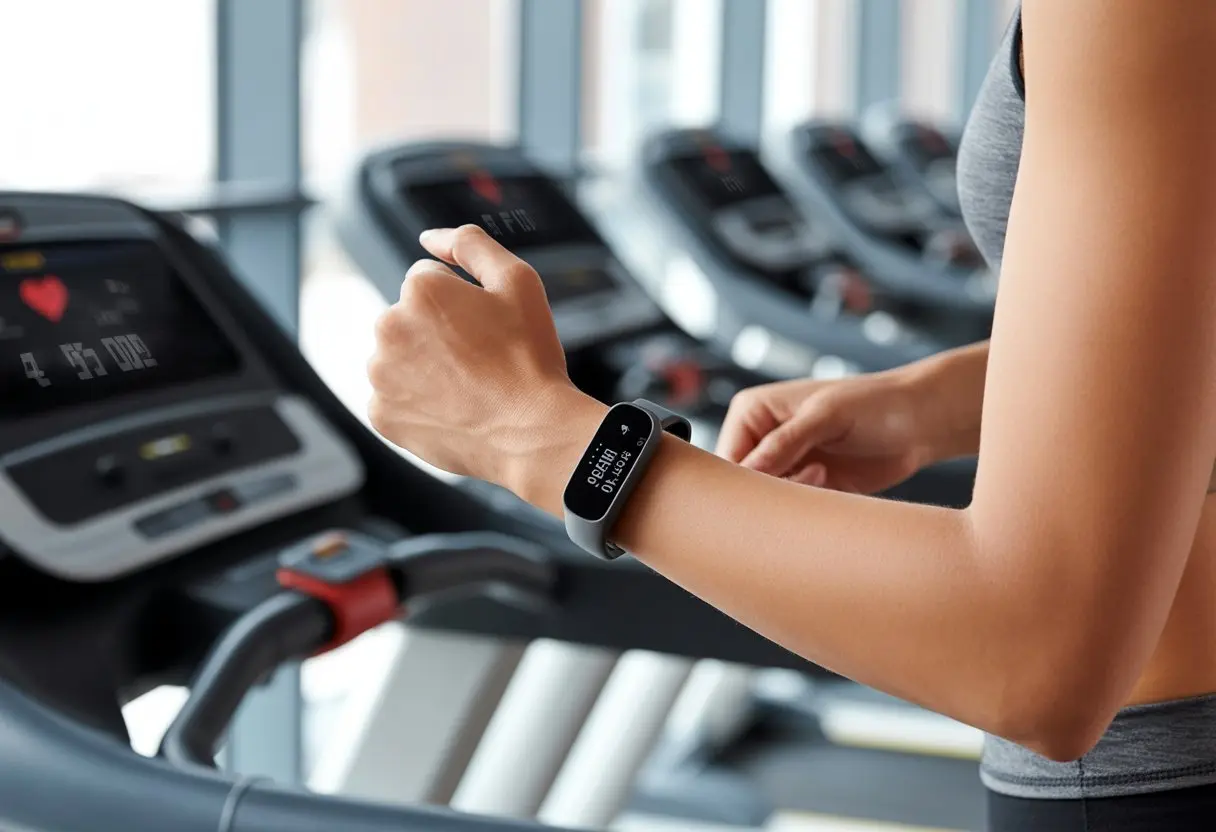
Staying on track with our fitness goals gets so much easier when our tracker and treadmill actually work together.
Seeing those steps rack up on our wrist while we conquer a workout? Honestly, it’s pretty satisfying.
If you’re after more tips—like how to track progress and avoid common mistakes—you’re in the right place.
Getting Your Fitness Tracker Ready
Before we hit the start button on that treadmill, let’s make sure our fitness tracker is actually ready to track something.
Nobody wants to finish a walk only to find out their tech friend took a nap instead of counting steps.
A little prep now can save us a ton of frustration later.
Charging and Initial Setup
Let’s be honest: A fitness tracker with no battery is just a fancy bracelet.
We should charge it up until it’s full.
Most trackers have a USB or magnetic charger, and a little lightning bolt icon usually pops up to show it’s charging.
Once we’ve got some juice, we’ll turn the tracker on and go through the first-time setup.
Usually, that means picking our language, connecting to our phone with Bluetooth, and maybe even telling the tracker our name and birthday. Sometimes it feels like we’re signing up for a dating app for fitness gadgets.
The more accurate our info, the better the tracker’s data.
We should also double-check that the date and time are set correctly.
Nothing’s sillier than running on May 36th at 25:80 PM.
Understanding Compatibility
Not every fitness tracker wants to be best friends with every treadmill or smartphone.
Some trackers only work well with certain apps or operating systems, and a few even have built-in treadmill modes.
We need to check that our tracker can actually record treadmill workouts, especially if we want reliable step counting.
If we’re using something like an Apple Watch, Fitbit, or Garmin, each brand has its own list of compatible devices and special features.
For example, some Fitbits track treadmill steps more accurately if we don’t hold onto the treadmill handlebars.
You’ll find plenty of helpful advice from other users sharing their treadmill tracking experience online.
Checking our fitness tracker maker’s website or FAQ page can also clue us in on what works and what doesn’t.
Installing Necessary Apps
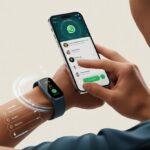
Our tracker isn’t psychic—it needs an app to keep track of all our treadmill performances.
We should grab the right app from the App Store or Google Play Store.
Fitbits use the Fitbit app, Apple Watches hang out with Apple Health, and so on.
Download and install the app, then sign in or create an account.
Most apps give us a quick walkthrough to connect our tracker via Bluetooth.
Some even let us set up a treadmill mode, so our tracker actually pays attention to all that running (or, let’s be honest, brisk walking) we’re about to do.
On some trackers, we might need to select ‘Treadmill’ as the activity before starting.
Getting these steps out of the way means everything’s ready before we step onto the treadmill.
Having the right apps installed means our stats should get tracked correctly every time we work out.
If we get lost in the menus, manufacturer guides online usually offer step-by-step help—sometimes with lots of friendly pictures for those of us who really don’t like reading directions.
Connecting Your Fitness Tracker to a Treadmill
Pairing a fitness tracker with a treadmill feels a bit like introducing two distant cousins at a family reunion.
Sometimes it’s awkward, but with the right steps, they’ll get along just fine and share information like old friends.
Pairing via Bluetooth
Let’s get our gadgets talking.
Most treadmills and fitness trackers use Bluetooth to connect.
We start by making sure Bluetooth is turned on for both devices.
Think of it like turning on the lights before searching for snacks in the kitchen—totally necessary.
On the treadmill, there’s usually a menu labeled “Bluetooth” or “Device Settings.”
We pick “Pair New Device.”
On our fitness tracker, we open the Bluetooth menu and look for available devices.
Our treadmill should pop up—unless it’s feeling shy.
If it appears, we select it and wait for a confirmation message (or sometimes just a boring checkmark).
For trackers that use apps, like Garmin or Fitbit, the app might ask us to confirm the connection or enter a PIN.
Once connected, we can track data like heart rate or distance right on our treadmill workout summary.
Technology wins!
Troubleshooting Connection Issues
If our tracker and treadmill refuse to talk, let’s not panic.
First, we should check if both devices actually support Bluetooth pairing.
Some older treadmills are more “retro” than “connected.”
Next, we restart both devices.
This classic move fixes way more problems than it should.
If that doesn’t work, checking for interference from other Bluetooth devices (like headphones or rogue smart fridges) is a good idea.
Still stuck?
We might need to update firmware or app versions on both our tracker and treadmill.
And if everything fails, turning off and on again, plus deleting then re-adding the device in the app, can work wonders—it’s basically digital group therapy.
If nothing works, we’ll check manufacturer help pages or, if we’re feeling brave, contact customer support.
Calibrating Your Treadmill and Fitness Tracker
Getting our treadmill and fitness tracker to agree on the distance we’ve actually run can feel like refereeing a sibling rivalry.
When we line things up properly, we get more accurate stats and fewer arguments with our fitness data.
Treadmill Calibration Step-By-Step
Let’s start by making sure our treadmill isn’t fibbing about how far we’ve run.
To do this, we check the distance reading against a real-world measure.
Stick a bright piece of tape on one side of the treadmill belt.
Count how many times it passes a certain spot in a minute.
This way, we don’t have to run and do math at the same time.
With the treadmill speed and roller diameter info (usually in the manual), we can figure out if the displayed distance and speed are close to reality.
Or, for a shortcut: Run a set distance (like 1 mile) at a steady pace and see what number shows up.
If there’s a big gap between what the treadmill says and what we know we ran, adjust the display settings if possible.
You’ll find more details in this helpful guide to calibrating treadmills.
Adjusting Tracker Settings
Now for the fitness tracker.
Honestly, it might act like a know-it-all, but it doesn’t always get treadmill data right, especially on our first indoor run.
Most trackers need us to regularly run at least 1.5 miles on the treadmill before the calibration option appears.
After a workout, we’ll probably see a “Calibrate & Save” option.
Tap that, then enter the distance the treadmill showed—not what the tracker guessed.
That way, we tie the tracker’s sense of distance to the treadmill’s reality.
Garmin watches let us calibrate treadmill distance manually after we run that minimum distance.
For even more accuracy, some folks add a foot pod, which is basically a tiny speedometer for our shoes.
This gives way better results because it tracks our step length and movement, not just arm swings.
No more blaming the tracker when our run feels too short or suspiciously heroic!
Tracking Heart Rate and Vital Stats
We all love to see our numbers go up—unless it’s our weight.
Tracking heart rate and other vital stats on the treadmill helps us exercise safely and see real improvement.
It’s not rocket science, but connecting our gadgets the right way and making sense of the flashy graphs can be a bit tricky—and, honestly, a little entertaining.
Enabling Continuous Heart Rate Monitoring
First, we need to get our fitness tracker and treadmill speaking the same language.
Many fitness trackers use Bluetooth or ANT+, so we have to make sure both devices are ready to connect.
Usually, that means turning on Bluetooth on our tracker, then pairing it through the treadmill’s settings menu.
Some treadmills make this easy, while others make us feel like we’re solving a puzzle at a spy agency.
If our tracker is stubborn, updating its firmware or using compatible chest straps or wrist sensors might help.
Once we connect the tracker, continuous heart rate monitoring kicks in.
Our tracker records our pulse without us needing to stop and press buttons (because exercise is already hard enough without playing tech support).
Real-time feedback shows if our heart rate is in the right zone, so we know if we’re in “Olympic athlete mode” or just “slowly being chased by a turtle.”
For more tips on connecting devices, treadmill guides like UREVO’s explain the pairing process at using a heart rate monitor with a treadmill.
Interpreting Heart Rate Data
Once we see a rainbow of heart rate graphs, the real challenge is knowing what it all means.
Most trackers show our average, peak, and minimum heart rates during sessions.
We should pay attention to the heart rate zones: warm-up, fat burn, cardio, and peak.
Each zone tells us how hard we’re working—or pretending to work.
If we want to burn fat, staying in the fat burn zone helps (and maybe lets us eat an extra cookie later).
If we’re always in the peak zone, we might be overdoing it and risk burning out (literally or figuratively).
Vital stats are only useful if we know how to use the data.
Learning our own heart rate range helps us set safe goals and train smarter, not just harder.
For more on the value of tracking these stats, check out the importance of heart rate monitoring during treadmill workouts.
Maximizing Workout Insights
When we use a fitness tracker with a treadmill, we can go beyond just counting steps.
By checking certain data and setting smart goals, we make the most of every sweaty minute.
Analyzing Your Exercise Results
So what do we actually do with those mysterious numbers? Let’s break it down.
Our fitness tracker usually shows things like steps, distance, speed, heart rate, and calories burned. It can look like a science experiment gone wrong, but honestly, it’s more useful than it seems.
Steps and distance tell us how far we’ve traveled. If our phone claims we hiked to the horizon, well, maybe it’s exaggerating a little.
Speed and pace help us see if we’re just strolling or actually pushing ourselves. Watching these numbers over time lets us spot improvements, which feels pretty satisfying.
Heart rate acts like a detective, showing how hard we’re working. By keeping an eye on it, we can avoid overdoing it—or, let’s be honest, slacking off. Our trackers often estimate calories burned based on heart rate, which is handy if we want to justify that extra slice of pizza (see what the experts say about heart rate and calorie counting at Fitbit Community).
We can use fitness apps, or even just a notebook, to compare our results each week. This helps us spot patterns and, maybe, brag a little when we hit new highs.
Setting Performance Goals
We all need something to chase—besides the treadmill belt when it suddenly speeds up. Setting clear, realistic goals keeps us motivated and focused.
We should start by asking ourselves what we want:
- Walk farther
- Run faster
- Exercise longer
- Hit a certain calorie count
Let’s keep things specific. For example, we might aim to increase our running distance by half a mile each week, or shave 30 seconds off our 1-mile pace.
Here’s how we can keep it organized:
| Goal Type | Example | Time Frame |
|---|---|---|
| Distance | Run 2 miles without stopping | 3 weeks |
| Speed | 1 mile in under 10 minutes | 4 weeks |
| Endurance | Walk 45 min, no breaks | 2 weeks |
We can track our progress using fitness apps or journals—both work well according to XTERRA Fitness. Setting milestones makes it more fun.
We can even reward ourselves (just maybe not with a whole cake).
Syncing and Using Health Apps
If we want our treadmill steps to actually count (instead of just impressing the cat), we have to make sure our fitness tracker and phone sync up. This means syncing workout data so we can see all our hard work in one spot.
Sometimes, we use extra apps for even better tracking.
Syncing Workout Data Across Devices
Let’s talk about syncing. Most fitness trackers connect to our phones—and the Health app—so our walks, runs, and dramatic treadmill sprints get logged automatically.
To do this, we usually open the device’s app, like Fitbit, Garmin, or Apple Watch’s Health, and turn on syncing in the settings. Sometimes, treadmill workouts don’t show up right away.
If we use an iPhone, we can go to the Health app, tap Steps, scroll down, and adjust the data sources by dragging our preferred tracker to the top. This makes sure the data from our wrist (or pocket) wins over the phone’s.
For those who enjoy juggling technology, adding new devices is as easy as tapping the battery icon and selecting “Add phone.” More details live on this discussion about syncing treadmills and health apps.
Choosing Third-Party Fitness Apps
Not all fitness trackers are created equal, and some of us like to spice things up with third-party apps. These apps can offer extra insights or more ways to share our progress with friends—who will absolutely roast us for our walking pace.
For example, iFIT and Strava both let us sync workout data from treadmill runs, so we don’t have to enter steps by hand. Nobody wants extra homework.
On iPhones, we can open the Fitness app, tap the Activity rings, and scroll down to link with apps like iFIT or Strava. We should always check if our favorite app supports our tracker.
The best part? All this syncing usually happens automatically once everything’s set up. Some apps have extra features, like goal tracking or those sneaky motivational badges we pretend not to care about, but secretly love.
Check out ways to connect iFIT with popular fitness apps and how to sync third-party workout apps to Apple Fitness for step-by-step help.
Maintaining Your Devices for Top Performance
If we want our workout gear to keep up with us, we have to give a little care back—no matter how much we’d rather be lounging. Clean trackers mean better tracking.
Regular treadmill service means fewer surprise squeaks (or complete breakdowns mid-sprint).
Cleaning and Caring for Your Fitness Tracker
Let’s be honest: our wrists get sweaty and sometimes downright gross. Wiping down our fitness tracker with a damp microfiber cloth after each workout stops dirt and oils from building up.
If our tracker’s water resistant, a quick rinse (not a swim!) helps too. We should avoid strong cleaners, since those can damage the sensor or strip the band’s color.
Disassemble the band if possible for a deeper clean. For silicone bands, mild soap and water work wonders.
For leather or woven bands, use a slightly damp cloth—no soaking. Charging ports deserve a gentle brush to keep dust out and our future stats accurate.
If our fitness tracker starts acting up, restarting it usually fixes weird glitches. If problems stick around, checking for software updates is a smart move.
We want our tracker logging laps, not taking a digital nap.
Scheduling Regular Service for Your Treadmill
Treadmills, like us, need checkups. Before every use, we should peek at the belt for proper alignment and catch any drifting or frayed edges.
A poorly aligned belt isn’t just noisy—it can be unsafe. Check out these treadmill maintenance tips.
Vacuuming under and around the treadmill each week keeps dust bunnies out of the motor. We should lubricate the belt as the manual suggests—usually every three to six months.
When the treadmill starts sounding more like a haunted house than fitness equipment, maybe it’s time to call in a pro. Logging service dates in our phone calendar helps us stay ahead of issues.
If we hear clunking, feel slippery spots, or notice error messages, we shouldn’t ignore them. Treadmill repairs rarely fix themselves unless we’re secretly wizards.
Troubleshooting Common Issues
Using a fitness tracker with our treadmill seems simple—until it decides to be dramatic. Most problems are easy to fix if we know where to look and what to press (without yelling at the screen).
Solving Syncing Problems
Sometimes our fitness tracker and treadmill act like two best friends having a silent argument—they just refuse to talk to each other. If our tracker isn’t syncing, let’s start by turning Bluetooth off and then on, like giving tech a quick nap.
We should check that both the tracker and treadmill app are up to date. Outdated software can make them forget how to speak the same language.
Restarting both devices is another classic fix. If only we could do that for ourselves on Monday mornings.
If we’re still stuck, unlinking and reconnecting our devices in the app usually works. Check that the tracker shows up on the phone’s Bluetooth list; if not, there’s a hidden break-up.
For persistent syncing issues, make sure nothing else is paired at the same time. Fitness trackers can get a little jealous.
Dealing with Inaccurate Metrics
When your tracker claims you took three steps during a whole hour on the treadmill, you might start questioning reality a bit. Most trackers count steps by noticing your arm swings.
But on a treadmill, a lot of us end up gripping the rails. Suddenly, the stats look embarrassingly lazy.
Try letting your hands swing naturally or wear the tracker on your dominant wrist. Some trackers actually include a treadmill mode—go ahead and turn that on so it knows what you’re up to.
If there’s no treadmill mode, just enter your distance manually after your workout. That’s usually enough.
A lot of devices need you to calibrate them so they learn your indoor stride. Walk a known distance, count your steps, and update your stride length in the app.
If the data still looks weird, folks on the Fitbit Community say that a reset often helps.
And honestly, if nothing else works, just remember—walking is winning, even if your tracker doesn’t seem to agree.

From a young age, I have always had a big interest in technology, and this blog is an extension of that interest. Through this blog, I hope to provide others with all of the information they need regarding tech options to consider, and things such as compatibility. Some of the different items I will be discussing include headphones, smartwatches, and how to fix common issues.
- How to Improve WHOOP Recovery Scores Without Giving Up Pizza or Netflix - April 7, 2026
- Why is my fitness tracker not unlocking my computer? Tech tantrums and wearable woes explained - April 7, 2026
- Best Fitness Trackers for Stress Relief: Because Your Anxiety Deserves a Step Counter Too - April 6, 2026
Related Posts: