Isn’t it just fantastic when our smartwatches—the ultimate badge of being tech-savvy—decide to stop acting smart? Error code 2003 pops up out of nowhere, and suddenly, we’re left staring at our wrists, maybe longing for those old wall clocks that just worked.
If you’re stuck with the mysterious error code 2003 that’s blocking your data plan or connection, try resetting your watch and double-checking your mobile data plan details first.
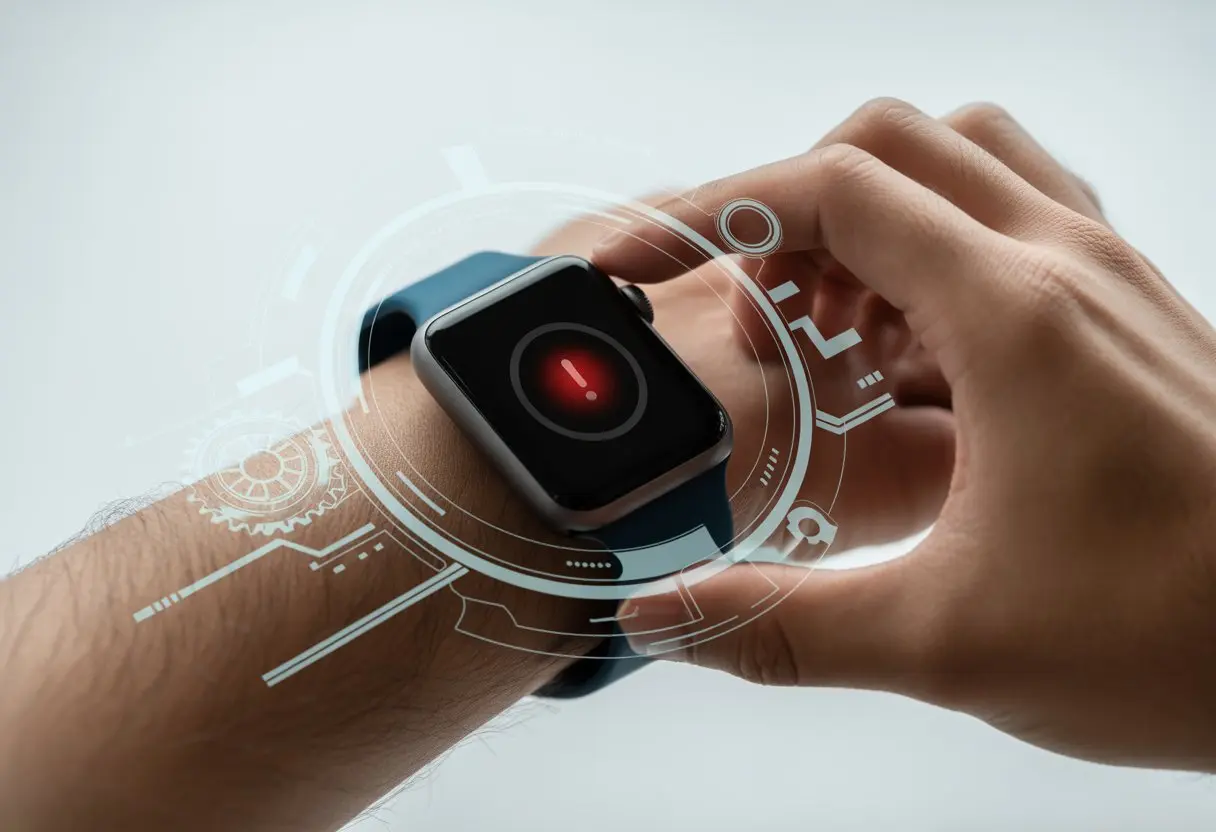
Honestly, wearable tech can be so stubborn sometimes. We’re diving into why this headache happens, what it actually means, and—most importantly—how you can get back to counting steps and ignoring calls.
If error code 2003 keeps showing up, it might be a known glitch with some providers. You might want to reach out to your carrier, as folks have discussed over at Samsung’s community forum.
Let’s try to outsmart this glitch together. Our smartwatches should work for us—not the other way around.
Get ready to snag your notifications back and go back to pretending you’re too busy to answer calls.
What Is Smartwatch Error Code 2003?
Smartwatch error code 2003 seems to have a sense of timing. It loves to show up right when we’re about to do something important—like pay for coffee or wow a friend with tomorrow’s weather.
Common Devices and Apps Affected
We mostly see error code 2003 on popular smartwatches, like the Apple Watch and Galaxy Watch. Android-based watches aren’t safe either.
The error often pops up when we’re pairing our watch with a phone, setting up a new data plan, or restoring the device.
Apps that need a steady connection—fitness trackers, messaging apps, anything syncing health data—can trip over this error. If your apps start crashing or freezing mid-workout, you might be face-to-face with error code 2003.
For anyone using their watch for reminders, work, or as a mini PDA, this gets old fast.
Typical Symptoms and Problems
The main thing you’ll notice is an annoying pop-up with “error code 2003” on your watch or phone. Sometimes it’s a one-off, but more often, devices get stuck on the setup screen or refuse to sync.
Other problems can pile up:
- Apps crash or won’t open
- The operating system freezes
- Bluetooth or Wi-Fi disconnects
- Health data won’t sync, so your step count becomes a mystery
Sometimes, the device keeps restarting or won’t finish an update. At that point, you might wish a troubleshooting fairy would appear.
Why This Error Happens
Error code 2003 usually shows up when your smartwatch and phone stop communicating properly. Sometimes, outdated software gets in the way, or the watch’s OS doesn’t get along with a new app.
Other suspects include:
- Conflicts with new apps
- Issues after restoring from backup
- Data sync glitches, especially during setup
Security software or old firmware can also block communication. And let’s not forget the random Wi-Fi or Bluetooth hiccups that love to ruin our mornings.
If you want more details, Robots.net’s guide has some solid troubleshooting tips for when you’re ready to throw your watch out the window.
Quick Fixes for Error Code 2003
Error code 2003 usually means your smartwatch hit a snag it can’t solve alone. Instead of tossing it across the room, try these practical steps to get it working again.
Restart Your Device
Let’s start with the classic fix: a good old restart. Sometimes, the watch just needs a quick nap.
Press and hold the power button until you see a restart or power off option. Let the device shut down, wait a few seconds, then turn it back on.
This refreshes the system and clears minor glitches.
If your watch ignores you and stays frozen, try a force restart. Hold down both the power and home buttons (if there are two) for about ten seconds.
It’s like hitting the reset button on an old game console.
A lot of random error codes, including 2003, might disappear after this. And hey, even if it doesn’t work, at least you look like you know what you’re doing.
Check Bluetooth and Connectivity
Bluetooth drama is a top suspect here. Error code 2003 loves to show up when your phone and watch stop talking.
Turn Bluetooth off on your smartphone, then turn it back on. You can also toggle Airplane Mode on and off to give things a fresh start.
If the watch still acts up, remove it from your phone’s Bluetooth device list and pair it again. It’s basically “unfriending” and “friending” your smartwatch.
Here’s a quick checklist:
- Turn Bluetooth off and on
- Toggle Airplane Mode
- Remove and re-pair the watch
- Make sure your phone’s Bluetooth is discoverable
If error code 2003 still refuses to leave, this guide has more Bluetooth fixes.
Verify App Permissions
Sometimes, smartwatch apps act like divas. If you don’t give them the right permissions, they just won’t work—cue error code 2003.
Head into your smartphone settings. Find the app that manages your watch, then check the permissions section.
Make sure the app can access Bluetooth, location, and anything else it needs (within reason, of course).
After a software update, permissions can reset. If something’s turned off, flip it back on and see if that solves the problem.
It’s usually easier than arguing with your watch before coffee.
Clear App Cache and Data
If error code 2003 still won’t budge, clear the app’s cache and data. Sometimes, old temporary files just get in the way.
Go to your phone’s settings, then Apps. Find the smartwatch app, and tap “Clear Cache.” If you don’t mind logging in again, tap “Clear Data” too—but back up anything important first.
This clears out the digital junk that can cause problems.
Afterward, restart the app and your watch. With any luck, error code 2003 will be gone, taking all that leftover clutter with it.
You can check out more on why clearing the cache helps over at Hello Smart Life.
Advanced Troubleshooting Methods
When error code 2003 ruins your peaceful smartwatch walk, it’s time to roll up your sleeves and try some advanced fixes. Let’s see if we can outsmart those stubborn software gremlins.
Update Firmware and Software
Sometimes, your smartwatch just wants the latest update and throws a fit if it doesn’t get it. Before you blame the universe, check for firmware or software updates.
Most watches make this easy: open the companion app on your phone, look for “Software Update” or “Check for Updates,” and tap away. Wait for the magic.
If that doesn’t work, try updating firmware from the device settings.
A fresh update can squash software bugs and, with luck, get rid of error code 2003. For more detailed steps, dig around in your brand’s official app or check out this smartwatch troubleshooting guide.
Reset Network Settings
Sometimes, your smartwatch acts like it’s never met your phone before. If it keeps dropping connections or refuses to sync, resetting network settings might help.
Go to the “Network” or “Connections” menu in settings. Select “Reset network settings.”
This forgets all Bluetooth and Wi-Fi connections and clears out any pairing confusion.
After resetting, pair your smartwatch with your phone again. Your data (like steps and reminders) usually stays put.
This trick is great for getting rid of error code 2003 when network issues are the cause.
Factory Reset Procedures
If nothing else works, it’s time for the nuclear option—factory reset. This reverts your smartwatch to its “just bought” state.
Here’s how:
- Open Settings
- Scroll to System or General Management
- Choose “Factory Reset” or “Reset Watch”
- Confirm (and cross your fingers)
A factory reset erases everything, so back up anything important first. Your apps, settings, and step count will all disappear, but this usually wipes out deep-seated glitches—including error code 2003.
If you need more step-by-step help, check out this troubleshooting article.
How to Prevent Error Code 2003 in the Future
Nobody wants a smartwatch meltdown, especially one flashing weird error codes. With a bit of care, you can keep your smartwatch from turning into a tiny, wrist-mounted drama queen.
Here are some practical steps to help you dodge error code 2003 and keep things running smoothly.
Regular Software Maintenance
Let’s just admit it: updates are annoying, but skipping them is basically inviting problems. Those little reminders pop up for a reason—each update fixes bugs, boosts security, and sometimes tosses in cool new features. When we ignore them, we’re practically begging for errors like 2003 to crash our day.
Spend five minutes each week checking for updates. Not sure where to start? Open the settings menu and tap “Software Update.” Install any patches you see. Honestly, setting devices to auto-update at night is even better. You’ll barely notice, and things stay fresh.
Keep an eye on storage too. If your smartwatch is running out of space, delete old apps, unused watch faces, and clear out those ancient notifications. A cluttered device gets cranky and freezes up—nobody wants that.
Mindful App Installations
Adding new apps is fun, but treating your watch like a junk drawer? Not a great idea. Downloading random apps from sketchy places is like picking up a hitchhiker with a cardboard sign—risky. Stick with official app stores and always peek at reviews.
Running too many apps at once can confuse your watch. Suddenly, the battery drains, things get weird, and error 2003 pops up. Only keep apps you actually use. If your watch starts acting up, uninstall anything new and see if that helps.
Use your watch’s built-in tools to spot apps that hog battery or crash a lot. Some models list these under “Battery” or “App info.” If an app keeps causing trouble, just get rid of it.
Tips for Healthy Battery Life
A smartwatch with a weak battery can get moody. Lots of error codes—like 2003—show up when devices run low on juice or overheat. Always charge with the included cable or a certified charger. Cheap chargers usually bring more pain than savings.
Don’t crank your screen brightness to the max unless you really need it. Lower brightness helps the battery last and keeps things cool.
Switch on “Battery Saver” mode when you’re busy (or just forgetful). Only use Bluetooth when you need it, and shut down background apps if you’re not using them. This cuts battery drain and reduces weird errors, so your watch stays on your side.
For more battery and hardware help, check out this smartwatch troubleshooting guide.
Related Connectivity Issues and Solutions
Smartwatches sometimes go off the rails, and it isn’t always error code 2003 behind the chaos. Bluetooth, Wi-Fi, and eSIM can all stir up their own drama and turn a simple setup into a sitcom.
Bluetooth Pairing and Troubleshooting
Bluetooth is the magician of wireless tech—it vanishes when we need it most. We run into problems like our watch not showing up on the phone’s Bluetooth list, or it just flat-out refusing to pair no matter how many times we tap “retry.”
Keep your devices close together. Bluetooth isn’t built for long-distance. If one device is in airplane mode or has Bluetooth off, flip the switch and save yourself some grief. If they appear but won’t connect, try forgetting the device on your phone and re-pairing.
If that doesn’t work, restart both gadgets. Sometimes, other paired devices (like headphones) need to disconnect so the watch can pair up. For some watches, updates really do help, so check for firmware updates before giving up on Bluetooth.
Wi-Fi Connectivity Woes
Wi-Fi should make things easier, but sometimes your smartwatch just refuses to cooperate. You might see failed connections or the “Can’t Find Network” message blinking at you with attitude.
First, check if you typed the password right—autocorrect loves to sabotage us. If the password looks good, toggle Wi-Fi off and on. That trick often wakes things up. If nothing helps, reboot your router. Routers love a fresh start.
Troubleshooting tip: Smartwatches struggle with captive portals (like hotels) or fancy enterprise Wi-Fi. Stick to simple home networks for less hassle. If your device supports both 2.4GHz and 5GHz, try switching between them.
esim Glitches
eSIMs sound great, but sometimes they just add new headaches—especially setting up mobile data. You might see error codes like 2003, or the watch just refuses to activate its plan.
Double-check that your mobile carrier supports eSIMs for your watch. If things go sideways, delete and re-add the plan. Also, make sure your carrier account is in good standing and the SIM isn’t active somewhere else.
If syncing still fails, some carriers like EE have already called these eSIM issues a known problem. Sometimes, calling customer support is the only way out. Always keep your devices and apps updated—fixes sometimes sneak in when you least expect it.
Performance and Functionality Problems Caused by Error 2003
When error 2003 hits, your smartwatch can get weird in a hurry. Notifications might vanish, apps start acting haunted, and fitness stats either look too good to be true or just disappear.
Slow Performance Mysteries
We’ve all stared at our smartwatch, wondering if it’s just having a moment or if something’s seriously broken. Error 2003 turns your device sluggish—like it’s wading through molasses. Sometimes, touches respond late, and opening apps feels like waiting for toast.
- Frequent Symptoms:
- Slow screen changes
- Laggy swipe or tap responses
- Watch faces freezing mid-animation
If you depend on heart rate monitors or GPS, delays can mean missing a beat or arriving late. We expect our tech to be quick, but error 2003 tests our patience.
App and Notification Malfunctions
Apps love to misbehave when error 2003 shows up. Instead of tracking workouts, they might crash or just spin forever. Sometimes, notifications never appear—no messages, no reminders, nothing.
- Common Issues:
- Sudden app crashes
- Missing notifications
- Notification delays
If you rely on reminders, this error basically turns your smartwatch into a fancy bracelet. Reinstalling apps can help, but sometimes you just end up going in circles. You’ll find more fixes in this troubleshooting guide.
Fitness and Sleep Tracking Disruptions
Chasing perfect fitness stats? Error 2003 can turn that into a mess. The watch gets confused about steps, heart rate, even sleep. Sometimes it claims you ran a marathon while sitting on the couch—tempting, but not very useful.
- Tracking Problems:
- Steps counted while you’re still
- GPS and heart rate glitches
- Sleep tracking records naps you never took
Charts and graphs start looking like modern art. If you care about your health data, this error makes it tough to trust any number on the screen. Want to dig deeper into fixing pairing and tracking problems? Check out this smartwatch troubleshooting walkthrough.
Smartwatch Compatibility Considerations
Ever tried to force a square peg into a round hole? That’s the vibe when your smartwatch and phone just won’t get along. Making sure your devices play nice saves time, stress, and a lot of frustration.
Operating System Requirements
Smartwatches want to sync up with your phone. Most big brands—Samsung, Apple, Wear OS—need specific operating system versions. For example, the Samsung Galaxy Watch wants Android 6.0 or newer, or iOS 9 and up.
If your phone is ancient, you might hit a wall. Here’s a quick cheat sheet:
| Smartwatch Type | Minimum Android Version | Minimum iOS Version |
|---|---|---|
| Apple Watch | N/A | iOS 16 |
| Galaxy Watch | Android 6.0 | iOS 9 * |
| Wear OS devices | Android 8.0 | iOS 13 |
Note: Some Galaxy features on iOS are limited, so keep your expectations realistic.
Running an outdated operating system makes error codes like 2003 way more likely. Sometimes, just updating your phone’s software can make those pesky codes disappear—almost like magic.
iphone and Other Device Integration
If you’re using an iPhone—or even just have one lying around—things get a bit more interesting. Some smartwatches, like the Apple Watch, stick to their own ecosystem and won’t even bother working with Android phones.
Others, like the Samsung Galaxy Watch, say they’ll play nice but actually keep a few features hidden when you pair them with an iPhone.
For example, if you use a Galaxy Watch with your iPhone, you usually can’t use Samsung Pay or reply to texts directly. That’s a letdown if you’re hoping for the full experience.
Third-party smartwatches might still give you basic notifications, but you’ll probably notice some limits compared to pairing them with their favorite operating system.
It’s honestly a good idea to check out a list of compatible devices or maybe even review support forums before buying. Nobody likes surprises—unless it’s pizza, right?

From a young age, I have always had a big interest in technology, and this blog is an extension of that interest. Through this blog, I hope to provide others with all of the information they need regarding tech options to consider, and things such as compatibility. Some of the different items I will be discussing include headphones, smartwatches, and how to fix common issues.
- How to use a fitness tracker for sedentary alerts: Because Your Couch Won’t Miss You Anyway - September 14, 2026
- Why do my Bluetooth headphones not work with my projector? Solving Tech Mysteries for the Audio-Challenged - September 13, 2026
- Best Smartwatches for Medication Reminders: Never Forget Your Pills (or Your Sanity) Again - September 13, 2026
Related Posts: