Let’s be honest: nobody wants their fitness tracker to just count steps and nag them for sitting too long. Here’s some good news—if we set things up the right way, we can get WhatsApp messages right on our wrists. That means we won’t miss those “Where are you?” texts during gym sessions or, let’s be real, while we’re just lounging on the couch. Life’s too short to check our phones every five minutes.
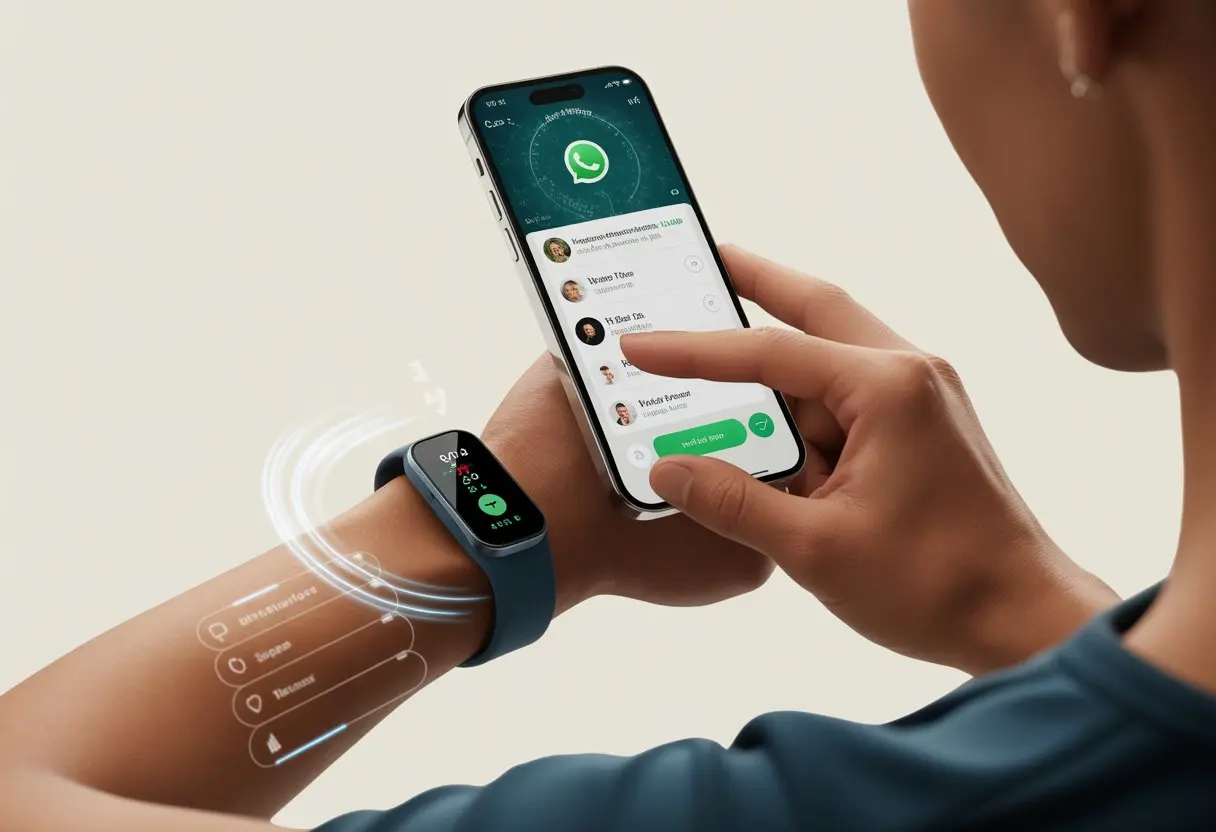
This isn’t just for the tech-obsessed. With a few taps in the settings, we can link most popular fitness trackers with WhatsApp, so notifications and messages land right where we’ll actually see them.
Our wrists are already busy counting steps—why not let them keep up with group chats too?
Ever wanted to read memes or family messages while pretending to tie your shoe during a jog? You’re definitely in the right place.
Let’s see how our fitness trackers and WhatsApp can team up to save us from missing those all-important messages, one wrist buzz at a time.
Getting Started With Your Fitness Tracker and WhatsApp
We all want our fitness tracker to do more than count steps. Getting WhatsApp alerts on our wrist might sound a bit sci-fi—minus the robots, plus more memes.
But honestly, it’s not that hard. With a few steps, we can tie WhatsApp and our fitness tracker together like a friendship bracelet that actually does something.
Setting Up WhatsApp Notifications on Your Fitness Tracker
First, let’s actually get those WhatsApp messages to show up on our fitness tracker.
Most trackers—Fitbit, Apple Watch, Samsung Galaxy Watch—use Bluetooth to mirror notifications from our phone. To make this work, we need to give the tracker access to notifications.
Here’s what we usually do:
- Open the fitness tracker’s app (Fitbit app, Wear OS, etc.).
- Find the Notifications or App Notifications setting.
- Toggle on WhatsApp from the list, so it can send messages to our wrist.
If we skip these steps, our tracker won’t say a word when someone texts us about dinner plans or drops another meme.
It’s smart to check that our phone’s “Do Not Disturb” mode isn’t blocking alerts. WhatsApp notifications only travel as far as Bluetooth reaches, so if we wander too far from our phone, we’ll miss out.
Pairing Tracker With Android or iOS Devices
Pairing is just a fancy way of saying “making friends.” Our fitness tracker needs to connect with our Android or iOS device, or else those WhatsApp messages won’t show up.
This usually happens during the first setup, but sometimes we have to repair things if they get weird.
The usual steps go like this:
- Turn on Bluetooth on the phone.
- Open the tracker’s companion app (Fitbit, Wear OS, Apple Watch, etc.).
- Follow the steps to search for and select our tracker.
- Agree to the permission screens—especially for notifications. Yes, we do want WhatsApp alerts, not just weather updates.
Android phones usually make this easy, but iOS can throw extra permission requests at us. If our tracker gets stubborn, restarting both devices often fixes things. Honestly, it feels good, like rebooting the Wi-Fi.
Using the Fitbit App for WhatsApp Alerts
If you’ve got a Fitbit, the Fitbit app is your command center.
Here’s how we set up WhatsApp notifications:
- Open the Fitbit app on our phone.
- Tap the profile icon, then tap our device image (maybe it’s a Fitbit Charge or Versa).
- Tap Notifications.
- Tap App Notifications and select WhatsApp.
Fitbit lets us pick which apps can buzz our wrist. On Android, we even get quick replies from the wrist.
iOS users still get alerts, but replying happens on the phone. Either way, we won’t miss group chat updates—even if we’re running from the snack table to the treadmill.
Using Notifications for WhatsApp Like a Pro
Who knew our wrists could be this chatty? With the right fitness tracker or smartwatch, we can keep up with WhatsApp messages, avoid missing group plans, and even respond without chasing down our phones.
Let’s see how to make WhatsApp notifications on our wearables work for us.
Managing Group Chats and Direct Messages
Nothing says “busy” like a flood of WhatsApp group messages during work hours. Thankfully, fitness trackers like a Fitbit or smartwatches like the Apple Watch let us handle both group chats and direct messages right from our wrist.
We see message previews, sender names, and a list of notifications. Most devices show whether a message is from a one-on-one chat or a family group.
On some smartwatches, we can even mute specific group chats, so we don’t get notified every time someone sends a “Good morning!” sticker.
Here’s a quick comparison:
| Feature | Basic Fitness Tracker | Smartwatch (Apple Watch, Wear OS) |
|---|---|---|
| Message Preview | ✔️ | ✔️ |
| Mute Specific Groups or Contacts | ❌ | ✔️ |
| Quick Reply | ❌ | ✔️ |
| See Sender Name | ✔️ | ✔️ |
Group chats don’t have to make us want to toss our tracker out the window.
Customizing WhatsApp Alerts on Smartwatches
It’s easy to miss a message or get bombarded by too many. That’s why we customize our WhatsApp notifications.
On a Fitbit, for example, we can go in the Fitbit app, tap our device, and pick which app notifications get through. That way, random apps don’t hog our wrist.
Apple Watch or Wear OS smartwatches have even more options. We can change vibration patterns, turn off notifications for some contacts, and choose which messages go to the watch.
Check out more details on setting up notifications on Fitbit or see tips for Wear OS in WhatsApp’s official FAQ.
Nobody needs their wrist buzzing every time their aunt sends another recipe.
Dismissing and Responding to Messages From Your Wrist
The best thing about WhatsApp notifications isn’t just seeing them pop up. We can also swipe to dismiss messages or send quick replies—all before dropping our dumbbells.
On smartwatches like the Apple Watch, we can respond using pre-written texts (“On my way!”) or even dictate a message by talking to our wrist like some kind of secret agent.
Some fitness trackers only let us dismiss messages, but at least our wrists look busy.
Here’s a short list of wrist moves:
- Swipe left or right: Dismiss notification.
- Tap to open: Read the message.
- Select quick reply: Send a canned message.
- Voice reply: Dictate a response (only on some smartwatches).
Replying to WhatsApp from our wrist doesn’t make us lazy. It just makes us efficient—or at least we can pretend it does.
Fitness Trackers With the Best WhatsApp Integration
Some fitness trackers and smartwatches just work better with WhatsApp. We want a solid connection, fast notifications, and controls that don’t make us want to give up.
Here are a few that actually get the job done, so we’re not left staring at our wrists, wondering what’s going on.
Top Choices: Apple Watch, Fitbit Charge 2, and vivoactive
The Apple Watch is basically the class president of WhatsApp notifications. Messages show up instantly, and we can reply quickly with preset answers or our voice.
Apple’s tight integration almost makes it feel like WhatsApp was made for the wrist.
The Fitbit Charge 2 is more like the reliable student who always shows up. We get vibration alerts for new WhatsApp messages, and we can read them right on the screen.
We can’t reply directly, but at least we always know when something important comes through.
Garmin vivoactive jumps in with strong notification support. It lets us read WhatsApp messages in full and keeps them accessible until we dismiss them.
This is great when we’re running or biking and don’t want to dig out our phones.
Features Comparison for WhatsApp Usability
Here’s how these trackers stack up for WhatsApp fans:
| Feature | Apple Watch | Fitbit Charge 2 | Garmin vivoactive |
|---|---|---|---|
| Receive Notifications | Yes | Yes | Yes |
| Read Full Messages | Yes | Partial | Yes |
| Reply to Messages | Yes (quick reply/voice) | No | Limited (preset replies) |
| Custom Notification Settings | Yes | Basic | Yes |
| App Integration | Direct from WhatsApp | Notifications only | Direct notifications |
Apple Watch is the clear winner for interaction, with both reading and replying options. Fitbit Charge 2 is simple but dependable, letting us see if the incoming ping is urgent or just another group meme.
Garmin vivoactive is great for activity lovers, showing full messages and offering some reply options, even mid-sweat.
Choosing the right fitness tracker depends on whether we care more about speedy replies or just knowing what’s buzzing on our wrist.
For more info, check guides like WhatsApp on Smartwatch (Apple Watch, Garmin, Fitbit, Samsung).
Maximizing Productivity and Fun With Your Activity Tracker
We can do way more than count steps or check our heart rate. Using our activity tracker with WhatsApp combines movement and messaging, turning daily tasks into a bit of a game.
Staying Active While Messaging
Let’s be real—we all like to chat. Sitting around sending WhatsApp messages isn’t doing our waistlines any favors.
But we can make texting less of a sedentary sport.
Many fitness trackers send WhatsApp notifications straight to our wrists. That means we can reply quickly without picking up the phone.
We can read a message, send a fast reply, and keep on moving. No need to miss a step—unless we want an excuse!
Try these ways to stay active during chats:
- Walk-and-Talk: Reply while pacing around or heading outside for a stroll.
- Squat Responders: Do a squat for every emoji we send.
- Hydration Check: Each new message is a reminder to drink water.
When we use a tracker like a Fitbit or Apple Watch, our hands stay free for walk breaks during long conversations. This keeps us energized and maybe even makes us smile—unless a group chat argument breaks out.
Incorporating WhatsApp Messages Into Workouts
Let’s kick boredom out of our workouts by mixing in a few WhatsApp messages.
There’s nothing like cycling hard and getting a message cheering us on—or making fun of our pace.
Here’s how we combine fitness and messaging:
- Use the tracker’s notification features to check messages during rest intervals.
- Send “mid-ride” updates or sweaty selfies to brag or invite friends to join.
- Challenge buddies to step contests and send taunts via WhatsApp for extra laughs.
On days when motivation’s low, seeing a friend’s goofy message pop up on our wrist mid-squat is surprisingly energizing.
Just don’t let chatting slow our cadence when cycling—we really don’t want any sudden tree-hugging incidents!
Health Tracking Features Meet WhatsApp
Our fitness trackers do more than just count steps. They help us keep an eye on our heart rate and sleep—even when we’re laughing at memes or ignoring another round of WhatsApp group chat drama.
Whether we’re marathon training or just making the long trek to the fridge, these features keep working in the background.
Tracking Heart Rate While Using WhatsApp
Ever notice your heart skip a beat after reading a wild text? Fitness trackers can catch that weird little jump.
While we’re scrolling through WhatsApp, the heart rate sensors keep recording. Later, we can check if chatting with that special someone actually made our heart race—or if it was just the third cup of coffee.
Most trackers show our current heart rate right on the screen. The companion app on our phone saves the data, so we can dig into it whenever we want.
If that family group message about an awkward reunion sends our pulse through the roof, we can see it. Someone tries to prank us with a surprise message? We’ll know exactly what it did to our heartbeat—and maybe send them a screenshot as proof.
Fitness trackers like Fitbit and Samsung Galaxy Watch don’t pause heart rate tracking when we open WhatsApp. We get real-time heart rate info, even if we’re just sending a string of emojis.
How Sleep Tracking Interacts With Notifications
Let’s be real: nothing ruins a dream about a beach vacation like a late-night WhatsApp ping. Many fitness trackers come with sleep tracking that tries to guess when we’re sleeping and tweaks notifications to match.
Some trackers mute WhatsApp messages or just buzz gently instead of blasting a loud beep. That way, our sleep isn’t totally wrecked by the one friend who always texts at midnight.
If our device allows, we can set Do Not Disturb hours. The tracker figures out when we’re asleep and blocks or silences notifications.
In the companion app, sleep graphs might even show little interruptions if we wake up to check a buzzing wrist. Sometimes it’s oddly satisfying to blame “important group discussions” for a bad night’s sleep—and have tracker stats to back it up.
If you want to dive deeper, the official Android article on fitness tracking has more info about sleep tracking and notifications.
Connecting Apps: Strava, WhatsApp, and More
Hooking up our fitness trackers with our favorite apps? It’s basically building a dream team for workouts and chats.
There’s actually a way to send our sweaty stats from trackers like Strava straight to friends and family on WhatsApp—no extra effort needed.
Sharing Workouts to WhatsApp
Let’s be honest—if we don’t tell someone about our workout, did it even happen? Most fitness trackers, including Strava, make sharing super easy.
All we need is the Strava app on our phone. After each workout, we’ll spot a share icon right on the activity feed.
A quick tap, and boom—we can send our ride, run, or suspiciously short walk straight to a WhatsApp chat.
If we’re feeling fancy, we can even set up automatic WhatsApp notifications for every new Strava activity using tools like Zapier.
Every time we sweat, our group chat gets to hear about it. Maybe they’ll cheer us on—or just complain about the notifications.
If we want to impress, we can send screenshots or Strava links to keep everyone in the loop. Who knows, maybe it’ll guilt them into joining us for a run next time.
Syncing Data Across Platforms
Honestly, keeping our data in sync sometimes feels like herding cats. Still, with a little tech magic, it’s totally doable.
Strava really shines here. It grabs data from the Fitbit app, Garmin, and other fitness tools.
Then it lets us share those glorious achievements to other apps—even WhatsApp, if that’s your thing.
When we connect everything, it’s smart to double-check that all our devices and apps use the same email address. That way our data doesn’t wander off into the digital wilderness.
Most fitness apps these days come with built-in integrations and third-party connections. That means our runs and rides pop up everywhere we want.
Here’s a tip: keep your apps updated and peek at permissions now and then. If our Fitbit app and Strava ever start bickering, a quick settings tweak usually gets things back on track.
If you want more details on linking third-party apps, Strava’s apps & integrations support section has some genuinely helpful info and troubleshooting tips.

From a young age, I have always had a big interest in technology, and this blog is an extension of that interest. Through this blog, I hope to provide others with all of the information they need regarding tech options to consider, and things such as compatibility. Some of the different items I will be discussing include headphones, smartwatches, and how to fix common issues.
- How to Get Text Messages on Fitbit Versa 2 Android: Simple Guide for Users - October 13, 2026
- Why Doesn’t My Fitbit Record My Sleep? Quick Troubleshooting Guide - October 13, 2026
- How to Change Face on Fitbit Versa 2: Quick and Easy Guide - October 12, 2026
Related Posts: