Let’s be real—the world would be a lot more fun if sharing playlists was as easy as passing fries across the table. Have you ever tried hooking up two pairs of Bluetooth headphones to a single device and felt like you needed to call tech support? Turns out, you actually can connect two Bluetooth headphones to one device for shared audio, but it really depends on your gadget and a few little tricks.
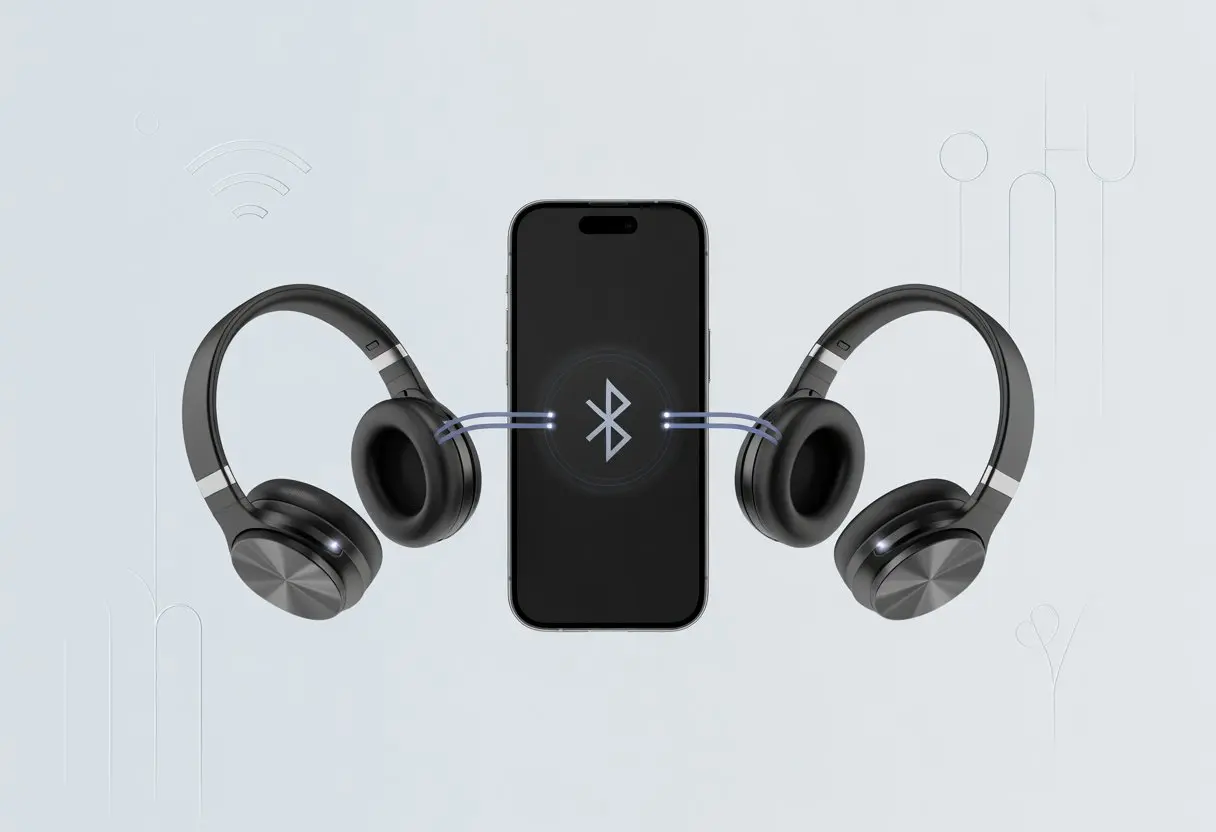
Maybe you’re watching a show on a tablet during a long flight. Or maybe you’re just trying to ignore snoring relatives together. This hack can make the whole thing twice as fun.
With the right settings—or a nifty extra gadget—you can both listen to music, movies, or podcasts at the same time. No more passing earbuds back and forth. The steps change depending on whether you have an Android or an iPhone, and sometimes your device needs to support things like Audio Sharing or Dual Audio.
Ready to quit fighting over who gets the left earbud? Here’s how we can both tune in, drop out, and not bother everyone nearby.
Can You Connect Two Bluetooth Headphones to One Device?
We’ve all been there: two people, one movie, and just one phone. Is it actually possible to double up on Bluetooth headphones for shared listening?
Let’s try to untangle the world of Bluetooth connections and multi-point features—without melting our brains.
Bluetooth Connection Limitations
Bluetooth really likes rules, and one of its favorites is limiting how many audio devices can connect at once.
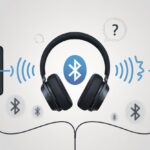
Most devices only let you connect to one Bluetooth headset at a time. Some newer phones and tablets—especially those with Bluetooth 5.0 or later—are a bit cooler and let you connect two headphones. This trick is called Dual Audio or Audio Sharing, and it works on certain Samsung and Apple devices.
If you want to see for yourself, check out Samsung’s Dual Audio and Apple’s Audio Sharing.
Here’s a quick cheat sheet:
| Device | Can Connect 2 Headphones? | Feature Name |
|---|---|---|
| Old Phone | Nope | N/A |
| Samsung Galaxy | Yes (on newer models) | Dual Audio |
| iPhone (recent) | Yes (on newer models) | Audio Sharing |
If nothing works, you can always grab a Bluetooth splitter. It’s another gadget to carry, but hey, it solves the problem.
Multi-Point Connection Explained
You might hear about “multi-point connection” and get your hopes up. But here’s the thing: multi-point lets a single headset connect to two devices, like your phone and your laptop—not two headphones to one phone.
So, if you’re dreaming of connecting two pairs of headphones to one phone for shared podcasts, multi-point isn’t the answer.
Multi-point is awesome if you want to switch between work calls and playlists, but it’s not going to help you throw a silent disco in your living room.
Bottom line: For two headphones on one device, you’ll need features like Dual Audio or Audio Sharing. If your device doesn’t support it, a Bluetooth splitter is your friend. Multi-point won’t get you there.
Methods for Connecting Two Bluetooth Headphones
Trying to listen with two pairs of Bluetooth headphones on one device isn’t as easy as ordering fries, but it’s definitely doable.
Depending on your device and what gadgets you have lying around, there are a few ways to get both sets of ears in on the fun.
Using Built-In Multi-Device Support
If you have a newer phone or tablet, the easiest way is to use built-in support for multiple Bluetooth headphones. Some Android devices, especially Samsung models, have a feature called Dual Audio.
This lets you pair two Bluetooth headphones at the same time, so you can share music or a movie without wires. You just head to Bluetooth settings, pair the first set of headphones, then pair the second. Once both show as connected, you should hear sound in both.
Not every device or Android version has this, so always double check.
Apple fans, don’t worry—you’re not left out. Some newer iPhones and iPads support Audio Sharing, which lets you stream to two pairs of AirPods or certain Beats models. You connect one set, then tap a menu to share with a friend. No more swapping sticky earbuds. If you want a step-by-step, check out this guide on connecting 2 sets of headphones to 1 phone.
Leveraging Manufacturer-Specific Apps
Some headphone brands, like Bose, step in with their own apps. The Bose Music app and similar ones from Sony or JBL sometimes let you manage multiple Bluetooth devices at once.
These apps let you tweak sound settings, control what’s playing, and sometimes link two headphones to the same audio source if the company supports it. Just open the app, connect your headphones, and look for features like Party Mode or Share Mode.
Not every model or app does this, but if you have compatible gear, it can save you the hassle of extra gadgets.
Manufacturer apps are worth poking around in—especially if you’re the type who likes to fiddle with every setting.
Employing Bluetooth Splitter Devices
If your phone or tablet doesn’t have built-in support, or your headphones don’t work with fancy apps, a Bluetooth splitter might be your best bet.
Think of these as digital peanut butter sticking two headphones together—wirelessly.
A Bluetooth splitter plugs into your device’s headphone jack (if you still have one) or connects via USB or USB-C. The splitter then connects to two sets of Bluetooth headphones at the same time, sending audio to both.
It’s a handy fix for older phones, TVs, or laptops that just won’t cooperate with modern features.
You’ll need to buy the splitter separately, and pairing everything takes a few extra minutes. The upside? Splitters work with almost any brand of headphones, so there’s less fighting over who gets to listen. Learn more about splitters in this guide to connecting multiple wireless headphones to the same iPhone.
Step-by-Step Guide for Popular Devices
Connecting two Bluetooth headphones at the same time isn’t as tricky as it sounds, but every device has its own quirks.
Just follow the right steps for your phone or computer, dodge a surprise or two, and you’ll be listening together in no time.
Connecting on Android Devices
Android users, we’ve got some good news. Many Samsung and newer Android phones have a Dual Audio feature that lets you connect two sets of Bluetooth headphones.
First, put both headphones in pairing mode and get them ready.
Next, go to Settings > Connections > Bluetooth and pair both headphones one by one. On Samsung devices, swipe down and tap Media Output in the Quick Panel. Choose your two headphones for playback together.
Your phone might show a little icon to let you know it’s working overtime.
Here’s a heads up: audio might not sync perfectly across both headphones. You might get a slight echo if you’re watching something or if your friend always laughs at punchlines before you. For music, though, it works pretty well.
If you want more help, check out Samsung’s dual audio setup guide.
Pairing with iOS Devices
On Apple devices, things are a little different, but you still have options. If your iPhone runs iOS 13 or later, you can use Audio Sharing to connect two pairs of AirPods or select Beats headphones.
Start by pairing the first set of Bluetooth headphones like you normally do. Once connected, open the Control Center, tap the AirPlay icon (that triangle with circles), and select Share Audio. Your friend just needs to bring their compatible headphones close, and after a pop-up, tap Share Audio again.
Now both headphones play the same tunes.
Not all Bluetooth headphones make the cut—only AirPods and certain Beats models get invited. You can adjust the volume for each set, so you can keep your music loud and pretend you’re being considerate.
Setup for Windows and macOS
Windows doesn’t make this easy. Most Windows computers only connect to one Bluetooth audio device at a time.
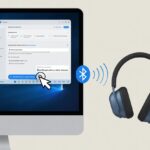
If you’re feeling adventurous, try a Bluetooth transmitter or adapter. Plug it into your headphone jack, and it’ll broadcast to more than one set. Sometimes, audio software like Voicemeeter can route sound, but honestly, it takes patience and maybe a bit of luck.
On macOS, you might have better luck. Go to Applications > Utilities > Audio MIDI Setup. Create a new Multi-Output Device, check both Bluetooth headphones, and then choose this new device for sound output.
Now your Mac sends audio to both headsets at once.
It’s not perfect—sometimes there’s lag, and sometimes the devices just refuse to cooperate. But when it does work, you get double audio without needing double the patience.
Managing Multiple Bluetooth Connections
Juggling more than one Bluetooth headphone at a time turns your device into a tiny air traffic control tower. Deciding which headphones to use or which ones auto-connect can make or break your listening experience.
Switching Between Connected Headphones
Think of Bluetooth connections like musical chairs, except everyone wants to sit at the same time. Most devices—especially newer ones—let you connect two pairs of headphones, but usually only play audio through one at a time.
On Android, “Dual Audio” lets you send audio to two headphones at once, but not every phone has this feature. For iPhone users, Apple calls it “Audio Sharing.” You connect the first pair, then bring the second pair close and follow the prompts. It’s almost like inviting someone to a private silent disco.
If your device doesn’t support dual connections, don’t stress. Try a Bluetooth splitter—it plugs into your phone or tablet and manages sending audio to multiple headphones at once. It’s not exactly magic, but it works for stubborn devices. For more info, check out this guide on using two sets of headphones with one phone.
Switching between headphones usually just means heading to your Bluetooth settings, picking which headphones you want, and sometimes turning one off so the other takes over. For those of us who like things simple, a quick toggle is all it takes—just try to remember which headphones you used last.
Automatically Connecting Your Preferred Devices
Bluetooth doesn’t have the memory of an elephant, but hey, it tries. Most phones, tablets, and computers remember our last used—or “favorite”—headphones and try to reconnect automatically when we turn them on.
This comes in handy if we want our favorite pair to always jump in without fiddling with buttons.
We can usually spot an option to prioritize certain headphones in the Bluetooth settings. Marking a device as preferred bumps it to the top.
So, when both headphones are nearby, our gadget will usually pick the preferred one or just the last connected.
Some Bluetooth headphones even support multipoint connectivity. Honestly, it feels a bit magical to connect headphones to both a phone and laptop at once.
Just keep in mind, multipoint sometimes only works for calls—not for listening to the same playlist across devices.
If automatic connecting gets weird, we can usually fix it by forgetting the connection and pairing again. That helps our phone remember its true headphone BFF, so we get back to smooth listening.
Troubleshooting Common Issues
Bluetooth headphones save the day—until they don’t. Sometimes, we just want to connect, but end up more frustrated than before.
Here are the main headaches (and fixes) we run into while connecting two headphones to one device.
When Only One Headphone Connects
Picture this: snacks ready, popcorn in hand, movie queued up—and only one headphone connects. Classic.
Most devices only handle one audio output at a time, unless there’s a feature like Dual Audio (Samsung) or Audio Sharing (Apple). If our device refuses to cooperate, try these:
- Check device settings: Look for a “Dual Audio” or similar toggle.
- Restart Bluetooth: Sometimes, devices just need a quick break.
- Forget & re-pair: Remove both headphones from the Bluetooth list and start fresh.
If nothing works, it might be time to consult product support or dig up that device manual we swore we’d never need.
Lag and Audio Sync Problems
When both headphones connect but the movie’s dialogue shows up late, we’ve got lag.
Bluetooth doesn’t always keep audio perfectly in sync, especially when juggling two devices. We might hear music just fine, but video lips move in mysterious ways.
Here’s how we deal with it:
- Check for “sync” issues: Some devices have settings or apps for tweaks.
- Wired backup: If lag’s unbearable, using one wired and one wireless headphone could help.
- Avoid mixing brands: Sometimes, two different brands just don’t get along—like cats and dogs, but with Bluetooth.
More tips (and headaches) are over here: Bluetooth troubleshooting steps.
Compatibility Concerns
Here’s the fun part nobody warns us about: Not all Bluetooth devices play nice together.
There are Bluetooth versions—from 4.0 to 5.3—each with its own quirks. Some headphones only support certain protocols, and our device might not match up.
Let’s double-check:
- Both headphones support multipoint or dual connections.
- Our device supports multiple outputs (otherwise, it picks a favorite).
- Update firmware on headphones and device. Sometimes, a free update is all it takes.
Still stuck? Using different audio output options or sticking with the same brand—Apple with Apple, Samsung with Samsung—makes life easier.
If nothing works, maybe just play the audio out loud and invite the neighbors to join the party.
Alternative Solutions for Multiple Listeners
Sometimes, connecting two Bluetooth headphones just doesn’t cut it for our music-loving crew. Luckily, we’ve got options—from blasting tunes on soundbars to using modern wearables for a more private experience.
Connecting Through Speakers and Soundbars
If we don’t mind sharing our questionable playlists, external speakers or soundbars are a classic move. Many soundbars connect via Bluetooth, so everyone in the room can hear without wrestling with wires.
Some smart speakers like Google Nest Audio or Amazon Echo offer multi-room audio. That way, music can follow us to the kitchen for snacks, whether we want it to or not.
We can also grab speaker accessories like Bluetooth audio transmitters. These gadgets let us output sound from one device to multiple speakers, making sure nobody misses a beat.
Utilizing Earbuds and Wearables
Maybe we’re not in the mood for a full-blown concert and just want to listen quietly with someone else. Some Bluetooth earbuds support multipoint, so they can switch between devices.
Usually, that means two devices to one pair—not two people on one device. But some phones support simultaneous audio to two Bluetooth headphones, which feels like tech magic.
Let’s not forget about wearables like smart glasses with built-in speakers. Two of us can wander around, looking like futuristic detectives, catching every note and never missing a call.
It’s not exactly subtle, but it’s definitely a conversation starter.
Exploring Home Cinema Options
For movie nights, home cinema systems are the real MVPs. Usually, they use a receiver connected to surround sound speakers, so we enjoy everything at full blast—no need to huddle around a tablet with two Bluetooth headphones like squirrels.
Modern home theatres sometimes come with wireless speaker kits and soundbars with surround-sound. We can put speakers around the room and connect them to the TV or streaming device, all without running cables everywhere.
Some home cinema setups include Bluetooth options, too, pairing with soundbars or external speakers for group listening. So whether we’re hosting a movie marathon or a family karaoke night, everyone’s in on the fun—well, except maybe the neighbors.
Finding Support and Further Resources
Sometimes, getting two Bluetooth headphones connected feels trickier than building flat-pack furniture without instructions.
When things go sideways, help is closer than we think, and it comes in more forms than just staring at a screen. Here’s where to look when we need a rescue.
Manufacturer Help and Local Support
If the pairing process just won’t make sense, it might be time to reach out to product support from your headphone or phone’s manufacturer. Most companies set up help pages, chatbots, or—believe it or not—actual humans who still pick up the phone!
Google’s knowledge base for Android devices shows you steps on multipoint headphones. They usually include some friendly diagrams, which honestly help when you’re feeling lost.
Local electronics stores and repair shops can be lifesavers too. Sometimes, a helpful employee will just make Bluetooth work right in front of you.
User forums are another goldmine. Odds are, someone else has already had that “why won’t it connect?!” meltdown.
There’s comfort—and usually some solid tips—waiting for you among fellow frustrated users.

From a young age, I have always had a big interest in technology, and this blog is an extension of that interest. Through this blog, I hope to provide others with all of the information they need regarding tech options to consider, and things such as compatibility. Some of the different items I will be discussing include headphones, smartwatches, and how to fix common issues.
- How to Get Text Messages on Fitbit Versa 2 Android: Simple Guide for Users - October 13, 2026
- Why Doesn’t My Fitbit Record My Sleep? Quick Troubleshooting Guide - October 13, 2026
- How to Change Face on Fitbit Versa 2: Quick and Easy Guide - October 12, 2026
Related Posts: