Is there anything more awkward than watching a video where the sound comes late and everyone’s mouths move before we hear a word? Bluetooth headphone audio lag (or latency) makes us feel like we’re stuck in a bad kung fu dub—fun only when it’s supposed to be. To fix Bluetooth headphone audio lag, we should check settings, update drivers, turn off audio enhancements, or even try a new pair if nothing else works.
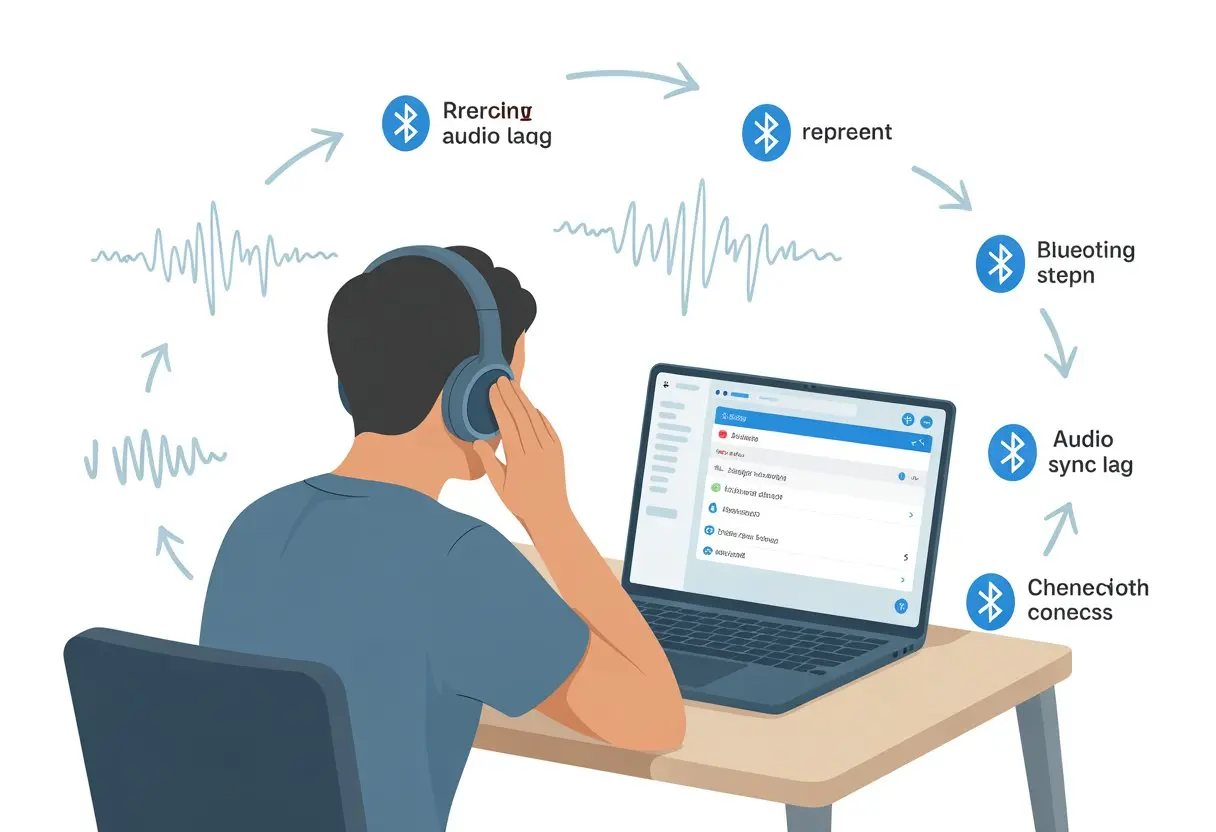
We’ve all been there: bobbing our heads to music that’s just a bit behind, or getting startled by sound effects that show up late. This lag is annoying, but there are a few quick things we can try—like resetting our headphones, tweaking Bluetooth settings, or using an external Bluetooth transceiver.
If nothing helps, well, maybe we’ll just embrace the lag and pretend we’re in a weird time warp. But let’s save that for desperate times.
Understanding why latency even happens is half the fight. It might be a bad connection, old software, or something sneaky like a dying battery.
We shouldn’t just put up with these delays. We can get our audio back in sync and stop feeling like we’re watching ventriloquists.
Understanding Bluetooth Headphone Audio Lag
Bluetooth headphone audio lag happens when the sound doesn’t match what’s happening on screen. This lag can ruin music, movies, and games, making us feel like we’re in a badly dubbed film.
Learning why lag happens and how it stacks up against wired headphones helps us figure out what to do.
What Causes Audio Lag in Bluetooth Headphones
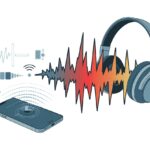
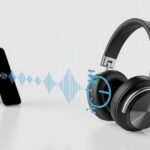
Bluetooth is awesome for skipping wires, but honestly, it’s not the fastest. The main reason for delay (latency) is the way Bluetooth headphones compress, send, and decompress audio.
Our device packs up the sound, sends it through Bluetooth, and the headphones have to turn it back into actual audio. This takes time.
If our headphones or device use an older Bluetooth version, it’s even slower.
Some Bluetooth codecs, like aptX Low Latency, speed things up. But if our headphones and device don’t use the same codec, they fall back to a slower one.
Too many wireless signals around us can also mess up the connection and make lag worse. You can dive deeper in this Reddit explanation.
How Latency Affects Audio Quality
Audio lag isn’t just a small annoyance. If our video and audio get out of sync, it looks like people are lip-syncing badly—think old martial arts movies, but with our favorite shows.
This delay can mess up rhythm games, video calls, and even just listening to music. We might tap our feet off-beat or answer someone after they’ve already stopped talking. Not ideal.
Some video apps try to hide the lag by delaying the video to match the audio. That’s like fixing a leaky faucet with a towel—sort of helps, but not really.
In the end, lag just makes everything less fun.
Bluetooth Latency vs. Wired Delay
Wired headphones always win when it comes to speed. Sound travels straight down the cable, so delay is tiny—most of us never notice it.
Bluetooth audio has to do a relay race: device to air, air to headphones, headphones to our ears.
Here’s a quick look:
| Type | Typical Latency | Chance of Noticeable Lag |
|---|---|---|
| Wired Headphones | 1-10 ms | Almost none |
| Bluetooth Headphones | 100-300 ms | High, especially for video |
With Bluetooth, we trade convenience for delay. Wired headphones are boring but reliable—like that friend who’s never late.
Bluetooth headphones look cool but sometimes run late. Sometimes, we just have to decide if the style is worth the wait.
For more tips on beating lag, check out this PCWorld guide.
Quick Fixes for Bluetooth Audio Delay
Bluetooth headphones sometimes make our audio feel like it’s running to catch up with the video. The good news? We can usually fix this lag with a few easy steps.
No magic required.
Restart Your Bluetooth Headphones
Bluetooth headphones need a break sometimes. When audio lag gets bad, we should turn our headphones off, wait about 10 seconds (just enough time for a sigh), and turn them back on.
A restart can clear out little glitches causing the delay. If our headphones have a reset or pairing button, pressing it can help too.
Let’s also check the battery—low battery can make lag worse.
Some models just need us to hold the power button until the lights blink. Restarting is simple, and it actually fixes things more often than we’d expect.
Reboot the Bluetooth Connection
Sometimes, the problem isn’t the headphones—it’s the connection. If lag keeps ruining our shows, let’s try turning Bluetooth off on our device (phone, PC, whatever).
Wait a few seconds, then turn it back on. It’s like giving Bluetooth a fresh start.
We can also remove the headphones from our device’s paired list and reconnect them. Here’s how:
- Go to the Bluetooth settings menu
- Find the headphones on the list
- Select “Forget” or “Remove”
- Put the headphones in pairing mode
- Pair them again
Rebooting the Bluetooth connection often helps reduce lag, and sound usually syncs up better.
Sometimes, a fresh start is all we need—kind of wish Mondays worked that way too.
Tweaking Settings to Reduce Lag
When Bluetooth headphones lag, we can actually do something about it instead of just yelling at our screen. By changing a few settings and picking the right audio output, we might get rid of that annoying delay.
Adjust Bluetooth Audio Device Options
Let’s poke around our computer’s settings a bit. First, we can right-click the volume icon on the taskbar and hit “Sounds.”
In the Playback tab, let’s find our Bluetooth headphones, right-click, and open “Properties.” Sometimes, there’s a “Custom” tab with extra options.
If we spot aptX Low Latency codec, let’s turn it on—seriously, it helps. This codec is made to cut down lag.
Not every device has it, but if ours does, it’s worth using. If there’s a battery saver mode on, we should turn it off, since it can slow down audio performance just to save a little power.
Don’t forget to update the Bluetooth driver—it’s a small thing, but it helps.
If things are still laggy, try resetting the headphones and pairing again. Sometimes, all we need is a quick reboot, just like us after coffee.
For more tricks, check out this latency fix guide.
Switch Audio Output
Sometimes, the fix is just picking the right audio output. In the Sound Settings menu, make sure our Bluetooth headphones are actually selected.
Computers and phones can get confused if lots of devices are connected. Sometimes, they play sound through speakers while our headphones wonder what’s going on.
Let’s pick our headphones from the list. If we see lots of outputs, disconnect the ones we don’t need.
This can clear up confusion and might help with lag.
If we use apps like VLC Media Player, there’s usually an audio sync setting somewhere. We can adjust this to line things up—perfect when cartoon mouths move out of sync.
For more, check out these steps for switching Bluetooth audio outputs.
And hey, don’t forget to double-check that we didn’t mute ourselves by accident. We’ve all done it.
Upgrade to Low-Latency Codecs
If we want less lag, picking the right Bluetooth codec is like picking the fastest checkout line at the store. Some codecs are just quicker, and they matter when we want our sound to match the action.
What Is aptX and aptX Adaptive?
Let’s be real—Bluetooth audio isn’t known for speed. Codecs like aptX and aptX Adaptive come to the rescue.
Standard Bluetooth usually uses SBC, which is slow and known for high latency.
aptX is a popular codec (thanks, Snapdragon) that cuts down the delay between what we see and hear. It can bring lag down to about 60-80 ms, which is way better than the usual 200 ms.
aptX Adaptive is even better. It can drop latency as low as 40 ms and adjusts automatically, so music and games stay smooth even if the connection gets weird.
If both our headphones and device support these codecs, games, videos, and lip-sync battles actually look and sound right.
Going with aptX Adaptive is like riding a scooter instead of rollerblading uphill in flip-flops.
Checking Codec Support on Your Device
All this speed magic works only if our headphones and audio source actually speak the same codec language. To check, grab your device and poke around in the Bluetooth settings.
Some phones even brag about the codec name right in the menu or developer options. On Windows, we can check codec info in the sound settings—just click the device and look under “Properties.”
Android users, flip on Developer Options and enable “show Bluetooth audio codec.” That’ll spill the beans. Apple folks… well, we usually just get AAC and a wish for more.
If both our gadget and headphones support aptX or aptX Adaptive, it’s time to pair up and enjoy less lag.
If not, maybe it’s time we invest in gear that does. Otherwise, we’re stuck with the molasses-paced SBC.
For tips on changing codec settings and lowering Bluetooth latency, a deeper dive might help.
Syncing Audio with Video
Trying to sync Bluetooth headphones with our favorite shows sometimes feels like clapping along with jazz—nothing lines up. But we don’t have to settle for watching lips move in one world while voices come from another.
With the right steps, we can bring video and audio back together.
Fixing Delay for YouTube and Streaming
We’ve all had that moment where a YouTube video looks like a badly dubbed kung-fu flick. First, try refreshing the video or closing and reopening the app.
If that doesn’t fix it, don’t panic. Some platforms have settings for this.
YouTube often lags behind the audio when using Bluetooth headphones. Some streaming apps let us adjust audio delay.
Dig into the app’s audio or playback settings and look for “lip sync” or “audio delay.” TVs and streaming boxes sometimes offer an audio delay slider too—give it a nudge and see what happens.
Clearing the cache (especially on Android) can help, since old data can mess with sync issues.
There’s even a quirky trick with the Bluetooth metronome in Sound Assistant on Android to adjust timing.
Honestly, a bit of patience and trial-and-error go a long way when audio and video refuse to get along.
Adjusting Playback Sync on Apps
Playback sync isn’t just for scientists—it’s for anyone tired of guessing what actors are saying. Major streaming apps sometimes hide a setting under “Playback” or “Audio” menus called “Audio Sync,” “Audio Delay,” or “Lip Sync.”
Use these sliders to bring audio and video back together.
On Windows PCs, right-click the sound icon and explore sound settings. Change device properties, or try third-party apps to tweak timing.
Phones make sound adjustment trickier, but tweaking Bluetooth settings or reconnecting the headphones can reset the sync.
Samsung TVs and devices, for example, offer an adjustable audio delay that gets lips and voices back in sync.
Quick Fix List:
- Pause and replay the video
- Move closer to your device to avoid Bluetooth signal loss
- Disconnect and reconnect the headphones
- Adjust audio delay settings in the app
Honestly, we deserve to watch a music video where the singer’s mouth actually matches the words.
When to Consider Wireless Headphone Alternatives
Sometimes, we just want our music to match our favorite cat videos—without lips moving out of sync. If Bluetooth lag keeps crashing the party, there are other options to try.
Choosing the Right Wireless Headphones
Let’s be real, not all wireless headphones are equal. Some make sound lag even worse, especially older models or those using basic Bluetooth codecs.
When shopping, look for features like “aptX Low Latency” or “FastStream” in the specs.
Here’s a quick table to help spot lag busters:
| Feature | Why It Matters |
|---|---|
| aptX Low Latency | Reduces lag below 40ms |
| Bluetooth 5.0+ | More stable, often less delay |
| Delay Reporting | Tells our device to sync audio |
If our headphones don’t mention these, maybe it’s time to upgrade. Some apps and devices have settings to fix lag, but sometimes the fix is just trying a new pair with updated tech—Avantree explains more.
Trying Wired Headphones for Zero Lag
When we need ultra-precise sound, wired headphones act like the superheroes of the audio world. They don’t bother with lag—just plug them in and sound comes through instantly.
Wired headphones are perfect for gaming, movies, or working with audio. There’s no worrying about charging or matching Bluetooth versions, and wired headphones and speakers wipe out lag completely.
Sure, they won’t let us do cartwheels across the room, but at least our sound lines up every time. For anyone who values timing over freedom, keeping a wired pair nearby is a solid backup.
Advanced Troubleshooting Steps
When nothing else helps, it’s time to get serious. Some audio lag issues need more effort—and a bit of courage—because now we’re meddling with firmware and getting hands-on.
Updating Device Firmware
Let’s be honest, updating firmware isn’t exactly fun. But sometimes, old software causes all our Bluetooth audio drama.
Manufacturers push out updates that fix bugs and speed things up, so skipping them is like holding onto last season’s socks.
Here’s what to do:
- Check the manufacturer’s website or app: Most brands post the latest firmware on their support page.
- Connect headphones to the official app (if there is one) to check for updates.
- Charge everything up: Make sure headphones and devices are above 50% battery. Nothing ruins an update like a dead headset halfway through.
- Read update instructions: Skipping directions can turn headphones into expensive earmuffs.
Sometimes these updates fix jumpy audio or lag completely. Other times, well, at least we tried.
Some folks also suggest turning off features like audio enhancements in sound settings—they can make delays worse.
Want more? Check out discussions like this one about bluetooth audio delay.
Resolving DJM-S9 Audio Lag
If our DJM-S9 mixer is haunted by audio lag, we’re in for a bit of a quest. This Pioneer beast sometimes gets Bluetooth lag with headphones, especially if Windows or Mac drivers are old.
Keep the driver fresh—that’s step one.
DJs are picky, and surprises are never good. Here’s how to keep lag away:
- Update the DJM-S9 firmware using Pioneer’s official tool.
- Swap out old USB cables—shady USBs are not our friends.
- Adjust device buffer settings: Lowering buffer size can cut delay, but don’t go too low or you’ll get static.
- Use wired headphones for zero-latency monitoring when beat matching is life or death.
Still stuck? Try connecting Bluetooth gear one by one, not all at once. It’s not magic, but it helps.
If you want more advice, check out audio forums like this one.
Conclusion
We actually made it through the Bluetooth audio jungle together. Nobody tripped over any wires—honestly, that’s a win.
If our headphones are still dragging their feet like they’re on some kind of coffee break, we should check for device updates. Or hey, maybe just try a simple reset. Sometimes, flipping the switch off and on really does the trick.
Upgrading to Bluetooth 5.0 headphones can speed things up, especially if you binge-watch or game on the go. Modern gear means less waiting around, which sounds pretty great.
Quick tips worth remembering:
- Go for the latest Bluetooth version if you can
- Keep your devices close—don’t let your phone wander off
- Use an external Bluetooth transmitter if things get stubborn
- Take breaks and maybe just laugh at the lag (beats getting frustrated)
Bluetooth audio lag is sneaky, sure, but these tricks usually outsmart it. And hey, worst case, at least we’ll have some wild troubleshooting stories for the next dinner party.

From a young age, I have always had a big interest in technology, and this blog is an extension of that interest. Through this blog, I hope to provide others with all of the information they need regarding tech options to consider, and things such as compatibility. Some of the different items I will be discussing include headphones, smartwatches, and how to fix common issues.
- How to use a fitness tracker for sedentary alerts: Because Your Couch Won’t Miss You Anyway - September 14, 2026
- Why do my Bluetooth headphones not work with my projector? Solving Tech Mysteries for the Audio-Challenged - September 13, 2026
- Best Smartwatches for Medication Reminders: Never Forget Your Pills (or Your Sanity) Again - September 13, 2026
Related Posts: