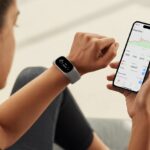
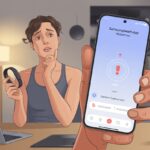
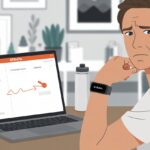
You know the feeling—you’re all set to crush a workout, but your fitness tracker just won’t pair with Polar Flow. It’s like your watch picked the worst moment to go on strike. Honestly, the only thing more confusing than Bluetooth issues might be remembering where you tossed your wireless earbuds.
Most pairing headaches come from simple stuff—Bluetooth acting up, outdated apps, or a forgotten login. Sometimes we just need to restart things or update the app, but we’re too busy chugging coffee and itching to get those steps counted. Tech usually just needs a little nudge (and maybe a sigh) to fall in line.
If your tracker’s still being stubborn, don’t sweat it—lots of us deal with these syncing woes. Let’s get into why this happens and what actually fixes it. Otherwise, that tracker is just a high-tech wristband. Time to get everything (and everyone) moving!
Common Reasons for Pairing Issues
When your tracker refuses to connect with Polar Flow, it’s usually something simple. No need to play detective, but we should check a few things before blaming the universe or tossing our devices out the window.
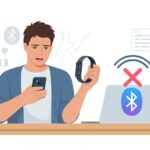
Bluetooth Connectivity Problems
Let’s be real—Bluetooth has a flair for drama. Sometimes, your tracker and phone just won’t spot each other. Make sure Bluetooth is actually on for both devices.
A quick toggle off and on can work wonders, kind of like a power nap for your tech.
Try restarting both the tracker and your phone. If they’re still not playing nice, unpair and repair—especially if your tracker’s been paired with other gadgets before.
Keep your distance from fridges and rogue wireless speakers; too many devices nearby can cause chaos.
Always pair through the Polar Flow app, not the phone’s regular Bluetooth menu. That keeps things simple and avoids weird mix-ups. For a step-by-step rescue, check out the official Polar advice.
Device Compatibility Checks
Not every device gets along, and tech isn’t exactly famous for opposites attracting. Before you waste an afternoon troubleshooting, check if your tracker supports Bluetooth Smart and if your phone or tablet is compatible.
Polar Flow works best with fairly recent iOS or Android devices. Some older or bargain-bin phones just don’t have the right Bluetooth chops.
If you haven’t updated in ages, it might be time for a firmware update. Double-check compatibility on the Polar site before you drive yourself nuts—nobody wants to spend hours troubleshooting just to learn their device is on the “nope” list.
App Version Incompatibility
Running an old Polar Flow app is like trying to play a Blu-ray in a VCR—no good will come of it. Keep the app updated.
Outdated apps just don’t talk to your tracker, no matter how nicely you ask.
Hit up the App Store or Google Play and tap “update” if you see it. Also, make sure your tracker’s firmware is up to date.
If you’re on iPhone, make sure you’re signed into the right Polar Flow account. Using the wrong email—or forgetting to log in—can easily trip you up.
Check your login details and update the app to the latest version if you’re not sure.
Device Settings That Affect Pairing
Sometimes tech just feels stubborn, especially when your tracker won’t play nice with Polar Flow. The problem could be a small setting you forgot or a step you missed.
Enabling Bluetooth on Your Device
We’ve all done it—tapping away in frustration, forgetting to check if Bluetooth is even on. Our phones and tablets need Bluetooth like we need coffee.
Don’t overlook airplane mode. If that’s on, Bluetooth goes right to sleep.
Here’s a quick checklist:
Make sure Bluetooth shows as “On” in your device settings
Double-check that airplane mode/flight mode is “Off”
Remove any old or duplicate Polar devices from the paired list
If nothing works, try the classic: turn Bluetooth off and back on, or restart both devices. Sometimes that’s all it takes. For more details, read this troubleshooting guide from Polar.
Polar Account Login Issues
Even if Bluetooth is awake, you need to be logged into your Polar account on the Polar Flow app. Otherwise, your tracker just gives you the silent treatment.
If you’ve entered the wrong password or forgot to sign in, the app won’t connect to your tracker, no matter what.
Watch out for these:
You’re not logged into your Polar Flow account
The app says your login session expired
You switched accounts and forgot to sync your tracker
If you’re feeling forgetful, try reinstalling the app and logging in again. Logging out and back in fixes a lot—if only it worked on our brains too. For more on account issues, check this helpful Polar article.
Troubleshooting Steps for Polar Flow Connection
Getting your tracker to behave can feel like convincing a toddler to eat broccoli. The most common fixes? Restarting your devices or resetting Bluetooth. Let’s get into it.
Restarting the Fitness Tracker and Phone
Sometimes, your gadgets just need a break. If your tracker won’t connect with Polar Flow, start by powering them off and on.
Here’s what to do:
Turn off the fitness tracker using its power button or menu.
Restart your phone to clear out any gremlins.
When both are back on, check the battery—nobody wants a lazy workout buddy.
Open the Polar Flow app and try pairing again. Still not working? Don’t freak out—we’ve got more tricks.
Resetting Bluetooth Connections
Bluetooth can be moody. If your tracker and Polar Flow app still won’t connect, reset the connections.
Start by turning Bluetooth off and back on in your phone’s settings.
If that doesn’t work:
Unpair the tracker from your phone’s Bluetooth settings.
Remove any old Polar Flow device connections.
Turn off Bluetooth, count to ten (slowly, maybe with some dramatic flair), then turn it back on.
Now, try pairing again through the Polar Flow app. Make sure the tracker isn’t plugged into your computer during this. For Android folks, keep location services on for the Polar Flow app or pairing might fail, as explained here.
Important Features That Rely on Successful Pairing
If your tracker isn’t paired, it’s basically a bracelet. Pairing is what lets your data show up so you know if you actually hit your activity goals—or just watched TV all day.
Syncing Daily Activity and Heart Rate
Pairing sends your daily activity and heart rate stats from your wrist to the app. If you don’t sync, you’re stuck looking at yesterday’s steps and last week’s heart rate.
Heart rate data matters for seeing how hard you worked and if you’re getting fitter. You can even keep an eye on your resting heart rate—and maybe figure out if your dog or your morning run gets it higher.
Daily activity tracking shows steps, calories burned, and time spent (on purpose or not) exercising. Miss a sync and it’s like all that squatting or speed walking never happened. The Polar Flow app tracks progress, but only if the tracker and app are actually talking. For more on syncing, check these tips for fixing syncing issues with Polar Flow.
Activity Tracking Accuracy
When syncing fails, activity tracking accuracy pretty much takes a vacation. You don’t get up-to-date results for steps or calories, and the app thinks you’re way less active than you are.
Accurate tracking is key for hitting your goals. We all want to know if we’ve earned that third banana muffin, right? When your tracker syncs, you get fresh stats to brag about—even if it’s just to yourself. Miss those updates and you’re left guessing if you hit your goal, which, let’s be honest, never works.
Hardware Checks and Maintenance
Before blaming technology, check the basics. Sometimes it’s just a low battery or a sketchy USB cable causing the trouble.
Battery Life and Charging Issues
Let’s talk power. If your tracker’s battery is dead or low, pairing just won’t happen.
Even a charging cable that’s on its last legs can make your tracker act up. Always check the battery first.
Plug the tracker into the original charger and a wall outlet—not some random USB port you found. Give it 30-60 minutes to charge and see if it wakes up.
If the screen stays dark, swap chargers or cables.
Low battery might let you see the screen but not actually pair. If your device uses a replaceable battery, try swapping it out. Regular charging helps avoid these awkward moments too.
Inspecting USB Port and Charging Cable
Alright, let’s give the USB port and cable a little attention. Dust, lint, and—let’s be honest—cookie crumbs love hiding in USB ports. A quick peek and a gentle blow can sometimes do more than you’d expect.
If the cable looks bent, broken, or just sad, toss it in the recycling bin. A frayed cable, or one that only works if you wiggle it just right, is probably the culprit. Swapping in a known-good cable can save a lot of hassle.
Here’s a quick table for reference:
Check
What to Look For
What to Do
USB Port
Dust or debris
Clean gently
Charging Cable
Fraying, bending
Replace if damaged
Connection
Loose fit
Try another cable
A clean, working port and cable make pairing so much smoother. Seriously, skip those cheap off-brand cables—they’re like leaky umbrellas: technically there, but not doing their job. If things still aren’t working, at least we know crumbs aren’t to blame for our Bluetooth drama.
Advanced Troubleshooting for the Determined
Sometimes syncing just refuses to cooperate, no matter what we try. When patience runs thin but determination kicks in, it’s time for the heavy-duty solutions—factory resets and updates.
Factory Resetting Your Fitness Tracker
Let’s be real, sometimes our trackers act like stubborn toddlers. We flip Bluetooth, restart devices, maybe even plead a little—but nothing happens. That’s when a factory reset saves the day.
You’ll usually find the reset option in your device settings or in the Polar Flow app. Doing this wipes the tracker clean. It’s like shaking an Etch A Sketch—everything disappears. All custom settings, profiles, and data go away, so make sure you sync anything you want to keep.
A factory reset can clear up stubborn pairing problems and weird glitches. Once you’ve reset and set things up again, try pairing with the Polar Flow app. If your tracker still gives you the cold shoulder, maybe Mercury really is in retrograde—or your Wi-Fi just isn’t helping.
Old apps and outdated firmware? Your tracker will ignore them faster than you ignore spam calls. Updating both the tracker’s firmware and the Polar Flow app often fixes pairing issues.
Check your app store for Polar Flow updates. If your tracker needs a firmware update, you’ll usually see a prompt when you connect it. Don’t skip these—old software can make your tracker act like it’s stuck in the past.
Here’s a quick checklist:
Make sure both your tracker and app are running the latest versions.
Install any available updates.
Restart your devices after updating.
Pairing works best when everything’s current. More advice lives here.
When Other Devices Get in the Way
Our fitness tracker sometimes seems to have a mind of its own, especially with other electronics hanging around. Bluetooth confusion can mess with the best of us—one minute we’re pairing, the next we’re staring at a blank screen.
Disconnecting Competing Bluetooth Devices
Bluetooth loves a crowd. Phones, tablets, or even your neighbor’s headphones all want to join in. Too many devices can make Polar gadgets act lost.
Before pairing, check for other open Bluetooth connections. Turn off or disconnect anything you don’t need right now. Head into your phone’s Bluetooth settings and remove or “forget” other paired devices—even that old smart speaker gathering dust.
Don’t forget that smart TVs or laptops can also crash the Bluetooth party. Unplug or disconnect anything unnecessary. For more tips, check Polar’s official advice on removing your Polar device from Bluetooth settings. Clearing out the competition gives your Polar tracker a better shot at connecting.
Nearby Smartwatches and Activity Monitors
Just when you think you’re ready to sync, another smartwatch—maybe a Garmin—wanders by and distracts your Polar device. Activity monitors like a Polar Loop, or even a friend’s borrowed Fitbit, also crowd the Bluetooth airwaves.
If you have more than one smartwatch or activity monitor, they might all try to pair with your phone at once. This creates a Bluetooth standoff, and nothing gets synced. Try moving the extras out of range or powering them down during pairing.
Even smartwatches that aren’t yours can send signals that confuse Polar Flow. Keeping only the tracker you want to sync near your phone lowers the risk of Bluetooth betrayal.
So, for fewer headaches, give your Polar device its own stage—no other smartwatches or monitors stealing the spotlight. Less competition means you get back to tracking steps and ignoring your sleep stats sooner.
Specific Devices and Model Quirks
Different Polar models sometimes feel like they have secret handshakes. We might need a few tricks to get each device to pair with the Polar Flow app.
Issues with Polar Vantage M
The Polar Vantage M can be a bit stubborn about pairing. Always pair this watch from within the Polar Flow app, not directly in your phone’s Bluetooth settings. If you try connecting outside the Flow app, the watch may just ignore you.
Check that Bluetooth is on, and don’t be afraid to toggle it off and on again. Restarting both your phone and watch sometimes helps—the Vantage M occasionally needs a fresh start. If you still can’t connect, unpair all other Polar devices nearby, just in case they’re interfering.
Compatibility issues pop up, especially with older phones. Honestly, the Vantage M seems to prefer newer company, so check if your phone model is fully supported by the Polar Flow app.
Challenges Pairing with Polar Loop
The Polar Loop keeps things interesting. If you’ve already tried to pair it from your Bluetooth settings, it might refuse to show up in the app. Pair it the right way—go straight to the Flow app and follow the prompts. The app acts like the club bouncer, and only it lets the Loop in.
If you’re wearing a heart rate sensor, take it off. The Loop can get distracted if another sensor is nearby broadcasting Bluetooth. Removing the sensor (just for a minute) can help. Try switching Bluetooth off and on again, and if that fails, restart both your phone and the Loop.
Android phones bring their own quirks, so sometimes you just have to restart and retry until it works. For more troubleshooting tips, check common Polar syncing problems.
Bonus: Features You Might Miss When Pairing Fails
When our fitness tracker plays hide and seek with Polar Flow, it’s genuinely frustrating. Some of our favorite features go missing, and our stats get a little lost too.
No GPS Tracks for Your Epic Runs
If we’re running laps around the neighborhood, we want proof, right? No pairing means GPS tracks from our runs, hikes, or strolls don’t transfer to the app.
We miss out on colorful maps showing where we went, how far we traveled, and how fast we moved. Those squiggly lines showing our “creative” routes? Gone.
Sharing wild running routes on social media is out. Our adventure just turns into a boring step count, and we can’t say, “Look! I really did circle that lake three times!”
Polar Flow needs a good connection to save and show off these maps. Without pairing, even a marathon just looks like a random jog.
Loss of Sport Profiles and Cardio Load
Without syncing, sport profiles—like yoga, cycling, swimming, or that one time you tried Zumba—don’t show up in the app. You can’t pick or customize activities, so you’re stuck with whatever generic choices remain.
Cardio Load, which helps track if you’re training too little or pushing superhero levels, just stops updating.
No more insights on whether today’s workout was worth it. You lose track of the balance between exercise and recovery, and your devices won’t nudge you if you’re overtraining or slacking off.
Bottom line: without pairing, Polar Flow can’t read your activity diary, and you’re left guessing what happened after leg day.
Barometric Altimeter and Recovery Pro Outages
Remember the barometric altimeter? If pairing doesn’t work, it just refuses to upload any elevation data.
Climbing a steep hill or trudging up stairs? The app won’t notice. Our efforts basically disappear.
We miss out on those satisfying graphs of climbs. That hard-earned elevation gain? Gone—like it never happened.
Recovery Pro, which usually gives rest advice based on our workouts, just checks out too.
Suddenly, there’s no nudge to take it easy or push for another round. We end up staring at our fitness tracker, half-wondering if it’s silently judging us.
A lot of fitness features really need a steady connection to Polar Flow. When things glitch, even our gadgets seem to need a break.
Hi, my name is Garrett Jones, and I am a tech enthusiast. I enjoy researching the new tech that has been released, and have a vast knowledge of the best tech to purchase.
From a young age, I have always had a big interest in technology, and this blog is an extension of that interest. Through this blog, I hope to provide others with all of the information they need regarding tech options to consider, and things such as compatibility. Some of the different items I will be discussing include headphones, smartwatches, and how to fix common issues.