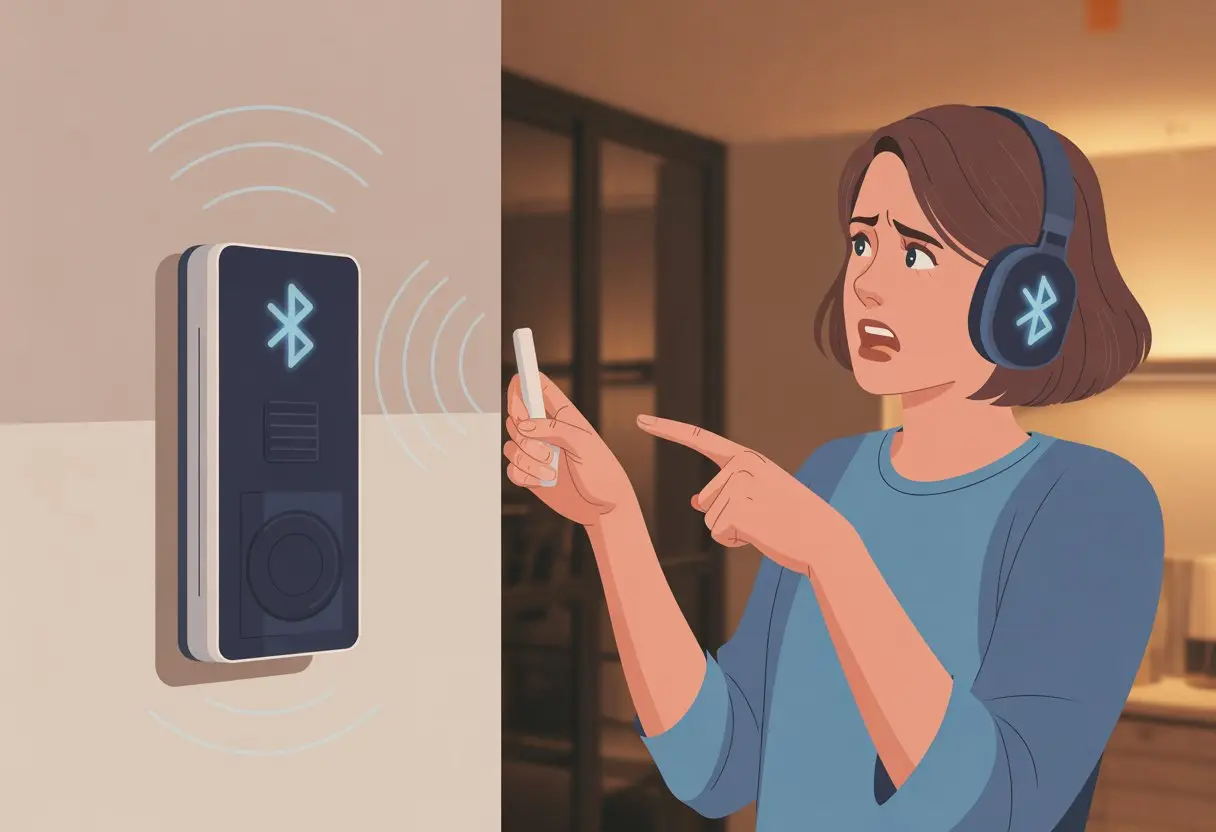
Let’s be real: we’ve all had that moment where we confidently pair our Bluetooth headphones, only to find out they just won’t play nice with the intercom. There we are, mashing buttons, poking around in settings, maybe muttering a few words we shouldn’t, but still—nothing. The main reason our Bluetooth headphones don’t work with our intercom? They usually use different Bluetooth profiles that just don’t get along.
It sounds wild, but it’s true—Bluetooth isn’t just Bluetooth. Our headphones might be made for music and calls, but intercom systems sometimes expect a totally different handshake, like they’re speaking two different languages.
Ever wondered why pairing these gadgets feels like prepping a rocket launch? You’re definitely not alone. Let’s jump into all the quirks of Bluetooth profiles, tech limits, and what we can actually do about it, so maybe—just maybe—our gear will finally cooperate.
Understanding Bluetooth Headphones and Intercom Systems
Wireless gadgets are supposed to make life easier, but sometimes it feels like our devices are speaking totally different languages. When our Bluetooth headphones just won’t work with our intercom, it usually comes down to how each device communicates.
Let’s break down the basics before smashing any more buttons.
What Are Bluetooth Headphones?
Bluetooth headphones let us ditch the cords and wander around like tech-savvy wild animals. They use short-range radio waves to connect straight to our phones, tablets, or computers.
Most headphones use the Bluetooth standard, which keeps the sound flowing from our device to our ears within about 30 feet—give or take, depending on how many walls or angry pets stand in the way.
They’ve got a built-in battery and microphone, so we can take calls or yell at voice assistants.
The big thing to remember? Both devices need to “pair” with each other, like awkward dance partners at a wedding. If the headphones aren’t in pairing mode or our intercom doesn’t support the same Bluetooth type, it’s game over.
How Intercom Systems Work
Intercom systems are kind of like the stubborn old walkie-talkies that refuse to retire. Instead of Bluetooth, most use dedicated radio frequencies or spread-spectrum tech for solid, push-to-talk chats.
Some fancy intercoms now offer Bluetooth—but it’s not always the same friendly Bluetooth we use for our headphones.
Common intercom communication types:
Type
Used For
Wireless?
Analog wired
Buildings, homes
No
Radio frequency
Motorcycle helmets
Yes
Bluetooth (some)
Helmets, offices
Yes
Here’s the kicker: even intercoms that brag about Bluetooth might only use it for specific things, like pairing with a phone—not with our shiny wireless headphones. No wonder we end up arguing with both devices.
The Science Behind Wireless Technology
Wireless tech feels like magic sometimes, but it’s all science (and a fair bit of frustration). Both Bluetooth headphones and some intercoms send data through radio waves.
Bluetooth operates on the 2.4 GHz band, shuffling tiny packets of info between our gadgets.
The problem? Not every wireless device speaks the same technical dialect. Bluetooth has lots of “profiles”—think of these like different skillsets: streaming music (A2DP), making calls (HFP), or transferring files (FTP).
If our intercom doesn’t support the same profiles as our headphones, they just won’t work together.
Interference can also ruin our wireless party. Other gadgets on the 2.4 GHz spectrum—like Wi-Fi routers or microwaves—can mess with the connection.
Sometimes it’s just a noisy airwave cocktail, and our Bluetooth headphones and intercom refuse to get along. For more about how Bluetooth suffers from interference and connection problems, check out this guide on headphone visibility issues.
Common Compatibility Issues Between Bluetooth Headphones and Intercoms
When our Bluetooth headphones refuse to play nice with the intercom, it’s usually some technical hiccup. Maybe it’s the Bluetooth version, maybe the devices just don’t “vibe,” or the audio code doesn’t match up.
Bluetooth Version Mismatches
Let’s be honest, Bluetooth can be as confusing as assembling IKEA furniture without the instructions. Our headphones might run Bluetooth 5.2, while the intercom is stuck in the Bluetooth 2.1 era—okay, maybe not quite that old, but you get it.
Newer Bluetooth versions bring better range, stability, and faster audio streaming. In theory, they’re supposed to be backward compatible.
But in reality, old intercoms may not support the cool features our headphones expect.
Some headphones and intercoms are like two pets that just won’t get along, no matter what. Besides Bluetooth version, a lot of brands build in exclusive protocols or “brand loyalty” mode—yep, sometimes devices just don’t talk to outsiders.
Features like multi-device pairing, mic access, or push-to-talk can make things even more confusing.
Maybe our intercom needs a specific Bluetooth profile (like HFP for calls or A2DP for music), and our headphones only do one—or, worse, neither.
We should check for firmware updates. Sometimes, fixing compatibility is as simple as a download. Other times, it’s like trying to teach a cat to fetch.
Audio codecs act like translators for our gadgets. If our headphones only speak “AAC” and our intercom wants to chat in “SBC” or, heaven forbid, “CVSD,” there’s no way the sound will flow.
No shared codec, no audio—simple as that.
Codecs matter for both sound quality and compatibility. Here’s a quick cheat sheet:
SBC – The default everyone supports. Nothing fancy.
AAC/APTX/LDAC – Better sound, but plenty of intercoms don’t know these.
CVSD – Found in basic headsets and a few oddball intercoms.
If we’re stuck with choppy, robot-like audio or just silence, mismatched codecs could be the reason.
Pairing Problems: When Your Headphones Give You the Silent Treatment
We’ve all been there—excited to use Bluetooth headphones with an intercom, only to get nothing but silence. Usually, it’s down to Bluetooth basics, troubleshooting steps, or just the chaos of juggling too many devices.
Pairing Mode Basics
First up, let’s talk pairing mode—the secret handshake for Bluetooth gadgets. If our headphones aren’t in pairing mode, our intercom might as well be talking to a potato.
Most headphones need us to hold a button (usually power or Bluetooth) until a light starts flashing. That light means they’re ready for action.
If we skip this, the headphones and intercom just stare at each other and… nothing.
It’s smart to make sure the headphones are discoverable. Some models exit pairing mode if we take too long, so moving quickly helps.
Double-checking the manual never hurts, unless we’re allergic to tiny print.
Troubleshooting Bluetooth Pairing Issues
When it comes to bluetooth pairing issues, sometimes even our best efforts fall flat. Headphones and intercoms can both be stubborn.
If they won’t pair, we can try a few tried-and-true tricks:
Turn both devices off and back on. It’s basic, but it works.
Remove any old pairings or forget devices we’re not using.
Make sure both the intercom and headphones have enough battery. A low battery can make headphones stop working or not connect at all.
Reset Bluetooth settings if nothing else works. Sometimes, tech just needs a fresh start.
Walls, other wireless signals, or too many apps running can sometimes mess up the connection too.
Multiple Devices Interference
With Bluetooth everywhere, our headphones might be clinging to a phone or laptop instead of the intercom. It’s like ignoring an old friend at a party.
Check if our headphones are auto-connecting to something else and manually pick the intercom from the list.
Use the intercom’s pairing prompt quickly—some devices only stay in pairing mode for a minute before giving up.
If our headphones support multipoint (connecting to more than one thing at once), they sometimes get confused and just quit. For more on fixing these chaos-inducing issues, check out this guide to connection issues with headphones.
Connection Issues: The Eternal Struggle
Bluetooth connection issues never show up at a convenient time. Trouble pops up from weird settings, invisible interference, or just being a bit too far from the device we actually want to hear.
Bluetooth Settings to Double-Check
Funny how it’s always the simplest things that trip us up, right? We think we paired our headphones, but then the Bluetooth settings decide to do their own thing.
So, let’s open the Bluetooth menu and actually check if both devices are connected—not just “remembered.” Sometimes, the headphones show up as a “headset” instead of “headphones,” and then the sound quality feels like a call from the late ‘90s.
Let’s not overlook profiles! Devices can get stuck in the wrong audio profile—like telephony mode instead of stereo. That tanks audio quality and can block the intercom connection.
Here’s a quick table for reference:
Setting
What to Check
Device Paired
Is it on the right device name?
Audio Profile
Is it “Stereo” not “Hands-Free”?
Default Device
Is it set as the main output?
If the intercom has its own settings, poke around there too. Sometimes, just toggling a setting or rebooting fixes everything.
Checking Signal Strength and Wireless Interference
Ever tried listening to music next to a microwave, only to get static instead of your playlist? Bluetooth headphones can get weird near WiFi routers, microwaves, or other wireless gadgets.
These things blast out signals that mess with our headphones and intercom, causing dropouts or lag.
Crowded places make connection issues even worse. It’s almost funny, wandering around the room looking for a “good spot” while everything keeps disconnecting.
If you can, try turning off other wireless gear or just move away from big clusters of electronics. Sometimes, that’s all it takes for a stronger signal.
Keep your phone, headphones, and intercom away from big blockages too. Even a metal desk or thick wall can ruin your connection.
Honestly, sometimes just moving a foot to the left is all it takes to escape the technological Bermuda Triangle.
Wireless Signals and Distance Problems
Bluetooth headphones like to act tough, but let’s be real: most freak out if you wander more than 30 feet from the intercom. Some can’t even handle ten feet if there are a couple walls in the way.
The farther you go or the more stuff in the way, the faster the signal turns into digital nonsense.
Older Bluetooth versions or bargain devices make range problems worse—don’t buy into the hype. For better results, keep your headphones close to the audio source and avoid obstacles when you can.
If you’re losing connection every few steps, hey, at least you’re getting your steps in, right? If your wireless signals keep dropping, maybe just sit closer—or upgrade to something with better range.
No Sound? Let’s Turn Up the Volume on Troubleshooting
When our Bluetooth headphones go silent with the intercom, there are a few suspects to check out. Quiet audio isn’t always a hardware meltdown—it could just be a sneaky setting or some overzealous audio processing.
Assessing Audio Settings and Volume Levels
Let’s start with the obvious: volume. Embarrassing, but sometimes the volume is just down low on the intercom, headphones, or even the phone.
Fixing this is easy, but our pride likes to assume it’s something more complex.
Check your audio settings in the intercom’s menu or on your device. Make sure the correct output is selected—“Bluetooth headphones” should show up, not “built-in speaker.”
If nothing’s playing, try toggling between devices. Sometimes that wakes things up.
Still no sound? Look for mute buttons, weird sound profiles, and those sneaky volume sliders hiding in software menus. Double-checking can save a lot of hassle.
Now, drivers—those little gremlins behind the scenes. Outdated, glitchy, or missing audio drivers can kill the vibe faster than a dead battery.
Open Device Manager on your computer and check under “Sound, video and game controllers.”
If your Bluetooth headphones don’t show up, you might need to reinstall or update drivers. A quick right-click and “Update driver” or “Uninstall device” followed by a reboot can help the system see the headphones again.
Even after fixing the “no sound” issue, audio quality can still act up. Some intercoms have audio enhancements that just make things worse, making voices sound robotic or distant.
Turning off these features can really help.
Bluetooth headphones often have settings for audio codecs and processing modes. Picking the wrong codec or leaving on fancy sound effects can cause lag, distortion, or weird one-sided sound.
It’s usually better to turn off extra processing and stick to the basics for clear audio.
If sound still isn’t right, try switching audio enhancements on or off in the system settings. Microsoft’s tips on audio enhancements and sound problems are worth a look.
Outdated Firmware and Software: Back to the (Digital) Drawing Board
Sometimes, our Bluetooth headphones and intercoms just won’t play nice because they’re running old firmware. Outdated firmware and Bluetooth drivers can turn shiny tech into a digital standoff.
Why Update Firmware?
Firmware is like the mysterious middle child between hardware and software. It keeps things running—unless it’s old, then it causes chaos.
New firmware updates squash bugs, boost performance, and patch up security holes. Skipping updates is like letting dishes pile up: eventually, nothing works right.
If your headphone or intercom firmware is outdated, they might not speak the same “Bluetooth language” anymore. That leads to awkward silences or total stubbornness.
Manufacturers post firmware update instructions for a reason. Updates fix hidden compatibility issues, especially after big Bluetooth changes.
Getting the latest firmware can fix Bluetooth pairing issues and restore order.
Software Updates and Bluetooth Drivers
Don’t forget about software updates and those sneaky Bluetooth drivers. Imagine your computer or phone as a talk show host—the drivers are the crew backstage.
If they’re out of date or missing, nobody’s mic works and the whole show flops.
Software updates keep Bluetooth drivers current and compatible. Outdated drivers cause errors and malfunctions, so sometimes your headphones pair with one device but ignore the rest.
Driver updates can fix slow connections, random disconnects, or the dreaded “can’t find device” message.
When everything’s up to date, Bluetooth devices find each other much more easily. It’s like a class reunion—everyone finally gets along.
Battery Life and Physical Issues: When Hardware Goes on Strike
Sometimes, Bluetooth headphones just refuse to cooperate, like a cat who’s decided your keyboard is the perfect nap spot. Two big culprits often cause trouble: tired batteries and banged-up parts.
Let’s do some detective work.
Checking Battery Level
We’ve all tried powering up our headphones only to find the battery is basically dead. Low battery life causes weird stuff—disconnects, refusal to pair, or just plain ignoring the intercom.
A warning beep or blinking light usually gives it away.
Keep your headphones charged. Some models only connect if there’s enough juice.
If they’re below a certain percentage, they might just quit or ignore your device like a toddler refusing vegetables. According to Audio Champs, dead batteries are a top culprit.
Keep a charging cable handy or grab a portable charger. Checking the battery before heading out can save you a headache mid-ride.
Setting reminders to charge after each trip isn’t a bad idea either.
Detecting Physical Damage and Frayed Cables
Physical damage sneaks up on us. Maybe you dropped the headphones or spilled coffee on them.
Cracked headbands, bent connectors, and worn ear pads all spell trouble for connectivity—especially with intercoms.
Check for frayed cables or exposed wires, especially if your headphones use a cable for charging. Even a tiny break can wreck your connection.
Letting cables dangle from your pocket wears them out fast. A broken cable is about as helpful as a screen door on a submarine.
Give everything a quick look. Check for bent pins, damaged charging ports, or loose buttons.
Even wireless headphones need all their parts in good shape to work right. If something looks sketchy, fix it or replace it.
We want music—not static—in our helmets. For more tips, visit Easy Tech Solver.
The Role of Headphone Jacks and Adapter Compatibility
Let’s talk about the unsung hero of audio tech: the headphone jack. When Bluetooth fails, the trusty jack is always there—unless, of course, your device decided to ditch it (looking at you, modern phones).
Connecting Bluetooth headphones to an intercom through a jack isn’t always straightforward. Some Bluetooth headphones just don’t want to play along.
They might refuse to connect with a regular audio cable, especially if the device or intercom uses a different type of signal. Suddenly, you’re in tech limbo.
Adapters sound like a dream—every gadget talking to every other gadget. But not all adapters work with every headphone or intercom.
A Bluetooth adapter might not work with every model, and sometimes you get more static than sound.
Here’s what can go wrong:
The adapter doesn’t fit the jack
The device needs extra power (because why not?)
The settings menu is harder to find than your favorite socks
You’ll probably have to mess with device settings. Sometimes, it’s buried under menus called “audio output” or “media device.”
Pick the wrong option, and you’ll be lip-syncing to silence.
Adapter Type
Works With Most Headphones
Needs Settings Changes
Bluetooth Receiver
Sometimes
Usually
Wired 3.5mm Adapter
Often
Rarely
USB-C Adapter
Only with supported models
Sometimes
If all else fails, you can always pretend the silence is for dramatic effect.
Operating System Showdowns: Windows PC, Android, and Beyond
Tech issues have a real knack for popping up at the worst times. Some operating systems handle Bluetooth better than others, and knowing what goes wrong can save you a lot of stress.
Fixing Bluetooth on Windows PC
On Windows PCs, Bluetooth can feel like a game of whack-a-mole. The headphones connect, but the sound stubbornly stays on the laptop speakers.
Usually, the wrong audio device is selected.
Here’s what to do:
Check if the Bluetooth headphones show up as the default audio device in Sound Settings.
Right-click the sound icon, pick your headphones, and show your computer who’s boss.
It’s basically the tech version of turning it off and on again, but with extra steps.
Watch out for the rogue “extra communications device” that shows up and causes crackling audio. Remove it from your sound devices.
If all else fails, call it a “Windows feature” and go grab a snack.
Bluetooth Quirks with Android Devices
Android turns Bluetooth into a bit of a circus, honestly. Sometimes it just refuses to pair, or our headphones start hopping in and out of connection like a jittery kangaroo.
Distance really comes into play—way more than anyone wants to admit. If we stray too far from our phone, the connection drops. Microwaves and Wi-Fi routers? Yeah, they love to crash the Bluetooth party.
We should check that our Android’s software and the headphone firmware are both up to date. If things still act up, try forgetting the device and pairing again.
When that doesn’t help, we end up waving our phones around, hoping for a miracle connection. Is it an Android bug, or is the universe just messing with us?
Factory Settings and Drastic Measures: The Final Solution
Sometimes, Bluetooth headphones just refuse to cooperate with our intercom—no matter how many times we turn things off and on. When basic troubleshooting flops, it’s time to get bolder. That might mean resetting to factory settings or calling in the pros.
How to Reset to Factory Settings
Resetting to factory settings wipes the headphones’ memory clean, kind of like our brains after a tough math test. Usually, we need to turn the headphones off first.
Then, we press and hold the power button for at least 10–15 seconds. Flashing lights or beeps usually mean the reset worked.
On our phone or whatever gadget we’re using, we should delete the headphones from the Bluetooth list. Restart both the device and the headphones to get a real fresh start.
Now, try pairing again. If it works, awesome! If not, maybe these headphones are just as stubborn as that one cousin at family game night. For more details, here’s a step-by-step guide.
When to Contact Customer Support
If the factory reset didn’t fix the “headphones not working” drama, it’s probably time to call customer support. Those folks have troubleshooting tricks we haven’t even thought of and can walk us through special resets.
Have this info handy:
The headphone model and serial number
What we’ve already tried
Proof of purchase, just in case
Patience helps, since the solution might be buried in some official manual. Customer support can talk us through unique fixes or even set up a replacement if our headphones have gone completely rogue. That’s what they’re there for, after all.
Conclusion: Living Peacefully with Your Devices (Or Not)
Let’s be honest—Bluetooth headphones and intercoms just don’t always get along. We’ve all tried to play tech mediator, pressing buttons, flipping switches, and maybe even pleading with the Wi-Fi gods for a miracle.
We try pairing them, hoping for a quick win, only to get ghosted by that stubborn blinking blue light. Seriously, what’s its problem?
So what can we actually do when our gadgets refuse to cooperate? Here’s the bare minimum survival list:
Turn things off and on, then off again. Sometimes it really does help.
Check for updates, because apparently headphones want to stay on trend.
Move away from the Wi-Fi jungle—too many signals just make Bluetooth cranky.
Forget and re-pair devices, kind of like deleting an ex’s number and pretending it never happened.
Even after all this, we sometimes end up talking to ourselves. At least we’re not boring, right?
Hi, my name is Garrett Jones, and I am a tech enthusiast. I enjoy researching the new tech that has been released, and have a vast knowledge of the best tech to purchase.
From a young age, I have always had a big interest in technology, and this blog is an extension of that interest. Through this blog, I hope to provide others with all of the information they need regarding tech options to consider, and things such as compatibility. Some of the different items I will be discussing include headphones, smartwatches, and how to fix common issues.