You know the feeling—you’re pumped to check your smartwatch, and then, out of nowhere, error code 3001 pops up. It’s like a pop quiz you never signed up for. If you’re staring at that code right now, trust me, you’re definitely not the only one.
We can fix smartwatch error code 3001 by resetting both the watch and our paired phone. That’s worked for most folks.
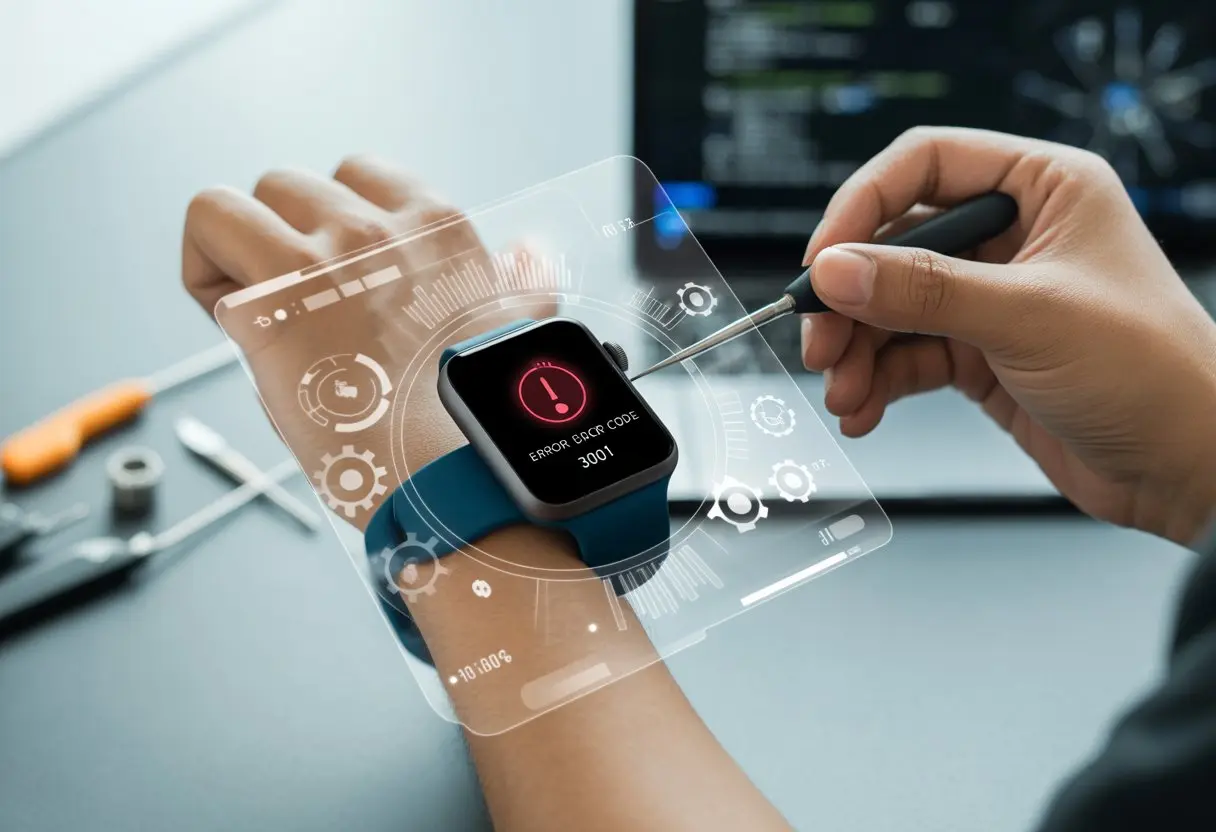
Our wrists deserve better than this hassle. They’re supposed to make life easier, not more stressful.
Let’s get your device back on track with a few quick steps. Maybe we’ll dodge some awkward wrist-glancing in the process.
Stick around and let’s tackle error 3001 together. We want our smartwatches back to making us look cool—or at least a little more organized.
Grab your watch, your phone, and maybe a bit of patience. We’ve got this.
Understanding Smartwatch Error Code 3001
Error code 3001 has a knack for popping up at the worst moments. Just when you think your smartwatch setup is smooth, it throws a wrench in the works.
Whether you’re a tech pro or just winging it, this error can mess with your eSIM and connection. It’s annoying, no doubt.
What Is Error Code 3001?
You’ll see error code 3001 when your wearable device—like a Samsung Galaxy Watch—fails to finish something important. Usually, it shows up while you’re setting up or changing the mobile plan linked to your smartwatch’s eSIM.
Instead of a helpful tip, your watch just flashes 3001 at you. Sometimes it happens during number sharing, or when you try to link your phone and wearable accounts.
Your device may freeze and refuse to move forward until you sort out the error. When this pops up, your smartwatch can’t connect to the mobile network.
Texts, calls, and data on your wrist? Forget it until you fix the problem.
Common Causes of Error 3001 on Wearables
Let’s be honest—technology’s partly to blame, but sometimes we mess things up too. Error 3001 usually appears when your device can’t talk to your carrier during eSIM setup.
Maybe the network can’t verify your account, or your plan isn’t set up right for wearables. Mix-ups between your phone, watch, and service provider happen a lot.
Switching carriers or updating the eSIM often triggers the problem, as plenty of folks have shared on Reddit and the Samsung forums.
Quick list:
- eSIM activation failed
- Mobile plan not ready for the watch
- Carrier’s system or app is buggy
- Outdated software on your phone or watch
- Account errors on your provider’s side
Why Your eSIM Might Be Blaming You
eSIMs can be tricky. If you rush setup or skip a step, your eSIM may not finish pairing with the network.
Sometimes it’s the carrier’s fault—but let’s admit, we don’t always follow instructions to the letter. When you switch providers or mess with eSIM settings, it’s easy to confuse your wearable and the network.
That’s when error code 3001 shows up. Phones get all the love from your carrier, so when your watch asks for service, it doesn’t always get priority.
You end up with a pricey gadget that just nags you with error codes. Want more details on why this happens? Check out real user stories on the Samsung Members forum.
Immediate Steps to Fix Error 3001
Let’s walk through the fixes for error 3001 and get your smartwatch—and your sanity—back on track. These steps target the main connection headaches, from the obvious reboot to the more stubborn eSIM issues.
Restarting Your Smartwatch (And Your Sanity)
First up, let’s do the classic restart. It’s basic, but it works more often than you’d think.
A quick power cycle clears out temporary bugs and closes stuck apps. Here’s how:
- Hold down the side power button until the restart menu appears.
- Tap “Restart” or “Power Off,” then turn it back on after a few seconds.
Honestly, this helps both the watch and the user. If error 3001 is still hanging around, don’t worry—there are more tricks to try.
Resetting Connections Like a Tech Guru
If restarting didn’t do the trick, resetting the wireless and Bluetooth connections is next. Cached connection info and stale network handshakes love to cause error 3001.
Here’s what to do:
- Go to “Settings” on your smartwatch.
- Tap “Connections” or “Network & Connectivity.”
- Select “Reset Network Settings.”
This will forget all paired devices and Wi-Fi networks. Only reconnect what you actually need.
If you use a paired phone, toggle Bluetooth off and back on for both devices. Let the smartwatch and phone find each other again, then check if the error’s gone.
Enabling and Disabling eSIM
eSIMs are great—until they’re not. If error 3001 is eSIM-related, toggling the eSIM off and on can wake up the connection.
Do this:
- Open “Mobile Plans,” “Cellular,” or the eSIM manager in your watch’s settings.
- Disable the eSIM profile and wait about 30 seconds.
- Enable the eSIM again.
If that fails, delete the eSIM profile and set it up from scratch with your carrier’s prompts or QR codes. This forces a new handshake with the network and often kicks error 3001 to the curb. Plenty of Galaxy Watch users have had success with this.
Checking Network Compatibility
Sometimes you do everything right, but your network just isn’t playing along. Not all carriers or plans support eSIM on every device, and that can trigger error 3001.
Double-check that your carrier allows eSIM activation for your specific model and country. Here’s a quick checklist:
- Your device must support eSIM.
- The carrier must allow smartwatch eSIMs, not just phones.
- You may need a special wearable plan.
If you’re not sure, check your carrier’s website or support page. If you see “unsupported device” in your error logs, just reach out to your carrier. For eSIM to work, your device and network have to be on the same page.
Advanced Troubleshooting for Persistent Error 3001
Sometimes, error code 3001 just won’t quit, no matter how many times you reboot. When that happens, it’s time to get a little more technical.
That might mean a factory reset, reinstalling apps, or switching between physical SIM and eSIM.
Factory Reset: The Nuclear Option
If you’re really desperate, the “factory reset” button is always there. This wipes your smartwatch clean—apps, settings, and even that step goal you hit last week? Gone.
It’s a big move, but it usually works on stubborn errors. To do this:
- Open settings on your smartwatch.
- Choose System or something similar.
- Tap Reset or Factory Reset (sometimes it’s under “About”).
- Confirm you want to erase everything—think twice before you hit yes.
Heads up: Back up anything important before you reset. Afterward, you’ll have to set up your watch from scratch. But if nothing else has worked, this can finally banish error code 3001.
Reinstalling the Wearable App
Sometimes, the problem isn’t your watch—it’s the companion app on your phone. Uninstalling and reinstalling the wearable app gives everything a fresh start.
Here’s the process:
- Uninstall the watch’s companion app from your phone.
- Restart your phone.
- Reinstall the app from the app store.
- Re-pair your smartwatch to your phone.
Make sure you’re using the latest app version. If error 3001 is still around, at least you’ve ruled out the app. Need more tips? Check out this troubleshooting guide.
Switching Between Physical SIM and eSIM
If you’ve got a cellular smartwatch, the SIM setup could be the issue. Error 3001 can appear if there’s a problem with your eSIM or physical SIM, especially during plan setups or carrier swaps.
Some folks have fixed it by switching SIM types. Here’s how:
- Remove the current SIM profile from the smartwatch settings.
- Insert a physical SIM if you have one, or re-activate the eSIM using your carrier’s steps.
- Restart the watch and try activating service again.
This move is especially handy when you’re switching carriers or lost your connection after an update. Some Samsung Galaxy Watch users finally saw error code 3001 disappear after reconfiguring their eSIM. It’s worth a shot if nothing else has worked.
Carrier and Device Specific Fixes
Nobody likes error codes, especially 3001. If your smartwatch and shiny new eSIM keep throwing up roadblocks, it’s time for some targeted strategies.
Let’s zero in on the usual suspects—your carrier plan, device quirks, and, because why not, problems based on where you live.
Dealing with Carrier Plan Limitations
Let’s be real: carrier “unlimited” plans can feel like they have more limits than a library birthday party. If error code 3001 pops up, we should triple-check if our carrier even supports eSIM activation and number sharing for our device.
Some carriers only let phones use eSIMs, not watches. Others want us to buy a wearable line or add a companion plan. T-Mobile and Verizon, for example, make us set up a watch line before we can pair the eSIM.
Here’s a quick checklist to keep us sane:
- Make sure our plan includes smartwatch support.
- Ask the carrier if our exact device and model work with their system.
- Double-check that our eSIM is activated—not just “pending.”
- Use a QR code from the carrier for activation. Seriously, don’t skip it!
If calling customer support drains our will to live, we’re not the only ones. Some people say that factory resetting both watch and phone can clean up stubborn carrier activation errors.
Number Sharing Problems and Solutions
Number sharing sounds great—when it actually works. It lets our smartwatch use the same phone number as our main device. But when error 3001 appears, it’s not always obvious if number sharing is the troublemaker.
Some carriers make us jump through hoops to set up number sharing. We might need to activate it manually or, in the worst cases, ask for a specific SIM profile just for our watch.
If our watch keeps failing, here are some things to try:
- Unpair and re-pair the watch using the carrier’s official app (like Samsung’s Galaxy Wearable).
- Skip mobile network setup on the first try, then add it later.
- Ask the carrier to “reset” number sharing on their end.
It can feel like we’re doing a magic trick with no instructions, but sometimes these little steps beat restarting the device a hundred times. If nothing works, we might need a fresh eSIM QR code from the provider.
Regional Differences: When Geography Makes Things Worse
Not every watch works everywhere. Some models have specific versions for North America, Europe, or Asia. Region-locked eSIMs or firmware can block activation even if we’ve done everything else right.
If we bought our device online or from another country, there’s a chance it was designed for a different region. U.S. carriers often refuse to activate eSIMs from non-U.S. models, and the same goes the other way.
Sometimes, the watch’s eSIM just doesn’t match local carrier bands. Before we lose our minds, let’s:
- Check the smartwatch’s model number against the carrier’s whitelist.
- Visit the carrier’s site for regional compatibility info.
- Ask about local restrictions that might block activation.
Sometimes, the only real fix is swapping for a model that matches our region. At least we can finally blame geography for our tech headaches.
Preventing Future Smartwatch Meltdowns
Let’s keep our wearables running smoothly instead of acting allergic to working. Staying up to date and handling eSIMs carefully helps us dodge weird errors.
Regular Software Updates for Wearables
We’ve all felt the panic when a smartwatch freezes during a workout or, worse, when we’re trying to show off at a party. Regular software updates act like vitamins for our wearables—crucial for health and happiness.
Most brands send notifications for new versions. Let’s not ignore those like spam.
Here’s what works:
- Enable auto-updates on the smartwatch.
- Check manually for updates once a month, just to be sure.
- Make sure both the phone and watch are on the same network during updates.
These steps patch bugs, improve battery life, and boost security. Skipping updates can make devices act up or leave them open to problems. Nobody wants a reboot in the middle of tracking the world’s slowest jog.
Tips for Smooth eSIM Management
If we’ve ever tried setting up an eSIM and got hit with error code 3001, we know it’s a rough way to start the day. Managing eSIM profiles can be simple if we stick to a few key steps.
Let’s keep these tips in mind:
- Double-check our provider supports eSIM for our wearable.
- Only activate or switch eSIM profiles while on a solid Wi-Fi connection.
- Don’t switch eSIMs mid-setup—tempting, but risky.
- Restart the smartwatch after big changes.
Taking these steps keeps eSIM drama to a minimum. If we’re feeling totally lost, this discussion breaks down error code 3001 in plain English. No more frantic Googling—just calm, cool eSIM management.
When All Else Fails: Support and Escalation
Sometimes, even our best troubleshooting moves won’t fix it. When error code 3001 refuses to budge, it’s time to call in the pros—support folks, warranty wizards, and device experts.
Contacting Manufacturer or Carrier Support
Let’s be honest, when nothing works and our smartwatch keeps flashing error 3001, it’s time to get help. The watch maker and our carrier both have folks who deal with this stuff every day.
It helps to contact support with all our device info ready—model number, software version, and a timeline of what’s gone wrong.
Most companies offer phone and chat support, so we don’t even have to leave the couch. Before reaching out, let’s restart the watch (just once more for good luck) and check for updates one last time.
Some carriers want details about our network setup, like whether we’re using LTE or Wi-Fi. For network activation trouble, the carrier and watchmaker might point fingers at each other, but just keep both support teams in the loop.
Samsung’s support forums are full of folks with the same struggles, so we’re definitely not alone.
Reporting Errors Like a Pro
If we want to impress support and maybe speed things up, we need to report our error like experts. That means describing what our wearable was doing when the problem popped up.
Did it happen after an update or when we tried to set up cell service? Was it connected to Wi-Fi, Bluetooth, or LTE at the time?
Snapping screenshots and writing down error codes (yes, even that infamous 3001) makes a big difference. Listing what we’ve already tried gives tech support a fighting chance.
Don’t be shy about sharing what model phone the watch connects to, especially if it’s not the brand’s usual pairing. And please, try restarting the device before reporting—support always asks.
Considering Warranty and Replacement
If error 3001 just won’t quit and our watch starts feeling more like an overpriced bracelet, it might be time to think about a replacement. Most devices come with a warranty that covers major software or hardware problems—as long as we didn’t toss it in the fish tank or run it over with a scooter, obviously.
Let’s check when we bought it, find the proof of purchase, and see how long the warranty lasts. If it’s still covered, the manufacturer usually repairs or replaces it. Sometimes they’ll even send a replacement overnight, if we get lucky.
Some places offer loaner devices, so we’re not stuck without notifications or step counts for too long. If we bought our smartwatch from a carrier, they might handle the claim—or just tell us to call the manufacturer.
We get to play the classic game of “whose problem is this?” while our watch sits on the charger, still flashing that annoying 3001 error.

From a young age, I have always had a big interest in technology, and this blog is an extension of that interest. Through this blog, I hope to provide others with all of the information they need regarding tech options to consider, and things such as compatibility. Some of the different items I will be discussing include headphones, smartwatches, and how to fix common issues.
Related Posts: