Isn’t it just great when our Bluetooth headphones decide to connect to the neighbor’s toaster instead of our own phone? We’ve all been there, frantically tapping “pair” and hoping for some miracle.
The upside? Most Bluetooth headphone pairing issues have a simple fix we can handle ourselves—no advanced degree required.
We got tired of cords, so Bluetooth felt like a dream—until it randomly stops working. Maybe our headphones won’t connect at all, maybe they latch onto someone else’s device, or maybe they’re just pretending to be dead.
You’re not alone in this. There are real fixes for these everyday tech headaches, and we’ll walk through them together.
Stick around while we call out common mistakes and show how to get those stubborn headphones paired up again. Sometimes it just takes a reset or a bit of patience. Let’s laugh at the struggle—and outsmart it, too.
Understanding Bluetooth Headphone Pairing
Bluetooth headphone pairing is kind of like speed dating for gadgets. We want them to meet fast, click instantly, and remember each other tomorrow.
To fix pairing issues, we need to know how these connections actually work—and which devices play nice with Bluetooth.
How Bluetooth Connections Work
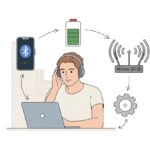
Bluetooth lets our devices chat wirelessly over short distances. When we put our headphones in pairing mode, they basically shout, “Hey, I’m single!”
Meanwhile, our phone or tablet searches for devices doing the same thing.
Here’s the usual drill:
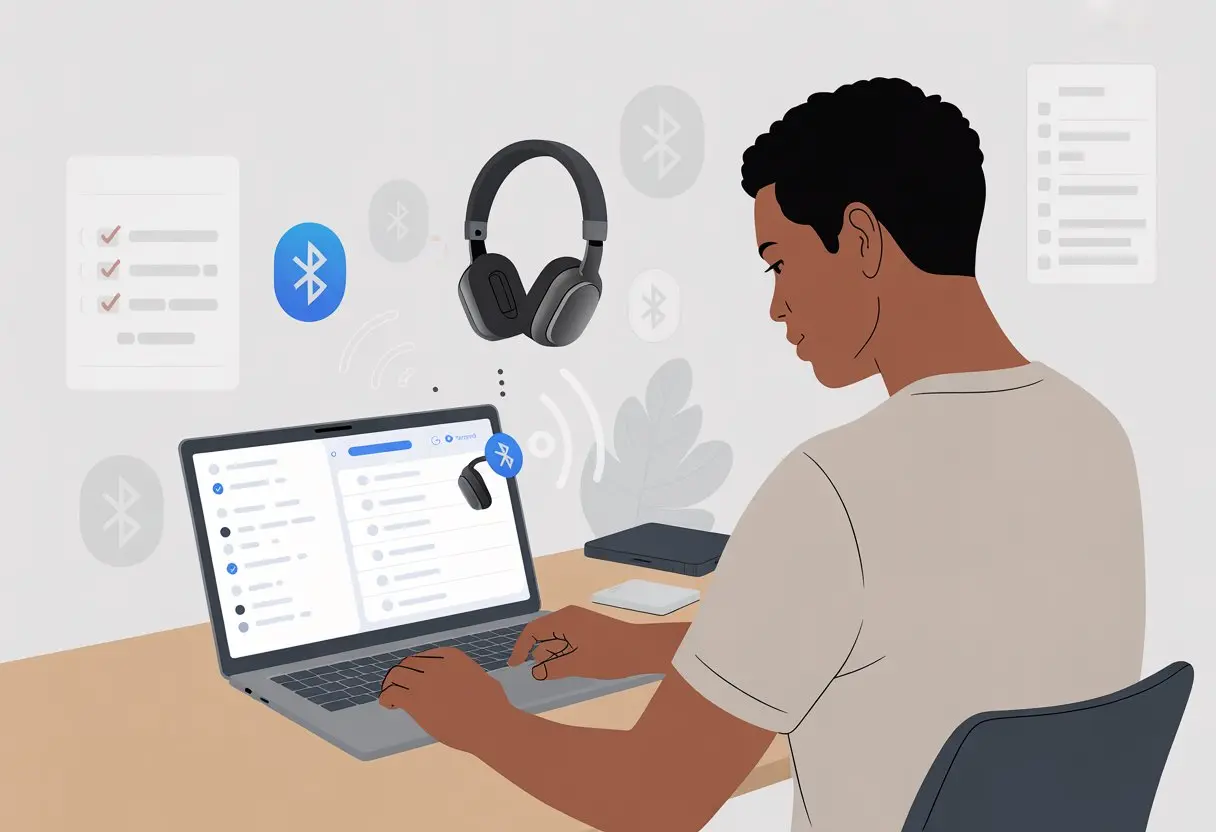
We turn on Bluetooth in our device settings.
The headphones go into pairing mode by holding a button for a few seconds—sometimes it’s the power button, sometimes it’s a weird combo.
Our device finds the headphones, and after a quick handshake, they’re connected.
It sounds easy, but sometimes this digital romance falls apart. Other wireless signals, low battery, or headphones secretly loving another device can mess things up.
If we get stuck, we should try forgetting the device and pairing again. Sometimes everyone needs a fresh start, right?
Common Devices That Use Bluetooth Headphones
Bluetooth headphones aren’t picky; they’ll connect with all kinds of gadgets. The obvious one is our phone, but it doesn’t stop there.
Tablets, laptops, and even game consoles want in on the action.
Device Type
Example
Smartphone
iPhone, Android
Tablet
iPad, Galaxy Tab
Laptop/PC
Windows, MacBook
Game Consoles
PlayStation, Switch
Smart TVs
Samsung, LG
With so many devices, confusion happens when our headphones stay loyal to another gadget. Here’s a tip: Disconnect from other paired devices if things get weird. Bluetooth headphones can connect to more than one device, but sometimes they play favorites.
The Wonders (and Woes) of Wireless Audio
Wireless audio feels magical—when it works. We can dance around the kitchen with our playlist blasting, while our phone hides across the room.
No wires, no tangles, just music or podcasts. But then, the sound glitches or the connection drops.
We’ve all had one earbud go silent or heard static ruin a song. Sometimes it feels like Bluetooth has a personality of its own. Still, we love the freedom.
Knowing what causes these hiccups—like Wi-Fi interference or too much distance—makes troubleshooting less mysterious. If nothing helps, check out Techlicious for more tips.
Basic Troubleshooting for Pairing Issues
Sometimes it’s the simplest thing that trips us up when Bluetooth headphones won’t connect. We can usually fix things by double-checking the power, device connections, and our own sanity as we mash buttons again (and again).
Check You Actually Turned Them On
Let’s be honest—sometimes we miss the obvious. Bluetooth headphones often try to save battery by shutting off when we’re not paying attention.
Some headphones need a separate pairing sequence. Just turning them on isn’t enough. We usually hold another button until the LED blinks or we hear a beep.
If that fails, a quick search for the manual might save the day.
Make Sure Your Headphones Aren’t Already Paired… to Your Neighbor’s Phone
Sometimes our headphones decide to pair with anything but our device. If we’re stuck on “Connecting…” forever, they might be linked to something else already.
It could be a tablet, last week’s laptop, or—awkwardly—our neighbor’s phone. Look for an indicator light or listen for a different startup sound.
Some headphones tell us what they’re connected to, but others just quietly link up with the first thing they find.
We should unpair or disconnect our headphones from any other Bluetooth device nearby. Go into Bluetooth settings on our phone and remove “unknown device.”
A quick glance around the room to see if someone else is bobbing their head to our playlist can’t hurt.
Toggle Bluetooth Settings Until Sanity Returns
When in doubt, restart everything. Turning Bluetooth off and back on from our phone or computer often works like magic.
If it’s still being stubborn, try forgetting the headphones in the Bluetooth settings and pair again. This clears out any weird memory.
Restart both the Bluetooth feature on our phone and the headphones themselves to force a fresh connection.
On Windows, head to Settings > Bluetooth & Devices and use the “More Bluetooth options” menu to reset the connection. On Android, toggling Bluetooth off and on is a go-to move.
Sometimes we have to repeat this dance a few times, but patience usually pays off.
Advanced Fixes When Bluetooth Stubbornly Refuses to Pair
Some Bluetooth headphone problems just won’t quit, no matter how nicely we ask. When the usual tricks flop, it’s time to get serious.
Let’s try a few next-level moves and outsmart these stubborn devices.
Initiate a Bluetooth Feature Reset Ritual
There’s something satisfying about making devices forget each other and starting over. Go into your phone or tablet’s Bluetooth settings and remove (unpair) the headphones completely.
On most phones, you’ll find this in the Bluetooth menu—tap the little “i” or gear next to the headphone name, then hit Forget or Remove.
If you’re feeling bold, turn off Bluetooth for a few seconds before turning it back on. Sometimes a full Bluetooth reset gives the device a nudge.
For the truly desperate, toggle Airplane mode for 10 seconds. It sounds odd, but this trick often stops stubborn connections.
If nothing works, check if your headphones have a reset button or combo—many do, usually involving holding power or volume buttons for a few seconds.
Unpair and Re-Pair Like a Pro
Devices have a memory, and sometimes they hold onto grudges. If a device still won’t connect, make your phone “forget” the headphones and delete them from any Bluetooth lists.
Then restart the pairing process like it’s a first date.
To re-pair, make sure Bluetooth is on and your headphones are in pairing mode (usually holding the power or pairing button until a light flashes).
Look for the device in your phone’s Bluetooth menu and select it. If you’re asked for a code, try “0000” or “1234.”
Let’s just admit it: Sometimes, turning things off and back on—twice—actually works. Restart your Bluetooth headphones and set them aside.
Next, restart your phone, tablet, or computer. For especially stubborn cases, reboot both devices again.
This step clears out bugs hiding in Bluetooth memory. Double-rebooting sounds silly, but it forces Bluetooth settings and connections to reload.
If it still doesn’t work, check for outdated Bluetooth drivers (on a computer) or update your device’s software.
A second reboot is the secret handshake to make most Bluetooth fixes stick. It might feel ridiculous, but hey—if it works, it works.
Device-Specific Pairing Solutions
Different devices each have their own quirks with Bluetooth headphones. Let’s look at what works, what causes drama, and what just needs a gentle nudge.
How to Pair With a Smartphone Without Creating Drama
Smartphones can be a little dramatic, but we know how to handle them. First, turn on Bluetooth in your phone’s settings.
If the headphones don’t show up, make sure they’re in “pairing mode”—look for a blinking light.
Here’s a quick checklist:
Toggle Bluetooth off and on again.
Forget the device if you’ve paired before, then try again.
Make sure both headphones and phone are charged.
Sometimes, the headphones won’t show up because another device is hogging them. “Forget” any old pairings on both the phone and headphones before retrying.
If the app asks for a password, “0000” or “1234” is usually the answer. For more details, check this step-by-step guide on painless pairing.
Pairing to Tablets: The Tap-Here, Tap-There Shuffle
Tablets love to act like they don’t recognize us—or our headphones. If nothing appears, we check if Bluetooth is on and not stuck in “Airplane Mode.”
Sometimes, just swiping down the menu works. Other times, it doesn’t.
Quick solutions:
Restart both the headphones and the tablet
Hold the headphones’ pairing button a few extra seconds
Tap “Scan for devices” a couple times (tablets seem to need the attention)
Some tablets get confused after we’ve paired with too many gadgets. Clearing the Bluetooth cache can help.
Bluetooth devices don’t always get along with the world around us. Walls, electronics, and even our own bodies can cause audio drops and cut connections, leaving us tapping our headphones in frustration.
Battling Wireless Interference (The Hidden Enemy)
Our homes are packed with Bluetooth’s worst enemies. Wi-Fi routers, microwaves, and cordless phones all run on similar frequencies.
They love to cause signal drops, skipping, and weird sound glitches. It sometimes feels like a Bluetooth party nobody wanted.
To boost our Bluetooth connection, we move our headphones and source device away from other wireless gadgets. Updating operating systems and Bluetooth drivers helps too, since newer software handles all that invisible noise better (more on Bluetooth interference).
If interference still wins, we can move to another room or turn off unused wireless devices. Oddly enough, keeping our headphones and phone on opposite sides of our body can make things worse—our water-filled bodies block the signal (tips for reducing Bluetooth interruptions).
Out of Range: Bluetooth’s Invisible Fence
Every Bluetooth device has its invisible fence—its range. Most Bluetooth headphones work best within 30 feet (about 10 meters) and without too many walls in the way.
If we wander farther, dropouts and disconnects show up fast. Thick walls, metal doors, big furniture, and crowds love to block or weaken the signal.
It’s basically a never-ending “hot and cold” game with our music. Keeping our paired devices in the same room or close by is the trick.
If our favorite song disappears, we just move closer to our paired device. Sometimes a quick stroll brings our music back.
For really stubborn range issues, upgrading to a device with a newer Bluetooth version can help with distance and stability (bluetooth connection breaking up).
Stereo Headset Quirks and Troubles
Stereo Bluetooth headphones can get weird for no obvious reason. Sometimes, we run into strange pairing rules.
Let’s be real—pairing a stereo headset shouldn’t feel like solving a puzzle cube. Yet, here we are, pushing buttons and hoping for miracles.
Some headsets want us to hold the power button forever. Others need a secret combo of volume buttons.
If we mess it up, nothing happens—except maybe a little frustration. Bluetooth signals love to hide, especially with other devices lurking nearby.
Our headphones might refuse to show up in the pairing list or cling to an old device like jealous exes. A quick trick: recharging the battery actually fixes more issues than we’d expect.
Low power can make headphones act up and avoid pairing. We can put our headset in pairing mode before searching from our phone or computer.
If all else fails, a full reset often puts things back in order.
When One Earbud Goes on Strike
There’s nothing like a Bluetooth stereo headset with one earbud on vacation. We get music in one ear and silence in the other.
It kind of feels like our headphones are trying out for a mono band. One common cause is a dirty earbud or charging contact.
Gunk and pocket lint are sneaky enemies. Cleaning both earbuds and the charging case with a soft brush or cloth usually brings the missing bud back.
If not, a simple reset—like holding both volume buttons—sometimes convinces it to rejoin the stereo party, according to some discussion forums.
Signal problems can show up if our phone is too far away or the headset is paired with something else. Keeping our device nearby solves most dropouts.
If one earbud still refuses to work, we might need to pair the headset from scratch, sigh, and remind ourselves we’re probably smarter than our headphones (at least most days).
Keeping Things Paired: Tips for Ongoing Success
Bluetooth headphones love to act up when we need them most. With routine updates and a little care, we can dodge pairing drama and keep things running.
Update, Charge, Repeat
Our headphones aren’t psychic—they need us to keep their firmware up to date. We should check for software updates for both our Bluetooth headphones and the paired devices.
Updates fix bugs, improve sound, and help with connection strength. A low battery is a classic villain in Bluetooth drama.
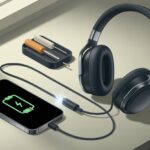
If pairing problems pop up, recharging our headphones usually helps. Leaving headphones unused for long stretches? Make sure they’re charged before pairing again.
Let’s not ignore our phone or laptop. If their batteries drop too low or if updates are waiting, it can mess with Bluetooth settings.
Keeping everything powered up and refreshed helps Bluetooth work smoother—like digital coffee for our gadgets. If nothing else works, a classic restart usually shakes things loose.
Avoid the Top Bluetooth Headphone Mistakes
We all want smooth connections, but honestly, we trip ourselves up more often than we’d like to admit. One big goof? Leaving old or unused Bluetooth profiles hanging out in our settings.
Too many paired devices can totally throw off our headphones. So, just head into your Bluetooth settings, forget those unused devices, and suddenly your connection list feels way less crowded.
Mixing devices? Yeah, that’s another recipe for chaos. If you pair your headphones to both your laptop and your phone at the same time, don’t be surprised if the headphones get confused and ditch both.
Try sticking with one main device at a time. It keeps things simple.
Also, let’s not pair up near microwaves, Wi-Fi routers, or a bunch of other Bluetooth gadgets. Those things love to interfere and mess with your signal.
Hi, my name is Garrett Jones, and I am a tech enthusiast. I enjoy researching the new tech that has been released, and have a vast knowledge of the best tech to purchase.
From a young age, I have always had a big interest in technology, and this blog is an extension of that interest. Through this blog, I hope to provide others with all of the information they need regarding tech options to consider, and things such as compatibility. Some of the different items I will be discussing include headphones, smartwatches, and how to fix common issues.