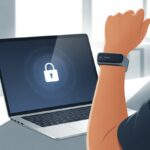
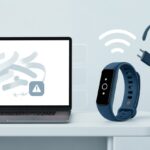
Ever walk up to your computer, sigh, and wonder why you’re still typing in the same password for the millionth time? There’s a better way, honestly. You can use your fitness tracker or smartwatch to unlock your computer—no keyboard required. That means fewer “forgot password” moments and a little more time to pretend your gadgets are secret agent tech.

Here’s the trick: connect your fitness band or watch to your PC using features like Dynamic Lock. Your computer unlocks (or locks) depending on how close you are.
Some smartwatches just need Bluetooth pairing. Others might want you to install an app or two before everything works right.
Tracking steps and unlocking your computer can actually go together. You get fitness bragging rights and a shortcut to your inbox.
If you’re ready to mix a bit of tech magic with convenience, grab your fitness tracker. Let’s see if we can finally ditch password fatigue.
Who knew our smartwatches could do more than nag us about missed steps or that extra cookie?
Understanding Fitness Trackers and Device Unlocking
Fitness trackers do more than count steps or track sleep. They can unlock your computer too.
We’re basically using something we already wear to make life easier—and maybe a little more fun.
What Is a Fitness Tracker?
A fitness tracker is a small device you wear like a watch or bracelet. Most people use it to count steps, check heart rate, or get reminders to stand up.
These gadgets track your activity, calories, distance, and sleep. Some can even monitor your pulse or log workouts.
If you don’t move for an hour, the tracker buzzes and tries to guilt you into action.
Fitness trackers keep all that info and usually send it to a phone app. You get colorful graphs and charts.
They use sensors like accelerometers, gyroscopes, and heart rate monitors. Some even have GPS built in.
Curious about what really makes a fitness tracker tick?
How Device Unlocking Works with Wearables
Unlocking your computer with a fitness tracker actually feels pretty simple. The tracker acts as your digital key.
If your computer senses the tracker nearby and connected, it skips the password and unlocks.
You’ll need to pair the tracker and computer at least once. Some apps or settings let you set the tracker as a trusted device.
When you’re in range—boom, your computer unlocks. No need to type anything.
Some trackers or computers add extra steps, like asking for a tap or checking your identity on the wristband.
The Role of Bluetooth in Unlocking
Bluetooth makes all this possible. When you unlock your computer with a tracker, Bluetooth Low Energy (BLE) lets them talk to each other wirelessly without killing the battery.
Here’s the basic rundown:
- Pairing: Your tracker and computer share a “secret handshake”—a code that links them.
- Connection: When the tracker’s close, the computer listens for its signal.
- Unlocking: If the tracker’s detected and authenticated, the computer unlocks.
Bluetooth keeps things secure with encrypted connections. You usually get about 30 feet of range, so unless you’re sprinting around the house, you’re good.
Want tips for using wearables and Bluetooth securely? Check out these best practices.
Setting Up Your Fitness Tracker for Computer Unlock
You don’t need to be a secret agent to unlock your computer with a flick of your wrist. You just need the right gear.
The setup is mostly about picking a compatible tracker or watch and making sure it communicates with your computer.
Choosing the Right Fitness Tracker or Smartwatch
First step: make sure your fitness tracker or smartwatch can actually do this. Not every device will work—if it came as a cereal box prize, probably not.
Popular choices like Fitbit, Garmin, and some Samsung watches can connect with your computer. The Fitbit Flex was a classic example, though newer models might work even better.
Check your tracker’s specs: does it have Bluetooth? Is there a companion app for computers? If yes, you’re on the right track.
Make sure your computer supports pairing with fitness devices. Windows 10 and newer make this easier, but older systems can be a pain.
If you’re picking a tracker, go with one that has good documentation and support forums. Trust me, you’ll need help at some point.
Pairing Your Device with Your Computer
Ready to play tech wizard? Let’s pair your device.
Turn on Bluetooth on both the tracker and your computer. If you skip this, your tracker’s just a fancy bracelet.
Follow your tracker’s setup instructions. For Fitbits, you’ll need their app, and it’ll guide you through Bluetooth pairing.
This part usually means pressing buttons and waiting for beeps or vibrations. It’s a bit like training a very small, stubborn puppy.
Once you’ve paired the devices, set up the unlock feature if your tracker supports it. Some let you use their presence as a key—when you’re near, your computer unlocks.
If your tracker doesn’t support this, sometimes a third-party app can help. Check out this Windows 10 guide for using fitness bands to log in.
Just hope your tracker doesn’t start counting computer unlocks as extra steps.
Configuring Security Settings
Before diving in, let’s make sure your security isn’t set to “welcome, everyone.” You’ll want to tidy up your passwords and PINs, then enable the right settings so your fitness tracker can unlock your computer.
Adjusting Passwords and PINs
If your password is “password123,” it’s time for a change. Pick something only you would know, not your pet’s name or your birthday.
A strong password should be at least eight characters, with a mix of letters, numbers, and symbols.
Using a PIN can speed up logins while keeping things secure. Go for at least six digits, and avoid obvious stuff like birthdays or “000000.”
Don’t write your PIN on a sticky note stuck to your monitor. That’s basically broadcasting it to the world.
Most computers let you change these settings under user or security options. Take a minute to lock things down so only you—and your wristband—can get in.
Enabling Unlock Features
Now for the fun part. On Windows, you can use Windows Hello or set your fitness tracker as a “companion device” to unlock the PC.
This lets you tap your tracker on an NFC reader or just have it nearby. Suddenly, you’re in—no keyboard needed.
Microsoft’s companion device unlock page has more details.
Mac users with an Apple Watch can turn on Auto Unlock. Your Mac notices your watch (and your dedication to fitness), and you just stroll up and get access.
Apple’s unlock your Mac guide walks you through it.
Once you’ve got these features on, your wrist does more than count steps—it unlocks your computer like a pro.
How Sensors Improve the Unlocking Experience
Sensors in fitness trackers help your computer figure out who you are and what you’re up to. They measure your movement and even your heart rate, making unlocking quicker, safer, and honestly, a bit more interesting.
The Magic of Accelerometer and Gyroscope Sensors
Let’s talk about accelerometers and gyroscopes. These tiny sensors know when you’re walking, waving, or even tripping over a chair (hopefully not while unlocking your computer).
The accelerometer tracks how fast and in what direction your arm moves.
The gyroscope notices if you tilt, turn, or spin.
When you try to log in, the tracker can sense a special gesture, like raising your wrist or double-tapping your band. That tells the computer, “Yep, it’s really me!”
You don’t have to type passwords or touch the keyboard. Sometimes just being close to your device with your band is enough, especially if you throw in a special move.
Microsoft explains more in their companion device unlock guide.
If you feel silly waving at your laptop in public, just remember—it’s technology, not magic. Well, mostly.
Monitoring Heart Rate While Unlocking
Heart rate sensors bring a cool bonus. Your fitness tracker knows how fast your heart is beating.
If someone else tries to use your tracker to unlock the computer, the device can spot the wrong heart rate and refuse access.
When your tracker checks your heart rate, it’s looking for your unique rhythm. That adds another layer of security.
Some trackers now combine heart checks with the usual unlock routine. If you’re nervous before a big test, at least your racing heart means your computer is extra secure!
Wearable devices are built to track steps, heart rate, and more, so they’re actually well-suited for user authentication. Here’s a guide about wearables and health if you want to dig deeper.
Popular Fitness Trackers for Unlocking Computers
Not every fitness tracker or smartwatch can unlock computers. Some models play nice, others just want to count your steps and call it a day.
Using Fitbit Flex for Seamless Unlocking
Remember the Fitbit Flex? Sleek, simple, and probably dangling from someone’s wrist at the gym or grocery store.
It could help unlock your computer, too. With the right third-party Bluetooth unlock apps, the Flex acts as a key.
As long as the Flex is nearby and your PC’s Bluetooth is in a good mood, you can skip typing your password.
The Flex doesn’t have buttons, so it relies on proximity, not clicks or taps.
Here’s a cheat sheet:
| Feature | How It Helps Unlock PCs |
|---|---|
| Bluetooth | Auto-unlocks when in range |
| No display | Simpler, but less interactive |
| Wearable | Hands-free logins |
Support for the Flex is limited now since it’s an older model. If you’re going for retro gadget vibes, just make sure your Bluetooth drivers are current and your unlocking app still supports the Flex.
Smartwatch Options with Unlock Features
Let’s say you want to get fancy—so, welcome to the world of smartwatches. Loads of fitness trackers and smartwatches like the Apple Watch and some Wear OS models come with built-in device unlocking.
If you’re on Windows, you can sync certain smartwatches with PC software. Your computer unlocks when your watch gets close enough, which might make your phone a bit jealous. Some models use authentication apps to double-check it’s really you, which honestly feels a bit like living in a spy movie.
Here are a few smartwatches with unlock features:
- Apple Watch: Unlocks Macs automatically when you’re nearby. No need for a secret handshake.
- Wear OS Watches: Some support Smart Lock for Android or trigger actions with third-party apps.
- Samsung Galaxy Watch: Might play nice with Windows Hello features on Samsung laptops.
The biggest win with smartwatches? They usually get more software updates and work better with modern devices. If you want to keep things simple, or maybe just impress the cat, a modern smartwatch could do the trick.
Security Risks and Concerns
Before you hand over your computer’s keys to your fitness tracker, you should really think about what kind of digital gremlins might sneak in. These little gadgets can cause some big headaches if you’re not careful.
Avoiding Hacking and Malware Threats
Let’s be real, nobody wants a hacker poking around their files while they’re out for a jog. Fitness trackers connect to your phone or computer with Bluetooth, and this wireless link can leave your data exposed. Hackers love weak Bluetooth connections as much as we love hitting our daily step goals.
To keep things safer, make sure you:
- Update your tracker’s firmware regularly.
- Use strong passwords on both your tracker apps and your computer.
- Turn off Bluetooth when you’re not using it to cut down on attack chances.
Some fitness trackers don’t check which devices they pair with. That means a sneaky hacker could slip in and install malware, turning your health tracker into a digital spy. If you stick to big-name brands and download from official app stores, you’ll lower your risk. Want to dive deeper? Here’s how fitness trackers can be hacked.
Detecting Hacked Devices and Trojans
How do you spot a tracker that’s gone rogue? Sometimes, a hacked tracker or app will chew through battery faster than usual or start sending weird notifications. Unusual data usage or settings changing on their own can also be red flags.
Keep an eye out for:
- Random disconnects or syncing issues.
- Data records that don’t match what you actually did.
- New apps or features you never installed.
If you see any of that, run a security scan with trusted antivirus software and change your passwords. If things still seem off, reset your device to factory settings. It’s always smart to check for security vulnerabilities with fitness devices before trusting your gadgets to unlock your computer. The last thing anyone wants is a fitness tracker acting like a Trojan horse, letting hackers waltz in while you’re just counting steps.
Ensuring Fitness While Gaining Access
Honestly, using your fitness tracker to unlock the computer is pretty cool. But if it actually gets you moving instead of just sitting there with coffee, that’s a double win.
Staying active makes security a bit more fun, so you might as well use your tech to get fit and stay safe at the same time.
Running and Inactivity Detection
If your tracker senses you’re running, you can set up your computer to reward you by unlocking when you’re done. Imagine your laptop giving you a “Nice run!” instead of nagging for another password.
Most trackers notice when you’ve been still for too long. You could use that to make your computer require you to get up and move before it unlocks. Suddenly, your workstation becomes a reluctant fitness coach.
Got snack crumbs on the keyboard? Sorry, time to walk a few laps before you get back to that spreadsheet.
Let’s face it, inactivity detection is just your fitness band’s way of saying, “You’ve been glued to the chair for hours.” If that means easier access to Netflix after a walk, maybe it’s worth listening. Here’s more on how fitness trackers work.
Maximizing Both Security and Cardio
If you want to stay safe and fit, you can set your tracker and computer to work together—kind of like a superhero duo, but, you know, sweatier.
For instance, your computer unlocks only after your tracker confirms you’ve taken a brisk walk. That way, hackers can’t get in, and honestly, neither can your lazy days.
Try using short activity bursts for two-factor authentication: password plus 20 jumping jacks. It sounds a little goofy, but it keeps you honest (and maybe a bit out of breath).
Regular movement helps you stay healthy. At the same time, activity-based unlocking keeps your computer protected without making it feel like another boring task.
Who would’ve guessed that boosting security could help you sneak in more steps? Fitness tracking tech isn’t just for counting calories—it can nudge you toward better habits while guarding your files.
If you want to learn more about tracking movement, calories, or activity, check out this article on things to know about fitness trackers.

From a young age, I have always had a big interest in technology, and this blog is an extension of that interest. Through this blog, I hope to provide others with all of the information they need regarding tech options to consider, and things such as compatibility. Some of the different items I will be discussing include headphones, smartwatches, and how to fix common issues.
- Best Aviation Headset To Buy For Student Pilots? (7 Top Picks By Budget) - October 21, 2026
- The Best Rugged And Waterproof Smartwatches - October 21, 2026
- 10 Best Military Smartwatch – Find The Best Tactical Military Watches in 2023 - October 20, 2026
Related Posts: