Let’s be real—keeping up with kids feels like trying to track a squirrel after it downed three espressos. We want them safe, but following them around in full-on camouflage? Not happening. That’s where smartwatches for kids actually save the day. We can check our child’s location, send a message, and set up safe zones—all without leaving the couch.
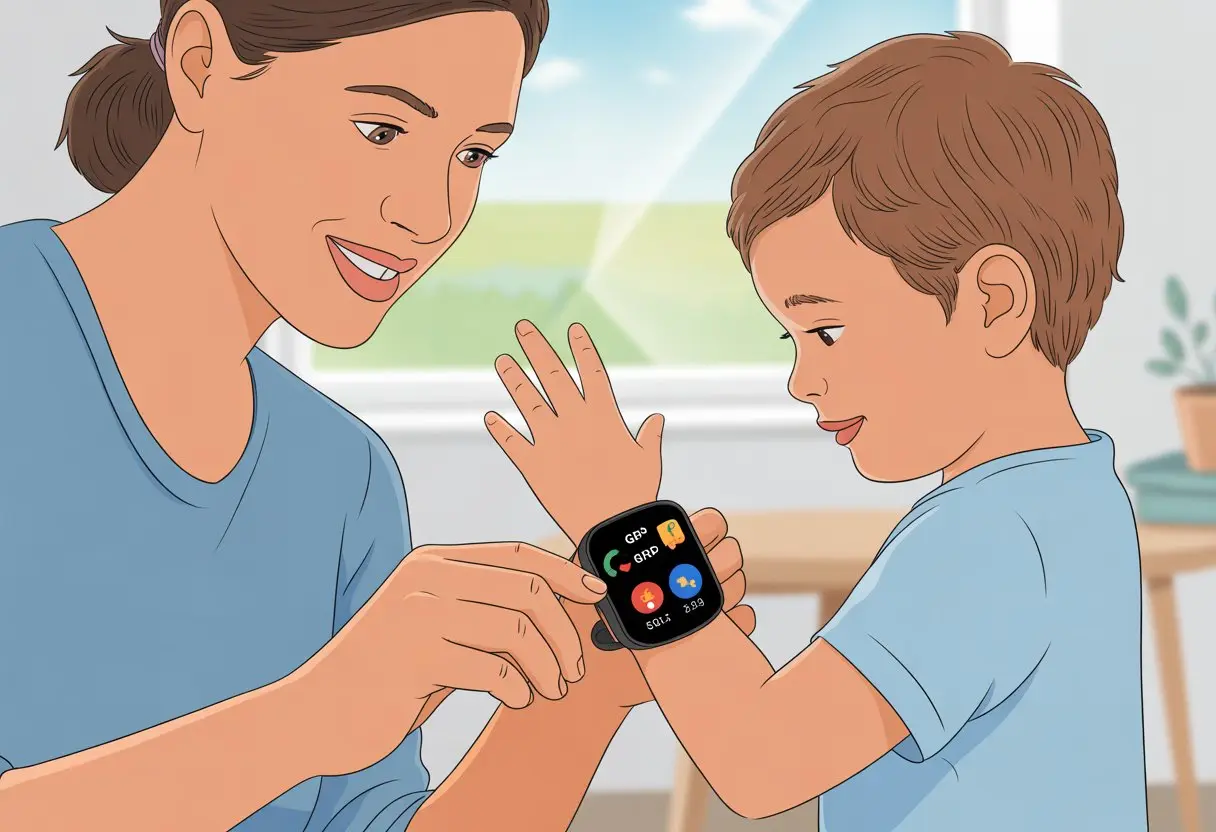
When we use tools like GPS tracking, emergency buttons, and parent controls, we kind of feel like superheroes (just… no cape). App restrictions and time limits help us feel a bit more in control, especially on those days when the kids seem to have outsmarted us. Curious how these little watches can help your family chill out a bit? Let’s dive in.
Understanding Smartwatches for Child Safety
If we want to keep our kids safe but still let them enjoy some freedom, smartwatches hit a sweet spot. These gadgets let us track where our kids are, stay in touch, and make sure they’re not texting strangers or losing another phone in the laundry.
What Makes a Smartwatch Suitable for Kids
Honestly, not every smartwatch can survive our wild little explorers. The best kids’ watches are tough, water resistant, and have bands that can handle surprise puddle jumps and snack spills.
Kids don’t want a mini version of an adult smartwatch. They need easy touch screens, bright displays, and fun ways to make it their own. If it’s not cool or comfy, they’ll ditch it in a heartbeat.
Parental controls are a must. We get to set limits and approve who they can talk to or text. The COSMO JrTrack and other kid-focused models really nail this.
Key Features That Keep Children Safe
Some features are just nice-to-have, but others? Totally essential. Here’s what we look for:
- GPS Tracking: So we know if our kid made it to school and not just the neighbor’s trampoline.
- Approved Contact Lists: Only trusted numbers can call or text.
- SOS/Emergency Button: With one press, our child can alert us—and we can breathe again.
- Geofencing: We set safe zones and get alerts if someone sneaks off for an adventure.
Things like step tracking and reminders are fun extras. The Verizon Parenting Guide has more on these parent-approved features.
Popular Kids’ Smartwatch Models
There are tons of kids’ smartwatches, but a few always land at the top of our list.
- Bark Watch: Super simple controls and solid safety features.
- Gabb Watch 3e: GPS, calling, and basic texting—no social media drama.
- Apple Watch SE: Loaded with features, great for older kids ready for more freedom.
- Fitbit Ace: More about step tracking, but perfect for kids who love a challenge (and for parents trying to get them off the couch).
Want more info? The Essential Guide to Kids’ Smartwatches breaks down what makes these devices so handy for safety.
Setting Up Parental Controls
A smartwatch isn’t just about counting steps—it’s about locking down what matters most to us. Most wearables come with parental controls and screen time settings so we can actually call the shots.
How to Enable Parental Controls on Wearables
First up, let’s make sure only the right people can reach our kids—no random “Uncle Steve Who?” texts sneaking through.
For Apple Watch, we set up Family Sharing. This links the watch to our Apple ID and lets us take charge without needing a computer science degree. We can limit contacts, approve new friends, and control who gets to say hi—all from our iPhones. The Apple Watch setup guide for kids walks us through it.
Android devices, like Galaxy Watches, work a bit differently. We use Google Family Link to manage contacts, apps, and features. If we ever wonder whether the dog’s account counts as a contact, the Google For Families guide for Galaxy Watch has our back.
With these controls in place, our kids can focus on homework, not which Snapchat filter to use.
Managing Screen Time and App Access
Leave kids alone with screens and, well, time just disappears. That’s why screen time limits are a lifesaver.
Most smartwatches let us set daily app limits. Want to block games during school hours? There’s a setting for that. Features like “Schooltime” on Apple Watch freeze non-essential apps when it’s time to pay attention.
Here’s what we can lock down:
- App downloads: Block anything that sounds fun but isn’t school-friendly.
- App use: Allow only specific apps for calls, messages, or health stuff.
- Screen time schedules: Automatically disable the watch at bedtime.
With the right controls, we help our kids find balance—while keeping our own sanity (mostly). For step-by-step help, check out this guide on setting up a kid’s smartwatch.
Location Tracking and GPS Features
Kids can vanish faster than socks in a dryer. When we use a smartwatch with GPS, we can track their location, set safe zones, and pick the tech that works for us.
Activating GPS Tracking
Turning on GPS tracking is usually a breeze. We open the smartwatch’s app, poke around in settings, and flip the “Location” switch. Sometimes it hides under “Safety” or “SOS.”
Watches like the Verizon GizmoWatch need us to sync the device with our phone. After that, we can customize safety features like emergency contacts and GPS permissions. Some watches even send us a notification if our child tries to turn off the GPS. Nice try, kids.
We need to allow location permissions on both the watch and the app. If we skip those pop-ups, tracking won’t work.
Real-Time Location Tracking Explained
Real-time location tracking means we can check our child’s location instantly—no more running through the house yelling their name. Most smartwatches use GPS satellites and wireless networks to find the watch on a map.
We get updates in the app—sometimes every few minutes, sometimes faster. It’s like playing hide-and-seek, but we get the cheat codes. The location shows up as a moving dot. If our kid sneaks off to the ice cream truck, we’ll know.
Some models let us share location info with trusted adults. Grandma or Uncle Bob can join the “Where are they now?” game, too.
Geofencing: Defining Safe Zones
Geofencing lets us draw invisible boundaries on a map—like saying, “Stay inside this area, please.” If the smartwatch leaves or enters these zones, we get an alert on our phone.
Setting these up takes just a few taps in the app. We pick the spot, drag out a circle or square, and hit save. If our child escapes, we get a ping as fast as their legs can carry them.
Some watches let us set multiple safe zones, which helps if our family’s schedule is all over the place. It’s like an invisible fence, but for kids. Find more details in this kids smartwatch safety overview at Pixbee.
Comparing GPS, LTE, and GSM Connectivity
Smartwatches connect in a few different ways. GPS gives us satellite location data, but it needs a clear sky. If our kids hide in a cave (or basement), GPS might lose signal.
LTE lets the watch use cellular networks for real-time updates, no matter where our child wanders. It’s fast, but we usually need a data plan—another bill for the fridge.
GSM is older and uses cell towers. It’s slower and doesn’t work everywhere. Sure, it’s not as slick as AirTags, but it’ll do for basic tracking.
Here’s a quick comparison:
| Feature | GPS | LTE | GSM |
|---|---|---|---|
| Accuracy | High outdoors | Depends on signal | Varies |
| Speed | Moderate | Fast | Slow |
| Coverage | Needs clear sky | Needs cell network | Needs cell tower |
| Cost | Usually free | Needs a plan | May need a plan |
Let’s hope we never have to track our kids through a mall, park, or… wherever else they dream up. But hey, better safe than sorry.
Communication and Emergency Features
Staying in touch with our kids isn’t just about calling to ask why their shoes are on the wrong feet. Smartwatches give us features that make school pickup easier, help in emergencies, and let us check in whenever.
Using Two-Way Communication
With smartwatches, we can text or call our child from our phone. No more yelling up the stairs.
Two-way communication means both we and our kids can talk, just like a regular phone, but from the wrist. Handy for quick check-ins. We can remind them not to trade sandwiches, ask if they’re on the bus, or just send a silly joke.
Kids reply easily since the menus are simple. Most kids’ smartwatches have big buttons and easy screens (finally!). Two-way chats also help kids feel safer, knowing we’re just a message away. It’s almost like being there—just without the embarrassing mom hugs in public.
Emergency SOS Button: Your Child’s Lifeline
Most kids’ smartwatches include an emergency SOS button. If our child runs into trouble, they can press and hold this button—usually, it’s bright red. That sends out a distress signal, and honestly, it’s way faster than scrambling for our phones.
The SOS feature steps in during emergencies, like when a child feels lost or unsafe. Once our kid presses the button, the watch calls or alerts us and any other guardians we’ve picked.
This tool lets our child ask for help quickly, even if they’re too shaken up to dial. It’s sort of like a superhero button, just without the cape and mask. Providers like Pixbee say the SOS function is a big reason parents buy these watches.
Setting Up Emergency Contacts
We get to choose who the smartwatch contacts if our kid uses the SOS button. Setting up emergency contacts is pretty simple—just open the companion app, tap the family list, and add names.
Most smartwatches let us pick several contacts. If we miss the alert, Grandma, Aunt Sue, or a neighbor who’s a whiz at finding lost shoes will get the call next.
Here’s what we usually need:
- Our phone numbers
- Spouse’s or partner’s numbers
- Trusted family members
- Maybe a neighbor who’s always around
Having more than one contact means someone will almost always answer. That’s a real safety net.
Making Calls with Two-Way Calling
Two-way calling on these watches works just like a regular phone. We can call our child, or they can call us, whenever something comes up—or when they forget their gym shorts, again.
Most watches only allow calls between approved contacts. We get to decide who can reach our kid, which keeps things much safer.
Some smartwatches offer quick-dial numbers. Kids can call us with a single tap, even if they sometimes mix up our names with the dog’s.
If you want more info, the Verizon parents’ guide to kids’ smartwatches breaks down how calling and texting keeps us connected and our kids safer.
Encouraging Healthy Habits with Fitness Trackers
Getting healthy isn’t just about eating broccoli or going to bed early. Smartwatches help us sneak in extra movement and show kids that routines don’t have to be boring.
These gadgets also motivate us to stay active so we don’t turn into couch potatoes.
Tracking Activity and Routines
With a fitness tracker on our wrist, it’s a lot harder to fib about walking the dog if the steps aren’t there. We can set step goals or daily targets and watch the numbers climb, one floor at a time.
Kids love earning digital badges or hitting streaks. Sometimes, it’s almost as exciting as finding a forgotten cookie in the pantry.
Lots of smartwatches send nudges to help us stick to routines, like brushing teeth or getting ready for bed.
Activity summaries make it easy to show off progress to the family (and maybe spark a little friendly competition). These devices turn healthy habits into a game instead of a chore.
Fitness tracking for kids is all about small changes that add up. The stats don’t lie. If you want more tips, check out how to encourage kids to stay active with a fitness tracker.
Balancing Screen Time and Movement
Let’s be real, smartwatches have screens—and screens love to eat up our time. Luckily, we can use features that remind us to get moving instead of watching endless videos of sneezing pandas (as cute as they are).
Movement alerts give us a gentle nudge when we’ve been sitting too long. We get up, stretch, or do a silly dance—anything to break the spell.
Setting up family challenges, like who can take the most steps before lunch, keeps things fun and active. It’s less about staring at screens, more about moving together.
Taking regular breaks helps our eyes and keeps kids from turning into blue-lit goblins. We pick this balance so healthy routines and active play both get their turn.
If you want to add some extra fun, try family fitness challenges, like the ideas for making the most of kids smartwatches and fitness trackers.
Essential Tips for Maximizing Child Safety
Learning how to use our kid’s smartwatch features can make us feel less like anxious parents and more like undercover agents. Getting the basics right means fewer awkward “low battery” calls and less chance of embarrassing photos getting sent to the group chat.
Maintaining Battery Life for Peace of Mind
Let’s be honest, a dead smartwatch is pretty much useless. To stay connected, we should charge the watch daily, preferably at night when things are quiet and everyone’s asleep.
Most smartwatches have battery-saving features like power-saving modes or low-brightness settings. Turning off extras (like games or voice assistants) helps the battery last longer than our patience at a kids’ birthday party.
It’s smart to keep an extra charging cable in our bag or car for those “oops, I forgot” days. Because GPS and safety features use a lot of power, we can limit how often the watch sends location updates to stretch the battery.
If the watch starts draining faster than the coffee pot, it might need a software update or even a battery replacement. Either way, a well-charged watch means our kids are always just a tap away.
Privacy and Camera Settings
Nothing says “oops” like your kid accidentally blasting close-up selfies to everyone in the school directory.
Let’s double-check the camera permissions, just to be sure only trusted contacts get those photos.
Most smartwatches let you turn off the camera or limit who can use it. That’s basically the parenting version of hiding cookies on the top shelf.
A strong password keeps nosy siblings or prankster friends from turning your kid’s photos into their own spy games.
Talk with your kids about what’s okay to snap and share.
It’s a good chance to show them safe sharing habits—and maybe explain why it’s not hilarious to send pictures of their feet to grandma (again).
Some watches even let you pick which apps can use the camera at all.
Walk through the settings together, so your kids get what privacy means—no cybersecurity PhD required.
If you want a few more privacy tips, check out ideas on using parental controls and camera settings.

From a young age, I have always had a big interest in technology, and this blog is an extension of that interest. Through this blog, I hope to provide others with all of the information they need regarding tech options to consider, and things such as compatibility. Some of the different items I will be discussing include headphones, smartwatches, and how to fix common issues.
- Why do my Bluetooth headphones not block outside sound? Sorry, They’re Not Mind Readers! - October 5, 2026
- How to Use a Smartwatch for Running Without Looking Like You’re Checking Your Stocks - October 4, 2026
- Best Bluetooth Headphones for Long Flights: Ears Happy, Neighbors Jealous - October 4, 2026
Related Posts: