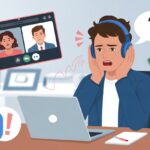
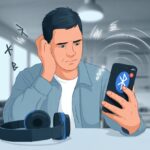
We’ve all been there—excited to pair our shiny Bluetooth headphones with that fancy receiver, only to get the digital equivalent of a blank stare. Bluetooth headphones usually don’t work with receivers because most receivers aren’t built to send audio to wireless headphones—they’re meant to receive audio from other devices.
It’s that classic case where two gadgets just can’t figure each other out, literally.
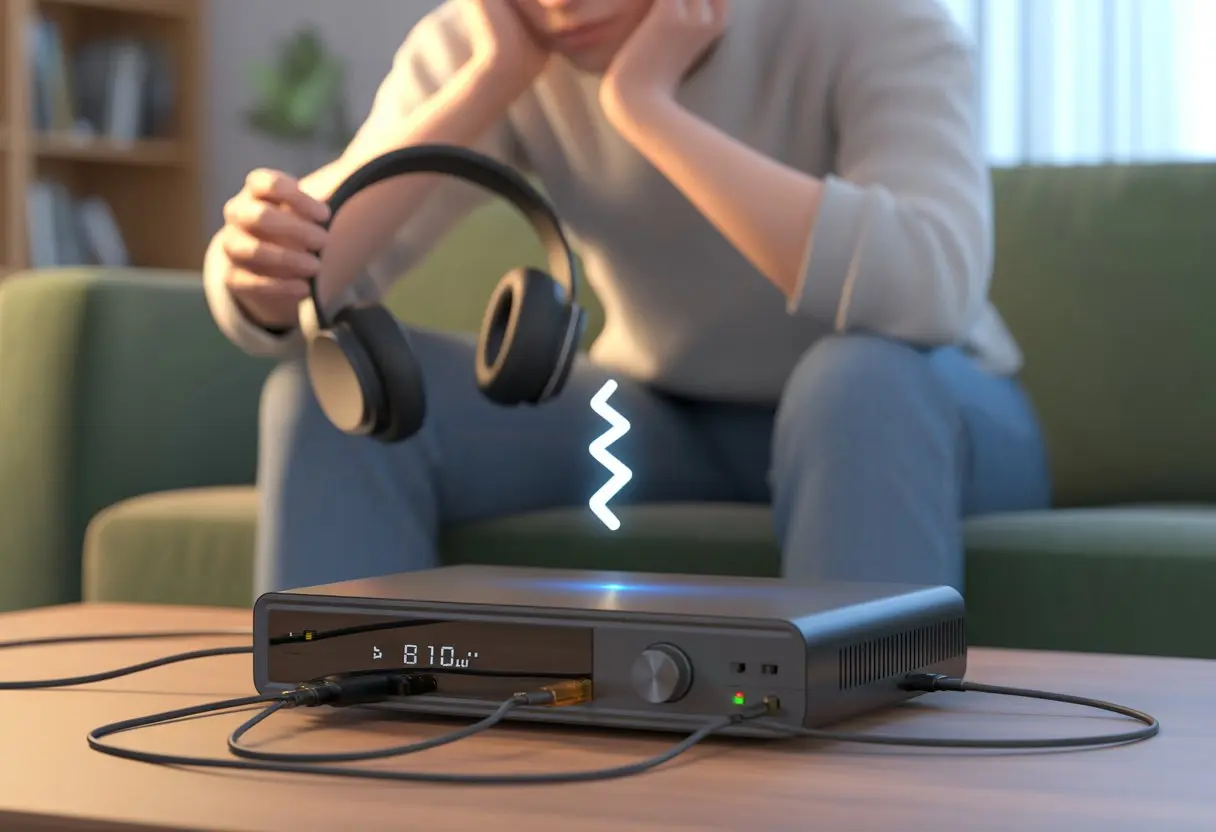
We start questioning our tech skills, blaming the universe, or maybe even threatening to read the user manual (yikes). Sometimes, it’s just a missing Bluetooth transmitter in the receiver, old software, or our headphones are paired to something else nearby instead of the receiver.
Before we turn our living rooms into mad science labs, let’s figure out why our gear can’t get along and what we can actually do about it.
Why Bluetooth Headphones May Not Connect to Your Receiver
When our Bluetooth headphones won’t connect to our receiver, there’s usually a technical reason (not some personal grudge). We bump into compatibility problems, version gaps, or find ourselves mixing wired and wireless gear, then wonder why nothing works.
Device Compatibility Issues
Let’s be honest—sometimes our gadgets just refuse to play nicely together. Most receivers don’t support Bluetooth headphones because they weren’t built to send audio through Bluetooth. Some only accept Bluetooth input but don’t have Bluetooth output.
A lot of receivers just use Bluetooth to connect to a phone or tablet, not headphones. If we use a standalone Bluetooth transmitter, we have to make sure it actually supports headphone connections. Otherwise, we’re just waving our headphones around, hoping for a miracle.
Here’s a quick checklist to dodge compatibility headaches:
- Double-check if the receiver actually has Bluetooth audio output.
- If not, try a third-party Bluetooth transmitter that plugs into the audio-out port.
- Some older receivers need a firmware update before they’ll connect to wireless headphones—like a tech relationship that needs a little counseling.
You can dig into more details in this troubleshooting Bluetooth headphone connection guide.
Bluetooth Versions and Profiles
Bluetooth has evolved a lot over the years (maybe less awkwardly than humans). Not every Bluetooth version and profile works with every device. If our receiver runs Bluetooth 2.0 and our headphones are Bluetooth 5.0, they might look at each other like strangers at a party.
A profile tells us what kind of data a Bluetooth device can send or receive. For headphones, A2DP is the big one—it streams high-quality audio. If our receiver doesn’t support A2DP, our headphones will never get any sound.
Here’s a table to make this obvious:
| Bluetooth Version | Headphone Version | Typical Result |
|---|---|---|
| 2.0 | 5.0 | Might not connect |
| 4.0 | 4.0 or 5.0 | Usually works |
| No A2DP | Any | No music for us |
Some devices only support mono sound or calls, not music. So, just seeing Bluetooth doesn’t mean it’ll do what we want. If we’re unsure, checking the device specs or looking up Bluetooth compatibility is a good call.
Wired Versus Wireless Headphones
It’s easy to forget we can’t just plug wireless headphones into the same jack as wired ones. Our Bluetooth headphones expect a wireless signal. If we try to use them with a regular headphone port or a non-Bluetooth receiver, we’re out of luck.
Wireless headphones need a Bluetooth signal from the receiver. If the receiver is old school and doesn’t send out Bluetooth, we’re probably better off dusting off our wired headphones. Sometimes, a Bluetooth transmitter attached to the headphone or RCA outputs of our receiver can bridge the gap.
If all else fails, we should check if our headphones come with a detachable wire. That way, we can swap from wireless to wired and avoid a tech headache. For more tips on stubborn connection issues, check out this helpful guide.
Common Connection Failures Explained
Dealing with Bluetooth headphones that just won’t play nice with our receiver can be a real headache. Sometimes it feels like our gadgets are arguing behind our backs.
Pairing Problems
Pairing Bluetooth headphones to a receiver isn’t always as simple as pressing a button. The two devices can act like strangers at a party, just ignoring each other. The receiver needs to be in pairing mode, and so do our headphones. If only one is searching, nothing’s going to happen.
Sometimes, the receiver or headphones have hit their max number of saved connections. We might need to forget a few old devices before the new ones can connect. Compatibility matters, too—trying to pair Bluetooth 5.0 headphones with a receiver from the dinosaur age? That’s a recipe for silence.
A lot of receivers just don’t support headphone connections over Bluetooth. They may only work for speakers or certain accessories. For more on pairing headaches, check out this Bluetooth headphone troubleshooting guide.
Bluetooth Signal Interference
Let’s be real: our homes are jungles of wireless signals. Between Wi-Fi, microwaves, and that one neighbor with a turbo router, our Bluetooth signal faces a lot of competition. Walls, appliances, and other electronics can mess with the connection.
Common interference culprits:
- Wireless routers
- Cordless phones
- Microwaves
- Other Bluetooth accessories
Distance plays a part, too. Most Bluetooth connections work best within about 30 feet—less if there are obstacles. If our headphones are at the other end of the house, the signal might drop faster than our patience during a boring movie. For tips on improving your connection, check out Bluetooth interference and connectivity issues.
Audio Source Mistakes
Even if we win the great Bluetooth pairing battle, we still have to make sure the receiver’s set to play through the right audio source. Sometimes the receiver is quietly playing from a cable or a different input, and our headphones hear nothing.
Don’t forget to check:
- The receiver’s output settings
- If mute is on (it happens more than we’d admit)
- Whether the volume is turned up
- If another device is hogging the audio
These problems are usually easy to fix, once we stop blaming the headphones and double-check the receiver’s settings. Need more advice? Here’s a guide on fixing incorrect audio source or setup problems.
Step-by-Step Troubleshooting
Before we threaten to throw our headphones across the room, let’s walk through the most common Bluetooth troubleshooting steps. Small things like enabling pairing mode, checking settings, and updating firmware usually solve the problem—no expert required.
Check Bluetooth Settings
Let’s start by checking the Bluetooth settings. First, we need to make sure Bluetooth is actually turned on—don’t laugh, it really happens. Next, we’ll confirm our receiver is set to allow new Bluetooth devices. Some receivers want us to select a “Bluetooth” input or mode before they’ll see our headphones.
We should peek at the list of currently connected devices. Most Bluetooth receivers remember only so many gadgets. If the list is full, we may need to remove an old device to make room for our headphones.
If we’re on a computer, the Bluetooth troubleshooter in Windows or device manager can help us find hidden issues, like a sneaky disabled adapter. Quick tip: If the computer asks for permission to connect, just say yes—unless it’s a weird device from next door called “Totally Not a Virus.”
Enable Pairing Mode
This is where we channel our inner secret agents. Our Bluetooth headphones need to enter pairing mode so the receiver knows they exist. Usually, we hold down a button (often power or Bluetooth) until a light blinks at us.
Some headphones use color codes, so we might end up in “battery low” mode instead of “pairing” if we’re not careful. If we’re lost, the user manual or a quick search online can bail us out. Some receivers also want us to press a “Pair” button or dig through a menu.
If our headphones show up in the device list but won’t connect, it helps to remove (or “forget”) and then re-add them. This is Bluetooth’s version of a gentle nudge. For more on pairing quirks, check out this guide on why Bluetooth headphones don’t connect.
Update Firmware and Drivers
We’ve checked settings and gone undercover as pairing agents, so let’s not skip the fine print: firmware updates and driver installs. Our headphones and receiver might need updates to fix connection bugs or add support for new devices. Head to the manufacturer’s site, or check their app, to see what’s new.
If we’re using a computer, the device manager is our friend. Here, we can update or reinstall Bluetooth drivers—preferably before the computer decides to crash mid-playlist. Outdated drivers can sabotage even the best gadgets.
Some receivers only play nice with headphones after a firmware update. It’s a bit like convincing your grandparents to try a new phone: patience and staying updated help a lot. If nothing works, contact support or check if a hardware issue is the real culprit.
Fixing Persistent Bluetooth Issues
Bluetooth issues often make us feel like we never left the landline era. When our Bluetooth headphones just refuse to work with a receiver, we need more than patience—we need a plan.
Fixing the problem usually means resetting, checking for physical flaws, and, yes, actually dusting off the user manual.
Performing Factory Reset
Sometimes, the best way to fix Bluetooth headphones is to hit the big red reset button—well, not literally, but wouldn’t that be fun? Resetting our headphones to factory settings wipes out glitches, drops stubborn connections, and erases weird preferences we never meant to set.
This helps when the headphones have paired with too many devices or just won’t behave. Most of the time, we hold the power button down for about ten seconds, or use a special button combo.
Every brand seems to make this combination a secret. If we’re lucky, flashing lights or a cheery reset tone let us know we did it right.
If nothing happens, we probably just changed the language to Klingon. Here’s a handy tip list:
- Remove the headphones from our device’s paired list first.
- Fully charge the headphones.
- Check online guides if we aren’t sure which buttons to mash.
Factory reset isn’t magic, but sometimes it really feels like it.
Checking for Hardware Problems
If our Bluetooth headphones still aren’t working, maybe they’re not just moody—they could be broken. Let’s play detective: are the ear pads loose?
Does the charging port wiggle like a loose tooth? Physical damage causes weird connection issues, like randomly dropping audio or not pairing at all.
Even a little sweat can sneak its way into the electronics. A simple table helps us spot issues quickly:
| Problem | What to Check |
|---|---|
| No sound | Drivers, battery, volume, cables |
| Won’t charge | Charging cable, port, try a new cord |
| Random disconnects | Look for visible damage, test range |
Sometimes, interference from other devices causes problems too, as explained by tech guides. If everything looks good physically, we can pat ourselves on the back for not sitting on them.
If not, we might need a repair or a new pair.
Consulting the User Manual
We all love to ignore the user manual until things go horribly wrong. Don’t worry, we’re in good company.
But sometimes, the user manual knows things that the rest of us only dream of—including secret reset codes and troubleshooting steps specific to our headphone model. It’s usually worth a quick read—especially for finding factory reset instructions, firmware update steps, or learning what those blinking lights mean.
The manual sometimes even describes known Bluetooth connection issues and how to fix them without a degree in rocket science. Let’s grab our manual (or download it online), and look for these sections:
- Troubleshooting
- Bluetooth settings
- FAQs
- Reset instructions
Who knew the most useful tool came in the box with the headphones? Next time we might even keep it.
When Your Headphones Still Refuse to Cooperate
Sometimes, no matter how many buttons we press or devices we reset, our Bluetooth headphones still act more stubborn than a cat at bath time. When simple fixes don’t work, it’s time to look for help or get creative.
Seeking Customer Support
Let’s face it: we’ve all dreaded calling customer support. Still, when our Bluetooth technology fails, the pros might have the answer we’re missing.
First, we should check the help section on the headphone or receiver manufacturer’s website. Many brands have guides, troubleshooting steps, or even live chats.
This can help us work through common Bluetooth connectivity quirks, like weird pairing modes or sneaky software updates. It’s often faster than waiting in a phone queue, too.
If we have the energy—and maybe a snack handy—we can call the support line. We’ll need our model number, a list of what troubleshooting we’ve tried, and maybe a strong cup of coffee.
The person on the other end probably asks if we’ve tried turning it off and on again (of course we have), but they can walk us through any odd settings specific to our gear. For some brands, we can start a support ticket online or even talk to customer support through social media.
Sometimes, the problem is a hardware defect, and this might get us a replacement.
Trying Different Devices
Before we blame our receiver, let’s test those headphones with other Bluetooth devices. Our phones, tablets, or even another friend’s receiver work well for this.
If the headphones connect somewhere else, the issue likely hides with our receiver or its settings. If our headphones refuse to pair with anything (and not just being dramatic), the fault is probably with the headphones themselves.
Low battery is a sneaky culprit, too—many gadgets act weird or stubborn when they need a charge. For example, some headphones only play sounds in headset mode and not in stereo mode, so it’s good to double-check the Bluetooth audio settings.
Testing with other devices saves us from endless Googling and lets us pinpoint who in our tech collection needs a serious talking-to—or at least a firmware update. Sometimes, it’s not us; it really is them.
Device-Specific Troubleshooting Tips
Let’s be honest: Bluetooth can be fussy and picky about who it hangs out with. Getting our headphones to connect with different gadgets sometimes feels like cracking a secret code.
Let’s break down how we can tame the technology on our Windows PC, Android device, and even that mysterious world we just call “smartphone and laptop.”
Windows PC
First, let’s check if Bluetooth has even bothered to show up for work. We want to make sure Bluetooth is enabled—sometimes it’s just napping in the “Settings” under Devices > Bluetooth & other devices.
If our headphones refuse to connect, it might help to remove them from the Bluetooth list and pair them again. But wait, there’s more!
Windows works best when something called the Bluetooth Support Service is running. Let’s open the “Run” dialog with Win+R, type services.msc, and scroll down to Bluetooth Support Service.
If it’s stopped, right-click and choose Start. We’ll set it to Automatic, so it remembers to keep working even on Mondays.
If our headphones still treat our PC like an embarrassing relative, make sure we have the latest Bluetooth drivers. Sometimes a quick restart or reset does wonders, just like turning it off and on again—classic trick.
Android Device
On Android, things can get weird. First, let’s check Bluetooth is actually on.
Slide down the quick settings and tap that lovely blue icon. If it’s gray, tap it again and wait for it to turn blue.
Our headphones usually want pairing mode—most flash a light or yell “Pairing!” to let us know. Next, sometimes our phones get shy and don’t want to remember old connections.
We can go into Settings > Connected devices and forget all previously paired headphones. Clever, right?
If there’s an app for our headphones, like a fancy audio tuner, open it and follow the steps to link up. Also, headphones can get overwhelmed with nearby signals, so moving away from microwaves or wireless routers can be surprisingly helpful.
Sometimes a full restart or toggling Airplane mode off and on helps Android find its courage again.
Smartphone and Laptop
No matter if it’s an iPhone or some brand of laptop, Bluetooth plays by the same basic rules with a few odd quirks thrown in for fun. On smartphones, open the Settings app, tap Bluetooth, and make sure it’s on.
If the headphones aren’t showing up, let’s try forgetting them, then reconnecting from scratch. On laptops, especially older ones, sometimes Bluetooth is actually disabled at the hardware level.
Look for a tiny switch, a hidden keyboard button, or a menu that says “Enable Bluetooth.” That’s right, laptops can hide it like it’s candy.
If we’re dealing with stubborn headphones, closing apps that use audio (like music players or video calls) can help. Conflicting apps love to hog the connection.
It may help to browse our Bluetooth settings for options like “Allow Bluetooth devices to find this PC” and flip it on for extra friendliness. Remember, a quick restart can help any device shake off its Bluetooth blues.
If all else fails, it might just be time to take a deep breath and offer our gadgets a pep talk.
Advanced Considerations for Audiophiles & Tech Enthusiasts
We all crave that perfect listening experience, but sometimes Bluetooth headphones and receivers just won’t play nice together. Let’s get into the quirks of new tech, sound quality, and why our firmware might secretly hate us.
Bluetooth 5 and Multipoint Connections
Bluetooth 5 sounds fancy—and it is. It’s like the cool kid of Bluetooth versions, promising improved range, speed, and stability.
But we’re not all invited to the party. Not every receiver supports Bluetooth 5.
Some are stuck in the Stone Age (read: Bluetooth 4.2 or older), and that means our headphones can’t unlock their full magic. Multipoint connection is even more fun.
It lets our headphones connect to more than one device at once—if everything is on the same technological page. If our receiver and headphones play by different rules (different Bluetooth standards, missing profiles), we may experience connection drops or just an inability to pair at all.
Some devices also don’t support multipoint properly, even if they pretend to. This means our audio might disappear when we switch between things.
If we’re expecting seamless swaps like a ninja, we could end up feeling more like a clumsy magician.
Audio Quality and Latency
It’s no secret that audiophiles care about sound quality—and yes, Bluetooth can get in the way of great audio. Receivers and headphones may use different codecs (like SBC, AAC, aptX, or LDAC).
If they don’t agree, we get stuck with lower audio quality or frustrating lag. Latency can be a real mood-killer, especially for movies or games.
High latency means avatars move their lips, and then two seconds later, we actually hear the sound. Some Bluetooth versions (like 5.0 and up, with aptX Low Latency support) do better, but only if our receiver is on board too.
For people chasing the best sound, sticking with wired connections or high-end wireless codecs can be more satisfying. Still, even Bluetooth diehards should check if their gear actually supports the fancy features they paid for.
Outdated Firmware and Updates
Firmware: it’s the brain inside our devices that we almost never think about—until it causes problems. Outdated firmware on either our headphones or receiver can block new features, add random bugs, or just refuse to let things connect.
Many manufacturers release updates that fix connection issues and boost compatibility with Bluetooth headphones. If we ignore those little update notifications, we might miss out on improvements or keep suffering from “Bluetooth Gremlins.”
Updating, though, can be more confusing than assembling IKEA furniture. Sometimes, we need special apps, or the process requires several steps and lots of patience.
Still, keeping firmware fresh can mean the difference between flawless jams and eternal silence.
Bonus Tips for Connecting Bluetooth Accessories Smoothly
Ready to avoid Bluetooth meltdowns? The biggest hiccups usually come from a dead battery or dropping our gear like it’s a hot potato.
Let’s tackle both head-on so our Bluetooth accessories live longer than our gym resolutions.
Avoiding Low Battery Surprises
Nothing ruins a Bluetooth party faster than that dreaded battery low beep. Honestly, it’s about as welcome as a spam call during dinner.
To dodge sudden shutdowns, let’s get in the habit of charging up on a schedule. Try plugging in your Bluetooth accessories every night, or right after a long streaming session.
That way, you’re not scrambling for a charger when you’d rather just keep the music going. When the battery gets low, you might notice weird sync issues, stuttering, or connections just dropping for no reason.
If you keep the battery above 20%, you’ll avoid most of those headaches. Some headphones even drain battery when you’re not using them, which is kind of annoying.
So, turn them off after you’re done, and check the charge before you head out. If the battery dies too quickly, maybe it’s time for a replacement—or, you know, at least a dramatic sigh.
Here’s a quick cheat sheet:
| Battery Level | Best Practice |
|---|---|
| 80-100% | Ready for anything |
| 50-79% | Good for a few hours |
| 20-49% | Charge soon |
| 0-19% | Charge now, avoid regrets |
Preventing Accidental Damage
Bluetooth accessories can be surprisingly fragile—one clumsy drop and suddenly “wireless” just means “not working.” I always try to toss them into a case or pouch, especially if my bag’s already loaded with keys, coins, and who-knows-what-else.
Leaving these gadgets in a hot car or an ice-cold garage? That’s just asking for trouble. Electronics don’t really appreciate extreme temperatures, and honestly, neither do I.
I never clean my headphones with anything that sounds like “bleach” or “industrial strength.” A soft cloth and a gentle touch usually do the trick.
When unplugging chargers or audio cables, I grab the plug, not the wire—otherwise, those little cords will snap before you know it.
If you’ve got pets, you probably know the struggle. Headphones are apparently irresistible chew toys around here.
Spotting warning signs like loose or rattling parts? I try not to ignore them. Sometimes a quick reset or a chat with a techie friend sorts things out.
That way, my gear stands a better shot at surviving another Monday morning commute—or maybe even a few more adventures.

From a young age, I have always had a big interest in technology, and this blog is an extension of that interest. Through this blog, I hope to provide others with all of the information they need regarding tech options to consider, and things such as compatibility. Some of the different items I will be discussing include headphones, smartwatches, and how to fix common issues.
- How to Use Bluetooth Headphones with Alexa Without Accidentally Calling Your Ex - March 30, 2026
- How to Use Bluetooth Headphones with a Camera So You Don’t Trip Over Cables (Again) - March 29, 2026
- Best Bluetooth Headphones for Audiobook Lovers: Hear Every Plot Twist Without Tangled Wires - March 28, 2026
Related Posts: