We’ve all been there—tapping and swiping our Bluetooth headphones like we’re trying to cast a magic spell, yet nothing happens. It’s almost like our fancy touch controls just decided to take a day off.
Most of the time, headphones ignore our taps because of things like software glitches, dirty sensors, connection issues, or features like wear detection getting switched on by accident. Sometimes the headphones think we’ve wandered off, even though we’re right there.
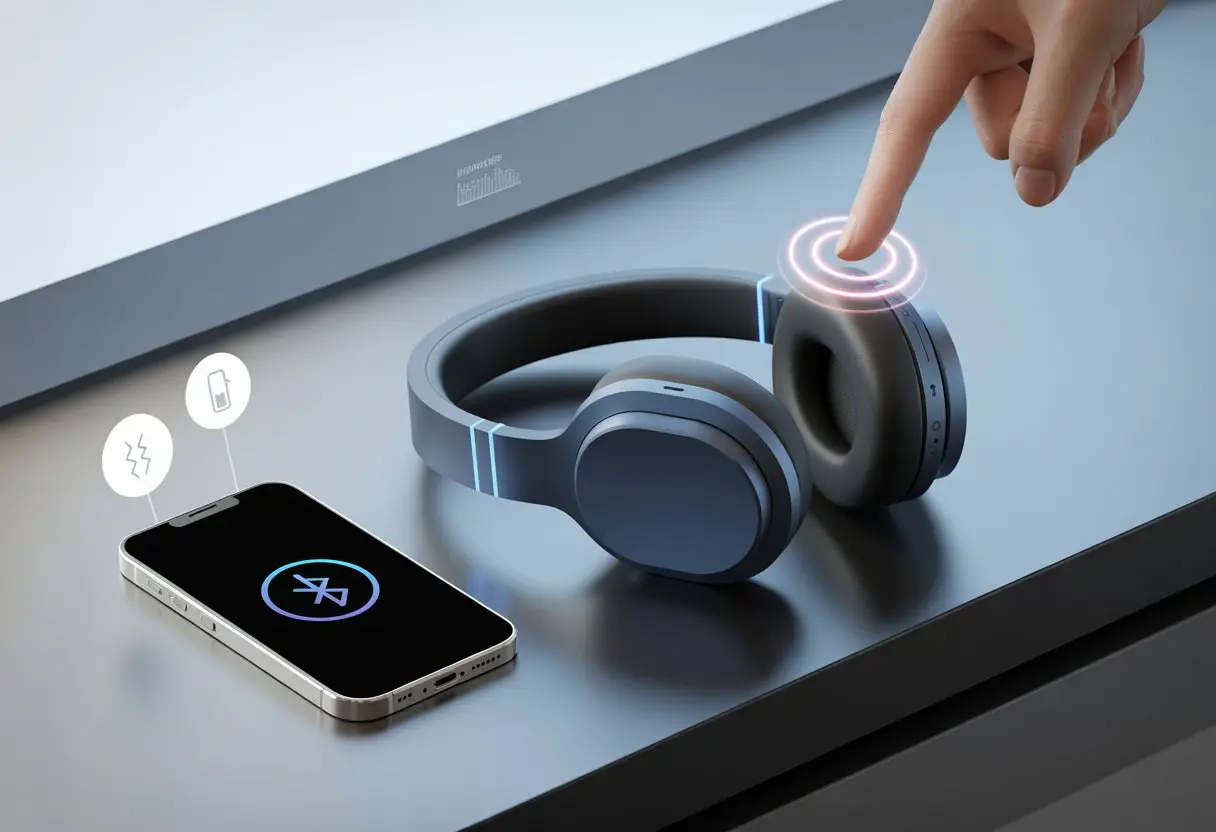
This can be seriously annoying, especially when all we want is to skip a song or pause the audio without reaching for our phones. A quick fix like resetting the headphones or turning off settings such as adaptive sound control or auto shut-off often gets things back on track.
If our headphones still ignore us, we might need to dig into the settings or even delete and re-pair them. Sometimes that’s the only thing that brings back that lovely, obedient tap-and-swipe action.
Let’s figure out how to stop our headphones from giving us the silent treatment. After all, if we wanted buttons, we’d still be rocking those old wired pairs from 2007.
Common Reasons Bluetooth Headphones Ignore Touch Controls
Sometimes Bluetooth headphones just seem to get a mind of their own. The touch controls stop working at the worst possible moment.
A few usual suspects cause this mess, and they don’t always involve us wearing our earbuds in the shower.
Hardware Issues With Touch Sensor Control Panel
Let’s start with the control panel. If we keep tapping and nothing happens, it might be a hardware problem.
Sometimes, the touch sensor inside the headphones just gives up. Wear and tear, a small drop, or even a bump against the table can mess up the surface.
Some electronics hide delicate sensors under a thin layer. If that layer cracks or gets damaged, touch controls just stop working. Sometimes, if connectors inside get loose, we lose all responsiveness.
We can’t really fix this with extra tapping or wishful thinking. If only one earbud ignores us, it’s probably just that side’s hardware.
If both sides give us the cold shoulder, maybe it’s something deeper or a bigger part inside.
Battery-Related Problems Affecting Responsiveness
A nearly empty battery does more than just whine for a charge. It can make touch controls sluggish or totally unresponsive.
Touch sensors need steady power, and low battery levels mess with their function. If music still plays but controls stop, checking the battery should be our first move.
Aging batteries can’t always provide enough voltage for the touch panel. As batteries wear out, this happens more often.
Some Bluetooth headphones just stop responding to touch when power drops too low. Plugging them in for a few minutes might actually bring them back.
After a full charge, sometimes touch controls need a quick reset to wake up. A reset is kind of like a digital slap on the wrist—surprisingly effective, according to Sony support advice.
Dirty or Moisture-Impacted Earbud Surfaces
Ever wondered if our ears are cleaner than a park bench? Our headphones definitely know the answer.
Dirt, earwax, and sweat build up on the touch sensor and block our taps. Humidity from workouts or rain can also mess with the sensors.
Sometimes, moisture tricks the panel into thinking we’re tapping nonstop. Other times, it just ignores us.
Cleaning earbuds with a soft, dry cloth isn’t just for neat freaks—it can actually fix touch problems.
Here’s a quick list to help:
- Gently wipe earbud surfaces (skip harsh chemicals)
- Let headphones dry if they get wet
- Don’t poke the earbud holes with sharp stuff
Dirt and moisture are sneaky, but honestly, they’re the easiest problems to fix. A quick clean often works better than hours of troubleshooting.
Bluetooth Connection Hiccups (And How to Fix Them)
Sometimes Bluetooth headphones just stop listening, skip a beat, or turn stubborn. Usually, it comes down to connection problems or software hiccups that make our headphones act like they need a nap.
Interference and Weak Signals
We’ve all been there—ready to listen to music, and our Bluetooth headphones freak out. Too many Bluetooth devices, Wi-Fi routers, or thick walls between us and our phones quickly ruin the signal.
Interference crashes the party, making the signal weak or choppy. No audio, delayed touch controls, or random pauses usually mean something’s blocking the signal.
Here’s what actually helps:
- Keep devices close together. If we wander off, Bluetooth can’t keep up.
- Move away from other wireless gadgets (microwaves, game consoles) since they mess with Bluetooth.
- Turn Bluetooth off and on again. It’s old-school but weirdly effective.
- If nothing changes, check for thick walls or objects between headphones and device.
This guide explains more about Bluetooth troubleshooting.
Firmware and Product Updates Gone Wrong
Sometimes, after a product update, our headphones get “smarter”—or just more stubborn. A small bug in new firmware can freeze touch controls or make them lag.
If we ignored update notifications or installed a glitchy one, touch controls might stop working right away. Sometimes, the problem sneaks in after a few days.
Here’s what actually helps:
- Go into Bluetooth device settings and check for product updates. Always grab updates from the official app or site.
- If touch controls died after an update, try resetting the headphones. Usually, that means holding a power button for several seconds. The method depends on the brand, but there are reset guides that really help.
- If nothing works, try downgrading firmware or reach out to customer support before tossing the headphones.
These steps can bring headphones back to life, or at least stop them from ignoring our taps.
Settings That Secretly Sabotage Touch Controls
Sometimes, the touch controls on our Bluetooth headphones stop working because of sneaky settings. Instead of blaming the headphones, maybe we need to check our device or the way we’ve set up tap actions.
Smartphone and Device-Level Settings
Phones and tablets come packed with settings that can mess with headphone touch controls. Some smartphones let us customize or limit what Bluetooth accessories can do.
If we’ve been playing around in these menus, maybe we accidentally turned off play/pause or volume adjustment. App permissions and accessibility features also get in the way.
Certain settings, like accessibility shortcuts or “Do Not Disturb,” can interfere with touch inputs. If our devices think they’re helping, they might actually be stopping our headphones from responding.
Pairing issues can also cause trouble. Deleting old pairing data and re-pairing headphones is a good troubleshooting step and helps after software updates or new installs.
Misconfigured Multi-Tap Functions
Multi-tap functions are like secret handshakes—two taps here, three taps there, and suddenly we’re skipping tracks or calling a voice assistant. If we set these up wrong or just forget what we programmed, chaos follows.
The headphones might ignore a double-tap or think our triple-tap is just a single tap. Some headphone models let us set up each multi-tap in a companion app.
If we mess up the settings or change defaults, touch controls might get unpredictable. When things go wrong, it’s smart to open the app and double-check gestures, or just reset everything to default.
Operating system updates can also mess with Bluetooth inputs. If a system update breaks our shortcuts, a quick review of input settings can save a lot of confusion.
Product-Specific Quirks: Not All Headphones Speak the Same Language
Every gadget family has its own rules and, honestly, its own weird logic. No two products—headphones, wearables, or speakers—handle touch controls the same way.
Sometimes it feels like we need a user manual written in emojis just to get things working.
Wearables, Speakers, and Speaker Accessories
Headphones might ignore our touch if they’re busy with auto shut-off modes or “wear detection” drama. The moment they think we’re not wearing them, all swipes and taps become invisible.
Some Sony models need us to turn off auto shut-off in their app to keep touch controls alive and kicking.
Smart speakers and their accessories get even weirder. Some touchpads react to a sneeze, while others act like they’re on a coffee break.
Pairing info and version compatibility can make or break touch controls. If headphones ignore us, it’s worth checking if both devices are following the same Bluetooth rules.
For stubborn accessories, a quick reset or re-pair usually does the trick. It’s kind of like rebooting a moody laptop.
Touch controls can be picky, but if we know the quirks of each device—headphones or a fancy home cinema accessory—we can avoid awkward tap-dances in public.
Troubleshooting Touch Control Woes Like a Pro
Touch controls on Bluetooth headphones can drive us nuts when they refuse to work. Before we panic and doom-scroll for hours, let’s run through what usually fixes these issues—and what to do when all else fails.
Step-by-Step Troubleshooting Steps
Alright, let’s start simple: Is there gunk on our headphones? A quick wipedown with a soft cloth usually works wonders.
Some headphones get as grumpy as an old cat when they’re dirty. Clean fingers help too—so maybe save the snacks for later.
If cleaning doesn’t do the trick, let’s try a reset. Most wireless headphones reset if we hold the power button for a few seconds. Not sure about the combo? We can look up our model’s directions.
Tips in a nutshell:
- Remove old Bluetooth pairings on both our headphones and our device.
- Pair again like it’s the first time.
- Disable voice assistants (like Google Assistant) mapped to our headphones’ touch controls—those can mess things up, as folks mention on the Sony forums.
- Test all gestures: single tap, double tap, swipe. Make a note of which ones ignore us.
If these steps don’t bring our headphones back to life, it’s time for Plan B.
When to Seek Local or Product Support
Sometimes, troubleshooting feels like tossing spaghetti at the wall. If nothing sticks, we need help.
Let’s check the headphone manual or the brand’s official support page for model-specific resets or firmware updates. A simple update can fix stubborn controls, believe it or not.
If the touch panels still ignore us, local help might be the answer. Many brands offer repair options or warranty service. Local tech shops can check for hardware issues.
We can reach product support by chat, email, or even a phone call. Keeping our warranty info nearby spares us extra hassle. If our headphones start acting up with random glitches, a professional repair usually sorts things out.
Warranty, Replacement, and Return Options for Stubborn Headphones
Sometimes, no matter how determined we are, fixing our headphones just isn’t possible. When we hit that wall, it’s time to look at warranties, returns, and replacements—our last line of defense before launching those earbuds into space.
What Warranty Information Covers (And What it Absolutely Does Not)
A warranty feels like a safety net for our headphones. It usually covers problems that aren’t our fault—like sudden hardware failures, battery issues, or dead touch controls.
If one side goes silent or the touch sensor is toast, that’s probably a warranty thing. But let’s be real: if we dropped them in the pool, let the cat play with them, or ran them through the wash, the warranty’s not coming to the rescue.
Always check how long the warranty lasts—sometimes it’s shorter than we expect. Brands love making their own rules. Some want receipts, others need us to register the product, and a few just make us jump through hoops. Read the fine print, even if it makes your eyes hurt.
How to Service, Replace, or Return Your Product
First, figure out what’s busted—touch controls, sound, or maybe the Bluetooth connection. Once we know, check the manufacturer’s website for their warranty process.
Some brands make it easy with an online form. Others want us to call, email, or even send a photo of the broken headphones (tragic, honestly).
Here’s the usual process:
- Find our proof of purchase.
- Register the order or track it using our account.
- Fill out a return or service form.
- Wait for a shipping label or instructions.
Some companies offer warranty service or returns—we might get a replacement, a repair, or a refund if they can’t fix things. If we bought from a retailer, returns might have a much shorter window. Always check before time runs out!
Keeping Your Headphones Fun and Functional: Pro Tips
Keeping Bluetooth headphones working is sometimes easier than convincing a toddler to wear socks. A bit of cleaning and smart shopping can keep those touch controls happy without wrecking our wallets.
Cleaning and Care for Touch Controls
Let’s be honest—greasy fries and touch headphones don’t mix. Our touch controls can get grumpy if there’s dirt, sweat, or dust hanging around.
Wipe them with a soft, slightly damp cloth, not yesterday’s napkin. Skip the harsh cleaners—our headphones deserve better.
Sometimes, the sensor just needs a reset. A gentle clean around the ear sensor can help. If touch features are still on strike, check for firmware updates or try a quick reset. Cleaning, care, and the occasional update keep our favorite consumer electronics going strong.
Shopping and Saving on Headphone Upgrades
When cleaning and resets don’t work, maybe it’s time to look for headphone upgrades. Price drops happen fast, so watching for deals can save us money.
Look for bundles with earbud accessories like extra tips or a case—more value, same price. Before jumping on a new pair, double-check warranty policies and order tracking so we’re not left pacing the porch waiting for delivery. With smart shopping, we level up our listening and leave touch control drama behind, all while keeping our bank accounts happy.
Avoid Unwanted Surprises: Preventing Future Touch Control Issues
Let’s be honest—nobody likes it when Bluetooth headphones ignore our finger taps. If your touch controls suddenly go on strike, there are a few things you can try to stay ahead of the game.
1. Keep Your Settings in Check
A lot of touch control problems start with settings. Sometimes, it’s just a forgotten option hiding in the app or device menu. Take a minute to poke around and see if anything looks off.
2. Don’t Ignore Product Updates
Updates might seem dull, but honestly, they’re like vitamins for your headphones. Outdated firmware often causes weird touch control issues. It’s worth checking for updates from the manufacturer and installing them when you spot one.
3. Try These Quick Fixes
Here’s a handy table for the next time things go sideways:
| Problem | What You Can Try |
|---|---|
| Touch not working at all | Reset headphones |
| Random taps triggered | Clean sensor, adjust fit |
| Controls delayed | Reconnect Bluetooth, update |
| Settings disappeared | Restore default settings |
4. Troubleshooting: The Secret Sauce
When touch controls stop working, reset your headphones or unpair and re-pair them. Sometimes, the user manual hides a magical secret button combo you haven’t tried.
Reddit is full of people venting about unwanted touch events, so you’re definitely not the only one dealing with this.
If nothing works, just ask for help instead of giving your headphones the cold shoulder.

From a young age, I have always had a big interest in technology, and this blog is an extension of that interest. Through this blog, I hope to provide others with all of the information they need regarding tech options to consider, and things such as compatibility. Some of the different items I will be discussing include headphones, smartwatches, and how to fix common issues.
- How to Improve WHOOP Recovery Scores Without Giving Up Pizza or Netflix - April 7, 2026
- Why is my fitness tracker not unlocking my computer? Tech tantrums and wearable woes explained - April 7, 2026
- Best Fitness Trackers for Stress Relief: Because Your Anxiety Deserves a Step Counter Too - April 6, 2026
Related Posts: