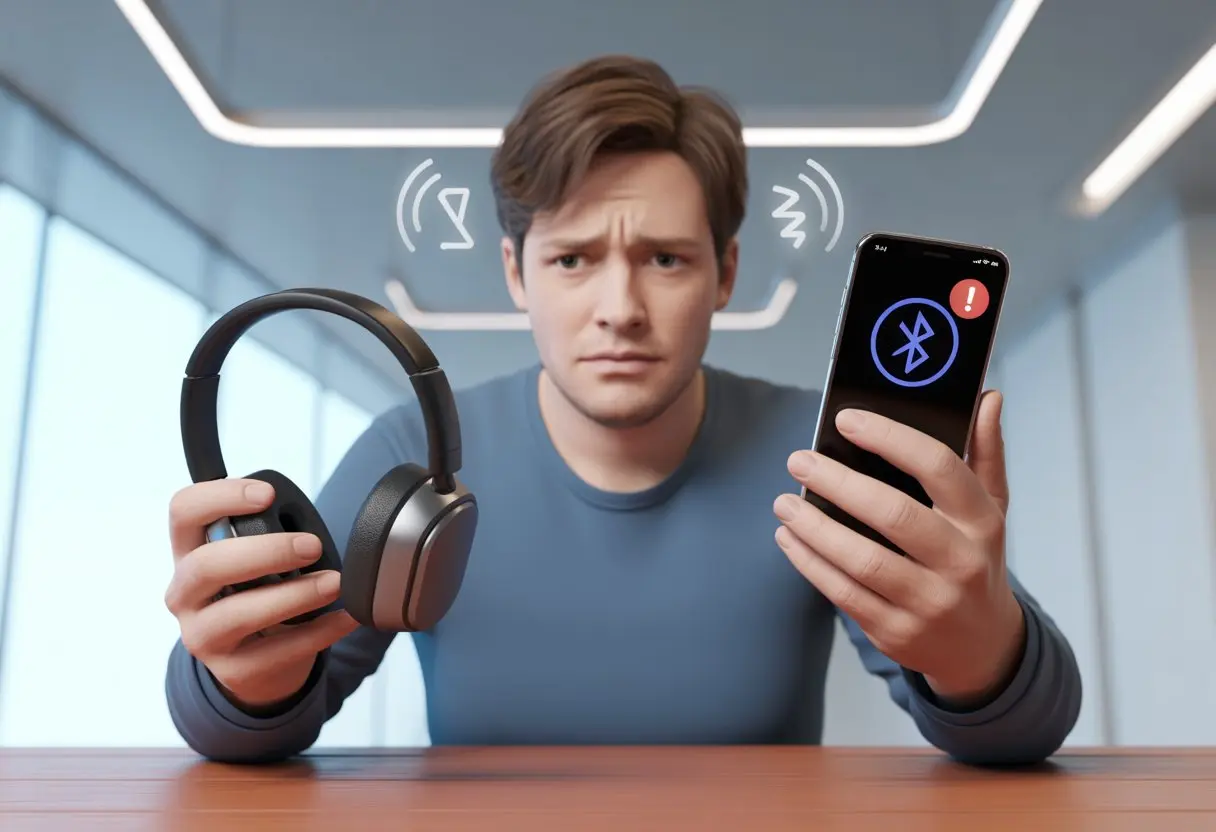
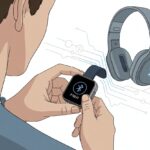
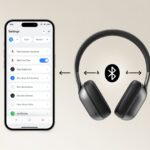
The headphones won’t pair, and suddenly, we’re stuck in awkward silence, staring at the “Can’t Connect” message like it’s an unsolvable riddle.
Most of the time, our Bluetooth headphones refuse to connect because of simple issues like low battery, software glitches, or being too far away from the phone.
It’s a little frustrating (okay, very), but the good news is that these pairing problems usually have easy fixes.
Sometimes our devices just need a quick reset, a fresh battery charge, or to be a bit closer together—turns out, Bluetooth has trust issues with long-distance relationships!
If your headphones only give the silent treatment to your phone, but they work with other devices, there’s probably a small fix just waiting to be discovered.
Let’s dive in and see why our headphones sometimes play hard to get, and what we can do to bring the music back without losing our patience—or our minds.
Why Bluetooth Headphones Don’t Pair With Your Phone
https://www.youtube.com/watch?v=SnwZiULKe1U
Bluetooth headphones sometimes act like they have a mind of their own.
We try every trick in the book, but the pairing fairy just doesn’t show up.
Let’s pin down the real reasons behind these stubborn tech moments.
Common Pairing Obstacles
Let’s face it—our Bluetooth devices love to pick the worst times to act up.
Sometimes, we just forget to turn on Bluetooth on our smartphone, or maybe our headphones need a charge.
Even something as basic as moving too far from the phone can break the connection.
Bluetooth likes to keep it cozy.
Headphones can get stuck trying to remember an old device.
This causes what I call “Bluetooth drama,” where they ignore the new pairing attempt.
If this happens, we need to reset the headphones or make our phone “forget” the device before trying again.
Some headphones want us to press and hold certain buttons for a few seconds to reset them, as people mention on Reddit.
Physical objects get in the way too.
Thick walls, microwaves, or even other wireless gadgets can cause interference.
If all else fails, just turn everything off and back on again—it’s the tech world’s favorite fix, honestly.
Understanding How Bluetooth Works
Bluetooth is a short-range wireless technology.
It creates a mini bubble, usually about thirty feet wide.
If our Bluetooth headset and our smartphone step outside the bubble, the magic disappears.
Pairing happens when devices broadcast their existence like they’re saying, “Hey! Pick me!”
Our phone scans for these broadcasts, then connects if it finds the right one.
Sometimes, too many devices in the area can act like party crashers and cause confusion—our phone might try to connect to our neighbor’s speaker instead of our headphones.
Bluetooth also likes to be private.
If our headphones already connect to another cell phone, they might refuse to talk to ours until we break the old connection.
Sometimes, we just have to force them back into “pairing mode” by pressing and holding a button, usually marked with a funky Bluetooth symbol.
Typical Bluetooth Device Requirements
Every Bluetooth device has its quirks.
For pairing to work, our headphones and smartphone should be close—definitely not in different rooms.
Sometimes, manufacturers set things up so that to make a headphone discoverable, we need to hold down a certain button for a few seconds.
Some devices have extra requirements, like letting us know it’s in pairing mode with a flashing light or a little beep.
Smartphones also have software that sometimes glitches, so clearing cache or restarting Bluetooth can help.
Important tip:
Charge our headphones before pairing.
Make sure nothing else is connected to them.
Keep both devices nearby and double-check settings.
With a little patience (and maybe some muttered complaints), we can usually coax our stubborn tech back into action.
Troubleshooting Connection Issues
Bluetooth headphones can be stubborn.
Sometimes we just want to listen to music, but our devices have other ideas.
Taming these tech gremlins usually means checking the basics, like our device settings, if our gadgets can see each other, and whether we actually remembered to charge anything.
Checking Bluetooth Settings
Let’s be honest—some of us have spent too long yelling “Why aren’t you pairing?!” when one quick look at our smartphone’s Bluetooth settings could have solved everything.
First, we should make sure Bluetooth is actually turned on.
If it’s off, nothing’s happening except our frustration.
Next, we need to make sure our phone isn’t paired with another Bluetooth device by mistake.
It’s like our phone is cheating on our headphones with the car speakers!
If our Bluetooth device is listed as available, we select it and, if required, enter the passkey (usually “0000” or “1234,” but our devices try to keep it a secret like it’s their Netflix password).
If settings look fine but nothing is working, restarting the phone and our Bluetooth headset can help.
Sometimes, turning Bluetooth off and on again or forgetting the device and pairing once more can also help us get things running.
Ensuring Devices Are Discoverable
Bluetooth is surprisingly shy.
Our Bluetooth headset and smartphone both need to be in discoverable mode, which is tech-speak for “able to see each other and say hello.”
Many Bluetooth headphones have a special pairing button, and holding it for a few seconds can make the device visible.
A flashing light usually means it’s looking for friends.
On our phones, sometimes the connection gets stuck if they aren’t trying to pair at the same time as the headset is in pairing mode.
According to Google’s Android help page, it’s smart to check that the devices are close to one another, within a few feet.
Walls, microwaves, or wayward pets can block the signal, so we want to keep everything in the same room.
Remember, if our phone can’t see the headset, neither can our playlist.
If we’re unsure, we should read the headset manual or see if there’s a helpful video online.
Sometimes the toggle or pattern to activate pairing is more complicated than a dance move.
Dealing With Low Battery Blues
Our phones and Bluetooth headsets both love to give up on us when batteries are low.
If either device is nearly out of juice, pairing might not work at all.
Some headsets just refuse to cooperate when there isn’t enough battery, blinking red lights at us as if to say, “Nice try, but feed me first.”
It’s wise to check the battery level indicator before we lose our minds troubleshooting other things.
Most smartphones will show the headphone battery level in the Bluetooth settings once it’s connected, but if we can’t even get that far, a quick charge might be all we need.
Don’t forget—some Bluetooth devices warn us with a voice (“Battery low!”) or a sad beeping sound.
Just ten minutes of charging can sometimes be the difference between music bliss and sitting in silence, hearing only our own complaints.
Compatibility Matters: Device Requirements
Technology is supposed to make life easy, right?
Then why do our Bluetooth headphones sometimes act like they need a translator just to talk to our devices?
Sometimes, our gadgets don’t play well together because of mismatched versions, weird quirks, or secret brand club rules.
Older Bluetooth Versions and Devices
You’d think Bluetooth is Bluetooth, but sadly, it’s more like versions of math homework—some just don’t add up.
If our headphones are rocking the newest Bluetooth tech, but our old phone is three versions behind, they might refuse to pair, leaving us listening to the sound of silence (not the good kind).
Older laptops, computers, or TVs may use ancient Bluetooth versions that aren’t compatible with newer gear.
Let’s not forget grandma’s tablet or that old cellphone lurking in the junk drawer; newer headphones want nothing to do with them.
Before tossing our headphones across the room, it’s smart to check which Bluetooth version each device uses.
It helps to look for this info in the device’s specs or settings.
If updates are available, installing them could save us from another hair-pulling pairing session.
Still hearing crickets?
It might be time to upgrade our favorite device.
Pairing With Non-Phone Electronics
Bluetooth doesn’t stop at cell phones.
Sometimes, we want to pair our headphones with a computer, laptop, Mac, tablet, or even a TV.
Not every one of these gadgets is ready for headphone romance at first sight.
Some older computers and laptops need us to turn on Bluetooth manually or even buy a separate USB dongle just to join the party.
Trying to pair with our smart TV?
Some TVs support Bluetooth, but others are still living in the past.
Each device can have a different setup process, and TVs may even have their own menu labyrinths hiding the “pairing” button.
Let’s not get started on tablets.
While most are compatible, weird software issues or limited Bluetooth profiles might throw us a curveball.
A quick visit to device settings can help us see which gadgets are actually Bluetooth-friendly and which ones just like to pretend.
Brand-Specific Pairing Quirks
Headphones sometimes act like they’re part of a secret club, letting in only their chosen devices.
Take Bose headphones and certain Macs or phones—sometimes they require us to press buttons in a special order or use a specific app for pairing.
Some brands try to keep things exclusive, blocking connections with devices from rival brands or dodging pairing requests unless we’ve registered an account.
Certain phone brands may even prompt for a PIN or show sneaky pop-ups that disappear faster than we can read them.
If we notice our headphones have special instructions in the manual or the brand’s support site, it’s worth a quick look.
Skipping these steps may leave us staring at the “not connected” screen for hours.
When all else fails, a good old-fashioned restart can work wonders—even if it feels a little like rebooting our own patience.
Interference and Environmental Factors
Sometimes our Bluetooth headphones and phones just need better surroundings.
Interference from electronics and physical barriers can easily hit the pause button on our listening experience.
Avoiding Electronic Clutter
Let’s be honest, our homes often look like an electronics store exploded. Laptops, tablets, smart TVs, microwaves—if it plugs in, it’s probably messing with our Bluetooth signal.
Bluetooth hangs out on the 2.4 GHz band, which is already jam-packed with Wi-Fi routers, wireless mice, and even our neighbor’s baby monitor. When all these gadgets fight for space, our headphones might suddenly act like they’re too cool for our phones.
If our music keeps cutting out at the worst times, try turning off unused devices or moving away from Wi-Fi routers. Updating firmware on our headphones or phone sometimes helps too.
We’ve all wandered around with our phone in one pocket and headphones on, only for the music to play hide and seek. Walls, floors, and even our own bodies can block the Bluetooth signal—kind of rude, honestly.
Metal, concrete, and water (yep, that includes us) love to get in the way. Bluetooth works best without too many obstacles, so keeping our phone and headphones in the same room or at least within sight really helps.
If we walk away and our music starts skipping like a scratched CD, we’ve probably gone too far. Try moving the phone higher, closer, or away from thick walls and cluttered desks.
Distance matters—a few meters is usually fine, but heading into another room is just asking for trouble. If you want more info about obstructions and their effect on Bluetooth, there’s plenty to read up on.
Advanced Fixes and Pro Tips
When our Bluetooth headphones and phones just won’t get along, it’s time to roll up our sleeves and try some advanced fixes. We can try a hard reset, firmware update, or clear out old pairings to get even the most stubborn devices working together.
Resetting Bluetooth Devices
Sometimes, our gadgets just need a fresh start. Turning things off and on is a classic move, but a full reset can work wonders.
To reset, we usually hold down certain buttons. Most headphones want us to press the power button, sometimes with volume up or down, for about 5 to 10 seconds.
Some models flash lights or beep to let us know the reset happened. If we’re unsure, the manual is our friend.
A reset clears out annoying glitches that build up over time. If you want visuals, these users swear by the volume reset trick. It’s basically a digital spa day for our headphones.
Updating Firmware and Software
Firmware is the low-level code that tells our Bluetooth device what to do. Outdated firmware can make gadgets act up. To check for updates:
For headphones: Hit up the manufacturer’s website or use their app. Big brands like Sony and Jabra push updates through phone apps.
For phones: Make sure iOS, Android, Windows, or MacOS are all up to date.
Companies release updates to squash bugs, add features, and improve Bluetooth compatibility. Sometimes, these fixes stop our headphones from ghosting our phones.
If nothing works, try calling customer support or running a manual update from a computer.
Clearing Old Pairings
Pairing lists fill up fast. Our headphones and phones both remember old connections, which can cause confusion. We need to clear out the digital cobwebs.
Start by removing or “forgetting” unwanted Bluetooth connections on our phone and headphones. On iPhone or Android, tap the device name and choose “Forget.”
Some headphones have their own memory. Usually, holding down the pairing button longer or following the manufacturer’s secret code clears it. Instructions are usually buried in the manual or online FAQs.
A clean slate can fix weird glitches. For extra help, this Techlicious guide covers software and hardware steps. With old pairings gone, our devices have no more excuses.
Pairing Bluetooth Headphones With Computers and Laptops
Pairing our Bluetooth headphones with computers shouldn’t feel like solving a Rubik’s Cube, but sometimes it does. Between laptops that refuse new friends and mysterious error pop-ups, it can get frustrating.
Connecting on Windows and Microsoft Devices
First, make sure Bluetooth is actually turned on. Windows loves to hide this in the Action Center or Settings.
If our device won’t show up, sometimes Windows just needs a nudge. Try switching Bluetooth off and on again.
Headphones might be connected to something else. Hold down their pairing button until a flashing light appears.
On the computer, head to Bluetooth settings, tap “Add Bluetooth or other device,” and pick our headphones from the list.
If the computer still acts stubborn, try restarting it, updating drivers, or moving closer. If nothing works, Microsoft has tips to fix Bluetooth problems in Windows.
Pairing With Mac and Apple Devices
Pairing with a Mac can be straightforward, but only if our headphones are in pairing mode and Bluetooth is on. Check by clicking the Bluetooth icon in the menu bar.
If our device doesn’t show up, maybe it’s too close to another phone or laptop. Or maybe the Mac just needs a little encouragement.
Once our headphones appear, click “Connect.” Sometimes the Mac will ask for a code—usually “0000” or “1234.”
If nothing connects, try forgetting the headphones and adding them again. Restarting the Mac and headphones often helps.
For stubborn connections, update macOS or reset the Mac’s Bluetooth module. Apple can be picky, and very old headphones might not play nicely.
Overcoming Office and Networking Obstacles
In shared spaces like offices, Bluetooth chaos is real. Multiple laptops, phones, and Macs all competing for headphones can make us feel like tech referees.
To keep things simple, unplug extra USB dongles and turn off Bluetooth on devices we’re not using. Some corporate networks limit Bluetooth pairing for security.
If work blocks connections, check with IT. Microsoft Office doesn’t block Bluetooth, but network settings might.
Avoid crowded wireless channels. Move closer to the computer or laptop and away from Wi-Fi routers.
If nothing works, a trusty wired headset might save the day—and our sanity.
Pairing With Smart TVs and Tablets
When our fancy Bluetooth headsets refuse to connect with TVs or tablets, it can feel like we’re in a doomed group project. Sometimes, a single setting ruins everything; other times, our devices just need patience and a few button presses.
Smart TV Bluetooth Pairing
We’ve all spent too long hunting for hidden Bluetooth settings on our TVs. Here’s how to save ourselves a headache:
Check Compatibility: Not all smart TVs support Bluetooth headphones, and some play favorites. Using a Bose headset? Double-check your TV model.
Put Phones Down: Some headphones only want to pair with phones and throw tantrums when we try a TV.
Getting Started: With most Samsung TVs, pairing means heading to Settings > Sound > Sound Output > Bluetooth Speaker List.
Lip-Sync Lag: Sometimes there’s a delay between audio and video—fun for karaoke night, not ideal for regular TV.
Reboot When in Doubt: If the headset won’t show up, a quick TV restart often helps.
If we see “no devices found,” either the TV doesn’t support Bluetooth audio or our headset needs to be in pairing mode. Even Bose headphones get moody about this.
Tablet Bluetooth Connection Tips
Pairing Bluetooth headsets with a tablet should be easy, but technology loves to test our patience.
Basic Steps:
Turn on Bluetooth on the tablet (easy to forget).
Put the Bose headset in pairing mode (usually hold the power button until it blinks).
Find the headphones in the tablet’s Bluetooth list and tap to connect.
If nothing shows up, double-check that the headset isn’t already connected elsewhere. Some headsets just don’t like to share.
Tablets usually remember our headphones for next time. If we still can’t connect, deleting the old Bluetooth connection and pairing again often works.
If all else fails, reboot both the tablet and headphones—half of tech problems seem to vanish after this ancient ritual.
Android and iOS tablets mostly work the same, though button names may differ. As long as we go step by step, our Bluetooth headset and tablet should finally cooperate.
When to Contact Support (Or Email That Sad Face Emoji)
Sometimes, we hit the Bluetooth wall and nothing helps. If our headphones still refuse to pair, it might be time to reach out for help or consider a replacement.
Getting Help From Manufacturers
When our Bluetooth headset just stares into the void and won’t pair, it’s time to call in the experts—customer support. Brands like Bose have helpful support pages.
We should gather all the info support teams love: model number, serial number, what steps we’ve tried, and what kind of phone we’re pairing with. This saves time and spares us a long troubleshooting saga.
Some companies offer live chat, while others prefer a classic email—sad face emoji optional.
Tip: Double-check if the headphones need a firmware update or have a known issue by searching company forums or their official support pages.
Warranty and Replacement Tips
Honestly, it pays to check if our headphones are still under warranty. Big names like Bose usually cover us for at least a year, maybe more if we’re lucky.
Let’s not lose that receipt—without it, we’re probably out of luck.
When we reach out to support, we should ask a few things:
Hi, my name is Garrett Jones, and I am a tech enthusiast. I enjoy researching the new tech that has been released, and have a vast knowledge of the best tech to purchase.
From a young age, I have always had a big interest in technology, and this blog is an extension of that interest. Through this blog, I hope to provide others with all of the information they need regarding tech options to consider, and things such as compatibility. Some of the different items I will be discussing include headphones, smartwatches, and how to fix common issues.