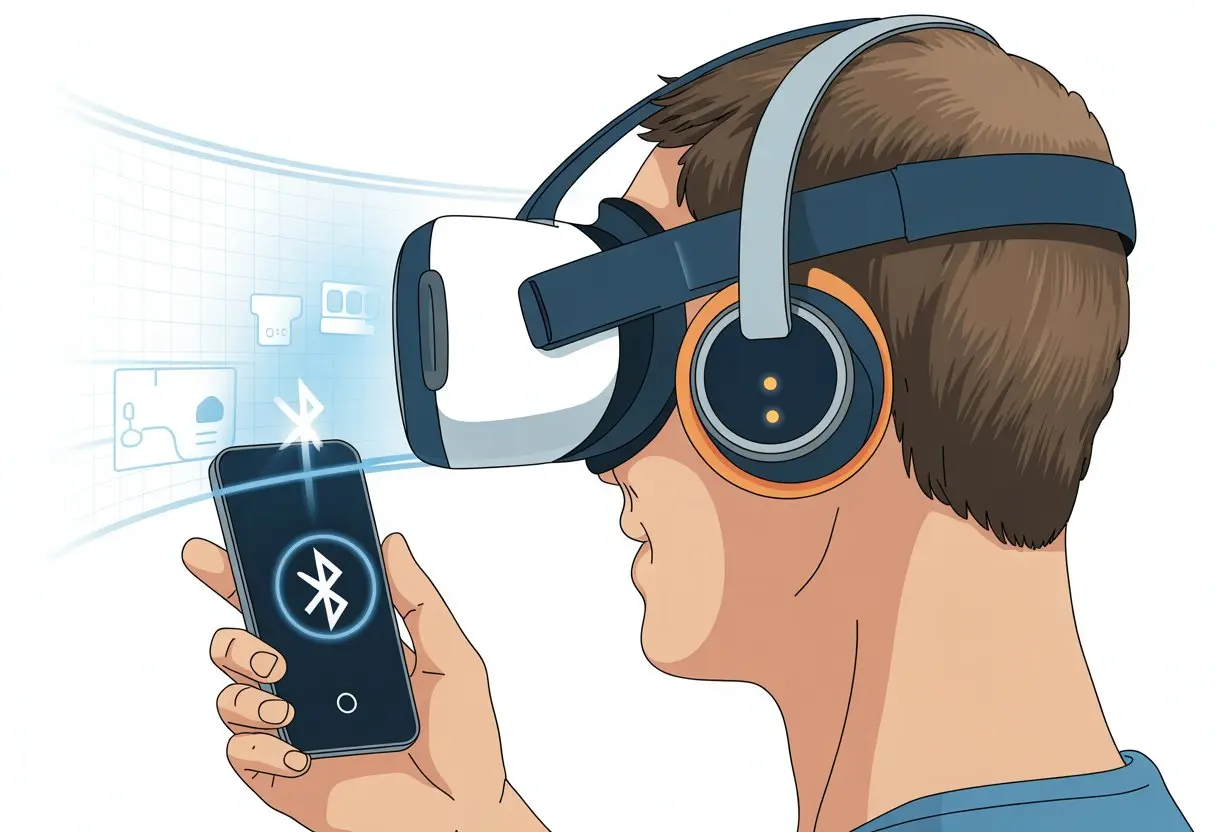
We’ve all been there—deep into a virtual reality adventure, dodging imaginary aliens or slicing cubes, when suddenly our roommate starts vacuuming right beside us. The fix? Bluetooth headphones, obviously.
Using Bluetooth headphones with a VR headset keeps real-world noise out and lets us stay in the zone with our favorite games. There’s also something kind of awesome about going totally wireless, even if we look a little goofy in the living room.
Bluetooth tech and virtual reality together might sound a bit sci-fi, but honestly, it’s not that complicated once we get started. Most headsets like Meta Quest make it pretty straightforward—just open the settings menu, track down Bluetooth options, and follow a few steps.
Ready to team up our VR headset and Bluetooth headphones for a truly wireless, immersive experience? We’ve got a few tips to keep the soundtrack epic and the audio in sync with the action.
Understanding Bluetooth Headphones with VR Headsets
When we use Bluetooth headphones with a VR headset, things can get a little weird. Audio in virtual reality doesn’t always behave the same as with our phone, and Bluetooth brings its own quirks that can leave us scratching our heads—or yelling “Can you hear me now?” at a digital avatar.
What Makes Bluetooth Different?
Bluetooth means no wires (thank goodness), but that freedom comes with a few trade-offs. Wireless signals have to transfer audio data, and it’s not exactly instant.
Latency—the delay between action and sound—can show up when lasers and sound effects don’t quite match up. That’s always a little annoying.
Bluetooth also has to fight for space with other devices. Got a smartwatch, controller, or your neighbor’s kitchen gadgets running? Sometimes Bluetooth headphones just stumble over all that invisible noise.
And here’s a kicker: Bluetooth usually compresses audio to keep things speedy and help battery life. That means sound quality might dip, especially if we’re used to high-end wired headphones.
Don’t expect studio-level sound while dodging virtual zombies—think more like “tin can telephone, but wireless.”
How VR Headsets Handle Audio
Most modern VR headsets, like the Meta Quest series, have built-in audio or a headphone jack. Connecting Bluetooth headphones means diving into menus and sometimes testing our patience.
We can pair headphones from the settings, but not all headsets play nice with every Bluetooth feature. Microphone support? That often gets left out.
VR headsets tend to focus their Bluetooth on controllers, not on creating perfect audio. That’s why some users notice lag with Bluetooth headphones—music, gunshots, or voice chat can all fall slightly behind real-time.
This delay pops up a lot in the VR community and can even mess with game performance.
Wired headphones still win for folks who can’t stand lag. But if you’re just after fewer cables and don’t mind a little delay, Bluetooth headphones can be a fun choice—just don’t expect lip-sync miracles during your next virtual dance-off.
Checking Compatibility: Are Your Devices Ready?
Before we start pairing, we need to do a quick check. Not every VR headset or pair of Bluetooth headphones is ready to jump into the virtual world—so let’s figure out if our gear can actually work together.
Supported VR Headsets and Models
Not all VR headsets “speak” Bluetooth. Some are open to it, some are picky, and a few just refuse to play along with wireless audio.
The Oculus Quest 2 lets us connect Bluetooth headphones, but Meta warns about possible lag. If we care about lip-sync, it’s smart to double-check if the headset supports Bluetooth audio out of the box.
The HTC Vive series mostly uses Bluetooth for controllers, not headphones. Always check the official support page for your model, or poke around in Settings > Bluetooth inside the headset.
If you spot a Bluetooth audio option, you’re probably good to go. If not, wired headphones might be your best bet.
Quick Table—Common VR Headsets and Bluetooth Support:
VR Headset
Bluetooth Audio?
Oculus Quest 2
Yes (with lag)
HTC Vive
No (controllers only)
Vive XR Series
Check manual
PlayStation VR
No
If your headset isn’t listed, a quick search or a look at the official support page can save a lot of guessing.
Bluetooth Headphones Features to Look For
Once we know our headset is up for it, let’s talk headphones. Not all Bluetooth headphones are equal.
We want headphones that pair easily and support common audio profiles like A2DP. Stubborn headphones will make pairing a pain.
Latency matters a lot. Low-latency headphones using aptX-LL can help cut down on audio delay, so we don’t get a dragon’s roar two seconds late.
Over-ear headphones sometimes press into the headset and get uncomfortable, so it’s better to pick a design that fits nicely (maybe lightweight or on-ear).
Always make sure our headphones are fully charged. Dead headphones mean game over, and that’s just the worst.
If pairing gets tricky, the headphone’s manual is our best friend—no shame in looking it up.
Pairing Guide: Connecting Bluetooth Headphones to Your VR Headset
Pairing Bluetooth headphones with a VR headset is almost a rite of passage at this point. It’s about getting our gadgets to play nice, and every VR system seems to have its own little twist.
Putting Your Headphones in Pairing Mode
Let’s start with the headphones. Most wireless headphones are eager to be found, but not always obvious about it.
Press and hold the power button (or sometimes a Bluetooth button with a squiggle) until the light blinks rapidly.
A flashing blue or white light means the headphones are in pairing mode, basically yelling “pick me!” at our VR headset.
If the headphones want a PIN, check the manual—or just try 0000 and cross your fingers. And if you mix up left and right earbuds, well, you’re not alone.
Accessing Bluetooth Settings on Your VR Headset
Now it’s the headset’s turn. Power it up, settle it on your face (and maybe leave a few new red marks), then open the main menu.
Head into Settings and look for the Bluetooth section. Some headsets, like the Oculus Quest 2, bury Bluetooth deep in the menus, but it’s there.
For Quest 2, tap the clock icon, pick Settings, and then Bluetooth to start hunting for your headphones. Don’t be surprised if Bluetooth isn’t front and center—some VR systems act a little shy.
On HTC Vive headsets, check for Bluetooth under device or connection settings. Every manufacturer seems to love a good digital scavenger hunt.
Steps for Different VR Platforms
Each VR platform has its own quirks. On the Meta Quest 2, go through Quick Settings, tap Bluetooth, and pick your headphones from the list.
Select them, and if all goes well, you’ll be surrounded by glorious VR audio in no time.
For the HTC Vive, turn on Bluetooth from the device menu, then hit “Pair new device.”
Scroll to your headphones, tap their name, and enter the PIN if needed.
Other headsets mostly follow the same routine, but always check the manual. If you get lost, there are tons of guides and videos online—sometimes they’re honestly easier than trying to remember what you did last time.
Common Issues and Troubleshooting
Bluetooth headphones with a VR headset can bring freedom, but sometimes they bring headaches—like laggy sound or random disconnects. Let’s see what’s actually going on when our audio goes haywire.
Audio Lag and Latency Explained
Ever swung a virtual sword and heard the whoosh a moment later? That’s Bluetooth audio lag.
VR headsets like the Meta Quest often have this issue when we connect Bluetooth headphones, especially in fast-paced games.
Bluetooth has to compress and send the sound wirelessly, which takes time. Game audio might lag or stutter, and rhythm games like Beat Saber can really suffer.
To minimize this, try lowering the game’s graphics settings or closing extra apps. Some VR headsets just don’t handle Bluetooth audio well, so if things get really rough, it might be time to grab wired headphones or use built-in speakers.
Connection Drops and Interference
Bluetooth can be clumsy, tripping over Wi-Fi and even microwaves. When we use Bluetooth headphones, VR headsets sometimes lose connection or get hit with static, which leads to audio cutting in and out or calls dropping mid-game.
Interference gets worse if you’ve got lots of wireless gadgets around. Even Bluetooth keyboards or smart lamps can cause trouble.
Some users have shared that audio cuts out or switches back to speakers during calls or if you stray too far from the headset. This Bluetooth in-call issue has left a lot of people scratching their heads.
To help, try staying close to your headset, keep your headphones charged, and close any extra apps hogging Bluetooth. And if nothing works, the classic “turn it off and on again” move is always worth a shot.
Optimizing Your Audio Experience
Getting solid sound from Bluetooth headphones can make VR gaming way more fun. Paying attention to comfort and using surround sound features helps us dodge sore ears and avoid audio issues that ruin the mood.
Enhancing Comfort for Long Gaming Sessions
Let’s be real: even the fanciest VR headset loses its charm if our ears start feeling like pancakes after an hour. Choosing headphones with soft, cushy ear pads actually makes a bigger difference than you’d think.
We should look for models with lightweight bands and memory foam pads. That way, our ears won’t overheat in the middle of a zombie chase.
Wireless headphones? They mean fewer tangles while we’re ducking and dodging around the living room. If our headset lets us adjust the head strap, a quick tweak can make room for bulkier headphones. That keeps everything snug without pinching.
Here’s a bonus: sweat-resistant ear pads help us avoid those funky smells after marathon gaming nights.
A quick checklist for comfort:
Soft, breathable cushions
Adjustable bands
Lightweight design
Sweat-proof materials
Our ears will definitely thank us later.
Getting the Most Out of Surround Sound
We all want to catch every footstep sneaking up behind us—not just the music blasting in our left ear. Many Bluetooth headphones support virtual surround sound, which is pretty neat.
Some VR headsets and games even include built-in spatial audio features. These make in-game sounds actually come from the right direction.
But here’s the thing: we need to double-check that our headphones are set up for surround sound. There’s nothing worse than realizing we’ve been playing with plain old stereo the whole time.
For the best results, pair our headset’s sound settings with our headphones’ surround presets. If our Bluetooth headphones have a dedicated app, it’s worth tinkering with EQ and 3D audio settings.
Headphones and earbuds can really boost immersion, making horror games spookier and car engines sound way more aggressive. Just a heads up: super detailed audio can mean we also hear our dog snoring across the room.
Alternative Solutions: When Bluetooth Isn’t Enough
Let’s face it—Bluetooth headphones and VR headsets don’t always play nice together. Sometimes the audio lag is so bad, we might as well just watch a silent film and guess the dialogue.
Using Wired Headphones with VR
We’ve gone wireless in a lot of ways, but nothing beats the classic reliability of a wired connection. Plugging in wired headphones gives us instant sound, no lag, and way fewer tech headaches.
Most VR headsets, like Meta Quest 2 and PlayStation VR, come with a headphone jack. Hooking up is usually a breeze.
Not sure which headphones to grab? Look for these features:
Feature
Why It Matters
Shorter cable length
Less tangling while moving
L-shaped jack plug
Less risk of accidental pulls
Lightweight design
More comfort for long sessions
No charging, no fiddling with settings—just plug and play. Well, unless we trip over the cable, but that’s another story. Sometimes, simple just works.
Exploring Wireless Audio Transmitters
When your heart screams “wire-free” but your VR headset throws a fit about “Bluetooth chaos,” a wireless audio transmitter might just save your sanity.
You just plug one of these little gadgets into the headset’s audio jack, and suddenly your favorite non-Bluetooth wireless headphones—yeah, even those old ones you forgot about—spring back to life.
The best part? There’s way less lag. Transmitters usually rely on radio signals or low-latency Bluetooth codecs, which run circles around regular Bluetooth.
Some transmitters even let you hook up two headphones at once. That’s a lifesaver for multiplayer gaming or, honestly, just sharing the terror when virtual zombies pop out of nowhere.
Here’s how setup usually goes:
Plug the transmitter into your VR headset.
Pair your headphones with the transmitter.
Now you get smoother, lag-free audio—finally.
It’s one more thing to charge, sure. But at least you’ll actually hear those sneaky footsteps before it’s too late.
Hi, my name is Garrett Jones, and I am a tech enthusiast. I enjoy researching the new tech that has been released, and have a vast knowledge of the best tech to purchase.
From a young age, I have always had a big interest in technology, and this blog is an extension of that interest. Through this blog, I hope to provide others with all of the information they need regarding tech options to consider, and things such as compatibility. Some of the different items I will be discussing include headphones, smartwatches, and how to fix common issues.