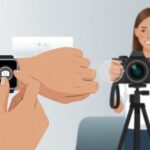
Let’s be real—we’ve all plugged wired headphones into our cameras and ended up tangled worse than our camera straps. We want to move around, not wrestle with cables! You can use Bluetooth headphones with your camera, but it’s not always as simple as pairing them with your phone. Some cameras don’t even do Bluetooth audio, so we’ve gotta get creative.
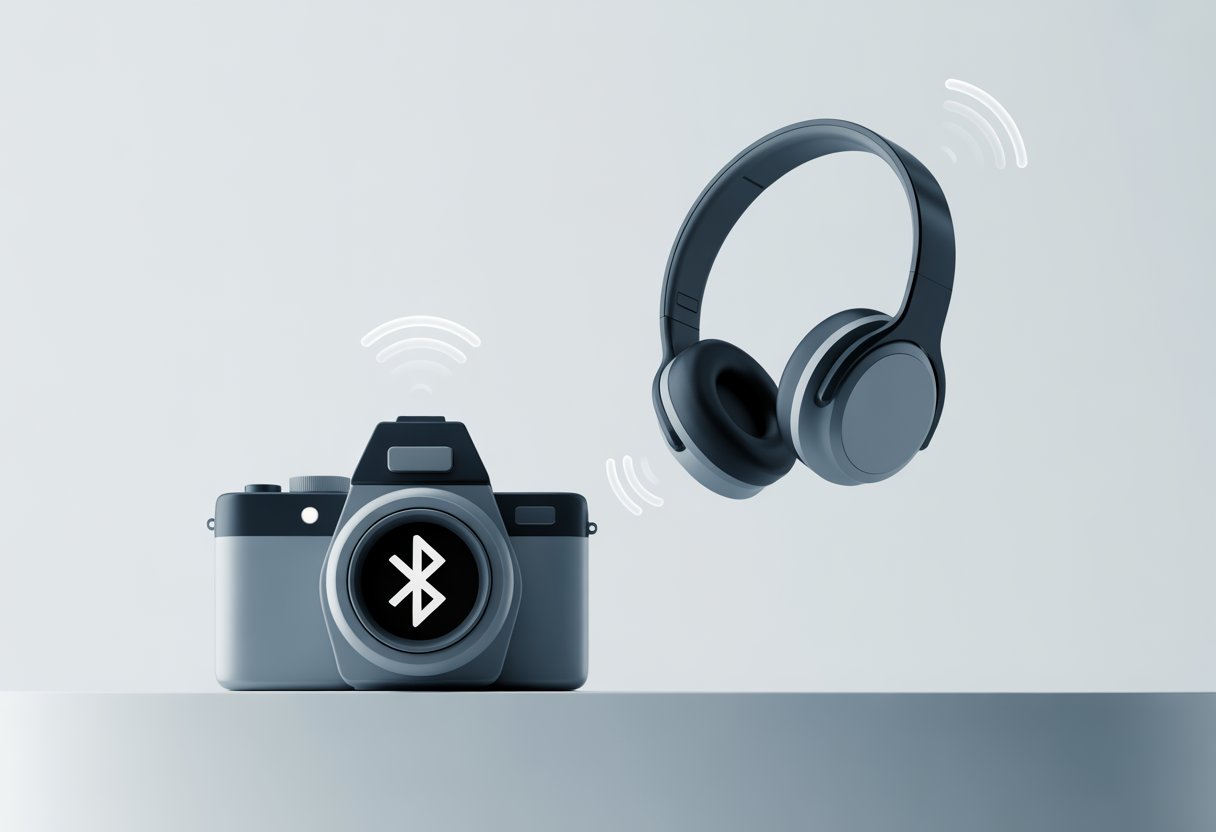
If you want to monitor your camera’s audio without getting tangled up, there are some clever gadgets and tricks out there. You can grab a Bluetooth transmitter and plug it into your camera’s headphone jack—suddenly, you’re wireless! But, heads up: audio lag can sneak in and mess with your perfect, cable-free dreams.
Let’s break down what works, what doesn’t, and how to finally stop doing the headphone cord dance during shoots. Hopefully, this guide saves you from tripping over wires—or your words when the audio’s out of sync.
Understanding Bluetooth Headphones Compatibility
Before you start jamming out while filming, check if your camera and Bluetooth headphones actually work together. Paying attention to Bluetooth features and settings can save a lot of headaches—and maybe a few swear words.
Checking Bluetooth Functionality on Your Camera
Let’s be honest—just because your camera has Bluetooth doesn’t mean it’ll play nice with your headphones. Some cameras only use Bluetooth for sending images, not for audio. Dig into your camera’s manual or menu and look for a Bluetooth audio option.
If you’re lucky and have a newer action cam or a specific mirrorless model, you might find a Bluetooth headphones setting in the menu. Cameras like the Insta360 X4 have this built in. But if you can’t find anything about Bluetooth audio, your camera probably doesn’t support it—sad trombone.
Identifying Supported Audio Codecs
Bluetooth audio isn’t all the same. Headphones and cameras use different “languages” called codecs. The most common is SBC, but some devices use AAC or aptX for better sound. If your headphones demand a fancy codec and your camera is stuck in the Bluetooth Stone Age, pairing probably won’t work well, if at all.
Check your camera’s specs for supported codecs. Sometimes, cameras only support mono audio or very basic connections. If you end up with mismatched codecs, audio quality can drop or connections might keep cutting out. Matching codecs is your best bet for avoiding dropouts and lag.
Bluetooth Version Requirements
Bluetooth has gone through more versions than some people upgrade their phones, and each one brings new features. Cameras and headphones need similar Bluetooth versions to play nice. If your headphones rock Bluetooth 5.3 but your camera’s still on version 3.0, you might be in for disappointment.
For smoother connections, aim for Bluetooth 4.0 or higher. Features like low latency audio need Bluetooth 5.0 or above. Manuals, spec sheets, or product listings usually have this info. And just a heads up: sometimes, newer features simply won’t work if your camera’s Bluetooth version is too old.
Setting Up Bluetooth Connection
Let’s wander into the wild world of menus and buttons together. Connecting Bluetooth headphones to a camera can feel weird at first, but we’ll get through it, one step at a time.
Activating Bluetooth Settings on Your Camera
First, track down the Bluetooth settings menu on your camera. Most modern models tuck this under “Wireless,” “Network,” or sometimes the mysterious “Connection” tab. If you’ve got a touchscreen, just poke around until “Bluetooth” pops up.
Usually, you’ll need to toggle something or hit “Enable.” Sometimes cameras call this “Pairing Mode” or just toss a Bluetooth icon at you like a secret handshake. If you see a menu asking to make your camera discoverable, just hit “OK.”
Here’s a quick checklist:
- Power on the camera
- Open the main menu
- Find Bluetooth settings
- Switch Bluetooth “On”
- Tap “Pair” or “Connect” if needed
Some cameras—looking at you, Sony and Fujifilm—only use Bluetooth for remote control or phone transfer, not audio. It’s annoying, but check your manual or the brand’s site. If you’re stuck, forums like this videography thread can be a lifesaver.
Enabling Pair Mode on Headphones
Now for the headphones. Most Bluetooth headphones want you to hold down the power button for three to five seconds until a light flashes blue (or red, or maybe both if your headphones are feeling fancy).
If there’s a pairing button, hit that instead. Once you see a flashing light or hear a voice say “pairing,” you’re good to go.
Headphones will usually timeout if you wait too long, so move fast. Here’s the rundown:
- Power off the headphones if they’re on
- Press and hold the power or pairing button
- Wait for the LED to flash or for a “pairing” prompt
- Leave the headphones in pair mode until your camera finds them
If pairing mode fails, sigh and try again. Sometimes, third time’s the charm.
Pairing Bluetooth Headphones with Your Camera
Pairing Bluetooth headphones with a camera sounds tricky, but it really just means getting two gadgets to talk to each other. You’ll need a little patience, some menu magic, and maybe a willingness to squint at tiny screens.
Finding and Selecting the Device Address
First, get both devices ready to pair. Turn on your Bluetooth headphones and make them discoverable—usually by holding the power button until a blinking light says, “Hey, I’m ready!”
Now, make your camera search for Bluetooth devices. Head into the settings and look for the Bluetooth section. It might take a bit, but a list of nearby devices will show up.
You’ll see the device address—sometimes just a string of letters and numbers, sometimes the headphones’ name—on the camera screen. Pick the right one. Pairing with the neighbor’s earbuds would just be awkward. Double-check before moving on, because nobody wants to blast someone else’s playlist by accident.
Completing the Pairing Process
With your headphones selected, the camera might ask you to confirm the pairing. Sometimes there’s a PIN. If you see one on either device, try “0000” or “1234”—but the manual has the real answer (or just guess).
Once you confirm, the devices do a little digital handshake. Some cameras show a “Paired Device” list after a successful connection, so you know it worked. You might hear a chime in your headphones or spot a Bluetooth icon on the camera.
If it fails, don’t panic—just repeat the steps. It’s like making toast: sometimes it takes two tries, but you’ll get there. If your camera doesn’t support Bluetooth headphones natively, you’ll need a Bluetooth transmitter with a 3.5mm audio output, as this Reddit guide suggests. Plug it in and follow the same pairing steps.
Optimizing Audio and Location Features
When you use Bluetooth headphones with your camera, two things can make or break the experience: smooth sound sync and knowing where you took that perfect shot. Juggling audio latency and location features can turn you into a camera pro—or leave you muttering at your gear.
Managing Audio Latency and Sync
Audio latency is that annoying delay between what you see and what you hear. With Bluetooth headphones, it can feel like you’re watching a badly dubbed movie.
To avoid this, check if your headphones and camera support low-latency codecs like aptX Low Latency or AAC. If not, you might notice the sound lags behind the action, which is a pain when filming or monitoring live audio.
Try to keep the headphones close to the camera. Walls, people, or even the neighbor’s cat can mess with the Bluetooth signal and add extra lag. Adjusting camera or headphone audio settings—sometimes found in headphone apps—can help smooth things out. Here’s a handy guide for tweaking your Bluetooth headphone sound.
Enabling Location Services for Enhanced Functionality
Some cameras and camera apps let you pin photo and video locations. This is handy if you want to remember where you caught that amazing sunset or the world’s sassiest squirrel.
To use this, turn on location services in your device settings before you shoot. Look for options like “Location tag” or “Geo-tagging” in the camera app. When possible, allow permissions for both the camera and headphone apps to use location data for features like sound scene tagging.
Turning on location services helps you remember where you shot your stuff, and sometimes unlocks fun extras like location-based audio effects. Just watch out—nobody wants to accidentally share their secret picnic spot with the world.
Using Bluetooth Remote Commanders and Smartphones
Even our camera gear wants in on the Bluetooth action. Whether you love remote control or just want to avoid awkward selfie arms, using your smartphone or a Bluetooth remote commander makes shooting a lot more fun (and less of a circus act).
Controlling Your Camera via Smartphone
Let’s admit it, our phones are always in our pockets, so using them to control the camera feels pretty slick. Most digital cameras have an app that lets you pair your phone over Bluetooth or Wi-Fi.
Here’s how it usually goes:
- Turn on Bluetooth on both devices.
- Put the camera in Bluetooth pairing mode (often: MENU → Network → Bluetooth → Pairing).
- Open the official camera app on your phone and follow the prompts.
Once paired, you can preview shots, trigger the shutter, and sometimes even tweak settings. It’s awesome for group photos, weird angles, or just avoiding the dreaded timer scramble. For specifics, check out Sony’s Bluetooth Settings for cameras.
Want to use your headphones as a secret agent tool? Some Android phones let you trigger the camera app using the play/pause button on your Bluetooth headphones. You’re basically James Bond—just with more camera gear and fewer explosions.
Utilizing Bluetooth Remote Commanders
Bluetooth remote commanders are these tiny, almost magical remotes that let us trigger our camera from a distance. No tangled cables. No app switches. Just the simple joy of pressing a button from across the room.
To set one up, we usually need to:
- Put the camera in pairing mode (like MENU → Network → Bluetooth → Pairing).
- Activate pairing on the remote.
- Confirm the connection when it pops up on the camera screen.
Once they’re paired, we can snap photos or start video. Sometimes, we even get to adjust zoom, if our commander and camera support it.
This setup is perfect for low-light long exposures or whenever we want shake-free photos—without having to recruit our pets as camera assistants. It’s honestly a relief.
If we want more details, Sony lays out the steps for Bluetooth remote control pairing. That way, we don’t accidentally pair with our neighbor’s speakers. (It happens.)
Troubleshooting Common Bluetooth Headphone Issues
Trying to use Bluetooth headphones with a camera doesn’t always go smoothly. Sometimes the volume just disappears, connections drop, or the camera flat-out refuses to connect to our headphones.
Let’s try to keep our sanity and work through the most common problems.
Reconnecting to a Paired Device
We’ve all had Bluetooth headphones that swear they remember our camera, but suddenly act like total strangers. When our camera and headphones used to get along but now refuse to connect, it’s time for some troubleshooting.
First, turn Bluetooth off and on again on both devices. Yeah, it’s basic, but it works more often than you’d think.
If that doesn’t do it, try forgetting the connection on the camera and pair them from scratch. If we see a spinning wheel or the “pairing…” screen won’t go away, restarting both devices usually helps.
For stubborn headphones, pressing the reset button (if there is one) can make a difference. Battery life also matters—a low battery can mess up pairing or make it fail completely.
If the connection finally resumes but we still get no sound, check the camera’s output settings. Sometimes, the camera just decides to use its own speaker instead of our headphones. We might have to manually pick the right playback device.
Honestly, it’s a little annoying, but at least we don’t have to dig out a manual every time.
Solving Audio Dropouts and Interference
Nothing ruins a video shoot like audio that keeps cutting in and out. We all know that feeling—when we hear weird crackles, pops, or our audio just disappears. Usually, wireless interference or being out of range causes this mess.
Try moving your headphones and camera closer together. Shorter distance usually means a stronger connection.
Metal objects, thick walls, or even rogue Wi-Fi signals can mess with Bluetooth. If you’re surrounded by gadgets, just try turning off any unused Bluetooth devices to reduce the “traffic.”
Still getting dropouts? Check if another device is quietly hijacking your Bluetooth connection. Sometimes your phone connects in the background without you noticing. Disconnect everything except your camera and headphones.
Also, double-check that your firmware is up-to-date. Manufacturers often fix bugs after launch, so a quick update might save you from weird audio issues.
Want more ideas? You can find extra tips in guides like Bluetooth headphone troubleshooting.

From a young age, I have always had a big interest in technology, and this blog is an extension of that interest. Through this blog, I hope to provide others with all of the information they need regarding tech options to consider, and things such as compatibility. Some of the different items I will be discussing include headphones, smartwatches, and how to fix common issues.
- How to Use Bluetooth Headphones with a Camera So You Don’t Trip Over Cables (Again) - March 29, 2026
- Best Bluetooth Headphones for Audiobook Lovers: Hear Every Plot Twist Without Tangled Wires - March 28, 2026
- Why do my Bluetooth headphones not support Siri? The Curious Case of Selective Hearing - March 28, 2026
Related Posts: