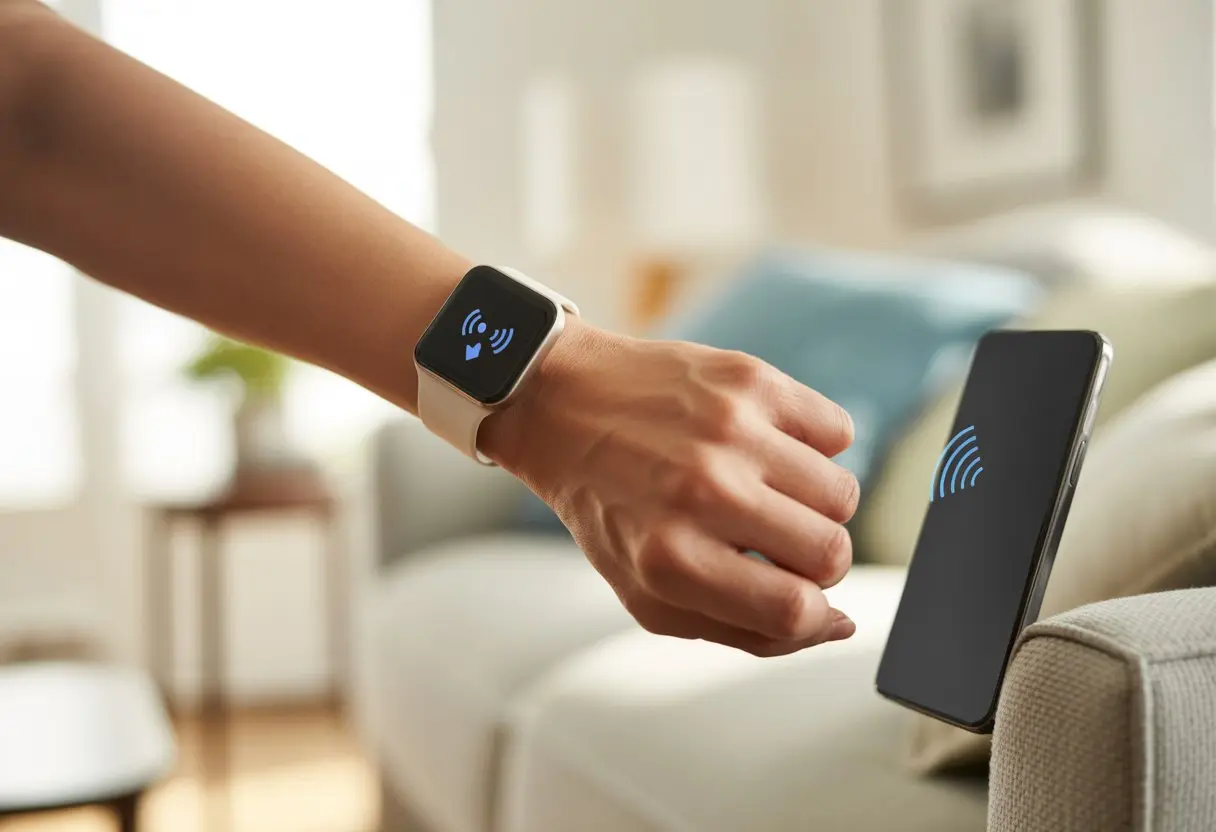
Let’s be real—most of us have wasted way too much time searching for our phones, only to find them wedged between couch cushions or chilling on top of the fridge. If you’ve got a smartwatch on your wrist, you can just make your phone ring, track it down in seconds, and skip the daily hide-and-seek.
All you need is the “find my phone” feature that comes with most smartwatches. No more flipping the sofa or pestering everyone in the house.
If you like shortcuts or just want to look like a tech wizard, this trick is worth knowing.
Just tap a few buttons on your smartwatch, and your phone will start ringing or vibrating—even if it’s set to silent. It’s quick, it’s easy, and honestly, it could save you from running late ever again.
Setting Up Your Smartwatch to Find Your Phone
Before you can play detective, you’ll need to make sure your smartwatch is ready for the hunt. That means checking your devices are connected, installing the right apps, and saying yes to permissions so your watch can do its thing.
Pairing with Bluetooth
Step one: get your smartwatch and phone talking. Bluetooth technology is the invisible thread tying them together.
Seriously, double-check that Bluetooth is on. On most smartwatches, like the Samsung Galaxy Watch, you’ll head into settings, tap Bluetooth, and make sure it’s discoverable.
Your phone should spot the watch and probably ask if you want to pair. (Tip: Only say yes if you recognize the device. Don’t pair with “Mystery Gadget 934.” That’s probably not you.)
Keep both devices close together. Walls and even microwaves can mess with Bluetooth. Once they’re paired, your watch can send signals, which means you’re one step closer to finding your phone the next time it vanishes.
Installing Required Apps
Your smartwatch usually needs the right app to do the magic. Samsung watches use the Find My Phone feature from the Apps tray. Other smartwatches might call it Find Device or Find My Device.
If you don’t see the app, check the app store on your phone or the smartwatch store. Download the official app from your watch brand. Trust me, using unofficial apps is like ordering fried chicken at a pizza place—results may vary, and your phone might stay lost.
After installing, some apps will want you to log in. This keeps things secure so random people can’t prank you by ringing your phone.
No matter how cool the app is, it won’t help if you don’t allow permissions. Most apps will ask for access to your location, contacts, and device data.
The watch isn’t being nosy—it just needs to talk to your phone and ring it when you lose it.
Here’s what you’ll probably need to allow:
Location permission: So the watch can tell where your phone is hiding.
Notification access: So the app can let you know when it finds your phone.
Background activity: So your phone can be found, even if it’s sleeping.
Permissions look different on every device, but just agree to what makes sense. If you deny everything, be ready to go back to couch diving.
Using Built-In Features to Locate Your Phone
Smartwatches do more than count steps and show texts. They can help you find your lost phone before you spiral into panic.
Let’s get comfortable with these handy features so you can reunite with your phone fast.
Activating the Phone Finder Tool
Pretty much every solid smartwatch—Apple, Samsung, Garmin, you name it—has a built-in “Find My Phone” tool. This isn’t just a gimmick.
Open your watch’s app menu, swipe around, and tap the “Find My Phone” icon.
Some watches (like Samsung and Wear OS) put this tool in the Quick Settings panel for super-fast access. Make sure both your watch and phone are on and paired, either by Bluetooth or Wi-Fi.
If you’re using a Samsung Watch, just tap “Find My Phone” and let the magic happen.
Understanding Signal Strength Bars
Signal strength bars are your secret weapon. These little towers show how close you are to your phone.
Think of them as a high-tech “hot or cold” game. More bars mean you’re close; fewer bars mean you’re wandering off.
Watch those bars as you move around. If the connection drops, your phone’s probably out of Bluetooth range.
Time to retrace your steps or maybe bribe a housemate for clues.
Triggering an Audible Alert on Your Phone
Here’s the fun part: making your phone ring loud enough to wake the cat. Most finder tools let you trigger a ringtone, even if your phone’s on silent.
Just tap a button on your smartwatch and listen for the sound.
If your phone’s hiding in the couch or under the bed, this will help you track it down. Some alerts keep ringing until you hit “stop,” so your phone can’t sneak off again.
Utilizing Voice Assistants on Your Smartwatch
With smartwatches, you don’t have to dig through bags or crawl under car seats just to find your phone. Let your wrist—and a little tech magic—do the work.
Voice assistants make finding a lost phone as easy as talking to a friend. Maybe even easier, since you don’t have to admit you lost it again.
Calling Out with Google Assistant
If you use Google Assistant on your smartwatch, it’s like having a mini detective on your wrist.
Just say, “Hey Google, find my phone,” and your device will ring. It doesn’t matter if it’s under laundry or behind the couch.
Some watches let you long-press a button or swipe to bring up Google Assistant. Once it’s up, Assistant helps you find your phone, check the weather, send messages, or even control your smart home.
You don’t have to be super techy. The menu is straightforward, and prompts are clear. If you’d rather not talk, Google Assistant usually pops up with a tap or swipe.
Not every smartwatch sticks with Google. If you’ve got a Garmin, some models let you use a built-in voice assistant when paired with your phone.
Just press a button or use the touchscreen, and the assistant listens. Ask it to find your phone, and it’ll make your phone ring—even if it’s on silent.
Some watches support Alexa, Siri, or Samsung’s Bixby too. The steps are usually simple:
Wake the watch.
Open or summon the assistant app.
Say, “Find my phone.”
Your phone should start ringing in seconds. It’s a little bit secret agent, but really, you’re just talking to your wrist.
Not all smartwatches play by the same rules, and their phone-finding tricks can vary a lot. Some brands add cool features, others just make it a little harder than it should be.
Unique Features on Huawei Watch
The Huawei Watch series is kind of like a Swiss Army knife—minus the corkscrew. Most models come with a “Find My Phone” app already installed.
Just tap the app on your watch, and your phone will ring at full volume. Unless you left it at a rock concert or in a soundproof bag, you’ll probably hear it.
Some models let you tweak the ringtone or add a vibration, which is handy if you don’t want to scare your pets. Huawei’s system works with both Android and iPhone, which is great if you like to mix brands.
Key Differences Among Manufacturers
Every smartwatch brand has its own way of doing things. For example, Apple Watch uses the Find My app so you can ping your iPhone with a swipe and tap.
It’s smooth if you’re in the Apple ecosystem.
Samsung watches have a Find My Phone tool for Android phones, right from the main app tray. You can make your phone ring, even if it’s hiding under the couch.
Other brands might make you dig through menus, install extra apps, or rely on Bluetooth, which can be tricky if your phone is far away. Some offer custom sounds, others just go with a classic ring.
It definitely helps to know what your own watch can and can’t do before the next game of phone hide-and-seek.
Tips and Tricks to Boost Phone-Finding Success
Let’s be real—when you lose your phone, you suddenly become a detective, whether you like it or not. Pairing your smartwatch with some clever habits can really save you a headache.
Ensuring Bluetooth Connectivity Stays Strong
If Bluetooth isn’t working, your watch’s search mission fizzles out before it even starts. Always check that you’ve got Bluetooth switched on for both your phone and your watch. Seriously, nobody’s found their phone with Bluetooth off.
Devices seem to disconnect at the worst times. Set your smartwatch and phone to auto-connect mode—think of it as giving Bluetooth a pep talk so it doesn’t bail on you.
Walls and metal objects block Bluetooth signals like stubborn security guards. Don’t stash your phone in deep drawers, behind appliances, or, yeah, inside the fridge. (It happens more than you’d think.)
Keep your watch and phone close together, away from anything that might interfere with the signal. Wi-Fi routers, microwaves, and old cordless phones can mess things up, so give your devices a fair shot.
Maximizing Signal Range
Most smartwatches can reach about 30 feet indoors, but thick walls shrink that distance fast. Try to stay within two rooms if you want your watch to actually help.
If your phone’s out in the open, your chances go way up. When it’s buried in laundry or wedged behind the couch, you’ll have to dig around a bit.
Some smartwatches let you check the actual Bluetooth signal strength. Use that like a hot-or-cold game—move around and watch for stronger signals. It’s way better than wandering aimlessly.
If your watch shows a bar or icon for connection strength, pay attention. When it dips, that’s your cue to get closer. Want more tips? Here’s how Wear OS Watches Handle Phone Finding.
Common Obstacles and How to Overcome Them
Things don’t always go smoothly. A few common snags can make finding your phone a real pain, but you’ve got options.
Troubleshooting Connection Issues
Bluetooth keeps your smartwatch and phone talking. When they stop, it’s like shouting into the void.
First, double-check if Bluetooth is actually on. Sometimes you think it is, but it’s not—kind of like thinking you locked the front door. If it’s off, flip it back on and give it another shot.
If nothing changes, restart both your smartwatch and your phone. Sometimes a quick reboot fixes everything.
Keep your devices close—ideally within arm’s reach. Thick walls or big obstacles can block the connection.
Check your settings and update any apps that might be acting up. If the problem sticks around, try unpairing and re-pairing your devices. It’s like a relationship reset for your gadgets, and it usually helps. For more, browse these common smartwatch problems and solutions.
What to Do When Your Phone is on Silent
Phones have a knack for hiding when you’ve put them on silent. Luckily, most smartwatches can still make your phone ring—even if it’s set to quiet.
On a lot of smartwatches, the “Find My Phone” button sends an audible alert to your phone, silent mode or not. No more crawling around in silence.
Look for a “Find My Phone” option—sometimes you need to swipe down from the watch face to spot it. Tap it, and brace yourself for your phone’s sudden song from somewhere nearby.
If you don’t hear anything, check that your phone’s volume isn’t at zero and make sure the app permissions are set up properly. Some phones need extra permission to let alerts break through silent mode.
If your phone still refuses to cooperate, a quick Google search for your model can usually help. For more details, see this helpful support guide on making your phone ring with your smartwatch—even on silent.
Conclusion
So, our smartwatches? They’re not just for counting steps or catching random texts from our weird uncle. Turns out, they’re actually great for tracking down our sneaky phones when they vanish.
Phones love to hide in couch cushions or sink into the mysterious depths of backpacks. But hey, there’s no need to freak out. Just tap your wrist and—boom—your phone starts making noise, busted right out of its hiding spot.
Honestly, who hasn’t lost their phone way more often than their keys? With a smartwatch, you’ve got this secret advantage in the “Find My Phone” game. Forget those awkward moments of calling yourself while crawling under the bed.
Quick Recap:
Open the Find My Phone app on your smartwatch.
Tap to ring or locate your phone.
Celebrate when you find it (totally your call).
Staying connected is easier than ever—and let’s be real, it’s a bit more fun, too.
Hi, my name is Garrett Jones, and I am a tech enthusiast. I enjoy researching the new tech that has been released, and have a vast knowledge of the best tech to purchase.
From a young age, I have always had a big interest in technology, and this blog is an extension of that interest. Through this blog, I hope to provide others with all of the information they need regarding tech options to consider, and things such as compatibility. Some of the different items I will be discussing include headphones, smartwatches, and how to fix common issues.