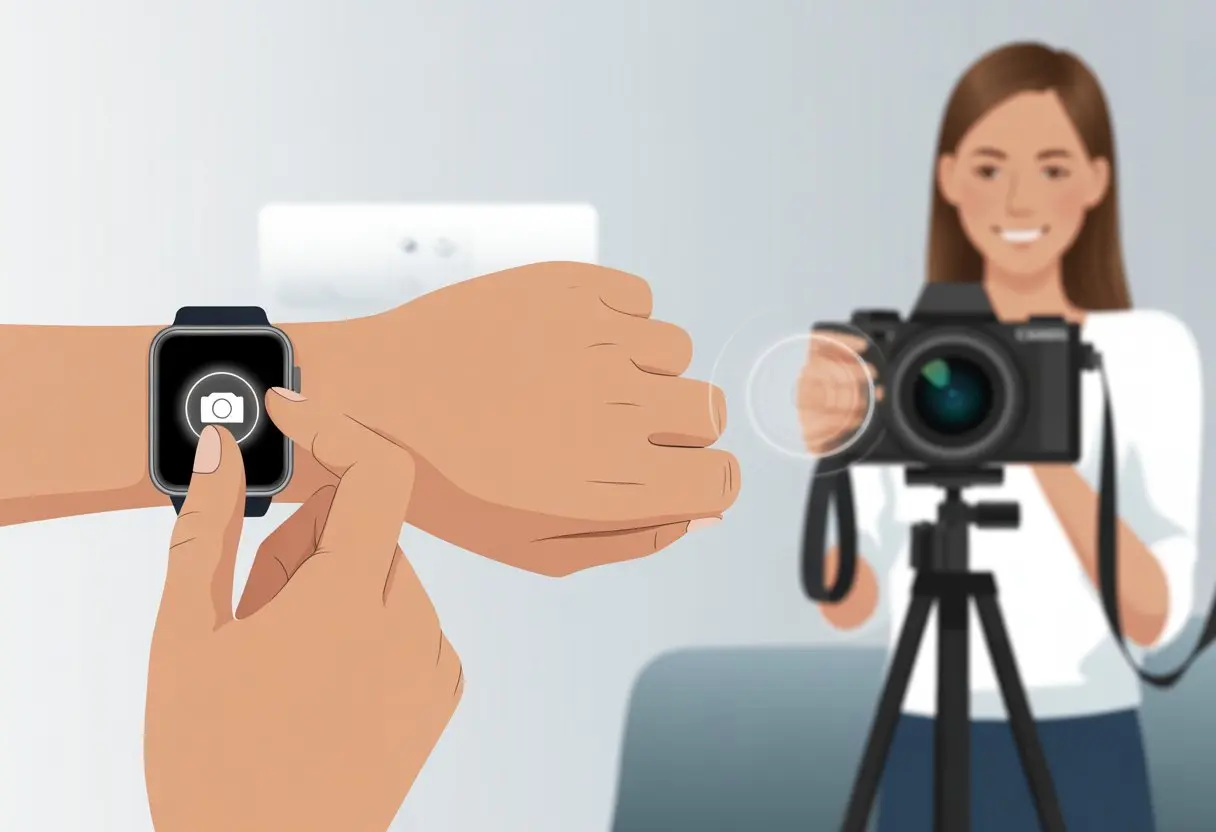
Let’s be honest—sometimes, we all wish we had an extra-long arm for snapping group selfies or getting the perfect family photo without sprinting into place. You can use a smartwatch as a camera remote, making it easy to take photos or videos from a distance with just a tap on your wrist. No more awkward timer runs or stacking your phone on a wobbling pile of books.
With a smartwatch, you get to direct your own photo shoot and pick the perfect moment—no more yelling, “Say cheese!” from behind the camera. It’s honestly so simple that even your dog could probably figure it out, if only paws worked like thumbs.
If you want to impress your friends or just get a non-blurry photo of yourself, this trick really changes the game.
Your wrist is about to become the MVP of photo day. Let’s jump into some easy steps so you can start using your smartwatch as a camera remote and maybe save yourself from a few embarrassing dashes into view.
What You Need Before Using a Smartwatch as a Camera Remote
Before you can pretend you’re a secret agent snapping photos with a flick of the wrist, you’ll need a few things. Let’s check off the must-haves, from having the right smartwatch and phone to making sure they play nicely together.
Compatible Smartwatches and Smartphones
First, your smartwatch and smartphone need to get along. Not all smartwatches can become camera remotes, and not all phones play nice with every watch.
Some features work best with Apple Watch and iPhone, while Wear OS watches (like Samsung Galaxy Watch) usually pair well with Android phones.
Here’s a quick comparison:
Device Type
Example
Best Compatibility
Apple Watch
Series 4 and up
iPhone
Wear OS Watch
Samsung, Fossil, etc.
Android
Bluetooth Watch
Y68, generic models
Android or iPhone (limited features)
Always check the manufacturer’s compatibility list. Some budget models only work as basic Bluetooth remotes, while others have extra camera tricks.
Even if your gadgets match, they need the right tools. Most newer smartwatches require a special app to control the camera.
Apple Watch users get the built-in Camera Remote app—no extra downloads needed.
Wear OS and Galaxy Watch users might need to install the Camera Controller app or a companion app from the Play Store.
Generic Bluetooth watches typically use a built-in camera shutter feature.
Skip the right app, and your devices may just refuse to cooperate. Keep both your watch and phone up-to-date, since updates can bring new features or fix weird bugs.
Connecting Devices via Bluetooth or Wi-Fi
Let’s not forget the secret sauce: connectivity. Most smartwatches use Bluetooth to talk to your phone.
You’ll need Bluetooth turned on and the devices paired. Some setups use Wi-Fi for longer range, but for most of us, a simple Bluetooth link works just fine.
Generally, you need to:
Enable Bluetooth or Wi-Fi on both devices.
Pair the smartwatch with your phone.
Open the companion app if needed.
Stay within range—Bluetooth usually works up to about 30 feet. If you wander too far (like, say, taking a selfie from your neighbor’s porch), the connection will probably drop.
Getting your smartwatch to act as a camera remote is pretty easy, but you’ll need to follow a few steps. Grab the right app, give the right permissions, and be ready for a little patience if things get cranky.
Installing and Pairing Remote Camera Apps
First, install the correct remote camera app for your smartwatch. Android Wear users can search for the “Google Camera” app on their watch’s Play Store, which lets you control your phone’s camera from your wrist.
For Galaxy Watches, look for the “Camera Controller” app in the Galaxy Store.
Apple Watch fans, you’re lucky—remote camera control comes pre-installed, so you can skip the download. After installing the right app, open it on both your phone and watch, then follow the on-screen steps.
Make sure Bluetooth is on for both devices. Some models need both the watch and phone on the same Wi-Fi network, but Bluetooth usually handles most connections.
If your app wants you to scan a QR code or sign in, just go with it.
For more details, check out The Verge’s handy guide.
Granting Necessary Permissions
Don’t ignore those pop-ups asking for camera or storage access—you’ll need those. Your phone will ask for permission to use the camera, microphone, and storage when you install or launch the app.
If you skip these, your smartwatch remote dreams stay dreams.
To check permissions, Android users can go to Settings > Apps > pick the camera remote app > Permissions, and switch on Camera, Microphone, and Storage. iPhone folks, look in Settings > Privacy > Camera and make sure your smartwatch’s app is allowed.
Sometimes, location permission is also needed, especially for Android. It’s not for spying—it just helps your devices find each other over Bluetooth or Wi-Fi.
If you deny it, pairing will probably fail, so just tap “allow” and move on.
Troubleshooting Common Pairing Issues
Sometimes, your smartwatch and phone just don’t want to play nice. If pairing fails, try these steps:
Restart both devices. It’s the classic fix.
Toggle Bluetooth off and on. Sometimes they just need a nudge.
Check for app updates. Old versions can be buggy.
Forget and re-pair. In Bluetooth settings, forget your smartwatch on the phone (and vice versa), then try again.
Stay in range. Bluetooth isn’t magic; keep both gadgets close.
At this point, if it still refuses to cooperate, maybe promise your smartwatch a new band as a bribe.
Using the Smartwatch Camera Remote Features
Nobody wants to be the designated photographer left out of the shot. With your smartwatch as a remote, you can finally join in, see what you’re capturing, and tweak things without running back and forth.
Launching the Viewfinder on Your Watch
Here’s the magic trick: open the viewfinder on your watch so you can see yourself before the camera snaps. Most smartwatches have a dedicated camera remote app.
Samsung Galaxy Watches use the Camera Controller app, while Wear OS watches might need the Google Camera app from the Play Store.
Once you open the right app on your watch, you’ll see a live preview from your phone’s camera. Now nobody gets stuck in the dark or caught with spinach in their teeth.
If the viewfinder won’t load, check that your watch and phone are paired with Bluetooth and permissions are on. Sometimes, just turning things off and on works wonders.
Snapping Photos and Recording Videos
Now that you can see yourself, it’s time to start snapping. Most apps give you big, obvious buttons on the tiny watch screen: one for photos, another for recording videos if you want to capture that dance move.
Just tap to snap!
For videos, switch to video mode on your phone first, then use your watch as the remote. This setup is perfect for group shots or action scenes when running back and forth would ruin the moment.
Some watches let you take burst shots or start a countdown timer, so you can get ready and look slightly less surprised in the photo.
A few clever folks use Galaxy Watches as a simple Bluetooth shutter, which works great for quick selfies.
Adjusting Settings Like Timers and Flash
You might think you’re ready, but lighting and timing can still mess up the best poses. That’s where timers and flash controls help.
Many camera remote apps let you set a timer—usually 2, 5, or 10 seconds—so you’ve got time to strike a pose.
Flash settings sometimes show up on the watch, but more often you’ll need to set them on the phone. If your smartwatch app doesn’t offer that, just set the flash to auto or on in the camera app before starting the remote session.
Timers help you get prepped, and using the flash means nobody disappears into the background—unless that’s the look you’re after.
These settings seem small, but they can really improve your photos and videos.
Unique Features for Apple Watch and Android Wear
Not all watches handle remote camera control the same way. Some let you play director, while others make you feel like a secret agent—surprisingly, with better selfies.
Remote Camera App on Apple Watch
On the Apple Watch, you can use the Camera Remote app as both a shutter button and a tiny, wrist-sized viewfinder. This comes in handy for group pictures when nobody wants to hold the phone.
Open the app, and your watch shows what the iPhone camera sees. No more guessing if your hair looks wild.
You can tap to focus, set a timer, switch between front and back cameras (yes, even for those goofy selfies), and record videos too.
Want a little drama? Zoom in or adjust exposure before snapping the pic. No more running back and forth to see if everyone’s in frame.
Honestly, it feels pretty futuristic. For more details, The Verge has a good guide on using your Apple Watch as a camera remote.
Best Android Wear Camera Control Apps
Android Wear doesn’t ship with a universal remote camera app, but we’ve got some options if we’re willing to dig a little. Each app unlocks its own tricks, so picking one kind of feels like ordering coffee—confusing at first, but worth it once you land on the right choice.
Some top-rated apps let us see a live camera feed on our watch and hit the shutter without touching the phone. We can tweak settings like timer, flash, and sometimes even exposure, depending on the app. Popular picks like “Wear Camera Remote” make it way less awkward to snap photos—no more pretending to drop our phone just to get a group shot.
If you’re feeling creative, apps like “SayCheese” let you use a second phone as the camera and your watch as the remote. Want to feel like a pro? There are step-by-step guides and videos, like this Android Wear camera remote tutorial, that walk you through the process.
Creative Uses and Pro Tips
A smartwatch isn’t just for counting steps or checking the time. It’s actually a secret weapon for group photos and sneaky camera moves that save us a lot of hassle.
With a few smart tricks, we can get sharper photos, fewer grimaces, and a bit of that spy-movie flair—without running back and forth like maniacs.
Group Photos and Selfies Without the Awkward Run
Who hasn’t sprinted into a group photo, only to realize someone got left out or the dog knocked over the tripod? Using the smartwatch as a camera remote, all that chaos disappears.
We just prop up the phone, pull everyone together, and use the watch to preview the shot. Switching between front and rear cameras is a tap away, and firing off pictures couldn’t be simpler.
No one gets cut out, and nobody has to risk tripping over the family pet during the countdown.
We’re not saying you should go full secret agent, but the watch can be a fun tool for candid shots. Maybe you want to catch your pet’s weird dance moves when you’re not in the room, or snap the kids goofing off at a party.
Discretion and respect matter here. From the watch, you can quietly snap photos or start and stop video while your phone stays out of sight.
This trick is great for catching unpredictable moments—think surprise parties or pets doing something hilarious.
Don’t forget: privacy is important. Only use this “spy” feature where it’s allowed—no sneaking around in private spaces. For everyday silly moments, though, it’s a blast to remotely trigger your phone’s camera with a smartwatch and grab shots you’d otherwise miss.
Troubleshooting and Common Issues
Even the best smartwatches mess up sometimes, usually when we’re desperate for a perfect group selfie. Let’s tackle a few common problems so our camera remote dreams don’t turn into a tech headache.
When the Viewfinder Refuses to Cooperate
The smartwatch viewfinder can be stubborn. If the watch screen stays blank, check Bluetooth first—both devices need to stay connected and close, usually within about 33 feet.
Make sure your phone isn’t running another app that’s hogging the camera. The watch app and phone camera app both need to be compatible and up to date.
This is especially true for older phones; sometimes new updates break things faster than a bad karaoke duet.
If you’re using an Apple Watch, remember it needs to be close to the iPhone for the camera preview to appear. On some Galaxy watches, you might need to install or update the Camera Controller app before anything works—details are on Samsung’s support site.
If glitches stick around, try to restart both devices or unpair and re-pair them. It’s a hassle, but honestly, it feels pretty good when everything finally syncs up.
Dealing with Lag or Disconnection
When the live camera preview turns into a choppy slideshow or devices drop connection, it honestly feels like the smartwatch is running a marathon on one battery bar.
This usually means the Bluetooth signal isn’t strong enough, so it helps to keep devices close together.
Heavy Wi-Fi traffic or a swarm of active Bluetooth gadgets nearby can mess things up too.
If you can, try moving away from the gadget crowd and see if things calm down.
On Wear OS, background apps or energy-saving settings on your phone sometimes mess with connectivity.
Turning off battery savers or switching to high-performance mode can make a difference.
If lags or disconnects stick around, check for software updates on both your phone and smartwatch.
Manufacturers roll out fixes, so it’s worth a shot.
If you’re still stuck, a full reset might be the last card to play.
It’s not ideal, but sometimes it’s the only thing that brings devices back together.
Hi, my name is Garrett Jones, and I am a tech enthusiast. I enjoy researching the new tech that has been released, and have a vast knowledge of the best tech to purchase.
From a young age, I have always had a big interest in technology, and this blog is an extension of that interest. Through this blog, I hope to provide others with all of the information they need regarding tech options to consider, and things such as compatibility. Some of the different items I will be discussing include headphones, smartwatches, and how to fix common issues.