There’s nothing quite like checking your daily steps, only to realize your Fitbit and the Fitbit app are having a silent standoff. You open the app, wave your wrist in the air, and your step count still says 42—unless you count the sprint you did to fix your Bluetooth, which, of course, doesn’t count either.
The quickest way to fix Fitbit not syncing is to reset your Bluetooth, make sure your phone is online, and restart the Fitbit app.
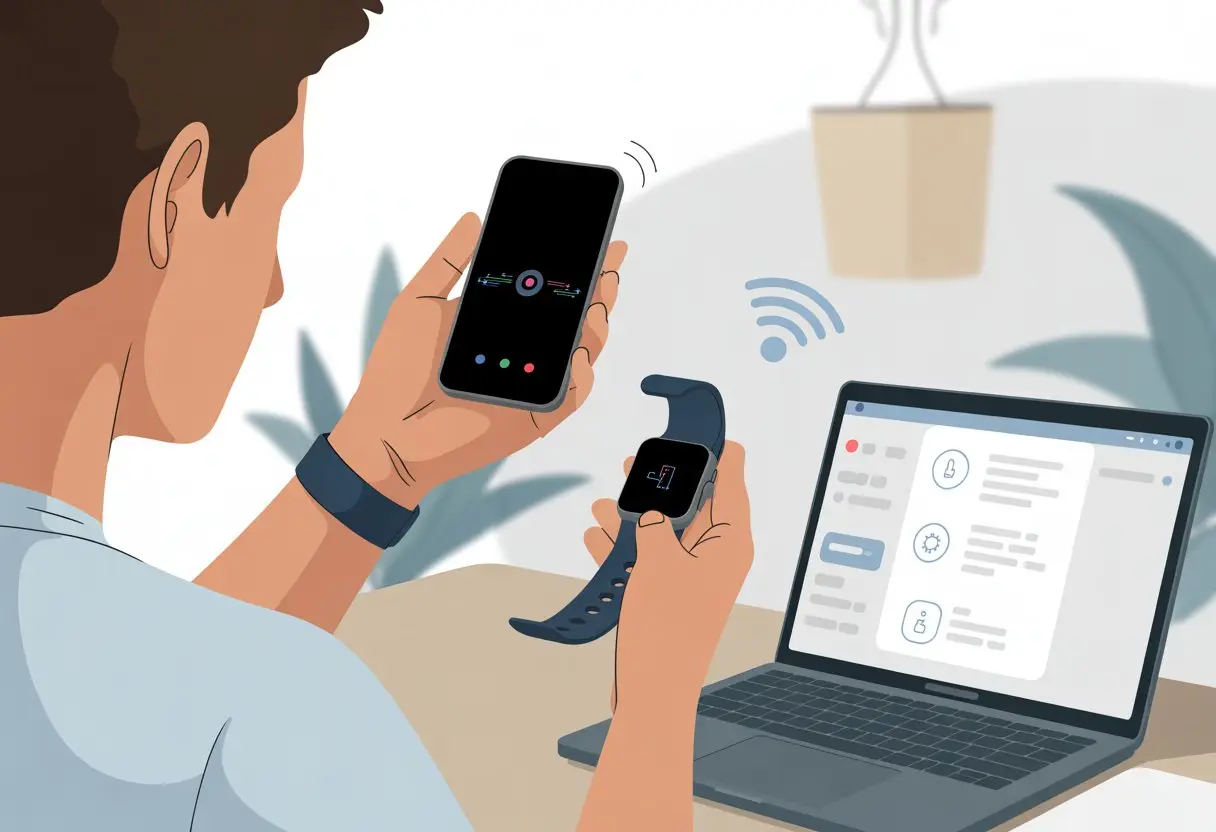
Don’t panic; your fitness journey isn’t over! Many people have tackled the same problem and made it through—sweaty but successful.
If your Fitbit still won’t talk to your phone or the app acts as if your tracker doesn’t exist, you’re one of many who have had Fitbit sync issues. Keep reading to find out what buttons to smash, which switches to flip, and why sometimes even your wearable tech just needs a little nap.
Understanding Fitbit Syncing
Your Fitbit is kind of like a messenger pigeon for your steps and heartbeats. It zips data to your phone, but sometimes the pigeon gets lost, takes a nap, or just refuses to budge.
To get things moving, it helps to know the basics of syncing.
How Fitbit Devices Sync
Fitbit trackers talk to your phone through the Fitbit app. The app acts like a translator, turning those step counts and sleep stats into numbers and charts you can actually understand.
When things are working, your tracker and the app quietly whisper data back and forth. The syncing process usually starts automatically several times a day.
You can also force a sync—sort of like giving your tracker a nudge. Your data—steps, calories, heart rate—moves first to your phone, then to the Fitbit cloud faster than you can say “10,000 steps.”
If things go wrong, your tracker and app stop chatting, and your stats get stuck. That’s when troubleshooting becomes your new daily exercise.
The Role of Bluetooth and Wi-Fi in Syncing
Bluetooth is the real MVP here. Without it, your Fitbit and your phone are like two grumpy neighbors who refuse to shake hands.
Bluetooth needs to be turned on—if it’s off, syncing won’t work, no matter how many times you mutter at the screen. Wi-Fi isn’t always needed to connect your tracker to your phone, but your phone needs an internet connection to upload synced data to your Fitbit account.
In other words, Bluetooth brings your stats to your phone, and Wi-Fi helps send them onward to Fitbit HQ. Many syncing problems come from Bluetooth hiccups—think of it as your devices forgetting each other’s names at a party.
If you see sync errors, check your Bluetooth first before blaming your poor Fitbit for being lazy. You can learn more by visiting this Android Authority article on Fitbit not syncing.
Common Triggers for Syncing Issues
There are a few sneaky culprits that love to mess with your Fitbit syncing. Here’s a quick list:
-
Bluetooth glitches: Sometimes your devices simply stop talking. Restarting Bluetooth or unpairing and repairing can help.
-
App drama: The Fitbit app can freeze, crash, or get stuck in a bad mood. Force-quit and restart it for a fresh start.
-
Phone troubles: If your phone is out of date or low on storage, syncing might get blocked.
-
Multiple devices confusion: Using more than one Fitbit tracker or logging into different devices can lead to chaos and missed syncs. Make sure you’re only using one tracker at a time.
When in doubt, the classic “turn it off and on again” move often saves the day, just like when your grandma fixes the TV. For more tips and community help, check out these Fitbit troubleshooting ideas.
Basic Troubleshooting Steps
When your Fitbit won’t sync, it can feel like your device has decided to ghost you. Don’t panic.
Many syncing issues can be solved by restarting your tracker, checking your Bluetooth, or making sure your phone isn’t living in the Stone Age when it comes to internet.
Restarting Your Fitbit Device
Sometimes, your Fitbit just needs a quick nap. Restarting can solve most minor glitches, like a stubborn Bluetooth connection or a tired sync process.
Here’s how you can wake your Fitbit up the right way:
- Hold the main button (or buttons, depending on your model) for about 10 seconds until you see the logo.
- Release and let it restart—give it a few moments to catch its digital breath.
- If your Fitbit device has a screen, it should turn back on; if it doesn’t, try the process again.
This process is kind of like turning your computer off and on when it refuses to cooperate. For step-by-step instructions, check your model’s manual or the official Fitbit help site.
Checking Bluetooth Settings
Fitbit won’t sync if your phone and your device aren’t talking nicely. Without a solid Bluetooth connection, they’ll act like two grumpy roommates ignoring each other from across the room.
To get them on speaking terms:
- Go to your phone’s Bluetooth settings.
- Make sure Bluetooth is turned on.
- Look for your Fitbit under “paired devices.”
- If you see your Fitbit, tap it and choose “Forget” or “Remove.”
- Turn Bluetooth off and back on, then re-pair your Fitbit.
A fresh Bluetooth connection is often the magic trick you need. If you’re still stuck, there’s more detailed help for Fitbit not syncing at this Android troubleshooting guide.
Ensuring a Stable Internet Connection
Your Fitbit doesn’t live on Bluetooth alone—it needs the internet too. If your wireless connection is flaky, syncing issues are almost guaranteed.
Here’s what to check:
- Make sure your phone has Wi-Fi or mobile data.
- Avoid public or spotty networks—all they send is frustration.
- Try toggling Airplane Mode on your phone on, then off again.
- Sometimes, simply restarting your router gives your connection a much-needed wake-up call.
Solid internet keeps your Fitbit’s data flowing. For more specific tips, you can visit this detailed Fitbit not syncing article.
Advanced Sync Fixes
Sometimes, basic tricks just don’t cut it and your Fitbit still refuses to talk to your phone or the Fitbit app. Don’t worry—you don’t need a magic wand or a tech degree, just a little patience and these two advanced fixes.
Pairing Fitbit With a New Device
Let’s face it: sometimes your Fitbit needs a fresh start (don’t we all?). If your tracker won’t sync to your iPhone, you may have to unpair it first and then add it back like nothing awkward ever happened.
First, open your Bluetooth settings and forget your Fitbit device. No hard feelings—just tap “Forget This Device.”
Now, take a deep breath and restart your phone. Reinstall the Fitbit app for good measure, if you’re feeling ambitious.
Once your phone is back to normal, open the Fitbit app and sign in. Tap the profile icon, select “Set Up a Device,” and follow the prompts to pair your Fitbit like it’s your first time meeting.
If you have another phone or tablet in the house, make sure your Fitbit isn’t clinging to their Bluetooth, too. Only sync to one device at a time for best results.
For more tips about this process, see this detailed Fitbit syncing guide.
Resetting Your Bluetooth Connection
Ah, the classic “turn it off and on again.” Spoiler: it works surprisingly often for Bluetooth problems.
If syncing still doesn’t work, your phone and Fitbit might be stuck in a never-ending ‘Bluetooth loop.’ Here’s what to do:
- Go to your Bluetooth settings on your iPhone.
- Toggle Bluetooth off.
- Wait 10 seconds (sing a quick song in your head).
- Turn Bluetooth back on.
Open the Fitbit app and check for syncing. Still ignoring you? Try restarting your phone or even your Fitbit device itself if you’re feeling rebellious.
Closing the Fitbit app in the background and reopening it can also help. On some days, you may need to do all of this twice, because sometimes technology just likes to keep things interesting.
For detailed step-by-step help, check this Fitbit not syncing fix guide.
Device-Specific Solutions
Some Fitbit models have their own quirks when it comes to syncing. You’ll need to try different tricks based on the device you have—and maybe offer your Fitbit a pep talk for good luck.
Fitbit Versa 2 Not Syncing
If your trusty Fitbit Versa 2 is giving you the silent treatment, there’s hope. First, restart both your Versa 2 and your phone.
It sounds old-school, but it works for a lot of syncing gremlins (think of it as resetting a stubborn video game). Make sure Bluetooth is actually on.
Next, open the Fitbit app and force quit it—don’t just swipe away, really force it to close. Reopen the app and see if your Versa 2 will play nice again.
If it still pouts and refuses to sync, check for updates in the Fitbit app. Old versions sometimes forget how to talk to your fitness tracker, and updating can solve that.
Still having issues? Unpair the Versa 2 from your Bluetooth settings and pair it again. Pairing is like renewing vows—reminding your devices they’re meant for each other.
For more expert tips, check out this guide on fixing Versa 2 sync issues.
Troubleshooting Older Fitbit Models
Older models such as the Fitbit Flex, Fitbit One, Fitbit Zip, Fitbit Force, and Fitbit Ultra can be fussy. First, confirm your Bluetooth is enabled and your phone is compatible.
Some older phones don’t play well with vintage Fitbits (it’s a generational thing). Restart your device following the directions in your user manual or the Fitbit website—each model has a slightly different reset dance.
With these classic devices, pulling the battery (for Zip or One) or pressing special buttons can help. Try logging out of the Fitbit app and logging back in.
If nothing changes, check for firmware updates even on these oldies. And always keep your device within a few feet of your phone, unless you enjoy epic Bluetooth hide-and-seek.
For more tips, visit solutions for classic Fitbits.
Tips for Other Fitbit Trackers
If you’ve got one of Fitbit’s newer or less flashy trackers, like the Inspire or Charge, the usual troubleshooting steps still help. Restart your phone and your tracker.
Double-check that background app refresh and Bluetooth permissions are turned on. Sometimes, the app just needs a little push—force quit and reopen it.
Remove and re-add your tracker in the app if syncing stalls. It’s like giving it a quick timeout to get its act together.
Make sure your phone’s operating system and the Fitbit app are both up to date. Weird bugs can show up if they aren’t getting along.
If you want more detailed help, check out these Fitbit syncing tips.
Regular App and Device Updates
If you haven’t updated your Fitbit app or device lately, it’s probably time. Outdated versions tend to lose sync or act up.
Check for updates on both your phone’s app store and through the Fitbit app itself. Updates fix a lot of annoying bugs.
Set your phone to update apps automatically. That way, you won’t have to think about it.
If you want to double-check your wristband’s firmware, open the Fitbit app, tap your device, and look for updates. It’s pretty easy.
Monitoring Battery and Internet Connections
If your Fitbit’s battery dies, your step count goes nowhere. Low battery almost always causes syncing problems.
Charge your wristband regularly—don’t wait for it to beg. Keeping your phone and Fitbit charged makes everything smoother.
If your phone loses Wi-Fi or Bluetooth, syncing won’t work. Always make sure Bluetooth’s on and your internet connection is solid.
Sometimes, a quick restart or toggling Bluetooth off and on does the trick. If nothing changes, try connecting your Fitbit to a different phone to see where the problem really is.
Cleaning Up Cookies and Temporary Data
Cookies aren’t just snacks. The Fitbit app stores cookies and temporary files, and those can pile up.
To clear things out, go to your phone’s app settings and clear the Fitbit app’s cache. On iPhones, just uninstall and reinstall the app.
This keeps your Fitbit dashboard fresh and helps avoid weird syncing issues. Shut down other apps running in the background—they can hog resources.
Keep the Fitbit app running by itself when you’re syncing. For more fixes, take a look at Fitbit not syncing.
When All Else Fails: Contacting Fitbit Support
Sometimes, you try everything and your Fitbit just won’t cooperate. That’s when it’s time to get some help from an actual person.
Knowing how to contact Fitbit support and what info to share can make things go a lot smoother.
How to Reach Fitbit Support
If your Fitbit is being stubborn, you’ve got a few ways to reach out:
- Live Chat: Probably the fastest. Click “Get Support” on Fitbit’s site and pick live chat for quick help.
- Phone Support: If you’d rather talk than type, call Fitbit support. The number’s on their contact page.
- Social Media: Message @FitbitSupport on Twitter. Sometimes, a tweet gets a quick reply.
- Community Forums: Feeling patient? Post on the Fitbit Community. You might get answers from staff or other users.
No matter which option you choose, be ready to wait a bit. Sometimes you have to try more than one way, but you’ll usually get there.
Information to Provide for Quicker Assistance
If you want Fitbit support to actually help you—and maybe save everyone a headache—gather some key details before you reach out. A little prep can spare you from endless replies and might even get your issue fixed sooner.
Be sure to provide:
- Your Fitbit Model: Is it a Sense, a Charge, or something vintage? This really matters.
- Device Information: What kind of phone or computer are you syncing with? List the make, model, and operating system.
- Fitbit App Version: Open your Fitbit app and find the version number. Support folks appreciate this.
- Problem Details: Describe what’s happening, and share any error messages or weird Fitbit behavior. For example: “My Fitbit tries to sync, then gives up and sulks.”
- What You’ve Tried: List everything you’ve already done, like restarting your phone or reinstalling the app. This keeps you from running in circles.
Give support these details, and you’ll probably get help faster. Who knows? Maybe your Fitbit will start syncing before you even finish your coffee.

From a young age, I have always had a big interest in technology, and this blog is an extension of that interest. Through this blog, I hope to provide others with all of the information they need regarding tech options to consider, and things such as compatibility. Some of the different items I will be discussing include headphones, smartwatches, and how to fix common issues.
Related Posts: