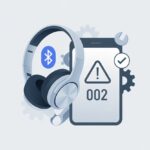
We’ve all been there—just about to hit play on a favorite song, and instead of music, our Bluetooth headphones spit out error code 102. It’s like they’re saying, “Nope, not today.” But here’s the good news: We can fix Bluetooth headphones error code 102 by reinstalling or updating the Bluetooth drivers on our computers.
I’ll walk you through the steps so we can get back to our playlists, podcasts, or whatever it is we can’t live without. No need to panic or start shopping for new headphones just yet.
Relax, we don’t need any fancy tools or a degree in computer science for this. The fix is honestly easier than untangling those old wired headphones.
Stick around as we figure out how to get these stubborn headphones working again.
What Is Bluetooth Headphones Error Code 102?
Every time we try to connect and see Error Code 102, it almost feels like our tech is mocking us. This code sounds mysterious, but it really just means our headphones and computer aren’t getting along.
Common Causes of Error Code 102
Bluetooth headphones are supposed to be smart, but sometimes they act up for no clear reason. Error Code 102 usually pops up when there’s a problem with the Bluetooth driver or the pairing process.
Outdated, corrupted, or missing drivers can trigger this error out of nowhere. If we keep disconnecting and reconnecting our headphones, sometimes the device just loses track of them.
Other times, interference from other wireless gadgets can confuse our headphones. And let’s not forget—Windows updates sometimes break things that were working just fine yesterday.
If you want a full list of fixes, there’s a pretty decent guide on fixing Bluetooth driver error on Windows that covers a lot of ground.
Impact on Bluetooth Connection
When Error Code 102 shows up, our Bluetooth headphones either won’t connect, disconnect randomly, or just go silent. Instead of music, we get silence, beeps, or that dreaded “Connection Failed” pop-up.
Sometimes, the headphones won’t show up in our device list at all. Even if they do, they might refuse to play any sound.
Group calls turn awkward when our headphones mute everyone, and games become strangely quiet. Sometimes, we’re stuck using our laptop speakers, which is never ideal.
All in all, this error turns simple things—like listening to music or hopping on a call—into a headache. Who knew headphones could be so dramatic about Bluetooth connection issues?
Basic Troubleshooting Steps
Alright, let’s try to fix this Bluetooth error code 102 together. We’ll start with the basics—nothing complicated, just steps that work for most PCs and headphones.
Restart Bluetooth Device and PC
First up, the classic fix: turn everything off and back on. Power down both the Bluetooth headphones and your PC.
This simple restart often clears up weird connection issues. It doesn’t hurt to give it a shot.
Here’s a quick checklist:
- Switch off the Bluetooth headphones (hold the power button until they shut down).
- Shut down the PC to let Windows clear out any Bluetooth confusion.
- After a minute, turn the PC back on. Then, power on the headphones and try pairing again.
This step actually solves a surprising number of problems. Sometimes, devices just need a fresh start.
Check for Airplane Mode Activation
Now, let’s make sure airplane mode isn’t secretly causing trouble. Airplane mode shuts off all wireless connections, including Bluetooth.
On Windows, look for the airplane icon on your taskbar. You can also check under Settings > Network & Internet > Airplane mode.
If airplane mode is on, turn it off. If it’s already off, try toggling it on and then off again.
Try connecting Bluetooth once more. Sometimes, toggling airplane mode resets all the wireless signals in a way that just works.
For more troubleshooting steps involving Bluetooth settings, there’s a guide you might find handy.
Verify Bluetooth Is Enabled
Let’s double-check that Bluetooth is actually on. Open Settings > Devices > Bluetooth & other devices.
If Bluetooth is off, turn it on. If it’s already on, try switching it off, waiting a few seconds, and then turning it back on.
While you’re there, see if your headphones are listed as a paired device. If not, hit “Add Bluetooth or other device” and put your headphones in pairing mode.
If they show up but won’t connect, remove the device and try pairing again. This Bluetooth troubleshooting guide covers more options.
Sometimes, toggling Bluetooth is all it takes for your PC to spot your headphones again.
Advanced Solutions for Error Code 102
If the basics didn’t do the trick, it’s time to dig a little deeper. Let’s try some advanced methods to fix error code 102 and get our headphones back in action.
Update Bluetooth Driver
I know, I know—nobody likes dealing with driver updates. But outdated Bluetooth drivers cause a lot of these problems.
Here’s what to do:
- Press Windows+X and select “Device Manager.”
- Find “Bluetooth” and expand the list.
- Right-click your Bluetooth adapter and click “Update driver.”
- Let Windows search for drivers online.
If Windows claims your driver is up to date, don’t take its word for it. Check the manufacturer’s website for the latest version.
Manual updates sometimes work wonders when Windows’ automatic search doesn’t.
Run Bluetooth Troubleshooter
When things get weird, Windows sometimes saves the day with its built-in Bluetooth troubleshooter. It finds and fixes common Bluetooth problems.
Here’s how to run it:
- Go to “Settings” → “Update & Security” → “Troubleshoot.”
- Click “Additional troubleshooters.”
- Find and run the Bluetooth troubleshooter.
This tool looks for issues like connection failures or missing components. If it finds anything, it’ll try to fix it for you.
Restart Bluetooth Support Service
Sometimes, the Bluetooth service on your computer just needs a reset. The Bluetooth Support Service manages connections between your PC and wireless devices.
Here’s how to restart it:
- Press Windows+R, type services.msc, and hit Enter.
- Scroll to “Bluetooth Support Service.”
- Right-click and select “Restart.”
- Make sure the Startup Type is set to “Automatic.”
If the service isn’t running, your devices won’t connect. Restarting it can bring things back to normal.
If you’re still stuck, try unplugging your Bluetooth dongle and plugging it back in. Sometimes, that’s all it takes.
Resolving Driver and Compatibility Issues
Bluetooth headphones are awesome—until error code 102 shows up out of nowhere. But we can usually kick this error out by dealing with drivers and compatibility issues.
Fix Incompatible or Faulty Drivers
Sometimes, the drivers for our headphones just don’t want to cooperate. If we’ve installed the wrong ones, we’ll get error code 102 or no sound at all.
Start by uninstalling any drivers that seem off:
- Open Device Manager (search for it in the Start menu).
- Find your Bluetooth device under the “Bluetooth” section.
- Right-click and choose “Uninstall device.”
- Restart the computer and let Windows try to install a better driver automatically.
If that doesn’t work, grab the right driver from the manufacturer’s website. It’s usually the safest bet.
Check for Windows 10 and 11 Compatibility
Windows updates sometimes break things that were working fine. Checking compatibility is important.
Here’s a quick checklist:
- Is your Bluetooth headphone model compatible with Windows 10 or 11?
- Did you update Windows recently? Sometimes updates cause problems.
- Are you using a Bluetooth adapter that works with your version of Windows?
If you’re not sure, check the Microsoft Support page for more details.
Use Device Manager to Update Drivers
Updating drivers can breathe new life into your headphones. Device Manager makes it pretty simple.
Here’s how:
- Right-click the Start button and pick “Device Manager.”
- Find the Bluetooth section and your headphone device.
- Right-click and hit “Update driver.”
- Choose “Search automatically for updated driver software.”
If Windows doesn’t find anything, download the latest driver from the manufacturer’s website. For more help, this Bluetooth driver error guide is worth a look.
Pairing Mode and Connection Tips
Honestly, getting Bluetooth headphones to pair can feel like solving a puzzle in the dark. If error code 102 pops up, double-checking pairing mode, device visibility, and connection steps can save a lot of frustration.
Set Bluetooth Headphones to Pairing Mode
Alright, let’s get those headphones ready to mingle. Every model has its own little secret—usually, you just press and hold the power or Bluetooth button for a few seconds.
A flashing light or a robotic voice means you’ve hit pairing mode. That’s the green light!
Not sure which button to press? Take a quick peek at your headphone’s manual or just search the model online.
Once you’re in pairing mode, your headphones should pop up on your phone or computer’s Bluetooth list. If they don’t, try restarting Bluetooth on your device.
Honestly, it’s like blowing on an old game cartridge—sometimes it just works.
Ensure Device Is Discoverable
Your Bluetooth device can’t connect if it’s hiding. Make sure you turn Bluetooth on (seriously, double-check that switch).
Stay on the Bluetooth settings screen until you spot your headphones. Some older gadgets need you to activate discoverable mode manually.
If you’re using a desktop or an older laptop, check if you even have a Bluetooth adapter. No adapter? No dice.
Keep your headphones and device charged—a dead battery won’t help anyone.
Here’s a quick checklist:
- Is Bluetooth turned on?
- Is the device discoverable?
- Are you within 30 feet of your headphones?
- Is the battery charged?
It sounds basic, but these steps fix a ton of pairing problems. You’ll dodge a lot of connection headaches this way.
Troubleshooting Not Connecting Issues
If error code 102 keeps popping up, it’s probably time to dig a little deeper. Try disconnecting other Bluetooth devices from your phone or laptop—sometimes they hog the connection.
Clear the device list on your headphones by doing a reset. Most headphones have a button combo for this, and you’ll find it in the manual.
Windows users, double-check the pairing code if it asks for one. Always pick the right device—pairing with your neighbor’s smart fridge? That’s just awkward.
Resetting your headphones to factory settings can help too—here’s a handy Bluetooth headphone reset guide.
If nothing else works, remove and re-add the headphones in the Bluetooth menu. Sometimes devices just need a gentle nudge… or a bit of tough love.
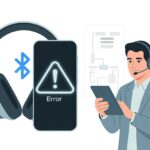
When to Contact Technical Support
Sometimes, no matter what we try, our headphones just flash error code 102 and call it a day.
That’s usually my cue to call in the experts.
If you’ve poked around Bluetooth settings, updated drivers, restarted everything in sight, and maybe even whispered a few desperate words to your headphones, it’s probably time for technical support to step in.
They’ve got tools and tricks we can only dream about.
Here’s a quick checklist to help you decide if it’s time to get help:
| Tried It? | Step | Problem Fixed? |
|---|---|---|
| ✔ | Restarted headphones and device | No |
| ✔ | Updated Bluetooth drivers | No |
| ✔ | Made sure nothing else is connected | No |
| ✔ | Checked headphone compatibility | No |
| ✔ | Consulted Google and YouTube | No |
If you’ve checked every box and your headphones still refuse to work, go ahead and make that call or send out an email.
Pro tip: When you reach out, describe the error, what you’ve already tried, and any weird noises your headphones made (even that mysterious “thud” at 2 a.m. counts).
If you end up chatting with a bot, don’t lose hope.
Sometimes, just asking for a real person gets you the help—and maybe a little sympathy—you need.
If you want more ideas, checking out online forums like this Steam discussion can connect you with others who’ve been through the same thing.

From a young age, I have always had a big interest in technology, and this blog is an extension of that interest. Through this blog, I hope to provide others with all of the information they need regarding tech options to consider, and things such as compatibility. Some of the different items I will be discussing include headphones, smartwatches, and how to fix common issues.
- How to Use Bluetooth Headphones with Alexa Without Accidentally Calling Your Ex - March 30, 2026
- How to Use Bluetooth Headphones with a Camera So You Don’t Trip Over Cables (Again) - March 29, 2026
- Best Bluetooth Headphones for Audiobook Lovers: Hear Every Plot Twist Without Tangled Wires - March 28, 2026
Related Posts: